
Installation Successful!
Check out the user guide to make the most of AnyMiro
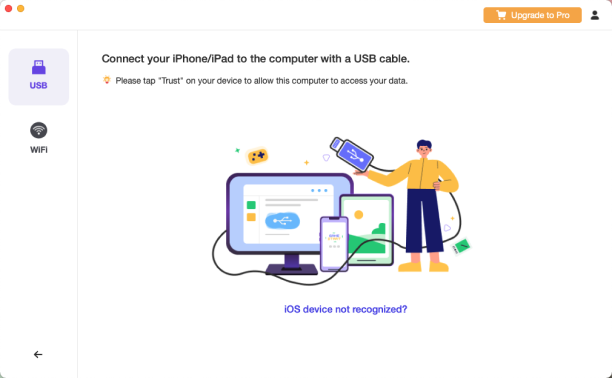
 Screen Mirroring iPhone to Computer via USB
Step 1. Connect iPhone to computer with USB cable
Step 2. Confirm the connection on AnyMiro
Step 3. Start mirroring iPhone screen
Read the full guide here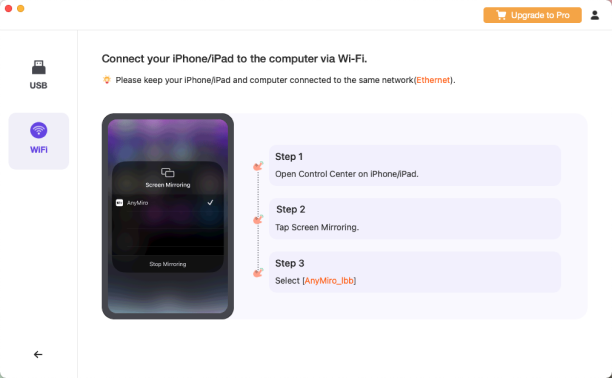
 Mirroring iPhone to Computer with WiFi
Step 1. Connect iPhone & computer to the same WiFi
Step 2. Tap Screen Mirroring in iPhone Control Center
Step 3. Choose your computer's name from the AirPlay list
Read the full guide here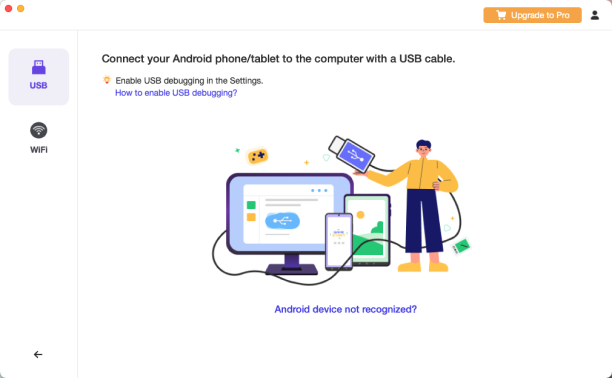
 Connect Android to Computer via USB
Step 1. Connect Android to computer with USB cable
Step 2. Turn on MTP and USB Debugging
Step 3. Start mirroring Android screen to computer
Read the full guide here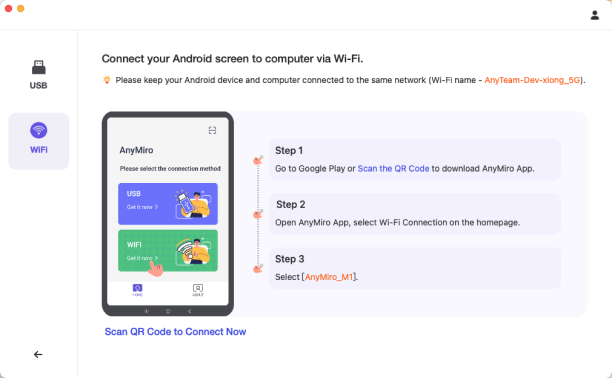
 Mirror Android to Computer with WiFi
Step 1. Download AnyMiro app from Google Play
Step 2. Connect Android to computer with the same WiFi
Step 3. Start mirroring Android screen to computer
Read the full guide hereYou may also be interested in

AnyTrans - iOS Data Manager
Your one-stop iPhone manager to transfer, back up and manage your iPhone, iPad, iPod, even iTunes and iCloud content in one handy place.
Download Now
DroidKit
The complete Android toolkit to unlock screen, bypass FRP, recover lost data, and optimize your mobile experience.
Download Now
AnyUnlock - iPhone Password Unlocker
Instantly remove iPhone lock screen, Apple ID, MDM lock, Screen Time passcode, and iTunes backup password from iPhone, iPad, and iPod touch.
Download Now
Vozard
Change your voice to popular characters or celebrities with AI technology. You can share voice-changing results with other gaming or chatting platforms.
Download Now