How to Fix iPhone Stuck on Apple Logo Issue?
If your device becomes stuck on Apple logo when you turn it on. Please refer to the detailed instructions below to fix iPhone stuck Apple logo issue.
Why Would iPhone Get Stuck on Apple Logo?
If your iPhone is stuck on the Apple logo, you may wonder what caused the problem. If you know more about the problem, you are far less likely encounter it again. Please check the common reasons here:
1. Upgrade Issue – Your may find that your iPhone gets stuck on the Apple logo at once after you upgrade to the newest iOS 14 or iOS 13. This situation may happen for a lot of reasons, but it usually happens while trying to install the newest iOS on an older iPhone. Besides, the newest iOS version sometimes may have problems because it needs to be optimized.
2. Jailbreak – Whether you tried to jailbreak iPhone by yourself or you took it to a technical, your iPhone can become stuck on Apple logo after you have attempted the jailbreak process.
3. Restore from iTunes or iCloud – When you are restoring iPhone, it can become stuck on the Apple logo after you restore it from iTunes or from iCloud.
4. Update or Restore – Sometimes, We have to update or restore our iPhones for a variety of reasons. If you have an issue while installing an update or performing a regular restore, your iPhone can get stuck on the Apple logo screen.
5. Hardware Damages – Some internal hardware damages will also have an impact on your iPhone. As you accidentally dropped your iPhone or made your iPhone experience liquid damage, it will be the reason that your iPhone stuck on Apple logo.
How to Fix iPhone Stuck on Apple Logo with iTunes
Step 1: Please connect your iPhone to the computer and open iTunes.
Step 2: Press and quickly release the Volume Up button. Press and quickly release the Volume Down button.
Step 3: Then, press and hold the Side button until you see the connect to iTunes screen.
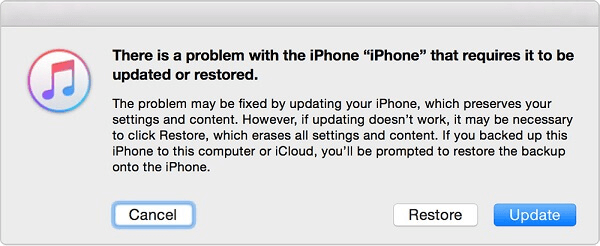
After you put the iPhone in recovery mode successfully, click on Restore in the dialog box and follow the on-screen instructions to restore your iPhone and get rid of the iPhone stuck on Apple logo issue.
Fix iPhone Stuck on Apple Logo with Professional Repair Tool
If you have no idea on how to fix iPhone stuck on Apple logo and want to enjoy the easiest way to solve it. Thankfully, AnyFix is your one-stop solution to fix various iOS/iPadOS/tvOS/iTunes issues in minutes, and bring your Apple devices back to normal without data loss.
Step 1: Visit the website and download the AnyFix program, and then install it on your PC or Mac computer. Here is the download link of AnyFix:
https://www.imobie.com/go/download.php?product=af
Step 2: After the installation process is completed, double-click on the AnyFix icon that is now on your desktop. That launches the program.
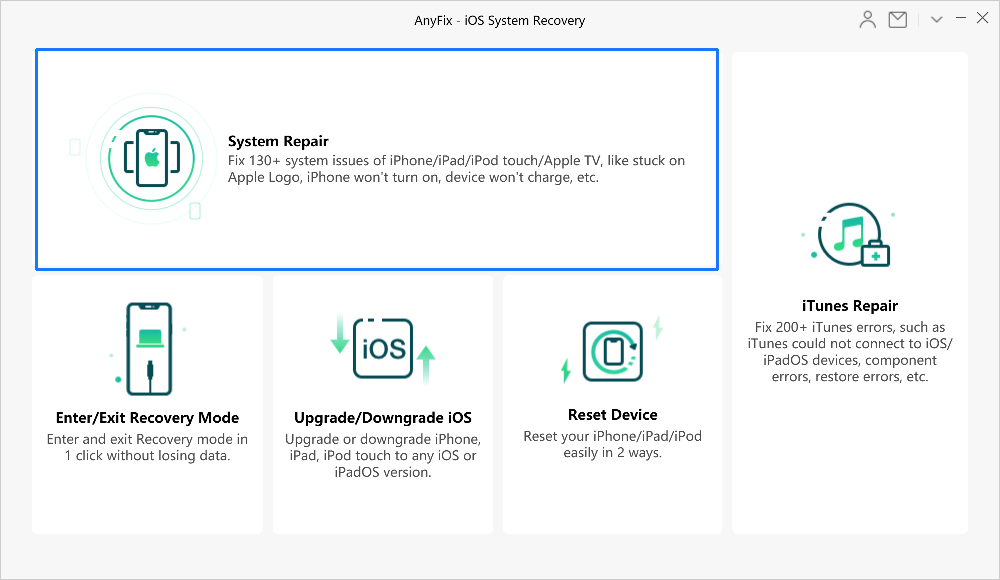
Step 3: Select the “System Repair” Option.
Step 4: Connect your iOS device/Apple TV to computer with the USB cable / Micro-USB, and select the corresponding feature for the iOS device / Apple TV. Here, we take fixing iPhone system issues as an example. Once the device has been detected, the interface will be displayed as below:
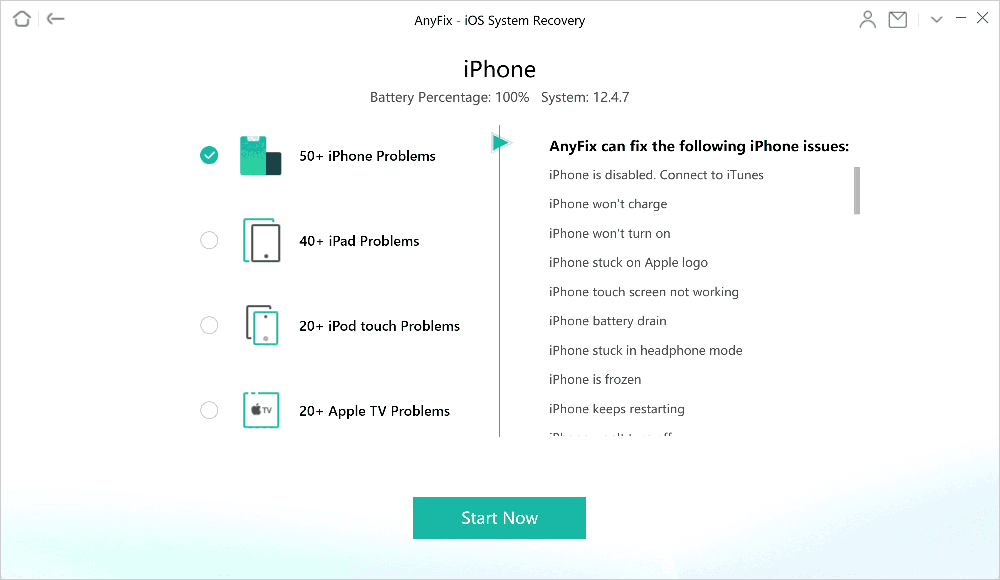
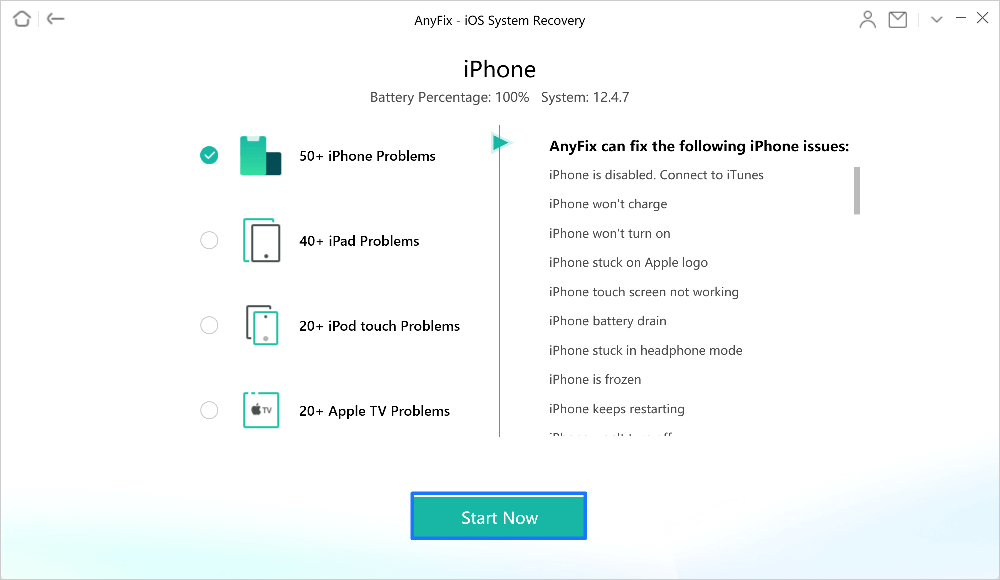
Step 5: Please click  button to get started.
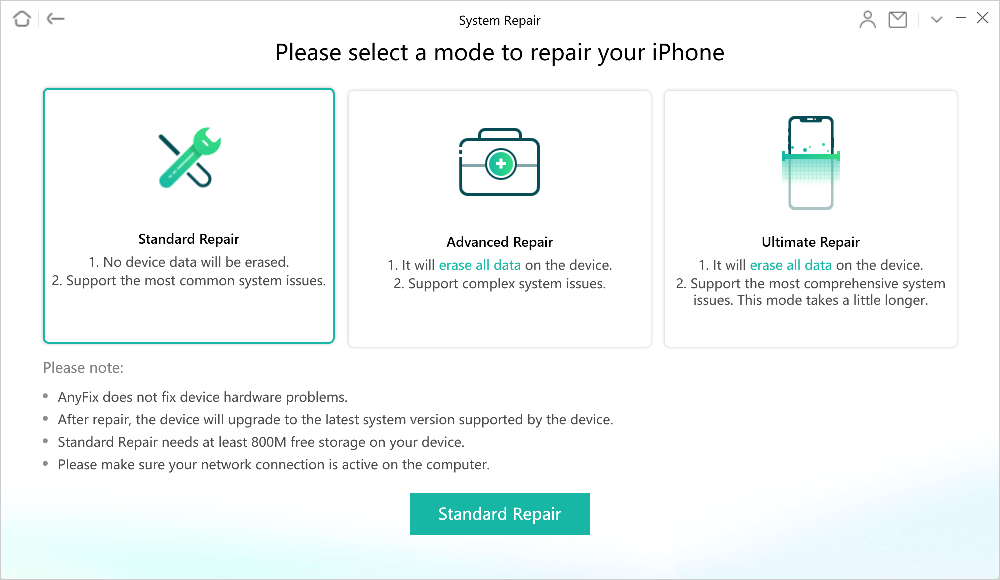
Step 6: Currently, iOS repair function provides three repair modes for iOS devices - Standard Repair, Advanced Repair and Ultimate Repair. With the Standard Repair, it supports to fix the most common system issues and no device data will be erased after the repairing. With the Advanced feature, it supports to fix the complex system issues and all data will be erased after the fixing. With the Ultimate Repair feature, it supports to fix the most comprehensive system issues, which takes a little longer. All data will be erased after the repairing. It only provides Standard and Advanced Repair for Apple TV as the DFU mode is not available for tvOS.
Step 7: After entering Recovery mode, please check your device info. To repair the abnormal operating system, please click  button to download the firmware for your iOS device. It takes some minutes to download the package, so please just keep patient. At the same time, please make sure Internet connection is stable.
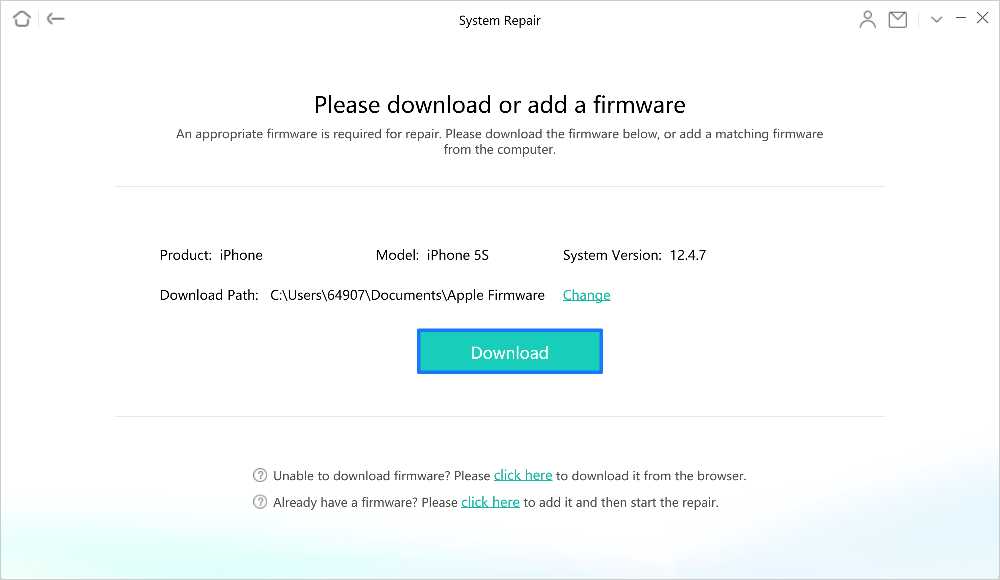
Step 8: Once the firmware has been downloaded, the page will display as below.
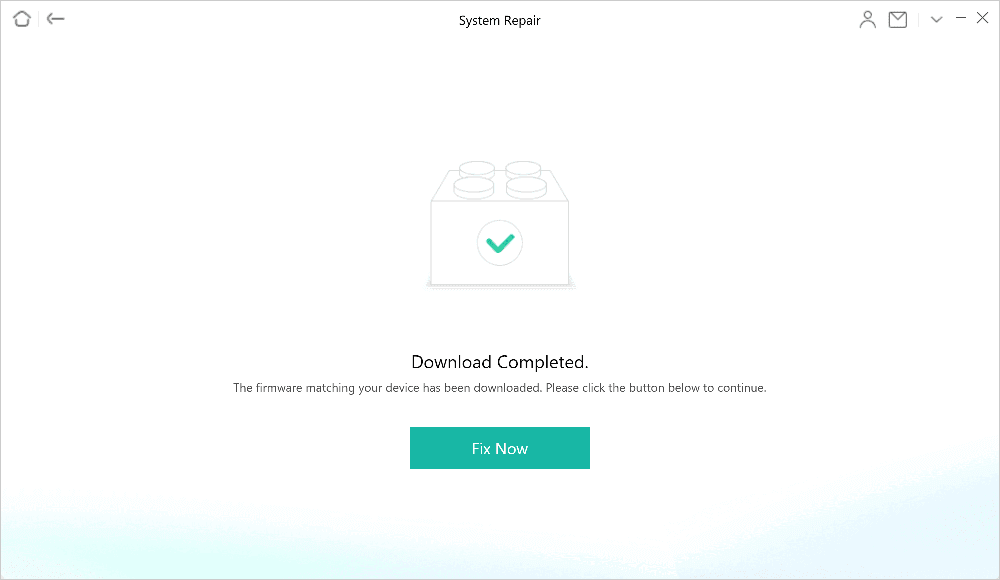
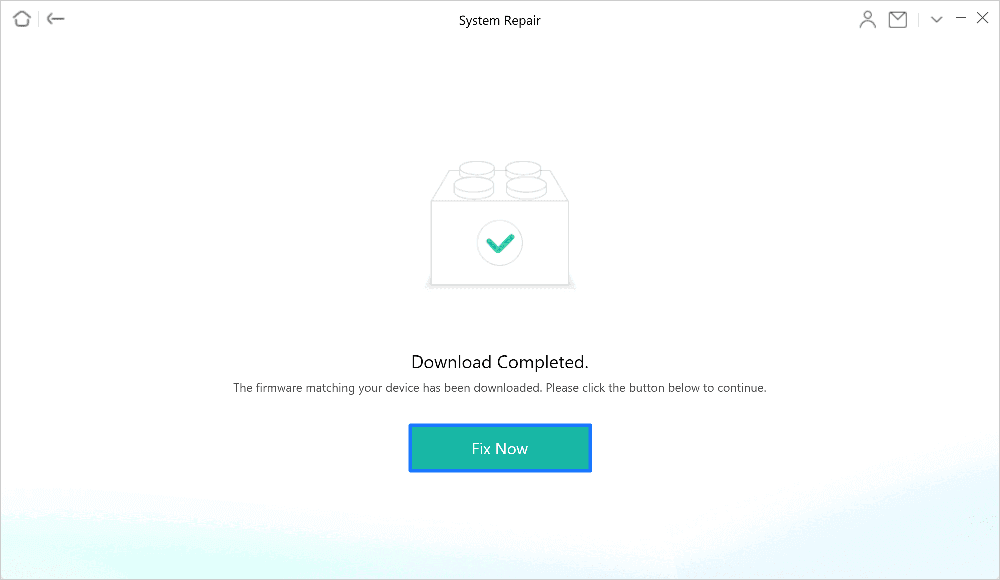
Step 9: After downloading firmware package, please click “ ” button. AnyFix will repair your iOS device to normal automatically. Please do not disconnect your device until it restarts.
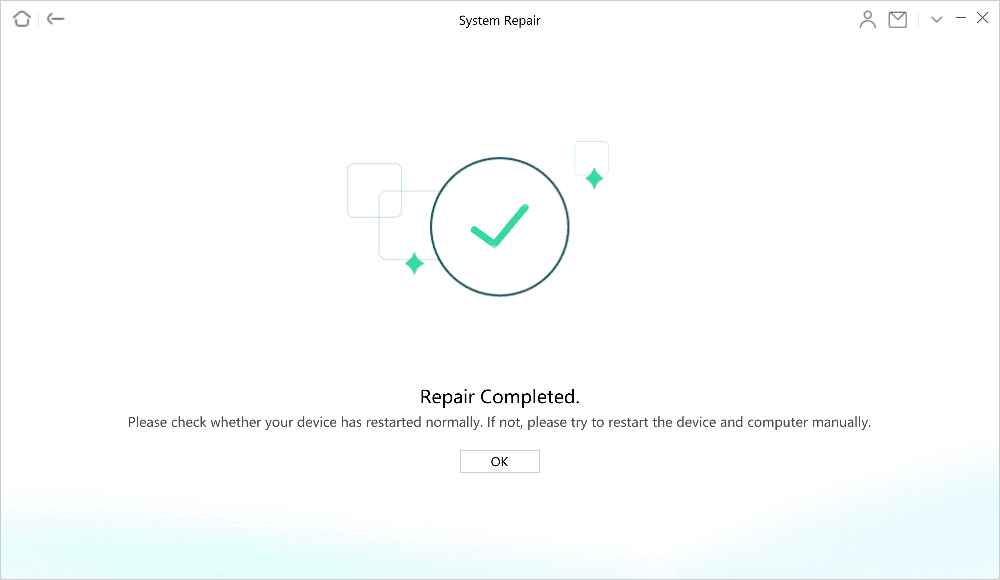
Step 10: And when the recovery process is completed, you will see the completed page. And your iOS device to normal automatically.