How to View Saved Passwords in Safari
If your website login details are saved in the Safari browser, the following guide teaches you how to view saved passwords in Safari so you can find out your logins. It also teaches how you can remove and add new passwords to Safari easily.
- Home
- PhoneRescue
- iPhone Tips & Tricks
- How to View Saved Password in Safari
One of the really useful features of the Safari browser is its ability to let you save your login details for various websites right in the browser. When you save your username and password for a website in Safari, the browser will auto-fill your login details the next time you visit that website. If you have been using the feature for quite some time, you would have already collected a number of username and password combos in Safari.
If you are curious to find out the Safari saved passwords on your iPhone, the following guide should help you do it. It shows a method using which you can view the Safari passwords on your iPhone. Let’s check it out.
How to View Saved Passwords in Safari on iPhone
In order to find your passwords in the Safari browser on your iPhone, you do not even need to open the browser itself. The passwords are located somewhere else on the device and the following shows where and how to get there.
Step 1: Tap on the Settings app on your springboard to launch your iPhone’s settings panel.
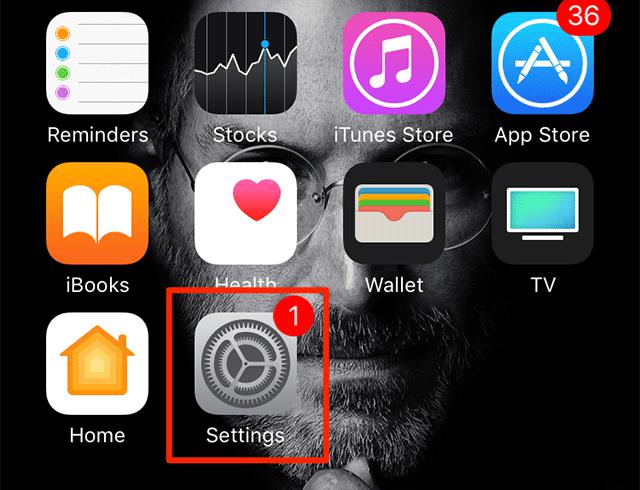
Launch Settings on iPhone
Step 2: When the settings panel launches, scroll all the way down until you find an option saying Safari. Tap on the option when you find it to open Safari settings panel.
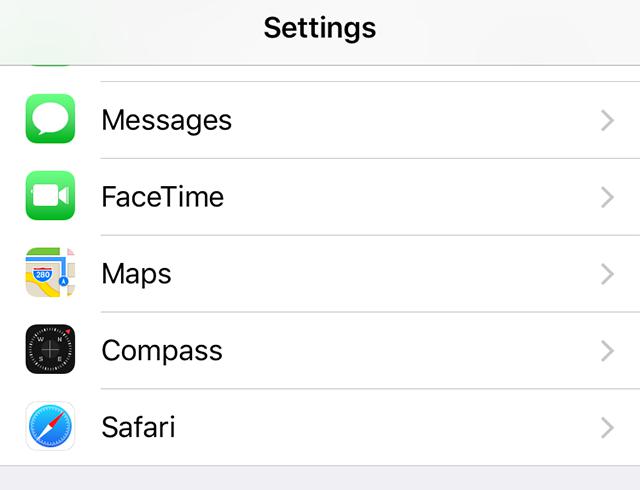
Access Safari settings on iPhone
Step 3: You will see a number of options to choose from on the following screen. Find and tap on the option that says Passwords to locate your saved passwords. You will be asked to enter your passcode.
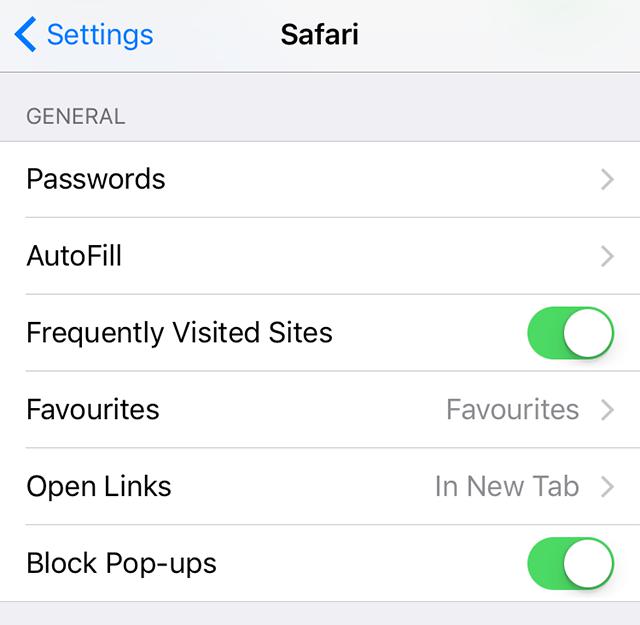
Access the passwords section in Safari for iPhone
Step 4: On the following screen, you should find all the passwords you have ever saved in Safari on your iPhone.
That is how you view Safari saved passwords on an iPhone.
Delete Saved Passwords in Safari
If you have gone through the list of passwords and you have found some redundant entries there, you can easily get them removed from the list. The following is how you do it.
Step 1: While you are on the passwords screen where you see your passwords, tap on the Edit option located at the top-right corner of your screen.
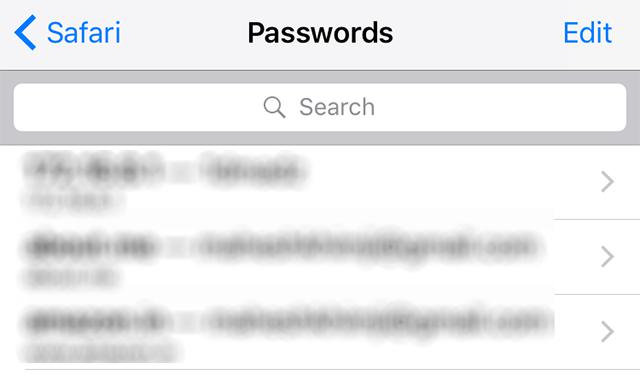
Edit passwords in Safari for iPhone
Step 2: A box will appear next to each entry in the list. Checkmark the entries you want to remove from the list and then tap on the Delete option given at the top-left corner of your screen.
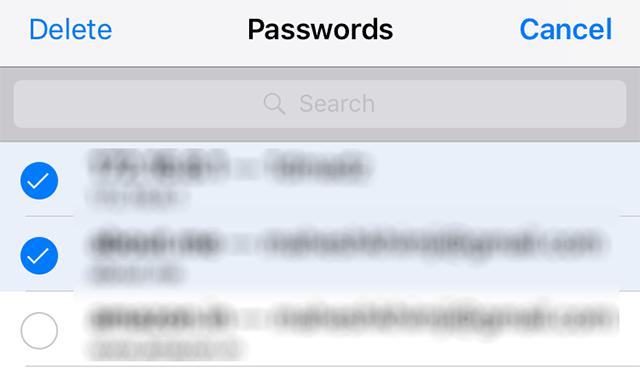
Delete passwords in Safari for iPhone
The selected username and password combinations will be removed from Safari on your iPhone.
Add New Username and Passwords in Safari
If you wish to add a username and password for a website to the list, you can do that as well from the same passwords screen. The following shows how you do it.
Step 1: On the passwords screen, scroll all the way down and tap on the option that says Add Password. It will let you add a new login item to the list.
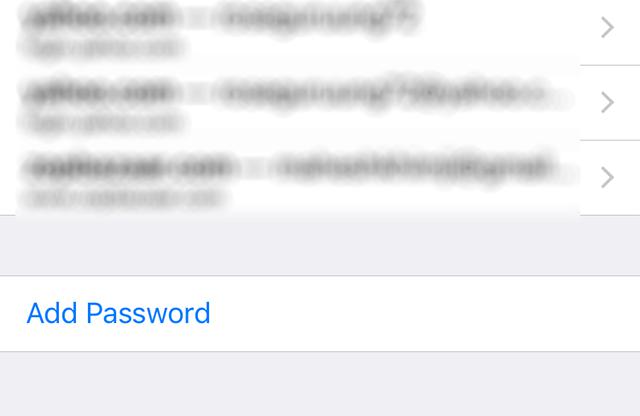
Add a new password to Safari for iPhone
Step 2: On the following screen, enter in the website you are saving the username and password for, enter in your username and password, and then tap on the option that says Done at the top-right corner.
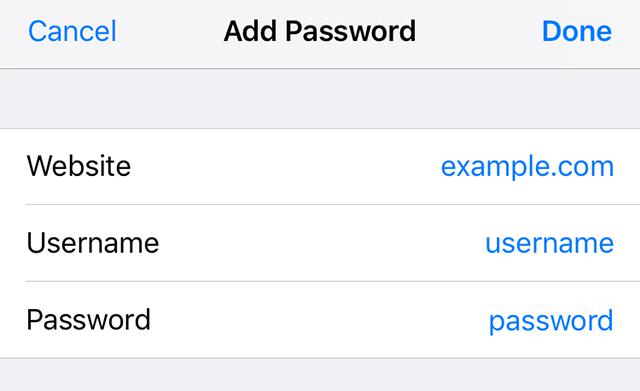
Enter login details to be added to Safari
You are all done. Your entered login details will be saved in the Safari browser on your iPhone.
How to View Saved Passwords in Safari on Mac
If you use Safari on your Mac as well and you would like to learn where your saved passwords are located, the following steps will help you do it.
Step 1: Launch Safari from the Dock or Launchpad on your Mac.

Open Safari on Mac
Step 2: When the browser launches, click on the Safari menu at the top and select the option that says Preferences. It will open the preferences panel for Safari.
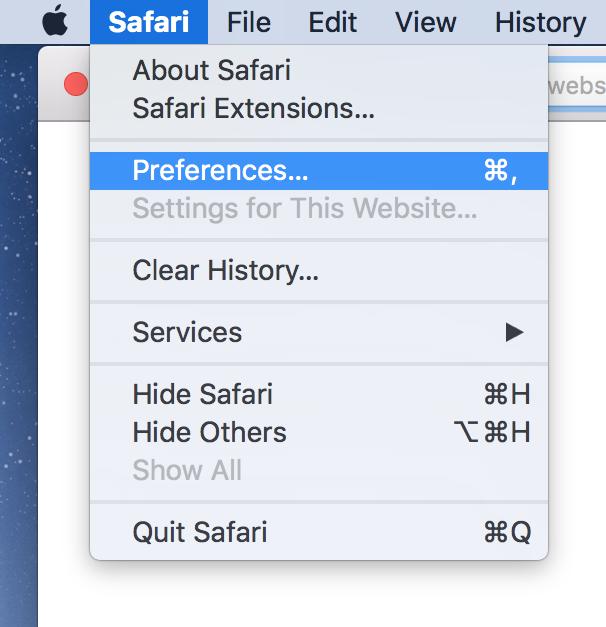
Launch settings panel in Safari for Mac
Step 3: On the panel that opens, find and click on the tab that says Passwords. You will be asked to enter in the password for your Mac user account. Do so to continue.
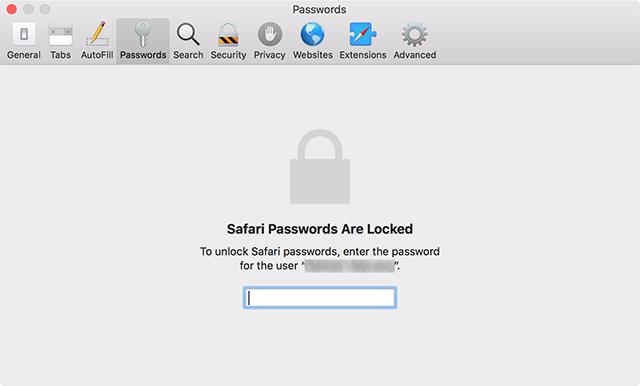
View saved Safari passwords on Mac
Step 4: You should be able to view all of your passwords saved in Safari on your screen.
That is how you view the saved Safari passwords on a Mac.
Conclusion
We hope the above guide teaches you how you can use the iPhone Safari password manager to view your saved passwords and to delete or add new passwords to the list.


Member of iMobie team, an Apple fan as well as an anime lover. Like to share solutions on iOS and Android related problems.
Product-related questions? Contact Our Support Team to Get Quick Solution >