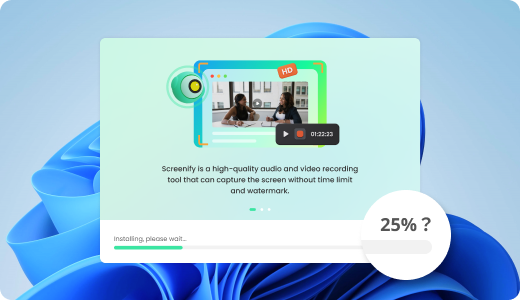
How to Download & Install Screenify

download-set1-1

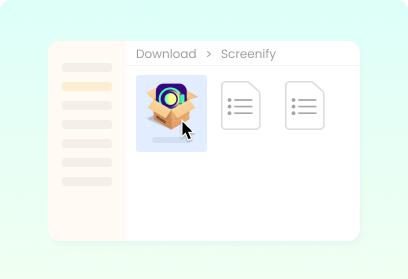
Step 1: Locate the exe/dmg file

Find the downloaded file in your browser and click it.
download-set1-2

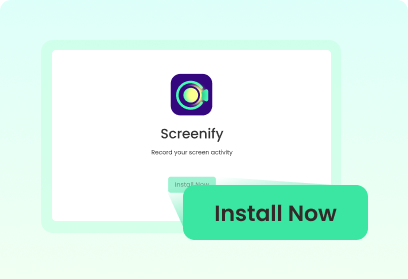
Step 2: Install the program

Install Screenify in a default or customized way.
download-set1-3

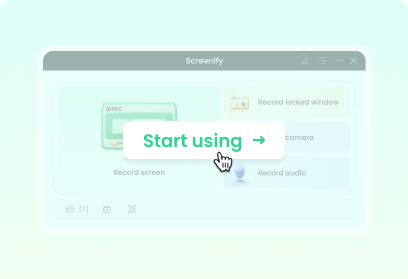
Step 3: Enjoy your program

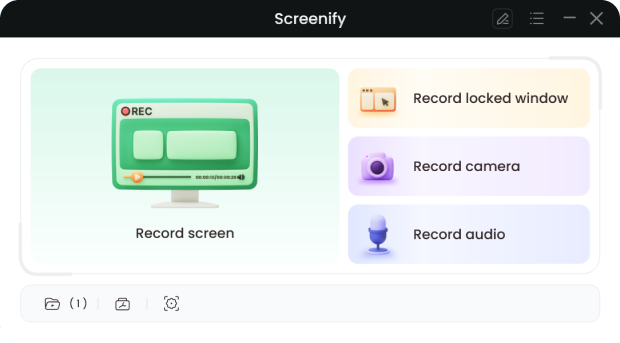
Follow the setup instructions and launch Screenify to use.

Problems You May Encounter While Installing Screenify

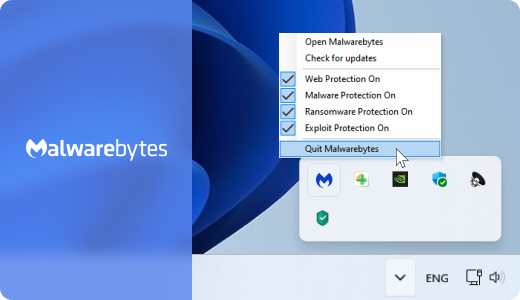
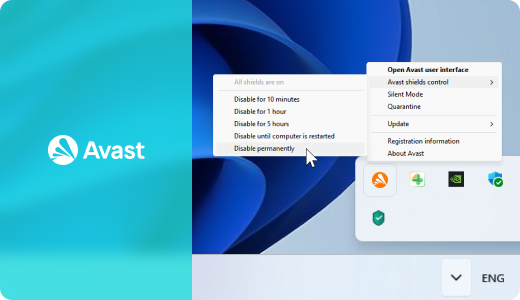
?Problem 1 – Can’t launch the installation

ASolution – temporarily disable your Antivirus or firewall.

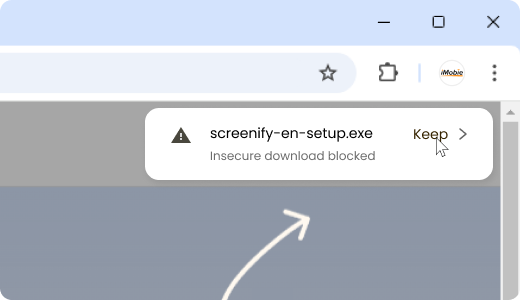
?Problem 2 – "This Type of File Can Harm Your Computer" warning in Chrome.

ASolution – Click “Keep” to continue as our software is 100% clean & safe.

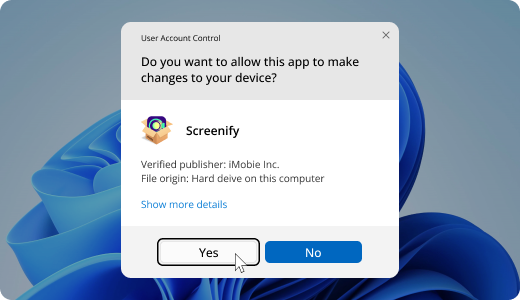
?Problem 3 – Windows is showing a warning message

ASolution – Click “Yes” and continue the installation.

?Problem 4 – Stuck on the install page

ASolution – End the installation process and try again.

download-set2-1 download-set2-1

Some antivirus and firewall software will block Screenify install package from being launched. It is virus-free and signed with our iMobie Ltd company certificate, so if you experience any issues with launching the installation package, try temporarily disabling your antivirus or firewall software.

download-set2-1

Every time you try to download an application in Google Chrome, it gives you an annoying prompt at the bottom of your browser asking if you are sure. Our software is virus-free and signed with our iMobie Ltd company certificate so this is a fairly rare glitch. There is no risk to your computer and no damage to any of your data, just click "Keep" if you see this message.

download-set2-1

This is a security check prompt of Windows User Account Control. Screenify includes advanced functionality and needs to be able to make changes to the data on your computer (in technical terms – Screenify installs its own service). There is no risk to your computer and no damage to any of your data, just click "Yes" if you see this message.

download-set2-1

You may stuck on the installation process for a long time. Disconnect your VPN and try to install Screenify again. If you are not connecting to a VPN, end the installation process directly and try again.

Screenify User Reviews

“ I love Screenify! It's great for recording and sharing my drawing sessions with my followers. It records my screen in high quality without any lag. The best part is that it's free and has no annoying ads! “

“ Absolutely love Screenify! It's intuitive and powerful. The screen recordings are smooth, and the various settings allow for customization based on my needs. I also appreciate the customer support; they quickly responded to my queries. “

“ Screenify is a fantastic free screen recorder, I appreciate the customizable settings, which allow me to tweak the recording parameters to fit my needs. Whether I'm recording a webinar or a quick tutorial, it delivers every time. “

download-set3-6

Hot Topics About Screen Record

Best Free Screen Recorder with Audio How to Record Part of Screen on Computer How to Screen Record Netflix QuickTime Screen Recording with Audio Best Screen Recorder for Tutorials How to Screen Record on Steam