[2026 Solved] How to Use AirPlay Receiver Windows to Mirror iPhone
Have you ever heard of AirPlay receiver Windows? Do you know what’s the meaning of an AirPlay for Windows? Reading this article will tell you how to use an AirPlay receiver Windows.

[2026 Solved] How to Use AirPlay Receiver Windows to Mirror iPhone
Screen mirror iPhone to Windows with AirPlay receiver -AnyMiro.
- Fast response time within 10 ms and 60fps frame rate.
- A stunning visual experience with no color difference.
- Lag-free screen mirroring and 4k resolution.
Available for both Win & Mac
AirPlay is frequently used in our daily lives and works for business presentations and to stream videos and images. As we know, AirPlay is typically used for transferring content between Apple devices, which means users of other operating systems can’t enjoy its convenience. But do you know how Windows users can access AirPlay functionality?
The AirPlay receiver Windows allows users to transform their Windows computers into full-fledged receivers for seamless content streaming from iPhones, iPads, and other Apple devices. This article will show how to turn your Windows PC into an AirPlay Receiver and explore the possibilities it offers for wireless multimedia sharing across various domains.
Table of ContentsHide
What is AirPlay Receiver for Windows?
AirPlay was developed by Apple for sharing multimedia content between Apple devices. An AirPlay receiver Windows is a software program enabling Windows computers to use Apple’s AirPlay technology, receiving and playing audio, video, and other media content from devices like iPhones, iPads, and Macs.
To use AirPlay for Windows, you typically need to install third-party software. For example, LonelyScreen is a third-party software tool that allows your Windows PC to utilize AirPlay technology to receive and display media content like videos and photos from Apple devices such as iPhones and iPads.
A Windows AirPlay receiver effectively transforms your Windows PC into a compatible AirPlay device. With an AirPlay receiver Windows, you can:
- Mirror Your Device Screen: You can mirror your iPhone or iPad screen on your Windows PC.
- Stream Media: You can stream music, videos, and photos from your Apple device to your Windows PC, allowing you to enjoy content on a larger screen and better speakers.
- Record Screen: Some AirPlay receivers for Windows also offer screen recording capabilities, allowing you to capture what’s happening on your iOS device’s screen.
- Collaborate and Share: AirPlay receivers can be handy for collaboration and sharing content during meetings or in educational settings.
Turn Your Windows PC into an AirPlay Receiver
The emergence of AirPlay receiver Windows has indeed brought a lot of convenience, allowing iPhone users to transfer their content to Windows PCs, breaking free from the limitations of Apple’s native ecosystem devices. We recommend two user-friendly AirPlay receiver Windows options and will explain how to use them.
Works for All: Use AnyMiro as an AirPlay Receiver on Windows
LonelyScreen is only suitable for receiving content from iOS devices and may have limitations in compatibility. Therefore, we recommend a more versatile third-party software called AnyMiro as an AirPlay receiver Windows. AnyMiro is a screen mirroring tool that can replace AirPlay for cross-system screen mirroring. It supports mirroring from both iOS devices and Android devices to Windows and Mac computers, making it more compatible with AirPlay and LonelyScreen.
If you value stable screen mirroring sessions, then AnyMiro is your best choice as the alternative to AirPlay for Windows. Both LonelyScreen and AirPlay rely on a Wi-Fi connection for screen mirroring, which demands a high-quality Wi-Fi network and can experience delays if the network signal is poor. However, AnyMiro also provides a screen mirroring function with a USB connection, which is smoother and more stable than a WiFi connection.
Here are the key features of AnyMiro:
- Cross-Device Compatibility: AnyMiro supports screen mirroring between various devices, including iPhones, Android devices, Windows PCs, and Mac. In contrast, AirPlay and LonelyScreen are limited to Apple device mirroring.
- Extended Stable Connections: AnyMiro can maintain stable mirroring sessions for over 10 hours, ensuring uninterrupted usage.
- Flexible Connectivity Options: AnyMiro offers both WiFi and USB connections, providing convenience and adaptability. AirPlay and LonelyScreen rely solely on WiFi.
- Zero Latency & 4K Quality: AnyMiro delivers zero-latency, lossless mirroring with support for 4K Ultra HD resolution. This ensures exceptional visual clarity compared to AirPlay and LonelyScreen.
How to use AnyMiro as an AirPlay receiver Windows to mirror iPhone to a Windows PC:
Step 1: Click the Download button here to get AnyMiro on your Windows computer.
Free Download for all windows & 100% safe Free Download for all mac & 100% safe
Free Download100% Clean & Safe
Step 2: After the download is complete, open AnyMiro and select “iOS/iPadOS” to continue.
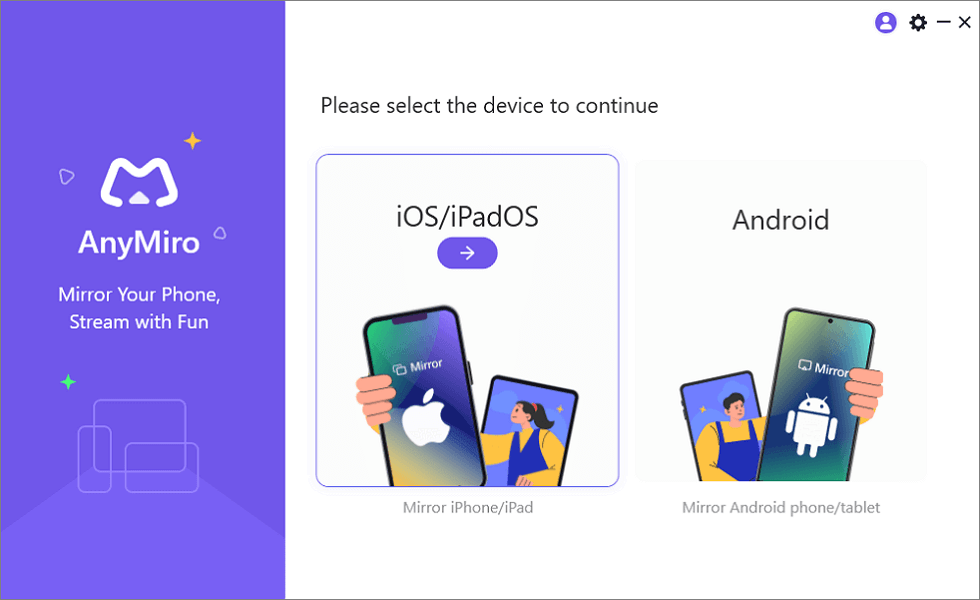
Mirror iPhone to Computer
Step 3: Choose the Wi-Fi mode for connection, ensuring that your Windows PC and iPhone are connected to the same network.
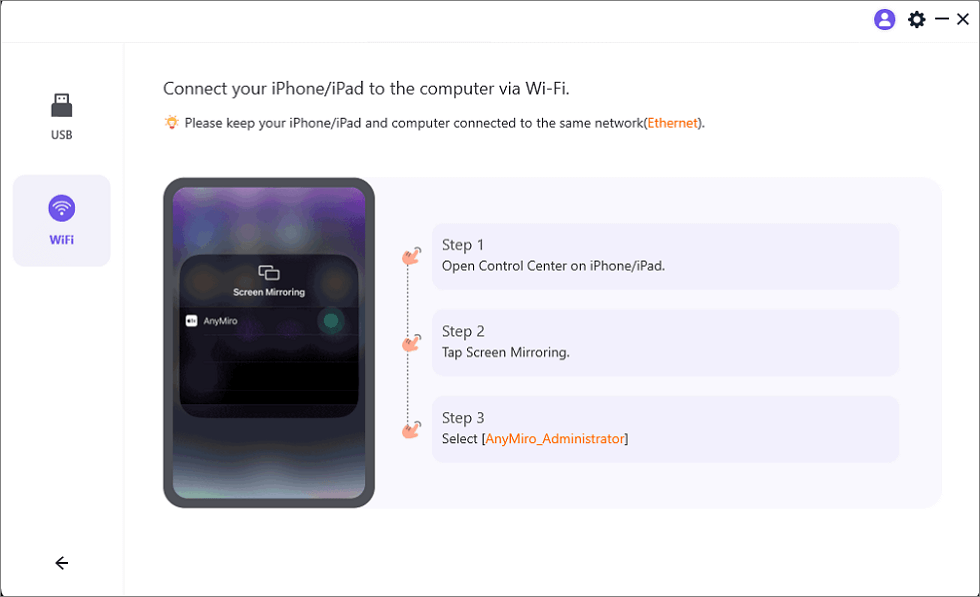
Mirror iOS to Computer via WiFi
Step 4: Open the Control Center on your iPhone, click on “Screen Mirroring,” and select AnyMiro as the receiver to successfully mirror your screen.
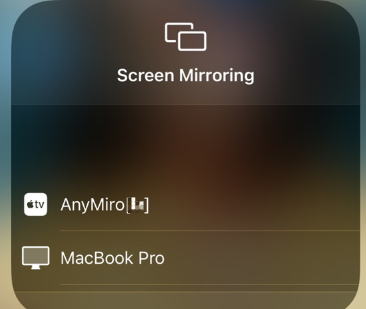
Select AnyMiro to Mirror iPhone to MacBook Bluetooth
iOS Only: Use LonelyScreen to Turn Windows into an AirPlay Receiver
LonelyScreen is often described as an AirPlay receiver Windows that allows you to mirror the screen of your iOS devices, such as iPhone or iPad, to a Windows. It uses Apple’s AirPlay technology, acting like an Apple TV running on the desktop.
So how to use LonelyScreen to mirror iPhone to a Windows PC?
Step 1: Go to the official LonelyScreen website, download, and install the application.
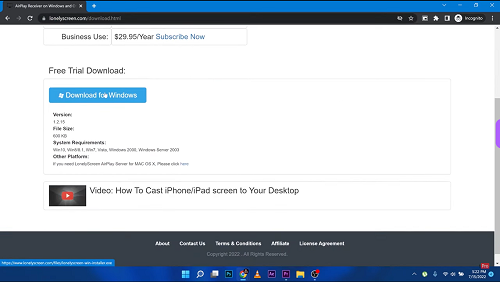
Download and Install Lonely Screen
Step 2: Register LonelyScreen, and you should see a default device name similar to “LonelyScreen,” which serves as the identifier for your computer in AirPlay. You can rename it if desired.
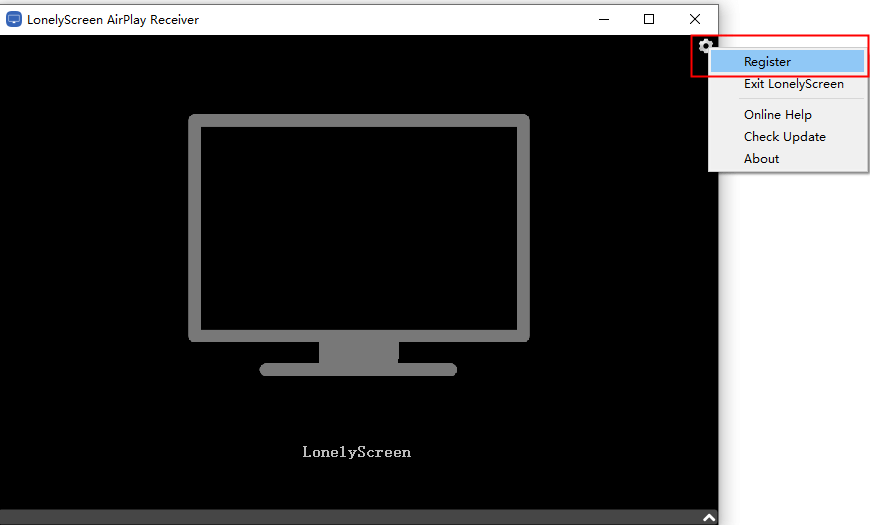
Register LonelyScreen
Step 3: Open the Control Center. Select the “Screen Mirroring” option.
Step 4: Keep the iOS device and your computer connected to the same Wi-Fi network. In the list of available devices, you should see the name of your LonelyScreen device. Tap on it to establish a connection.
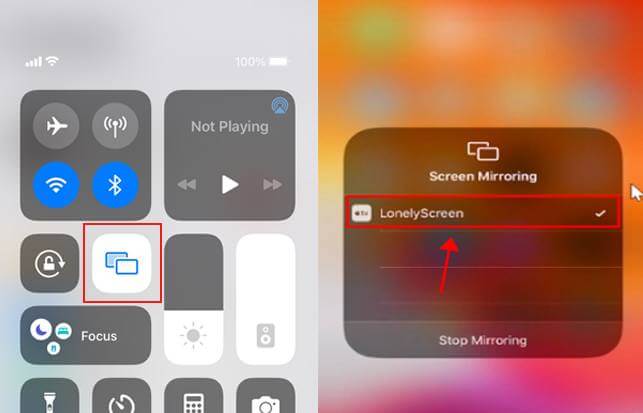
Screen Mirroring LonelyScreen
Your iOS device’s screen should start mirroring your computer where LonelyScreen is running. Now, you can see the content of your iOS device on your computer screen and share audio and video on a larger display.
FAQs of AirPlay
1. Why won’t my iPhone AirPlay to my computer?
If your iPhone won’t AirPlay to your computer, ensure both devices are on the same Wi-Fi network, update their software, restart them, and check AirPlay settings on both your iPhone and computer.
2. How to fix AirPlay unable to connect?
To fix “AirPlay unable to connect,” start by checking if your devices are on the same Wi-Fi network and have updated software. Restart both devices and ensure AirPlay is enabled. If it is still not connected, we recommend you use AnyMiro to mirror the screen.
Conclusion
I believe you now have a thorough understanding of what an AirPlay receiver Windows is and how to use it. While this tool is limited to receiving transmissions from iOS devices. Therefore, we recommend using AnyMiro as your AirPlay for Windows. It can receive screen mirroring from both iOS and Android devices, supports both USB and Wi-Fi connectivity modes, and offers stable connections lasting up to 10 hours or more, with a response time of less than 10 milliseconds.
Free Download for all windows & 100% safe Free Download for all mac & 100% safe
Free Download100% Clean & Safe
Product-related questions? Contact Our Support Team to Get Quick Solution >
