How to Install and Play Among Us on PC or Mac
This guide will teach you how to easily install and play Among Us on PC or Mac. We explain what Among Us is, how to download and set it up, and a bonus tip on playing mobile games on your PC without an emulator using AnyMiro. Follow these simple steps and enjoy Among Us with your friends!

How to Install and Play Among Us on PC or Mac
Try AnyMiro to mirror Android and iPhone to PC for free.
- Fast response time within 10 ms and 60fps frame rate.
- A stunning visual experience with no color difference.
- Lag-free screen mirroring and 4k resolution.
Playing Among Us becomes challenging when your mobile device battery drains, or the small display screens diminish your enjoyment experience. The problem is that you want to use Among Us on larger displays with better gamepad functionality, but lack the knowledge needed to install this game on PC and Mac devices. Don’t worry!
You can easily install Among Us to run on your computer. Our step-by-step tutorial provides instructions that lead users through the whole game setup, beginning with the download and finishing with game setup and friend gameplay. Let’s get started!
Table of ContentsHide
What is Among Us?
InnerSloth LLC is the developer of the multiplayer game Among Us. In a space adventure, players take on the roles of crewmates or impostors. The game can be played on PCs, Macs, mobile devices, and cross-platform consoles. Upon beginning every match, players receive roles randomly, such as Crewmate or Impostor. The Crewmates must finish their project work and team up to detect other players who are secretly impostors.
Key Features
- The game includes five maps—The Skeld, MIRA HQ, Polus, The Airship, and The Fungle—each offering unique layouts and tasks.
- Players can personalize their characters with different colors, hats, pets, and skins.
- The game offers Classic Mode and Hide n Seek Mode, providing different ways to play.
- New roles like Engineers, Scientists, and Guardian Angels add depth to gameplay.
- Impostors can disable lights, lock doors, and create emergencies to cause chaos.
- Players can communicate via text chat or voice chat for discussions.

Among US
How to Install and Play Among Us on PC or Mac
Now, let’s have a detailed look at the steps to install and play Among Us on PC or Mac:
Install and Play Among Us on PC:
Steam is the gateway to installing Among Us on PC for users who want to play the game. Through Steam, users gain straightforward access to buy and download games, alongside monitoring their game library. Users receive automatic updates, multiplayer functionality, and a protected game environment through this platform. Steam allows users to experience Among Us with improved controls and visuals on their computer system. For this:
Step 1. Go to the official Steam website. You’ll find the “Install Steam” button in the upper right corner. Download the file on your computer and adhere to the on-screen directions to install it.
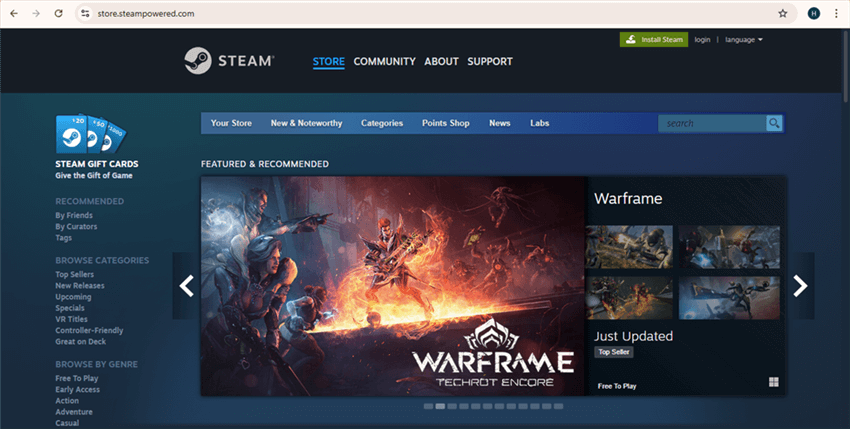
Select Install Steam
Step 2. After installation, launch Steam. Log in if you already have an account. To create a new account, click “Create a Free Account” and follow the instructions.
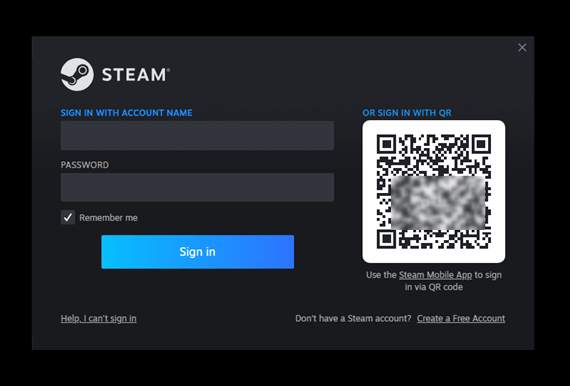
Click Create Account
Step 3. In Steam, select the “Store” tab. After typing “Among Us” into the search bar, choose the game from the list of results. Select “Add to Cart” and finish the payment.
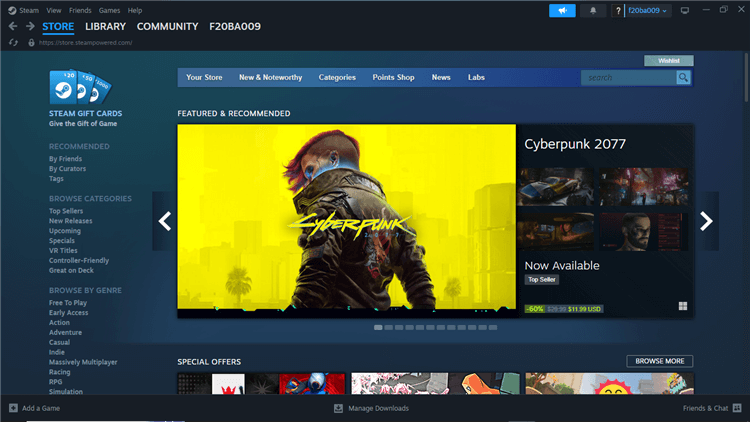
Click Store
Step 4. Go to the “Library” section in Steam. Find “Among Us” in the list on the left. Click it, then press the “Install” button. Follow the prompts to complete the installation.
Step 5. Once installed, click the “Play” button in Steam to launch Among Us and enjoy the game!

Play Among US
Install and Play Among Us on Mac:
BlueStacks Air allows Mac users to enjoy Android games like Among Us seamlessly. Optimized for Apple Silicon chips, it ensures smooth performance and responsive gameplay. Its lightweight design requires minimal resources, providing an engaging gaming experience without heavy software installations. Access thousands of Android games directly through your browser, making mobile gaming on Mac convenient and enjoyable. To use this:
Step 1. Visit the official BlueStacks website and click “Download BlueStacks ” to get the installer.

Click Download BlueStacks
Step 2. Open the downloaded .dmg file, then move the BlueStacks icon to the Applications folder.
Step 3. Launch BlueStacks Air from the Applications folder or Launchpad and log in with your Google account.
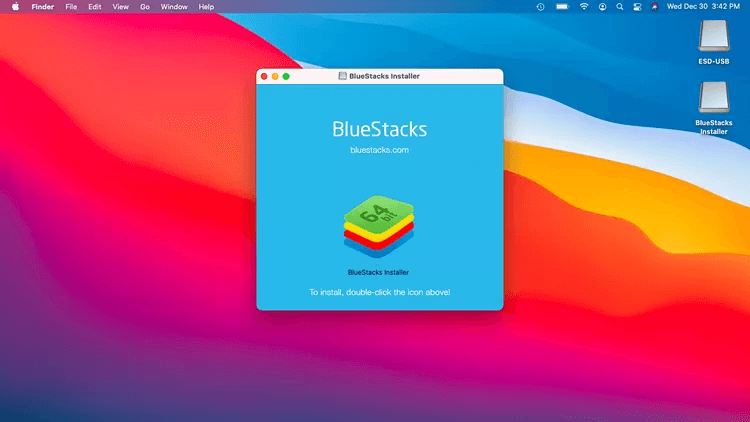
Launch Bluestacks
Step 4. Search for Among Us in the Play Store, then click Install to download the game.
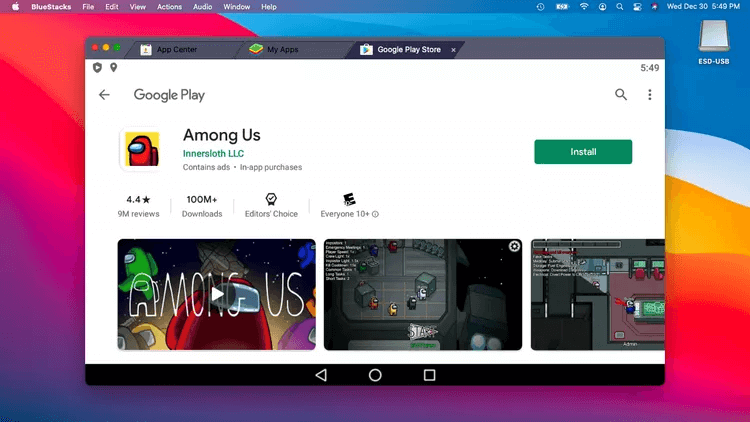
Click Install
Step 5. Open Among Us and start enjoying the game on a bigger screen!

Play Among US on Mac
Bonus Tip. How to Play Mobile Games on Your PC without Emulators?
AnyMiro provides users with an accessible tool to display mobile games on their PC or Mac through its screen mirroring capabilities. The tool offers top-notch screen reflection capabilities featuring superior quality, plus smooth operations without losing connection stability. AnyMiro secures a trustworthy connection that delivers high-definition visual content to suit gaming and streaming activities and content creation needs.
Free Download for all windows & 100% safe Free Download for all mac & 100% safe
Free Download100% Clean & Safe
The bigger display size lets you play mobile games smoothly through AnyMiro without requiring an emulator setup. Through its 4K resolution support, the tool ensures that all images appear flawlessly. Real-time audio and video sync functions are part of the package, allowing you to deliver more interesting online streams. Streaming engagement increases when you employ annotation and screen recording functions to show your viewers specific moments. AnyMiro serves Android and iPhone users, providing versatility to all users.
Key Features:
- The system supports display mirroring that lasts 10 hours while maintaining uninterrupted performance.
- Watch content in 4K resolution with exact color fidelity and higher picture definition.
- You can play mobile games during Twitch, YouTube, and Facebook streaming sessions without disruptions.
- Users will experience instant audio-video alignment without facing any delay or distortion during transmission.
Here are the simple steps to use AnyMiro and play games on your PC and Mac easily:
From iPhone to PC & Mac Via Wi-Fi:
Step 1. Free download AnyMiro on your computer and click “iOS/iPadOS.”
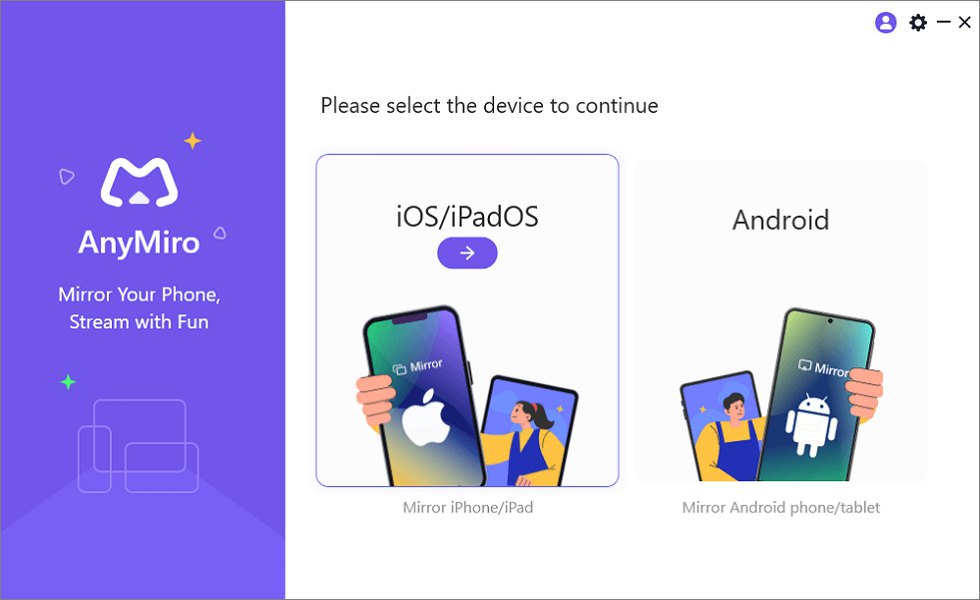
Mirror iPhone to Computer
Step 2. Click on “Wi-Fi connection.”
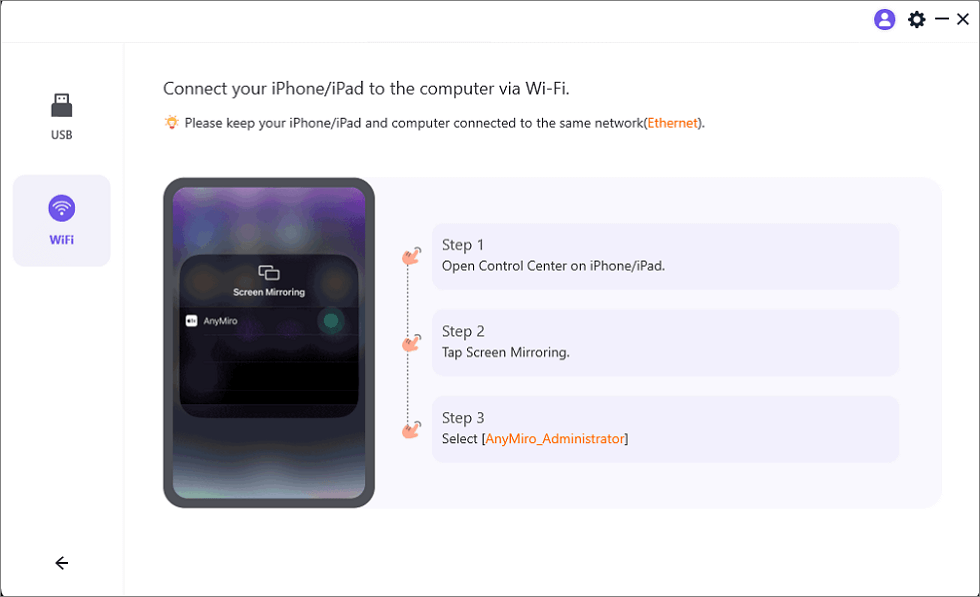
Mirror iOS to a Computer via WiFi
Step 3. Ensure your iPhone/iPad and computer are connected to the same Wi-Fi network.
Step 4. Open the Control Center on your iPhone or iPad, tap “Screen Mirroring,” and select “AnyMiro_Computer Name.”
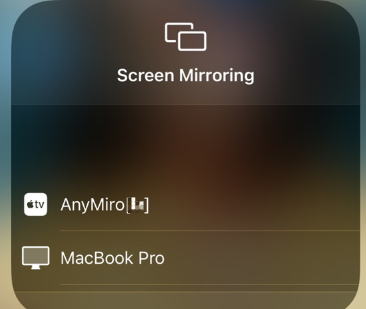
Select AnyMiro to Mirror iPhone to MacBook Bluetooth
Step 5. Your iPhone screen will now be visible on your computer.
From Android to PC & Mac Via USB:
Step 1. Download and install AnyMiro on your computer, then launch it.
Step 2. Select “Android” to begin the setup.

Mirror Android to Computer
Step 3. Click “USB” and connect your phone to the computer using a USB cable.
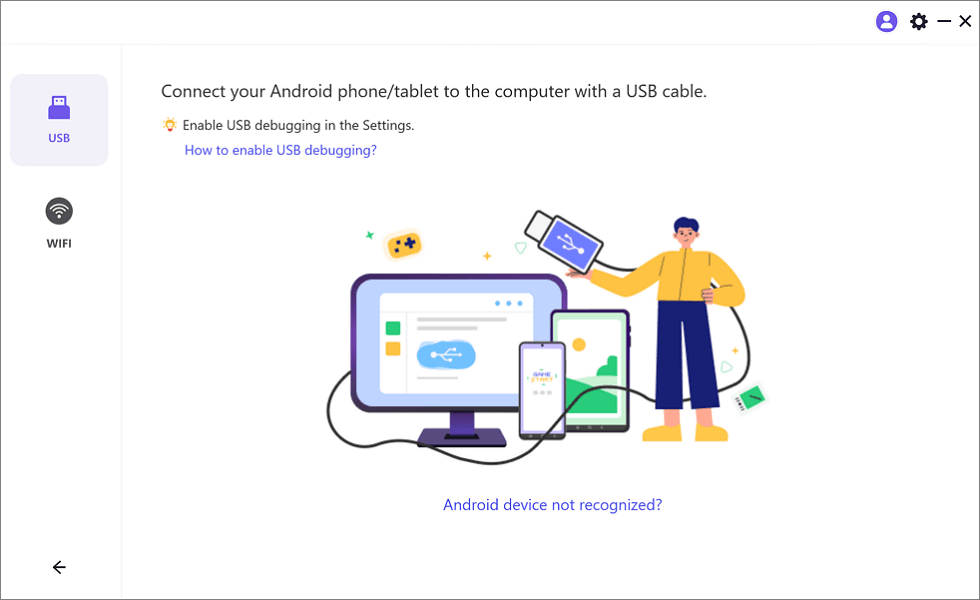
Select the USB Option for Screen Mirroring Android to PC
Step 4. Enable “USB debugging” on your phone and select “MTP Mode” if asked.
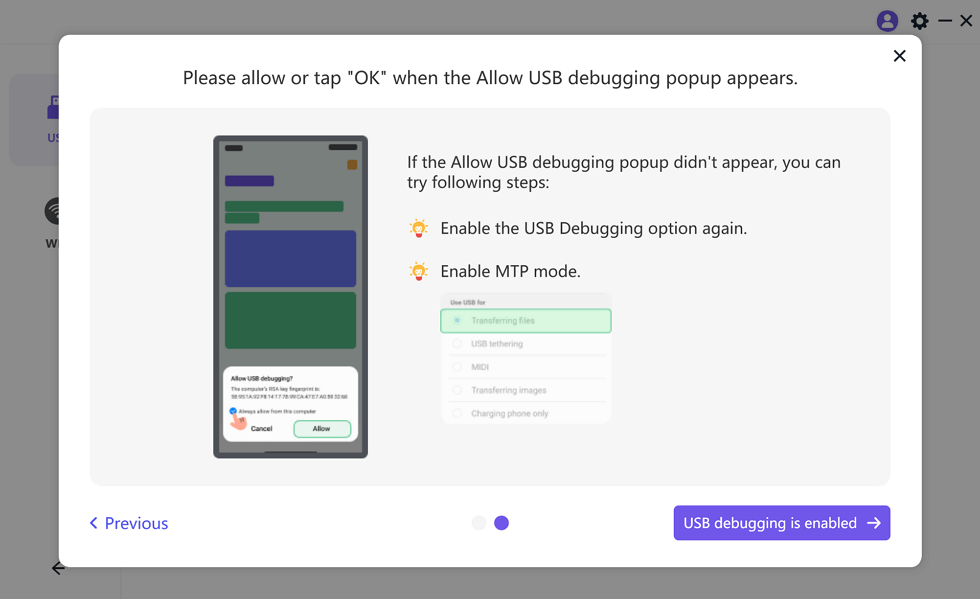
Enable USB Debugging and MTP Mode for a USB Connection
Step 5. Your Android screen will now be mirrored on your computer.
FAQs about Among Us on PC
How do I improve my Among Us gameplay?
Pay attention to tasks, observe player behavior, and use emergency meetings wisely. As an impostor, fake tasks and act natural. Playing more and watching strategy videos can help you improve the game.
How do I stream Among Us from my phone to my PC?
You can use AnyMiro to mirror your phone screen to a PC. Install AnyMiro, connect your phone using USB or Wi-Fi, and start screen mirroring. This way, you can easily play on a bigger screen.
Why is Among Us lagging on my PC?
If Among Us lags, close other apps, update your graphics drivers, or lower the game settings. Also, check your internet connection. A stable Wi-Fi or wired connection helps reduce lag in online games.
Final Words
Among Us works on diverse platforms and has stripped-down specifications, thus enabling multiple device connections between friends. Mac system players can enjoy Among Us gameplay through virtual emulators or cloud-based gaming platforms. AnyMiro provides users with a remarkable way to stream Among Us content from mobile devices to PCs. This tool provides smooth screen mirroring via USB or Wi-Fi connections, offering excellent video resolution and instantaneous gameplay performance.
Product-related questions? Contact Our Support Team to Get Quick Solution >
