Top 5 Android Emulators for Chrome and Chromebook
Discover the top 5 Android emulator for Chrome and Chromebook! Enjoy Android apps seamlessly on your device with these powerful, user-friendly emulator options.

Top 5 Android Emulators for Chrome and Chromebook
Try AnyMiro to mirror Android & iPhone to PC for free via USB and WiFi.
- Fast response time within 10 ms and 60fps frame rate.
- A stunning visual experience with no color difference.
- Lag-free screen mirroring and 4k resolution.
Ever wondered how to use your Chromebook or Chrome browser to run Android apps? Many people wish to use their preferred smartphone apps on a bigger screen. This Android Emulator for Chrome post will provide five of the best Android emulators, especially for Chrome and Chromebooks. Each emulator has unique features, giving you options from seamless app compatibility to advanced settings to let you view the Android screen on a PC. We’ll cover what makes each emulator stand out, their main pros and cons, and any pricing details you should know. Plus, we’ll show you simple ways to mirror your Android screen onto Chrome using AnyMiro or the built-in Chromecast feature.
Table of ContentsHide
What are Android Emulators for Chrome?
Android emulators let users run Android apps and games on Chrome OS or Chromebooks. Popular for app testing, gaming, and general Android usage, these tools mimic Android’s operating system, making it easy to experience the mobile OS without an Android device. Emulators differ in features, compatibility, and performance, so users can choose one that best meets their needs for running Android apps on Chrome.
Top 5 Android Emulators for Chrome and Chromebook
Now, let’s explore the top 5 Android emulators for Chrome and Chromebook:
ARChon
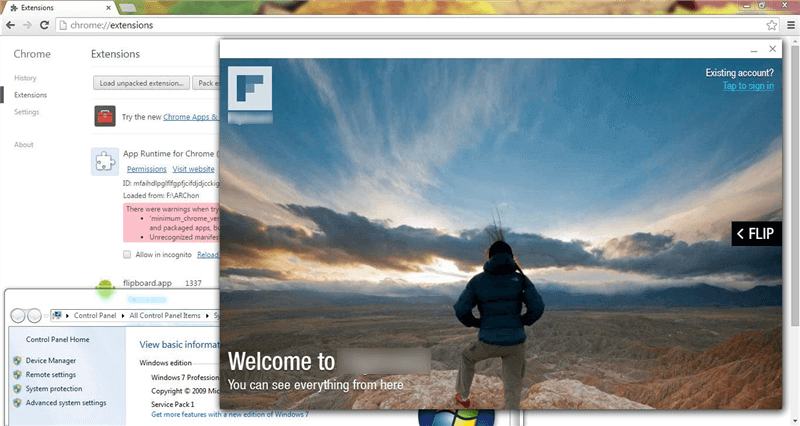
Android Emulators for Chrome – ARChon
ARChon lets users run Android apps directly on their PCs in the Google Chrome browser without needing extra software. According to the service’s current features, Chrome 37 and over, OS X, Windows 64, Ubuntu, and many more are supported platforms. Although it provides an innovative approach to executing Android apps on personal computers, users can sometimes have to alter APKs.
Key Features:
- APK files need to be modified for some apps to work on Chrome.
- Open-source software that’s freely available for users to download and install.
- Requires Google Chrome version 37 or higher to function properly.
Pros:
- Free and open-source.
- Simple installation process via Chrome.
- No additional software is required.
- Cross-platform functionality.
Cons:
- Limited app compatibility.
- Requires APK conversion for some apps.
Pricing: Free
Genymotion
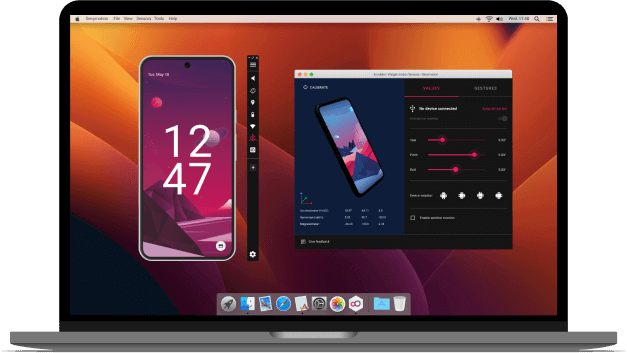
Android Emulators for Chrome – Genymotion
Genymotion is one of the most well-known Android emulators designed to test various kinds of development. It helps its users play Android games and work with apps on Mac or PC, which can be downloaded for local use.
Thus, Genymotion can be considered one of the most efficient tools for emulating real Android devices, and it is compatible with a broad spectrum of Android devices and versions. It is quite useful for developers, testers, and enthusiasts who require Android applications on their PCs or for testing mobile applications. Therefore, Genymotion is also good for teams focusing on app development because it makes test automation easy.
Key Features:
- Genymotion works both in the cloud and on your local computer.
- It supports different Android versions and allows device customization.
- You can automate testing, making it great for app development.
- It works well across platforms such as Windows, macOS, and Linux.
- Genymotion can simulate different Android devices to meet various needs.
Pros:
- Easy Android app testing and simulation.
- Customizable Android devices for specific needs.
- The cloud-based version is convenient and scalable.
- Works well with automated testing systems.
Cons:
- It’s not ideal for general app use.
- Can be resource-intensive for low-end devices.
Pricing:
- Free: $0
- Educational: $49/year
- Individual: $206/year
- Business: $412 / year
MEmu
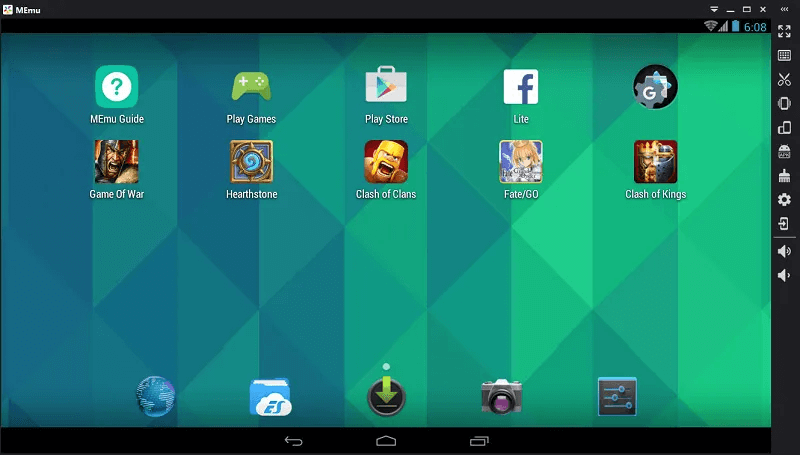
Android Emulators for Chrome – Memu
MEmu allows Windows-based laptops and desktops to run Android apps and games. It provides a smooth experience that lets users enjoy mobile apps with multiple personalization choices on a larger screen. Whether you like casual mobile apps or action-packed games, MEmu is made to handle all kinds of Android games. Numerous Android versions are compatible with it, guaranteeing a seamless experience for various apps and games.
Key Features:
- Customizable device settings for memory size, resolution, and CPU for improved performance.
- Joystick or keyboard mapping for enhanced gaming experiences on PC.
- Accelerometer support for playing racing games with realistic controls.
- GPS simulation allows location-based games like Pokémon Go to function properly.
- Multiple Windows support enables users to run more than one app at a time.
Pros:
- Fast and easy installation process.
- Highly customizable for performance settings.
- Supports a wide range of Android apps and games.
- Smooth user interface with simple navigation.
Cons:
- The initial setup might include Chinese-language text.
- Some users may face touch gesture issues.
Pricing: Free
NoxPlayer
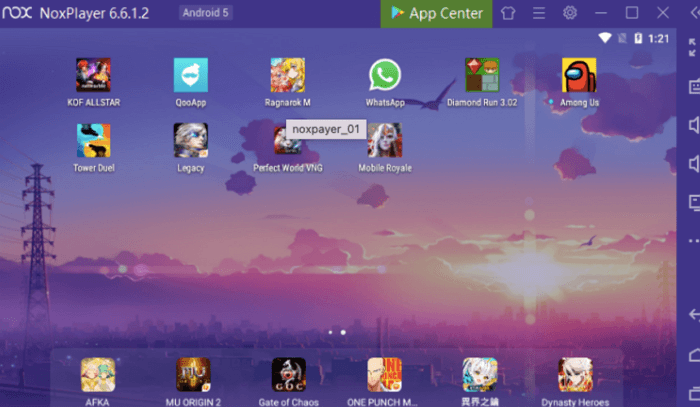
NoxPlayer Emulator
A sturdy Android emulator, NoxPlayer, enables users to run Android apps on a Windows PC or laptop. It produces a virtual Android environment that simulates a mobile device, allowing the users to run productivity tools or games on a larger screen. With its abundance of features, like keyboard mapping, support for multiple instances, and screen recording, the emulator is perfect for app enthusiasts and gamers.
Key Features:
- Multi-instance Manager lets you run several Android apps simultaneously for improved productivity.
- Macro Recorder allows you to record and replay actions for gaming or repetitive tasks.
- You may alter your keyboard to better control Android games with Keyboard Mapping.
Pros:
- Easy to use with an intuitive interface.
- Supports multiple Android instances.
- Offers keyboard mapping for gaming.
- Free to download and use.
Cons:
- Only available for Windows users.
- It can consume significant system resources.
Pricing:
- Monthly Plan: $3.69
- Quarterly Plan: $9.99
- Yearly Plan: $31.99
BlueStacks
Android Emulators for Chrome – BlueStacks
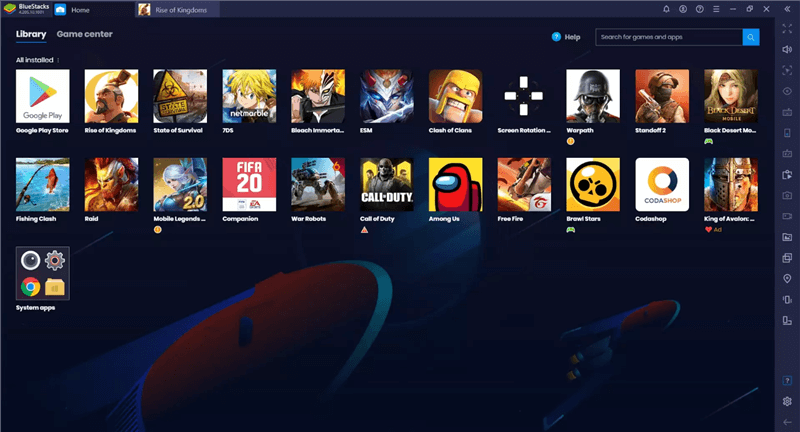
Using the well-known Android emulator BlueStacks, you can run Android games and apps on your Mac or PC. It is popular among users who like using Android apps or playing mobile games without requiring a smartphone or tablet. BlueStacks’ intuitive UI allows It to easily install apps straight from the Google Play Store. It is a flexible tool for gamers since it allows keyboard and mouse controls for games. You may adjust settings like screen resolution for best performance and run multiple programs simultaneously.
Key features:
- Get Android games and apps straight from the Google Play Store.
- Increases system performance to improve responsiveness, decrease lag, and enable smooth gameplay.
- Capture and share your gameplay or app usage directly through BlueStacks.
Pros:
- Easy to use and set up.
- High-quality gaming performance.
- Wide app compatibility.
- Supports multiple instances.
Cons:
- Not all mobile apps are compatible.
- Limited control options for some games
Pricing: Free
How to Screen Mirror Android to Chrome
Now, let’s have a look at the methods to screen mirror Android to Chrome:
Mirror Android to Chrome via AnyMiro
AnyMiro is an easy-to-use screen mirroring app to enhance your Android-to-Chrome streaming experience. Its ultra-high-resolution, i.e., 4K mirroring features guarantee that your mobile device’s screen will show in full HD, delivering clear and sharp images. Your game’s audio and video will always be in perfect sync thanks to the low-latency sync feature, which makes it excellent for real-time broadcasting on websites like Facebook, YouTube, and Twitch.
Key moments during gaming or live drawing sessions can be easily saved by taking screenshots and recording your sessions. Additionally, AnyMiro allows you to annotate during mirroring, making it perfect for interactive content creation, whether teaching, gaming, or drawing.
Free Download for all windows & 100% safe Free Download for all mac & 100% safe
Free Download100% Clean & Safe
Key Features:
- Cross-platform streaming allows easy screen mirroring from Android to Chrome for smooth streaming and sharing.
- High-resolution support offers crystal-clear mirroring, ensuring vibrant and sharp visuals on Chrome.
- Interactive features let you annotate or draw directly on the screen during the mirroring session.
- One-click setup makes it simple and quick to start mirroring from your Android device to Chrome.
- Low-latency performance ensures minimal delay, making it ideal for gamers and live streamers.
Here are the steps to screen mirror Android to Chrome using AnyMiro:
Step 1. Free download and install AnyMiro on your computer. Open AnyMiro and choose “Android” to begin.

Mirror Android to Computer
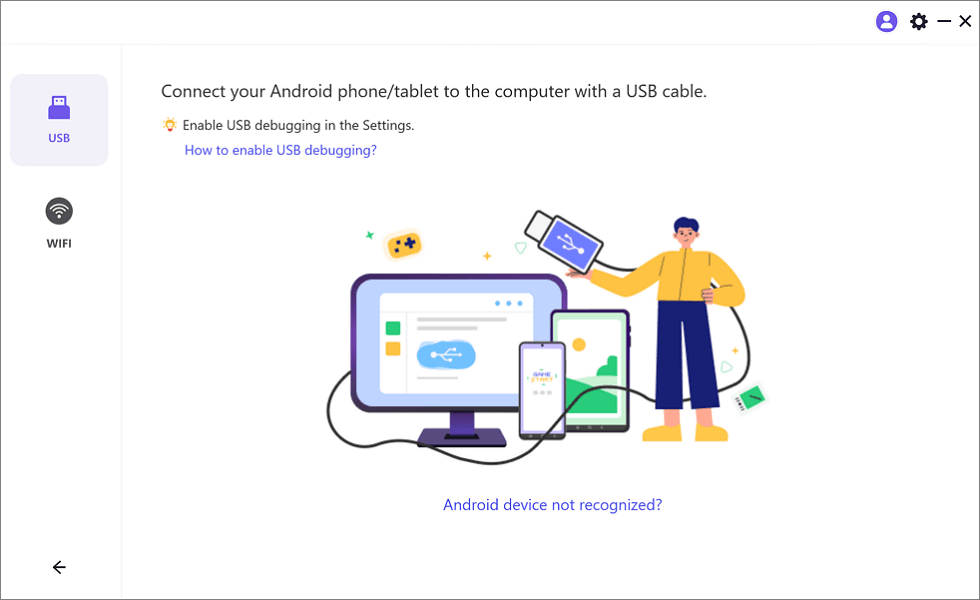
Step 2. Click “USB” and connect your Android device to the computer with a USB cable.
Select the USB Option for Screen Mirroring Android to PC
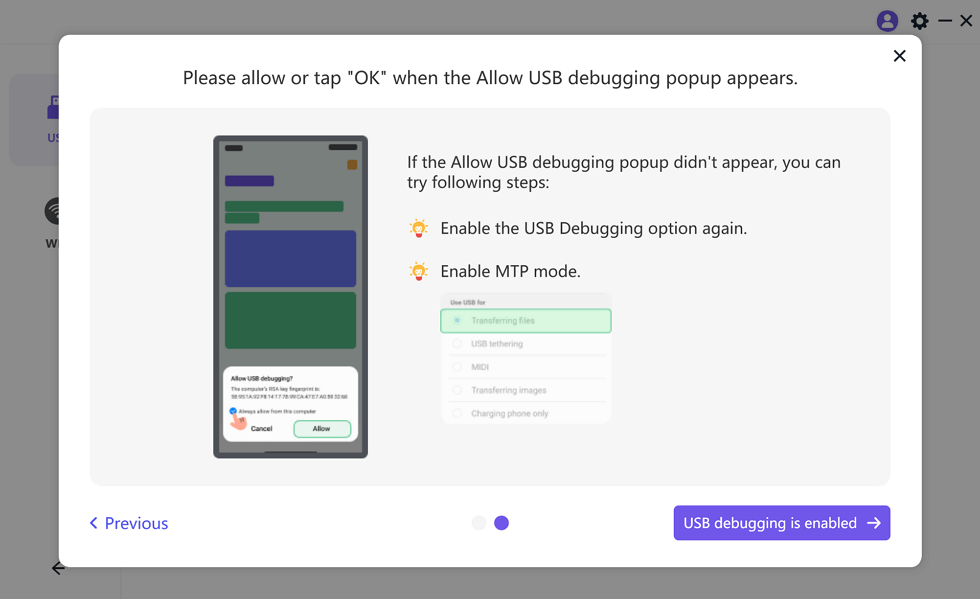
Step 3. When prompted, turn on “USB debugging” and “MTP Mode” on your phone. Your Android screen will now display on your PC or Mac.
Enable USB Debugging and MTP Mode for a USB Connection
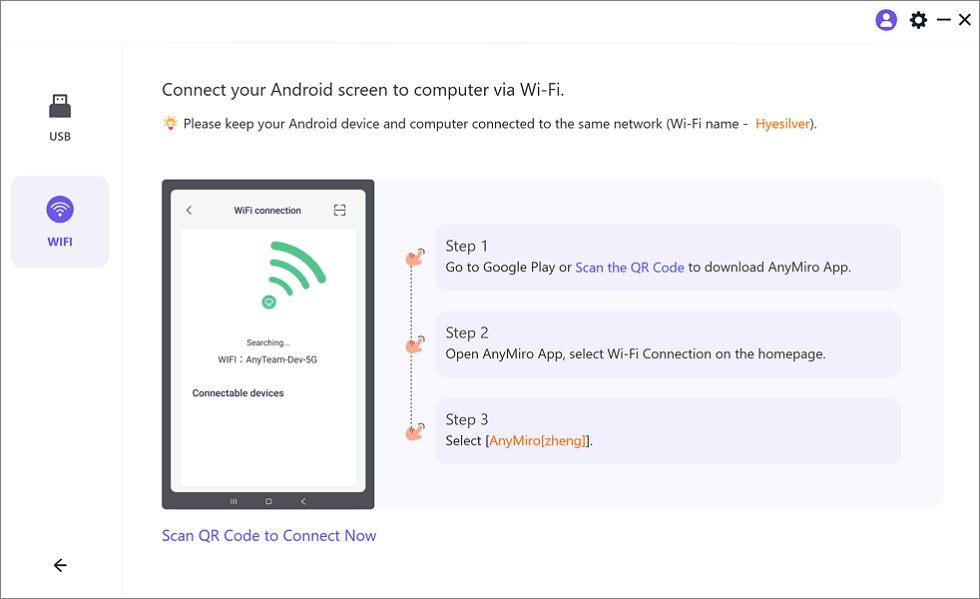
You can also screen mirror your Android phone to a Chromebook via Wi-Fi:
Mirror Android to Computer via WiFi
Mirror Android to Chrome via Chrome Cast Feature
You can easily mirror your Android phone to a TV or other display by using the Chromecast feature. You may use this technique to share apps, videos, and different types of material on a bigger screen. The “Google Home” app makes it simple to wirelessly project your phone’s screen, providing a better viewing experience without cords. To use this method:
Step 1. Open the “Google Home” app on your Android phone.
Step 2. Choose your TV or device from the list by selecting it.
Step 3. Tap “Cast my screen,” located in the lower-left corner.
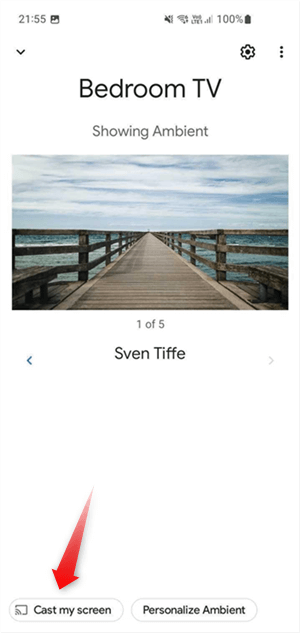
Tap Cast My Screen
Step 4. Click the “Cast screen” button to begin.
Step 5. You may need to confirm by selecting “Start Now” when prompted. Your phone’s screen will be mirrored on your TV or display.
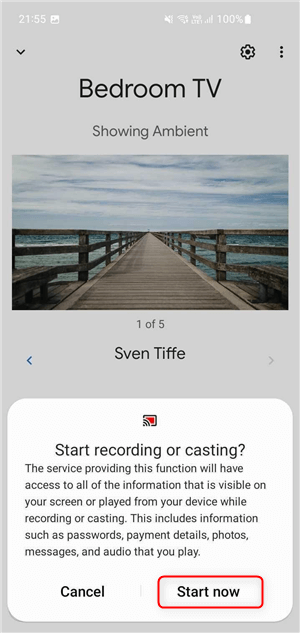
Select Start Now
FAQs about Android Emulators for Chrome
What are the benefits of using an Android emulator?
Android emulators help you test mobile apps, run Android games on a larger screen, and use apps unavailable on Chrome OS. They also provide access to Android’s app store and features without needing a physical Android device.
Are Android emulators for Chrome safe to use?
Most Android emulators for Chrome are safe, but choosing reliable, trusted tools is essential. To avoid security risks, download emulators from reputable sources and always check reviews before installing an emulator.
How do I fix performance issues with Android emulators?
To improve performance, make sure your system meets the emulator’s requirements. Close unnecessary background apps, increase system resources like RAM, or adjust settings within the emulator. For smoother performance, tools like AnyMiro offer a lag-free experience when screen mirroring from Android to Chrome.
Final Words
To sum up, enhancing video quality is easier with the right tools. With AnyEnhancer, you can boost your videos for clearer and sharper viewing. It’s simple and effective for improving your content. For those looking to mirror their Android screen seamlessly, AnyMiro is highly recommended. It ensures smooth, high-quality streaming without any interruptions.
AnyMiro – Real-Time Screen Mirroring Tool
Free download AnyMiro to enjoy a fast, stable, and smooth screen mirroring experience. You can mirror for better game playing, video watching, or live streaming mobile phone content.
Product-related questions? Contact Our Support Team to Get Quick Solution >
