How to Fix Chromecast Not Working?
This post will show you how to resolve Chromecast not working issues. Continue reading to learn the complete details!

How to Fix Chromecast Not Working?
Try AnyMiro to mirror iPhone to PC for free via USB and WiFi.
- Fast response time within 10 ms and 60fps frame rate.
- A stunning visual experience with no color difference.
- Lag-free screen mirroring and 4k resolution.
You sit down to stream your favorite movie, but Chromecast is not working. The screen stays blank, or your phone won’t connect. It’s frustrating! There can be multiple causes, such as Wi-Fi issues, apps that need updating, or power issues. The good news is that there are easy Chromecast fixes to many of its problems that you can do from home. Here, we are going to cover simple solutions for Chromecast not working. Follow these steps to troubleshoot the issue and get your streaming back on track. If Chromecast still doesn’t work, we suggest a great alternative to help you continue enjoying your content.
How to Fix Chromecast Not Working – 10 Ways
Let’s have a detailed look at the best ways to fix Chromecast not working:
1. Access Wi-Fi Connection
A weak or unstable Wi-Fi connection can cause Chromecast issues. Move the router closer or test other devices to ensure your internet is operational. To check Wi-Fi connection:
Step 1. Check your Wi-Fi router for problems. If the lights are blinking red or missing, there may be an issue. Every router is different, so check the manual or restart it to fix any connection problems.
Step 2. Navigate to “Settings” > “Wi-Fi” on your phone. Try sending a message or opening a webpage to check if the internet is functioning. If not, restart your Wi-Fi or reconnect to fix the issue.
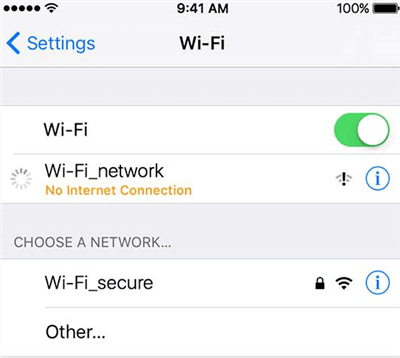
Check Wi-Fi Connection on iPhone
2. Ensure Both Devices Use the Same Network
Ensure your Chromecast and your device, such as a phone, tablet, or computer, are connected to the same Wi-Fi network—otherwise, it will not work. For this:
Step 1. Select “Network & Internet” after selecting “TV Settings“. Ensure Chromecast has a Wi-Fi connection.
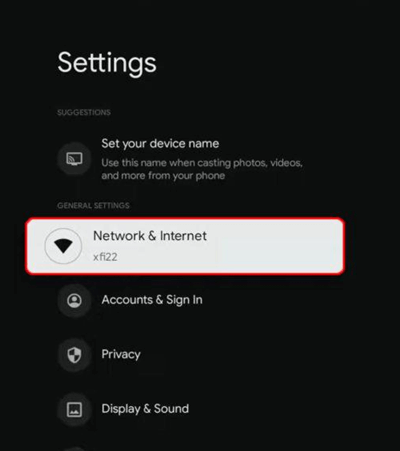
Select Network & Internet
Step 2. Check Windows Network: Open “Settings“, tap “Network & Internet“, then “Wi-Fi“. Connect to the correct network.
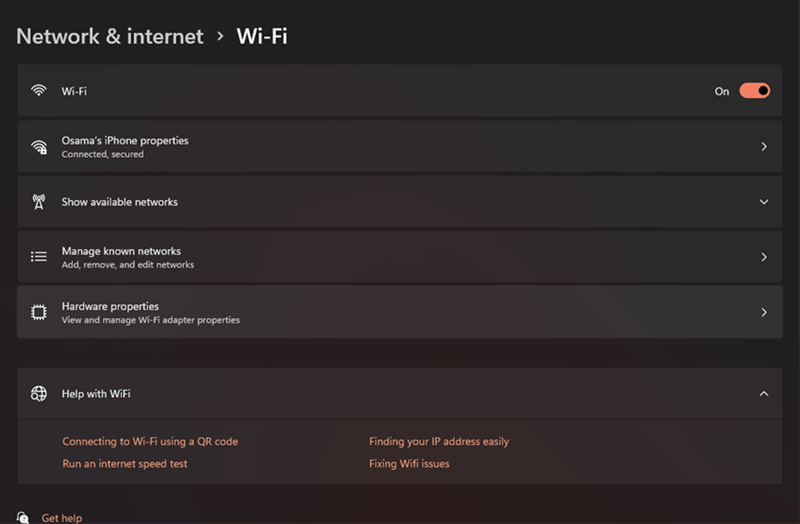
Select Wi-Fi
Step 3. Check Mac Network: Tap the “Apple menu“, open “System Settings“, then “Network“. Check your Wi-Fi connection.
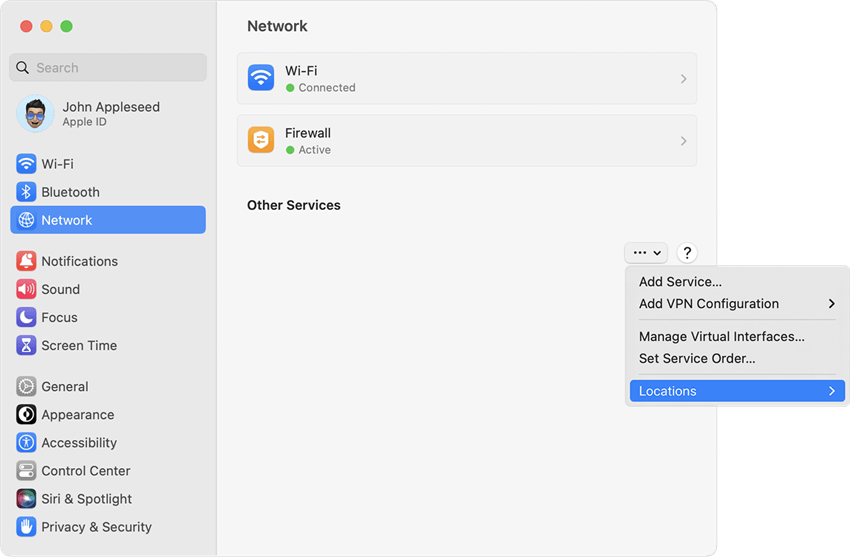
Select Network
Step 4. Check Phone Wi-Fi: Open “Settings,” tap “Wi-Fi,” and make sure your device is connected properly.
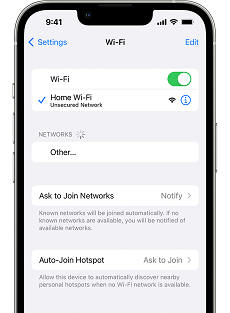
Tap Wi-Fi
3. Try a Different Power Supply
Try a different power adapter if Chromecast isn’t turning on or keeps disconnecting. Look up “accessories” in a nearby store or on the Google Store. Verify the specifications on Google Support for your Chromecast device. You should constantly double-check because using the wrong adaptor could lead to more issues. A reliable Chromecast connection is guaranteed with a high-quality power supply.
4. Restart your Tablet, Phone, or Computer
Restarting the device can sometimes resolve Chromecast problems. This aids in system refresh and fixes any short-term issues that might impede Chromecast’s functionality. For restarting:
Restart a Windows Computer
Step 1. Right-click “Start” on the desktop.
Step 2. Click “Power”, then choose “Restart”.
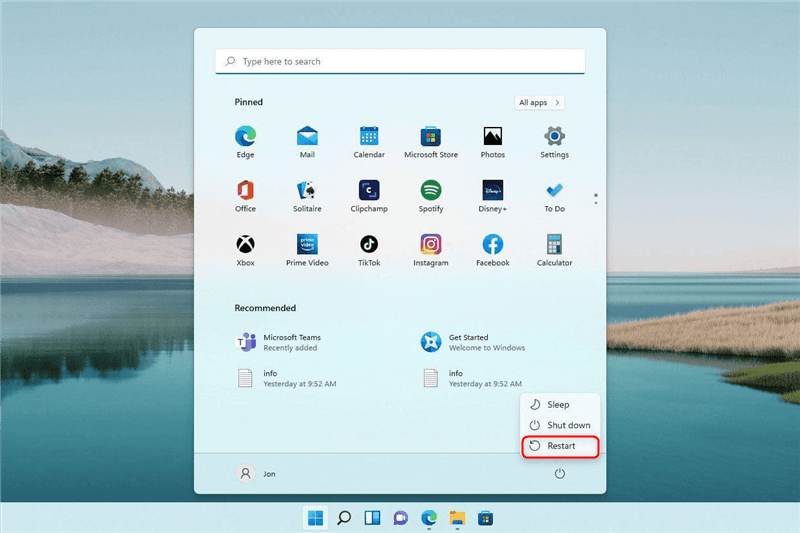
Choose Restart
Restart a Mac
Step 1. Click “Apple Menu”, then select “Restart”.
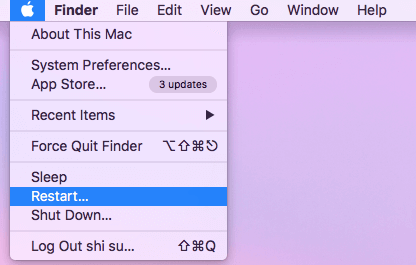
How to Restart Mac
Step 2. Alternatively, hold the Power button to turn off and press it again to turn on.
Restart an Android Device
Step 1. Press and hold the Power button.
Step 2. When options appear, tap “Restart” and wait a few seconds for the device to restart.
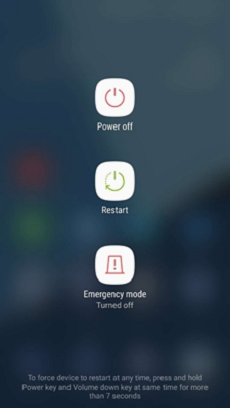
Restart Your Android Device
Restart an iPhone/iPad
Step 1. Hold a volume button and the power button together.
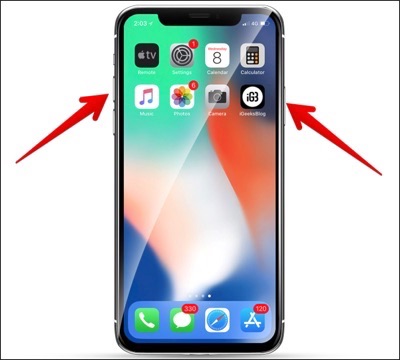
How to Power Off iPhone XS/XS Max
Step 2. Slide “Power Off” to turn it off.
Step 3. Wait 30 seconds, then press the side/top button to turn it on.
5. Reboot Your Chromecast Device
To fix small errors and refresh the connection, unplug Chromecast for 30 seconds, and then plug it back in if it’s not working. To restart it:
From Power Source
Step 1. Unplug the power cable from Chromecast.
Step 2. Wait a few minutes. Plug the power cable back in.
From Google Home
Step 1. Open the Google Home app on your phone.
Step 2. Find and tap your Chromecast device.
Step 3. Tap “Settings“, then “More Settings“, and choose “Reboot“.
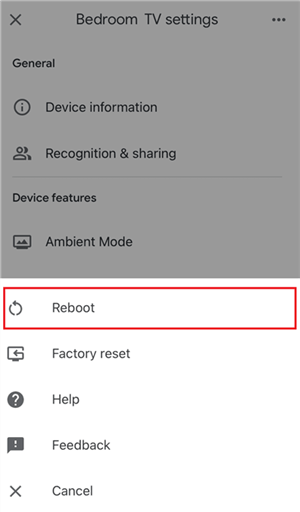
Reboot Chromecast Device
6. Use a Chromecast Extender
Your Chromecast occasionally won’t get a Wi-Fi signal. Older Chromecasts included an HDMI extender, but newer versions don’t. You will receive a stronger signal if you plug in the extender if you are still using the first-generation model. After Chromecast is connected to the HDMI extender, plug it into your television. For a stronger Wi-Fi signal, place it closer to the router.
7. Reset Your Wi-Fi Router or Modem
The fastest way to fix some Chromecast problems, such as losing connectivity or device detection, is to restart your Wi-Fi. Unplug your router or modem, or turn it off by holding the power button until all the lights have gone off. Wait for 30 seconds, and then plug it back in. After rebooting, it takes some time to reconnect properly. A new Wi-Fi connection can fix most of the issues related to casting and provide seamless streaming on Chromecast.
8. Update Your Chrome Browser
An outdated Chrome browser can cause casting problems. To improve streaming, check your browser’s settings for updates, install them, and then restart Chrome. For updating:
Step 1. Launch Google Chrome on your computer.
Step 2. Click the three dots in the top-right corner and select “Settings.”
Step 3. Click on “About Chrome“. Check for updates. If an update is available, install it.
9. Update the Google Home App
The Google Home app controls Chromecast, so keeping it updated is important. A newer version may fix bugs and improve Chromecast performance. Here are its detailed steps:
Update Google Home on Android
Step 1. Open the “Play Store” app.
Step 2. Tap the search bar and type “Google Home“.
Step 3. If you see “Update,” tap it to install the latest version.
Update Google Home on iPhone.
Step 1. Open the “App Store“.
Step 2. Tap the search icon and type “Google Home“.
Step 3. If “Update” appears, tap it to update the app.
10. Perform a Factory Reset on Chromecast
If nothing else works, a factory reset might be your last option. This will reset Chromecast to its original settings and remove all data. Hold down the reset button until the LED goes white, then let go while keeping it plugged in. After waiting for it to do so, restart it. This should fix most issues and restore normal function.
The Best Alternative to Chromecast- AnyMiro
AnyMiro is a simple and powerful screen mirroring app that lets you stream your phone to a PC with a stable connection. It works smoothly with Android and iPhone and supports OBS Studio, Twitch, YouTube, and Facebook. Regardless of your profession—gamers, artists, educators, or content producers—AnyMiro offers uninterrupted, lag-free streaming for up to ten hours.
Free Download for all windows & 100% safe Free Download for all mac & 100% safe
Free Download100% Clean & Safe
AnyMiro is the perfect tool for education, gaming, live events, and presentations because it supports various streaming platforms.
Key Features:
- 10 hours of lag-free streaming for smooth and uninterrupted screen mirroring.
- HD screen mirroring delivers sharp visuals with up to 4K resolution.
- Low-latency audio sync keeps sound and video perfectly in sync.
- The live annotation feature helps highlight key points in real-time.
- Screen recording and screenshot features allow you to capture important moments.
- Supports OBS Studio, Twitch, YouTube, Facebook, and other streaming platforms.
Screen mirroring from iPhone to PC
Here are some simple steps to stream mobile screen to PC:
Step 1. Free download and install AnyMiro on your computer. Connect your iPhone or iPad to the computer using a USB cable.
Step 2. Launch AnyMiro and click “iOS/iPadOS.”
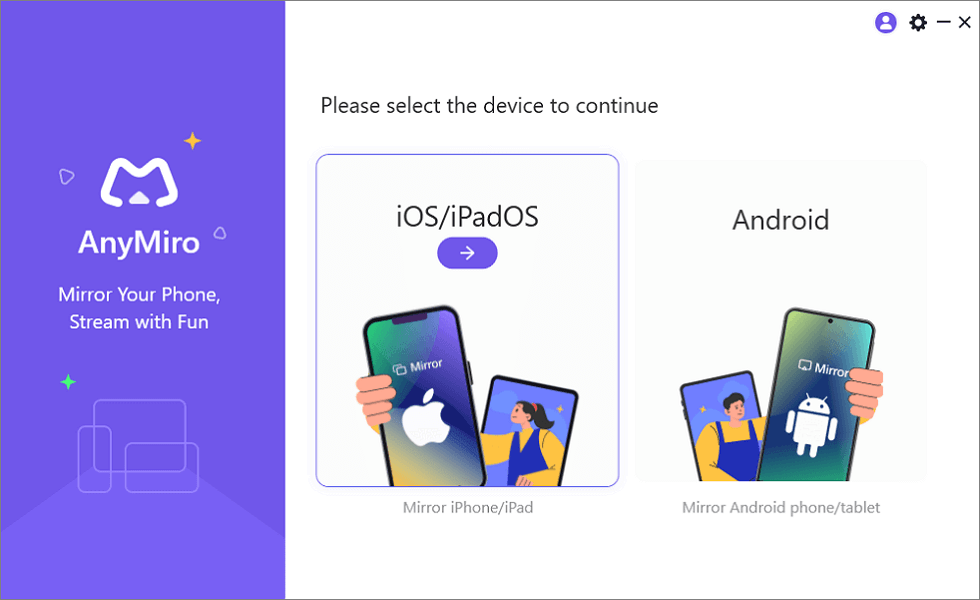
Mirror iPhone to Computer
Step 2. Select the “USB connection” option.
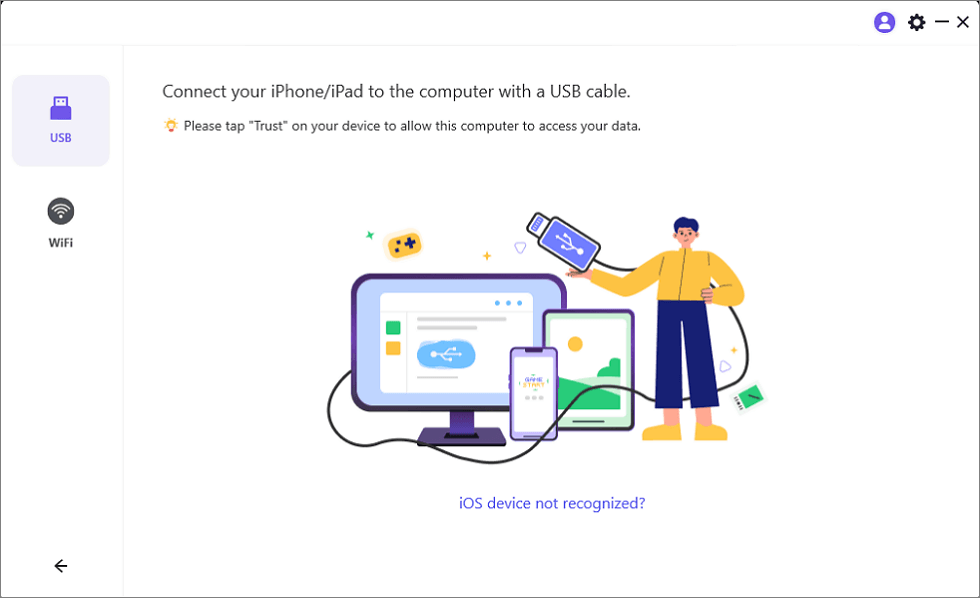
Connect Your iPhone/iPad with a USB Cable
Step 3. Tap “Trust” on your iPhone or iPad to confirm the connection.
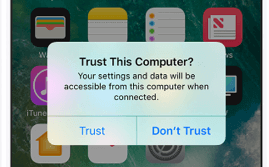
Trust Your Computer on iPhone
Step 4. If prompted, enter your device’s passcode. Your screen is now ready to mirror.
Screen mirroring from Android to PC
Step 1. Launch AnyMiro on your computer and select “Android.”

Mirror Android to Computer
Step 2. Click on the “Wi-Fi” option to begin the connection.
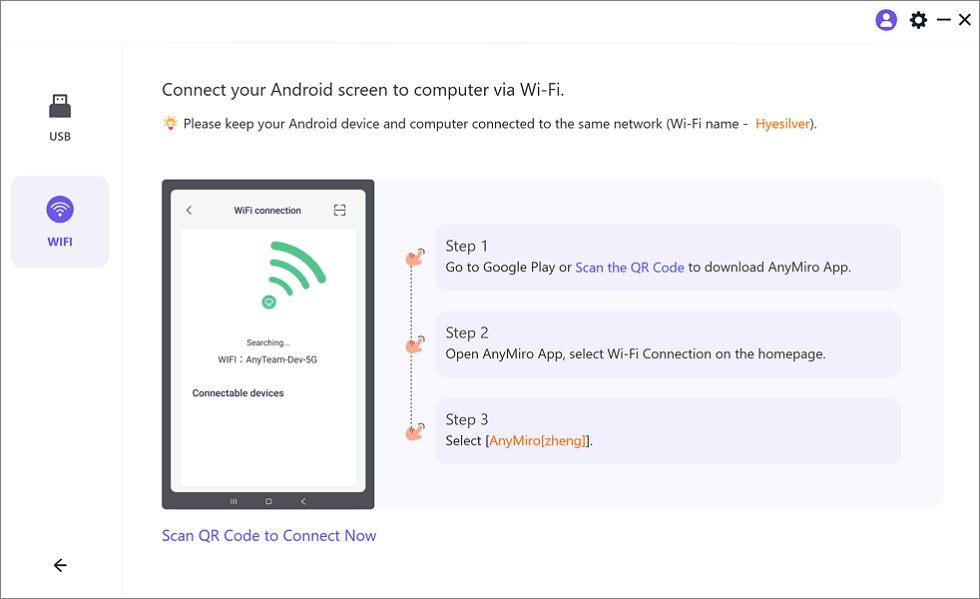
Mirror Android to Computer via WiFi
Step 3. Download the AnyMiro app from Google Play or scan the QR code on your Android.
Step 4. Select “Wi-Fi Connection,” open the app, and pick your computer’s name from the list. Your Android screen will start mirroring wirelessly.
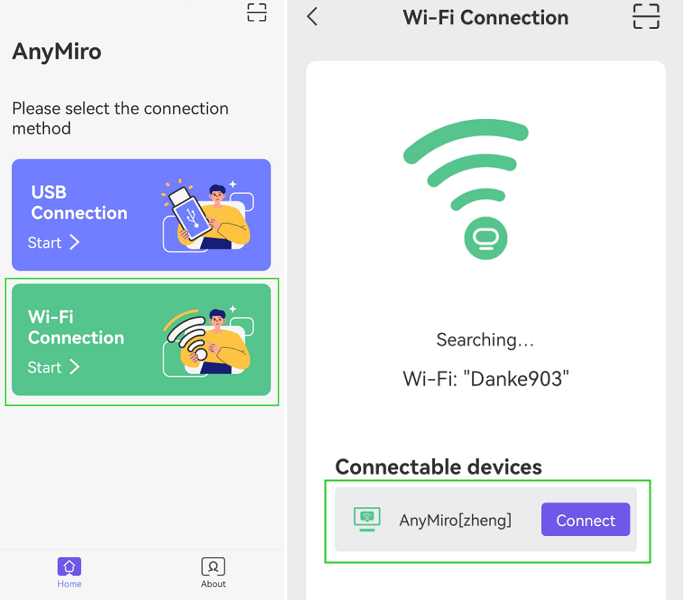
Tap WiFi Connection
FAQs on Chromecast Not Working
Why is my Chromecast buffering or slowing down?
A slow internet connection can cause buffering. Restart your router, bring your Chromecast nearer, and change your Wi-Fi connections. Using a wired connection and an Ethernet adaptor can also be beneficial.
Why is the loading screen of my Chromecast frozen?
After removing Chromecast from the power source, wait a minute. Replug it and try again. Keeping the reset button pressed until the LED flashes will perform a factory reset if it does not work.
How can my Chromecast be reset?
Press the reset button on your Chromecast, and it will make the light flash for about 20 seconds. Then, use the Google Home app to configure it again.
Final Words
If your Chromecast isn’t working, try rebooting the device. Make sure that Chromecast and phone/computer have the same network. Clearing the cache or resetting Chromecast can also resolve the issue. If you are still having trouble, an efficient alternative is AnyMiro. It allows you to mirror your phone onto your PC or Mac without connectivity issues. With good streaming and top-quality video, AnyMiro is the ideal solution for untroubled screen mirroring. Give it a try and experience improved streaming!
Product-related questions? Contact Our Support Team to Get Quick Solution >
