How to Control YouTube on PC from Phone
In this guide, you will learn 5 easy ways to control YouTube on your PC from your phone. Follow the step-by-step instructions to enjoy YouTube on your PC with your phone.

How to Control YouTube on PC from Phone
Try AnyMiro to mirror iPhone to PC for free via USB and WiFi.
- Fast response time within 10 ms and 60fps frame rate.
- A stunning visual experience with no color difference.
- Lag-free screen mirroring and 4k resolution.
You may be watching YouTube on your PC, but you want to control it from your phone while sitting in bed. You don’t want to keep getting up to pause, play, or change videos. Good news! You can easily control YouTube on your PC using your phone. There are many simple ways to do this. You can use the Microsoft Store app, Unified Remote, Scrcpy, BlueStacks, or VLC Media Player. Each method has different features; some are free, while others are paid. In this guide, we will show you how to use these methods. You will also learn a bonus tip: screen mirror YouTube from your phone to your PC. Let’s get started!
Table of ContentsHide
How to Control YouTube on PC from Phone [5 Ways]
It is easy and convenient to control YouTube on a PC from your phone. Let’s explore some methods for doing this.
Microsoft Store
If you use a Windows PC, controlling YouTube from your phone is easy with the Phone Link app (formerly called “Your Phone”), which is a proprietary app of the Microsoft Store. This app connects your Android phone to your PC wirelessly. Once set up, you can open YouTube on your PC and control it using your phone. This method is great for watching videos on a big screen while keeping your phone as a remote. The setup is simple and works smoothly for Android users with Windows 10 or later.
The Phone Link app has limited support for iPhones. However, you can use EasyCast to mirror your iPhone screen to your PC. This allows you to easily control YouTube from your phone.
Unified Remote (Paid)
Unified Remote is a paid app that lets you control YouTube on your PC from your phone. It works wirelessly using Wi-Fi or Bluetooth. It has a special YouTube remote with play, pause, volume, and next/previous buttons. You can also control your PC’s mouse and keyboard from your phone. It supports Windows, Mac, and Linux. You can create custom remote controls and even turn off or restart your PC from your phone. The app also encrypts connections for security. The free version has basic controls, but the paid version unlocks all features, including media controls for YouTube. To use this app:
Step 1. Download and install the Unified Remote app on your phone.
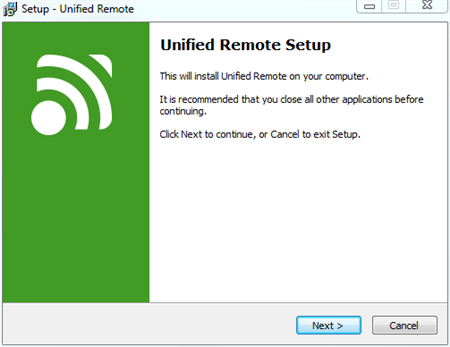
Install Unified Remote
Step 2. Go to the Unified Remote website on your PC and download the software.
Step 3. Open the app on your phone and tap “Servers” to find your PC.
Step 4. Tap your PC name to connect. Now, you can control YouTube on your PC using your phone.
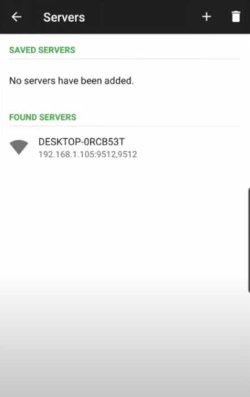
Select PC
Scrcpy
Scrcpy is a free and open-source tool that lets you mirror and control your Android phone on a PC. You can open YouTube on your phone and control it with your PC’s keyboard and mouse. It works wirelessly or with a USB cable. It has low latency, so there is no delay. You can also copy and paste text between your phone and PC. Scrcpy does not need any extra apps on your phone. It supports HD video quality, screen recording, and multiple device connections. It is completely free, but it only works with Android devices. For using Scrcpy:
Step 1. Download and install the latest version of Scrcpy on your PC.
Step 2. Connect your phone and PC to the same WiFi network. Use a USB cable to connect your phone to the PC.
Step 3. Find your IP address on your phone by going to Settings > About Phone > Status.
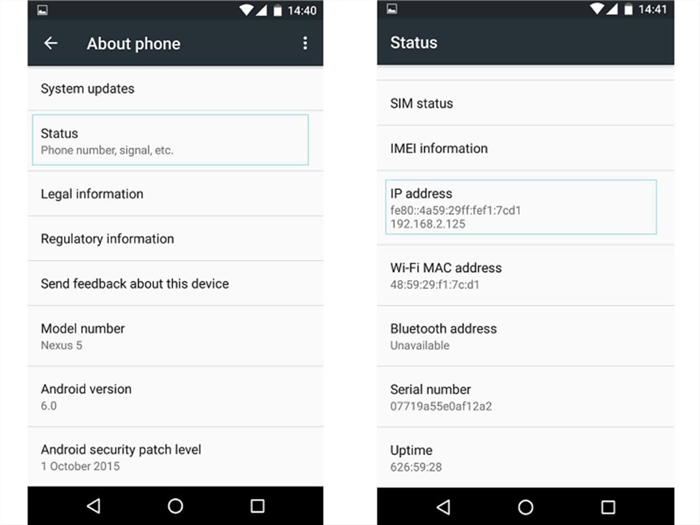
Go To Status
Step 4. Enable ADB (Android Debugging) by entering this command:
adb tcpip 5555
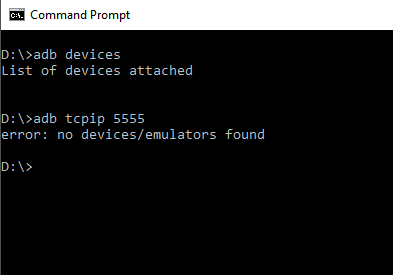
Enter Command
Step 5. Run this command on your PC:
adb connect YOUR_IP:5555 (Replace YOUR_IP with your actual IP address).
Step 6. Unplug your phone. Now, you can control YouTube on your PC from your phone.
BlueStacks
YouTube and other mobile apps can be run on your PC with BlueStacks, an Android emulator. It turns your computer into a virtual Android device. Installing and using the YouTube app on BlueStacks is similar to using it on a phone.
Game controllers, mouse controls, and keyboard shortcuts are all supported. Besides that, you can take screenshots, record videos, and adjust the screen resolution. With multi-instance capability, you can operate several programs at the same time using BlueStacks. It supports both Mac and Windows. However, it needs a lot of RAM; therefore, it should be utilized with a fast computer for uninterrupted operation. To operate using this method:
Step 1. Download and install BlueStacks on your PC or Mac.
Step 2. Sign in to the Google Play Store or do it later.
Step 3. In the search bar, type “YouTube” and press “Enter.”
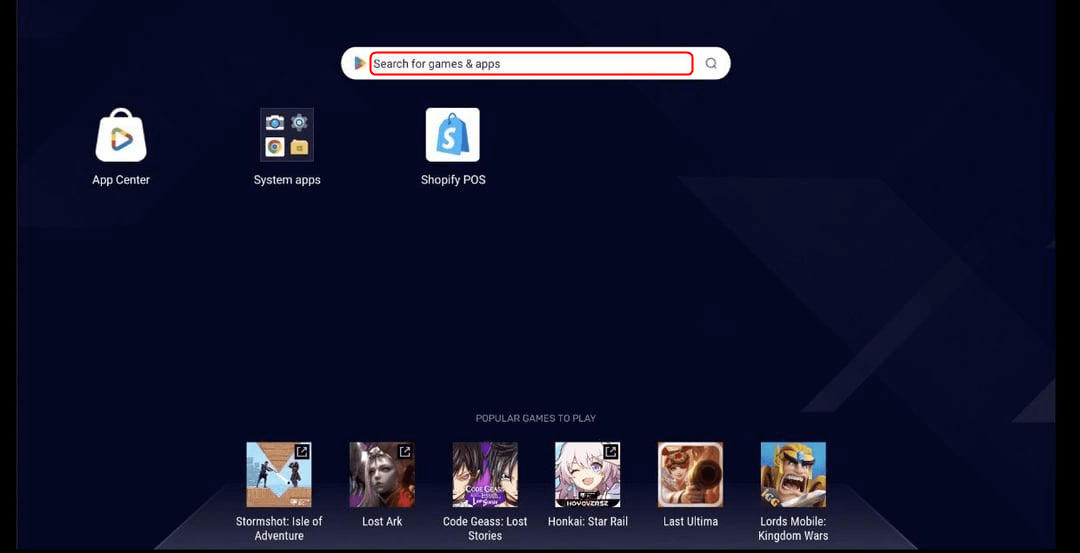
Search YouTube
Step 4. Click “Install” to download the YouTube app.
Step 5. If you skipped the Google sign-in earlier, sign in now to complete the installation.
Step 6. Open “YouTube” from the home screen and start watching or controlling YouTube on your PC.
VLC Media Player
VLC Media Player can stream YouTube videos on a PC without a web browser. It has a network stream feature where you can paste a YouTube link and watch videos directly in VLC. It runs videos smoothly and eliminates advertisements. Additionally, it’s simple to change the volume, contrast, brightness, and playback speed. It enables screenshots, looping, and subtitles. With VLC, you may view YouTube in the background while using other apps. It is compatible with Linux, Mac, and Windows. To use this method:
Step 1. Install VLC Media Player on both your PC and phone.
Step 2. Open VLC on your phone and go to “Settings.”
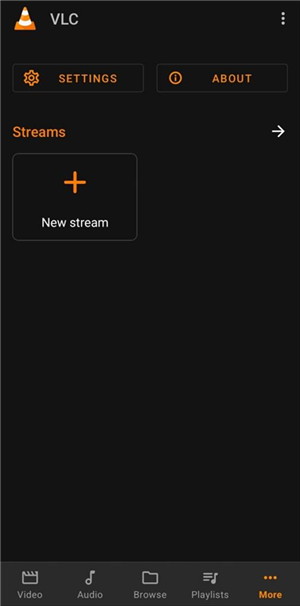
Open Settings
Step 3. Tap “Remote Access” and turn on “Enable Remote Access”.
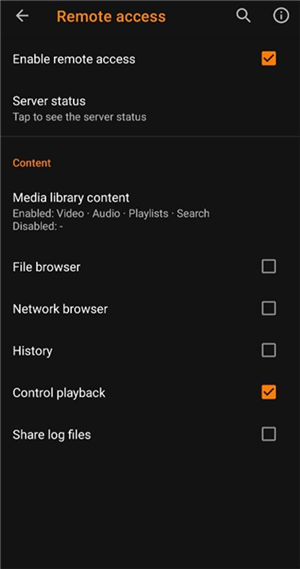
Enable Remote Access
Step 4.Enter your PC’s IP address in the given field.
Step 5. Tap “Connect” to link your phone and PC. Now, you can control YouTube on your PC using your phone through VLC.
Bonus Tip. How to Screen Mirror YouTube on PC from Phone [AnyMiro]
AnyMiro is a quick and easy way to display your phone’s screen on a computer. Video, gaming, and live streaming all benefit from its smooth operation and excellent visual quality. You can use it for up to ten hours without any lag. It maintains the image’s clarity and color by supporting HD and 4K.
This improves the experience by keeping the sound and video in sync. During mirroring, you can sketch and underline important areas with the live annotation tool, which enhances lectures and presentations. While mirroring, you may also record your screen and take screenshots.
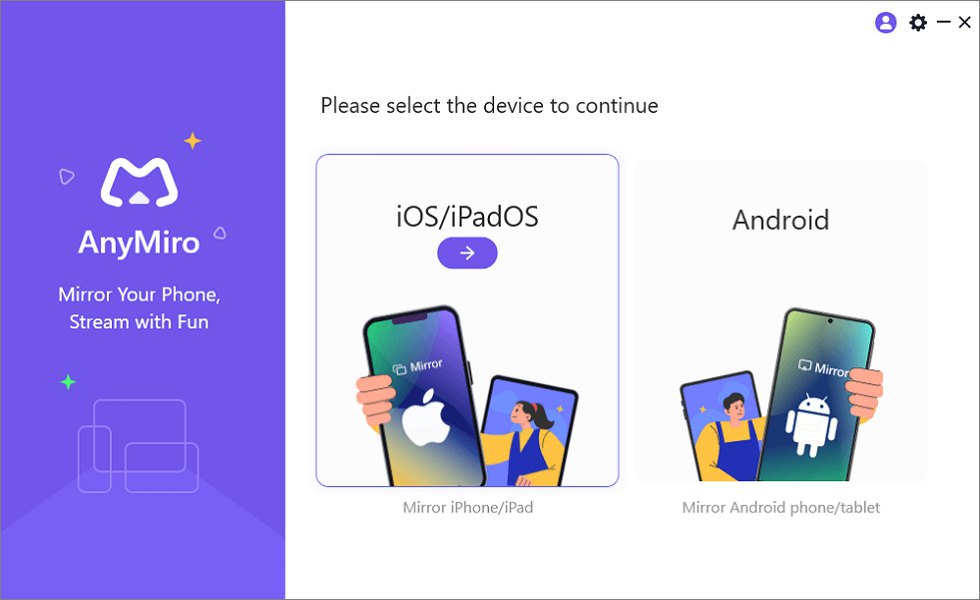
Mirror iPhone to Computer
Key Features:
- It provides a stable and continuous connection for up to 10 hours of continuous mirroring.
- Provides HD and 4K resolutions for clear visual quality without any coloring difference.
- Provides audio sync in real-time for the best streaming experience.
- Compatible with Twitch, YouTube, Facebook, and OBS Studio for easy live stream functionality.
- Allows live annotations to draw and highlight key points during mirroring.
- Enables screenshot capture and screen recording to save important moments.
Here are some simple steps to use AnyMiro:
From iPhone to PC & Mac Using USB:
Step 1. Free download and install AnyMiro on your computer.
Free Download for all windows & 100% safe Free Download for all mac & 100% safe
Free Download100% Clean & Safe
Step 2. Connect your iPhone or iPad to the computer using a USB cable.
Step 3. Open AnyMiro and click “iOS/iPadOS.”
Mirror iPhone to Computer
Step 4. Select “USB connection.”
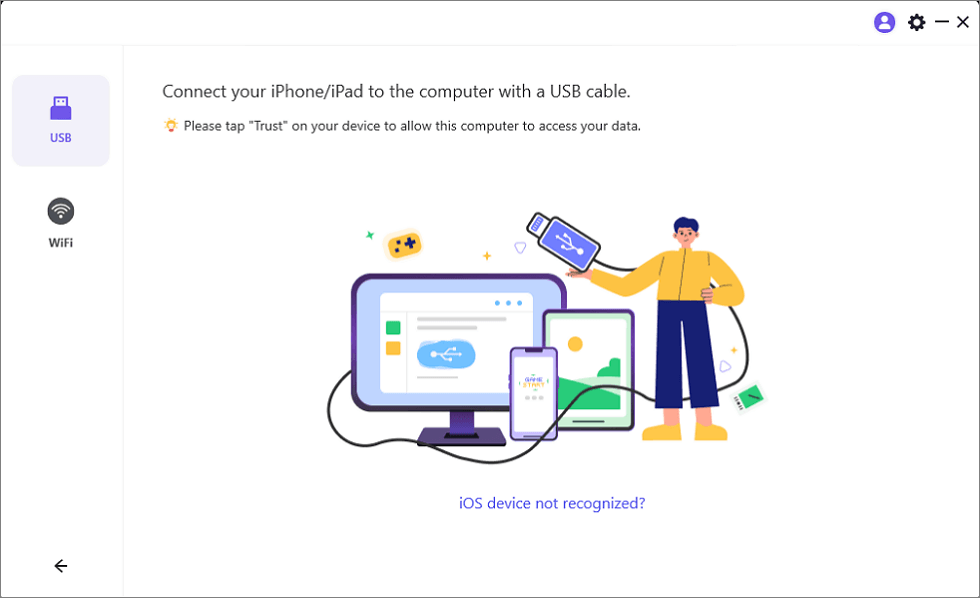
Connect Your iPhone/iPad with a USB Cable
Step 5. On your iPhone or iPad, tap “Trust” to allow the connection.
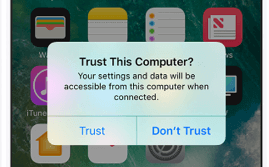
Trust Your Computer on iPhone
Step 6. If asked, enter your passcode. Your device is now mirrored.
FAQs on Control YouTube on PC from Phone
Does using my phone to access YouTube on my PC require an internet connection?
Indeed, your computer and phone need to be online. They should be connected to the same Wi-Fi network for greater control and to prevent lag when playing, pausing, or turning up the volume.
Is there a better method for me to manage YouTube on my computer?
With AnyMiro, you can mirror your phone’s screen to your computer. This lets you view YouTube on a bigger screen and manage everything in real-time from your phone.
Is it possible to control YouTube on my PC with my phone?
Yes! You can control YouTube on a PC. When your phone is linked to your computer, it can be a remote control to play, pause, skip videos, adjust the volume, and search for content.
Final Words
Controlling YouTube on your PC using your phone is very easy. You can play, pause, change the volume, or look up videos on your phone and PC. For a seamless experience, make sure both devices are linked to the same Wi-Fi network. If you want a better way to mirror your phone screen and control YouTube easily, try AnyMiro. It gives you a stable connection and high-quality streaming on your PC. Download AnyMiro for a better, smoother, and more fun YouTube experience!
 AnyMiro – Real-Time Screen Mirroring Tool
- More than 10 hours of stable screen mirroring connection.
- Up to 4K resolution providing a stunning visual experience.
- Integrates with live streaming tools such as OBS and Streamlabs.
- Auto-sync video and background audio with timestamp adjustments.
Free Download
100% Clean & Safe
Free Download
100% Clean & Safe
Free Download 100% Clean & Safe
Product-related questions? Contact Our Support Team to Get Quick Solution >
