How to Display Your iPhone to a Monitor?
Learn how to display iPhone on monitor with an easy step-by-step guide. Explore various ways to do it, along with our top recommendation – AnyMiro!

How to Display Your iPhone to a Monitor?
AnyMiro – Helps you to display iPhone to a monitor without hassle.
- Fast response time within 10 ms and 60fps frame rate.
- A stunning visual experience with no color difference.
- Lag-free screen mirroring and 4k resolution.
Available for both Win & Mac
Are you tired of squinting your eyes on your iPhone’s screen? Do you want to know how to connect iPhone to a monitor or TV so that you can enjoy its content on a big screen? If yes, then you are in for a treat! In today’s digital age, phones are our all-in-one entertainment source. From playing games to watching movies, we do everything on our phones.
However, the small screen may not always do justice to our content. That’s where screen mirroring comes in! In this article, we will explore how to display iPhone on monitor or TV for a better viewing experience.
Let’s get started!
Table of ContentsHide
Display iPhone on Monitor – AirPlay
One of the possible ways to connect an iPhone to a monitor is by using AirPlay. It is a feature developed by Apple that allows you to mirror iOS devices wirelessly. With AirPlay, you can share your iPhone’s screen, photos, videos, and audio on a TV or monitor.
However, AirPlay is compatible with iOS devices only. So, If you have an iPhone and a Mac or Apple TV, you can enjoy screen mirroring with AirPlay.
Pros & Cons of AirPlay
The pros & cons of AirPlay are as follows:
Pros:
- It allows wireless mirroring, eliminating the need for a cable.
- It supports high-quality video/audio streaming for a better viewing experience.
- You can control what is displayed on the monitor directly from your iPhone.
- AirPlay uses encryption to protect your data during transmission.
Cons:
- It only supports Apple devices, limiting its features to Android users.
- Some older devices may not support the latest AirPlay versions.
- Not all monitors have AirPlay receivers and need additional Software.
- The sender/receiver devices must be connected to the same WiFi network.
Now that we are familiar with AirPlay, let’s see how to use it to display iPhone on monitor.
Steps to Display iPhone on Mac or Apple TV with AirPlay
Before starting, check if your iPhone and Mac support the AirPlay feature. If yes, follow the steps below for screen mirroring iPhone to PC.
Step 1: Ensure that both iPhone and Mac/Apple TV devices are connected to the same WiFi network.
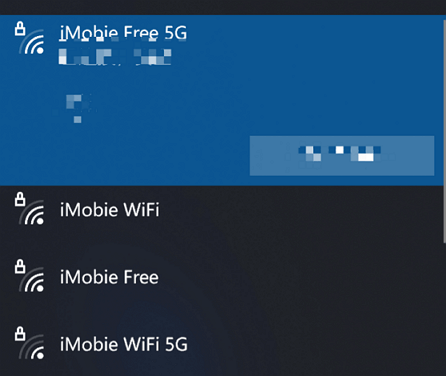
Computer and iPhone Connect to the Same WiFi
Step 2: On your iPhone, swipe down from the right side of the screen to open Control Center.
Step 3: Click the screen mirroring button and select your Mac or Apple TV from the list.
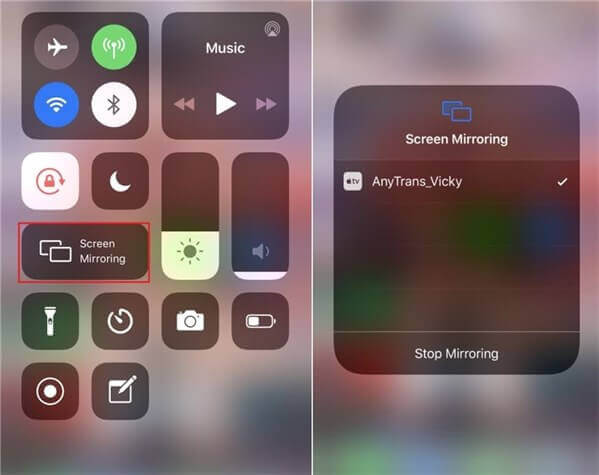
Tap the “AirPlay/Screen Mirroring” Button and Choose the Device Name
Step 4: If you see an AirPlay passcode on your Mac or TV screen, enter the passcode on your iPhone.
Step 5: Once the connection is established, you will see your iPhone screen displayed on your Apple TV or Mac.
While AirPlay offers some amazing features, knowing its limitations is important. One major downside is that it only works with Apple devices. This means that if you have a variety of devices in your home, AirPlay might not be as flexible for you.
However, read the next part if you want a screen mirroring solution that works with iOS and Android devices!
How to Display iPhone on Monitor with AnyMiro [Recommend]
If you want a more reliable and convenient way to display iPhone on monitor, try AnyMiro! It is the best option to enhance your mirroring experience. Unlike AirPlay, AnyMiro also supports Android devices. So, you can mirror any app or feature of your iPhone/Android to Mac/Windows without limitations.
Using AnyMiro comes with numerous benefits. It provides a seamless mirroring experience with excellent audio and visuals. Moreover, you can connect it with your streaming tools to enjoy gaming on a larger screen. The best part is you won’t have to deal with complicated setups. The process of using AnyMiro is straightforward.
Key Features of AnyMiro
The key features of AnyMiro that set it apart from other ways of mirroring are as follows:
- AnyMiro supports 4K resolution with an accurate color display.
- It allows you to mirror Android and iOS devices to Windows/Mac.
- It automatically syncs the audio/visual with timestamp adjustment.
- With AnyMiro, you can enjoy your gameplay without any lag.
- It has a user-friendly interface that makes the mirroring process a breeze.
- AnyMiro claims to be 100% safe and secure.
If AnyMiro has captivated your attention, let’s see how to use it!
How to Display iPhone on Monitor via USB?
Here’s how you can display iPhone on monitor via USB:
Step 1: Download and install AnyMiro Software on your PC.
Free Download for all windows & 100% safe Free Download for all mac & 100% safe
Free Download100% Clean & Safe
Step 2: Launch the AnyMiro app and select iOS/iPadOS as your mobile type.
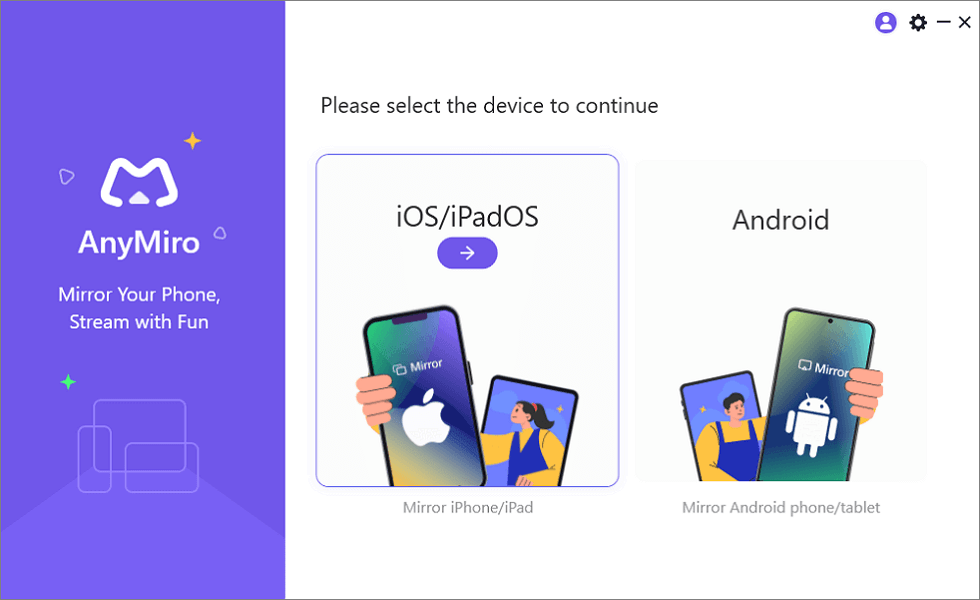
Mirror iPhone to Computer
Step 3: Select USB as a connection mode and connect your iPhone to your PC monitor via a USB cable.
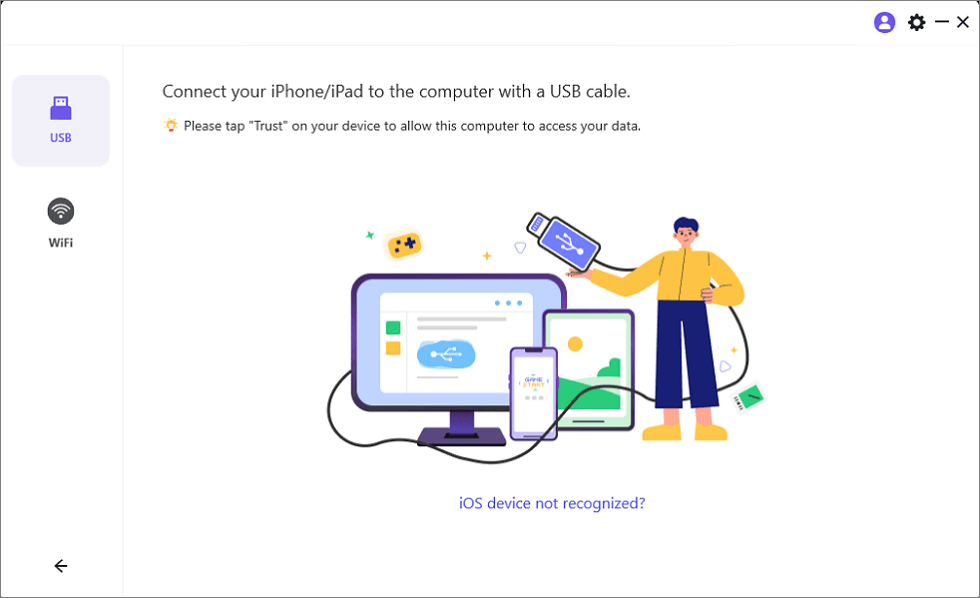
Mirror iOS Device to Computer via USB
Step 4: You will see a pop-up once your iPhone is connected to your PC monitor. Click the “Trust” button to allow your PC to access your iPhone data.
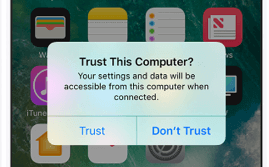
Trust Your Computer on iPhone
Step 5: Once the connection is established, you will see your iPhone’s screen mirrored on your PC monitor.
Now, let’s walk through the steps of screen mirroring iPhone to PC wirelessly.
How to Display iPhone on Monitor Wirelessly?
Here’s how you can display iPhone on monitor wirelessly:
Step 1: Launch the AnyMiro app and select iOS/iPadOS as your mobile type.
Mirror iPhone to Computer
Step 2: Select WiFi mode and ensure your iPhone and PC monitor are connected to the same WiFi network.
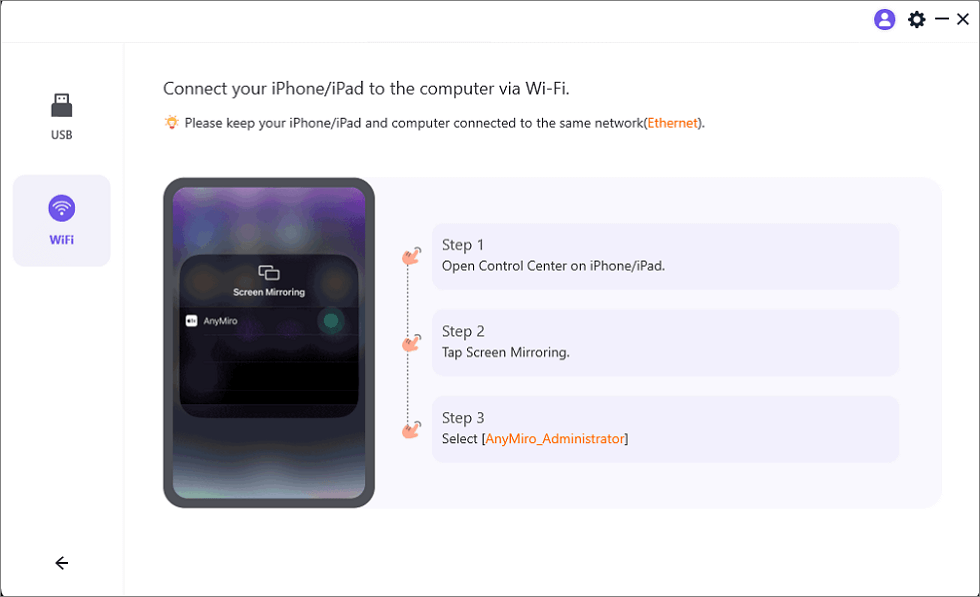
Mirror iOS to Computer via WiFi
Step 3: Now open Control Center on your iPhone by swiping down the screen from the right side. Click Screen Mirroring and select AnyMiro_Computer Name once it appears.
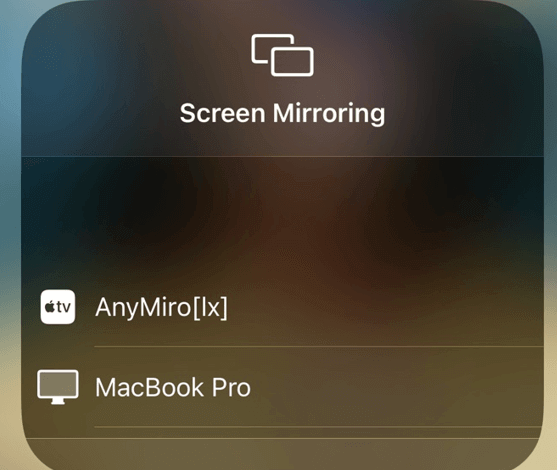
Select Your Computer from the List
Step 4: Once your iPhone is connected, you will see its screen mirrored on your PC.
Choosing between USB and WiFi connection mode is entirely your choice. However, it is recommended to choose a USB connection mode. It will make your mirroring experience smooth and hassle-free.
Let’s explore another app to connect iPhone to a monitor!
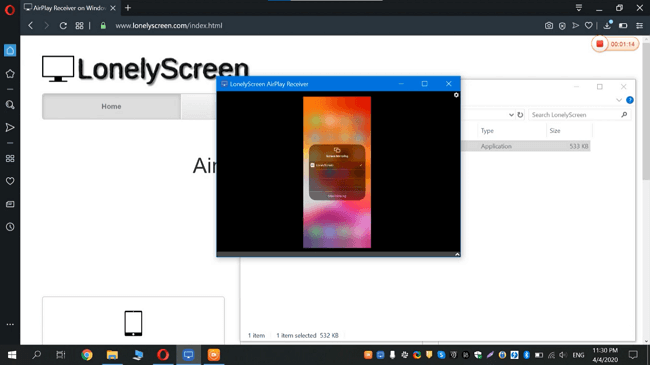
Display iPhone on Monitor Using LonelyScreen
LonelyScreen is another screen mirroring app to let you enjoy your iPhone’s content on a bigger screen. It is also compatible with Mac/Windows. However, it doesn’t support Android devices. It allows you to connect iPhone to a monitor using AirPlay technology. So, you can enjoy your iPhone screen on a bigger display without installing any app on the iPhone.
Pros & Cons of LonelyScreen
The pros & cons of LonelyScreen are as follows:
Pros:
- It allows you to control your iPhone with a mouse and keyboard.
- You can mirror any content and apps using AirPlay technology.
- It also allows you to record your iPhone screen while mirroring.
Cons:
- It only supports iOS devices and not Android.
- The user interface is complex, which makes the experience awful.
- Some users claim it is not secure and can harm your data.
- The paid version can be very pricey for most users.
Not quite the right fit for you? Let’s take a look at one more option!
LonelyScreen
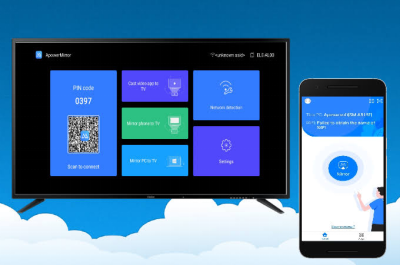
Display iPhone to Monitor via Apowermirror
Talking about screen mirroring iPhone to PC, ApowerMirror is one more option available. It supports iOS and Android devices and offers high-quality mirroring. So, if you have an Android phone with version 5.0 or above, you can install this app to enjoy screen mirroring. Or if you are an iPhone user with AirPlay support, you can also get this app.
Pros & Cons of ApowerMirror
The pros & cons of ApowerMirror are as follows:
Pros:
- It allows you to control your Android device from a PC.
- You can also transfer your digital data between PC and phone.
- It is compatible with various models of Android/iPhone.
- It offers features like screen recording and annotation tools.
Cons:
- It doesn’t offer a control feature for iOS devices.
- Sometimes, you will see a drop in the mirrored display for no reason.
- The paid version is very pricey, making it inaccessible for most users.
If ApowerMirror doesn’t fit your requirements, you can consider AnyMiro! Let’s explore a few frequently asked questions to clear some doubts.
ApowerMirror
FAQs
Q. How do I mirror my iPhone to my HDMI monitor?
You can follow the instructions given below to connect iPhone to a monitor with HDMI:
- Get your iPhone, an HDMI cable, and a lightning to HDMI adaptor.
- Plug the lightning end of the adaptor into your iPhone and connect the HDMI cable to the adaptor.
- Attach the other end of the HDMI cable to your monitor.
- Ensure your monitor is powered on and set to the correct HDMI input.
- Your iPhone screen should be automatically displayed on your monitor.
- You can change the display settings, such as resolution and aspect ratio.
Q. How do I turn on the secondary display on iPhone?
You can follow the steps given below:
- Plug your Digital AV/VGA adapter into the charging port of your iOS device.
- Next, connect an HDMI or VGA cable to your adapter.
- Take the other end of your HDMI or VGA cable and connect it to your second screen (TV, monitor, or projector)
Now, turn on your secondary display. That’s it! You’re all set.
Q. Can you stream from an iPhone to a TV?
Yes, you can stream content from your iPhone to a TV using various methods.
- Apple AirPlay for Apple TVs.
- Dedicated smart TV apps.
- HDMI adapters for direct connections.
- Third-party apps.
Compatibility varies based on your iPhone model and TV type. Moreover, ensuring both devices are on the same WiFi network is important for wireless streaming methods.
Conclusion
In this article, we have explored various apps with their pros and cons to display iPhone on monitor. Although AirPlay is the built-in feature for iOS devices, it still has limitations.
Therefore, we recommend giving AnyMiro a try. It’s a user-friendly app with all the essential features you might need. Whether you want to showcase your content to others or want to enjoy games on a bigger screen, AnyMiro has you covered.
So, download AnyMiro today and see how it can enhance your mirroring experience.
AnyMiro – Real-Time Screen Mirroring Tool
Free download AnyMiro to enjoy a fast, stable, and smooth screen mirroring experience. You can mirror for better game playing, video watching, or live streaming mobile phone content.
Product-related questions? Contact Our Support Team to Get Quick Solution >
