How to Play Genshin Impact on PC [2026]
This tutorial will teach you 5 straightforward methods to play Genshin Impact on PC throughout 2025.

Most Genshin Impact fans enjoy the game but dislike its diminutive mobile screen presentation. Your mobile device might operate sluggishly while its battery drains its power quickly. You want to enjoy the game on a bigger screen with better controls. So, how can you do that? Don’t worry! This guide will show you how to play Genshin Impact on PC. You don’t need to be a tech expert. We will explain 5 easy ways to play it on your computer, with or without an emulator. Just follow the simple steps, and you’ll be ready to explore the world of Teyvat on your PC in no time!
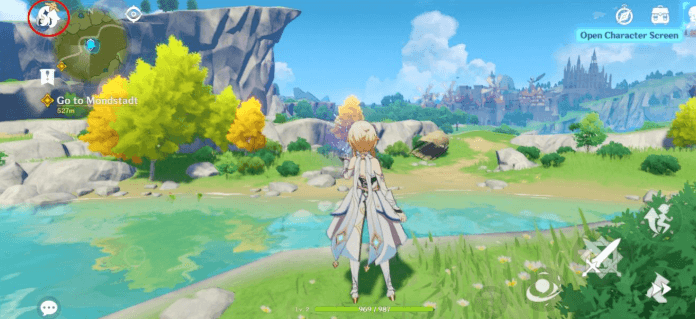
Genshin Impact on PC
Table of ContentsHide
5 Ways to Play Genshin Impact on PC [With & Without Emulator]
Now, let’s have a detailed step-by-step look at the best 5 ways to play Genshin Impact on PC:
AnyMiro
AnyMiro is a great tool to help you play Genshin Impact on PC by mirroring your phone screen. It is easy to use, works fast, and gives smooth gameplay. You can enjoy the game on a bigger screen without lag. Stable and Smooth Screen Mirroring gives up to 10 hours of gameplay with no delay. The 4K High-Quality Display makes everything look bright and clear, just like your phone.
You can also enjoy Real-Time Audio Sync, so sound and picture match perfectly while you play or stream. AnyMiro supports streaming to Twitch, YouTube, Facebook, and more if you want to share your game. It also allows Live Annotation, so you can draw or write while sharing your screen. You can even record or take screenshots during gameplay to save fun moments.
Key Features:
- It mirrors your phone screen to a PC or Mac with clear visuals and no lag.
- You can stream your game to YouTube, Twitch, or other platforms in real-time.
- The 4K display makes colors look real and sharp, like your phone screen.
- You can record your screen or take screenshots while playing or teaching.
- It supports audio and video together with perfect timing and clear sound.
Here are the simple steps to use AnyMiro for this purpose:
From iPhone to PC
Step 1. Free download AnyMiro on your PC or Mac.
Free Download for all windows & 100% safe Free Download for all mac & 100% safe
Free Download100% Clean & Safe
Step 2. Plug your iPhone or iPad into your computer using a USB cable.
Step 3. In AnyMiro, click on “iOS/iPadOS.”
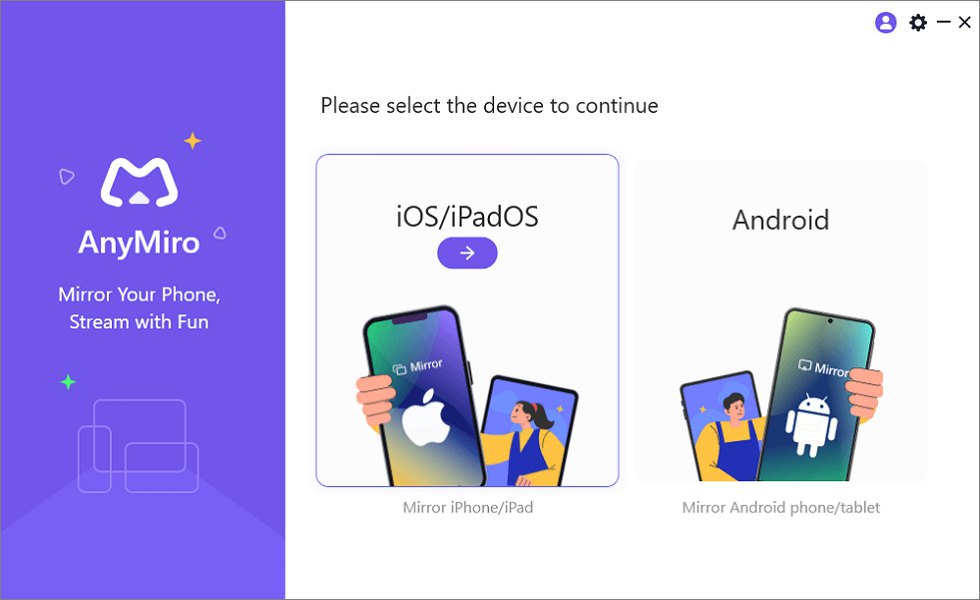
Mirror iPhone to Computer
Step 4. Next, click on “USB connection.”
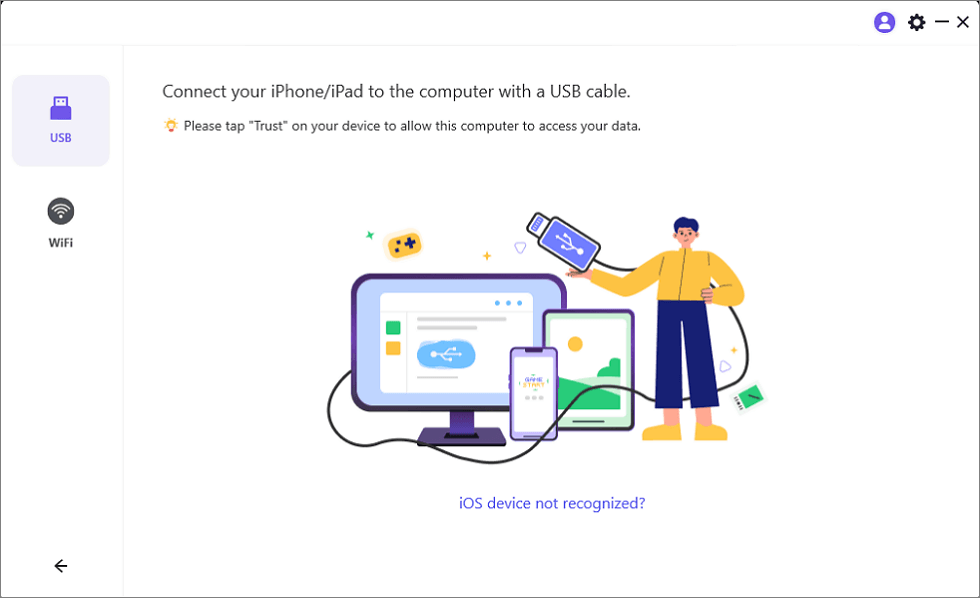
Connect Your iPhone/iPad with a USB Cable
Step 5. On your iPhone or iPad, tap “Trust” when the message appears.
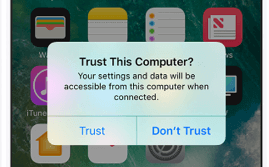
Trust Your Computer on iPhone
Step 6. Enter your passcode if it asks. Your screen will now show up on the computer.
From Android to PC
Step 1. Start AnyMiro on your computer and select “Android.”

Mirror Android to Computer
Step 2. Click on the “Wi-Fi” option.
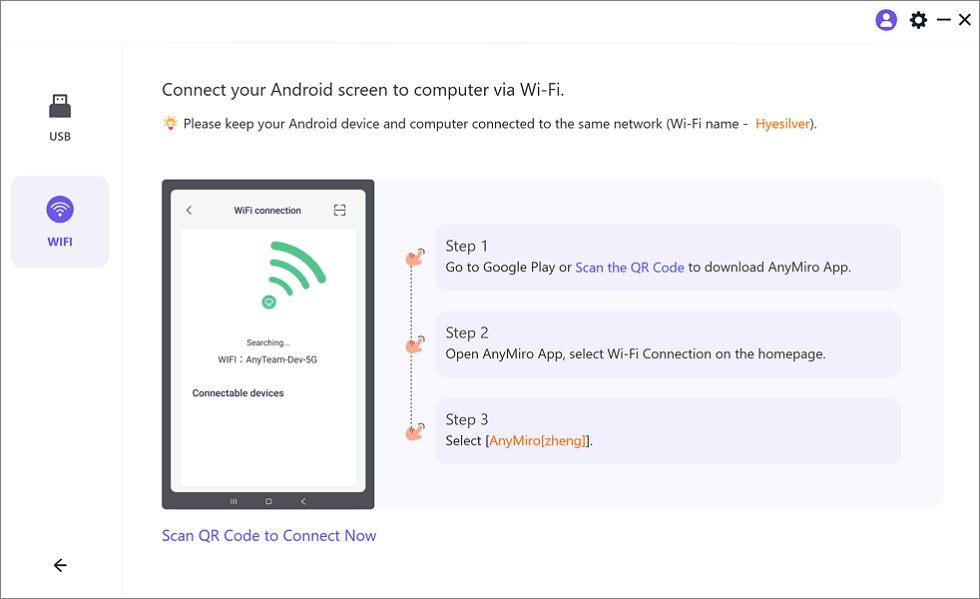
Mirror Android to Computer via WiFi
Step 3. On your phone, install the AnyMiro app from the Google Play Store or scan the QR code shown.
Step 4. Open the app and choose “Wi-Fi Connection.” Pick your computer’s name from the list to begin mirroring.
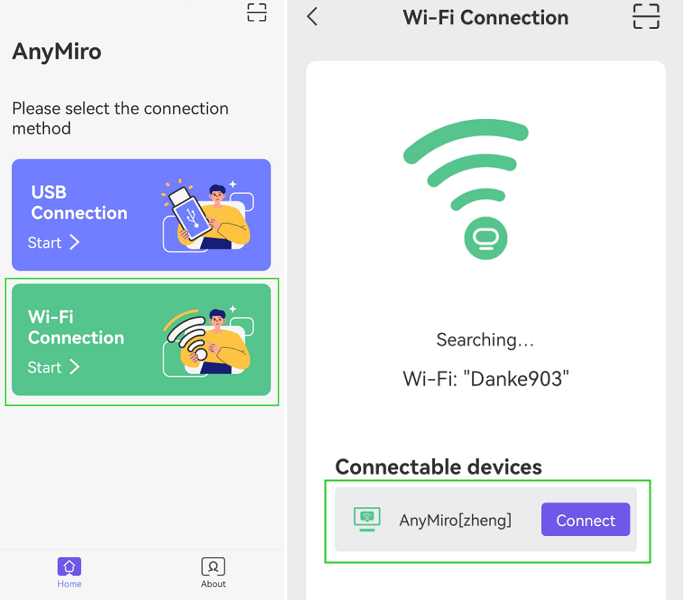
Tap WiFi Connection
ARC Welder
You can use the ARC Welder Chrome extension to launch Genshin Impact directly from Chrome browsers operating on Windows, Mac, Linux, and Chrome OS. Android applications or games such as Genshin Impact can operate without emulator requirements when APK files enter the ARC Welder system. The tool provides developers with a valuable testing platform to assess their applications on multiple operating systems. ARC Welder operates with precision but lacks compatibility for all applications and supports a single application execution at once. To use ARC Welder:
Step 1. Open Google Chrome and go to the Chrome Web Store. Search for “ARC Welder” and click “Add to Chrome.”
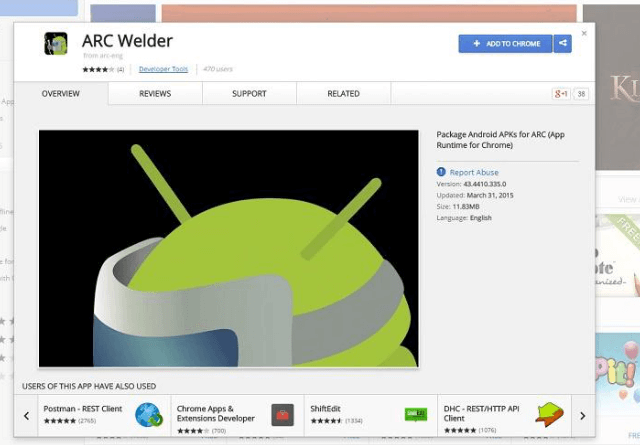
Click Add To Chrome
Step 2. Download the Genshin Impact APK file from a safe website and send it to your computer.
Step 3. Open ARC Welder and click “Choose”. Pick any folder on your computer and click “OK.”
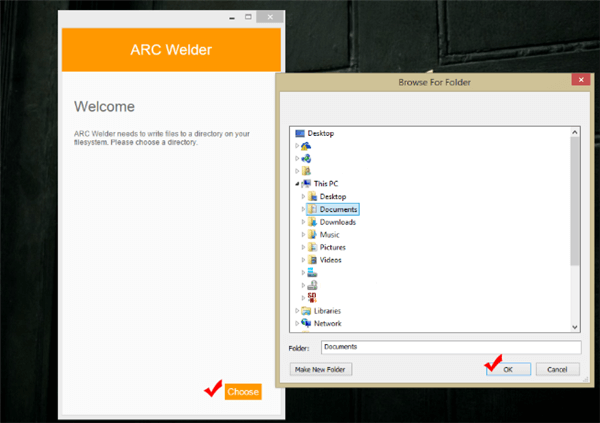
Choose Folder
Step 4. Click “Add your APK” and select the Genshin Impact APK file you downloaded.
Step 5. Click “Launch App” to start playing Genshin Impact on your PC.
Mirroring360
With the wireless screen mirroring program Mirroring360, you can see your mobile screen on your computer. Playing the Genshin Impact game with your phone is now more viewing-friendly with the help of a computer screen. The Pro version is suitable for group sharing since it allows you to screen-share with 40 participants. It has cross-platform capability, ease of setup, and hardware-independent mirroring. For this:
Step 1. Install Mirroring360 Receiver on your PC by downloading it from the official website.
Step 2. Download and install Mirroring360 Sender Basic from the Google Play Store on your mobile device.
Step 3. Ensure both your PC and mobile are connected to the same Wi-Fi network.
Step 4. Open the Mirroring360 Receiver on your computer.
Step 5. Launch Mirroring360 Sender Basic on your mobile.
Step 6. Tap the “Mirroring Assist” button in the Sender app in the lower right corner.
Step 7. Follow the on-screen instructions to scan the QR code on your computer or enter the 9-digit Mirroring ID shown in the Receiver application.
Step 8. Once connected, tap “Start Sharing” on your mobile to begin screen mirroring.
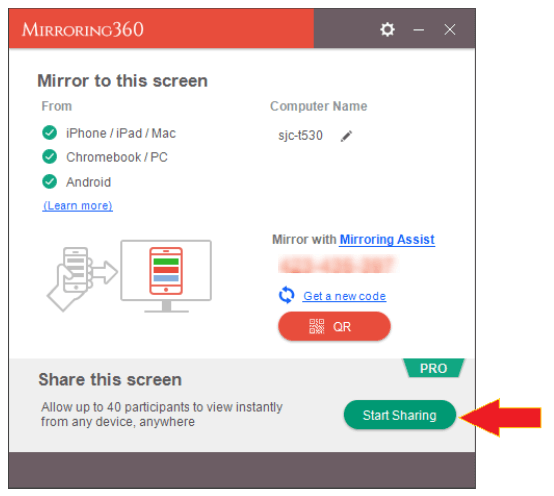
Tap Start Sharing
Step 9. Launch Genshin Impact on your mobile. Your game screen will now be mirrored on your PC, allowing you to enjoy the game on a larger display.
AirMore
You can use the web-based AirMore application to wirelessly control your smartphone through your computer interface. This tool enables you to handle media content and exchange files while presenting in real time. Using AirMore allows you to play Genshin Impact on PC through an intuitive interface that works with iOS as well as Android devices. This platform delivers effortless setup (even support QR code connectivity) because of its user-friendly interface and wireless connectivity. To use this method:
Step 1. Open Chrome or Firefox on your PC and go to “web dot airmore dot com”.
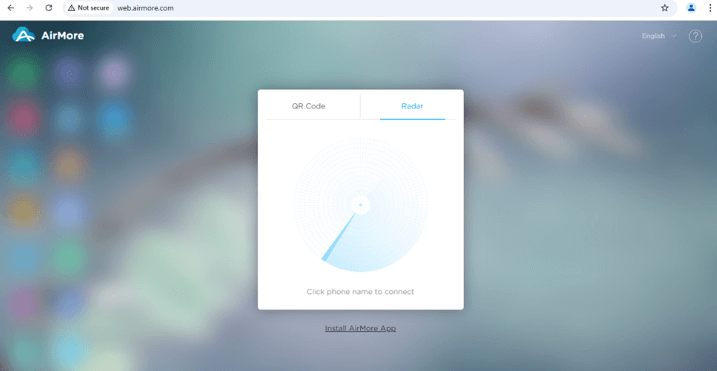
Access AirMore Website
Step 2. On your Android phone, open the AirMore app and tap “Scan to connect”.
Step 3. Scan the QR code on your PC screen or tap the device name if it appears in Radar. Tap “Accept” on your phone if asked.

Scan The QR Code
Step 4. Once connected, your phone screen will show on your PC.
Step 5. Open Genshin Impact on your mobile device. The game will now appear on your PC screen in real-time.
Step 7. Use your phone to control the game while enjoying it on a big screen.
BlueStacks
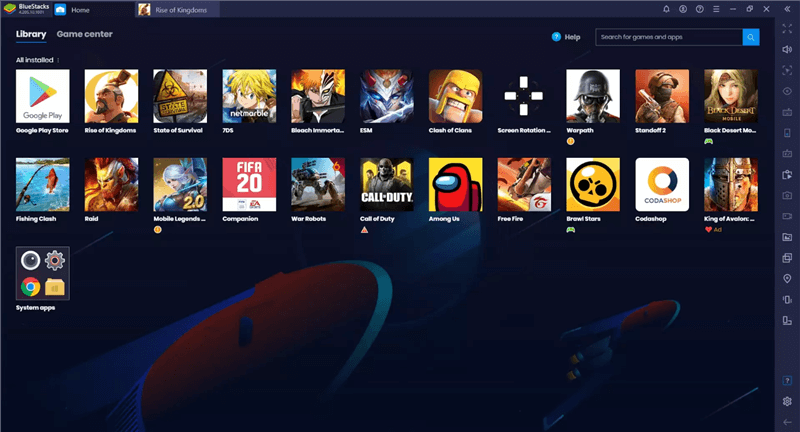
Android Emulators for Windows – BlueStacks
Through the Android emulator BlueStacks, you can access Genshin Impact on your computer devices. High-performance gaming, multi-instance support, and keyboard mapping capabilities are some of its distinctive features. The primary reason why so many players select BlueStacks is that it uses customizable, easy-to-use controls to provide an optimal gaming experience. Users receive flexibility for playing because the application functions on Mac and Windows systems. For this:
Step 1. Access the BlueStacks website and select “Download BlueStacks.”
Step 2. Launch the downloaded file to proceed with the BlueStacks installation according to the displayed instructions.
Step 3. After installation, launch BlueStacks and use your Google account to access the Play Store.
Step 4. Navigate to the “Play Store” icon through BlueStacks, then input “Genshin Impact” into the search bar.
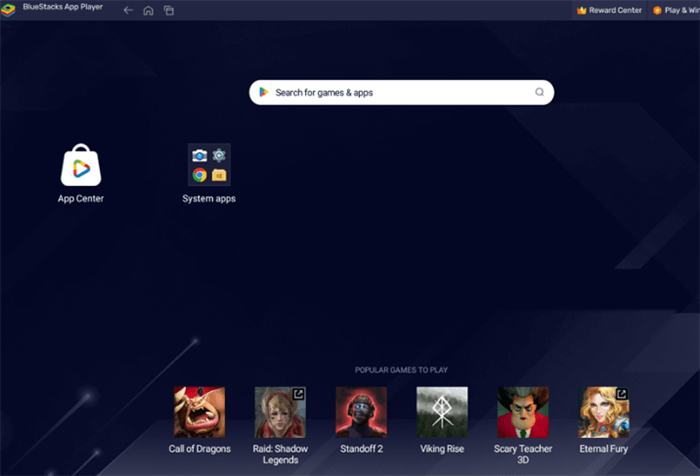
Search The Game
Step 5. Tap “Install” from the Genshin Impact listing and let the game installation process finish.
Step 6. Launch Genshin Impact by selecting its icon on the BlueStacks home screen after installation.
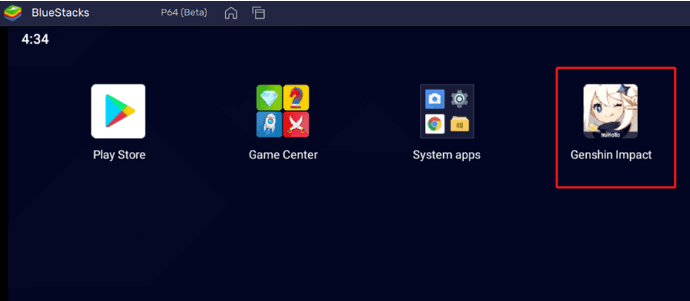
Launch Genshin Impact
Step 7. Use your Genshin Impact credentials for login, then begin playing the game via the BlueStacks PC platform.
FAQs on Playing Genshin Impact on PC
Which requirements specifically support Genshin Impact on your PC?
Genshin Impact needs PC users to have Windows 7 64-bit or later and Intel Core i5 processor alongside Nvidia GT 1030 GPU or newer version and 8GB of RAM and at least 30GB of available storage to successfully execute the game.
What steps are required for installation and uninstallation of Genshin Impact?
Install the launcher by accessing the official website of Genshin Impact where you will also be able to get the game files. Uninstalling is done by accessing the “Uninstall” feature within the game selection menu found in the “Control Panel.”
Can I install and play Genshin Impact through AnyMiro on my PC?
Yes, you can mirror your mobile screen to a PC using AnyMiro. It’s easy and offers smooth 4K resolution screen mirroring, perfect for playing mobile Genshin Impact on a bigger screen without delays.
Final Words
You can play Genshin Impact on your PC through different solutions, including BlueStacks, ARC Welder, and screen mirroring applications. Each method includes its sequence of procedures and set of benefits. AnyMiro is a perfect choice for anyone who wants an effortless screen mirroring experience. The tool offers excellent display quality and lag-free screen casting with USB and Wi-Fi connectivity, making it great for gaming Genshin Impact on a large screen.
Product-related questions? Contact Our Support Team to Get Quick Solution >
