How to Get Snapchat on Chromebook
This guide makes using Snapchat on your Chromebook easy. It can be installed via the Chrome browser or the Play Store. Learn an additional tip for using AnyMiro to access Snapchat on Mac or Windows. Follow these simple instructions to enjoy Snapchat on Chromebook!

How to Get Snapchat on Chromebook
Try AnyMiro to mirror Android and iPhone to PC for free.
- Fast response time within 10 ms and 60fps frame rate.
- A stunning visual experience with no color difference.
- Lag-free screen mirroring and 4k resolution.
You want to use Snapchat on your brand-new Chromebook but can’t find it anywhere. It’s not easy to download Snapchat on Chromebooks since they differ from regular PCs that run on Windows. If sending photos and instant messaging is your thing, this can be disappointing news.
Don’t panic, however! Snapchat still exists on Chromebooks. The Google Play Store or the Chrome browser are possibilities. Furthermore, there are other means of using Snapchat, such as screen mirroring. Following this process, you’ll learn how to get and use SnapchatonChromebook. Let’s proceed!
Table of ContentsHide
How to Get & Use Snapchat on Chromebook
Having your Chromebook download Snapchat is now easy and enjoyable. Let’s now explore the methods for this in detail.
Get Snapchat from the Google Play Store
You can download Snapchat easily from the Google Play Store. Just install it and start chatting with friends. Make sure your Chromebook supports Android apps for the best experience. It’s the best method for getting the program to function without further actions. For this:
Step 1. On your Chromebook, open the Google Play Store and then search for “Snapchat“. Hit “Enter.”
Step 2. Find the Snapchat app with the yellow icon, then click “Install.”
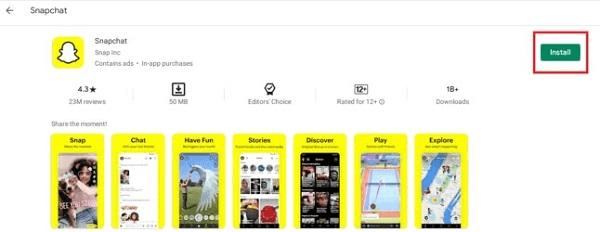
Click Install
Step 3. Watch for your smartphone to download and install the app.
Step 4. Locate “Snapchat” in the app launcher on your Chromebook after it has been installed. If it appears, Snapchat has been successfully installed on your Chromebook!
Get Snapchat from Google Chrome Browser
If the Play Store is unavailable, snapchat can be accessed through the Chrome browser. You may still see stories and communicate on Snapchat using its web version. When installing the program is not feasible, this method is useful. For this technique:
Step 1. First, launch Google Chrome on your Chromebook.
Step 2. Enter “snapchat dot com” in the search bar and hit “Enter.”
Step 3. Click the menu button (icon with nine dots) in the top-left corner.
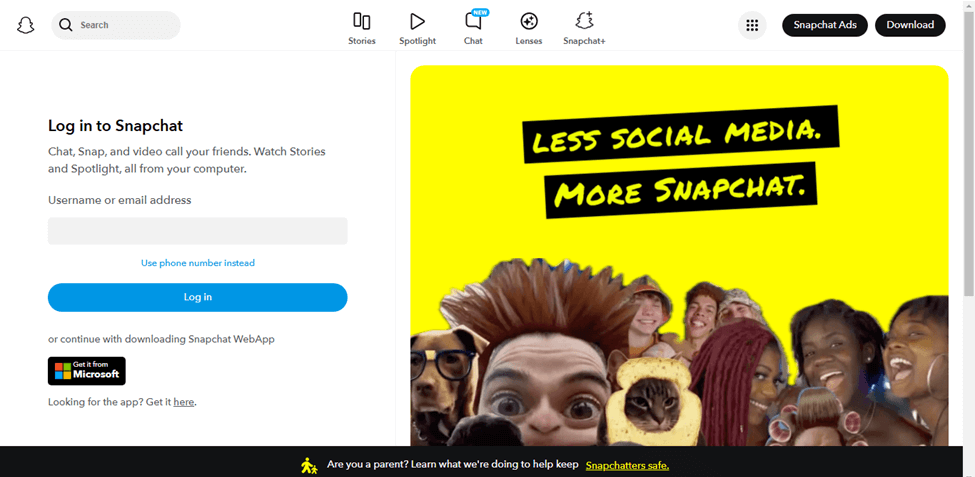
Click Menu Button
Step 4. Select “Accounts” and enter your Snapchat username and password to log in.
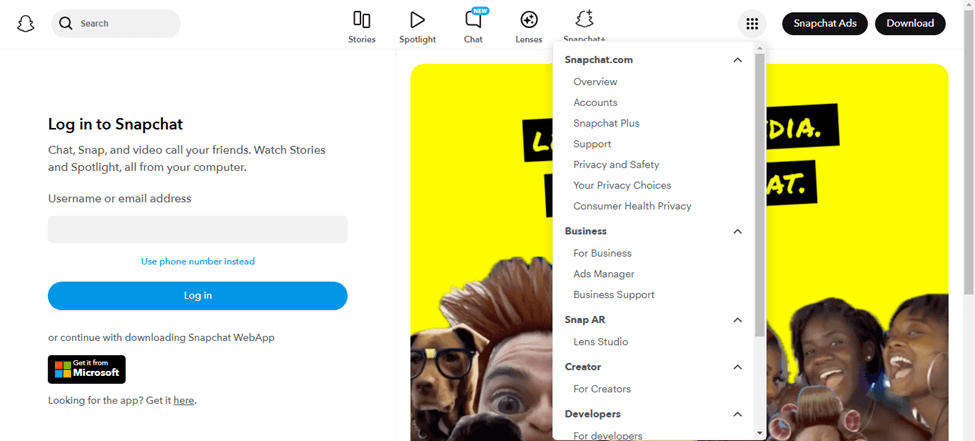
Select Accounts
Step 5. To create a new account, click “Sign Up” and follow the directions.
Bonus Tip. How to Use Snapchat App on Windows PC/Mac
An excellent option for using Snapchat on a Mac or PC is AnyMiro. This robust screen mirroring application lets you see your phone’s screen on a computer with steady, smooth performance. Chatting, sending snaps, and exploring Snapchat on a larger display are simplified with AnyMiro. Thanks to its reliable screen mirroring, you won’t experience any lag while using Snapchat. The 4K HD-quality display ensures there is no color difference between your phone and your screen. Low-Latency Audio Sync enables your voice notes and Snapchat videos to play instantly. Utilizing Snapchat’s screen recording and screenshot features makes it simple to save memorable moments. Live Annotation allows you to draw or highlight items on the mirrored screen. AnyMiro enhances the Snapchat experience, making it more enjoyable and engaging on a PC or Mac!
Key Features:
- Supports up to 10 hours of lag-free screen mirroring for smooth use.
- Works with OBS Studio and other streaming platforms without extra setup.
- Let’s mirror Snapchat on a PC with clear visuals and no delay.
- Enables simple screen sharing for live broadcasting, meetings, and presentations.
- Straightforward one-click setup that requires no additional hardware or difficult methods.
The easy steps to utilize the Snapchat app on a Windows computer or Mac will be discussed below:
Screen Mirror From iPhone to PC & Mac
Using USB:
Step 1. Free download and install AnyMiro on your computer. Connect your iPhone or iPad to the computer using a USB cable.
Free Download for all windows & 100% safe Free Download for all mac & 100% safe
Free Download100% Clean & Safe
Step 2. Open AnyMiro on your computer and select “iOS/iPadOS.”
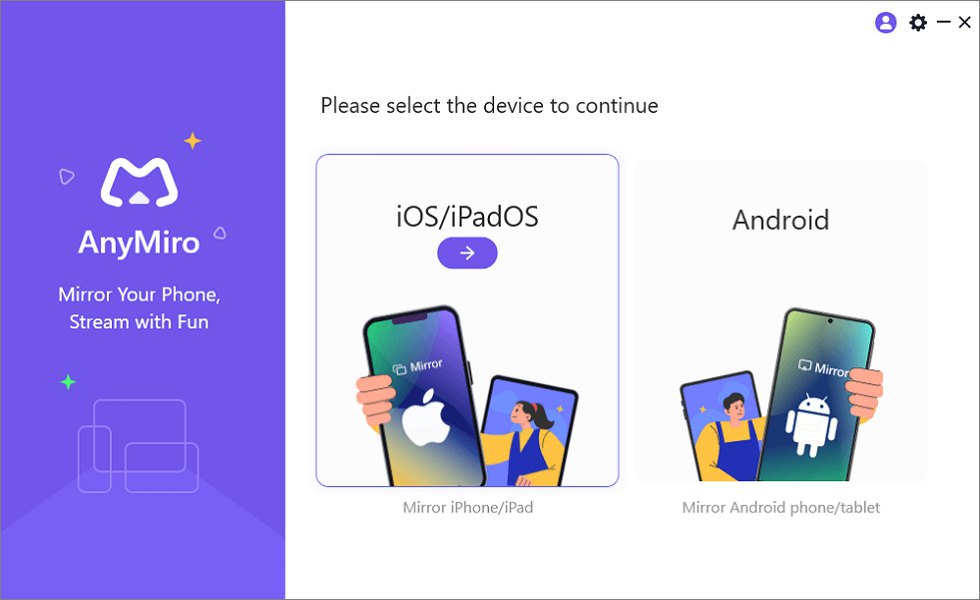
Mirror iPhone to Computer
Step 3. Click on the “USB connection” option.
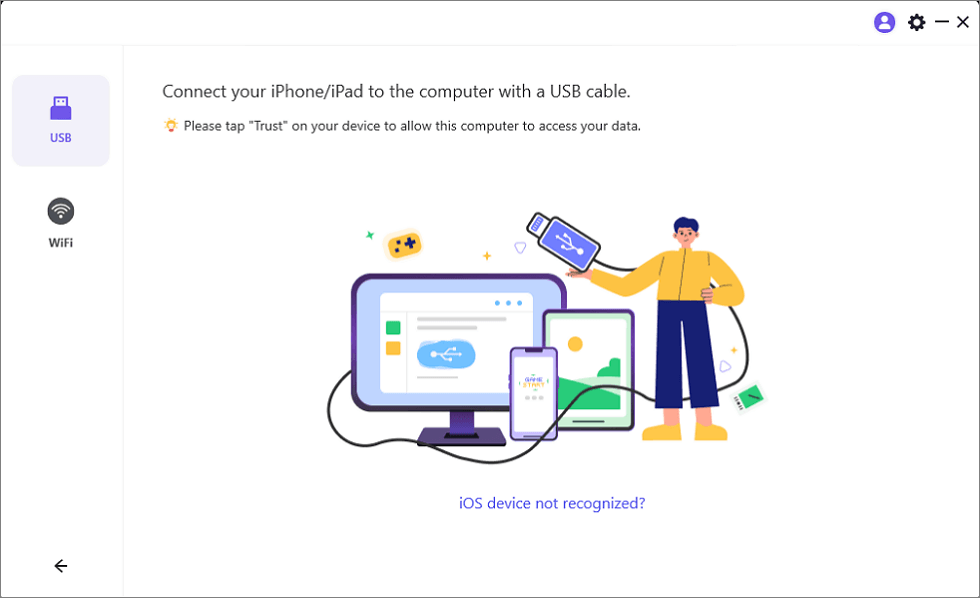
Connect Your iPhone/iPad with a USB Cable
Step 4. A pop-up will appear on your iPhone or iPad. Tap “Trust” to approve the connection.
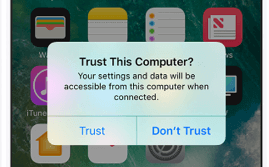
Trust Your Computer on iPhone
Step 5. If asked, enter your device passcode to complete the setup. Your screen is now mirrored.
Using Wi-Fi:
Step 1. Open AnyMiro on your computer and select “iOS/iPadOS.” Choose the “Wi-Fi connection” option.
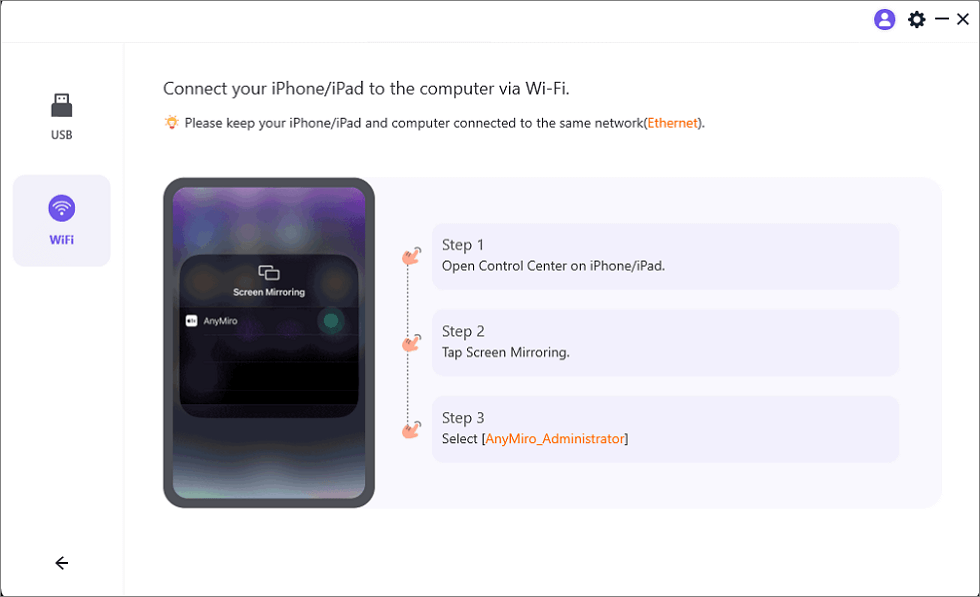
Mirror iOS to Computer via WiFi
Step 3. Make sure your PC and iPhone are linked to the same wireless network.
Step 4. Open Control Center on your iPhone or iPad, select “Screen Mirroring,” and then select “AnyMiro_Computer Name.”
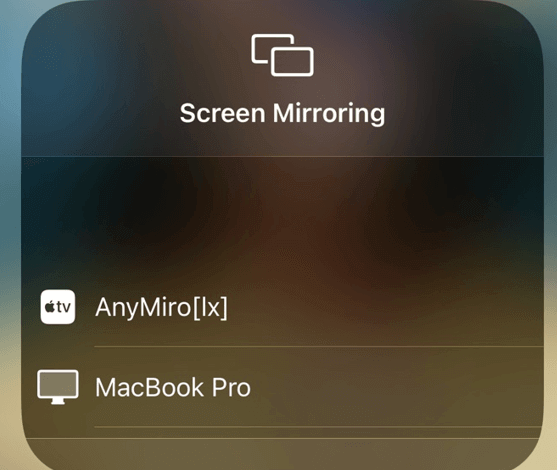
Select Your Computer from the List
Step 5. Your device will connect, and the screen mirroring will begin.
Screen Mirror From Android to PC & Mac
Using USB:
Step 1. Install AnyMiro on your computer and launch the app. Select “Android” as your device type.

Mirror Android to Computer
Free Download for all windows & 100% safe Free Download for all mac & 100% safe
Free Download100% Clean & Safe
Step 2. Select “USB” and connect your Android device with a USB cord.
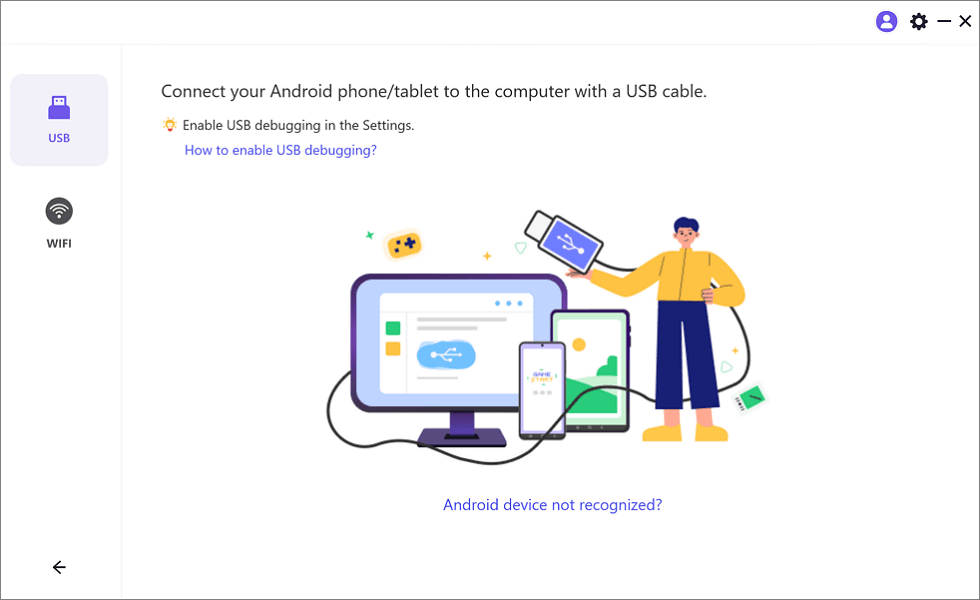
Select the USB Option for Screen Mirroring Android to PC
Step 3. Turn on “USB debugging” on your smartphone and select “MTP Mode“.
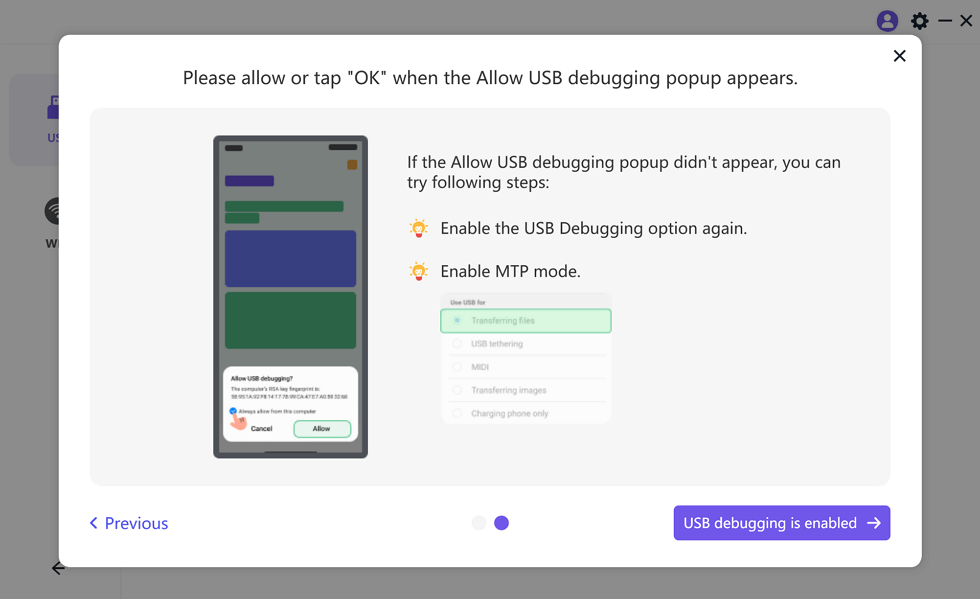
Enable USB Debugging and MTP Mode for a USB Connection
Step 4. Your computer will display your phone’s screen after verifying the connection.
Using Wi-Fi:
Step 1. Open AnyMiro on your computer and select “Android.” To establish a wireless connection, select the “Wi-Fi” option.
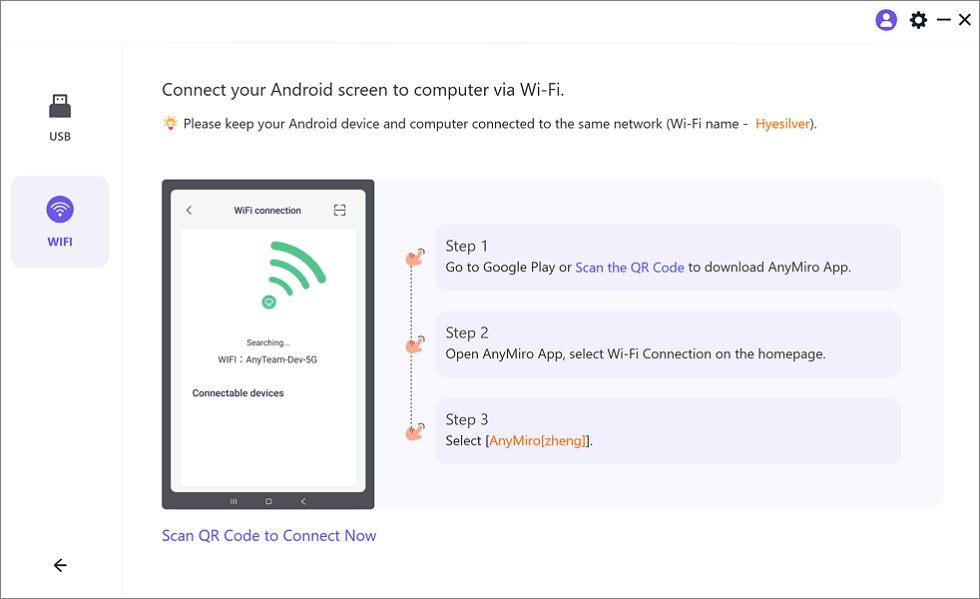
Mirror Android to Computer via WiFi
Step 3. Scan the QR code or download the AnyMiro app from the Google Play Store. Open the AnyMiro app on your phone and tap “Wi-Fi Connection.” Choose your computer’s name from the list, and screen mirroring will start.
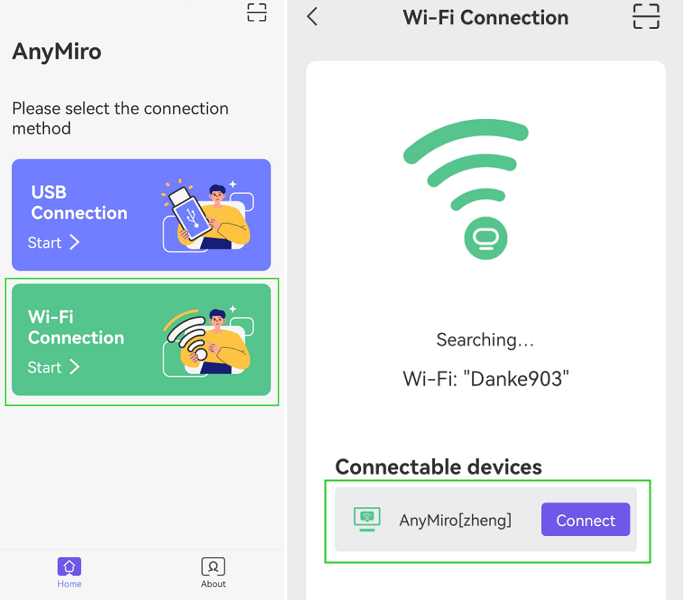
Tap WiFi Connection
FAQs on Snapchat on Chromebook
Is Snapchat Web safe to use on a Chromebook?
Yes, Snapchat Web is the official web version. Just avoid using third-party extensions that claim to provide Snapchat features.
Is it possible to use Snapchat on a Chromebook without the official app?
You can use web-based Snapchat at web snapchat and log in to it using your credentials. If you are a novice, use the Sign Up option in the web-based Snapchat.
Can a school Chromebook run Snapchat?
Due to internet constraints, Snapchat is blocked on the majority of school Chromebooks. You might not be able to use the app, even online, if your school has restricted it.
Final Words
Using Snapchat on a Chromebook is very simple and easy. Check your settings frequently because some features might not function on all Chromebooks. Try alternate methods to log in if Snapchat isn’t working. For optimal performance, be sure you update your Chromebook and grant the necessary permissions. AnyMiro is a fantastic method to view the screen of your phone on a larger screen. It provides a steady connection, clear images, and seamless screen mirroring without lag for up to ten hours.
AnyMiro – Real-Time Screen Mirroring Tool
Free download AnyMiro to enjoy a fast, stable, and smooth screen mirroring experience. You can mirror for better game playing, video watching, or live streaming mobile phone content.
Product-related questions? Contact Our Support Team to Get Quick Solution >
