[3 Ways] How to Cast iPhone to Chromecast
Learn 3 simple ways for how to cast iPhone to Chromecast. Follow easy steps to enjoy your favorite videos and apps on a bigger screen. No technical skills needed!

[3 Ways] How to Cast iPhone to Chromecast
Try AnyMiro to mirror iPhone to PC for free via USB and WiFi.
- Fast response time within 10 ms and 60fps frame rate.
- A stunning visual experience with no color difference.
- Lag-free screen mirroring and 4k resolution.
For an improved viewing experience, think about casting your iPhone to Chromecast. Casting adds enjoyment to watching a movie or taking photos with friends. There are no difficult procedures involved in setting up Chromecast on your iPhone. You can watch content on a larger, sharper screen by following 3 easy methods to cast your iPhone to Chromecast in just a few clicks. Plus, we’ll share a bonus tip on screen mirroring using AnyMiro. No technical skills are needed—follow the steps for how to cast iPhone to Chromecast, and you’ll be ready to cast in no time!
Table of ContentsHide
3 Methods to Cast iPhone to Chromecast
Now, let’s explore the 3 best methods to cast iPhone to Chromecast:
Method 1. Chromecast Built-In Apps
Using Chromecast built-in apps is the first way to cast your iPhone to Chromecast. Several well-known apps, including YouTube, Netflix, and Spotify, already support Chromecast. This implies that no further steps are required to cast video from these apps straight to your TV. Launch the app, press the cast icon, and select your Chromecast device to begin streaming on a larger screen. This technique is ideal for enjoying a big-screen experience, streaming in great resolution, and conveniently managing playing from your iPhone. To use this method:
Step 1. Connect Chromecast to your TV and open the Google Home app on your iPhone. Tap the “+” icon to set it up.
Step 2. Open an app like HBO, Netflix, or YouTube that supports Chromecast.
Step 3. Choose your Chromecast device and tap the “Cast” icon to start streaming.
Step 4. If a code appears, enter it to complete the setup.
Step 5. To stop casting, tap the “Cast” button again and select “Disconnect.”
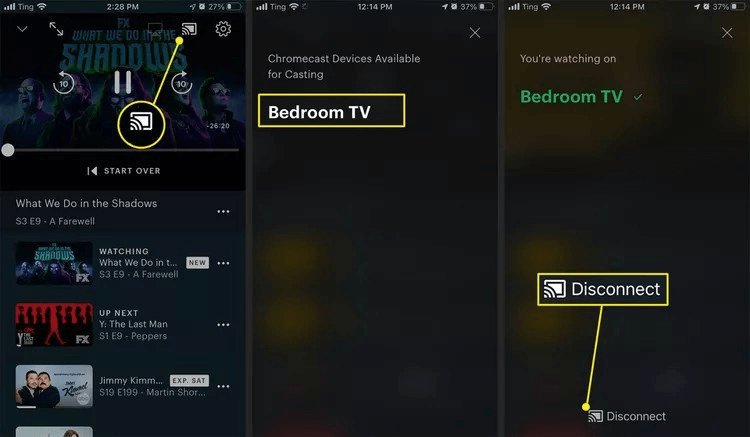
Chromecast Built-in Apps
Method 2. Google Home
With Google Home, controlling your Chromecast from your iPhone is simple. It lets you stream your preferred music, movies, and images directly to your television. You may use basic voice commands to pause content, change channels, and adjust the volume using Google Home. The app provides a seamless and speedy way to view information on a larger screen by making it simple to connect numerous devices. To use Google Home for this purpose:
Step 1. Ensure your iPhone and Chromecast are on the same Wi-Fi.
Step 2. Download and open the Google Home app on your iPhone and follow the setup instructions.
Step 3. Locate and choose your Chromecast device in the Google Home app.
Step 4. To begin mirroring your iPhone screen, tap “Media” and “Listen On” for music and radio casting.
Alternatively, tap on “Watch Live TV” to stream TV.
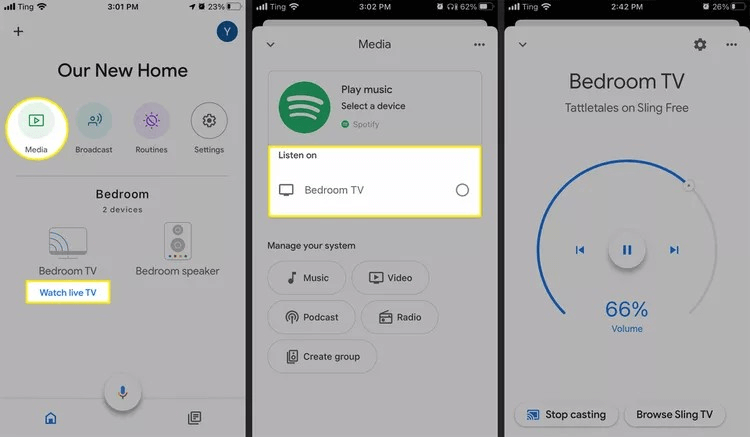
Cast Via Google Home
Step 5. When you’re finished, press “Stop Casting” at the bottom to stop the screen mirroring.
Method 3. Chromecast Streamer App
The Chromecast Streamer app is a flexible third-party option for streaming your iPhone to a Chromecast. It enables smooth video, audio, and picture streaming straight to your television. The app supports high-definition video playback, guaranteeing a clear visual experience. Additionally, even for novices, its user-friendly interface makes setup quick and simple.
The program is perfect for browsing, gaming, and showcasing presentations because it can cast content from the full screen. Moreover, it enables real-time mirroring for smooth playback without noticeable lag. This app is especially beneficial when native Chromecast support is unavailable in the desired app. It provides a comprehensive solution for enjoying a larger-screen experience from your iPhone. For this method:
Step 1. Begin by installing the Chromecast TV Streamer app.
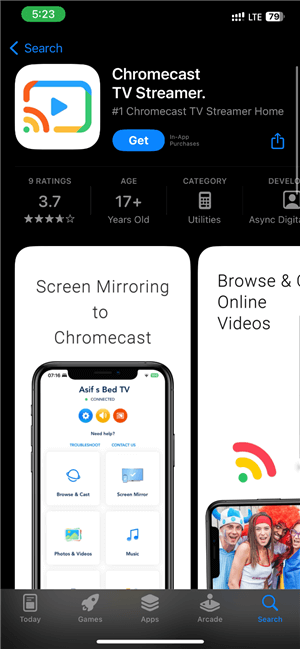
Chromecast TV Streamer
Step 2. Allow the app to find and connect to devices on your local network automatically.
Step 3. Check that both devices have the same Wi-Fi connection.
Step 4. Tap on “Screen Mirror” to set up your Chromecast. When your Chromecast appears in the list, tap on it and select “Connect.”
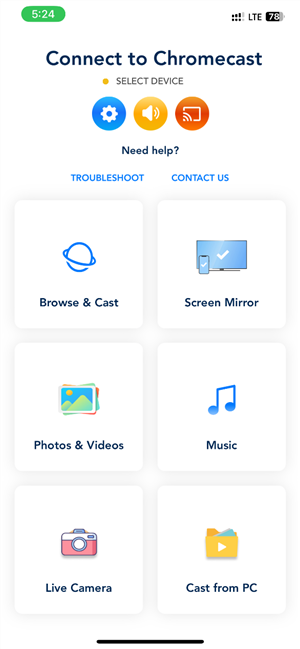
Screen Mirror
Step 5. After the connection, you can exit the app and continue using your iPhone with the screen mirrored to your TV.
Bonus Tip. How to Screen Mirror iPhone to Larger Screen?
AnyMiro is a powerful app for screen mirroring, offering a smooth, stable, and feature-packed experience to display your iPhone on a larger screen. Stable and Lag-Free Streaming ensures up to 10 hours of uninterrupted mirroring, perfect for gaming or live presentations. Its 4K High-Resolution Mirroring delivers vibrant visuals with no color difference, making every pixel shine.
Enjoy Low-Latency Audiovisual Sync, an ideal choice for gamers and content creators streaming to Twitch or YouTube. Stream to Any Platform with seamless compatibility with OBS Studio, custom RTMP, and other tools. Additionally, Screenshot and Recording Features allow you to capture key moments effortlessly. With Live Annotation, you can interact and highlight during sessions, enhancing your creativity and presentations.
Free Download for all windows & 100% safe Free Download for all mac & 100% safe
Free Download100% Clean & Safe
Key features:
- Easily mirror your screen to a PC with no complex setup and quick connectivity.
- Compatible with both iPhone and Android for a versatile screen mirroring experience.
- Supports live drawing or annotations directly on the mirrored screen to enhance interaction.
- Works smoothly for virtual events, educational sessions, and live streaming across multiple platforms.
- Captures and saves live moments with screen recording and screenshot options during mirroring.
Here are the steps to use AnyMiro to screen mirror iPhone to Larger Screen:
Step 1. Free download AnyMiro and open it on your computer and select “iOS/iPadOS.”
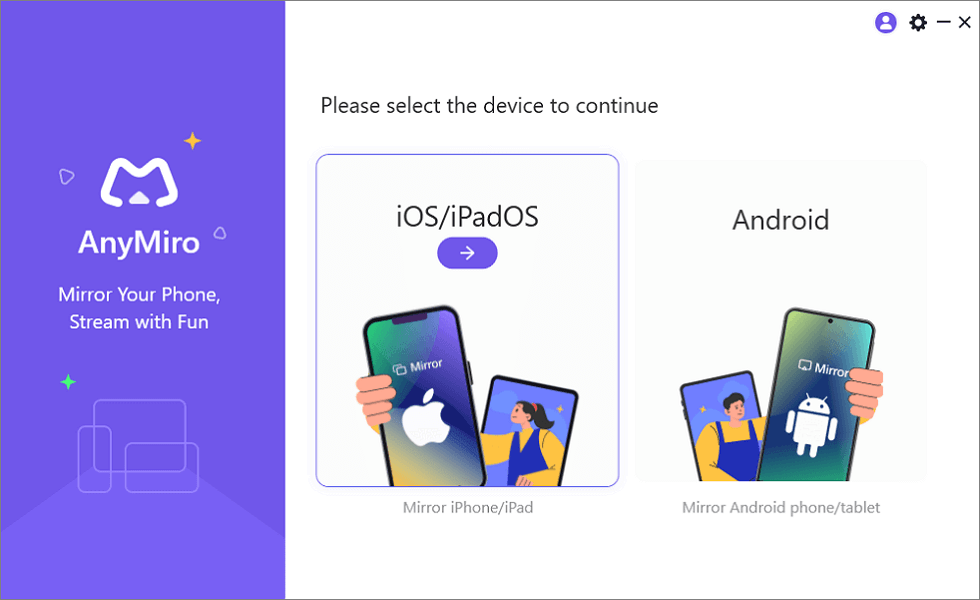
Mirror iPhone to Computer
Step 2. Now, select “Wi-Fi connection” to connect your iPhone to your computer wirelessly.
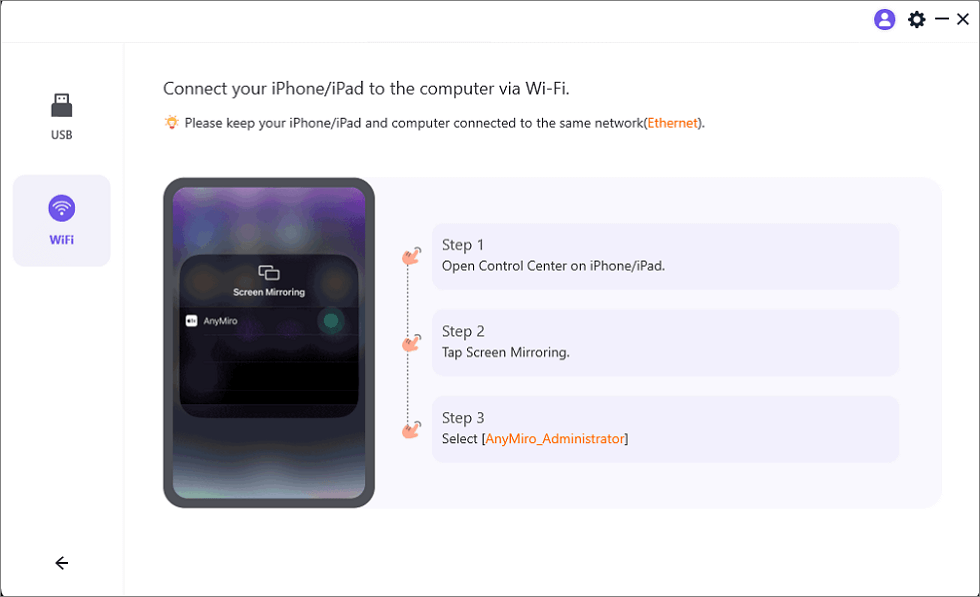
Mirror iOS to Computer via WiFi
Step 3. Check that both devices have the same Wi-Fi connection.
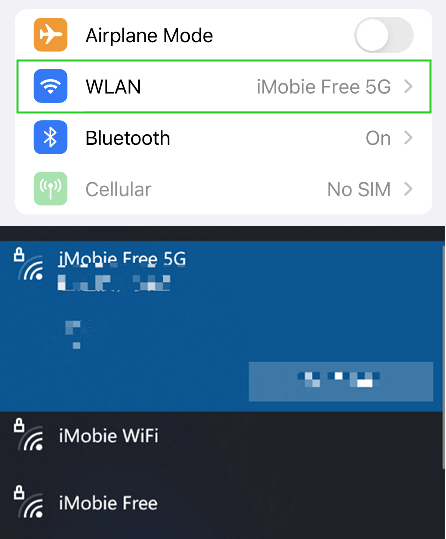
Connect to the Same WiFi
Step 4. On your iPhone or iPad, swipe to open Control Center, tap “Screen Mirroring,” and choose “AnyMiro_Computer Name.”
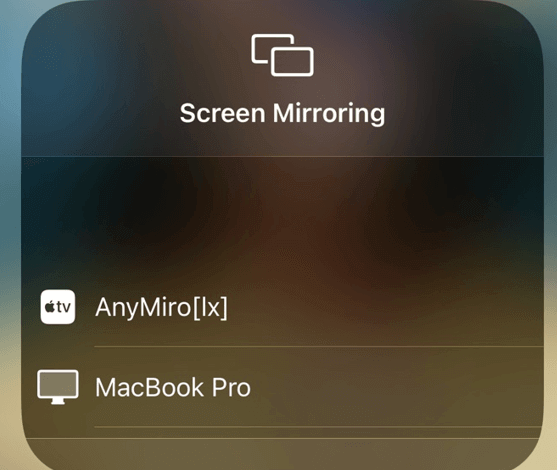
Select Your Computer from the List
Step 5. Your device will connect, and screen mirroring will begin.
FAQs on Cast iPhone to Chromecast
Can I cast any iPhone app to Chromecast?
Not all apps support casting to Chromecast. You can cast apps like YouTube, Netflix, and Spotify directly. Consider using a third-party app like AnyMiro for unsupported apps for screen mirroring.
Can I mirror my iPhone screen to Chromecast without Wi-Fi?
No, screen mirroring with Chromecast requires your iPhone and Chromecast to be connected to the same Wi-Fi network. You cannot mirror your screen without Wi-Fi.
What if I cannot cast to Chromecast using Google Home?
If casting doesn’t work with Google Home, try using a third-party app like AnyMiro for easier screen mirroring. It can help resolve issues when your app doesn’t support native casting.
Final Words
In conclusion, casting or mirroring your iPhone to Chromecast is simple with the right steps. Third-party apps like AnyMiro or the Google Home app allow you to display your content on larger screens rapidly. AnyMiro is a fantastic solution for more flexible and seamless mirroring, providing dependable connection choices and excellent streaming for all your casting requirements.
Product-related questions? Contact Our Support Team to Get Quick Solution >
