How to Play Free Fire on PC in 2026
This guide will teach you how to play Free Fire on PC. You can use an emulator for better controls or play without one using tools like AnyMiro or Google Play Games. Follow simple steps to install and enjoy smooth gameplay.

How to Play Free Fire on PC in 2026
Try AnyMiro to mirror iPhone to PC for free via USB and WiFi.
- Fast response time within 10 ms and 60fps frame rate.
- A stunning visual experience with no color difference.
- Lag-free screen mirroring and 4k resolution.
Fire but struggle to play on a small phone screen. The controls can be tricky, and the battery drains fast. Playing mobile games on a PC is a better option. It gives you a bigger screen, better controls, and a smoother gaming experience. The good news is that you can play Free Fire on a PC. You can use an emulator to run the game or play without other tools. Both methods are simple and easy. Just follow a few steps, and you’ll be playing Free Fire on your PC quickly. This guide will show you the best ways to do it.
Table of ContentsHide
How to Play Free Fire on PC with Emulators
On a PC running emulators, you must install software simulating an Android environment to play Free Fire. Just download Free Fire and install an emulator to enjoy smoother gameplay, enhanced controls, and better graphics on your computer. Here are a few options to use:
Method 1. BlueStacks
BlueStacks is one of the best PC emulators for playing Free Fire. It makes gaming smooth and fun with great features. Game Controls lets you use preset settings or customize them. Its Shooting Mode helps improve your aim with a keyboard and mouse. MOBA Mode lets you move and cast skills easily. Multi-Instance allows playing multiple games simultaneously, and Multi-Instance Sync copies actions across instances.
Moreover, Macros can save and repeat actions with one key, while Eco Mode reduces PC usage. Real-time Translation helps you play in your language. High FPS and HD Graphics make gameplay smooth and clear. Smart Controls and Scripts improve performance. To use BlusStacks:
Step 1. Download and open BlueStacks on your PC or Mac.
Step 2. Install the “Free Fire” game from the Play Store. Search for “Free Fire” using the search bar on the home screen.
Step 3. Click on the game from the search results. Install Free Fire and start playing!
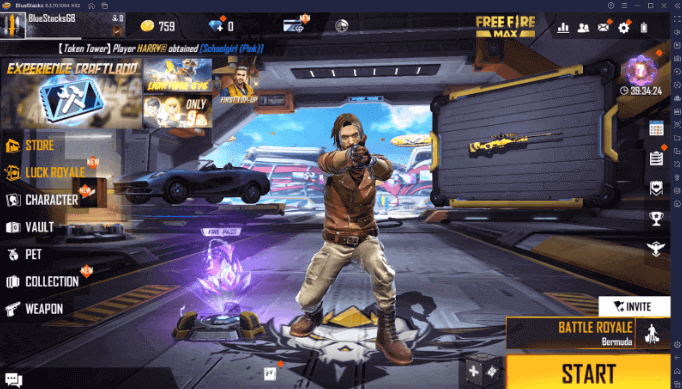
Play Free Fire
Method 2. LDPlayer
The robust Android emulator LDPlayer allows you to play Free Fire on your computer with smooth performance. It provides speedier processing for a lag-free experience and high frames per second for sharper graphics. The custom key mapping feature helps you control the game easily.
Multi-instance lets you play multiple games or accounts at once. Smart controls improve gameplay by reducing unnecessary clicks. Macros and scripts automate actions to save time. Eco mode lowers CPU usage while playing. Gamepad support gives a console-like experience. Real-time translation allows you to play games in any language. With better stability, compatibility, and smoother gameplay, LDPlayer is the best way to enjoy Free Fire on a PC. To use it:
Step 1. Download and install LDPlayer on your PC.
Step 2. Open LDPlayer and click on the search bar.
Step 3. Type ” Free Fire” and press “Enter.”
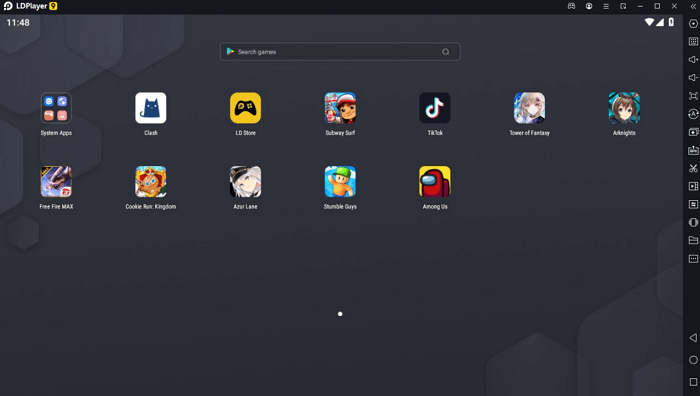
Search Free Fire
Step 4. Select “Install” from the Google Play or LD Store. After the installation is complete, click the game icon to launch it.
How to Play Free Fire on PC without Emulators
Now, let’s take a closer look at a few ways to play Free Fire on PC without the need for emulators:
1. AnyMiro
You may play Free Fire on your PC without needing an emulator by using AnyMiro, a potent screen mirroring application. It provides a steady connection, allowing you to play games without lag. Even at 4K resolution, every detail will appear crisp because of the HD mirroring quality. Low-latency audio sync allows the noises in your game to mix in perfectly with the visuals, increasing the immersion.
AnyMiro’s screenshot and screen recording features let you record and share your favorite moments. With AnyMiro’s screen recording and screenshot capabilities, you can capture and share your most memorable experiences. You can also highlight significant parts while broadcasting using the live annotation tool. AnyMiro makes sharing your smartphone screen on a PC simple, regardless of your profession—gamers, content producers, educators, or artists.
Key Features:
- A stable connection for 10 hours ensures long and smooth gaming without interruptions or lags.
- HD mirroring quality up to 4K makes every detail sharp and vibrant for an enhanced experience.
- Audio sync keeps game sounds and visuals perfectly matched for real-time action.
- Support for real-time broadcasting makes mirroring to Facebook, YouTube, Twitch, and other platforms simple.
- Game highlights can be captured and saved for later sharing using screen recording and snapshots.
Here are some simple steps to use AnyMiro:
From iPhone to PC & Mac:
Step 1. Free download AnyMiro on your computer.
Free Download for all windows & 100% safe Free Download for all mac & 100% safe
Free Download100% Clean & Safe
Step 2. Connect your iPhone or iPad to the computer using a USB cable. > Open AnyMiro and click “iOS/iPadOS.”
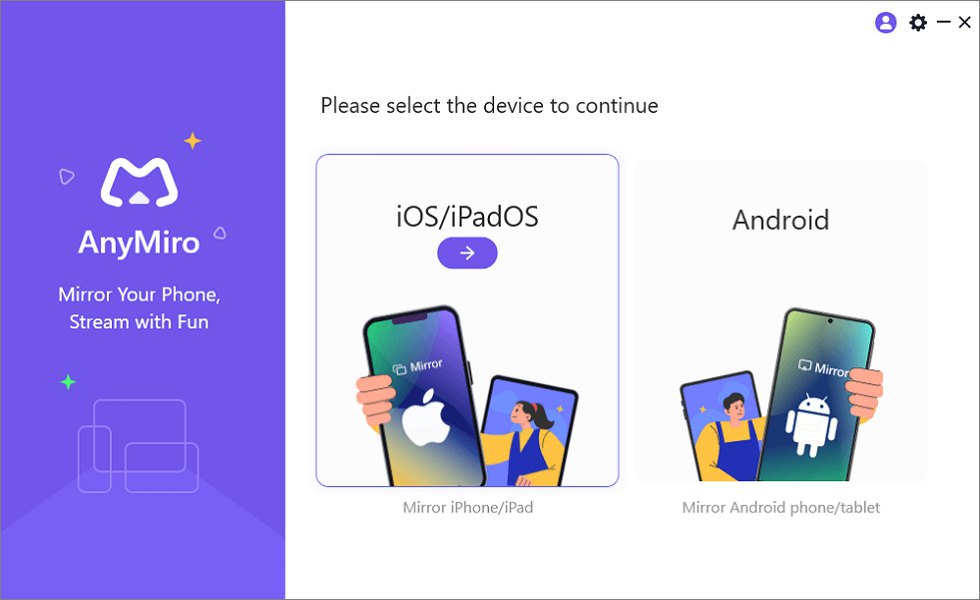
Mirror iPhone to Computer
Step 3. Select “USB connection.”
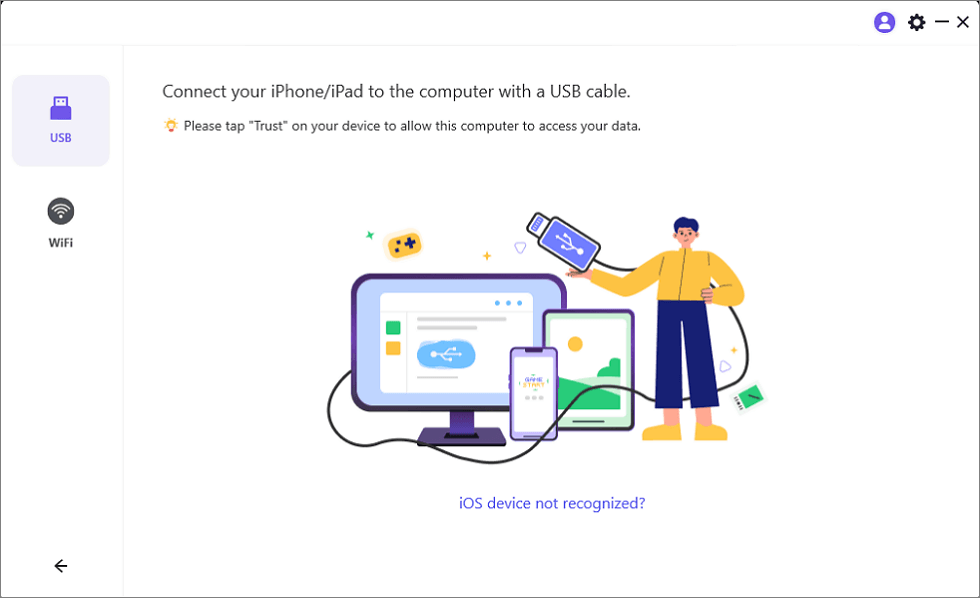
Connect Your iPhone/iPad with a USB Cable
Step 4. On your iPhone or iPad, tap “Trust” to allow the connection.
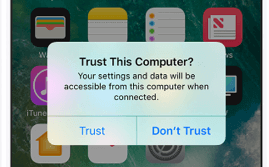
Trust Your Computer on iPhone
Step 6. If asked, enter your device passcode. Your screen is now ready to mirror.
From Android to PC & Mac:
Step 1. Download and install AnyMiro on your computer.
Free Download for all windows & 100% safe Free Download for all mac & 100% safe
Free Download100% Clean & Safe
Step 2. Open the software and select “Android.”

Mirror Android to Computer
Step 3. Click “USB” and connect your Android device with a USB cable.
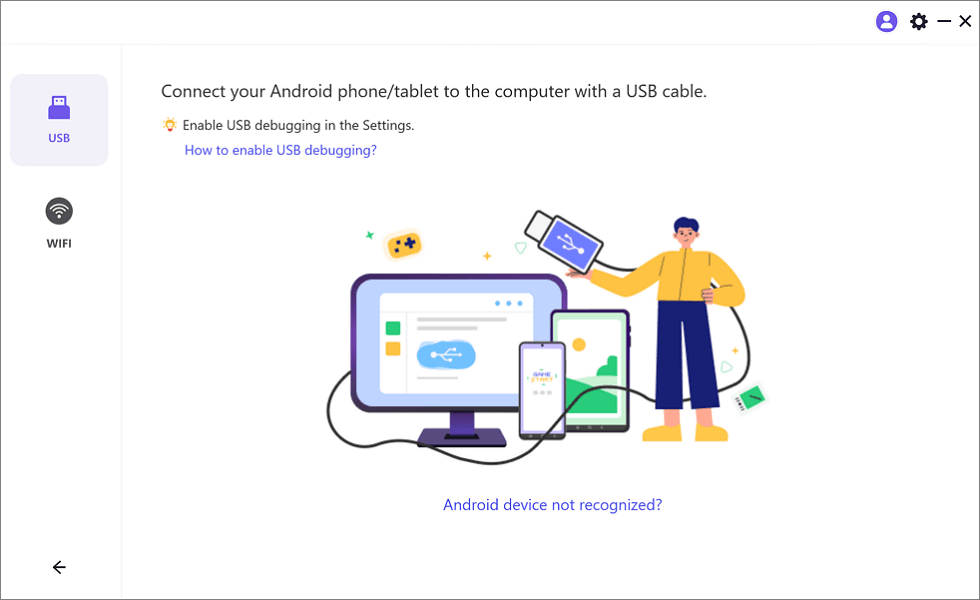
Select the USB Option for Screen Mirroring Android to PC
Step 4. Enable “USB debugging” and set “MTP Mode” on your phone when prompted.
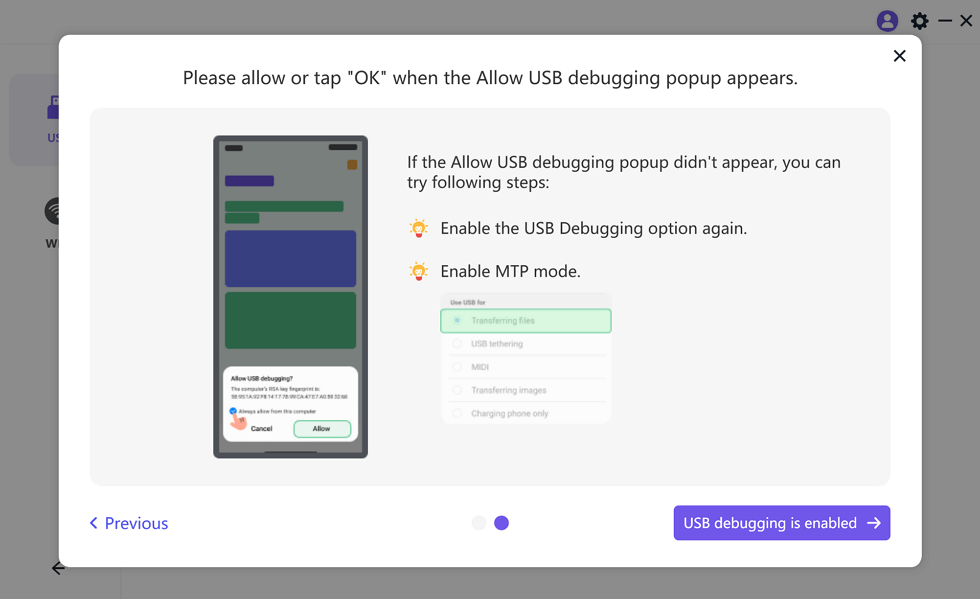
Enable USB Debugging and MTP Mode for a USB Connection
Step 5. Your Android screen will now be visible on your computer.
2. Play with Google Play Games
Google Play Games lets you play Free Fire on your PC without an emulator. This official Google program allows Android games to run properly on PCs. Better controls, a larger screen, and lag-free gameplay are all benefits of this strategy. This approach offers a seamless gaming experience without the inconvenience of third-party software and is safe and dependable. To apply this technique:
Step 1. Visit the Google Play Games website using any web browser.
Step 2. To begin downloading the setup file, click “Download Beta.”
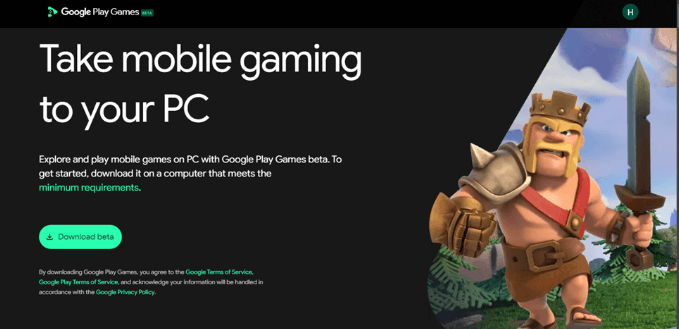
Select Download Beta
Step 3. Give the download time to finish. It could take several minutes.
Step 4. To install the downloaded file, locate it, right-click on it, and select “Run as administrator.”
Step 5. Let the installation finish. It may download extra files automatically.
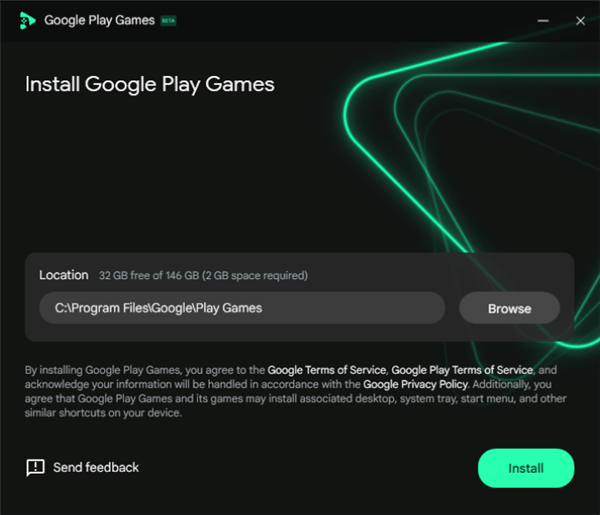
Install Google Play Games Beta
Step 6. Once installed, open Google Play Games and sign in using your Google account.
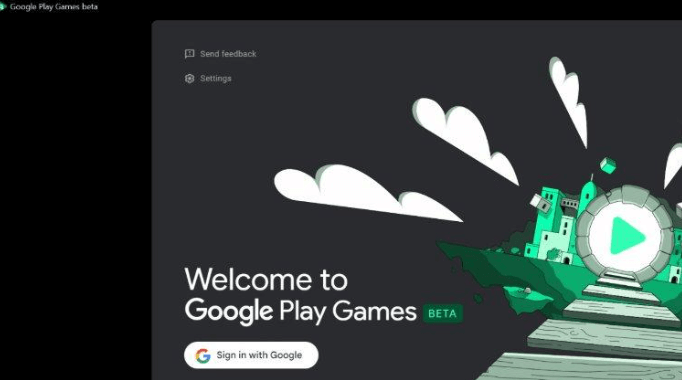
Sign In with Google
Step 7. Complete the setup by filling in the required details.
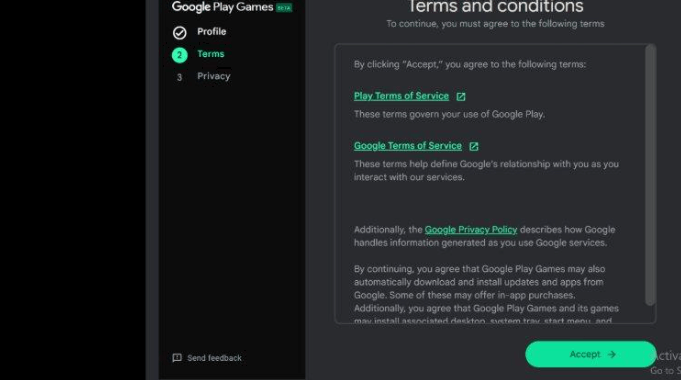
Add Required Details
Step 8. Search for “Free Fire” or “Free Fire Max” in the app.
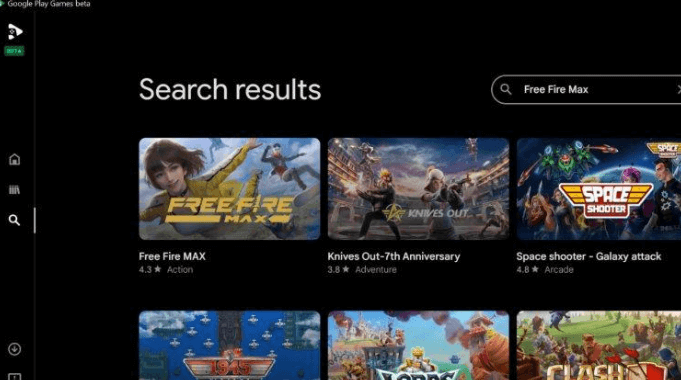
Search Free Fire on Google Play Games
Step 9. Click “Download” and wait for the game to install. Now, enjoy playing Free Fire on PC!
FAQs on How to Play Free Fire on PC
Is it possible to play Free Fire on a PC without an emulator?
You may use screen mirroring software like AnyMiro or Google Play Games to play Free Fire on a PC without needing an emulator. These techniques allow you to play smoothly without requiring a conventional Android emulator.
Is it free for Free Fire to use Google Play Games?
It is free to download and use Google Play Games. All you need to do is create a Google account, search for Free Fire, and install it on your computer for free.
Does lag occur when using AnyMiro to play Free Fire?
No. AnyMiro provides ten hours of lag-free, steady screen mirroring. Its excellent graphics and real-time audio synchronization make playing games on a larger screen fluid and pleasurable.
Final Words
You can get better controls, a bigger screen, and more fluid gameplay when using an emulator to play Free Fire on PC. Because emulators make it easier to maneuver and aim, they enable mobile games with a keyboard and mouse. They further offer adjustable parameters to improve performance. Nevertheless, some emulators could lag or require a strong computer to function properly. Google Play Games is an excellent choice if you would rather play without an emulator. Another great technique is AnyMiro, which offers low latency streaming, steady PC gameplay for up to 10 hours, and seamless screen mirroring.
 AnyMiro – Real-Time Screen Mirroring Tool
- More than 10 hours of stable screen mirroring connection.
- Up to 4K resolution providing a stunning visual experience.
- Integrates with live streaming tools such as OBS and Streamlabs.
- Auto-sync video and background audio with timestamp adjustments.
Free Download
100% Clean & Safe
Free Download
100% Clean & Safe
Free Download 100% Clean & Safe
Product-related questions? Contact Our Support Team to Get Quick Solution >
