iPhone Mirroring Not Working? How to Fix & Alternative Way
Why is your iPhone mirroring not working? Screen mirroring is essential for enjoying content on larger screens. This guide shares simple fixes and suggests AnyMiro as a reliable alternative. Follow these steps to troubleshoot and ensure seamless screen sharing whenever needed.

Are you having issues with your iPhonemirroringnotworking? Consider this: You are attempting to connect your iPhone 15 Pro running iOS 18 to an iMac. After providing the passcode, the Mac displays “Unable to connect.” Isn’t that annoying? Do not be concerned! There can be various reasons for this, including software bugs, incompatibility, and improper configurations.
You can mirror content on a larger screen with iPhone mirroring. However, it can be irritating when it doesn’t work. The good news is that fixing the majority of these problems is simple. This post will review the typical causes of iPhone mirroring failures. We’ll also share simple solutions and introduce AnyMiro, an alternative tool to mirror your screen wirelessly or with a USB. With these tips, you’ll enjoy smooth mirroring again in no time!
Table of ContentsHide
Why Does My iPhone Mirroring Not Work?
How to Fix iPhone Mirroring Not Working
- 1. Use an Alternative Solution AnyMiro [Wireless & USB]
- 2. Check System Requirements
- 3. Check Your Apple Account
- 4. Check Proximity and Connectivity
- 5. Restart Both Devices
- 6. Check for Software Updates
- 7. Disable VPN and Firewall Settings
- 8. Turn Off Other Screen Sharing Features
FAQs on iPhone Mirroring Not Working
Why Does My iPhone Mirroring Not Work?
iPhone mirroring issues can happen due to various reasons. Here are some common causes:
- Outdated Software: Your iPhone or the device you’re connecting to may not have the latest updates.
- Compatibility Issues: The devices might not support each other’s mirroring features.
- Network Problems: Unstable or disconnected Wi-Fi can stop the mirroring process.
- Incorrect Settings: AirPlay or mirroring settings may not be properly configured.
- Proximity Issues: Devices may be too far apart to connect effectively.
- Apple Account Problems: A mismatch or issue with your Apple ID can block mirroring.
How to Fix iPhone Mirroring Not Working
Now, let’s explore some common solutions for this issue:
1. Use an Alternative Solution AnyMiro [Wireless & USB]
If your iPhone mirroring is not working, AnyMiro is a simple and reliable solution with wireless and USB connections. It offers smooth and stable performance, allowing you to mirror your screen without lag for up to 10 hours. Whether you are streaming games, sharing your artwork, or giving a presentation, AnyMiro ensures everything looks sharp and clear with its 4K high-resolution mirroring.
The sound and visuals stay perfectly in sync, giving you a better live-streaming experience on platforms like YouTube or Twitch. You can also use AnyMiro with popular tools like OBS Studio to stream your phone screen with ease. It lets you take screenshots and record your screen instantly, helping you save the best moments. AnyMiro even allows live annotations to make your content more engaging for presentations or teaching. With all these features, AnyMiro is the perfect alternative for fixing iPhone mirroring issues.
Key Features:
- Easily mirror your iPhone screen to a PC without any complex setup or technical steps.
- Supports both Windows and Mac systems, ensuring compatibility for a smooth mirroring experience.
- Offers a clean and simple interface, making it easy for anyone to use without confusion.
- Perfect for online classes, meetings, or live sessions with clear visuals and reliable performance.
- Works seamlessly for streaming mobile games or sharing creative content in real time without delays.
- Allows you to connect and mirror using USB or Wi-Fi, giving you flexible options.
Here are some simple steps to use AnyMiro as an alternative:
Screen Mirror iPhone to Mac & PC Via USB:
Step 1. Free download and install AnyMiro on your computer.
Free Download for all windows & 100% safe Free Download for all mac & 100% safe
Free Download100% Clean & Safe
Step 2. Open AnyMiro on your computer and choose “iOS/iPadOS.”
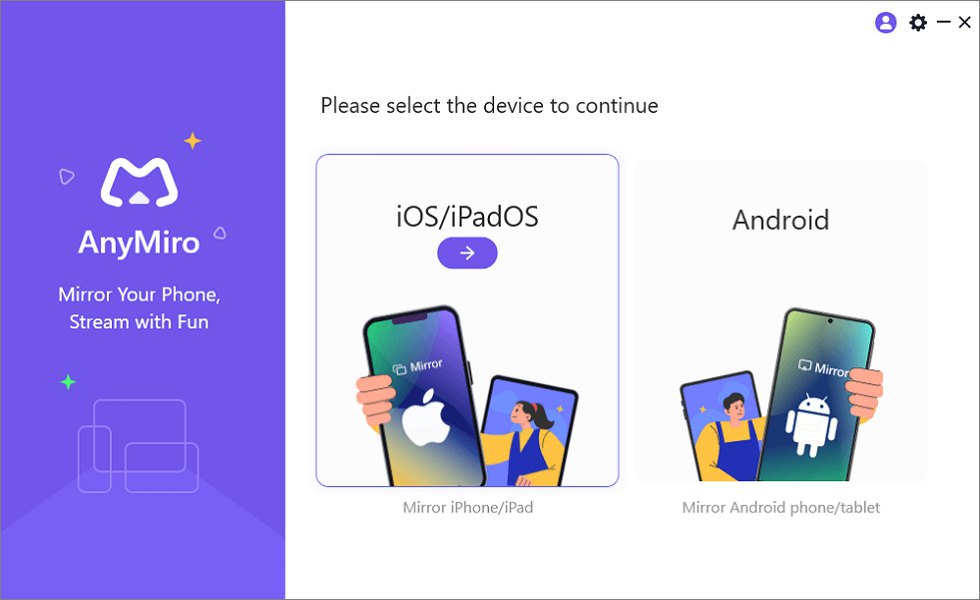
Mirror iPhone to Computer
Step 3. Select the “USB connection” option.
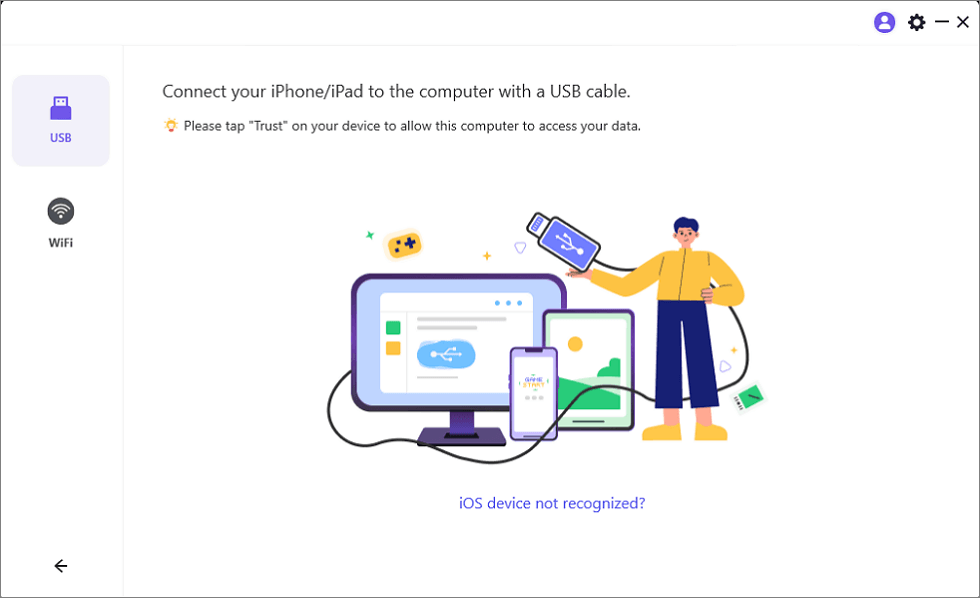
Connect Your iPhone/iPad with a USB Cable
Step 4. Tap “Trust” to allow the connection on your iPhone. If prompted, enter your device’s passcode. Your device is now ready to mirror.
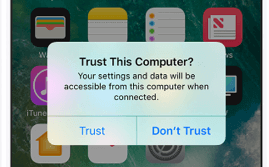
Trust Your Computer on iPhone
Screen Mirror iPhone to Mac & PC Via Wi-Fi:
Step 1. Open AnyMiro on your computer and select “iOS/iPadOS.”
Step 2. Click the “Wi-Fi connection” option.
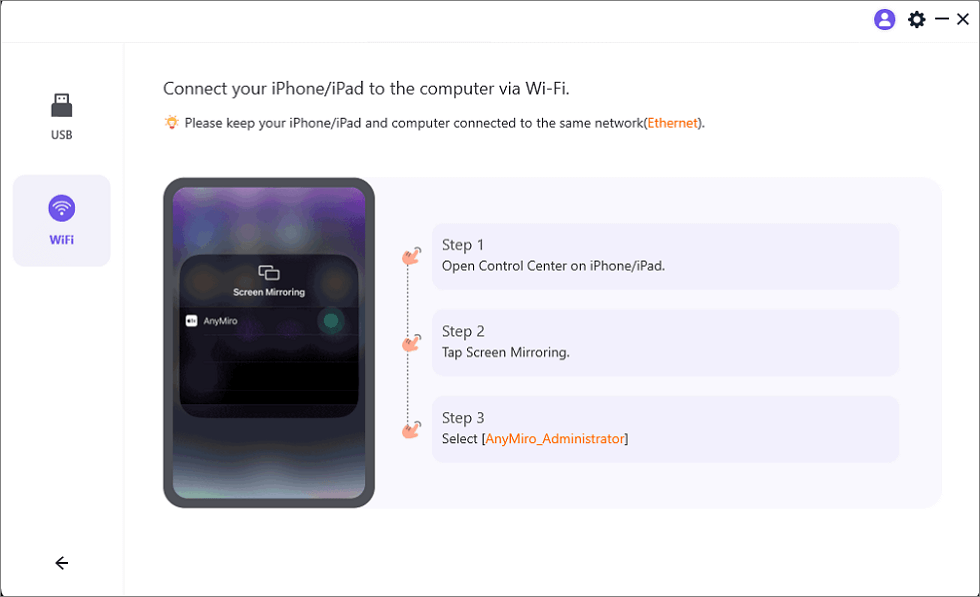
Mirror iOS to Computer via WiFi
Step 3. Check that both devices are connected to the same Wi-Fi network.
Step 4. On your iPhone or iPad, swipe open the Control Center, tap “Screen Mirroring,” and select “AnyMiro_Computer Name.”
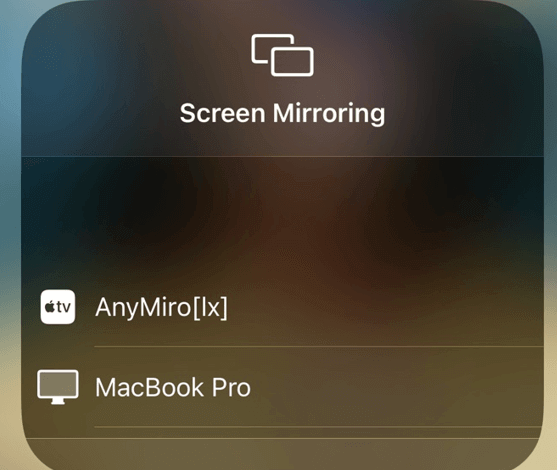
Select Your Computer from the List
Step 5. Your device will be detected, and screen mirroring will start.
2. Check System Requirements
To fix iPhone mirroring issues, first check the system requirements. Make sure both your iPhone and computer are running the latest software versions. Your computer should be compatible with iOS/iPadOS mirroring.
To mirror your iPhone, start by verifying that your devices meet these minimum requirements:
- Your Mac is equipped with an Apple silicon chip or T2 security chip.
- Your Mac is running macOS Sequoia or a later version.
- Your iPhone is running iOS 18 or newer.
Having the correct system setup is essential to ensure smooth screen mirroring. To check software versions:
For iPhone:
Open the Settings app and tap on “General.” Then select “About” and check the software version.
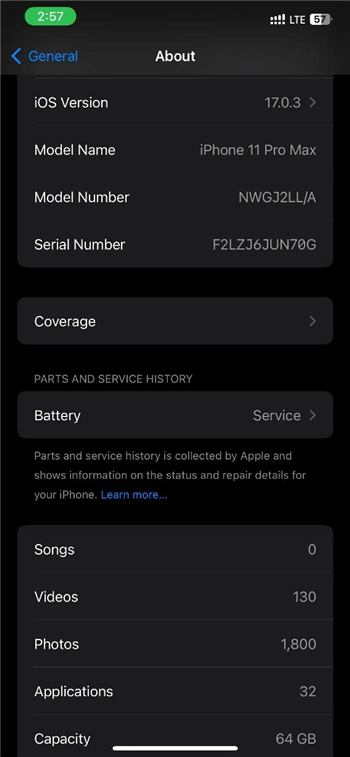
Select About
For Mac:
Click on the “Apple menu” in the top-left corner. Once done, click on “About This Mac.”
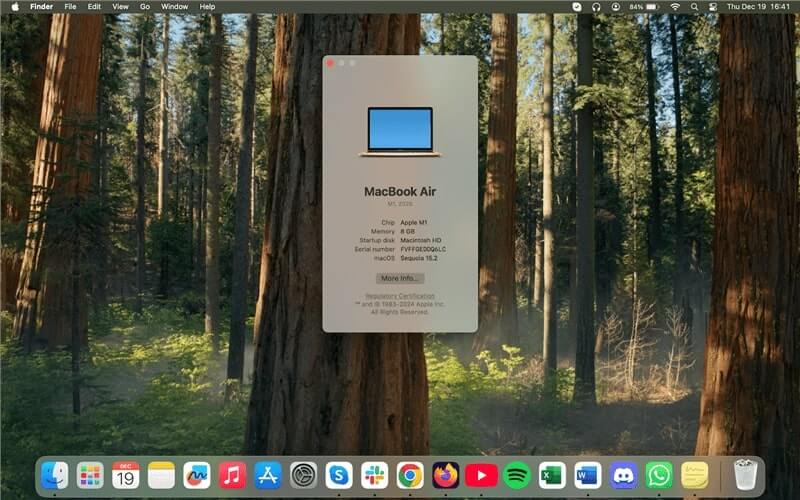
Select About this Mac
3. Check Your Apple Account
Another possible fix for iPhone mirroring not working is to check your Apple account settings. Sometimes, the issue may be related to account permissions or restrictions. Verify that security settings are not blocking the mirrored connection and that you are logged into the same Apple ID on both devices. To ensure both devices are using the same Apple ID:
Step 1. On your iPhone, open Settings, tap your name at the top, and then “Sign-In & Security” to verify your Apple ID.
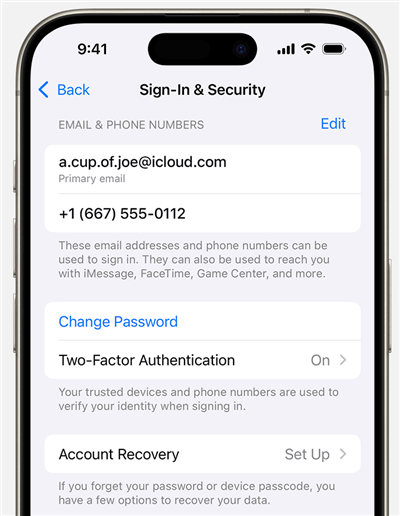
Check Apple ID
Step 2. On your Mac, go to “System Settings,” click on your name, and check that the Apple ID matches your iPhone’s.
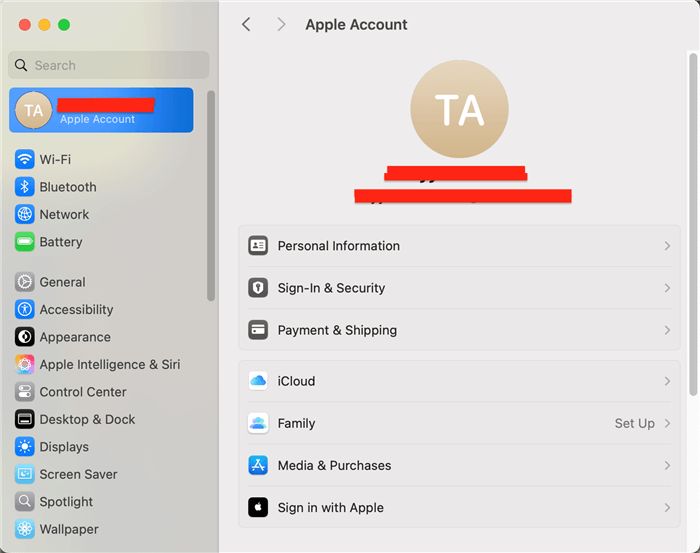
Check Apple ID on Mac
4. Check Proximity and Connectivity
Mirroring issues often happen due to poor connectivity or proximity between your devices. Ensure both your iPhone and computer are within close range of each other. To use wireless mirroring, both devices must be linked to the same Wi-Fi network. A poor or erratic signal could make mirroring unsuccessful. For this:
Step 1. On your iPhone, go to Settings > General. Then tap on AirPlay & Handoff.
Step 2. Toggle to turn ON “Handoff,” which lets you start a task on one Apple device and continue it seamlessly on another.
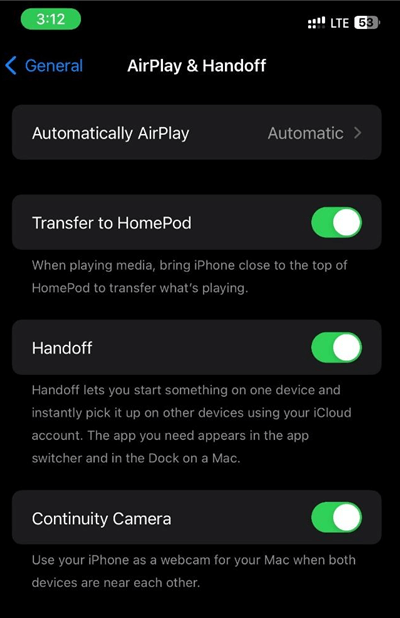
Choose AirPlay & Handoff
5. Restart Both Devices
Restarting both your iPhone and Mac is a simple but effective fix for iPhone mirroring issues. This can help clear any temporary software glitches or minor connection problems. In addition to refreshing the system, restarting can fix any background processes that may be preventing the mirroring functionality from working.
6. Check for Software Updates
Outdated software can cause many issues with iPhone mirroring. Verify that the most recent updates are installed on your computer and iPhone to resolve this issue. Mirroring may only work effectively on one device if it runs an updated operating system version. To check for updates:
Step 1. Navigate to SystemSettings > General > Software Update on your Mac.
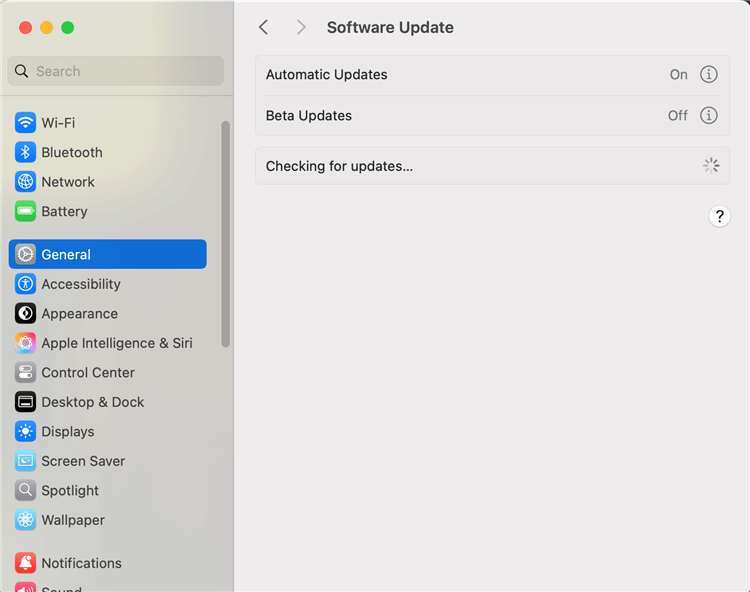
Software Update Mac
Step 2. Go to Settings > General and then tap on Software Update.
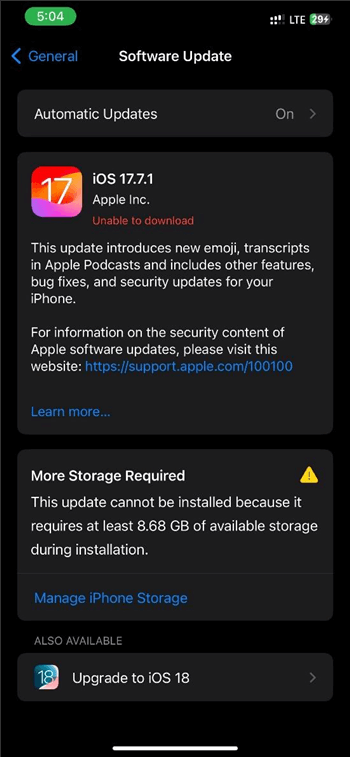
iOS Software Update
Step 3. Check if any updates are available and install them on both devices.
7. Disable VPN and Firewall Settings
VPNs or strict firewall settings sometimes block the connection needed for iPhone mirroring. If you have them enabled, try temporarily turning off your firewall and VPN. These safety features may occasionally disrupt wireless connections, particularly when screen mirroring is enabled. Turn off the VPN and firewall, then test the mirroring function again. Disabling these features will allow your devices to communicate more freely and can help restore the connection for successful mirroring.
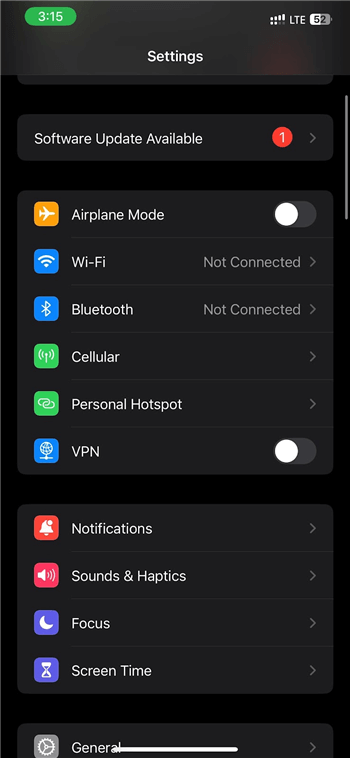
Turn Off VPN
8. Turn Off Other Screen Sharing Features
If you are using other screen sharing features, like AirPlay, it may interfere with your iPhone mirroring. These features are designed for screen sharing, but having more than one active at the same time can cause issues. To resolve this, turn off AirPlay before trying to mirror your iPhone. This ensures that only one screen-sharing feature runs, making the connection process smoother and less likely to fail.
FAQs on iPhone Mirroring Not Working
Why can’t I connect my iPhone to the screen?
Verify that the device you are linking to and your iPhone are on the same Wi-Fi network. If so, restart both devices or look for software upgrades.
If the mirroring is lagging, what should I do?
If you’re experiencing lag, try using a cable connection rather than Wi-Fi. One best alternative is AnyMiro, which provides lag-free, seamless mirroring across USB and Wi-Fi networks.
Can I use mirroring without Wi-Fi?
Yes, you can mirror your iPhone to your Mac without Wi-Fi by using a USB cable or apps like AnyMiro, which allow mirroring through a wired connection and ensure stable performance.
Final Words
To sum up, numerous ways exist to resolve the annoying issue of iPhone mirroring not working. Some important steps are restarting both devices, updating the software, and using the correct settings. If you continue facing problems, AnyMiro is a great alternative for smooth, lag-free mirroring, whether you connect via Wi-Fi or USB. Try AnyMiro for an easy and reliable mirroring experience.
 AnyMiro – Real-Time Screen Mirroring Tool
- More than 10 hours of stable screen mirroring connection.
- Up to 4K resolution providing a stunning visual experience.
- Integrates with live streaming tools such as OBS and Streamlabs.
- Auto-sync video and background audio with timestamp adjustments.
Free Download
100% Clean & Safe
Free Download
100% Clean & Safe
Free Download 100% Clean & Safe
Product-related questions? Contact Our Support Team to Get Quick Solution >
