How to Mirror a Phone to Another Phone
In this guide, you will learn how to easily mirror a phone to another phone. It covers steps for Android to Android, iPhone to iPhone, and Android to iPhone or vice versa. You will also find a bonus tip on mirroring your phone to a PC or Mac using AnyMiro. Follow the steps to share your screen quickly and control one device from another.

How to Mirror a Phone to Another Phone
Try AnyMiro to mirror Android and iPhone to PC for free.
- Fast response time within 10 ms and 60fps frame rate.
- A stunning visual experience with no color difference.
- Lag-free screen mirroring and 4k resolution.
Have you ever needed to display content between phones? Your situation may demand screen-sharing abilities to assist friends who need remote phone control. Screen mirroring technology allows users to show real-time views of their phone display on different devices. This guide shows you easy methods to link phone displays between devices individually. Let’s get started!
How to Mirror Android to Android?
You cannot mirror android-to-android via the native screen mirroring feature and, hence, need a third-party application. TeamViewer is advanced remote connectivity software that enables users to operate devices regardless of location. TeamViewer is a trusted solution for cloning an Android device to another Android phone. Users can have real-time collaboration, file transfer, and screen-sharing features by installing the TeamViewer Remote Control application on their devices.
Strong encryption and two-factor authentication will allow it to provide secure remote connection services. Its session recording feature also helps document remote interactions for training or audits. With these advanced capabilities, TeamViewer is a reliable Android-to-Android mirroring and remote access tool. For this method:
Step 1. Download and install TeamViewer QuickSupport on the phone you want to share.
Step 2. Open the app, and you will see your “TeamViewer ID” on the screen.
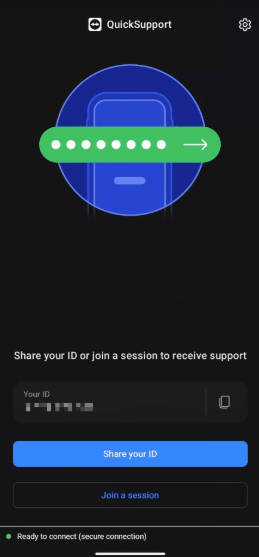
TeamViewer ID
Step 3. Download and install “TeamViewer Remote Control” on the other phone from the app store.
Step 4. Open the app and sign in using your TeamViewer account.
Step 5. To start screen mirroring, enter the “Partner ID” from the first phone and tap “Remote Control.”
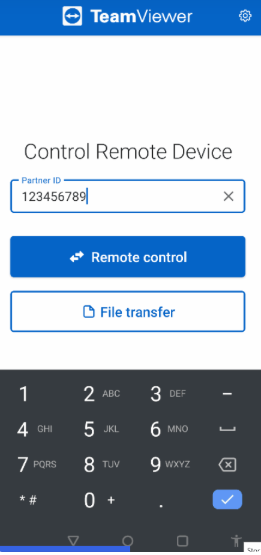
Tap Remote Control
How to Mirror iPhone to iPhone?
ApowerMirror is a powerful and feature-rich screen mirroring app that can mirror your iPhone to another iPhone seamlessly and is thus an excellent app for presentations, gaming, media streaming, etc. With the mirroring being of high quality and the wireless connection being stable, you are assured of a seamless experience each time you utilize the app. The standout points in the app are screen recording, which enables you to record mirrored content easily, and the availability of a whiteboard for annotating in real time to make collaboration more interactive and fun.
To use this tool:
Step 1. Install ApowerMirror on both iPhones and open the app.
Step 2. On the iPhone that will share its screen, tap “LocalCast” to search for nearby devices.
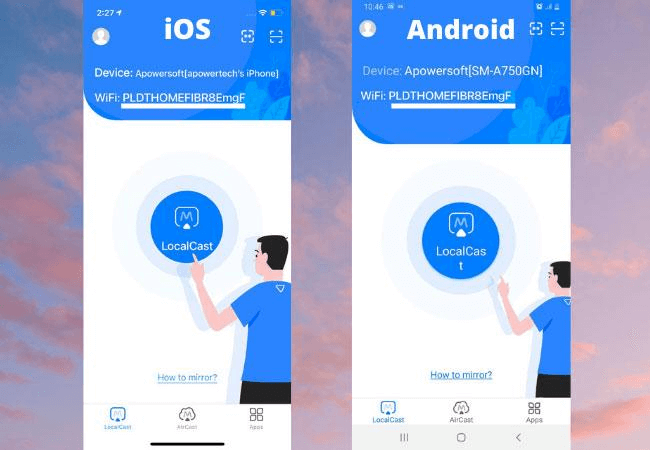
Tap LocalCast
Step 3. Select the name of the other iPhone from the list of available devices.
Step 4. Tap “Start Broadcast” to begin mirroring your screen.
How to Mirror Android to iPhone or Vice Versa?
EZCast allows you to mirror Android to iPhone and iPhone to Android easily. Users can mirror their devices by connecting them to the same Wi-Fi network through the EZCast application. EZCast stands out with its ability to serve users through the full range of Windows, Android, iOS, and macOS system platforms.
The application provides users with screen mirroring capabilities, media streaming features, and document viewing functionality for an improved experience. Through EZCast, users may take advantage of its DLNA alongside Miracast and AirPlay because it enables multiple streaming methods. Using it provides dependable screen mirroring capabilities through its simple layout alongside dependable functionality. Here are the steps to use this method:
Step 1. Install the “EZCast Screen” on both devices. Download it from the Google Play Store on Android and the Apple App Store on iPhone.
Step 2. Open the app on your Android phone and tap the “Cast” button at the top-right corner. Then, open the EZCast Screen app on your iPhone.

Tap the Cast Button
Step 3. Check that both devices have the same Wi-Fi network.
Step 4. Your Android will detect the iPhone. Once connected, screen mirroring will begin.
Step 5. To stop mirroring, tap “Disconnect” in the EZCast Screen app.
Bonus Tip. How to Screen Mirror Phone to PC & Mac?
If you wish to mirror your phone to a Mac or PC, AnyMiro is an ideal option. It streams smoothly and without lag, so it’s perfect for playing games, drawing, and making presentations. You have a stable connection with AnyMiro that will last for 10 hours of continuous use without any lag. You can use 4K resolution, guaranteeing clear graphics.
The audio and video sync perfectly, making it great for streaming on Twitch, YouTube, and Facebook. You can also use live annotations to highlight important points while presenting. Recording and screenshots enable you to save key moments when streaming. AnyMiro also works with OBS Studio and other streaming services, allowing you to share your screen live.
Key Features:
- Stable connection keeps your screen mirroring smoothly for up to 10 hours.
- 4K resolution offers crystal-clear images with no loss of color or distortion.
- Audio synchronization in real time provides ideal audio and video sync while streaming.
- Screen recording lets you capture and save important moments easily.
- Live annotations help highlight key points during presentations or tutorials.
Here are some simple steps to use AnyMiro:
From iPhone to PC & Mac Via Wi-Fi:
Step 1. Open AnyMiro on your computer and click “iOS/iPadOS.”
Free Download for all windows & 100% safe Free Download for all mac & 100% safe
Free Download100% Clean & Safe
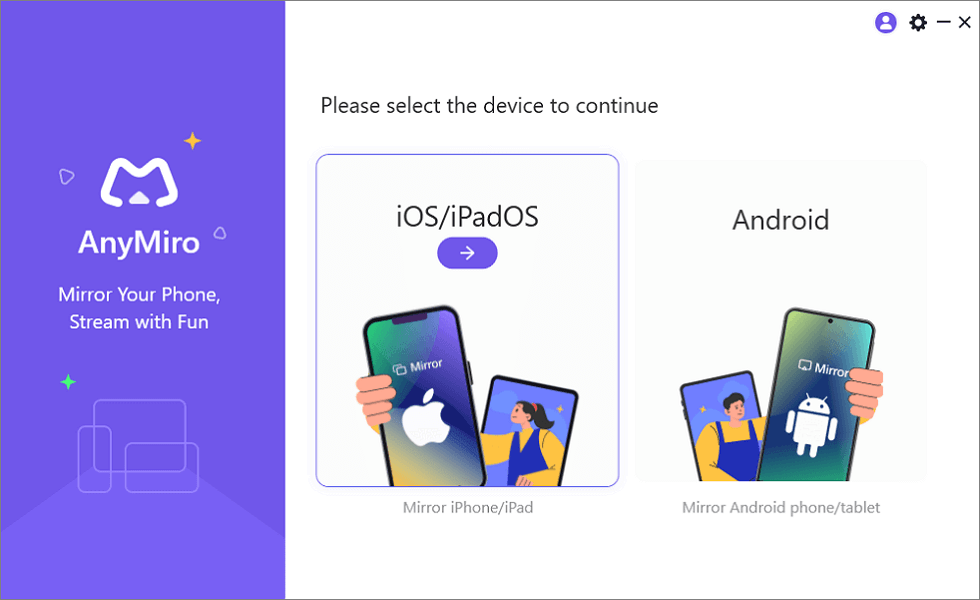
Mirror iPhone to Computer
Step 2. Select “Wi-Fi connection” from the available options.
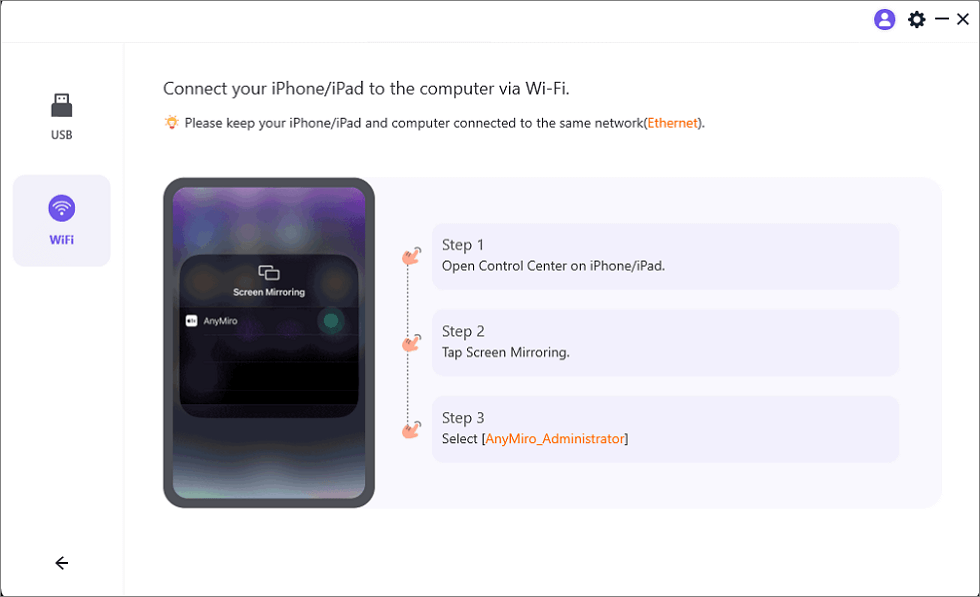
Mirror iOS to a Computer via WiFi
Step 3. Ensure both your iPhone/iPad and computer are connected to the same Wi-Fi network.
Step 4. On your iPhone/iPad, go to Control Center, tap “Screen Mirroring”, and choose “AnyMiro_Computer Name.”
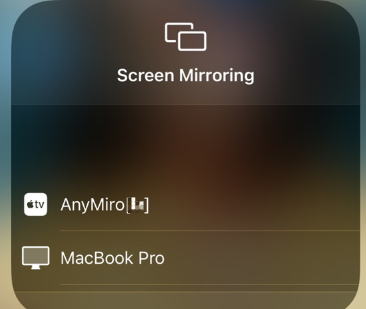
Select AnyMiro to Mirror iPhone to MacBook Bluetooth
Step 5. Your iPhone screen will now be visible on your computer.
From Android to PC & Mac Via USB:
Step 1. Free download AnyMiro on your computer and open it. Select “Android” to start the setup.

Mirror Android to Computer
Step 2. Choose “USB” and connect your Android device via a USB cable.
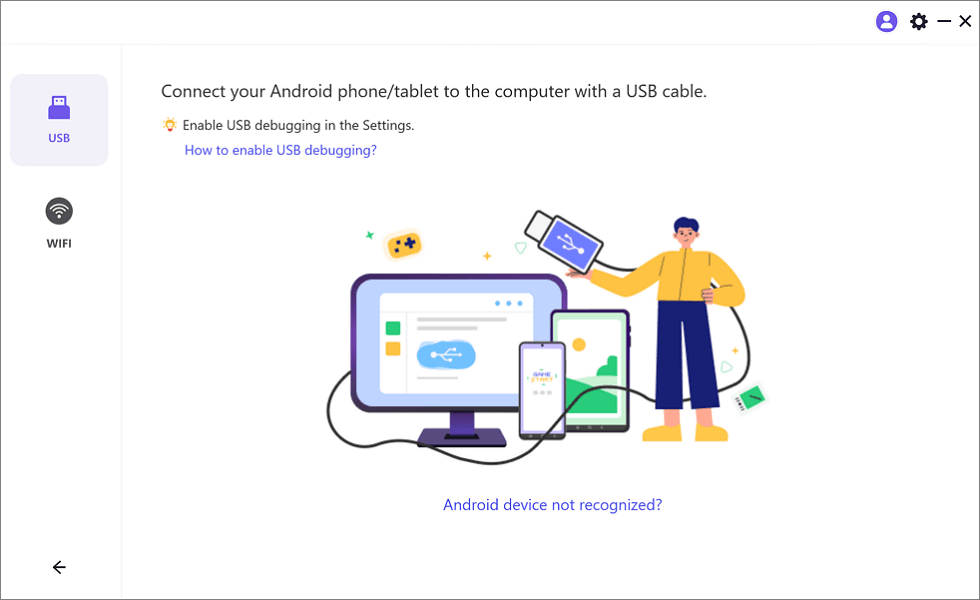
Select the USB Option for Screen Mirroring Android to PC
Step 3. Turn on “USB debugging” and switch to “MTP Mode” if required.
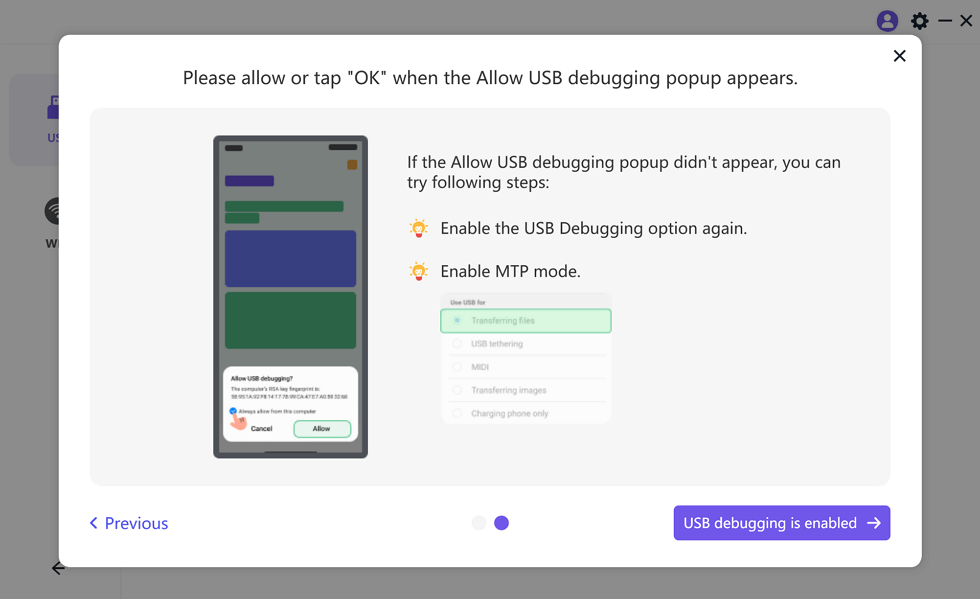
Enable USB Debugging and MTP Mode for a USB Connection
Step 5. Your Android screen will now be displayed on your computer.
FAQs about Mirroring a Phone to Another Phone
What’s the best app to mirror a phone?
AnyMiro is a great choice for screen mirroring. It’s easy to use and supports Android and iPhone. You can mirror your screen wirelessly or via USB for effortless screen mirroring. It’s perfect for gaming, presentations, and tutorials.
Does screen mirroring support all phones?
Most smartphones nowadays support screen mirroring. But older models might not support it. See your phone settings and app needs before attempting to mirror them.
Can I mirror my iPhone to an Android phone?
Yes, but it requires a specific app that supports both devices. Some apps support cross-platform mirroring. You install an app, connect two phones, and begin screen-sharing.
Final Words
Mirroring your phone to another smartphone is easy with the proper app. You can project your screen via a USB link or wirelessly. Various apps enable effortless and successful screen mirroring using Android or iPhone. For optimum usage, AnyMiro is the ideal application. It has clean screen mirroring, supports iPhone and Android operating systems, and allows both USB and Wi-Fi connections for a solid display.
Product-related questions? Contact Our Support Team to Get Quick Solution >
