How to Mirror and Control Your iPad on PC: A Complete Guide
This guide explains how to mirror and manage your iPad on a PC using three easy methods: AnyMiro, LonelyScreen, and Reflector. These applications assist you in projecting and managing your iPad screen on a computer. This guide makes screen mirroring simple for work, gaming, or presentations.

How to Mirror and Control Your iPad on PC: A Complete Guide
Try AnyMiro to mirror iPhone/iPad to PC for free via USB and WiFi.
- Fast response time within 10 ms and 60fps frame rate.
- A stunning visual experience with no color difference.
- Lag-free screen mirroring and 4k resolution.
Suppose you need to show the screen of your iPad on a larger screen for a meeting, web class, or game. You have no idea what you should do. You experiment using several methods, and none work. It must be frustrating. The good news: you can mirror and control iPad on PC very easily.
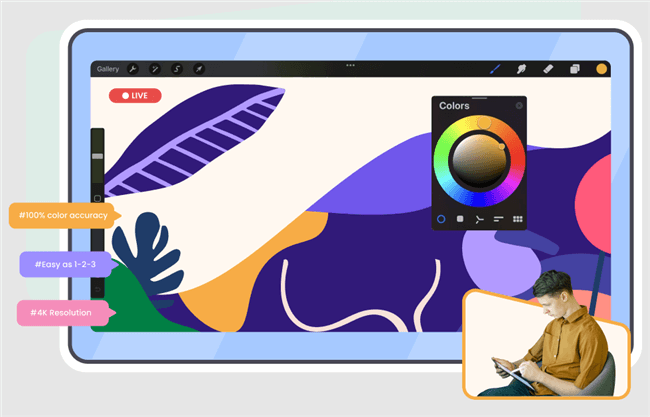
How to Mirror and Control Your iPad on PC
You can mirror your iPad screen to your computer and even control it from a secondary device. It comes in handy in multiple scenarios, from presentations and tutorials to playing games on a larger display. Simply go through these steps, and you’ll be synced with your iPad in just minutes. So, let’s begin!
Table of ContentsHide
Why Mirror and Control Your iPad on PC?
Mirroring and controlling your iPad on a PC can be very beneficial in many circumstances. It facilitates study, amusement, and work. Here are the main reasons for doing so.
Larger Screen to Improve Viewing
iPad screens are substantially smaller than PC screens. You can more easily read papers, play games, and view films when you mirror your iPad to a PC. This is great for those who would rather have a larger screen for better clarity.
Meetings and Presentations
Mirroring greatly facilitates displaying content from your iPad during a conference. You can display slides, apps, or notes on a bigger screen without sending files, making presentations smoother and more professional.
Recording and Tutorials
Most individuals use videos to teach. Mirroring your iPad on a computer assists you in screen recording with ease. It is excellent for producing tutorials, capturing gameplay, and easily showing apps.
Easy Multitasking
Controlling your iPad from a PC makes switching between devices simple. You don’t have to keep picking up the iPad. This improves comfort and saves time during work.
Improved Experience with Gaming
Mobile games appear better on a larger screen. Mirroring your iPad allows you to play games on a PC screen and use a keyboard or mouse for improved control, adding excitement and fun to gaming.
3 Methods to Mirror and Control iPad on PC
Now, let’s have a detailed look at the 3 best methods to mirror and control your iPad on a PC:
Method 1. Mirror and Control iPad on PC Using AnyMiro
AnyMiro is a great tool for mirroring and easily controlling iPads on PCs. It offers a stable and smooth connection for screen mirroring. Up to 10 hours of lag-free screen mirroring are available with AnyMiro, guaranteeing a flawless experience free from disruptions. This software offers excellent graphics with no color change from your original screen, whether you’re using it to present a project, teach an online class, or stream a game.
AnyMiro is ideal for Twitch, YouTube, and Facebook broadcasting because it offers real-time audiovisual sync. The software’s ease of use and OBS Studio compatibility allow you to broadcast directly without losing quality. AnyMiro is also an excellent solution for work and play due to features such as live annotation, where you can highlight and comment on key points during presentations.
AnyMiro – Real-Time Screen Mirroring Tool
Free download AnyMiro to enjoy a fast, stable, and smooth screen mirroring experience. You can mirror for better game playing, video watching, or live streaming mobile phone content.
Key Features:
- Lag-free performance provides seamless play and creative workflow every time.
- Accommodates several platforms such as Twitch, YouTube, and Facebook for streaming.
- Anyone can begin mirroring immediately, thanks to an easy setup process.
- You can use it on any computer because it is compatible with Mac and Windows.
- High-quality visuals ensure 4K resolution with no color difference at all.
- Real-time audio sync keeps sound and video perfectly matched every time.
Now, let’s discuss the detailed steps to use AnyMiro:
Screen Mirror iPap/iPhone to PC Via USB:
Step 1. Free download and install AnyMiro on your computer. Continue by connecting both devices using a USB cable.
Free Download for all windows & 100% safe Free Download for all mac & 100% safe
Free Download100% Clean & Safe
Step 2. Open AnyMiro and click on “iOS/iPadOS.”
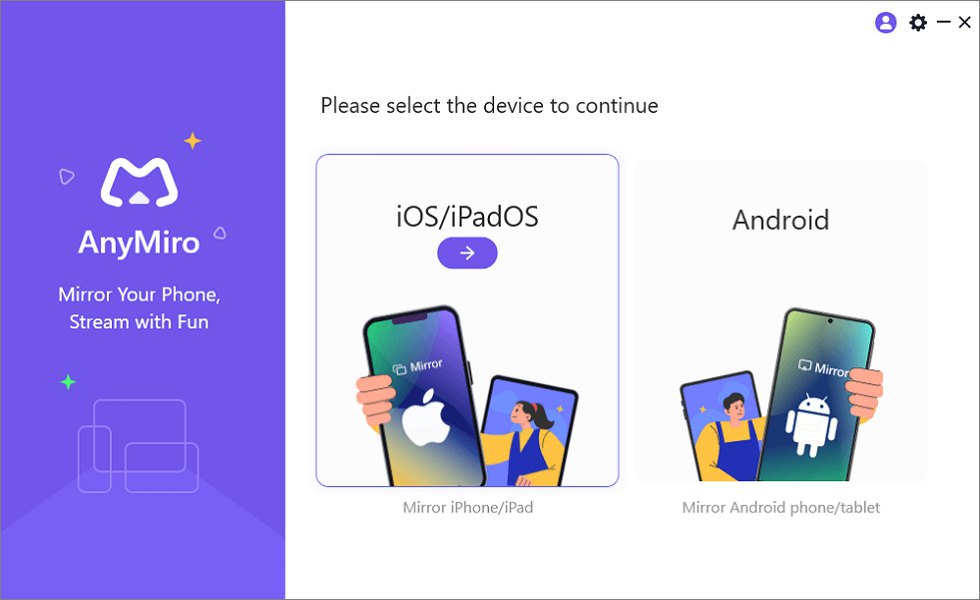
Mirror iPhone to Computer
Step 3. Select the “USB connection” option.
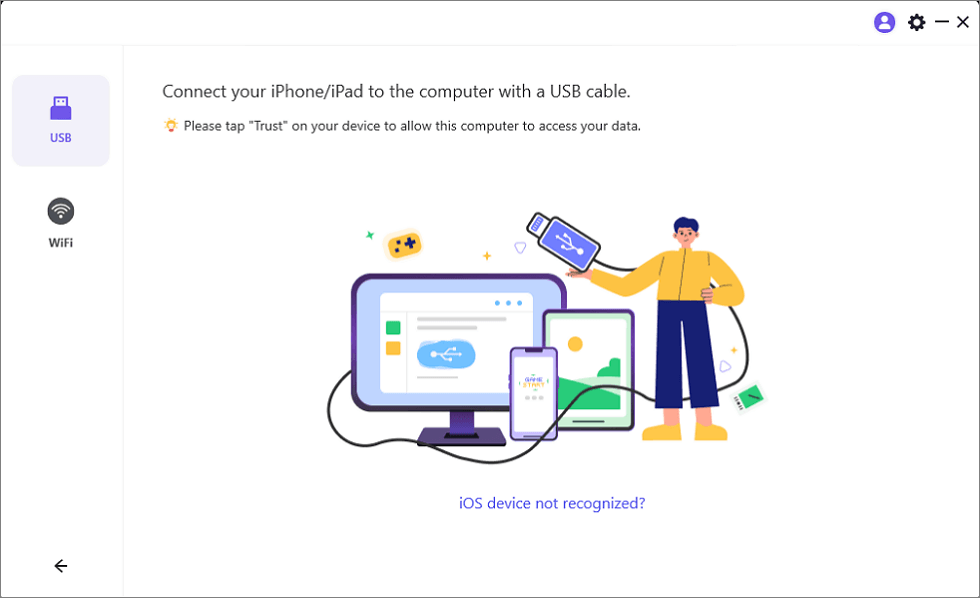
Connect Your iPhone/iPad with a USB Cable
Step 4. Tap “Trust” when prompted on your iPad. Enter your device passcode if required. Your screen will now be mirrored.
Screen Mirror iPhone/iPad to PC Via Wi-Fi:
Step 1. Open AnyMiro on your computer and choose “iOS/iPadOS.”
Mirror iPhone to Computer
Free Download for all windows & 100% safe Free Download for all mac & 100% safe
Free Download100% Clean & Safe
Step 2. Continue by clicking the “Wi-Fi connection” option.
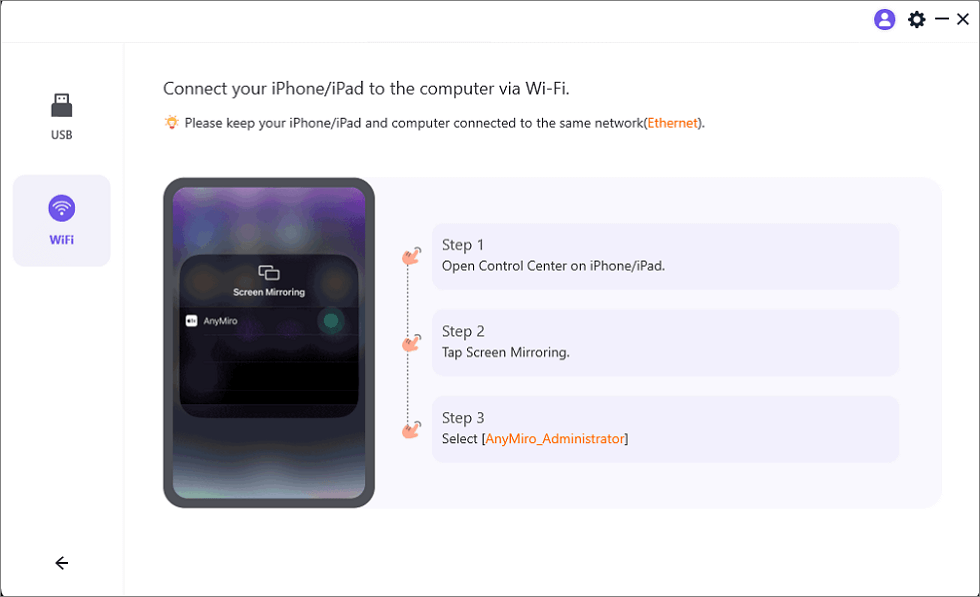
Mirror iOS to Computer via WiFi
Step 3. Check that both devices have the same Wi-Fi network.
Step 4. On your iPad, go to Control Center, tap “Screen Mirroring,” and select “AnyMiro_Computer Name.”
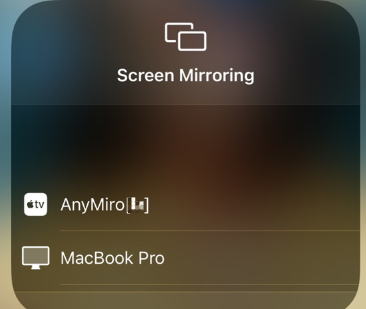
Select AnyMiro
Step 5. Your device will now start mirroring on your computer.
Method 2. Mirror and Control iPad on PC Via LonelyScreen
The LonelyScreen app is simple and lets you mirror and stream your iPad onto a PC. Acting as an AirPlay receiver converts your PC into an Apple TV, making it possible to stream music and films or screen-mirror your iPad. You can start mirroring by downloading LonelyScreen on your Mac or Windows computer. Recording capabilities are also integrated, allowing you to record iPad screen activity and send it directly to your PC. This is extremely useful in storing presentations, recording game activities, and creating lessons. Clients can try out the application’s features before committing to a subscription during its free trial.
Key Features:
- Turns your computer into an Apple TV-like device, enabling seamless casting.
- Mirror your iPad without installing extra applications on the device.
- Capture your iPad’s screen activity directly onto your computer.
- Works with both Windows and Mac operating systems.
- Test the application before deciding on a subscription.
Here are the simple and easy steps to use LonelyScreen:
Step 1. Download and install LonelyScreen on your computer.
Step 2. On your iPad, swipe to open Control Center and tap “Screen Mirroring.”
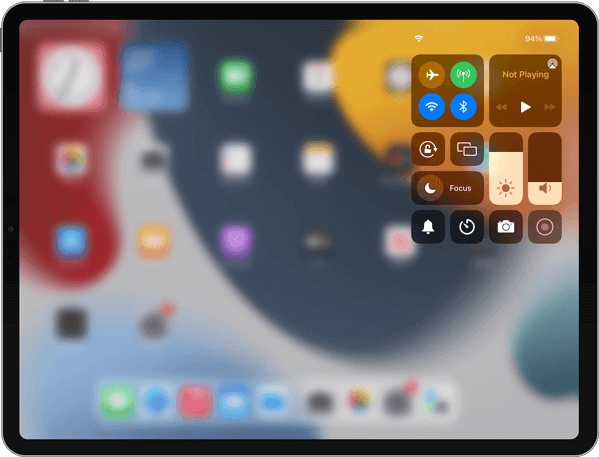
Tap Screen Mirroring
Step 3. From the list of available devices, select “LonelyScreen.”
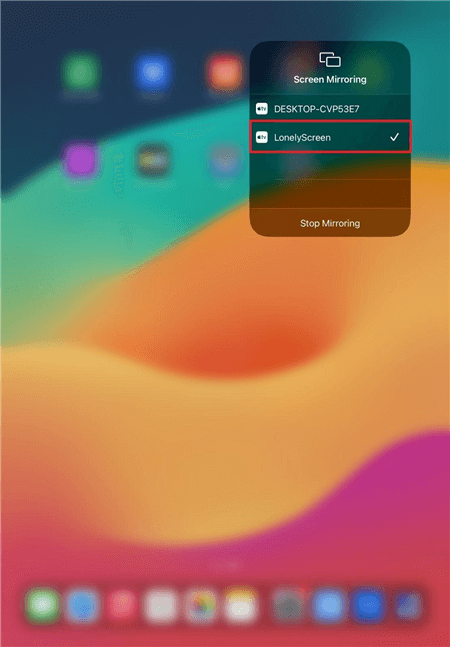
Select LonelyScreen
Step 4. Your iPad or iPhone screen will now appear on your PC using LonelyScreen.
Method 3. Mirror and Control iPad on PC by Trying Reflector
Reflector is an easy-to-use application that supports wireless mirroring of the iPad to PC with smooth 60 FPS streaming. It harnesses the support of AirPlay, which exists in iPads. Reflector makes viewing whatever you want on the larger screen from games, presentations, videos, and applications easy. You can get connected and view multiple iPads at once from the support the app has for multiple-device mirroring. Reflector is ideal for business, education, or entertainment since it automatically adjusts the layout to fit all screens proportionally.
Key Features:
- You don’t need additional software to mirror your iPad to your PC wirelessly.
- Enjoy seamless 60 FPS screen mirroring for improved gaming and video experiences.
- To enable side-by-side comparisons, connect and mirror several iPads simultaneously.
- Automatically adjust the screen layout to fit all mirrored devices properly.
Check out the simple steps below to use Reflector and Mirror and control your iPad on PC:
Step 1. Install Reflector on your computer after downloading it.
Step 2. Verify that the iPad and PC are linked to the same wireless network.
Step 3. Launch your computer’s Reflector.
Step 4. Swipe from the upper right corner to access the Control Center on your iPad.
Step 5. To begin the process, tap “Screen Mirroring“.
Tap Screen Mirroring
Step 6. Select your computer’s name from the list to start mirroring.
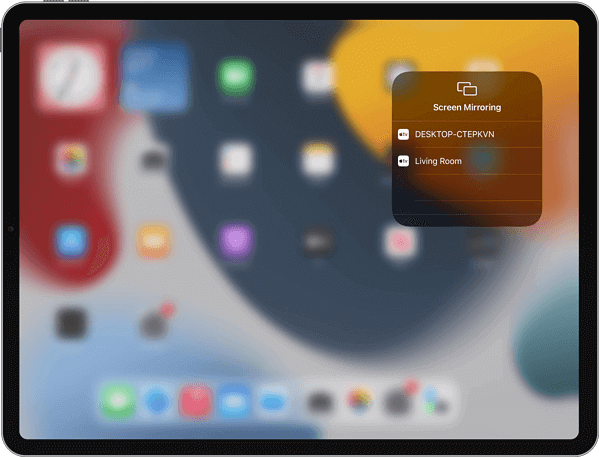
Select Your Computer
Step 7. Your iPad screen will now appear on your PC using Reflector.
FAQs on Mirror and Control iPad on PC
Why is my iPad not connecting to my computer?
Check that the devices are on the same wireless connection. Restart both devices and ensure that mirroring is properly working using a mirroring application. If you fail to access your Wi-Fi connection, a USB cable may help.
Is there a lag with screen mirroring?
There will be a short delay, especially if your Wi-Fi connection is slow or crowded. Mirroring happens faster and more consistently with little to no delay using a USB cable instead of Wi-Fi.
Which application best mirrors my iPad to a computer?
AnyMiro is a great choice because it provides high-quality, lag-free screen mirroring. It also offers good streaming, gaming, and presentation options through USB and Wi-Fi connectivity.
Final Words
You can utilize your iPad for business, presentations, and enjoyment by mirroring and controlling it on a PC. It is possible with many programs that provide seamless screen sharing and simple setup. With a few easy steps, you can experience a larger screen using Wi-Fi or USB. AnyMiro is a fantastic option for optimal performance. It provides high-quality and lag-free mirroring. It has an easy setup using USB or Wi-Fi. AnyMiro is an excellent option for an easy, reliable solution for mirroring your iPad. Use it today and experience a better screen!
Product-related questions? Contact Our Support Team to Get Quick Solution >
