Can I Mirror Android to Mac with Bluetooth?
Have you found that you can’t mirror Android to Mac Bluetooth? This article discusses the feasibility of using Bluetooth for screen mirroring and why this method may fall short. Additionally, it explores two alternative methods: connecting via USB cable and using a wireless (Wi-Fi) connection, catering to users seeking to mirror their Android screens.

Can I Mirror Android to Mac with Bluetooth?
Download AnyMiro to share Android screen to Mac via USB and WiFi.
- Fast response time within 10 ms and 60fps frame rate.
- A stunning visual experience with no color difference.
- Lag-free screen mirroring and 4k resolution.
Available for both Win & Mac
Screen mirroring technology has become an indispensable tool for this purpose. Whether it’s for presentations, entertainment, or troubleshooting, mirroring the screen of an Android to a Mac computer can provide substantial assistance. However, some may wonder if it can mirror Android to Mac Bluetooth technology. In this article, we will delve into this question.
Although Bluetooth technology excels in short-range data transfer and audio connections, screen mirroring might require more considerations. We will first explore why relying solely on Bluetooth may not suffice for screen mirroring and then extensively discuss two alternative methods: mirroring Android to Mac via USB and utilizing a wireless (Wi-Fi) connection.
Table of ContentsHide
Is It Possible to Mirror Android to Mac with Bluetooth?
The concept of mirroring your Android to Mac Bluetooth sounds intriguing, doesn’t it? After all, Bluetooth technology is fantastic for many wireless tasks, but, it’s not quite up to the challenge of screen mirroring. There are several reasons why relying solely on Bluetooth won’t cut it for this task.
First, Bluetooth, while great for short-distance data transfers and wireless audio, simply can’t handle the demands of screen mirroring. Screen mirroring involves transmitting not just images but also audio and other data in real time. Bluetooth’s data transfer rate, unfortunately, is often too slow to support the continuous and high-quality streaming needed to mirror your smartphone or tablet screen to a Mac. This would result in a mirrored display of subpar quality and a less-than-optimal user experience.
Furthermore, Bluetooth’s range is generally limited to just a few meters and can be easily disrupted by obstacles like walls or interference from other Bluetooth devices. This limited range makes it impractical for screen mirroring between Android devices and Macs, especially when you need more freedom of movement for activities like presentations or media sharing. So it is impossible to mirror Android to Mac Bluetooth.
To achieve effective screen mirroring between your Android and your Mac, you’ll want to consider alternative methods, like USB and Wi-Fi connections. In the upcoming sections, we’ll dive deeper into these alternatives, discussing the pros and cons of both USB and Wi-Fi connections, and offering step-by-step guides for how to mirror Android to Mac wirelessly and USB cable.
How to Mirror Android to Mac via USB Cable
Now, let’s talk about how to mirror Android to Mac via USB cable. This method is particularly suitable for users who prioritize stability, low latency, and a reliable connection. Users who require screen mirroring via USB cable typically include professionals giving presentations, gamers seeking low latency, tech support for troubleshooting, media enthusiasts, educators, and business professionals conducting meetings, as USB mirroring offers a stable and reliable connection.
Pros of USB Connection:
- Reliability: A USB connection is extremely reliable. You won’t experience the dropouts or interference that can occur with wireless connections.
- Low Latency: This method offers minimal lag, making it ideal for activities that require real-time interaction, such as gaming or live presentations.
- Charging During Mirroring: When you use a USB connection, you can charge your Android device simultaneously, ensuring you won’t run out of battery during extended mirror sessions.
Cons of USB Connection:
- Physical Cable: The primary drawback is the need for a physical cable. This can limit your mobility, which might not be suitable for all scenarios.
To help you get started with mirroring Android to Mac via USB, you can use a handy tool like AnyMiro. Here’s a step-by-step guide:
Step 1: First, download and install AnyMiro from the official website onto your computer.
Free Download for all windows & 100% safe Free Download for all mac & 100% safe
Free Download100% Clean & Safe
Step 2: On the software’s main interface, select your Android device and click Continue.

Mirror Android to Computer
Step 3: Use a USB cable to connect your phone to the computer, and choose USB mode in AnyMiro.
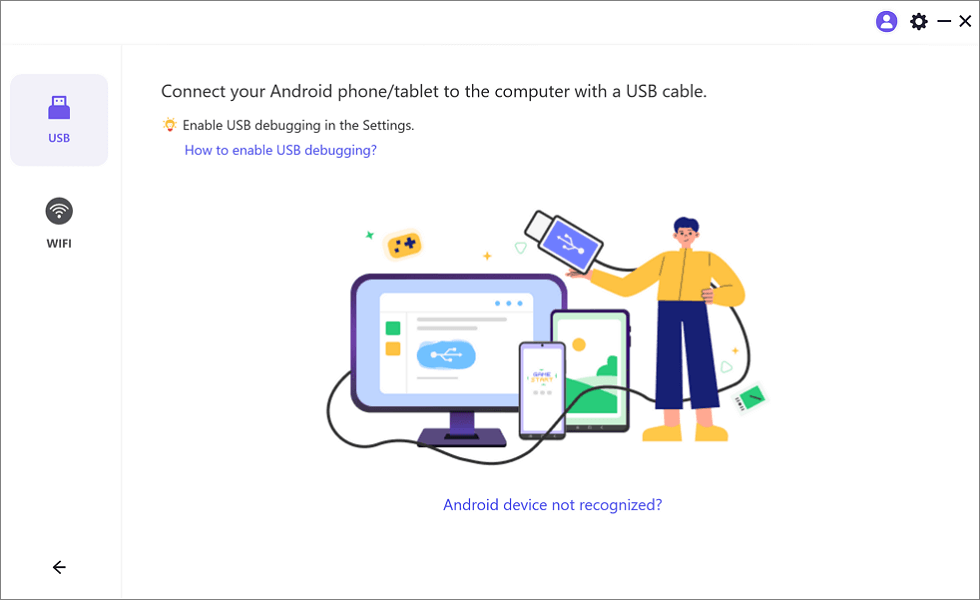
Mirror Android to Computer via USB
Step 4: Enable USB debugging on your phone and select MTP (Media Transfer Protocol) mode.
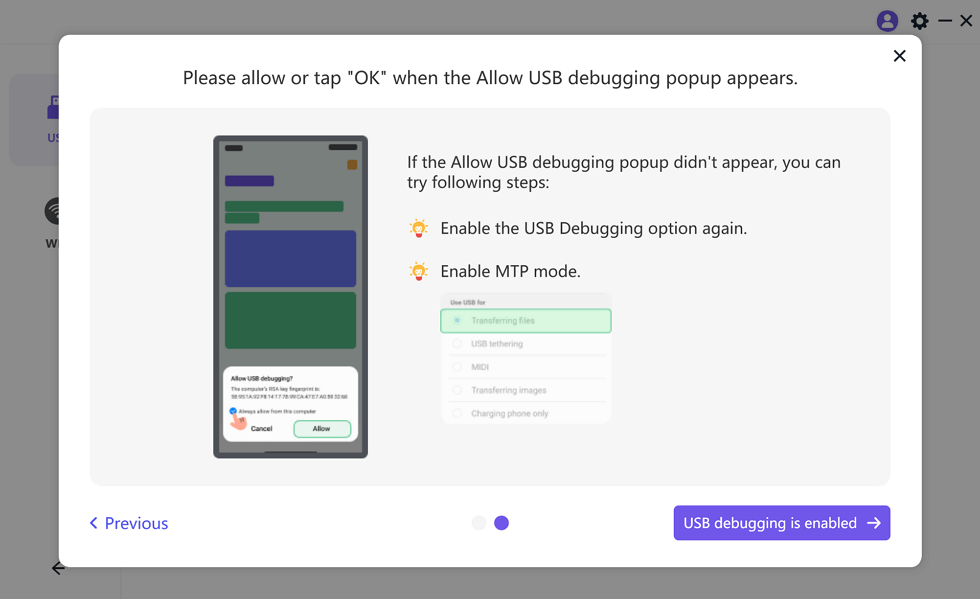
Enable USB Debugging and MTP Mode for a USB Connection
Step 5: Download the AnyMiro app for Android on your phone. You can tap the download link or scan the QR code to get the app.
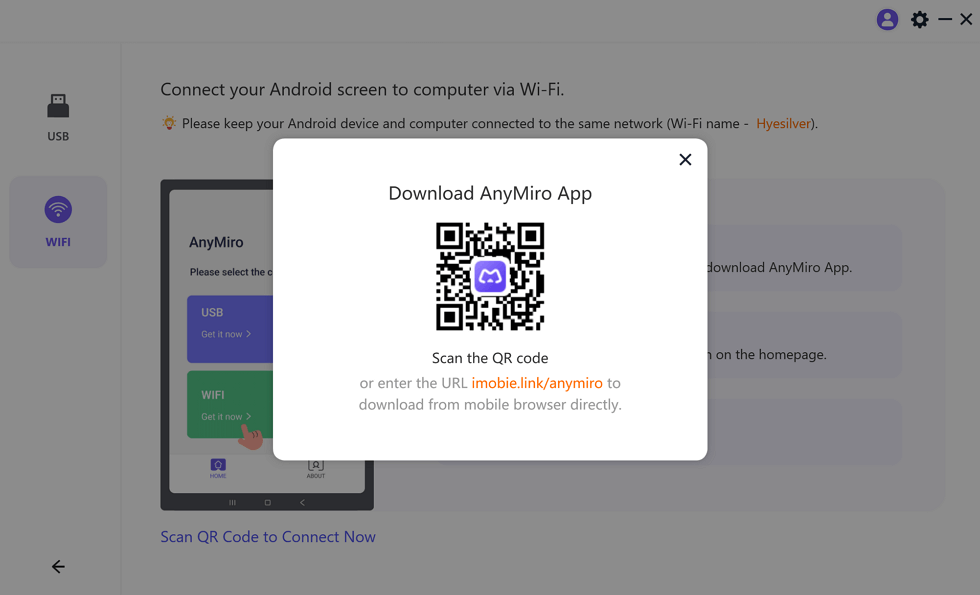
Download AnyMiro App on Your Phone
Step 6: Tap USB Connection on the AnyMiro app, wait for a few seconds, and your Android screen will be successfully mirrored to your Mac.
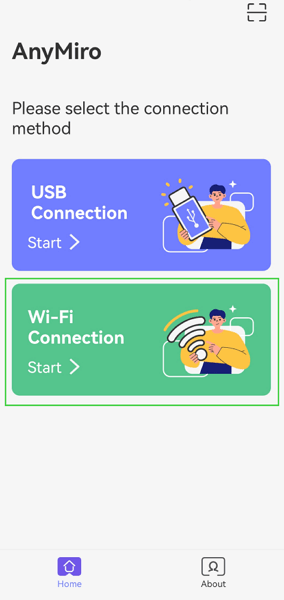
Select the Connection Method
How to Mirror Android to Mac Wirelessly
Wireless screen mirroring, often via Wi-Fi, is a popular choice for users seeking mobility and convenience. It’s suitable for a variety of scenarios and caters to different user needs. Users who prefer Wi-Fi screen mirroring are often casual users looking for convenience, mobile professionals needing flexibility, and entertainment enthusiasts seeking a more relaxed and cable-free experience.
Pros of Wi-Fi Connection:
- Wireless Convenience: Wi-Fi screen mirroring offers freedom of movement and flexibility, allowing you to control your Android device from a distance.
- No Physical Cable Limitations: Unlike USB connections, Wi-Fi mirroring doesn’t restrict your mobility or require you to be near the Mac.
Cons of Wi-Fi Connection:
- Latency: Depending on your Wi-Fi network’s speed and stability, there can be some latency, which might not be ideal for gaming or real-time tasks.
- Network Reliance: Wi-Fi screen mirroring relies on a stable Wi-Fi network. If your network experiences interruptions or is slow, it can affect the quality of mirroring.
Now, let’s go through the steps to mirror Android to Mac wirelessly using AnyMiro:
Step 1: Launch AnyMiro and on the main page, select your Android device.
Step 2: Click on the Wi-Fi mode. It will lead you to the screen mirror via WiFi guide.
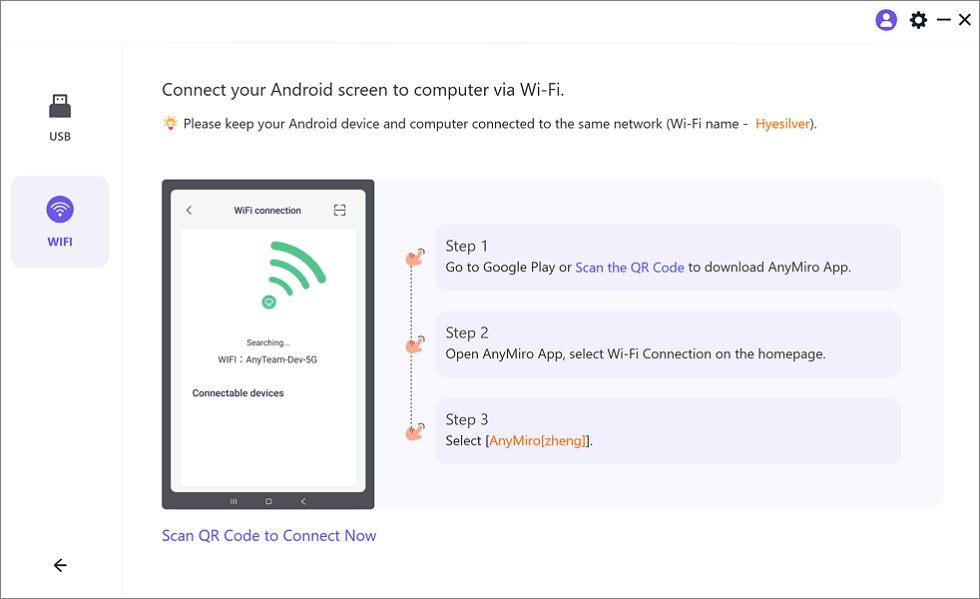
Mirror Android to Computer via WiFi
Step 3: Go to Google Play, or scan the QR code to download AnyMiro onto your phone.
Download AnyMiro App on Your Phone
Step 4: Finally, choose the name of the computer you wish to mirror to, and you have successfully mirrored Android to Mac wirelessly using Wi-Fi.
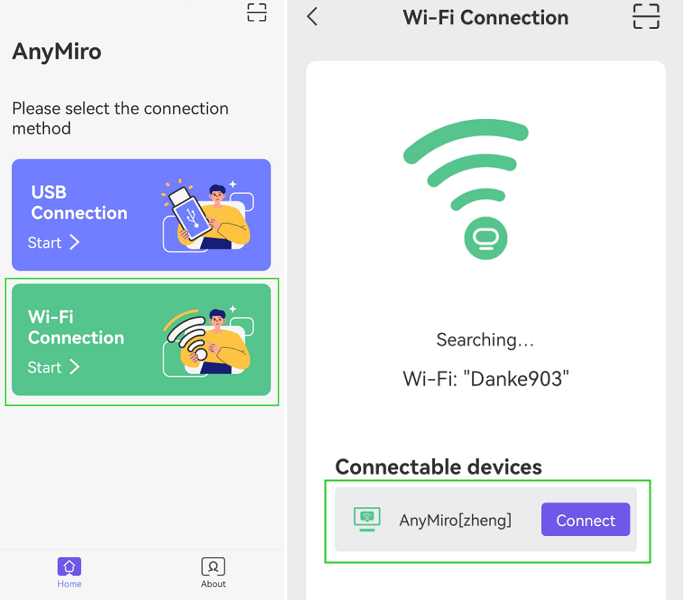
Tap WiFi Connection
More Information about The Best Screen Mirroring App – AnyMiro
As previously mentioned, the screen mirroring software AnyMiro is a third-party, low-latency, and smooth mirroring tool suitable for various devices such as Android, Apple, and Windows. It boasts high compatibility and offers both USB and Wi-Fi connection modes, making it adaptable for various scenarios. AnyMiro has achieved a high level of technical maturity in the field of screen mirroring, and here are some of its standout features.
- Stable Connection, Sustained for Over Ten Hours with Minimal Disruptions
- Zero Latency, Response Time Within 10 Milliseconds
- Color Fidelity, 4K Screen Quality
FAQs
1. Why can’t I mirror my phone to my Mac?
Difficulty mirroring your phone to your Mac could be due to incompatible devices, software issues, network connection problems, settings, security software interference, or outdated apps. Verify these factors to troubleshoot the problem.
2. How do I get my Mac to recognize my phone?
To make your Mac recognize your phone, connect them via a USB cable, enable USB debugging on your Android device, trust the computer when prompted, install necessary drivers if required, ensure your phone is unlocked, and consider restarting both devices if you encounter issues.
3. Can you AirPlay without WIFI?
AirPlay typically requires a Wi-Fi network to function, as it relies on a stable network connection for content streaming. It is not designed for use without Wi-Fi.
The Bottom Line
This article explores screen mirroring between Android devices and Mac computers, discussing the limitations of mirroring Android to Mac Bluetooth and the benefits of USB and Wi-Fi connections. AnyMiro, a versatile screen mirroring tool with a USB and WiFi connection, offers users a high-quality and feature-rich mirroring experience. It comes highly recommended for those seeking a reliable and seamless screen mirroring solution.
AnyMiro – Real-Time Screen Mirroring Tool
Free download AnyMiro to enjoy a fast, stable, and smooth screen mirroring experience. You can mirror for better game playing, video watching, or live streaming mobile phone content.
Product-related questions? Contact Our Support Team to Get Quick Solution >
