How to Play Clash of Clans on PC
Clash of Clans is one of the most popular mobile games produced by Supercell. This article will show you how to play it right on a PC.

How to Play Clash of Clans on PC
Screen mirroring your iPhone and Android to the computer with ease.
- Fast response time within 10 ms and 60fps frame rate.
- A stunning visual experience with no color difference.
- Lag-free screen mirroring and 4k resolution.
- Works well on both Windows and macOS.
Available for both Win & Mac
Like other games, Clash of Clans also has a large bunch of fans. However, players may prefer to play the game on a larger screen for a better experience. Do you know how to play it on a PC by using a mirror screening tool to project the mobile game on a PC? If you want to enjoy a larger screen, this article will show you how to play Clash of Clans on PC to level up your gaming experience.
Table of ContentsHide
What is Clash of Clans?
Clash of Clans is a popular mobile strategy game. It blends city-building and real-time strategy elements. Developed and published by Supercell, it has a large and vibrant player community, making it one of the most successful mobile games. To move forward in this game, you have to properly manage resources like gold and elixir. Then spend them wisely on buildings, defenses, and troops. Joining a clan is a big part of the game. You can team up with others in wars, trade troops, and compete in clan-based events.
How to Play Clash of Clans on PC
Can I Play Clash of Clans on PC?
Clash of Clans (COC) is a beloved mobile game that has captured the hearts of millions of players worldwide. But what if you’d like to enjoy the game on a larger screen, like Clash of Clans on PC? Good news! Two straightforward methods can make your COC experience on PC a reality.
One is by picking a trusted Android emulator like BlueStacks or Nox. These emulators work well and are easy to install. The other method is great too. if you’d rather play on your mobile device but want to see it on a bigger PC screen. that is by using screen mirroring with a control feature like ApowerMirror, AirServer, or Reflector on your PC and a corresponding app on your mobile device.
Those two methods are easier than you might think to play Clash of Clans on PC. Emulators allow you to play the game directly on your computer, while screen mirroring lets you enjoy COC on your PC screen while controlling it with your mouse. These methods open up a world of opportunities for COC enthusiasts who prefer the comfort and convenience of playing on a PC. So, choose your preferred method, and get ready to lead your clan to victory on the big screen!
How to Play Clash of Clans on PC?
This part will tell you how to play Clash of Clans for PC online in two ways, namely BlueStacks and the screen mirroring tool AirDroid Cast.
Play Clash of Clans with BlueStacks
BlueStacks is a popular Android emulator that allows you to play mobile games, including Clash of Clans, on your PC. This step-by-step guide will walk you through the process of installing BlueStacks, setting it up, and playing Clash of Clans on your computer. Here’s how to get started:
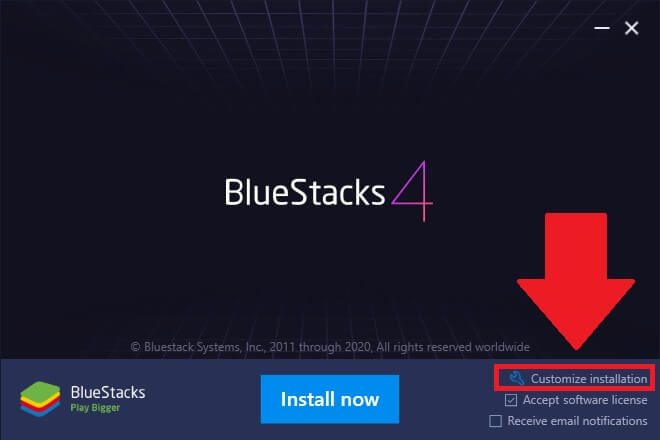
Step 1. Download and install BlueStacks from the official website.
Click on the “Download BlueStacks” button. Choose the appropriate version of Clash of Clans for Windows 10 or macOS operating system. Once the download is complete, run the installer file you downloaded. Follow the on-screen instructions to install BlueStacks on your PC.
Download and install BlueStack on PC
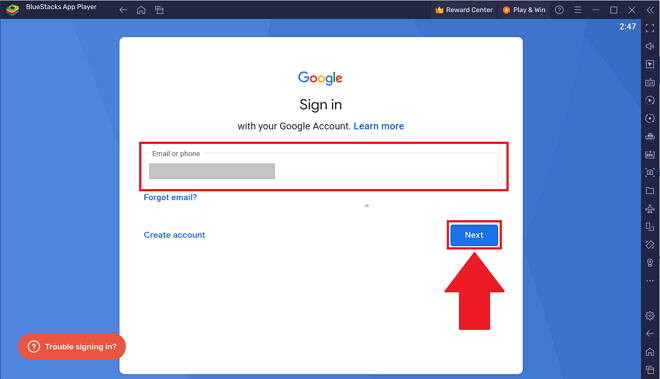
Step 2. Configure BlueStacks.
After installation, launch BlueStacks. You will need to sign in with your Google account. If you don’t have one, you can create a new account. Follow the setup process, including configuring language preferences and enabling App Store access.
Configure BlueStack
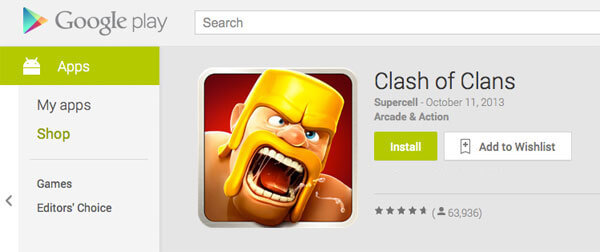
Step 3. Install Clash of Clans
In the BlueStacks home screen, click on the “Google Play Store” icon. Search for “Clash of Clans” in the search bar. Click the “Install” button next to Clash of Clans. BlueStacks will download and install the game on your virtual Android device.
Get Clash of Clans on Your Phone
Step 4. Play Clash of Clans
Once Clash of Clans is installed, click the game icon on the BlueStacks home screen to open it. The game will run as it does on a mobile device, and you can use your computer’s keyboard and mouse for controls.
Important Notes:
- Ensure that your PC meets the system requirements for BlueStacks, including updated graphics drivers, enough RAM, and sufficient storage space.
- Make sure your PC has a stable internet connection, as a weak connection can lead to lag while playing Clash of Clans.
Play Clash of Clans on PC with Screen Mirroring Tool
AirDroid Cast is a screen mirroring tool that allows you to play Clash of Clans on your PC by mirroring your mobile device’s screen. This guide will take you through the process of setting up AirDroid Cast and playing Clash of Clans on your PC. Follow these detailed steps to get started.
Step 1. Download and Install AirDroid Cast from the official website.
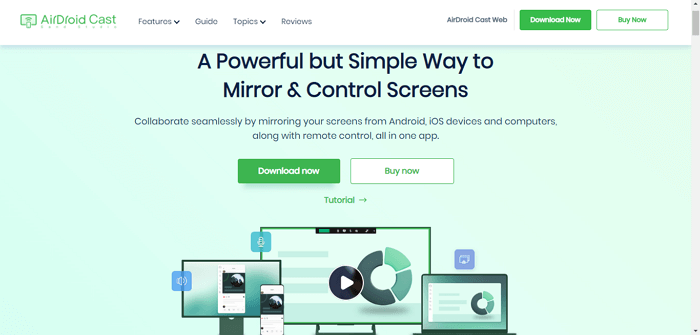
Download AirDroid Cast
Step 2. Install AirDroid Cast on your phone as well.
Step 3. Connect your PC and mobile device. In this step, you’ll need to sign in or log in to an AirDroid account.
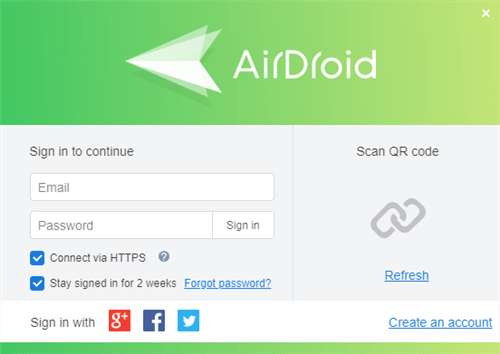
Sign in with Your AirDroid Credentials
On your PC, you will see a QR code generated by AirDroid Cast. Scan this QR code with your Android to establish a connection.
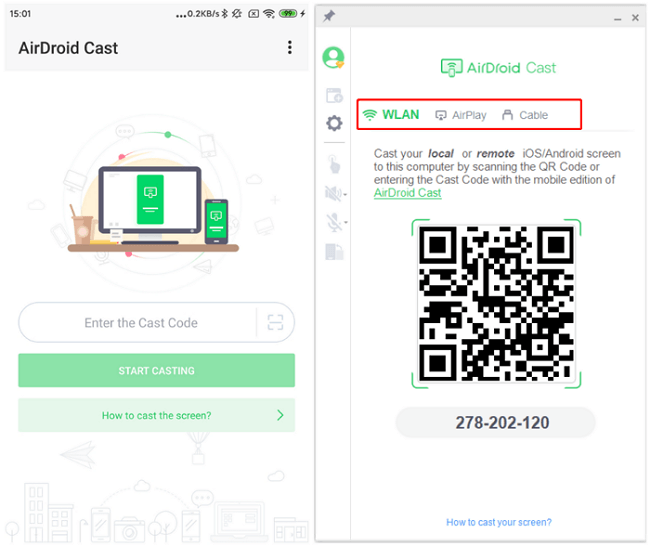
Choose the Connection Method in AirDroid
Step 4. Mirror Your Mobile Screen
After the connection is established, you’ll see your mobile device’s screen displayed on your PC. Then, open Clash of Clans on your mobile device. You can now play the game on your PC screen using your mouse and keyboard for controls.
Important Notes:
- Ensure that both your PC and mobile device are connected to the same Wi-Fi network for a stable connection.
- AirDroid Cast offers the option to control your mobile device using your PC mouse and keyboard. Use the “Remote Control” feature to enable this option.
With these steps and important notes, you can enjoy playing Clash of Clans on PC using AirDroid Cast for a more immersive gaming experience. Have fun building and battling in your village!
Bonus Tip: Light and Handy Screen Mirroring Tool – AnyMiro
In the above part, we have introduced a screen mirroring tool – AirDroid Cast as the solution. There is not only one good screen mirroring tool option in the market. This part introduces you to an optimal choice for you to mirror the phone screen to the computer. AnyMiro – a light, handy, and much easier screen mirroring app. It does not have a remote control function, but it’s still a good mirroring tool, here are the reasons why:
- Stable, swift, smooth connection:
This versatile tool allows users to effortlessly display their mobile device’s screen on a larger screen, offering a seamless and responsive experience. - A stunning visual with no color difference:
This remarkable tool enables users to mirror their device screens onto larger displays, all while preserving the vibrant and true-to-life colors of the original content. - Immersive audiovisual streaming:
Users can enjoy the full spectrum of multimedia, from vibrant visuals to immersive sound, making it an ideal choice for watching videos, playing games, or conducting engaging presentations.
 AnyMiro – Real-Time Screen Mirroring Tool
- More than 10 hours of stable screen mirroring connection.
- Up to 4K resolution providing a stunning visual experience.
- Integrates with live streaming tools such as OBS and Streamlabs.
- Auto-sync video and background audio with timestamp adjustments.
Free Download
100% Clean & Safe
Free Download
100% Clean & Safe
Free Download 100% Clean & Safe
The Bottom Line
Clash of Clans has captivated millions of players worldwide. While some may want to experience it on a larger screen, two straightforward methods make playing Clash of Clans on PC possible. You can either choose a trusted Android emulator like BlueStacks or use a screen mirroring tool like AirDroid Cast for seamless gameplay on your PC. And if you’re looking for a reliable screen mirroring tool with a stable, swift, and smooth connection. You can consider AnyMiro for a stunning visual experience with no color difference and immersive audiovisual streaming. Now, get ready to lead your clan to victory on the big screen!
Product-related questions? Contact Our Support Team to Get Quick Solution >
