Methods of Playing Diablo Immortal Mac
Two methods of playing Diablo Immortal Mac are provided for you. BlueStacks and AirDroid are ideal helpers if you want to enjoy larger-screen gaming.

Methods of Playing Diablo Immortal Mac
- Fast response time within 10 ms and 60fps frame rate.
- A stunning visual experience with no color difference.
- Lag-free screen mirroring and 4k resolution.
Available for both Win & Mac
Technology is everywhere, and mobile gaming is huge right now. Millions of people love playing games on their smartphones and tablets because it’s so easy. But sometimes, we want more. We want a bigger screen, a keyboard and mouse, or a more powerful system to enhance our gaming experience. That’s why many gamers are checking out how to stream and play mobile games on their personal computers or Macs.
In this article, we’ll talk about Diablo Immortal. Here we will show you how to play it with an emulator – Bluestacks, and the specialized application (mirroring tool) – AirDroid Cast. Specific strategies to play the Diablo Immortal Mac version will be provided. We’ll show you the tools and techniques you need to make your gaming experience even better, beyond the limits of your mobile devices. You’ll discover a whole new Diablo Immortal world where mobile and PC gaming come together.
Table of ContentsHide
What is Diablo Immortal?
Diablo Immortal is a mobile action role-playing game (ARPG) developed by Blizzard Entertainment. It is part of the popular Diablo franchise, which is known for its dark, gothic, and demon-infested fantasy world. Diablo Immortal is designed for iOS and Android devices and serves as a spin-off in the series, expanding the lore and gameplay to the mobile platform.
Diablo Immortal generated significant attention and controversy when it was first announced in 2018 because some fans were expecting a full-fledged Diablo game for PC. However, it’s important to note that Diablo Immortal is a separate project from the mainline Diablo games and is designed specifically for mobile gaming. The game was officially released on iOS and Android platforms in 2021, expanding the Diablo universe to a wider audience.
But, you don’t need to worry about gaming platforms since it’s only available on mobile phones. This article will show you how to play Diablo Immortal Mac with two methods.
Can You Play Diablo Immortal on Mac?
There is no Diablo Immortal Mac version, released and designed only for mobile phones. You can choose to use two methods to play it on your Mac. One is by using an emulator, while the other is by the help of the third-party mirroring tool to mirror your phone screen on a Mac screen. By following the step-by-step how-to instructions, you will get the easiest ways of playing this game!
Play Diablo Immortal on Mac with BlueStacks
To run Diablo Immortal Mac with ease, you can follow these straightforward steps. Bluestacks, among the array of Android emulators, stands out as the most advanced choice. It offers full functionality on both Windows and Mac platforms. With Bluestacks, you can seamlessly transition to PC game controls, incorporating the familiar convenience of hotkeys found in standard PC games. Moreover, Bluestacks ensures high performance and enhanced graphics for any mobile game, even on a relatively less powerful PC or Mac. Come on! Follow the steps below:
Step 1. Download Bluestacks: Go to the Bluestacks website and download the Mac version.
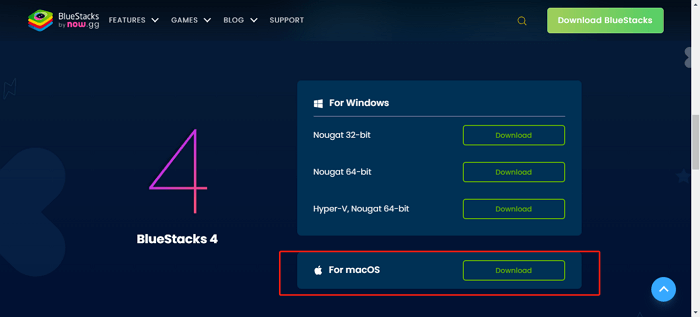
Download BlueStacks Mac Version
Step 2. Install Bluestacks: Run the installer and follow the on-screen instructions to install Bluestacks on your Mac.
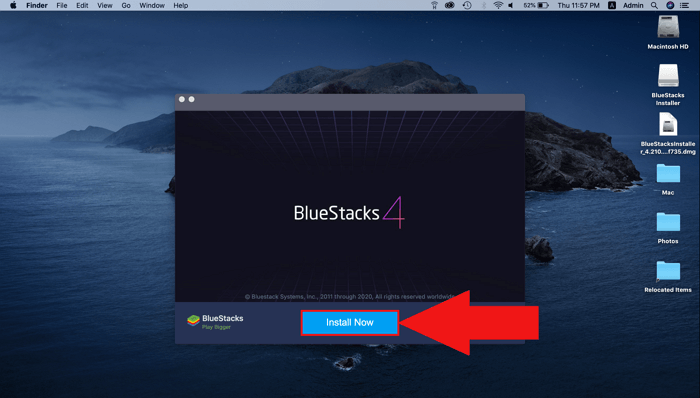
Install BlueStacks on Mac
Step 3. Open Bluestacks: Launch Bluestacks, sign in with your Google account, or create a new one.
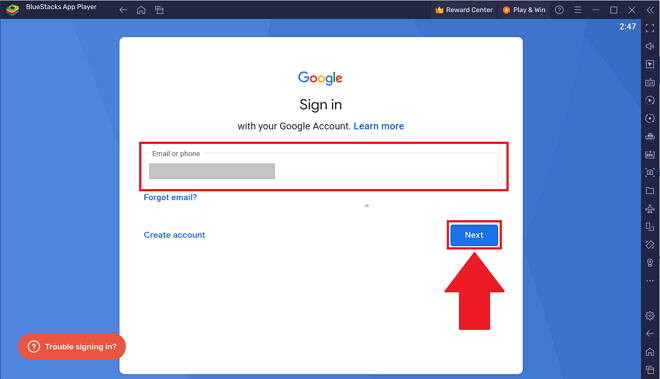
Configure BlueStack
Step 4. Access Google Play: Open the Google Play Store within Bluestacks.
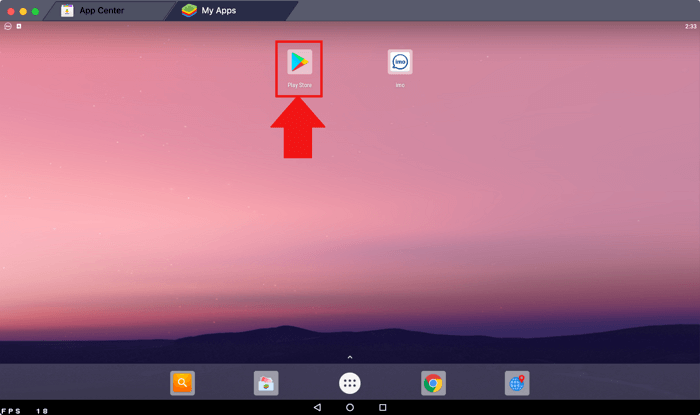
Access Google Play within BlueStacks
Step 5. Search for Diablo Immortal: Use the search bar to find “Diablo Immortal.”
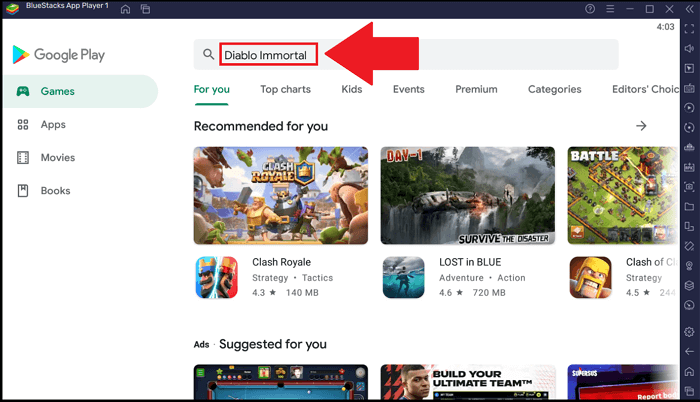
Search for Diablo Immortal
Step 6. Install Diablo Immortal: Click “Install” to download and install the game.
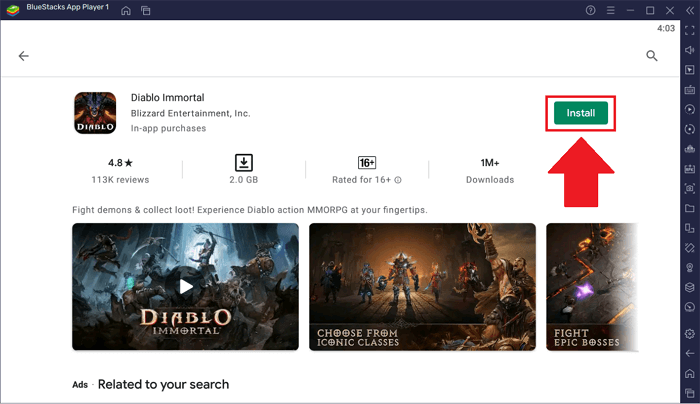
Install Diablo Immortal Mac
Step 7. Play Diablo Immortal: After installation, click “Open” to start playing the game in Bluestacks.

Open and Play Diablo Immortal in BlueStacks Mac
Now you’re ready to enjoy Diablo Immortal on your Mac using Bluestacks, with the benefits of a larger screen and PC-like controls. Have fun exploring the game’s world!

 AnyMiro – Real-Time Screen Mirroring Tool
- More than 10 hours of stable screen mirroring connection.
- Up to 4K resolution providing a stunning visual experience.
- Integrates with live streaming tools such as OBS and Streamlabs.
- Auto-sync video and background audio with timestamp adjustments.
Free Download
100% Clean & Safe
Free Download
100% Clean & Safe
Free Download 100% Clean & Safe
Play Diablo Immortal on Mac via Mirroring
Another tool that will be introduced to you is a mirroring tool – AirDroid Cast. This tool will allow you a simpler, more convenient, and more stable way of playing Diablo Immortal Mac M1 or M2, or other Apple Silicon Apple products. Please follow the flow and detailed steps to bridge your phone and your Mac.
Step 1. Download the AirDroid Cast both on your phone and Mac.
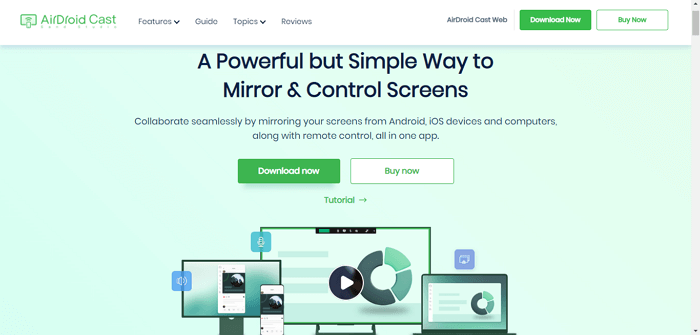
Download AirDroid
Step 2. Start the app and connect both the Android device and Mac to the same Wi-Fi network.
Step 3. Enter the Cast Code shared on the computer to your Android device. Alternatively, the QR Code also can be scanned to establish a connection between the devices.
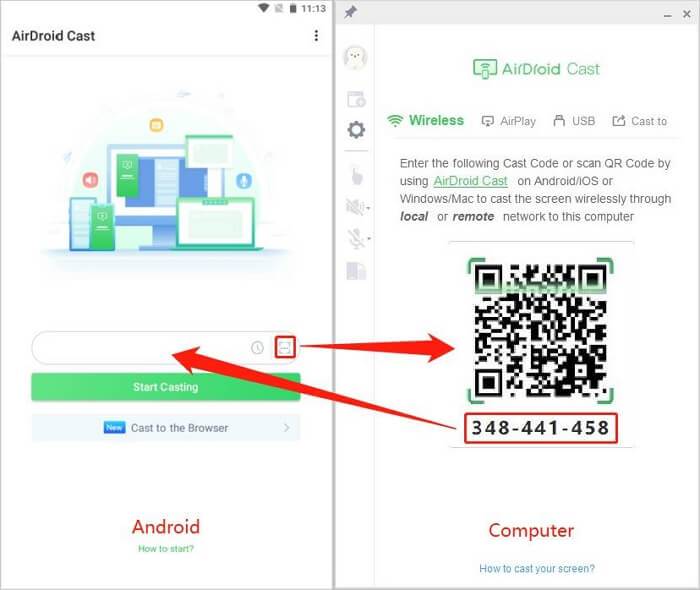
Connect Phone to Mac on AirDroid
Step 4. Click Allow to accept the request. When prompted “Allow the device XXX to cast its screen on this computer?”, check the option “Trust this device and never ask me again” if you don’t want the request to appear every time.
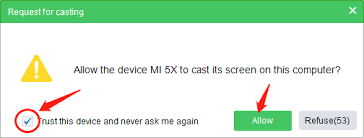
Allow AirDroid to Cast Screen
Step 5. After accepting the casting request, from the computer, a casting permission page and window “AirDroid Cast will start capturing everything that’s displayed on your screen” will pop up on your Android device. You can enable the casting permission by tapping the ENABLE and Start Now buttons.
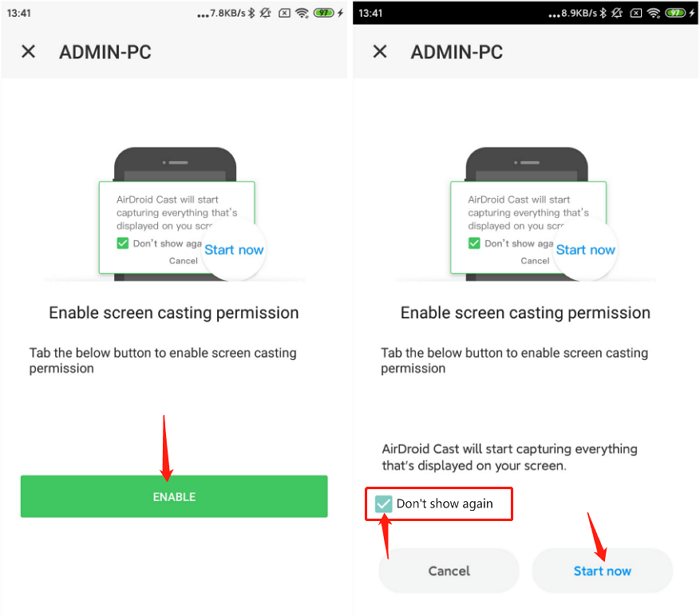
Tap Enable and Start Now in AirDroid
Once you connect, AirDroid Cast will immediately start mirroring your Android device to your Mac over the same Wi-Fi network. Now, you can open Diablo Immortal on your phone while playing the game on your Mac.
Bonus Tip: Light and Handy Screen Mirroring Tool – AnyMiro
With the above two methods, you can easily play Diablo Immortal on Mac with no worry of limited screen experience. However, If you want to screen mirror other content such as presentations, arts, coursework, gameplay streaming, etc. A third-party mirroring tool – AnyMiro is a perfect choice for you. With AnyMiro in your life, you can share whatever you want to share only with Wi-Fi or a simple tool – a USB cable! Once you connect your devices via AnyMiro, you will have a unique experience of:
- Audio/Video Synchronization: AnyMiro tackles the issue of audio and video falling out of sync during screen mirroring. It uses the robust FFmpeg technology, ensuring a seamless match between sound and visuals.
- Crisp 4K Clarity: AnyMiro dedicates its efforts to providing users with a 4K resolution experience. It guarantees that what you view on your Android device mirrors precisely on your computer without compromising image quality.
- Zero Delay: Through the utilization of dependable USB 3.0 transmission technology, AnyMiro effectively minimizes the latency between your phone and computer to less than 10 milliseconds, marking a significant advancement in the field of screen mirroring.
Step 1. Free download and install AnyMiro on your PC > Choose the “iOS/iPadOS” model to mirror your iPhone or iPad to your computer.
Free Download for all windows & 100% safe Free Download for all mac & 100% safe
Free Download100% Clean & Safe
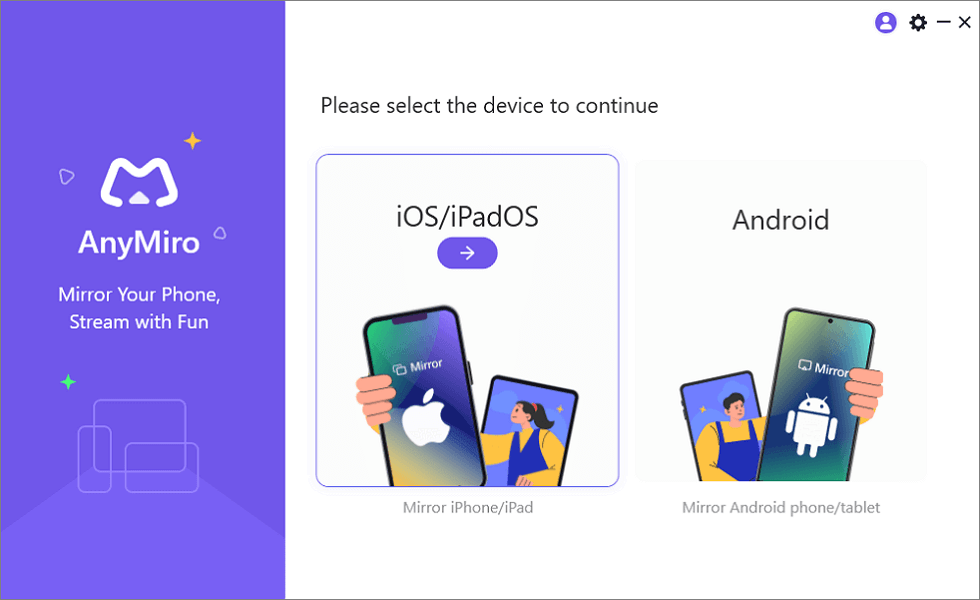
Mirror iPhone to Computer
Step 2. Choose Your Connection Type
USB Connection: Connect your iPhone to your PC using a USB cable and confirm the “Trust” prompt on your iPhone to enable screen mirroring.
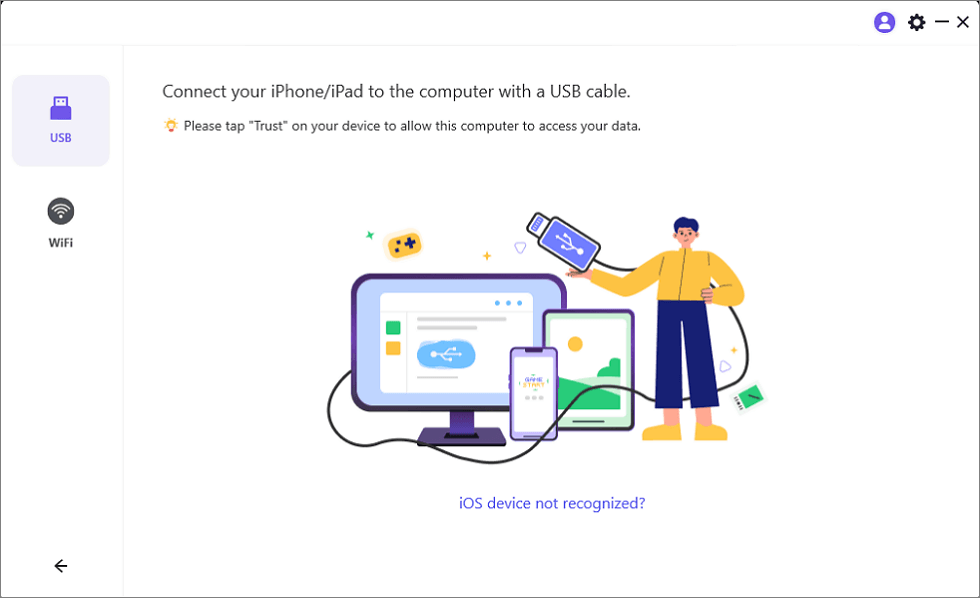
Connect Your iPhone/iPad with a USB Cable
Wi-Fi Connection: Ensure your iPhone and PC are on the same Wi-Fi network.
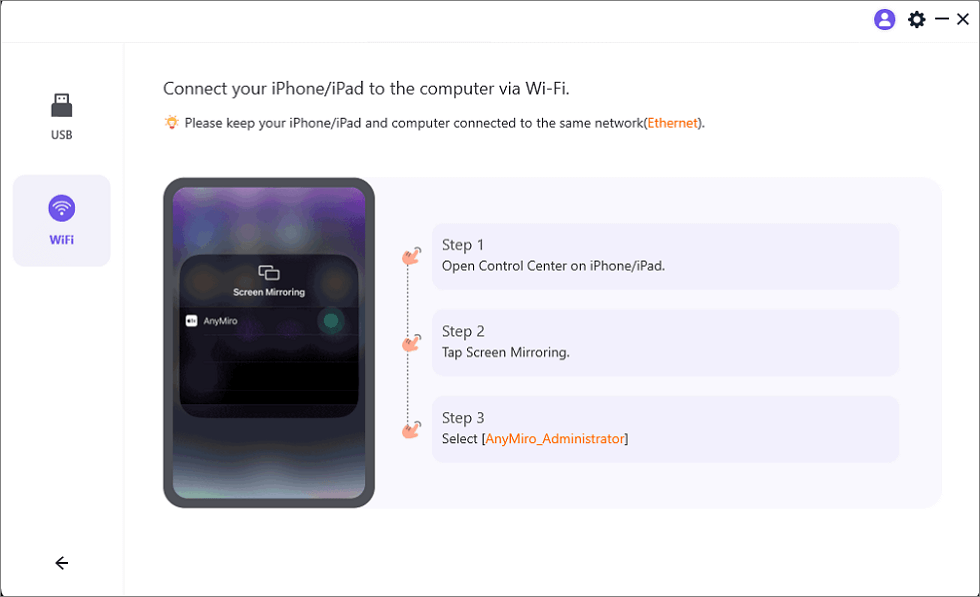
Mirror iOS to Computer via WiFi
Next, open the Control Center on your iPhone, tap “Screen Mirroring,” and select “AnyMiro_Computer Name” to start mirroring.
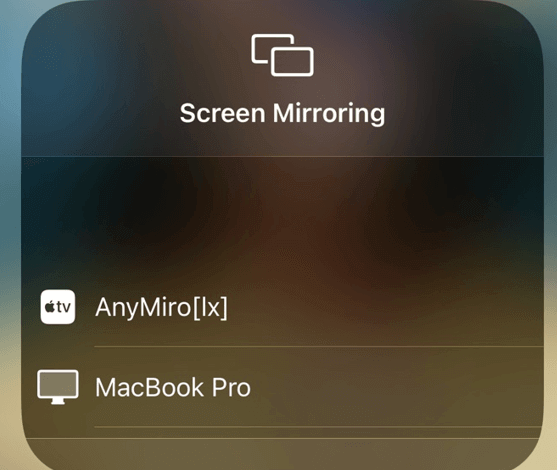
Select Your Computer from the List
The Bottom Line
Many game lovers of Diablo Immortal don’t like to be limited to the small screen of a mobile phone. So they want to play games on a larger screen by resorting to different methods such as an emulator or mirroring tools.
In this article, two specific tools, Bluestacks and AirDroid Cast, with detailed steps are offered. By following the steps above, you will have a 100% visual and audio leveling up of the Diablo Immortal Mac version. However, if you have other needs to screen sharing of any scenarios in your life. Bravely choose AnyMiro! And give it a try!
Product-related questions? Contact Our Support Team to Get Quick Solution >
