How to Remote Control Android from Mac [4 Ways]
In this guide, you will learn 4 easy ways to remote control Android from Mac. Anybody who wishes to manage their Android device from a Mac quickly should follow this easy-to-follow guide.

How to Remote Control Android from Mac [4 Ways]
Try AnyMiro to mirror Android to Mac for free via USB and WiFi.
- Fast response time within 10 ms and 60fps frame rate.
- A stunning visual experience with no color difference.
- Lag-free screen mirroring and 4k resolution.
You might occasionally receive a call or message on your Android phone while working on your Mac, but your phone is in a different room, or you can’t use your phone properly because the screen is cracked. In other situations, you may use your Mac keyboard to type lengthy messages or display your phone’s screen during a presentation.
Remote controls are very useful in these situations. They let you access and control your Android phone directly from your Mac. In this guide, we will show you 4 easy ways to remote control an Android from a Mac using simple tools. These methods are easy to follow and work well for personal and work needs. Let’s get started!
Table of ContentsHide
4 Ways to Remote Control Android from Mac
Now, let’s have a detailed look at 4 ways to remote control Android from Mac:
Microsoft Remote Desktop App
With the help of Windows App (previously Microsoft Remote Desktop), you can safely access your Windows devices and apps from any location. Almost any device can easily connect because of its compatibility with Windows, macOS, iOS, Android, Chrome OS, and Meta Quest VR. Features including device redirection, Microsoft Teams optimization, and support for multiple monitors improve the remote experience.
Key Features:
- Connect easily from a browser without needing to install anything extra.
- Use multiple screens at once, just like working on a real PC setup.
- Switch accounts fast when using multiple logins for different tasks.
- Redirect your webcam, mic, printer, and USB devices while working remotely.
- Get a smart resolution that fits any screen size and changes automatically.
Here are the simple steps to use this app:
Step 1. Go to the Mac App Store, download the “Windows App,” and open it after installing it.
Step 2. If this is your first time, follow the short guide or click “Skip” to move on.
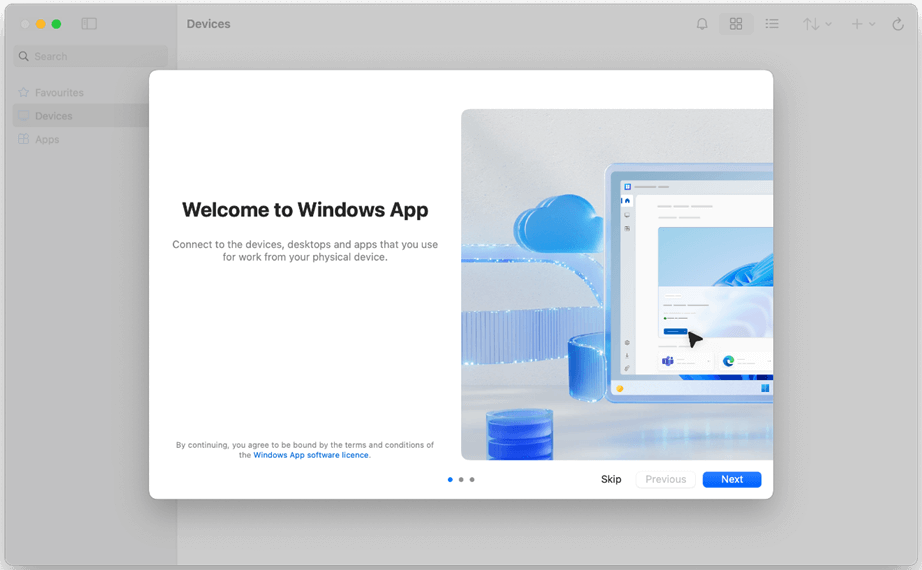
Click Skip
Step 3. The app opens on the “Devices” screen. Click the “+” button and choose “Add Work or School Account”.
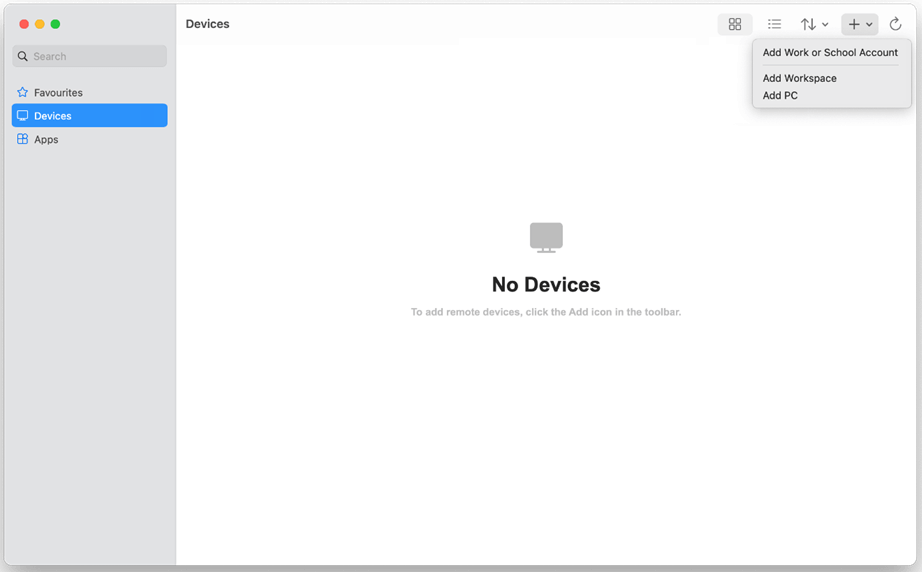
Select Add Work or School Account
Step 4. If your remote session is on a different cloud (like Azure Government), click “Add Workspace” instead.
Step 5. Sign in using your work or school login for Azure Virtual Desktop or the cloud service you use.
Step 6. After signing in, your remote devices or apps will appear under “Devices” or “Apps.”
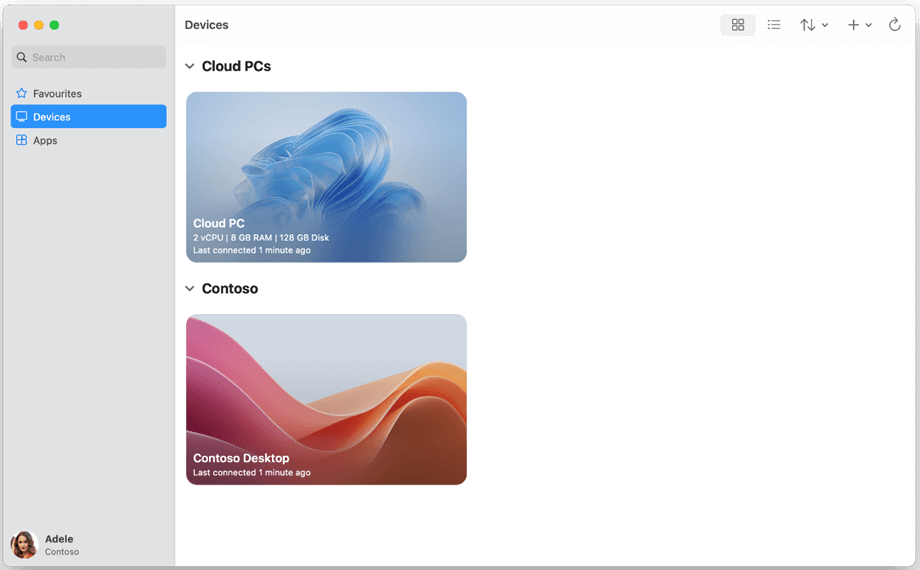
Remote Resources in Devices Tab
Step 7. Type in the search box to find the device you need.
Step 8. Double-click the one you want. You may need to enter your password again.
Step 9. After connecting, you can use the remote device or app on your Mac like it’s right there.
TeamViewer
With TeamViewer, a robust remote access program, you can easily handle your Android phone from a Mac. Remote control, file transfer, cross-platform access, end-to-end encryption, real-time chat, and unattended access are some of its best functions. You can transfer files, operate your phone, and provide remote support using the mouse and keyboard on your Mac.
Key Features:
- Use Remote Control to operate Android with your Mac’s keyboard and mouse.
- Transfer files easily using the File Transfer feature with drag and drop.
- Keep your connection private with strong End-to-End Encryption security.
- Chat while connected using the Real-Time Chat tool during sessions.
- Enjoy Cross-Platform Access between Mac, Android, Windows, and Linux.
To use TeamViewer for this purpose:
Step 1. Install the TeamViewer QuickSupport app on your Android device.
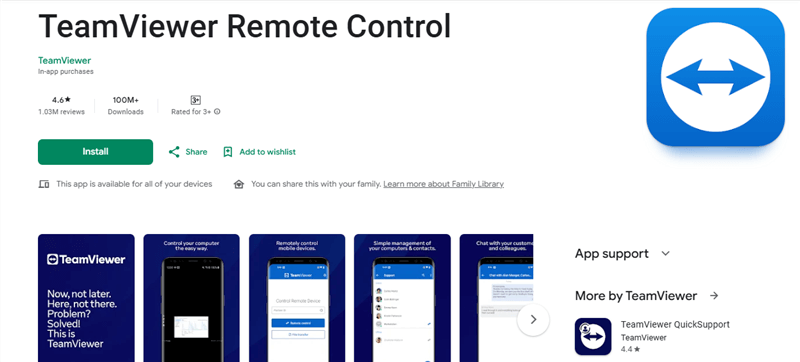
Install TeamViewer on Android
Step 2. Open the TeamViewer app on your Mac and enter the ID from your Android device.
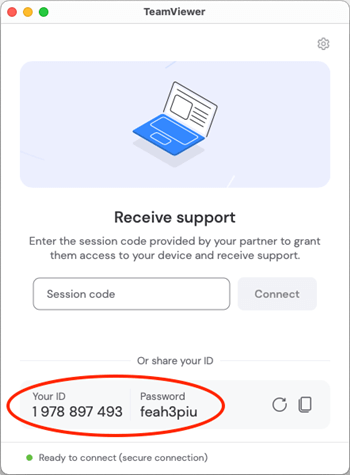
Enter ID
Step 3. Once connected, use your Mac’s mouse and keyboard to control your Android device and access files.
Scrcpy
You can make your Android screen visible on your Mac while controlling it through the free open-source program Scrcpy without requiring root access. This software enables screen recording and clipboard-sharing features and offers adjustable resolution and bitrate with wireless and USB connectivity options. The open-source tool Scrcpy enables users to achieve a seamless experience across Windows, Linux, and macOS systems.
Key Features:
- High-quality screen mirroring lets users adjust both resolution and bitrate settings
- Use your Mac’s keyboard and mouse to control your Android device efficiently.
- Record your Android screen directly from your Mac for later viewing.
- Share clipboard content seamlessly between your Mac and Android device.
For using Scrcpy to remote control Android from Mac:
Step 1. Go to the official Scrcpy GitHub page and download the application.
Step 2. Verify whether Homebrew is set up on your Mac.
Step 3. Enter brew install Scrcpy in Terminal to install Scrcpy using Homebrew.
Step 4. Enable “USB Debugging” in Developer Options.
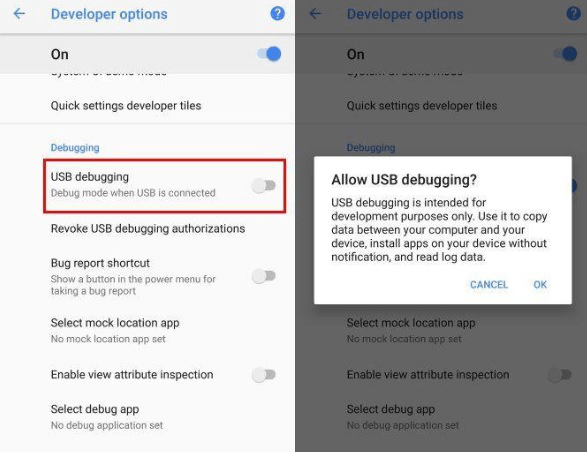
Turn on USB Debugging
Step 5. Connect your Android phone to your Mac using a USB-C cable. Then, open Terminal and type the command to start Scrcpy.
Step 6. Your Android screen will now show on your Mac, and you can control it using your keyboard and mouse.
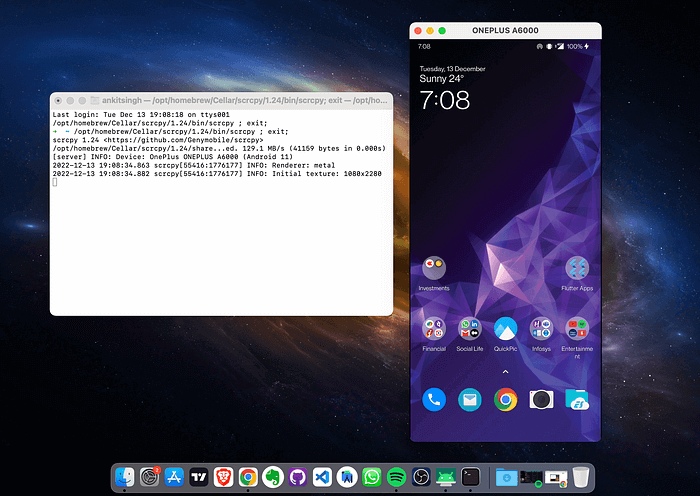
Connect Android Via Scrcpy
Vysor
The user-friendly program Vysor allows you to control your Android phone from your Mac using a keyboard and mouse. It provides free basic mirroring and is compatible with Mac, Windows, Linux, and Chrome. The premium edition includes remote sharing, file transfer, and a high-quality display.
Key Features
- For smooth control and interaction, mirror your Android screen on your Mac.
- You can easily navigate your Android device using the keyboard and mouse on your Mac.
- Play mobile games with more control choices on a bigger screen.
- For assistance or cooperation, remotely share the screen of your device with other people.
- Drag and drop is an easy way to move files between your Mac and Android.
For using this app to remote control an Android from a Mac:
Step 1. Install the Vysor extension in Chrome, but it only works on ChromeOS.
Step 2. Download the Vysor app from the Play Store on your Android phone.
Step 3. Use a USB cable to connect your Android phone to your Mac.
Step 4. Turn on “USB debugging” in the developer options on your Android phone.
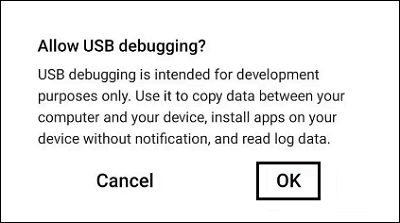
Allow USB debugging on your Samsung device
Step 5. Open Vysor on your Mac and click “View” to see your phone screen. Now you can use your phone on your Mac and open apps with a click.
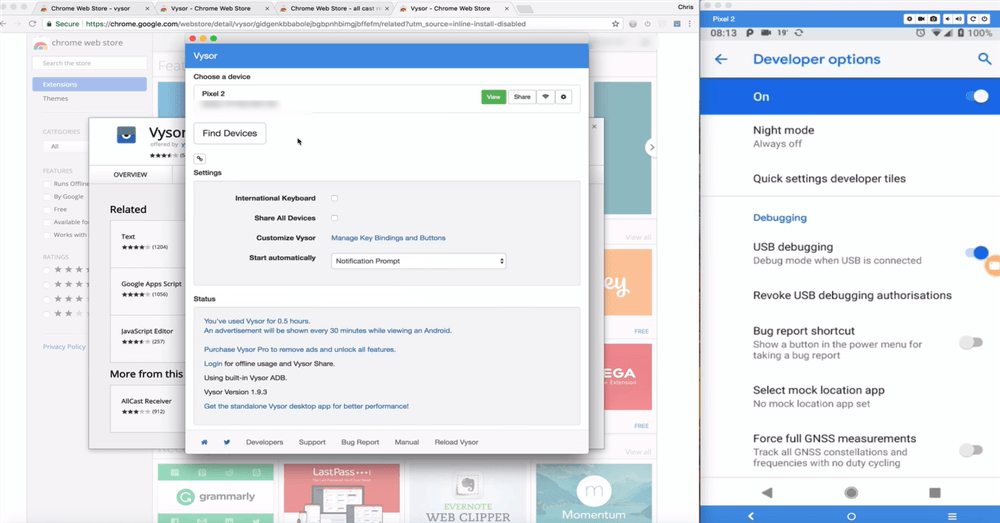
Click View
Extra Tips. How to Screen Mirror Android or iPhone to Mac Without Lag
Through the user-friendly software AnyMiro, you can effortlessly screen mirror your iPhone or Android devices on your Mac computer. This solution delivers an optimal experience during screen mirroring operations to satisfy users with a smooth and reliable connection for diverse purposes, including gaming, live streaming, or presentations.
Key Features:
- HD mirroring up to 4K ensures that your screen displays with perfect clarity and detail.
- Enjoy up to 10 hours of lag-free streaming for games and live creative sessions.
- Low-latency audio and video sync make streaming and gameplay smooth and delay-free.
- Live annotation lets you highlight key points while mirroring, making interactions fun and engaging.
- Screen recording and screenshot features help capture every moment of your stream or presentation.
- Easily stream your phone’s screen to Twitch, YouTube, or Facebook with just a few clicks.
To use AnyMiro, check out the steps below:
From Android to Mac
Step 1. Free download AnyMiro on your computer and open it.
Free Download for all windows & 100% safe Free Download for all mac & 100% safe
Free Download100% Clean & Safe
Step 2. Select “Android” to begin the connection.

Mirror Android to Computer
Step 3. Click the “USB” option and connect your phone using a USB cable.
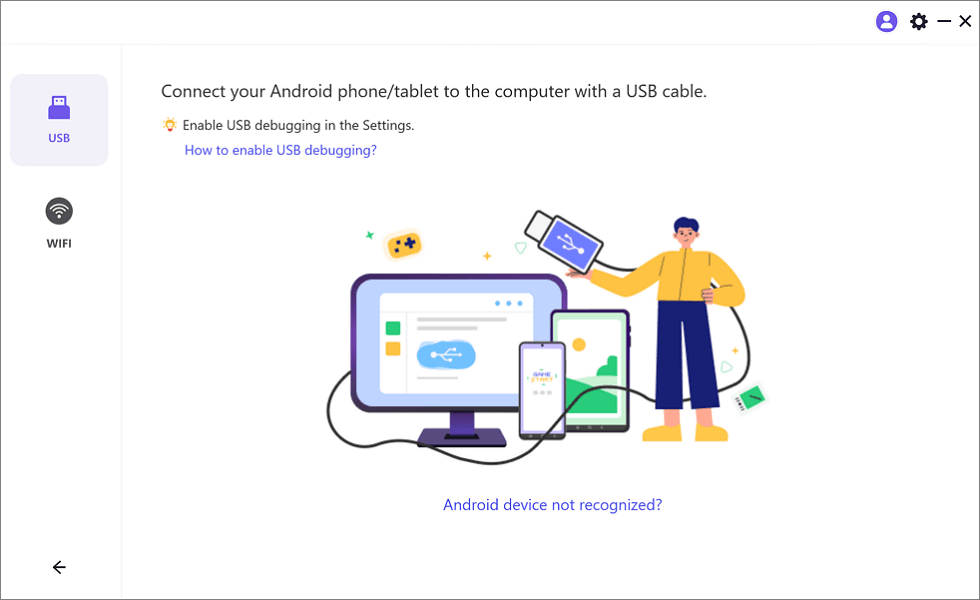
Select the USB Option for Screen Mirroring Android to PC
Step 4. Enable “USB debugging” and choose “MTP Mode” on your phone if prompted.
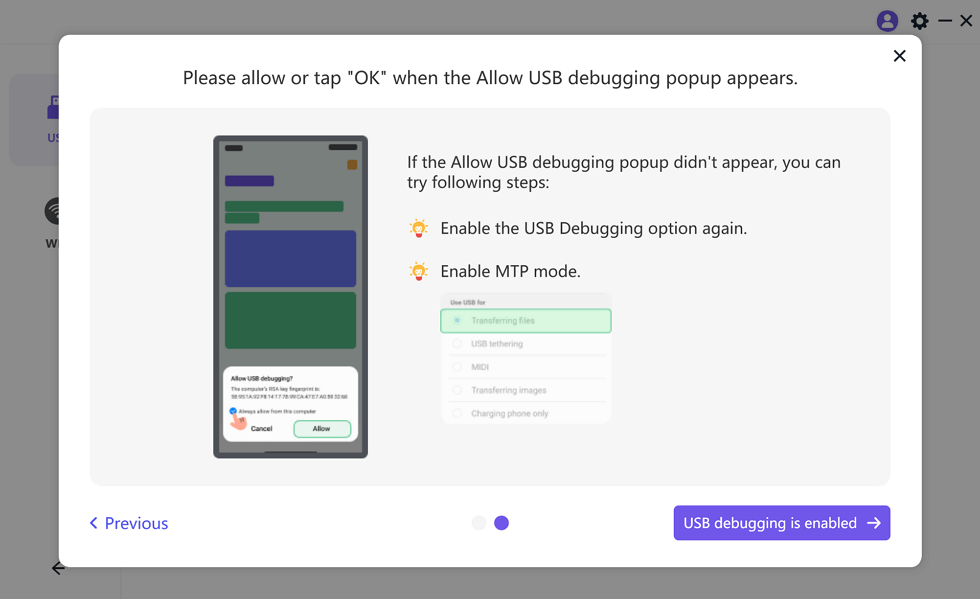
Enable USB Debugging and MTP Mode for a USB Connection
Step 5. Your Android screen will now be mirrored on your computer.
FAQs on Remote Control Android from Mac
Does the Mac’s keyboard and mouse function to manage an Android phone?
All programs, including TeamViewer, Scrcpy, and Vysor, enable users to operate their phones using their Macs’ keyboard and mouse.
Can I display my Android screen on Mac without experiencing any delay?
Yes, AnyMiro offers lag-free screen mirroring with 4K high-quality visuals for a smooth experience.
Are there any limitations when using wireless connections to control Android from Mac?
Wireless connections may experience slight latency, but AnyMiro serves users with minimized delays for smoother control.
Final Words
Finally, there are several efficient methods for controlling your Android device from your Mac, such as using Vysor, TeamViewer, and Scrcpy. These tools all have unique features such as seamless interaction, remote access, and USB or Wi-Fi connection possibilities. We suggest AnyMiro for everyone seeking an improved experience. Android and iPhone offer a steady connection with a maximum resolution of 4K, low-latency audiovisual syncing, and simple screen mirroring.
AnyMiro – Real-Time Screen Mirroring Tool
Free download AnyMiro to enjoy a fast, stable, and smooth screen mirroring experience. You can mirror for better game playing, video watching, or live streaming mobile phone content.
Product-related questions? Contact Our Support Team to Get Quick Solution >
