How to Screen Mirror iPhone to PS5
This guide will explore four easy methods for screen mirroring your iPhone to a PS5. You can cast your iPhone screen using the Screen Mirroring+ App, PS Remote Play, AirServer, or Plex. Follow the steps and enjoy smooth screen mirroring!

How to Screen Mirror iPhone to PS5
Try AnyMiro to mirror iPhone to PC for free via USB and WiFi.
- Fast response time within 10 ms and 60fps frame rate.
- A stunning visual experience with no color difference.
- Lag-free screen mirroring and 4k resolution.
You watch a great video on your iPhone, but the screen feels too small. You want to share it on your PS5, but there’s no direct way to connect. Many people face this problem when mirroring their iPhone to a PS5. The good news is that there are simple solutions! This guide will show you four easy ways to screen mirror your iPhone to PS5. These methods let you enjoy videos, games, and apps on a bigger screen. Follow the steps and start mirroring your iPhone to PS5 today!
Table of ContentsHide
How to Screen Mirror iPhone to PS5 [4 Methods]
- Screen Mirror iPhone to PS5 via Screen Mirroring+ App
- Screen Mirror iPhone to PS5 via PS Remote Play
- Screen Mirror iPhone to PS5 via AirServer
- Screen Mirror iPhone to PS5 via Plex
Bonus Tip. How to Play Mobile Games on Your PC?
FAQs on How to Screen Mirror iPhone to PS5
How to Screen Mirror iPhone to PS5 [4 Methods]
Let’s have a detailed look at the 4 best methods to screen mirror iPhone to PS5:
Screen Mirror iPhone to PS5 via Screen Mirroring+ App
The Screen Mirroring+ App is the simplest method for mirroring your iPhone to a PS5. With this app, you may wirelessly share your iPhone or iPad’s screen with Macs, Windows PCs, smart TVs, and PS5. It removes the need for extra equipment and offers great video and low latency. Ensure that iOS 12.0 or later is installed on both your iPhone and iPad, and that they are connected to the same Wi-Fi network for best performance. To apply this technique:
Step 1. Begin by turning on your PS5 and hit the PS button on your controller to access the Control Center.
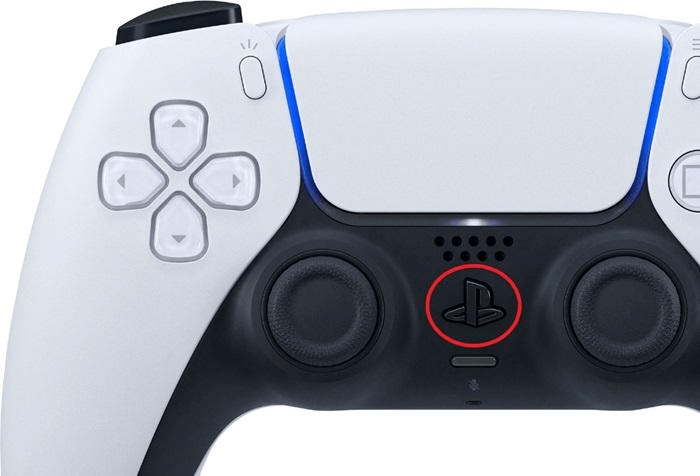
Press The Button
Step 2. Go to “Game Base” > Select a Friend > Messages > “Send a Quick Message.”
Step 3. Type “tvee dot app” in the message box and send it to your friend.
Step 4. Open Game Base, find the message, and click the “tvee dot app” link. This will open a hidden web browser.
Step 5. On your iPhone, download and open the Screen Mirroring+ App.
Step 6. Tap “Scan” and scan the QR code on your PS5 screen.
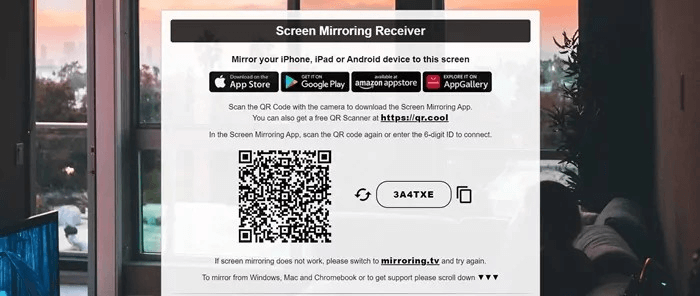
Scan the QR Code
Step 7. Select “Screen Mirroring,” then tap “Start Broadcast.”
Step 8. Wait a few seconds, and your iPhone screen will appear on your PS5!
Screen Mirror iPhone to PS5 via PS Remote Play
Playing PS5 games on your iPhone is possible with the official Sony software PS Remote Play. Your phone displays the PS5 screen; you may attach a controller or use touch controls for improved gameplay. To utilize it, ensure your iPhone and PS5 have a fast internet connection and enable Remote Play in the PS5 settings. Playing PS5 games from any location is now simple. To use PS Remote Play for screen mirroring iPhone to PS5:
Step 1. Download and install PS Remote Play from the App Store on your iPhone.
Step 2. Turn on your PS5 and go to “Settings“.
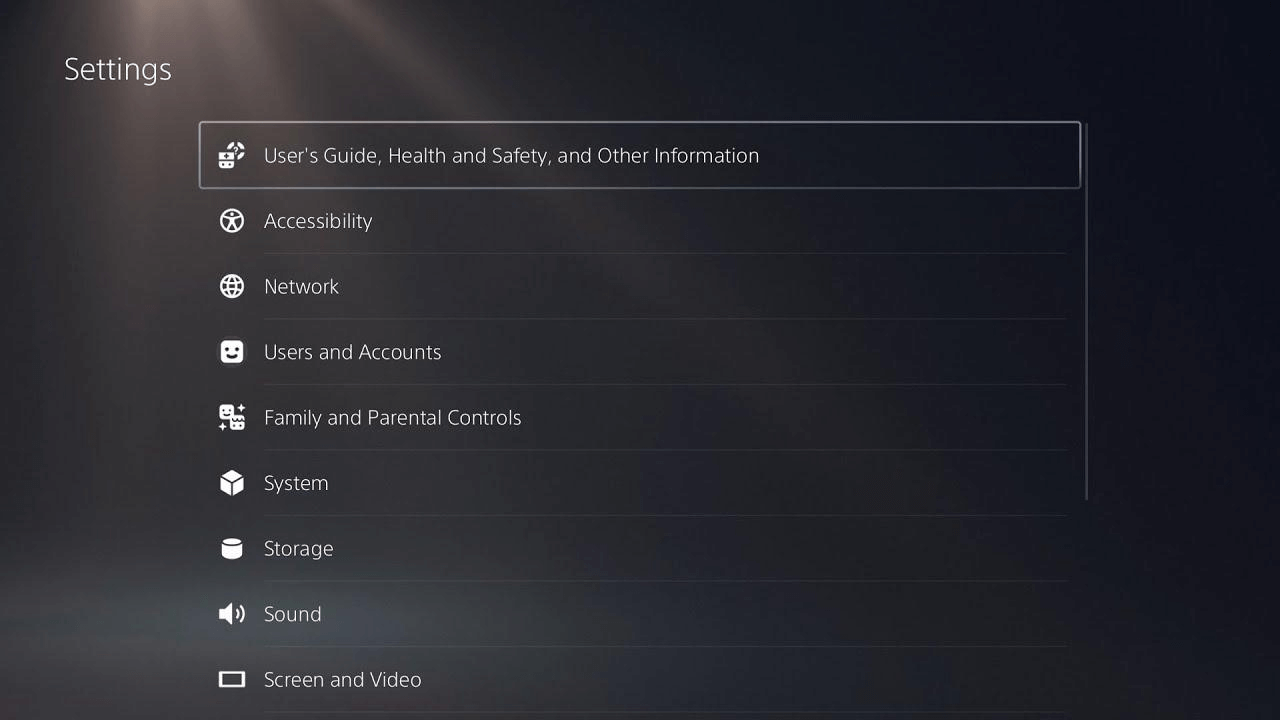
Open PS5 Settings
Step 3. Select “System,” then tap “Remote Play” and enable it.
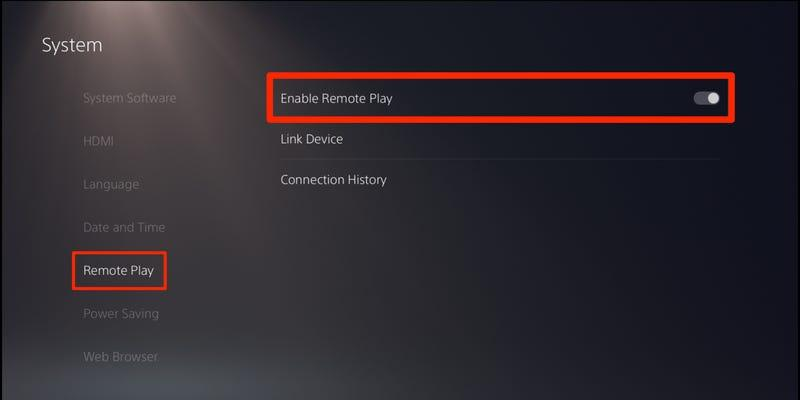
Enable Remote Play
Step 4. Open your iPhone’s PS Remote Play app and sign in with your PlayStation account.
Step 5. Once signed in, your iPhone will automatically connect to your PS5, allowing you to mirror the screen!
Screen Mirror iPhone to PS5 via AirServer
With the help of the robust program AirServer, you can turn your PS5 into a universal screen mirroring device. It also has features like split-screen functionality and recording, which enable several devices to mirror simultaneously. You may enjoy iOS apps and content on a larger screen using this technique, improving your PS5 experience. For this method:
Step 1. Buy and install AirServer on your PS5 from the PlayStation Store. This app lets your PS5 work as an AirPlay receiver.
Step 2. Continue by swiping from the top-right corner on your iPhone to open Control Center and tap “Screen Mirroring.”
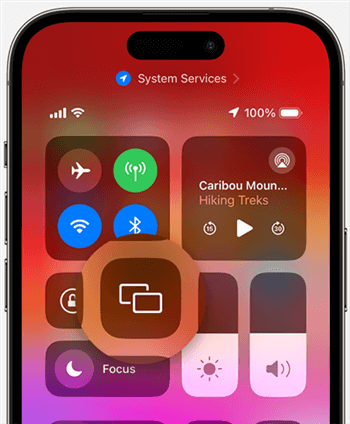
Select Screen Mirroring
Step 3. From the list, select your PS5/AirServer.
Step 4. Your iPhone screen will now appear on your PS5, allowing you to mirror videos, apps, and more!
Screen Mirror iPhone to PS5 via Plex
Using the adaptable media server software Plex, you can stream media on your PS5 from your iPhone. Plex has features like remote access, metadata scraping, well-structured libraries, and support for many types of media. Having the software installed on your PS5 and setting up the Plex server on your iPhone will allow you to access and broadcast your media files effortlessly.
For those who want to enjoy their own media collection on the PS5 without the need for storage devices, this approach is fantastic. To use this method:
Step 1. Begin by downloading the Plex app from the PlayStation Store to your PS5.
Step 2. Install the Plex app from the App Store on your iPhone.
Step 3. Launch the Plex app, log in, and create an account if necessary.
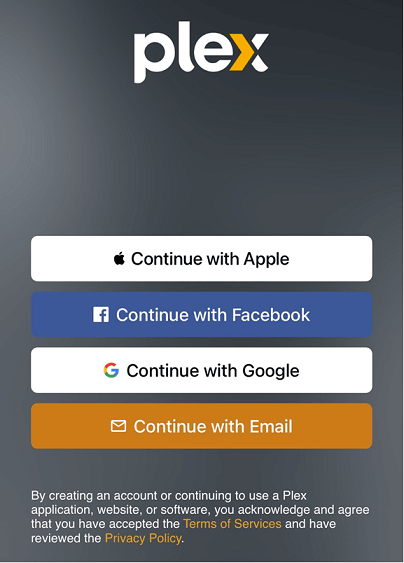
Sign In To The Plex App
Step 4. Set up a Plex Media Server on your computer or NAS device to store and stream your content.
Step 5. In the Plex app on your iPhone, use the casting option to stream content directly to your PS5.
Bonus Tip. How to Play Mobile Games on Your PC?
If you want to play mobile games on your PC, AnyMiro is a great choice. This feature-rich screen mirroring program offers steady, smooth, and excellent streaming. AnyMiro lets you play mobile games on a bigger screen without lag or interruptions. For the ultimate video experience, it enables 4K resolution mirroring and supports both iOS and Android. Teachers, live streamers, content producers, and gamers benefit greatly from AnyMiro.
AnyMiro – Real-Time Screen Mirroring Tool
Free download AnyMiro to enjoy a fast, stable, and smooth screen mirroring experience. You can mirror for better game playing, video watching, or live streaming mobile phone content.
It also supports recording your gameplay or screenshots while live streaming. It even supports Twitch, YouTube, Facebook, and OBS Studio broadcasting. For artists, AnyMiro provides color accuracy and live annotation functionality that supports easy interactive teaching and creative broadcasting.
Key Features:
- AnyMiro gives you smooth and stable streaming with no lag or interruptions.
- It supports 4K resolution mirroring, making everything look clear and colorful on screen.
- You get real-time audio and video sync, so everything stays perfectly timed.
- It works with OBS Studio, Twitch, YouTube, and Facebook for easy live streaming.
- You can take screenshots or record your best game moments anytime you want.
Here are the complete steps to use AnyMiro and play games on your PC:
From iPhone to PC & Mac Via USB:
Step 1. Free download and launch AnyMiro on your computer. Use a USB cable to connect your iPhone or iPad to your computer.
Step 2. In AnyMiro, choose “iOS/iPadOS.”
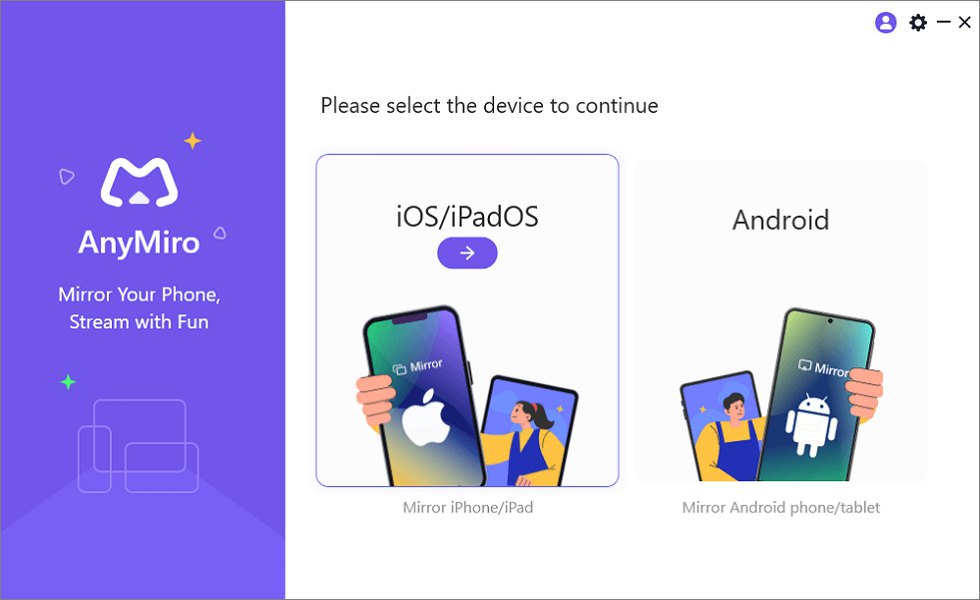
Mirror iPhone to Computer
Step 3. Click “USB connection.”
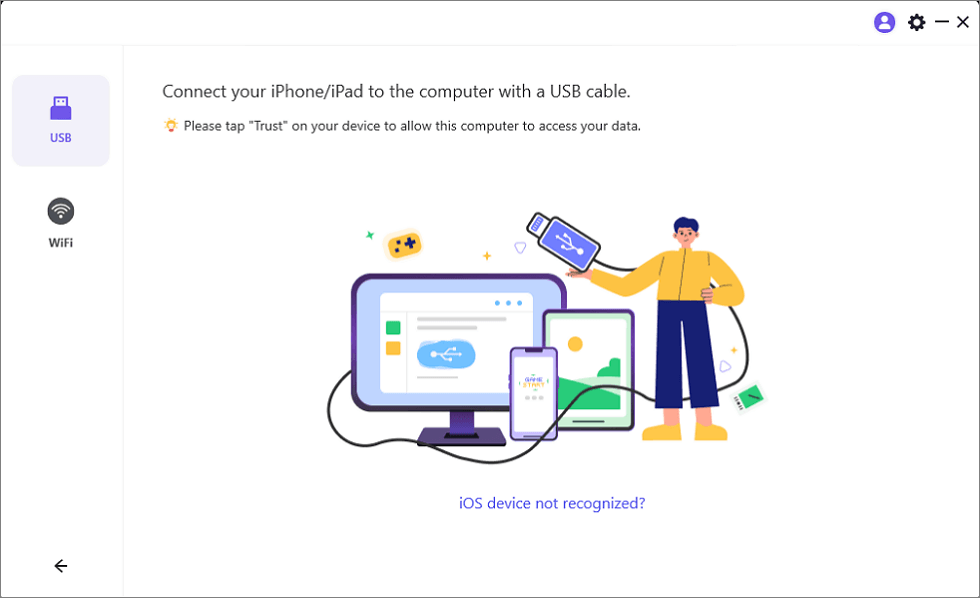
Connect Your iPhone/iPad with a USB Cable
Step 4. On your iPhone or iPad, tap “Trust” to approve the connection.
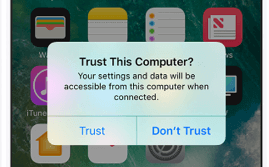
Trust Your Computer on iPhone
Step 5. If required, enter your device’s passcode. Your screen will now be mirrored.
FAQs on How to Screen Mirror iPhone to PS5
Is Wi-Fi necessary to screen mirror my iPhone to PS5?
To use most screen mirroring programs, you need a consistent Wi-Fi internet connection. Your iPhone and PS5 need to be on the same Wi-Fi network for a lag-free and uninterrupted connection.
What’s causing my iPhone not to mirror my PS5?
An incompatible app or a weak Wi-Fi signal may be preventing your iPhone from mirroring. After ensuring the two devices are on the same network, try shutting down and resuming the application.
Will AnyMiro decrease lag during screen mirroring?
Yes, AnyMiro is built to provide low-latency screen mirroring. Whether streaming video or gaming, it maintains a steady connection and allows your content to play smoothly without a detectable lag.
Final Words
Screen mirroring your iPhone to PS5 allows you to view videos, play games, and get access to apps on a bigger screen. You can use many convenient ways to provide a smooth and error-free process. As wired and wireless connections are available, easy steps give you a trouble-free experience. For better usage, AnyMiro is highly recommended. It offers smooth and lag-free screen mirroring, high-definition video with a resolution of 4K, and Wi-Fi and USB connectivity for ease of use. Seamless sharing of the screen without interruption is possible with AnyMiro!
Product-related questions? Contact Our Support Team to Get Quick Solution >
