How to Screen Mirror Vivo to PC/TV in 2026
Easily enjoy videos, games, and more on a larger screen by setting up screen mirroring for your Vivo phone to a PC or TV. Screen mirroring Vivo also makes sharing your phone’s display easier for business or play. We recommend using AnyMiro – a reliable screen mirroring tool – for the best experience.

How to Screen Mirror Vivo to PC/TV in 2026
Try AnyMiro to mirror Android to PC for free via USB and WiFi.
- Fast response time within 10 ms and 60fps frame rate.
- A stunning visual experience with no color difference.
- Lag-free screen mirroring and 4k resolution.
One easy and practical way to view your content on a larger screen is to mirror the Android screen of your Vivo phone onto a computer or television. Playing games, watching films, or presenting a lecture is always more enjoyable on a larger screen. By following this screen mirroring Vivo guide, you may quickly set up screen mirroring between your Vivo phone and PC or TV. It doesn’t require complex tech knowledge and can be completed promptly. So, let’s begin to explore!
2 Methods to Screen Mirroring Vivo to PC/Laptop
Now, let’s explore the two best methods for screen mirroring Vivo to PC/Laptop:
Method 1. Screen Mirroring Vivo to PC via AnyMiro
AnyMiro‘s Screen Mirroring Vivo to PC is the best option for people seeking a flawless, dependable, and superior screen mirroring experience. It allows 4K resolution with the best colors and visuals. There is also minimal audio/video sync latency, making the program suitable, especially for gamers and creators who broadcast on Twitch, YouTube, and Facebook. With its ability to capture phone screens for OBS Studio and other streaming tools, live streaming becomes effortless. You can also record and screenshot important moments during your sessions, easily preserving highlights. Additionally, its live annotation feature enhances interaction during presentations and streaming, making complex ideas easier to explain and boosting audience engagement.
Key Features:
- 4K screen mirroring ensures perfect color accuracy and clarity for Android and iPhone users.
- Low-latency audiovisual sync gives a smooth streaming experience without lag.
- Screenshot and recording functions allow instant capture of important moments while mirroring.
- A seamless connection to OBS Studio enables easy streaming to popular platforms like Twitch and YouTube.
- Live annotation helps enhance presentations by marking key points during screen mirroring.
Here are the steps to use AnyMiro for screen mirroring:
Step 1. Free download and install AnyMiro on your computer. Ensure you have a stable internet connection.
Free Download for all windows & 100% safe Free Download for all mac & 100% safe
Free Download100% Clean & Safe
Step 2. Launch AnyMiro on your PC after the installation is finished.
Step 3. Select the “Android” option within AnyMiro to connect your Vivo phone.

Mirror Android to Computer
Step 4. Tap the “WiFi” icon to connect your Vivo device via WiFi.
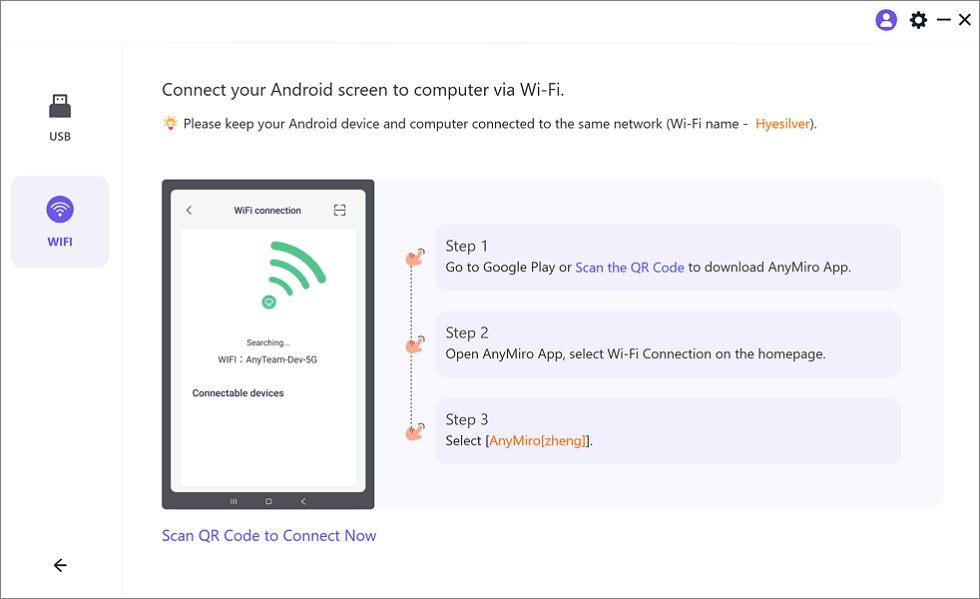
Mirror Android to Computer via WiFi
Step 5. Download the AnyMiro app on your Vivo by searching it on Google Play or scanning the QR code provided.
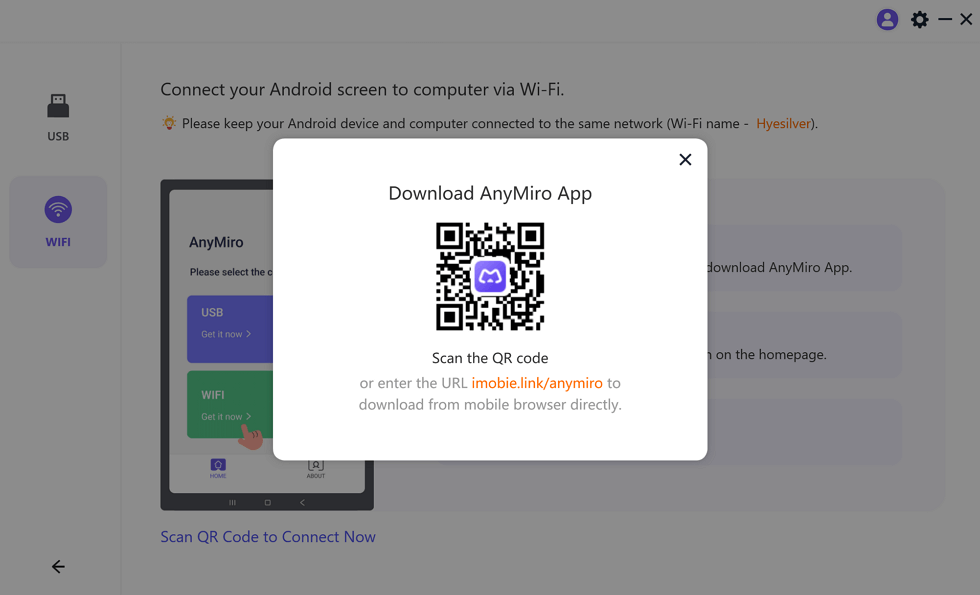
Download AnyMiro App on Your Phone
Step 6. Open the AnyMiro app on your phone and choose “WiFi Connection” from the home screen. Select your computer name from the list of available devices to start screen mirroring. Your Vivo phone screen will now be mirrored to your PC.
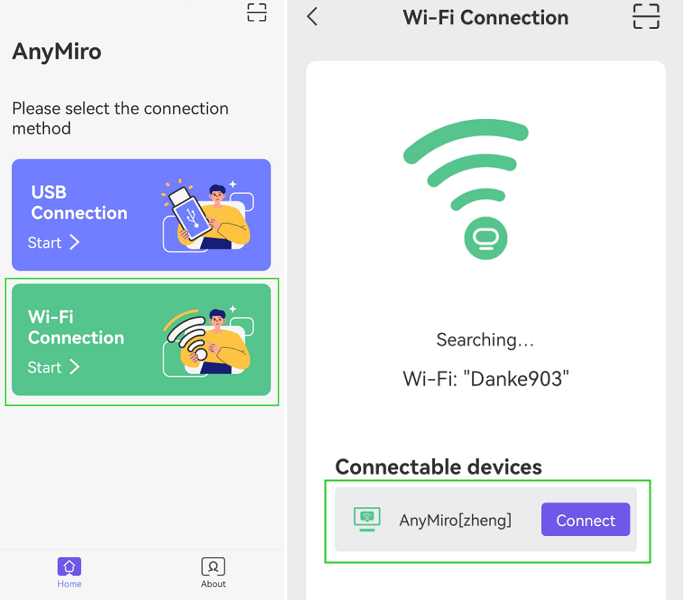
Tap WiFi Connection
Method 2. Screen Mirroring Vivo to PC/Laptop with ApowerMirror
Looking for a quality screen mirroring tool? ApowerMirror is another best option. Thanks to this handy tool, you can always sync your Vivo device in real time for various tasks. It makes everything look great on the larger screen, be it sharing photos, videos, live streaming of games, or a presentation.
Other special features of ApowerMirror include controlling the Android Vivo phone from the computer, taking screenshots, and recording the screen to capture important moments. Also, you can draw live while presenting to make presentations more engaging. ApowerMirror is mainly used for multitasking, playing games, content generation, and productivity.
Step 1. Begin by downloading and installing ApowerMirror on your PC. Open it and select “Android” from the home screen.
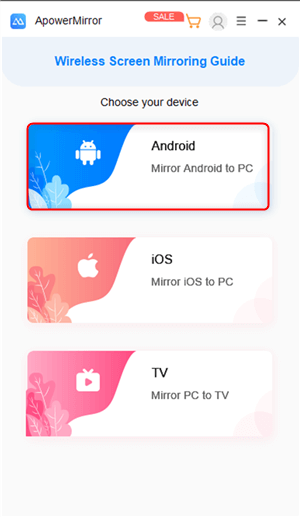
Select Android
Step 2. On your Android device, install and launch ApowerMirror. Enable “USB Debugging” in the developer options.
Step 3. A prompt will appear on your phone saying “Always allow this computer.” Check the box and tap “OK.”
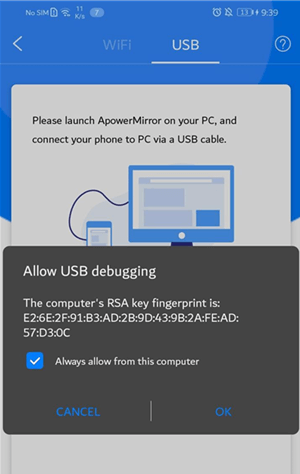
Tap OK
Step 4. Press “Start Now” to start the mirroring process.
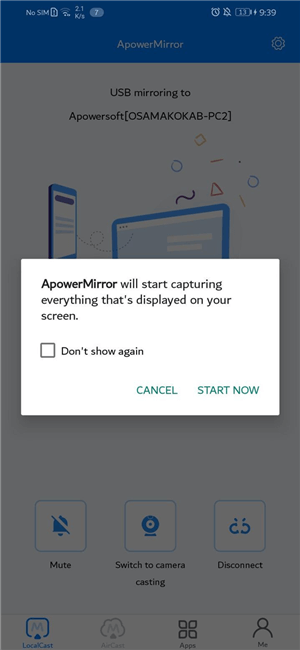
Select Start Now
2 Methods to Screen Mirroring Vivo to TV
Now, let’s explore two methods for screen mirroring Vivo to TV:
Method 1. Smart Mirroring
An easy approach to see the screen of your Vivo phone directly on your TV is to use smart mirroring. With just a few touches, this technique enables the smooth streaming of presentations, games, and videos. Smart Mirroring provides connectivity in an easier way than using extra cables with inherent WiFi technology. Real-time audio and high-definition graphics are added features that make it a perfect tool for screen mirroring. Sharing the material on your phone has never been simpler or more entertaining than it is with Smart Mirroring. For this:
Step 1. Open your phone’s “Settings” and scroll down to find “Other Networks & Connections.”
Step 2. In that menu, tap “Smart Mirroring” and turn on the Screen Mirroring feature on your Vivo phone.
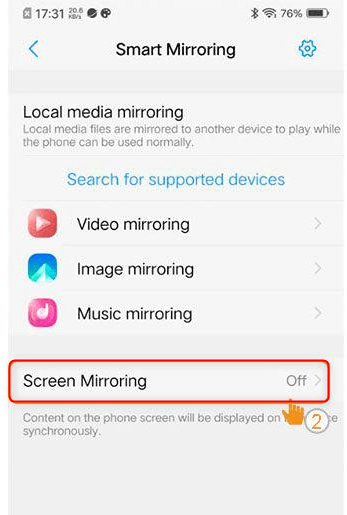
Tap on Screen Mirroring
Step 3. Your both devices must have the same WiFi connection.
Step 4. On your phone, tap “Search for Supported Devices.” You’ll see a list of connectable devices.
Step 5. Select your TV’s name from the list to connect your Vivo phone to the TV. Once connected, Smart Mirroring will be enabled on your Vivo.
Method 2. With Google Home
Another effective method is using Google Home to mirror your Vivo phone to your TV. Using the Google Home app to establish a WiFi connection, you may cast images, movies, and even programs from your phone. You may have a hands-free experience with Google Home’s voice command features and intuitive UI. Sharing content with friends and family is easy, thanks to features like screencasting and playback control. To use this method:
Step 1. Begin by installing the Google Home app on your mobile.
Step 2. Ensure your TV and Vivo phone are connected to the same WiFi network.
Step 3. Open the Google Home app on your phone and find your TV in the list of available devices.
Step 4. Tap on your TV, then select “Cast my screen.”
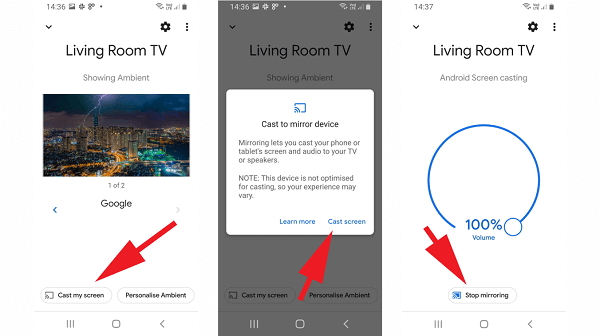
Tap Cast my Screen
Step 5. When a confirmation pop-up appears, tap on “Cast Screen.”
FAQs on Screen Mirroring Vivo
Do I need special apps for screen mirroring?
While some TVs support built-in mirroring, apps like Google Home or AnyMiro can enhance your experience and offer additional features for better control and quality.
Can I use screen mirroring for gaming?
Gaming greatly benefits from screen mirroring! Playing mobile games on a larger screen increases the level of enjoyment and visibility of the gameplay.
Is screen mirroring safe for my phone?
Yes, screen mirroring is safe for your phone. It simply displays your screen on another device, but make sure you trust the connected device to protect your privacy.
Final Words
In conclusion, screen mirroring your Vivo phone to a PC or TV is a straightforward way to enjoy your content on a larger display. Both methods offer great options for sharing videos, games, and more, whether using Smart Mirroring or Google Home. Troubleshooting common connection issues is also easy. For the best screen mirroring experience, we recommend using AnyMiro. It provides high-quality mirroring with low latency, allows screen recording, and enables easy control of your phone from your computer. AnyMiro makes sharing your screen fun and hassle-free!
AnyMiro – Real-Time Screen Mirroring Tool
Free download AnyMiro to enjoy a fast, stable, and smooth screen mirroring experience. You can mirror for better game playing, video watching, or live streaming mobile phone content.
Product-related questions? Contact Our Support Team to Get Quick Solution >
