How to Screen Mirroring iPhone to Laptop
AnyMiro can present the screen mirroring iPhone to laptop by way of a USB cable and WiFi, an easier and more convenient app compared with other apps.

How to Screen Mirroring iPhone to Laptop
Screen mirroring your iPhone and Android to the computer with ease.
- Fast response time within 10 ms and 60fps frame rate.
- A stunning visual experience with no color difference.
- Lag-free screen mirroring and 4k resolution.
- Works well on both Windows and macOS.
Available for both Win & Mac
Nowadays, screens on electronic devices such as phones and pads can be mirrored on another device as long as it is supported by the mirroring function. Screen mirroring iPhone to laptop allows you to record or capture what’s happening on your iPhone’s screen. Making it more convenient to give a presentation, demonstrate an app or feature, or teach a class. Meanwhile, it also enhances collaboration by allowing multiple people to view and interact with the same content simultaneously, which can be useful for brainstorming sessions, collaborative projects, and virtual meetings. The best ways are provided below in this article. Let’s read it through now to learn this know-how.
Table of ContentsHide
Screen Mirror iPhone to Laptop Using AnyMiro [Recommend]
Because of Apple’s walled garden ecosystem, iPhone owners must download a third-party application to cast their iPhone to Windows. However, several apps provide this functionality. The most worthy of recommendation is called AnyMiro – a user-friendly, convenient, and free screen mirroring app for iPhone for trial use. This app is versatile for whatever devices you want to mirror such as screen mirroring iPhone to Mac and screen mirroring iPhone to TV, etc. By relying on this app, you can experience:
- A stable connection that continues for up to 10 hours without interruption.
- The best resolution – up to 4K, as vibrant as your original screen.
- Immersed and enhances audiovisual experience.
- Easy way to capture phone screen to OBS Studio and other popular streaming tools.
AnyMiro is an optimal tool for screen mirroring iPhone to laptop for IOS users. You can apply two ways of mirroring according to your circumstances, which are by WiFi, and the USB by another way. What are you waiting for, just download this App through the link below and follow the step-by-step instructions to explore more possibilities.
How to mirror iPhone to laptop via USB
If you have a USB cable by your side, you may use the USB to enable screen mirroring iPhone to laptop by following the steps below:
Step 1. Download this app from the official website and run AnyMiro on your computer.
Free Download for all windows & 100% safe Free Download for all mac & 100% safe
Free Download100% Clean & Safe
Step 2. Select mirror iPhone/iPad to enter iPhone mirroring.
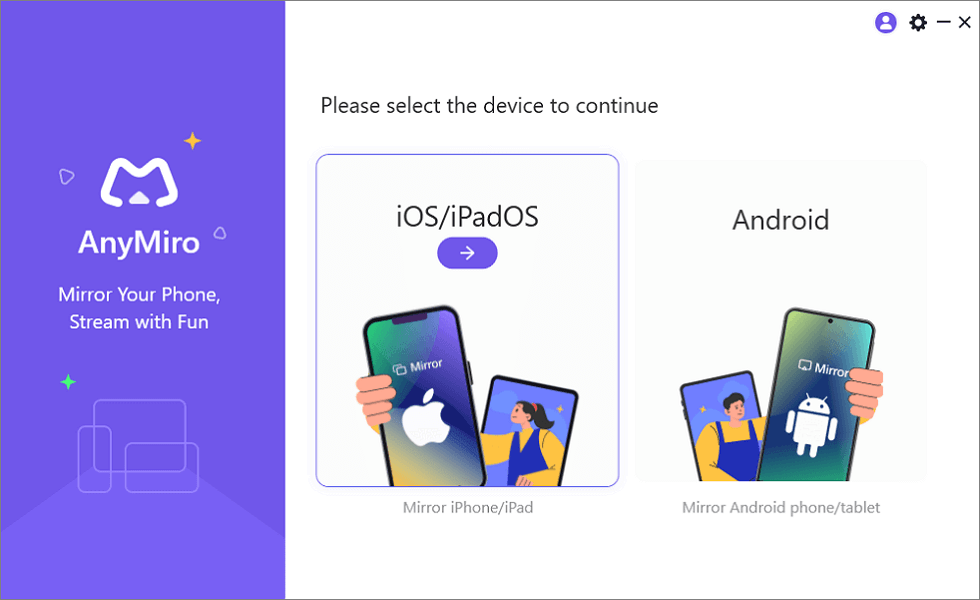
Mirror iPhone to Computer
Step 3. Connect your iPhone to your PC with a lightning cable.
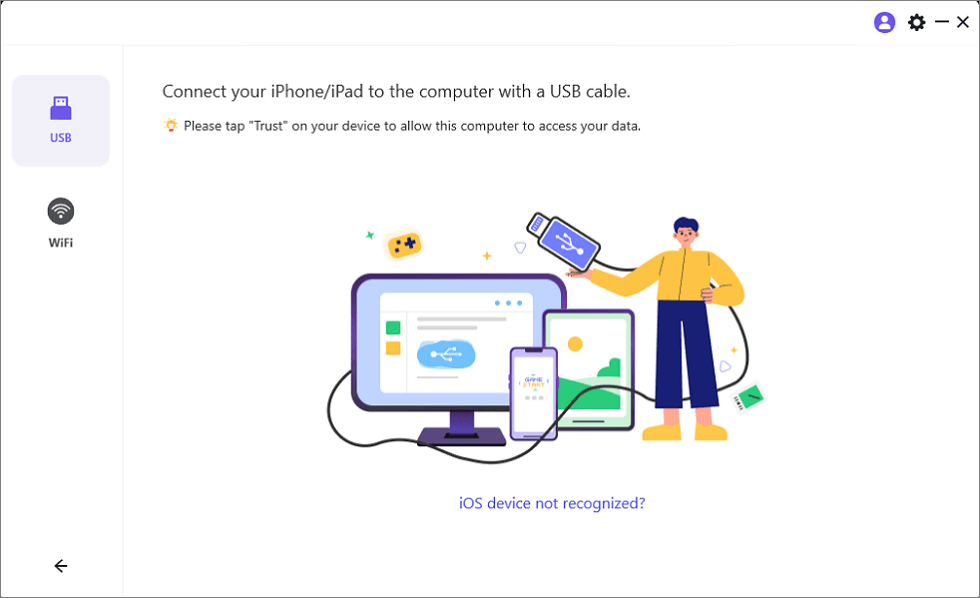
Mirror iOS Device to Computer via USB
Step 4. Tap “Trust” on your iPhone, and wait a few seconds, you can see the iPhone screen on the computer.
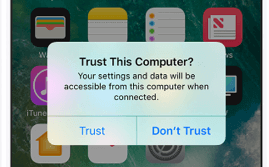
Trust Your Computer on iPhone
Note: If you are using a Windows computer and don’t install the driver of the iOS device, you will see a reminder message ” A mirror driver is required on the computer for USB connection”. Please click “Install” to continue.
How to mirror iPhone to laptop wirelessly
If you don’t have a cable usb by your side, you may resort to screen mirroring iPhone to laptop wirelessly. That is to say, your iPhone and your PC should be connected to the same WiFi. Come to follow the guide below:
Step 1. Launch AnyMiro on your computer and select iOS/iPadOS to continue.
Step 2. Please select Wi-Fi connection mode.
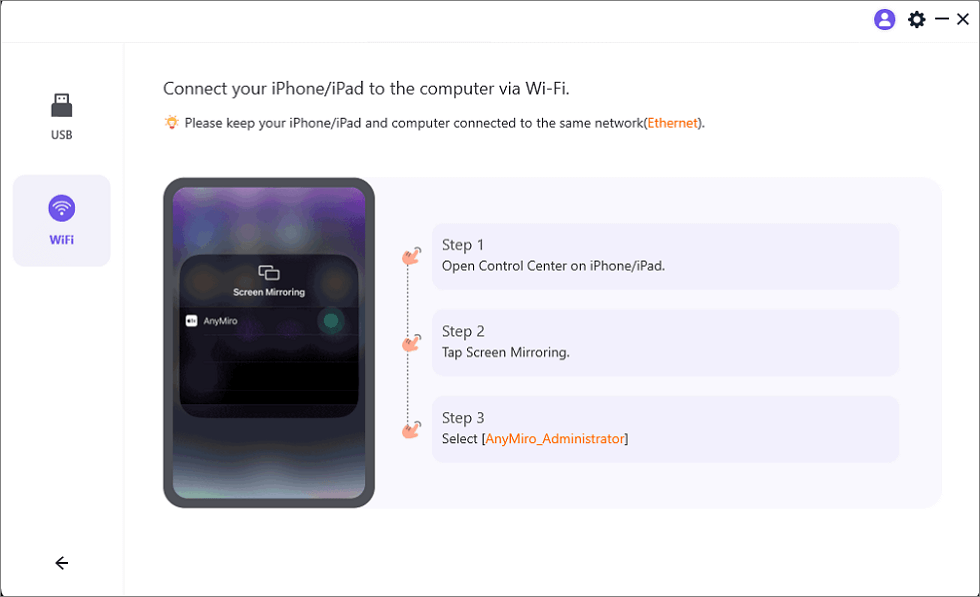
Mirror iOS to Computer via WiFi
Step 3. Please make sure that your iPhone and computer connect to the same Wi-Fi network. And then please open Control Center on your iPhone/iPad > Click “Screen Mirroring” > Select “AnyMiro_Computer Name” once it appears.
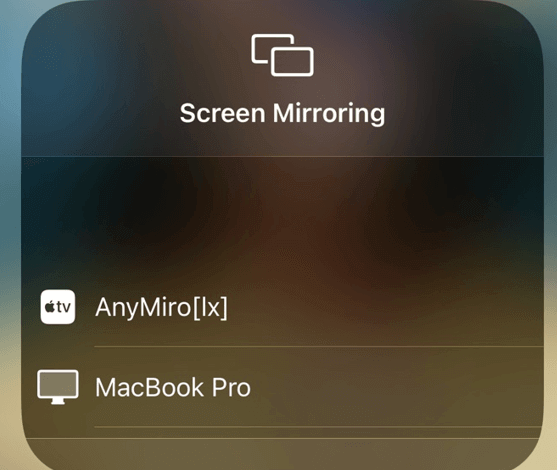
Select Your Computer from the List
Once connected, start to enjoy the high-quality iOS screen mirroring without delay.
However, When it comes to screen mirroring between an iPhone and a computer, using a USB cable can outperform Wi-Fi-based mirroring in several ways:
- Stability and Reliability: USB connections are generally more stable and reliable than Wi-Fi connections.
- Lower Latency: Actions on your iPhone will appear on the computer screen more quickly and with less delay when using a USB cable.
- Higher Quality: USB connections can support higher data transfer rates compared to Wi-Fi, allowing for higher-quality screen mirroring with less compression and artifacts.
- Security: When using a USB cable for screen mirroring, data is transmitted over a physical cable, reducing the risk of unauthorized access or interception compared to data transmitted over a wireless network.
- No Wi-Fi Network Dependency: USB-based screen mirroring can be advantageous in environments with congested or unreliable Wi-Fi networks, or in situations where you want to conserve Wi-Fi bandwidth for other tasks.
Therefore, screen mirroring iPhone to laptop through a USB cable is better and more recommended compared to screen mirroring wireless.
We have recommended the best and most convenient mirroring apps for you – AnyMiro. You will enjoy a smooth, stable, and swift screen mirroring experience once you have downloaded it whenever and wherever you are. Now, in the following part, other apps or platforms and their advantages and disadvantages will provide you. Let’s get started with the AirPlay.
Mirror iPhone to Laptop with AirPlay
AirPlay is a proprietary wireless communication protocol stack/suite developed by Apple Inc. that enables the streaming of audio, video, device displays, and photos, along with associated metadata, between devices. Originally implemented only in Apple software and devices, it was called AirTunes and used only for audio. By using AirPlay, you will have a:
- High-quality audio and video:
- Ease of use
- Integration with other Apple products
Yet, disadvantages are also obvious when you screen mirroring iPhone to laptop:
- Limited compatibility: AirPlay is only compatible with Apple products, so you cannot use it to stream from a non-Apple device or to a non-Apple device.
- AirPlay does not support manual quality switches. Instead, viewers can only rely on automatic quality selection.
- AirPlay does not support client-side ad insertion. Instead, you could consider using server-side ad-insertion, or disabling client-side ad-insertion when allowing AirPlay.
- AirPlay does not support UI customization.
Mirror iPhone to Laptop with LonelyScreen
LonelyScreen is an AirPlay receiver for Windows PC and Mac, which allows you to receive anything you send from your iPhone/iPad to your Windows computer like an Apple TV. Although not as versatile as other iPhone screen-sharing tools we’ve mentioned, Lonely Screen remains a popular choice for many users. Lonely Screen is:
- effective for both Mac and PC devices.
- enables users to take screenshots of their screens during use.
However, the primary concern with Lonely Screen is similar to that of Reflector. While it is highly efficient, it depends on Airdrop for secure functioning. Additionally, it is important to note that the cost of the Lonely Screen app is relatively high for business users, especially after the free trial.
Mirror iPhone to Laptop with Reflector4
Reflector4 enables users of all ages and skill sets to share content from various devices wirelessly while collaborating in-house or remotely on Mac, PC, or large display screens with powerful speakers. Using Reflector4 to share content from AirPlay, Google Cast, and Miracast will be achieved without cables or adapters from several devices simultaneously. Meanwhile, this app can also live stream mobile gameplay, prevent data breaches and leaks, and has security features that fit work environments as well as classrooms.
Pros of Reflector4:
- Reflector supports iOS devices using Airplay and Android devices using Google Cast.
- Reflector allows you to reflect multiple devices to your desktop at once, allowing a simultaneous recording of both.
- The ability to reflect devices wirelessly by using the same network is convenient and straightforward to set up.
However, the cons of Reflectore cannot be ignored if you compare it with other apps, especially with AnyMiro.
- Due to the connection to the mobile device being wireless, there is a potential for lag in the recording if the network is weak.
- The trial version of the app has a significant watermark on recordings.
- Can’t screen record desktop and mobile devices at the same time on its own.
- Difficult to change the scale of the image on the screen.
- If mobile device recording is separate from other components of lecture recording, the 2 videos would need to be synced up after recording.
FAQs
1. Can I mirror the screen from the iPhone to a Windows laptop?
To mirror an iPhone to a Windows 10 PC, you can use any screen mirroring apps such as AirDroid Cast, LonelyScreen, or LetsView app. To do so, open the control center of the iOS device choose your PC name to start mirroring, and choose the desired app. Screen mirroring will begin on the PC from the iPhone.
2. Why won’t my iPhone screen mirror to my laptop?
Make sure that your AirPlay-compatible devices are turned on and near each other. Check that the devices are updated to the latest software and are on the same Wi-Fi network. Restart the devices that you want to use with AirPlay or screen mirroring.
3. Where are the screen mirroring settings on the iPhone?
Swipe down from the upper-right corner of your iPhone’s screen (or swipe up from the bottom on older iPhones with a Home button) to open the Control Center. This is where you can find screen mirroring options.
Conclusion
We have discussed various methods for screen mirroring iPhone to laptop including through USB cable and WiFi by AnyMiro. Meanwhile, more information about other mirroring apps also is given with advantages and disadvantages emphasized. But, from comparison, AnyMiro delivers a more stable, smooth, fast, and easy-to-operate way to present content, collaborate effectively, and enhance the user experience. Download it and enjoy more possibilities with AnyMiro!
AnyMiro – Real-Time Screen Mirroring Tool
Free download AnyMiro to enjoy a fast, stable, and smooth screen mirroring experience. You can mirror for better game playing, video watching, or live streaming mobile phone content.
Product-related questions? Contact Our Support Team to Get Quick Solution >
