How to Fix Second Monitor Flickering
This guide will teach you how to fix the second monitor flickering with simple and clear steps. Follow each step to stop flickering and enjoy a smooth display.

How to Fix Second Monitor Flickering
Try AnyMiro to mirror iPhone to PC for free via USB and WiFi.
- Fast response time within 10 ms and 60fps frame rate.
- A stunning visual experience with no color difference.
- Lag-free screen mirroring and 4k resolution.
Watching games or working while viewing videos on your second monitor can suddenly become disrupted by random screen flickering. Your monitor will blink while simultaneously flashing between lines, obstructing your ability to see clearly. This can be very annoying and even hurt your eyes. Don’t worry—this problem is common and usually easy to fix.
This guide will show you simple and clear steps to stop second monitor flickering. You can manage your Mac system even without technical knowledge. The solution is simple: check cables, update drivers, and modify screen settings. With a few quick fixes, your second monitor will work smoothly again, and you can enjoy a better viewing experience without any screen problems.
Table of ContentsHide
Why Does My Second Monitor Keep Flickering
Sometimes, your second monitor may start flickering, and it can be hard to understand why. There are a few common reasons behind this issue. Knowing these causes will help you fix the problem faster. Below are the most usual reasons explained.
- Loose Display Cable: A wobbly or damaged cable can break the signal and make your second screen flash.
- Old Display Driver: Your monitor displays random flickering when it receives instructions from an outdated display driver or incorrect driver software.
- Wrong Refresh Rate: Your monitor’s screen display becomes unstable when refresh rates differ from its capabilities.
- Broken Monitor Screen: Your monitor’s screen can flicker when its hardware malfunctions, regardless of the functionality of other system components.
- Unstable Power Supply: Practical power supply problems, such as faulty electrical connections and damaged power sockets, can cause flicker on your monitor screen.
- Graphics Card Trouble: A weak or hot graphics card may struggle to keep a steady display on your second screen.
- Nearby Device Interference: Phones, speakers, or Wi-Fi gear placed too close might affect the monitor’s signal.
- Too Many Open Programs: When your computer runs too many things simultaneously, it may slow down and flicker.
How to Fix Second Monitor Flickering Issue
Let’s have a detailed look at the best fixes for this issue:
For Windows:
Check and Secure Monitor Connections
Checking your monitor’s cables with ports can solve the issue straightforwardly. You should verify that your HDMI, VGA, or DisplayPort cables maintain secure connections throughout both device ends. Swap to a different cable and check another available port when possible. The primary cause of screen flickering appears in loose or defective wires, which can be repaired easily. Look for physical damage along the cable length. If the cable feels hot or looks worn out, replace it immediately.
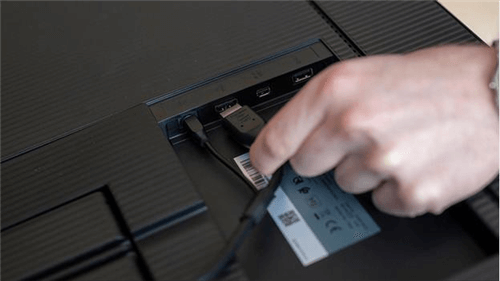
Check and Secure Monitor Connections
Adjust Screen Settings for Better Display
Your second monitor may flicker due to mismatched display settings. Fixing the resolution, refresh rate, and layout can help the screen work properly. Here’s how to adjust these settings:
Step 1. Click on the “Start” button and open “Settings.”
Step 2. Go to “System” and then select “Display.”
Step 3. Under “Display resolution,” choose the one marked “(Recommended).”
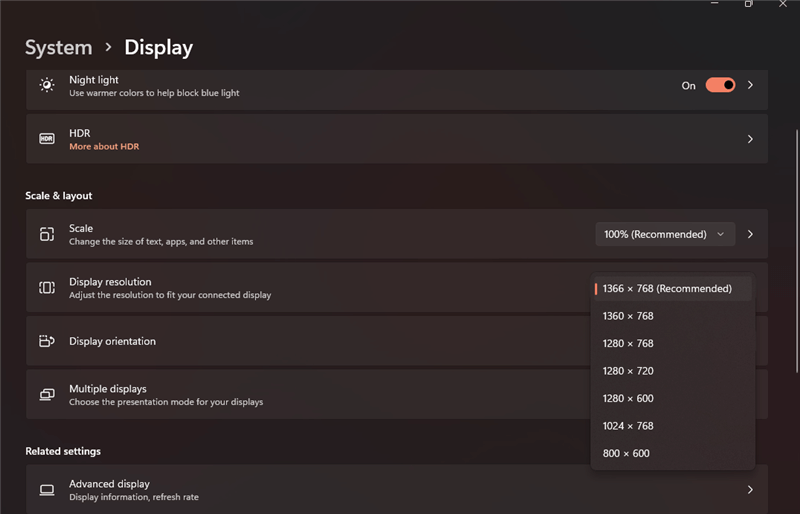
Choose Recommended Resolution
Keep Your Graphics Driver Updated
An outdated graphics driver can cause screen flickering on your second monitor. Updating the driver helps your computer and monitor work better together. Follow these simple steps to update your graphics driver easily:
Step 1. Click the “Start” button and open “Settings.”
Step 2. Go to “Windows Update” and click “Check for updates.”
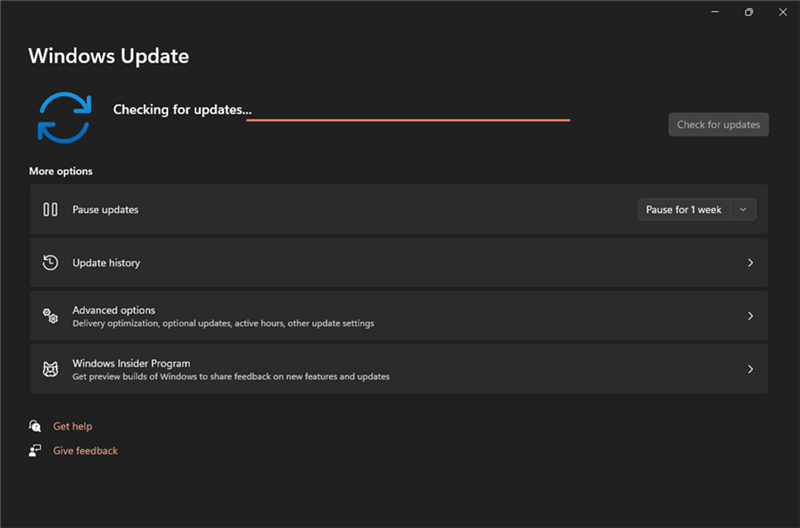
Click Check For Updates
Step 3. Click “Download and install” to get the latest drivers if updates are available.
For Mac:
Set the Right Refresh Rate
Sometimes, a wrong or unsupported refresh rate can cause your second monitor to flicker. Setting it to the correct value can make the screen stable. For this:
Step 1. Click the “Apple” logo in the top left corner and select “System Preferences.”
Step 2. Click on “Displays” to open display settings.
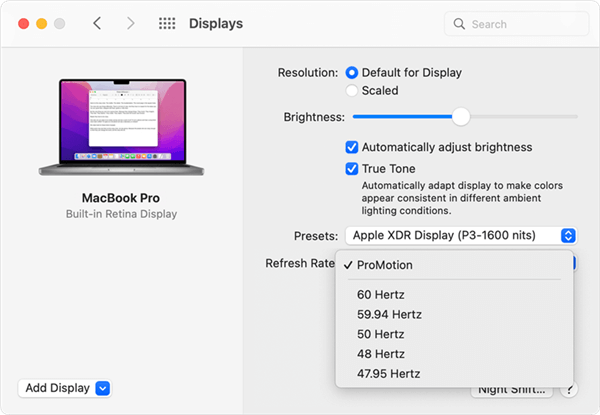
Click Displays
Step 3. Hold the “Option” key and click on the “Scaled” option to reveal the “Refresh Rate” dropdown.
Step 4. Select “60Hz” (or another available rate) from the list.
Disable Auto Brightness and True Tone Settings
Excessive brightness adjustments and True Tone can cause flickering on your monitor. Turning off these features might fix the issue. To use this fix:
Step 1. Click the “Apple” logo in the top left corner and choose “System Preferences.”
Step 2. Select “Displays” from the options.
Step 3. Uncheck “Automatically adjust brightness” and “True Tone” on the right panel.
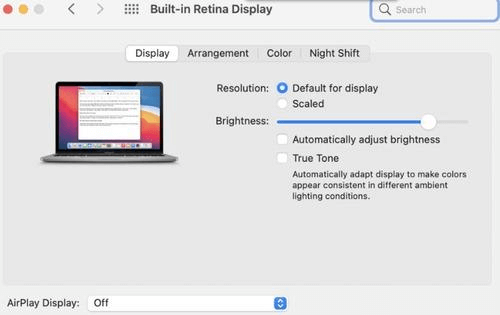
Disable Auto Brightness and True Tone Settings
Switch to Default Color LCD Profile
Using the wrong color profile can make your second monitor flicker. Changing the display profile setting to “Color LCD” serves as a solution to fix screen problems. You can modify your Mac’s color profile using the following steps:
Step 1. Access “System Preferences” by clicking the “Apple” logo on your screen.
Step 2. From the system preferences, select “Displays” and click “Display Settings.”
Step 3. Select your monitor from the left-hand panel, then navigate to “Color Profile” on the right side, where you should choose “Color LCD” from the options list.
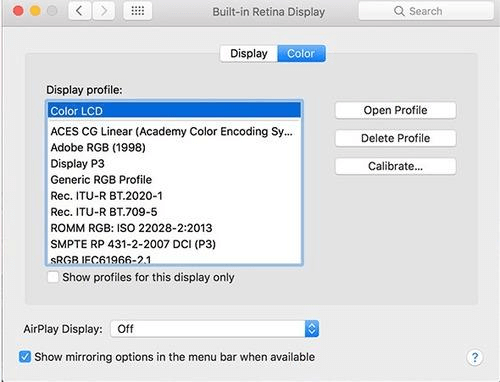
Select Color LCD
Bonus Tip. How to Use Your PC as Your Phone’s Second Screen | AnyMiro
Imagine using your PC as a second screen for your phone. With AnyMiro, you can easily mirror your phone to your computer. It works smoothly and gives you high-quality video with no delay. You can enjoy clear and stable screen sharing, perfect for gaming, drawing, teaching, or church services. The 4K screen quality makes everything look sharp and bright.
AnyMiro maintains the synchronization between sound and video content, preventing all streaming delays. This application enables real-time streaming across YouTube, Twitch, Facebook, and other platforms while maintaining high-quality video transmission. The system provides options to record videos and screenshots when mirroring occurs directly.
Free Download for all windows & 100% safe Free Download for all mac & 100% safe
Free Download100% Clean & Safe
Key Features:
- During live streaming, AnyMiro maintains flawless synchronization of video content and audio signals.
- The screen mirroring feature gives users 10 hours of uninterrupted, lag-free streaming.
- The phone screen allows video capture and screenshot creation when users mirror it.
- For better teaching or streaming, you can draw or highlight things live during screen mirroring.
Below are the simple steps to use AnyMiro:
From iPhone to PC & Mac
Step 1. Open AnyMiro on your computer and choose “iOS/iPadOS.”
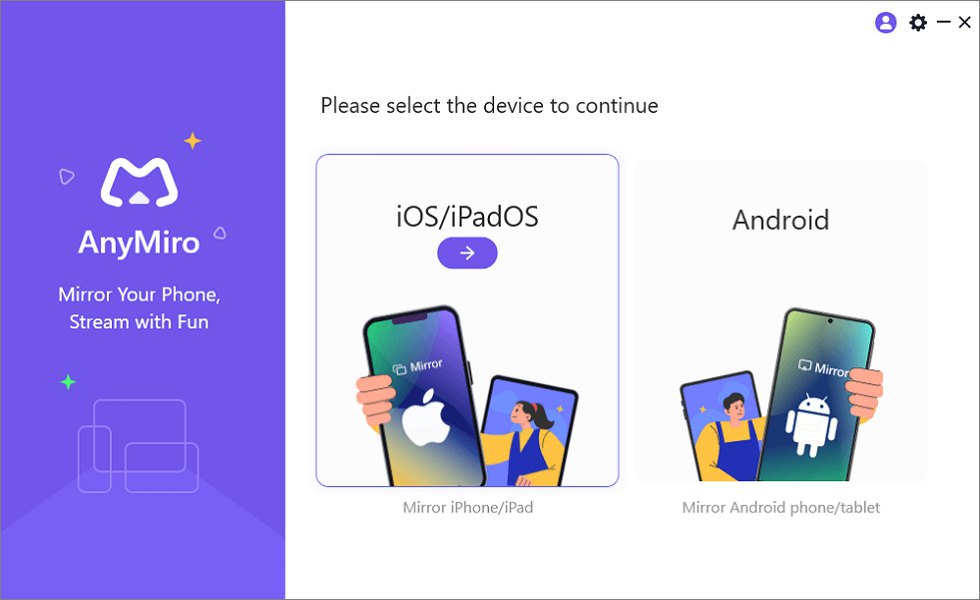
Mirror iPhone to Computer
Step 2. Click on the “Wi-Fi connection” option.
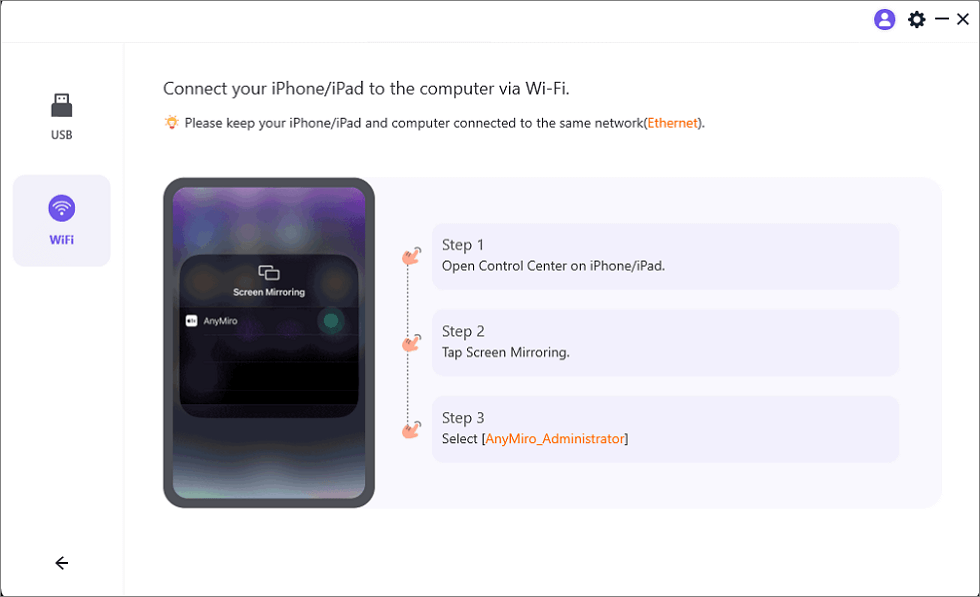
Mirror iOS to a Computer via WiFi
Step 3. Connect both your iPhone/iPad and computer to the same Wi-Fi network.
Step 4. Swipe to open Control Center, tap “Screen Mirroring,” and choose “AnyMiro_Computer Name.”
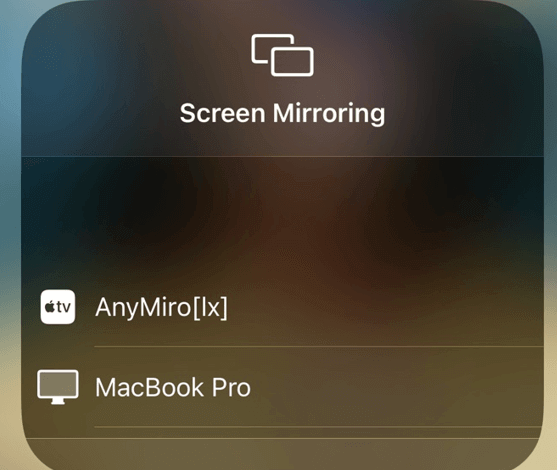
Select Your Computer from the List
Step 5. Your iPhone screen will now appear on your computer screen.
From Android to PC & Mac
Step 1. Free download AnyMiro on your computer and open the program.
Step 2. Click on “Android” to start the process.

Mirror Android to Computer
Step 3. Select “USB” and connect your phone with a USB cable.
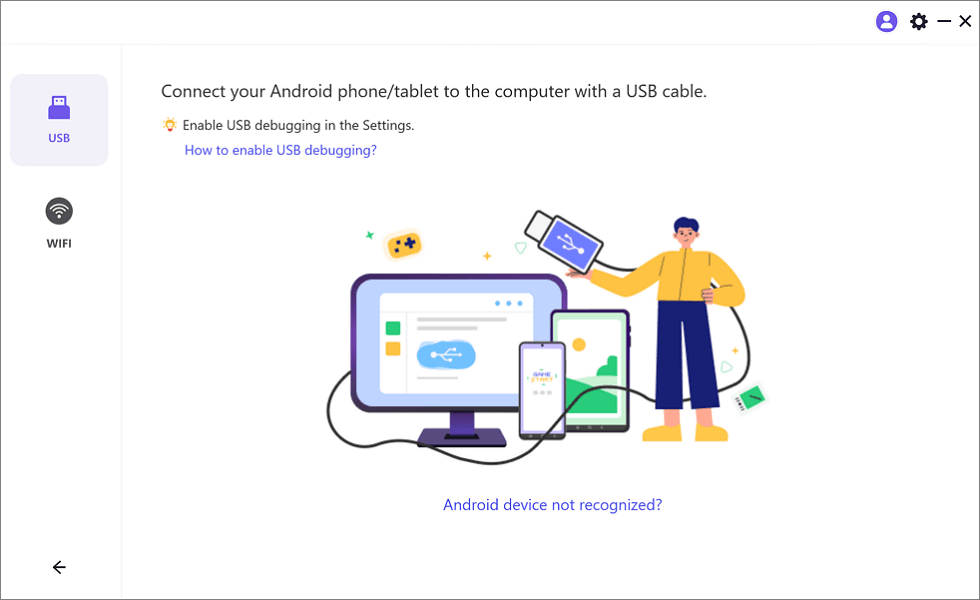
Select the USB Option for Screen Mirroring Android to PC
Step 4. If necessary, turn on “USB debugging” on your phone and set it to “MTP Mode.”
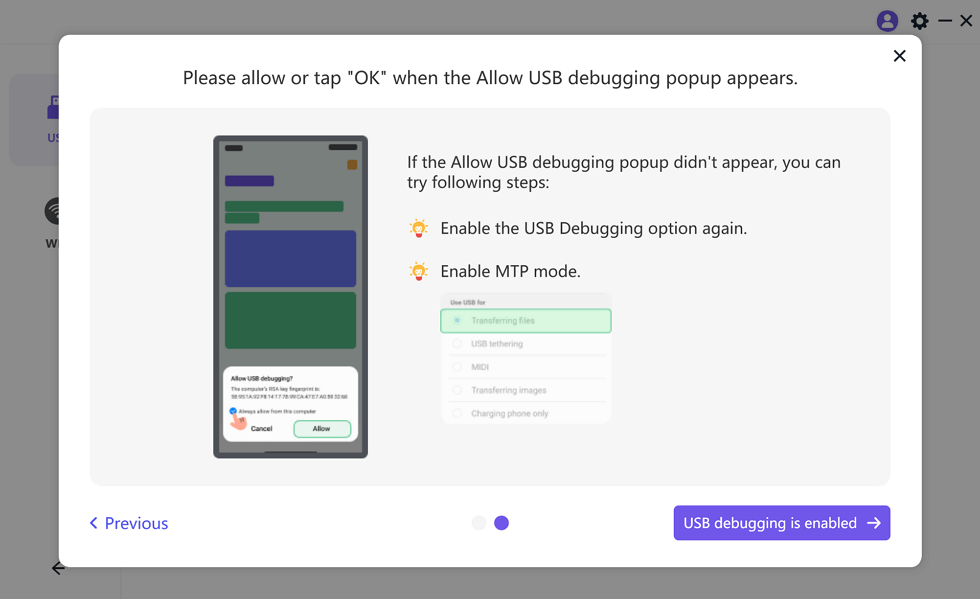
Enable USB Debugging and MTP Mode for a USB Connection
Step 5. Your phone screen will now be shown on your computer.
FAQs on Second Monitor Flickering
Can refresh rate cause my second screen to flicker?
Monitor flickering happens when refresh rates mismatch between the screen and computer system or when the system cannot detect the refresh rate properly. Within your display settings you must choose one of the refresh rate options supported by your monitor among 60Hz or 75Hz.
Do flickers on your screen mean that your monitor needs repairs?
If other fixes fail and flickering continues on all devices, it may be a failing screen or backlight issue. Consider testing with another monitor to confirm.
Can software like AnyMiro help reduce screen issues?
Yes, AnyMiro offers stable screen mirroring from phones to PCs without flickering. It’s great for smooth, high-quality screen sharing—ideal for gamers, creators, and presenters.
Final Words
You can solve second monitor flickering by performing several basic steps that handle this specific issue. Several simple modifications, such as brightness adjustments, driver updates, and display profile modifications, will significantly improve the situation. For a better screen experience, try AnyMiro. It gives stable mirroring, HD quality, and real-time audio sync.
Product-related questions? Contact Our Support Team to Get Quick Solution >
