Second Monitor Not Detected? Here’s How to Fix It
In this guide, you will learn how to fix the “Second Monitor Not Detected” issue. We will explain common reasons why your second screen is not working and show you simple steps to fix it on Windows and Mac. Follow these steps to connect your second monitor easily!

Second Monitor Not Detected? Here’s How to Fix It
Try AnyMiro to mirror iPhone to PC for free via USB and WiFi.
- Fast response time within 10 ms and 60fps frame rate.
- A stunning visual experience with no color difference.
- Lag-free screen mirroring and 4k resolution.
Imagine you are ready to work or play a game, but your second monitor is not showing anything. You check the cables, but the screen stays black. This can be very frustrating! It may happen due to loose cables, outdated drivers, or wrong display settings.
But don’t worry! This guide will help you fix the “Second Monitor Not Detected” issue. We will explain why this happens and give you simple steps to solve it on Windows and Mac. Follow this guide to fix your second monitor issue easily and enjoy your extra screen without any trouble!
Table of ContentsHide
Common Reasons Why a Second Monitor Isn’t Detected
Sometimes, your second monitor does not work even after you connect it. This can happen for many reasons. Below are some common reasons and how to fix them.
Loose or Faulty Cable – If the cable is loose or broken, the monitor will not work. Check both ends and try a different cable.
Wrong Display Settings – Your computer may not detect the second monitor. Change the display mode to “Extend” or “Duplicate.”
Outdated or Missing Drivers– Old drivers can prevent the monitor from working. Update your graphics driver in Device Manager or System Preferences.
Faulty or Unsupported Monitor – It may be incorrect if the monitor does not work on another computer.
Incorrect Input Source – Use the monitor’s buttons to select the correct input source (HDMI, VGA, or DisplayPort).
Hardware or Port Issues – A damaged port can prevent the monitor from working. Try another port or device.
How to Fix a Second Monitor Not Detected on Windows
Now, let’s have a detailed look at the fixes for Second Monitor Not Detected on Windows:
Adjust Display Settings
Windows 11 may not always detect your second monitor automatically. Tweaking the display settings often fixes the issue quickly. For this:
Step 1. Click on “Start” and open “Settings”.
Step 2. Go to “Display” settings.
Step 3. Scroll down to “Multiple displays” and click “Detect”.
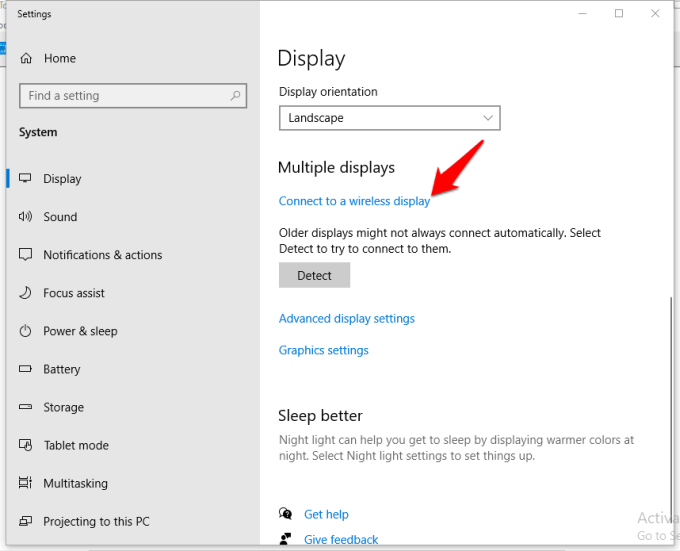
Click Detect
Step 4. If detected, choose “Extend these displays” from the dropdown menu.
Update Your Graphics Drivers
Old or broken graphics drivers can stop Windows from recognizing your second screen. Updating them can fix this problem. To Update Graphics Drivers:
Step 1. Press “Windows + X” and select “Device Manager.”
Step 2. Expand “Display adapters.”
Step 3. Right-click your graphics card and choose “Update driver”.
Step 4. Click “Search automatically for updated driver software.”
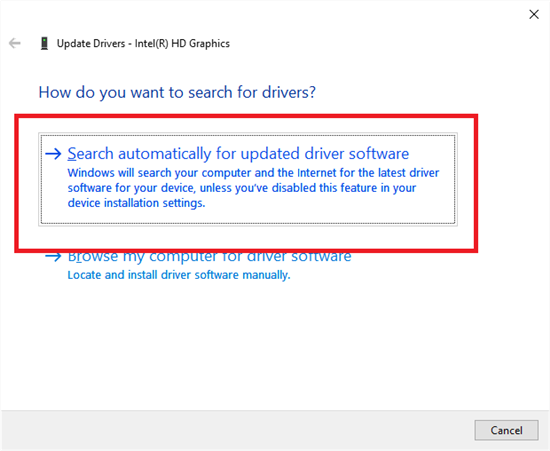
Search Automatically For Updated Driver Software
Step 5. If no update is found, visit the graphics card manufacturer’s website and install the latest driver.
Check Your Cable Connections
Loose or damaged cables can prevent your second monitor from working. Make sure everything is properly connected. Ensure the cable is securely plugged into both the monitor and PC. Try a different port on your computer or graphics card. Test with another cable to check if the original one is faulty.
Adjust Monitor Refresh Rate
If your second screen is not working, an incorrect refresh rate may be the issue. Changing the refresh rate might solve the problem. For adjustingthe refresh rate:
Step 1. Right-click on your desktop and select “Display settings”.
Step 2. Scroll down and click “Advanced display settings”.

Advanced Display Settings
Step 3. Select your second monitor from the drop-down list.
Step 4. Click “Display adapter properties.”
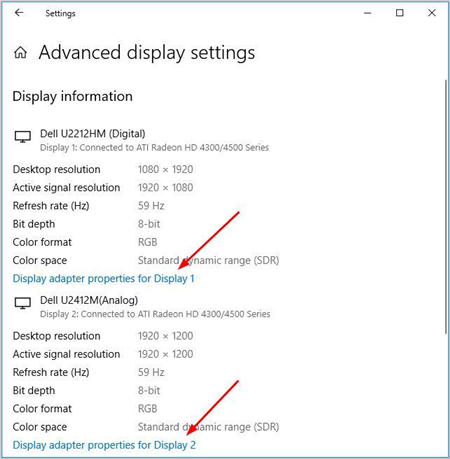
Click Display Adopter Properties
Step 5. Go to the “Monitor” tab and change the refresh rate.
Step 6. Click “Apply”, then “OK”.
Restart the Graphics Driver
If your screen goes blank, restarting the graphics driver can bring it back without restarting your whole PC. For this:
Step 1. Press “Windows + Ctrl + Shift + B” simultaneously.
Step 2. Your screen will go black briefly, and you may hear a beep.
Step 3. Wait for the display to refresh.
How to Fix a Second Monitor Not Detected on Mac
Let’s explore the detailed fixes for this issue on Mac:
Inspect Your Cables First
Check that all the cables are tightly connected and not damaged. If the cable is loose or damaged, the Mac will not detect the monitor. Ensure the cable is snugly connected into the Mac as well as the monitor. Ensure the power cord for the display is also connected. If you’re not certain, try swapping the cable and observe if that solves the problem.
Check How Many Monitors Your Mac Supports
Not all Macs support multiple displays, so check the maximum number allowed. Here are the steps to check monitor support:
Step 1. Click the Apple icon and open “System Preferences”.
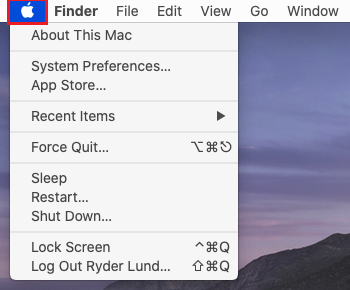
Open System Settings
Step 2. Select “Help,” then search for your MacBook model.
Step 3. Look under “Display Support” or “Video Support” for details.
Adjust Your Display Settings
Your Mac might not recognize the external monitor due to incorrect display settings. For this:
Step 1. Click the Apple icon > “System Preferences” > “Displays”.
Step 2. Hold down the Option key to reveal the “Detect Displays” button.
Step 3. Click “Detect Displays” to force your Mac to find the monitor.
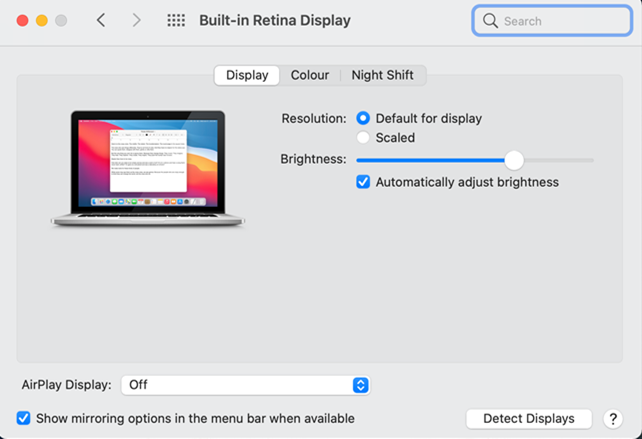
Click Detect Displays
Try a Different Resolution
A resolution mismatch might cause the display not to work properly. Let’s explore how to change the resolution:
Step 1. Open “System Preferences” > “Displays”.
Step 2. Press Ctrl + click on a resolution, and select “Show Thumbnails.”
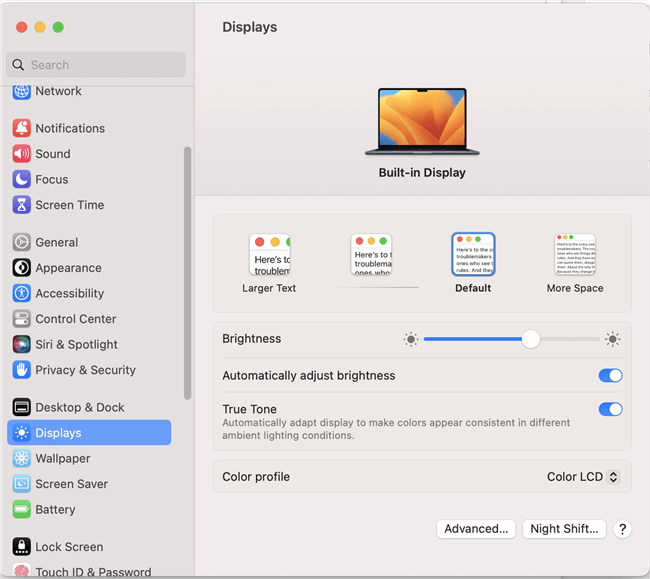
Displays Menu
Step 3. Pick a different resolution and see if the monitor responds.
Restart Your Mac While the Monitor Is Connected
A simple restart can fix connection issues and allow your Mac to detect the monitor. To restart your Mac:
Step 1. Keep the monitor connected to your Mac.
Step 2. Click the Apple icon and select “Restart”.
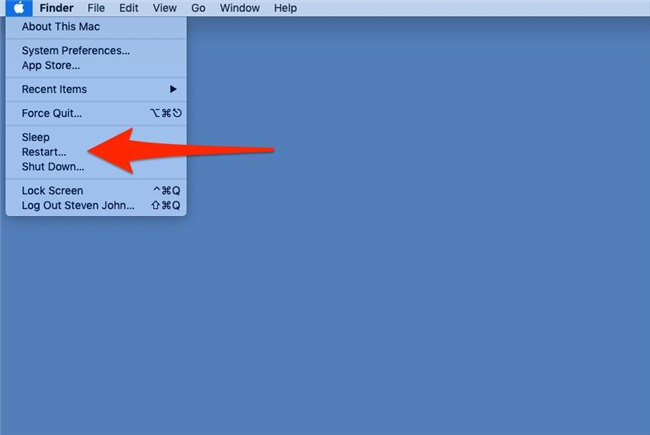
Select Restart
Step 3. After your Mac turns back on, check if the monitor is working.
Bonus Tip. How to Mirror Your Phone to Your Computer
If your second monitor is not detected, AnyMiro is a great alternative. You can use an additional screen for work, gaming, or streaming by using this app to mirror your phone to your computer. You can use it for up to ten hours without latency because it offers a steady and seamless connection. The excellent display, which supports up to 4K resolution, guarantees that every detail is visible. It also features real-time audio sync to maintain perfect harmony between sound and graphics.
AnyMiro simplifies creating content by offering simple streaming to Facebook, YouTube, and Twitch. You can also capture screenshots and record live streams effortlessly. Plus, live annotation lets you highlight important points, making it perfect for teachers, gamers, and artists. For presentations, virtual YouTubers, or live worship events, AnyMiro helps you stay connected and creative.
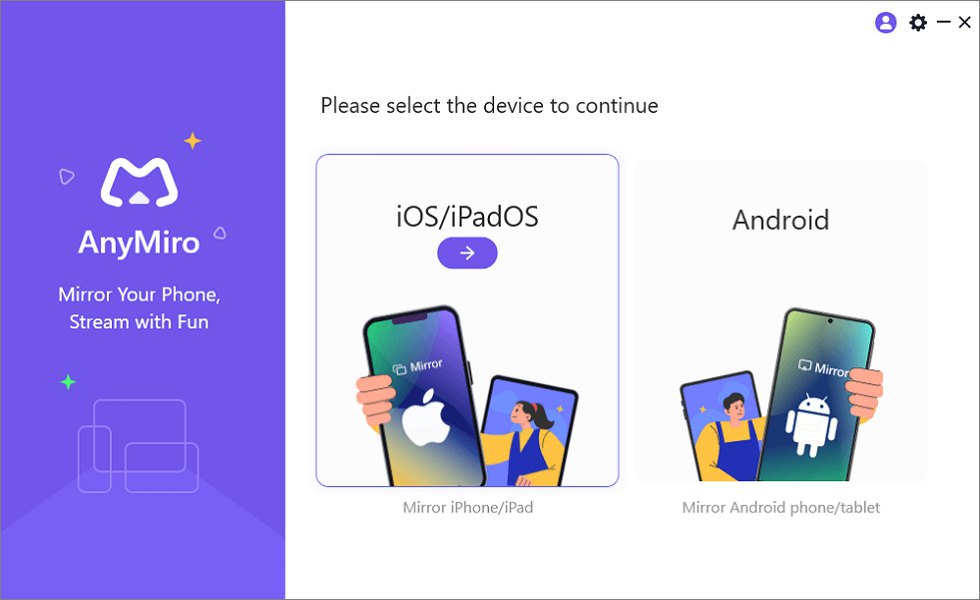
Mirror iPhone to Computer
Key Features:
- A stable connection lets you mirror your screen for up to 10 hours.
- 4K high-resolution mirroring ensures clear and sharp visuals on your computer.
- Real-time audio sync keeps sound and video perfectly matched without delay.
- Easy screen recording helps you capture important moments with one simple click.
- Live annotation allows you to highlight key points while sharing your screen.
Free Download for all windows & 100% safe Free Download for all mac & 100% safe
Free Download100% Clean & Safe
FAQs on Second Monitor Not Detected
Can a faulty cable cause my second monitor to stop working?
Your second monitor may not function if the cable is broken or unsuitable. Try using an alternative cable or port to check whether it resolves the issue. Verify that the cable type is compatible with both your computer and monitor.
Why does “No Signal” appear on my second monitor?
Your monitor’s no-signal status may be caused by either a bad port, a loose cable, or an incorrect input source. Check that the cable is connected, change the input source on the monitor, and try another port.
Can I use software to fix the second monitor not detected issue?
Yes! If your second monitor isn’t working, AnyMiro is a great alternative. It lets you mirror your screen smoothly to your computer without a complicated setup. You can enjoy lag-free streaming and high-quality visuals instantly.
Final Words
Many methods exist to resolve the issue if your second monitor is not identified. Checking wires, updating drivers, and changing display settings can be beneficial. Sometimes, your monitor may not be compatible, or your Mac might not support multiple displays. AnyMiro is a great alternative. It lets you mirror your phone to your computer with high resolution and up to 10 hours of smooth, lag-free streaming. It also provides real-time audiovisual sync, perfect for gaming and presentations. Try AnyMiro for an easy and reliable screen mirroring experience!
Product-related questions? Contact Our Support Team to Get Quick Solution >
