[2026] How to Use Quicktime Player on Mac to Mirror iPhone
QuickTime Player is essential software for Mac computers. If you have an iPhone, you can mirror it to your Mac using QuickTime Player. This article will introduce you to what QuickTime Player is and guide you on how to use Quicktime Player on Mac to mirror iPhone. Don’t miss out on it.

[2026] How to Use Quicktime Player on Mac to Mirror iPhone
Download AnyMiro to screen mirror your iPhone without QuickTime.
- Fast response time within 10 ms and 60fps frame rate.
- A stunning visual experience with no color difference.
- Lag-free screen mirroring and 4k resolution.
Available for both Win & Mac
In today’s world, screen mirroring has become an important feature in our daily lives and work. We often use screen mirroring for business presentations or sharing images and videos with family and friends. Whether you are using iOS devices or Android devices, Windows computers, or Apple computers, you can easily transfer screen mirroring between different devices.
QuickTime Player is a well-known and important software on Mac. It is a multimedia player, but did you know that it also provides a simple and effective way to achieve screen mirroring? Do you know how to use Quicktime Player on Mac to mirror iPhone? In this article, we will provide you with a detailed guide on how to share iPhone screen on Mac QuickTime Player, allowing you to effortlessly showcase your mobile content on a larger screen.
Table of ContentsHide
Can I Mirror iPhone to Mac Using QuickTime Player?
Yes. You can share iPhone screen on Mac QuickTime Player. QuickTime Player can play videos like .mov and .mp4, as well as audio in formats like .mp3 and .aac. It’s easy to use, works with many media types, and handles tasks like playing videos, recording audio, and mirroring screens. You can also do simple video edits like cutting, splitting, combining, and rotating in QuickTime Player.
Most Mac models support QuickTime Player because it usually comes with the macOS operating system. It works with almost all Mac models, such as MacBook, iMac, Mac Mini, and Mac Pro. QuickTime Player’s widespread usage and compatibility make it a top choice for Mac users handling multimedia content.
How to Use QuickTime Player on Mac to Mirror iPhone?
QuickTime Player works with most Mac models, and if you have macOS, it’s likely that the software is already on your computer. Now that we’ve discussed QuickTime Player’s screen mirroring capabilities, let’s discuss how to use Quicktime Player on Mac to mirror iPhone.
Here is the step-by-step guide to teach you how to use Quicktime Player on Mac to mirror iPhone.
Step 1: If you want to use QuickTime Player for screen mirroring, you should connect your iPhone or iPad to your Mac computer using a USB cable.
Step 2: Within QuickTime Player, go to the “File” menu and select the “New Movie Recording” option. This will open a recording window where you can configure screen mirroring settings.
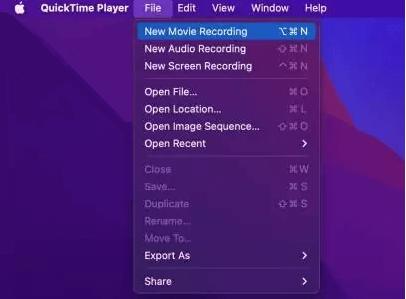
Select New Movie Recording to Mirror iPhone to Mac QuickTime
Step 3: In the “New Movie Recording” window, you will see a small dropdown arrow for selecting the recording source. Here, choose your connected iPhone or iPad device. Next, check the “Screen Mirroring” option to display the content from your device’s screen on your Mac.
Step 4: You can click the “Start Recording” button. QuickTime Player will then begin capturing and displaying the content from your device’s screen.
These are the detailed steps for how to mirror iPhone to Mac with USB through QuickTime Player. Make sure to have a USB data cable ready for the content transfer.
Mirror iPhone to Mac with USB (Without QuickTime Player)
Now you should know how to use Quicktime Player on Mac to mirror iPhone, but it comes with some limitations and restrictions. QuickTime Player’s screen mirroring functionality is only compatible with Apple devices. It is suitable for basic presentation and recording needs. However, users needing more advanced features or cross-platform compatibility may want to explore other screen mirroring tools or applications.
AnyMiro is one such excellent choice that you can use for screen mirroring between different devices. It is a third-party screen mirroring software that supports both Mac and Windows computers and is compatible with mirroring iOS and Android devices, offering much broader compatibility compared to QuickTime Player. It has higher stability and can connect devices via both Wi-Fi and USB data cables, ensuring a reliable connection without frequent disconnections. It is particularly well-suited for mirroring video playback or game-streaming content, and it provides minimal latency.
Here are the core features of AnyMiro:
- Stable Connection, Up to 10 Hours of Reliable Connectivity
AnyMiro provides an exceptionally stable connection via USB or WiFi, allowing you to mirror your screen during long presentations or training sessions without worrying about interruptions. - Lag-Free Mirroring Quality
It ensures near-zero latency in mirroring quality, enabling you to view device screen content in real time, ensuring a seamless user experience. - High Resolution with 4K Quality
It supports high-resolution screen mirroring, with resolutions reaching up to 4K.
So how to mirror iPhone to Mac with USB by AnyMiro:
Step 1: Download and run AnyMiro on your Mac.
Free Download for all windows & 100% safe Free Download for all mac & 100% safe
Free Download100% Clean & Safe
Step 2: Select the iOS/iPadOS mode to proceed to the mode selection page.
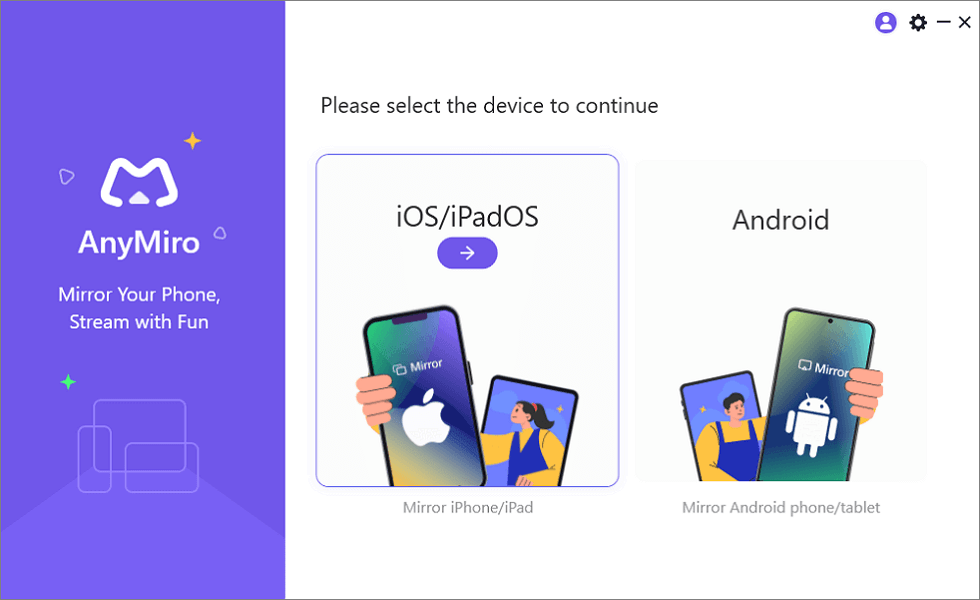
Mirror iPhone to Computer
Step 3: On this page, you will see two modes: USB and WiFi. Select the USB connection.
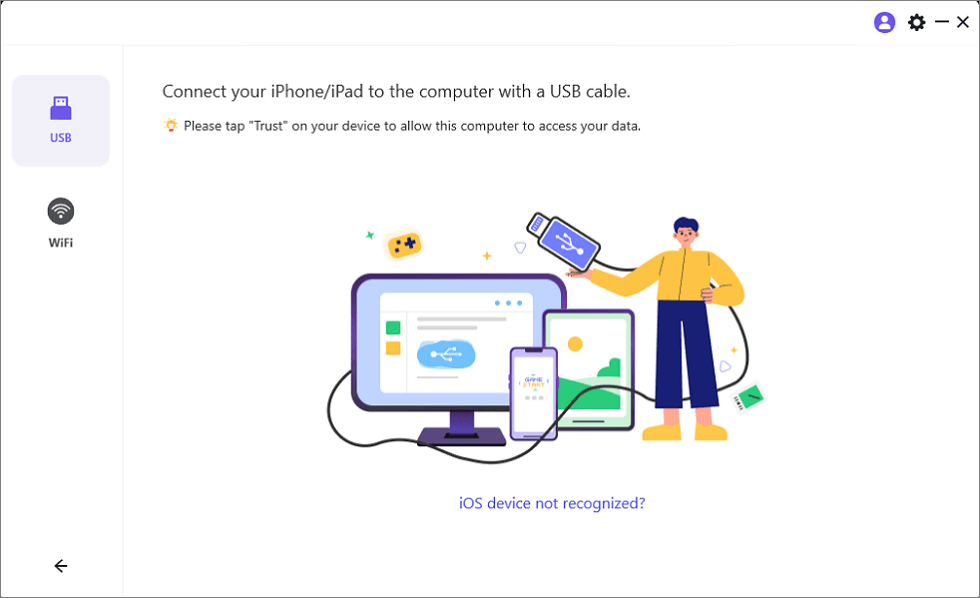
Mirror iOS Device to Computer via USB
Step 4: Finally, on your iPhone, click ‘Trust This Computer,’ and you will be able to see your iPhone screen on your Mac.
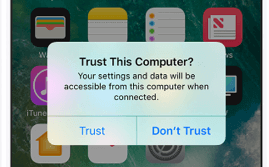
Trust Your Computer on iPhone
Mirror iPhone to Mac: QuickTime Player vs. AnyMiro vs. AirPlay
From the above part we know that for iPhone users to mirror to Mac, there are three available tools: QuickTime Player, AnyMiro, and AirPlay. Here’s a comparison chart of the three tools used by iPhone users to mirror their screens to a Mac, along with their respective pros and cons.
| Tools | Pros | Cons |
| QuickTime Player | 1. Built-in software on macOS 2. Stable and reliable connection |
1. Requires a physical USB connection 2. Limited interaction with mirrored device 3. Limited device compatibility (iOS devices) |
| AnyMiro | 1. Supports wireless mirroring 2. High-resolution support – 4k 3. Lag-free mirroring quality 4. Wide device compatibility |
1. No recording feature |
| AirPlay | 1. Wireless mirroring using Apple devices 2. Easy to set up with Apple TV |
1. Limited to Apple ecosystem (iOS devices) 2. May require additional hardware (Apple TV) 3. Requires a WiFi network |
In summary, both QuickTime Player and AirPlay have compatibility limitations: QuickTime Player necessitates a physical connection, while AirPlay relies on wireless connectivity. AnyMiro, on the other hand, supports various connection methods and allows cross-system device connections. Therefore, in terms of performance, AnyMiro appears to be better suited for screen mirroring tasks.
Conclusion
After reading this article, I believe you now know how to use Quicktime Player on Mac to mirror iPhone. However, QuickTime Player does have its limitations as it is primarily designed for use on Mac. Therefore, we recommend downloading AnyMiro for your screen mirroring needs, as it allows you to mirror your iPhone screen to both Mac and Windows computers. AnyMiro excels in this regard and offers more versatility.
AnyMiro – Real-Time Screen Mirroring Tool
Free download AnyMiro to enjoy a fast, stable, and smooth screen mirroring experience. You can mirror for better game playing, video watching, or live streaming mobile phone content.
Product-related questions? Contact Our Support Team to Get Quick Solution >
