Tinder for Desktop – How to Use Tinder on PC/Mac
This guide covers easy ways to use Tinder on PC: AnyMiro screen mirroring, Android emulators, and iOS emulators. AnyMiro lets you mirror your phone to a computer for a seamless experience. We recommend using AnyMiro—a reliable screen mirroring tool—for its simplicity and reliable connection when using Tinder on a desktop!

Tinder for Desktop – How to Use Tinder on PC/Mac
Try AnyMiro to mirror iPhone or Android to PC for free via USB and WiFi.
- Fast response time within 10 ms and 60fps frame rate.
- A stunning visual experience with no color difference.
- Lag-free screen mirroring and 4k resolution.
What are the steps for using Tinder on PC or Mac? It’s no secret that many people adore using Tinder on their phones, but you can also use it on computers. This guide will walk you through using Tinder while working or if you want a wider screen. We’ll explore easy ways to access Tinder on your desktop, including the web version, screen mirroring apps like AnyMiro, and emulators. It’s simple, and you can start swiping right away!
Table of ContentsHide
How to Use Tinder on a Desktop?
There are multiple methods to use Tinder without a phone, whether on a PC or Mac. Let’s discuss how you can use Tinder on your PC now!
Way 1. Tinder for Desktop via Web Version
The web browser is the first way to use Tinder on a computer. You do not have to install this app; you can go to the Tinder website and log in using your account. It is the same as the smartphone application, where one can swipe, message, or browse one’s profile. It can be used on both PCs and Macs using any web browser. This is a simple and fast method that will suit perfectly those people who would like to browse on a larger screen. Moreover, the best part is that the functionalities offered by Tinder through a web application are the same as those provided by a smartphone application. For this:
Step 1. Open your PC’s web browser and go to “Tinder.com.”
Step 2. Click the “Log In” button in the top right corner.

Log In To Tinder
Step 3. You can log in using your phone number, Facebook, or Google account.
Step 4. Once you’re logged in, the home screen will show your matches, conversations, and a discovery page that you can swipe right to access.
Way 2. Use Tinder on PC & Mac via AnyMiro
AnyMiro is an effective tool that allows you to mirror your iOS and Android devices seamlessly while using Tinder on PCs and Macs. Its 4K resolution function makes it possible for you to use the camera on your phone as a high-quality webcam, making your profile stand out. The tool’s versatility comes from its easy support for USB and WiFi connections.
Furthermore, you can utilize real-time annotation tools to highlight crucial data, record your screen activity, and capture crisp screenshots. With AnyMiro, you can take your Tinder experience to the next level by engaging more dynamically and interactively.
Free Download for all windows & 100% safe Free Download for all mac & 100% safe
Free Download100% Clean & Safe
Key Features:
- Connect multiple devices and simultaneously show different screens or audio for a richer experience.
- Record your Tinder sessions while mirroring them to capture special moments or interactions.
- Enjoy synchronized audio as you mirror your mobile screen, making conversations more engaging.
- Use annotation tools to highlight interesting features on your Tinder profile or during chats.
- Live stream your Tinder interactions with audio to platforms like Zoom, enhancing your virtual dating.
To Use Tinder from iPhone to PC & Mac Via USB:
Step 1. Begin by free downloading and installing AnyMiro on your computer.
Step 2. Open AnyMiro on your computer and select “iOS/iPadOS.”
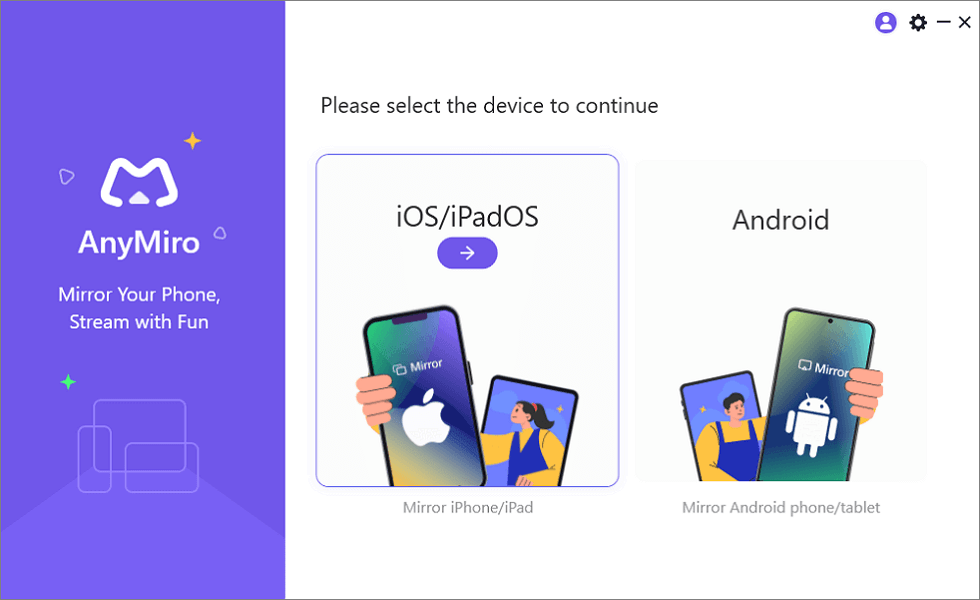
Mirror iPhone or iPad to Computer
Step 3. Click on the “USB connection” option. Connect your iPad/iOS device to the computer using a USB cable.
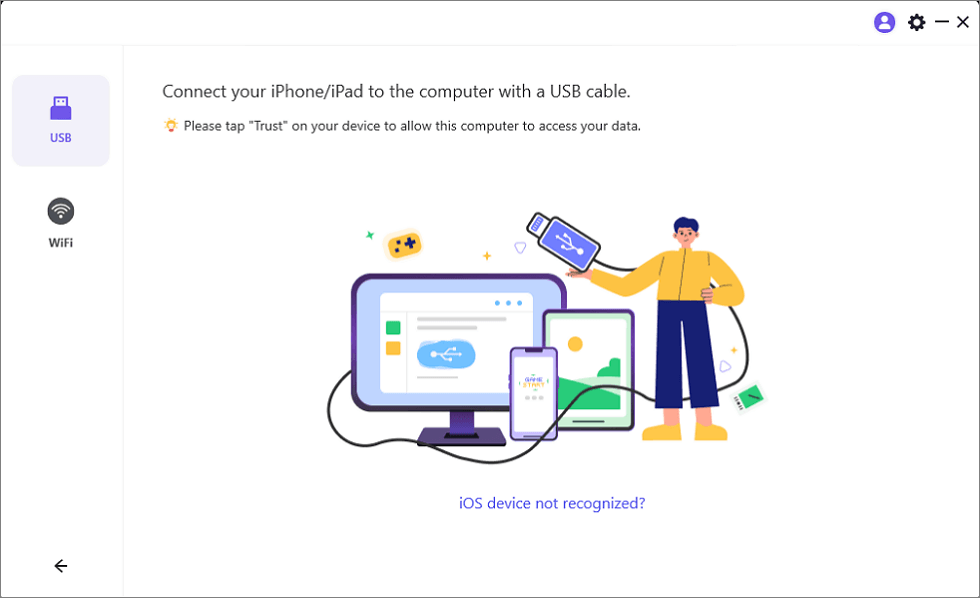
Connect Your iPhone/iPad with a USB Cable
Step 4. When prompted on your phone, tap “Trust” to establish the connection. If needed, enter your passcode. Your phone is now linked, and you can start high-quality screen mirroring.
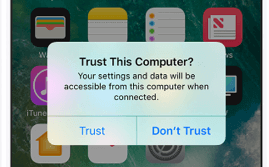
Trust Your Computer on iPhone
To Use Tinder from iPhone to PC & Mac Via WiFi:
Step 1. Launch AnyMiro on your computer and select “iOS/iPadOS.”
Step 2. Choose the “WiFi connection” option. Your iPhone/iPad and computer must have the same WiFi network.
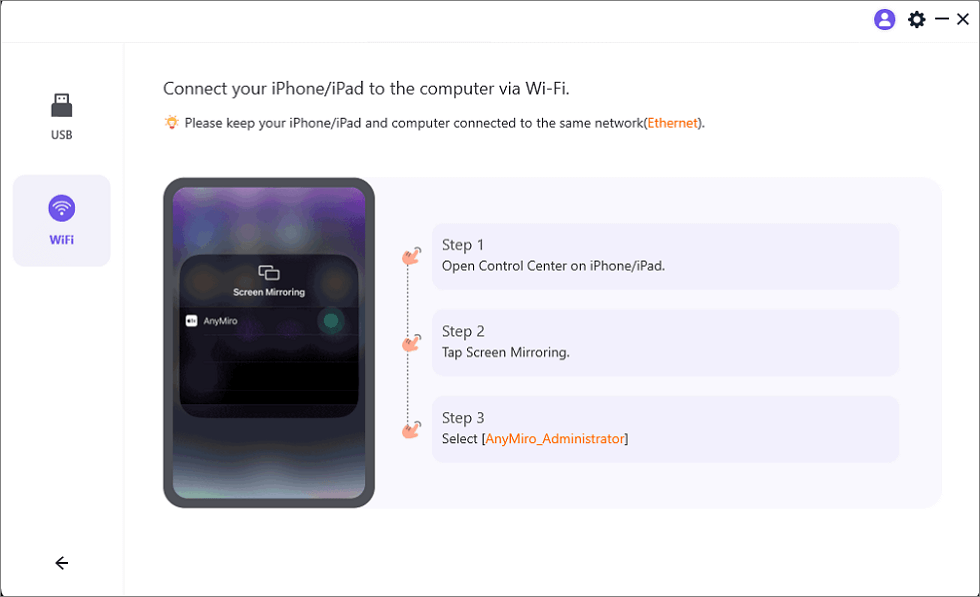
Mirror iOS to Computer via WiFi
Step 3. On your iPhone or iPad, open the Control Center, tap “Screen Mirroring,” and select “AnyMiro_Computer Name.”
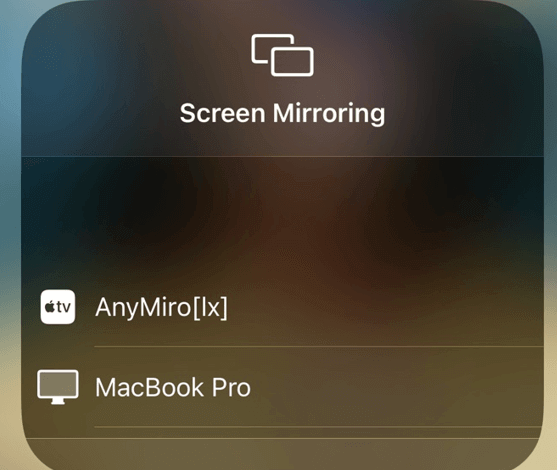
Select Your Computer from the List
Step 4. Once detected, you can enjoy high-quality screen mirroring right away!
To Use Tinder from Android to PC & Mac
Step 1. First, free download and install AnyMiro on your computer and open the application.
Free Download for all windows & 100% safe Free Download for all mac & 100% safe
Free Download100% Clean & Safe
Step 2. Select the “Android” option from the main menu.

Mirror Android to Computer
Step 3. Click the “WiFi” icon to initiate the wireless connection.
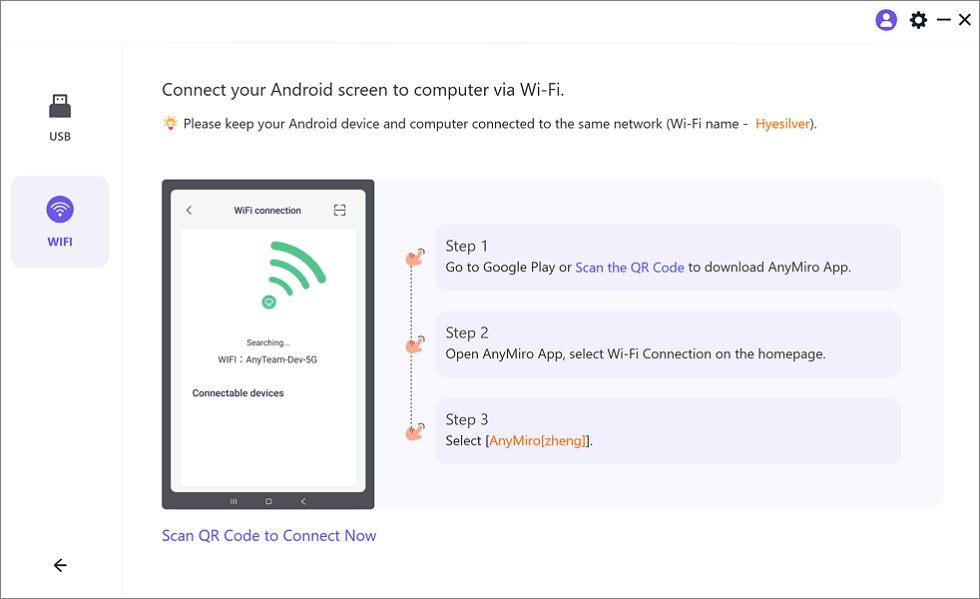
Mirror Android to Computer via WiFi
Step 4. On your phone, find AnyMiro on Google Play or scan the QR code to download the app.
Step 5. Open the AnyMiro app on your phone and choose “WiFi Connection.” Select your computer’s name from the list to mirror your phone’s screen.
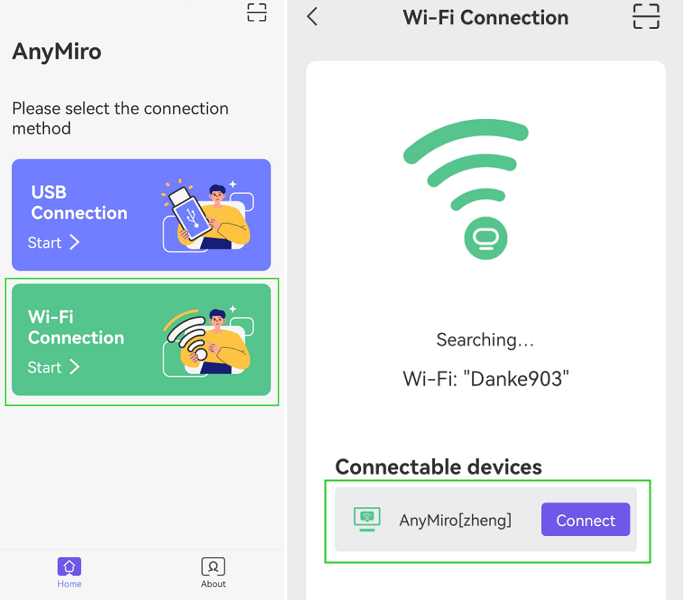
Tap WiFi Connection
Way 3. Use Tinder on Desktop via Android Emulator
If you want to use the Tinder mobile application on a desktop, run an Android emulator such as BlueStack. This method will save you time because you can use Tinder on a larger screen effortlessly. BlueStacks allows all the functionalities Tinder provides, such as swipe, chat, and matching, on Mac and Windows computers. You can adjust settings according to your interests by using the customized option. Among the pros of BlueStacks is that you can actively use the application alongside other applications on your desktop computer. To use this method:
Step 1. Start by getting BlueStacks from its official website and installing it.
Step 2. Launch BlueStacks and log in with your Google credentials.
Step 3. Open the Google Play Store, type “Tinder,” and select “Install.”
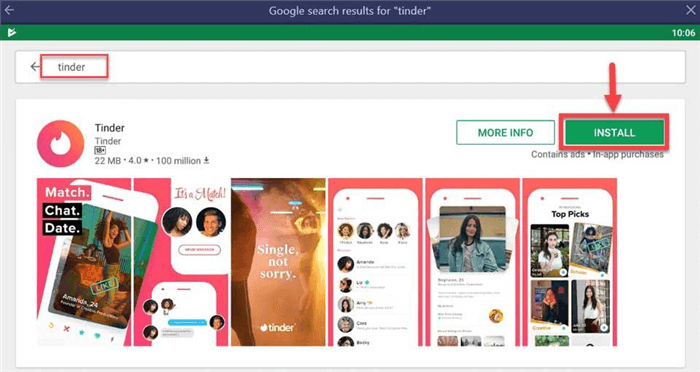
Click Install
Step 4. Once installed, open Tinder from BlueStacks’ home screen.
Step 5. Sign in to Tinder with your account and use it on your PC.
Way 4. Use Tinder on Desktop via iOS Emulator
If you are an iPhone user, you can emulate an iOS device on your PC and use Tinder and other iOS apps. Using iPadian, you can access the app features like swiping, searching for profiles, and even chatting with anyone on your Mac.
For this method:
Step 1. Verify that Flash Player is installed with the most recent version on your computer.
Step 2. Download iPadian for Mac or Windows by going to ipadian.net.
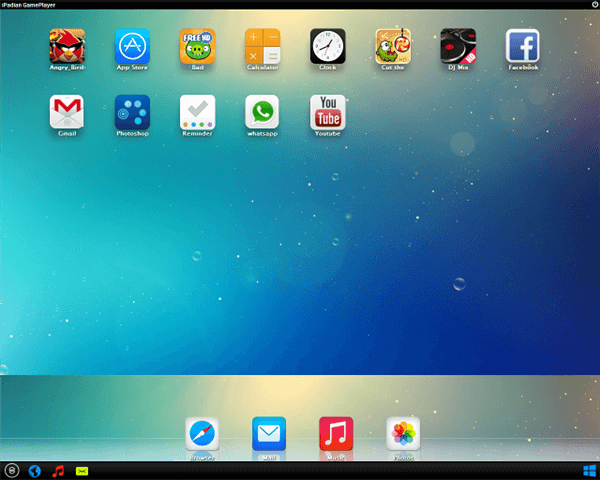
Download iPadian
Step 3. Find the .exe file and double-click it to launch the installation after the download.
Step 4. Complete the directions displayed on the screen to finish the installation.
Step 5. After installation, open the iPadian Store and search for Tinder. If Tinder isn’t available in the iPadian app store, consider using other means, like an APK installation or Android emulators.
FAQs on Tinder for Desktop
Is Tinder free to use on a desktop?
Tinder is free to use on desktop PCs via the browser, and it doesn’t have a web application yet. However, if you’re seeking a simpler solution to use the Tinder application on PC, we recommend using AnyMiro, which offers 4K screen mirroring of your iOS or Android device.
Can I access my Tinder messages on a computer?
You can access your Tinder messages on a computer through the Tinder website. Just log in, and you can chat like on your phone. AnyMiro is a great tool for mirroring your phone if you want to use the Tinder app on a PC.
Does Tinder work the same on desktop as on mobile?
Yes, Tinder functions similarly on desktop and mobile. You can swipe, match, and chat. For easy access and more features, try connecting your devices using AnyMiro.
Final Words
In conclusion, using Tinder on your PC or Mac is convenient for connecting with others. You can easily access your messages, swipe, and match them like you do on your phone. The process is straightforward whether you prefer using USB or WiFi to connect your devices. To enhance your experience, consider using AnyMiro for seamless screen mirroring from your iPhone or Android. This tool makes it easier to use Tinder on a bigger screen, giving you a better view and control.

 AnyMiro – Real-Time Screen Mirroring Tool
- More than 10 hours of stable screen mirroring connection.
- Up to 4K resolution providing a stunning visual experience.
- Integrates with live streaming tools such as OBS and Streamlabs.
- Auto-sync video and background audio with timestamp adjustments.
Free Download
100% Clean & Safe
Free Download
100% Clean & Safe
Free Download 100% Clean & Safe
Product-related questions? Contact Our Support Team to Get Quick Solution >
