How to Play Wild Rift on PC [2026]
This guide will teach you how to play Wild Rift on PC in 2025. It shows you two ways – with or without an emulator.

You’re in the middle of a ranked match in Wild Rift, your fingers slip on the small phone screen, and you miss an important skill shot. Frustrated, you think, “I wish I could play this on a bigger screen with a keyboard and mouse!” Don’t worry; you’re not alone.
Many players face the same problem. The good news is that there are easy ways to play Wild Rift on PC in 2025. Whether you want to use an emulator or prefer a tool without one, this guide will show you simple steps to get started. Now you can enjoy better controls, smoother gameplay, and a bigger screen—all from your computer.
Table of ContentsHide
Ways to Play Wild Rift on PC [Without Emulator]
Here are the best ways to play Wild Rift on PC without an emulator:
AnyMiro
AnyMiro is one of the best tools for playing Wild Rift on a PC without an emulator. It lets you mirror your mobile screen to your computer quickly and easily. This means you can play Wild Rift with a bigger screen and better view. You don’t need to worry about lag or delay because AnyMiro provides a stable and smooth connection. It also supports high video quality, showing your screen up to 4K.
Free Download for all windows & 100% safe Free Download for all mac & 100% safe
Free Download100% Clean & Safe
With real-time audio and video sync, the sound and visuals match perfectly while you play. AnyMiro is perfect for live streaming, too. It works great with OBS Studio, Twitch, YouTube, and Facebook. You can also use screen recording and screenshots to save your best game moments. AnyMiro works with Windows and Mac, and it’s safe, clean, and easy to use. Whether you’re a gamer or a creator, AnyMiro is a great choice.
Key Features:
- Lets you stream your mobile screen for up to 10 hours without lag or interruptions.
- It keeps your game sound and screen in perfect sync.
- You can take screenshots or record your gameplay anytime.
- Easy to draw or write on the screen while streaming live.
Check out the simple steps below to use AnyMiro for this purpose:
From iPhone to PC & Mac
Step 1. Free download AnyMiro on your computer and select “iOS/iPadOS” from the menu.
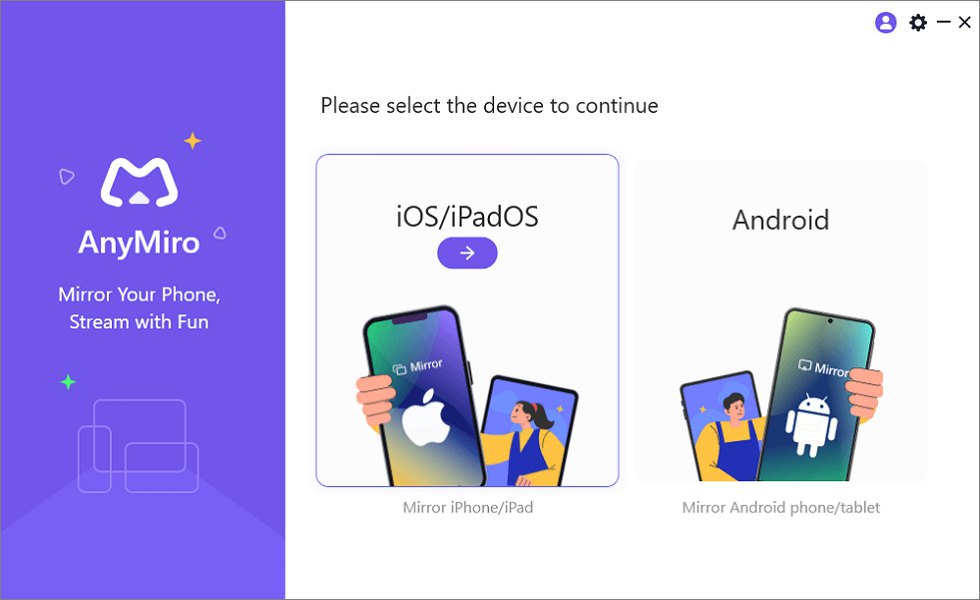
Mirror iPhone to Computer
Step 2. Click “Wi-Fi connection” to begin the wireless setup.
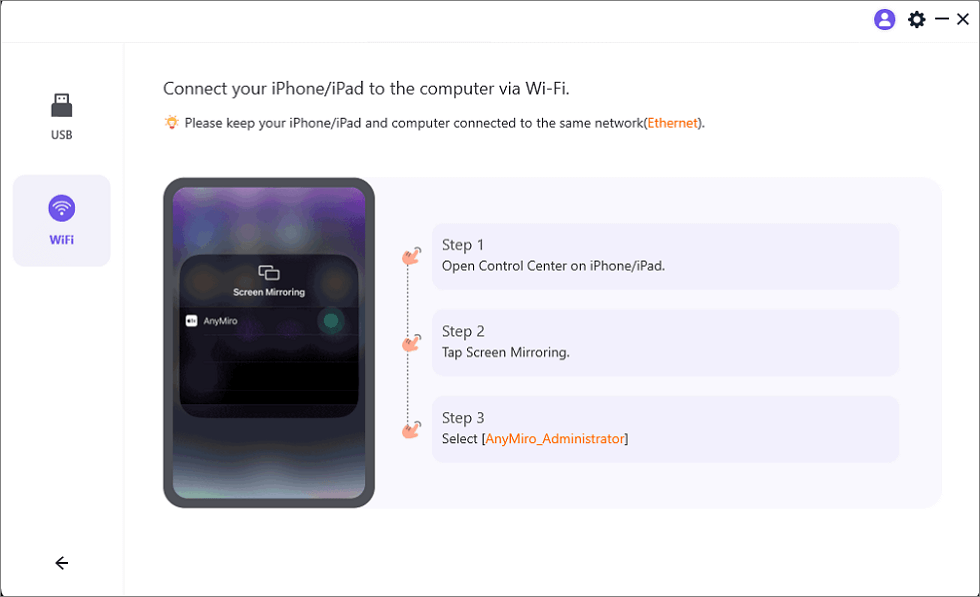
Mirror iOS to Computer via WiFi
Step 3. Make sure both your iPhone and computer are on the same Wi-Fi network.
Step 4. Open Control Center on your iPhone, press “Screen Mirroring,” and tap “AnyMiro_Computer Name.”
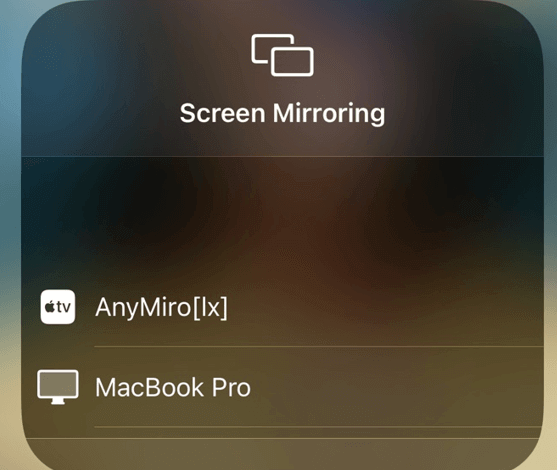
Select Your Computer from the List
Step 5. Your iPhone screen will now be visible on your computer screen.
From Android to PC
Step 1. Free download and run AnyMiro on your computer.
Step 2. Choose “Android” to start the mirroring setup.

Mirror Android to Computer
Step 3. Click “USB” and plug your Android phone into your computer.
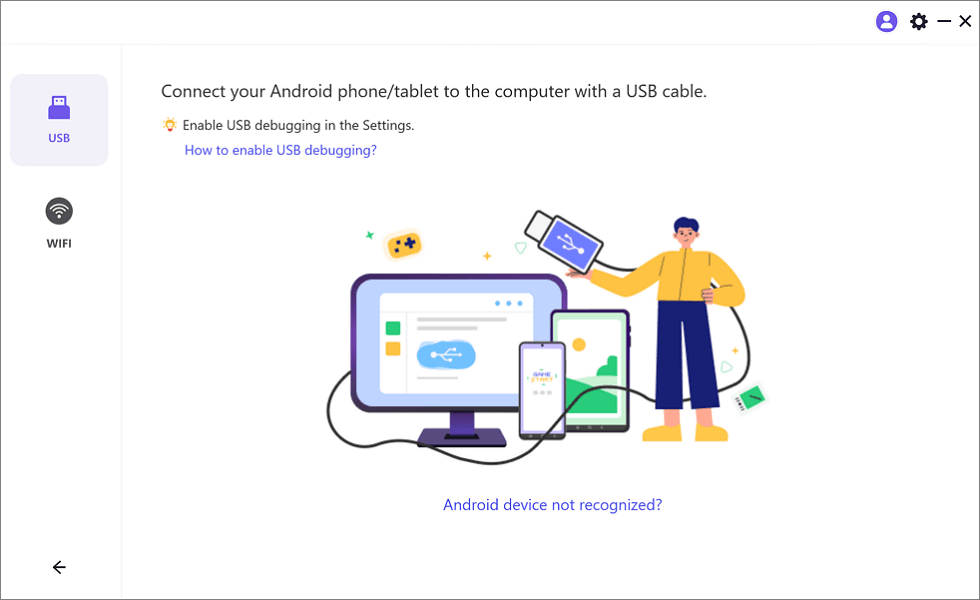
Select the USB Option for Screen Mirroring Android to PC
Step 4. Allow “USB debugging” and choose “MTP Mode” if your phone asks.
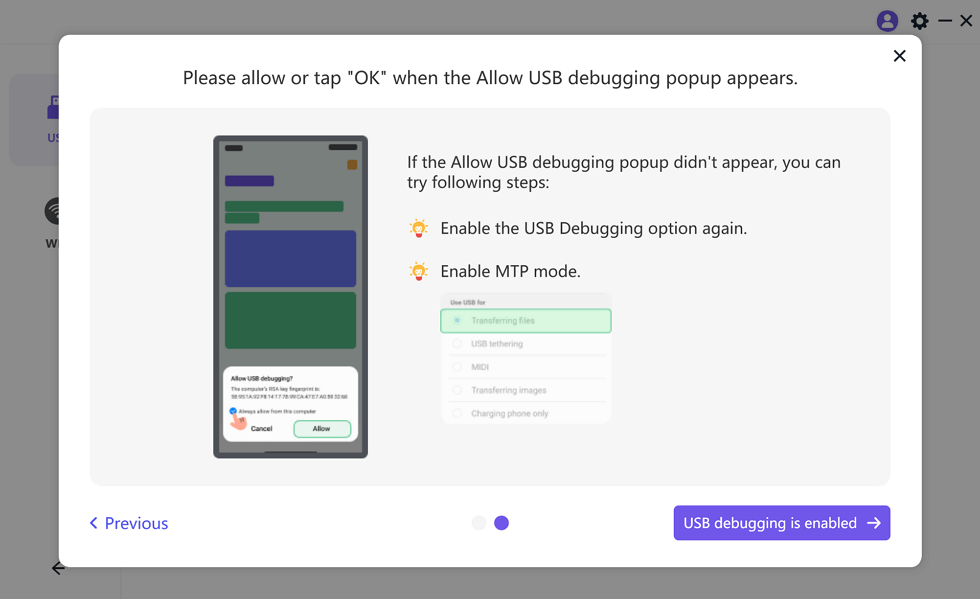
Enable USB Debugging and MTP Mode for a USB Connection
Step 5. Your Android phone screen will now appear on your computer.
Let’s View
You can wirelessly display your phone or tablet screen through the LetsView tool into a PC, Mac, or TV display.
You can enjoy a seamless experience with remote mirroring and control Phones from PCs, whiteboard drawings, and high-definition display features. Your privacy and quality are always protected thanks to its secure mirroring protocol and AirPlay, DLNA, and AMCast support. If you’re looking for ways to play Wild Rift on a PC without an emulator, LetsView is a perfect option to stream gameplay in real time with zero lag. For this:
Step 1. Download and install LetsView on both your phone and PC or Mac.
Step 2. Open the app on both devices and connect them to the same Wi-Fi network. Once connected, select “Start Mirroring” and continue by tapping on your PC.
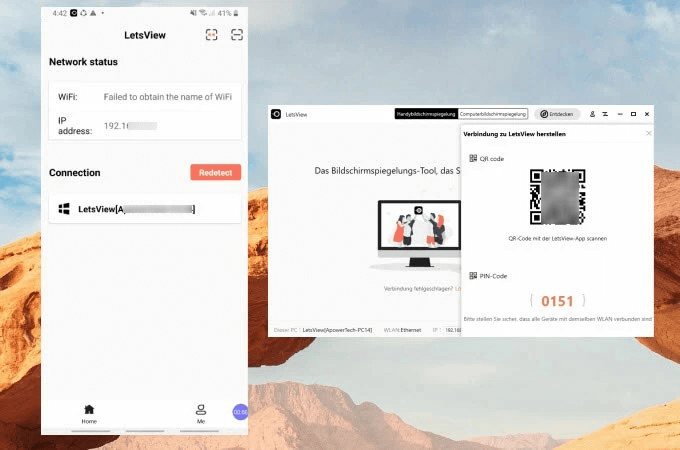
Tap Screen Mirroring
Step 3. After connecting the devices, open “League of Legends: Wild Rift” on your phone. Now, you can play Wild Rift on your PC or Mac with a bigger screen and smoother controls.
Ways to Play Wild Rift on PC [With Emulator]
Now, let’s have a detailed look at the ways to play Wild Rift on PC with an emulator:
BlueStacks
BlueStacks transforms Android gameplay by enabling you to play League of Legends: Wild Rift along with other Android games on your personal computer without hassle. The tool supports high FPS rates that provide optimal gameplay performance by reaching up to 240 frames per second with no lag or disruption.
To use this:
Step 1. Open your web browser on your PC and download the emulator.
Step 2. Sign in to your account and go to the built-in Google Play Store to find Wild Rift.
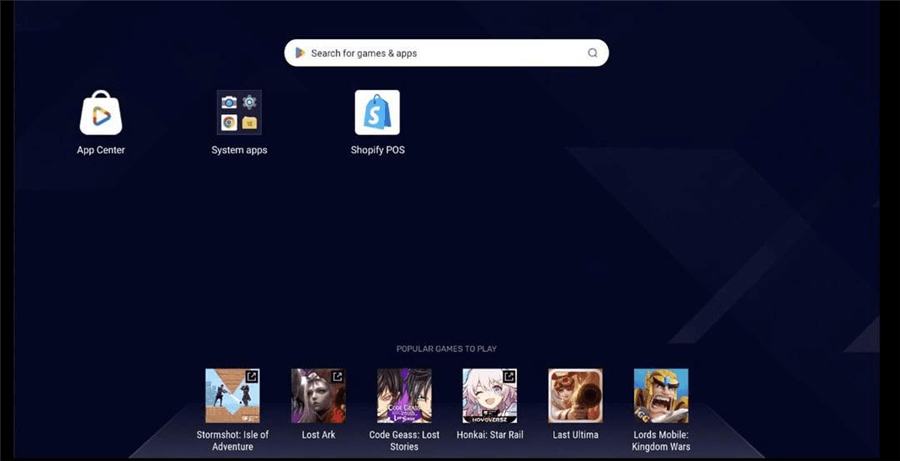
Search Wild Rift
Step 3. Download League of Legends: Wild Rift on your PC.
Step 4. Once the download is complete, open the game and start playing.
LD Player
LDPlayer delivers intensive performance capabilities alongside remarkable features that optimize gameplay. The program provides smooth gameplay at high FPS rates and lowered CPU and GPU resource usage to achieve superior performance. The tool enables rapid processing and better compatibility standards to guarantee smooth gaming and multi-instance functionality. High-definition graphics are available on this tool, providing you with superior visuals as the best option for quality gaming. With these features, you can play Wild Rift on your PC to create either stability or performance excellence for your games. To use this tool:
Step 1. Download and install LDPlayer from the official website.
Step 2. Open LDPlayer and click on the “LD Store” icon.
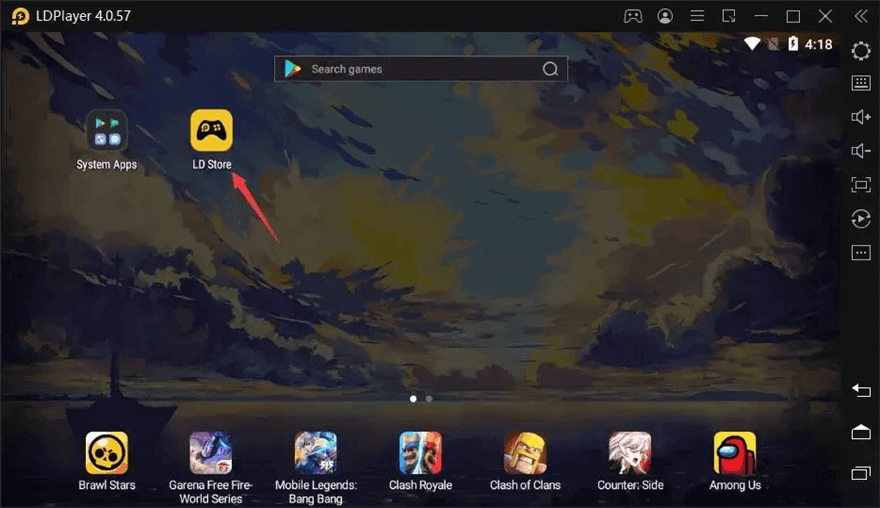
Open LD Store
Step 3. Search for Wild Rift and click “Install” to download it. Once installed, launch the game and start playing on your PC.
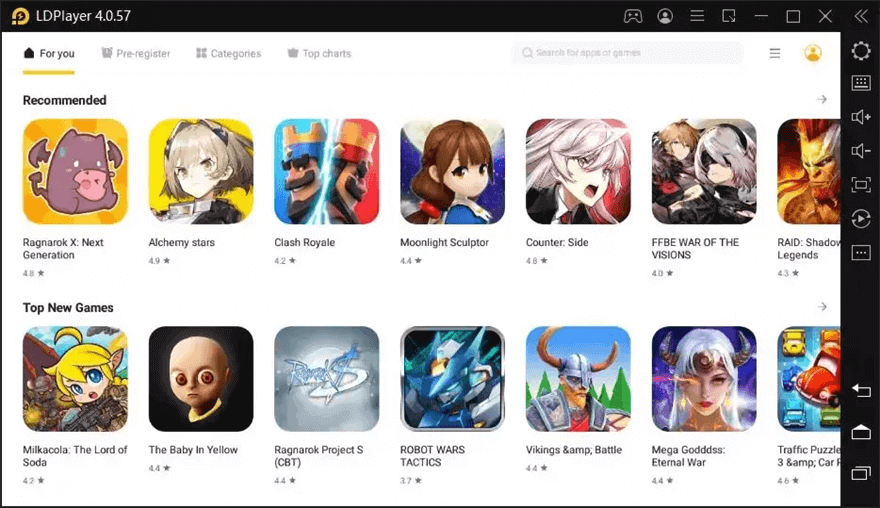
Search The Game
Memu Play
Android emulator Memu Play gives you an exceptional gaming experience when running applications on your PCs. The game operates through High FPS technology and Customizable Control features, enabling smooth and responsive gameplay. The game experience in Wild Rift becomes more visually stunning through Keyboard and Mouse control for precise gameplay.
By enabling Multi-Instance Play, you can execute concurrent game or account sessions while actions are mirrored in real-time across different instances through its Multi-Instance Sync function. With the Advanced Graphics Settings, you can improve visual quality, and through File Sharing, you can move files between your PC and mobile devices effortlessly. Memu Play is a premium solution for playing Wild Rift on PC.
Check out the steps to use it below:
Step 1. Download the MEmu installer and complete the setup.
Step 2. Open MEmu and launch Google Play on the desktop.
Step 3. In Google Play, search for “League of Legends: Wild Rift.”
Step 4. Click “Install” to download and install the game.
Step 5. Once the installation is complete, click the game icon to start. Enjoy playing League of Legends: Wild Rift on your PC with MEmu.
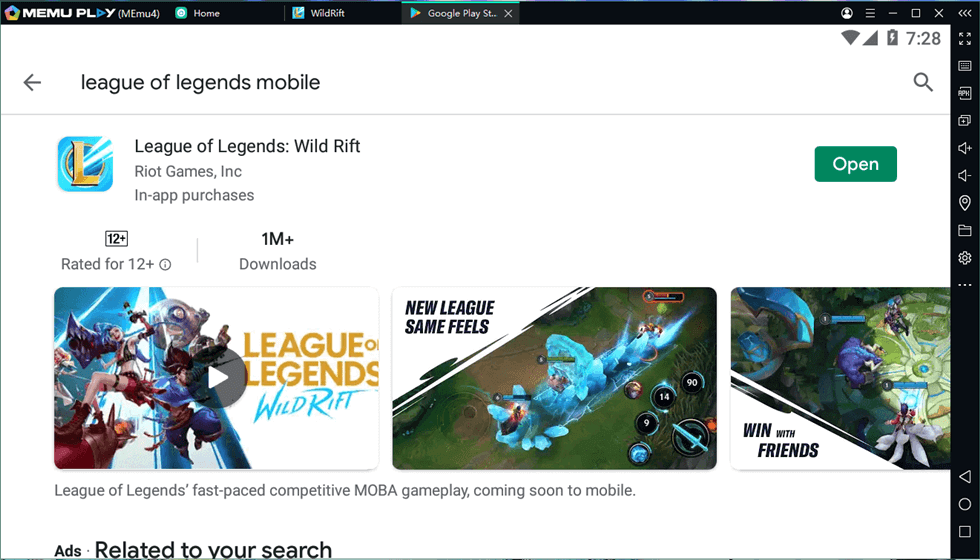
Open the Game
FAQs on Play Wild Rift on PC
Which system specifications does Wild Rift need for operation?
The PC requirements for Wild Rift include a 1.5 GHz quad-core CPU, 2 GB RAM, Mali-T860 GPU, Android 5, and 8 GB free storage (1.8 GB for installation and 6.2 GB for data).
What is the procedure for Wild Rift PC installation and de-installation?
Windows 10 yous cannot obtain Wild Rift directly, but an emulator allows the game to be downloaded and played. You can uninstall it via the emulator’s settings.
Can I use AnyMiro for screen mirroring Wild Rift on PC?
Yes, AnyMiro can mirror your mobile screen to your PC, allowing you to play Wild Rift smoothly on a bigger screen.
Final Words
You can play Wild Rift on PC without emulators by combining screen mirroring tools with LDPlayer and MEmu Play emulators. You can achieve superior gameplay through these methods because they deliver enhanced performance, optimization, and clear graphics resolution. The reliable tool enables you to play games effortlessly on a larger display screen. The best solution for uninterrupted screen mirroring is AnyMiro. The combination of high-definition screen-sharing capabilities with lag-free performance makes the tool an optimal selection for gamers who want to use their PC as a Wild Rift platform.
Product-related questions? Contact Our Support Team to Get Quick Solution >
