Wireless Display Poor Quality: How to Fix?
Top ways and an alternative tool are recommended in this article when you encounter a wireless display poor quality.

Wireless Display Poor Quality: How to Fix?
Replace Microsoft Wireless Display with stable and smooth mirroring tool – AnyMiro
- Fast response time within 10 ms and 60fps frame rate.
- A stunning visual experience with no color difference.
- Lag-free screen mirroring and 4k resolution.
Available for both Win & Mac
In recent years, wireless display technology has become increasingly popular, which allows users to easily mirror their mobile device’s screen to a larger display such as a PC, TV, or monitor. However, one problem that usually comes with the Wireless Display is its poor quality. Frequently reported issues include video or audio playback, some parts of the display are missing, etc. Those troubles can often be a frustrating issue that hinders the overall experience. In this article, we will explore the possible reason behind this issue, and then the top ways to improve wireless display quality to enhance your viewing and presentation experience will be provided. Whether you want to optimize your wireless display quality for gaming, streaming, or professional use, we’ve got you covered.
Table of ContentsHide
Possible Causes of Poor Quality
When encountering issues with poor quality while sharing content from a smaller screen onto a larger screen, it’s crucial to pinpoint the underlying causes before attempting to rectify them. Several factors can contribute to the degradation of the viewing experience when using wireless display technology. Here, we will delve into these causes of wireless display poor quality in detail:
- Poor Quality of Internet Connection: A weak or unstable Wi-Fi connection is a prevalent cause of poor quality in wireless screen sharing. This issue can lead to various problems such as lag, buffering, and interruptions in the content stream. The quality of the internet connection plays a vital role in ensuring smooth and high-resolution transmission.
- Outdated Hardware or Software: Aging hardware and software can significantly impact the quality of wireless screen sharing. Older devices may lack the necessary capabilities to support high-quality streaming or mirroring. This can manifest as reduced resolution, lower frame rates, or compatibility issues with modern streaming standards.
- Interference from Other Electronic Devices: The presence of other electronic devices in the vicinity can disrupt the signal strength and overall quality of the wireless display. Devices such as microwaves, cordless phones, and even neighboring Wi-Fi networks emit electromagnetic radiation that can interfere with the wireless signal. Reducing such interference is essential for a smoother screen-sharing experience.
- Incompatibility of Devices: The type of wireless display technology in use can also affect the quality of the connection. Different wireless standards, like Miracast, Chromecast, or AirPlay, may not always be compatible with all devices. Incompatibility issues can result in a loss of image quality or failed connections, impacting the viewing experience.
- Distance Between the Projector and the Receiver: The physical distance between the device sharing the content and the display can significantly affect the quality of wireless screen sharing. The signal strength tends to weaken as the distance increases. Therefore, if the projector or the receiver is too far from the source device, it can result in signal loss, leading to a decrease in quality.
To address wireless display poor quality, it’s essential to identify which of these causes is at the root of the issue. Once the specific cause is determined, appropriate measures can be taken to improve the quality of the display, such as upgrading hardware, optimizing the internet connection, minimizing electronic interference, ensuring device compatibility, or adjusting the physical placement of the equipment. By understanding and addressing these underlying factors, users can enhance the overall quality of their wireless screen-sharing experiences.
How to Fix Wireless Display Poor Quality Issue
We have figured out the possible causes of poor quality of wireless display. In this part, the troubleshooting will be given to optimize wireless display quality targeting each reason above.
1. Poor Quality of Internet Connection
Step 1: Check the Wi-Fi Signal Strength
Ensure that the device sharing the content and the receiving screen have a strong Wi-Fi signal. You can do this by checking the Wi-Fi bars or signal strength indicator on your device.
If the signal is weak, consider moving closer to the Wi-Fi router or using Wi-Fi range extenders to improve signal strength.
Step 2: Reduce Network Congestion
Avoid running bandwidth-intensive tasks on the same network while screen sharing. Close unnecessary applications or pause downloads and updates on other devices.
Step 3: Upgrade Your Internet Plan
If you frequently experience poor quality due to slow internet, consider upgrading to a higher-speed internet plan from your service provider.
2. Outdated Hardware or Software
Step 1: Update Device Software
Ensure that both the source device and the receiving screen have the latest software updates. Manufacturers often release updates to improve compatibility and performance.
Step 2: Upgrade Hardware
If your device is too old to support high-quality streaming, consider upgrading to a newer model with enhanced capabilities. Newer devices are better equipped for modern wireless display technologies.
3. Interference from Other Electronic Devices
Step 1: Identify Interfering Devices
Determine which electronic devices might be causing interference. Common culprits include microwaves, cordless phones, and nearby Wi-Fi networks.
Step 2: Relocate or Shield Interfering Devices
Move or shield interfering devices to reduce electromagnetic interference. For example, place your wireless router away from sources of interference and ensure it is on a different frequency channel from nearby routers.
4. Incompatibility of Devices
Step 1: Verify Device Compatibility
Check if your source device and receiving screen are compatible in terms of wireless display technology. Some devices are designed for specific standards (e.g., Miracast, Chromecast, AirPlay), so ensure they are compatible with each other.
Step 2: Use an Adapter
If your devices are not inherently compatible, consider using a third-party adapter or casting device that bridges the gap between them and allows for smooth screen sharing.
5. Distance Between the Projector and the Receiver
Step 1: Optimize Placement
Place the source device and receiving screen closer together to minimize the distance and improve signal strength. This reduces signal loss and enhances the quality of the wireless display.
Step 2: Consider Signal Boosters
If the physical placement options are limited, you can use signal boosters or wireless repeaters to extend the range and improve signal quality.
By following these step-by-step solutions, you can address the specific causes of poor quality in wireless screen sharing and improve the overall quality of your screen-sharing experience. Tailor your approach to the particular issues you encounter, and consider seeking professional assistance if necessary.
How to Improve Wireless Display Quality – Use the Alternative App
If you’re seeking a simpler and more user-friendly tool for high-quality wireless screen sharing, I would highly recommend giving AnyMiro a try. AnyMiro offers an intuitive and efficient solution for your wireless display needs, making the process smoother and more accessible for users of all levels of tech expertise.
Here’s why you should consider using AnyMiro:
- Seamless Connection: AnyMiro ensures a rock-solid connection for mirroring, so you can achieve up to 10 hours of mobile game or drawing streaming.
- High-Quality Display: Every pixel of your screen will shine anywhere you wish, like your computer, OBS Studio, and Twitch. You and your audience will be amazed by the excellent mirrored screen since it always shows the best resolution – up to 4K, as vibrant as your original screen.
- Cross-Platform Compatibility: AnyMiro is compatible with a wide range of devices, making it easy to share your screen from different platforms. Whether you’re using Windows, macOS, or mobile devices, AnyMiro has you covered.
- User Support: AnyMiro provides excellent customer support to assist you with any questions or issues you might encounter. You’re not on your own when you choose AnyMiro.
Below, steps to mirror Android to PC are introduced to you. Before you perform any function operation, get the tool downloaded onto your computer. With this method, you need to download both the AnyMiro software and the mobile app.
Free Download for all windows & 100% safe Free Download for all mac & 100% safe
Free Download100% Clean & Safe
Step 1. Get AnyMiro on your computer, and enter Android mirroring.

Mirror Android to Computer
Step 2. Choose WiFi as your mirroring connection method.
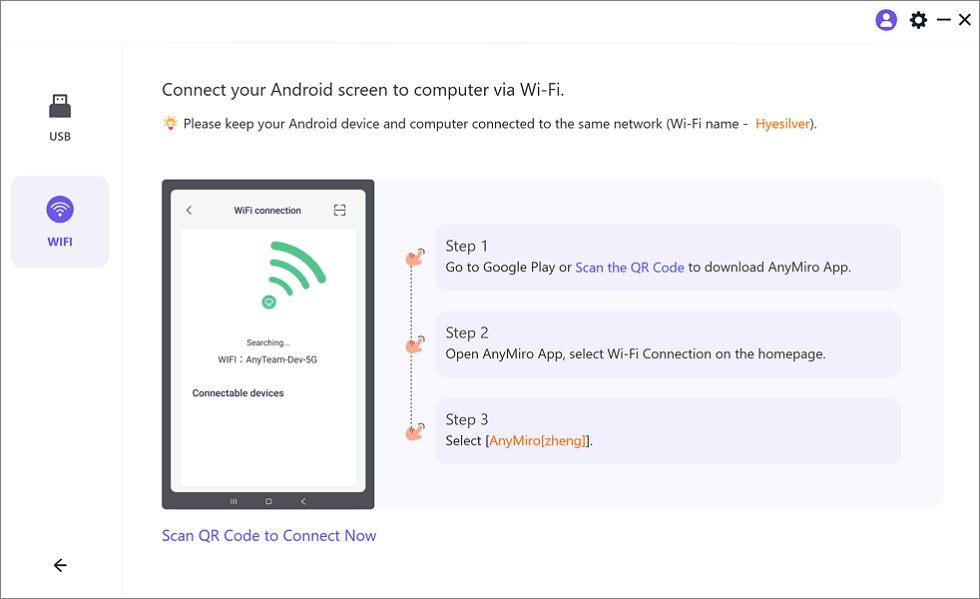
Mirror Android to Computer via WiFi
Step 3. Connect your Android and computer to the same WiFi, then download the AnyMiro app on your Android phone.
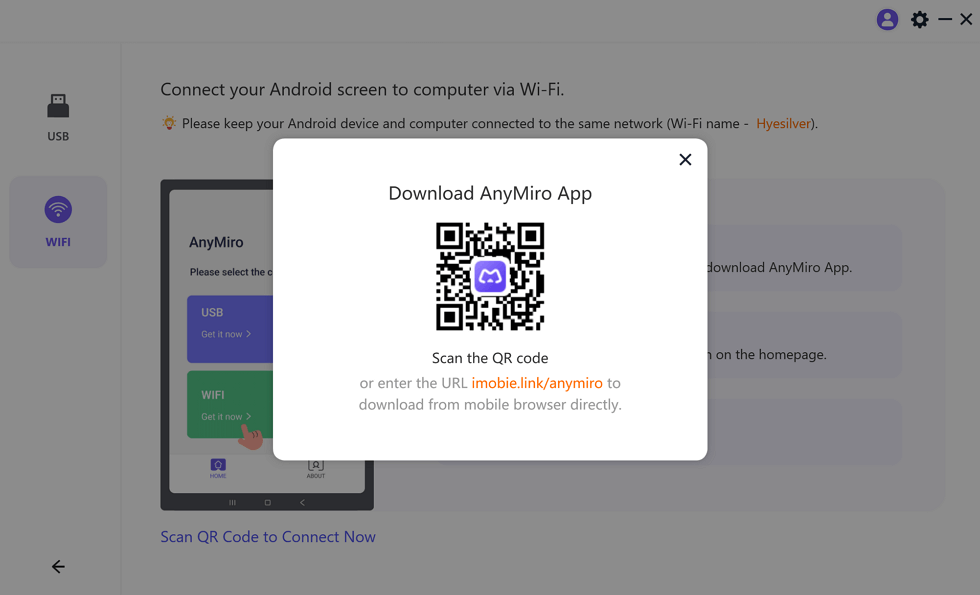
Download AnyMiro App on Your Phone
Step 4. Open the AnyMiro app, and tap the WiFi connection to search your computer.
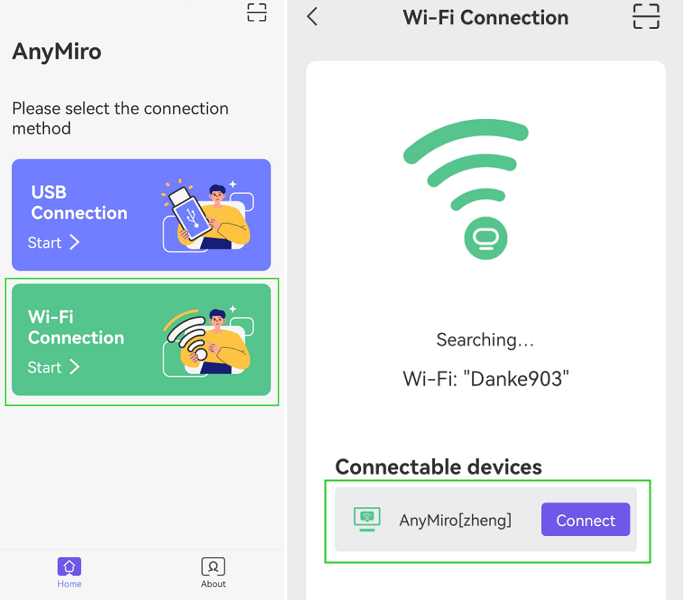
Tap WiFi Connection
Step 5. Select your computer’s name, and a few seconds later the Android screen will be mirrored to your computer’s screen.
By following the steps above, you will have a smooth, stable, and quality connection to optimize wireless display poor quality!
FAQs
1. What is better than Miracast?
AnyMiro is better than Miracast in terms of stableness, fast pace, and display quality.
2. Why is there a lag in the wireless display?
Lag during the wireless display, also known as display latency, can occur for several reasons from network congestion, slow internet connection, distance, and signal to hardware and software.
3. How do I stop Miracast from lagging?
To address Miracast lag, you can take several steps to optimize your setup and minimize latency. Here are some effective strategies to help reduce Miracast lag:
- Improve Wi-Fi Signal Strength
- Reduce Network Congestion
- Use a 5GHz Wi-Fi Band
- Update Firmware and Drivers
- Optimize Display Settings
The Bottom Line
The wireless display poor quality problem is indeed infuriating when screen mirroring content from phones to PCs or TVs. However, you need to check the root causes of your devices from the network signal to hardware and software. But if you use an alternative tool to facilitate a stable, swift, immersed audio and visual experience with quality applied in the wireless display, AnyMiro is the best you are chasing!
AnyMiro – Real-Time Screen Mirroring Tool
Free download AnyMiro to enjoy a fast, stable, and smooth screen mirroring experience. You can mirror for better game playing, video watching, or live streaming mobile phone content.
Product-related questions? Contact Our Support Team to Get Quick Solution >
