Top 5 Xbox Emulators for Android
In this guide, you will learn about the top Xbox emulator for Android in 2025. These emulators help you play Xbox games smoothly on your phone. You will also find a bonus tip on how to play mobile games on a PC without emulators using AnyMiro. This tutorial makes Xbox games readily available on Android.

Top 5 Xbox Emulators for Android
Try AnyMiro to mirror Android and iPhone to PC for free.
- Fast response time within 10 ms and 60fps frame rate.
- A stunning visual experience with no color difference.
- Lag-free screen mirroring and 4k resolution.
Suppose you want to play your favorite Xbox games on your Android phone, but you don’t own an Xbox console. You try looking for a way, but nothing seems to work. Sounds frustrating, right? The good news is that you can use an Xbox emulator for Android to enjoy Xbox games on your phone. These emulators let you play Xbox classics without needing a real console. We have picked the top 5 Xbox emulators for Android to help you play smoothly. In this guide, you will find the best Xbox emulators and a bonus tip for playing games on PC without emulators. Let’s get started!
Table of ContentsHide
What is an Xbox Emulator?
An Xbox emulator is a special app that lets you play Xbox games on Android. It works by mimicking the Microsoft Xbox console system (hardware and software), so your phone can run Xbox games. This is useful if you don’t have an Xbox but still want to enjoy its games. Many emulators are available, but only a few work well. Some run Xbox 360 games, while others support original Xbox titles. They help bring console-quality gaming to mobile devices.
Key Features:
- Plays Xbox games on Android without needing a console or disc.
- Offers smooth gameplay with high-speed performance and minimal lag issues.
- Provides good graphics quality for an enhanced gaming experience on mobile.
- Compatible with touch controls and external Bluetooth game controllers.
- Requires a high-performance phone to run games without crashes.
- Regular updates improve game compatibility and fix software bugs frequently.
Top 5 Xbox Emulators for Android
Now, let’s have a detailed look at the top Xbox emulators for Android:
Xenia
Xbox Emulators for Android Xenia
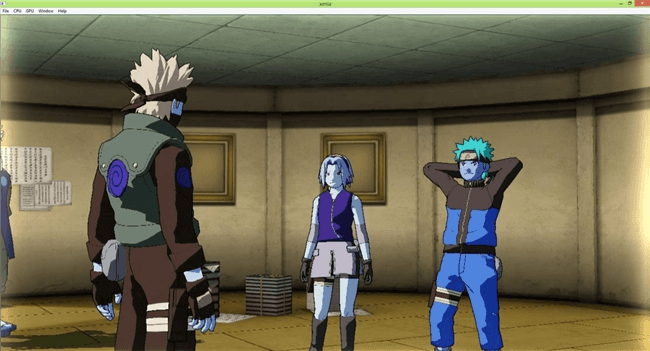
Xenia is an open-source project that emulates Xbox 360 games on modern PCs. While primarily designed for Windows, experimental efforts have been made to run Xenia on Android devices. It allows users to play Xbox 360 titles without the original console. Features include video upscaling up to 3x, post-processing effects like Nvidia FAA and AMD FidelityFX, and controller binding through configuration files. Xenia also supports individual game patching in its Canary builds.
Pros:
- Post-processing effects
- Active development community
- High compatibility with games
- Supports various enhancements
Cons:
- High system requirements
- Limited Android support
- Occasional stability issues
RetroArch
Xbox Emulators for Android RetroArch
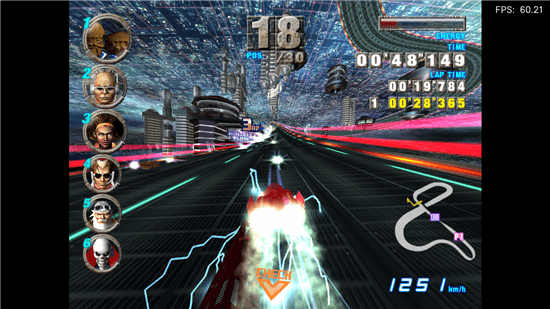
With the help of the free app RetroArch, you can play classic Xbox games on your Android phone. You can speed up game response, play online with friends, fix errors, and enhance graphics. Additionally, it supports blind players, allows you to play from original game discs, and offers live translation. You can play Xbox games anywhere because RetroArch is compatible with various devices.
Pros:
- Supports multiple systems
- Advanced features available
- Active development community
- Free and open-source
Cons:
- Complex initial setup
- Steep learning curve
- Performance varies by core
Xemu
Xbox Emulators for Android Xemu
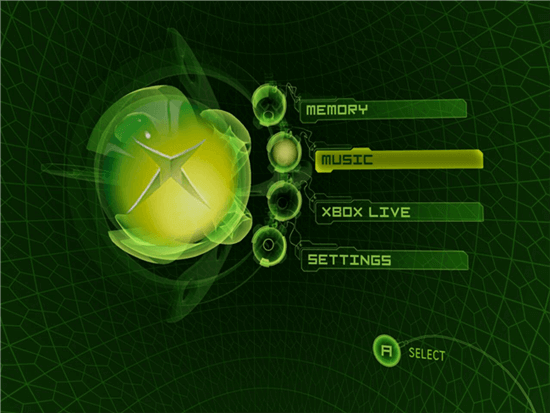
Xemu is an open-source Xbox emulator that lets users play original Xbox games on PCs, macOS, Linux, and experimental Android setups. Xemu supports controller input, snapshots (save states), hardware emulation, and networking features to connect with real Xbox consoles. It also offers render scaling to improve graphics.
Pros:
- Free and open-source
- Good game compatibility
- Cross-platform support
- Active updates
Cons:
- No official Android support
- High system requirements
- Some performance issues on mobile
X360 Emulator
Xbox Emulators for Android X360 Emulator
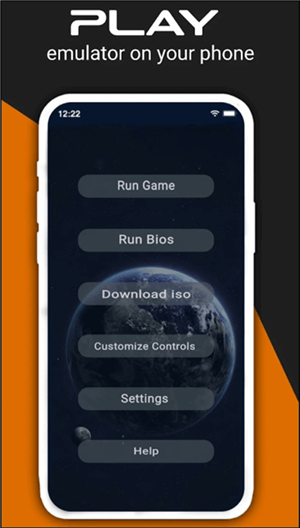
With the help of X360 Emulator, you may play Xbox 360 games on your Android phone. Its straightforward UI, which resembles the Xbox 360 dashboard, creates a realistic gaming experience. To play the way you like, you can also adjust the controls. The emulator does not include game pictures or BIOS files. Thus, users will need to supply these themselves.
Pros:
- Free to use
- Wide file compatibility
- Portable gaming solution
- User-friendly interface
Cons:
- Game compatibility issues
- Requires BIOS and game files
- Potential performance limitations
E-box
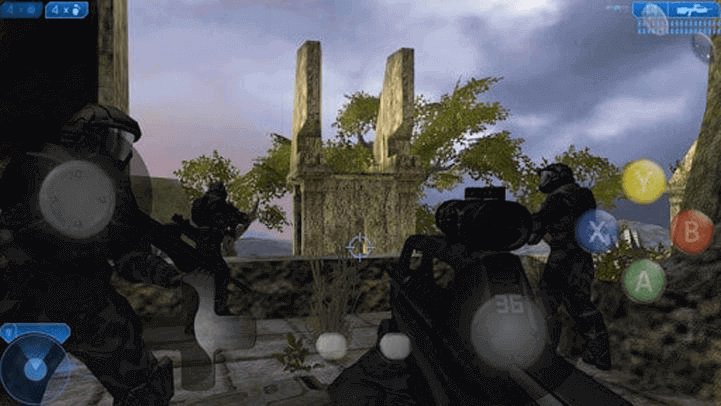
Xbox Emulators for Android E-box
E-box was created to enable original Xbox games on Android smartphones. DarkerGreen created it to let people play vintage Xbox games on their tablets and smartphones. The emulator’s intuitive UI makes it simple to use and navigate games. Additionally, it supports gamepad controllers, making gaming more realistic.
Pros:
- Free to use
- Easy installation
- Authentic gaming experience
- Active development
Cons:
- Performance varies by device
- Not all games are supported
- Requires powerful hardware
Bonus Tip. How to Play Mobile Games on Your PC without Emulators?
AnyMiro is a fantastic option for playing mobile games on your PC without needing an emulator. By using this program, you may mirror your phone screen onto a computer, making gaming stable and smooth. Clear and vibrant images are guaranteed, thanks to its compatibility for up to 4K resolution. AnyMiro includes features like live annotation, letting you draw or highlight key points while mirroring. It also supports screenshots and recording to save your best gaming moments instantly. The tool is perfect for gamers, content creators, educators, and even virtual YouTubers who want high-quality streaming without using an emulator.
AnyMiro – Real-Time Screen Mirroring Tool
Free download AnyMiro to enjoy a fast, stable, and smooth screen mirroring experience. You can mirror for better game playing, video watching, or live streaming mobile phone content.
Key Features:
- AnyMiro provides stable and lag-free mirroring for up to 10 hours.
- It supports high-definition visuals with no color difference for clear streaming.
- The audio and video sync perfectly in real time without any delay.
- You can take instant screenshots and record videos without interruptions.
- It captures every gaming detail in up to 4K high-resolution quality.
- Virtual YouTubers can stream their avatars in real-time with ease.
Let’s explore the detailed steps to use AnyMiro:
From Android to PC
Step 1. Open AnyMiro on your computer and select “Android.”

Mirror Android to Computer
Step 2. Click “Wi-Fi” to start the wireless setup.
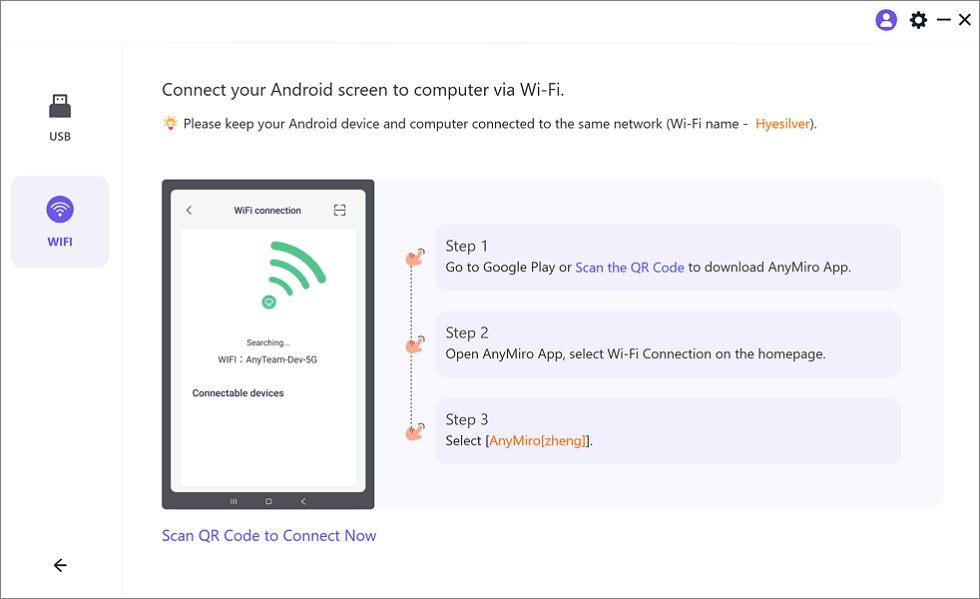
Mirror Android to Computer via WiFi
Step 3. Download the AnyMiro app from Google Play or scan the QR code.
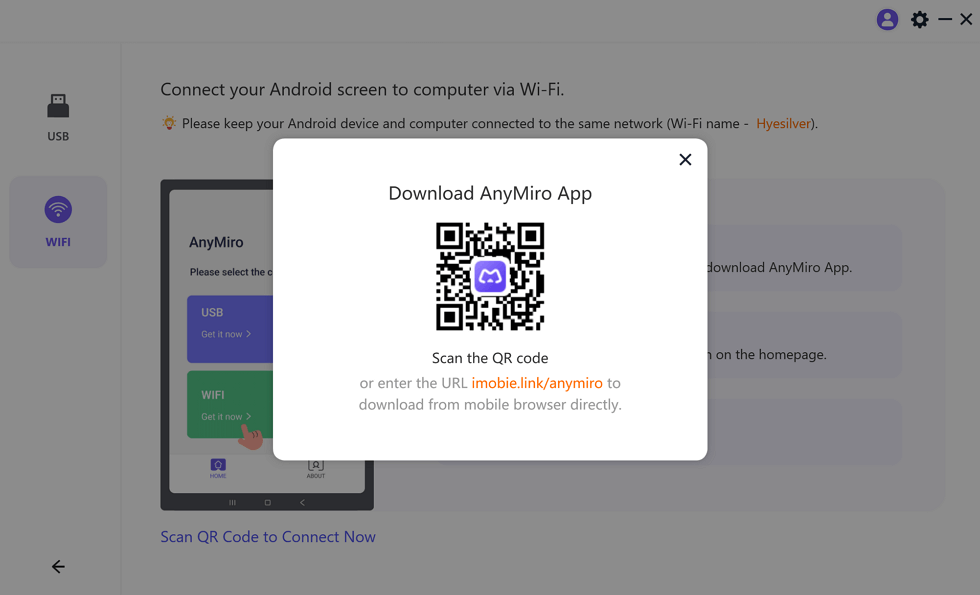
Download AnyMiro App on Your Phone
Step 4. Open the app and select “Wi-Fi Connection.”
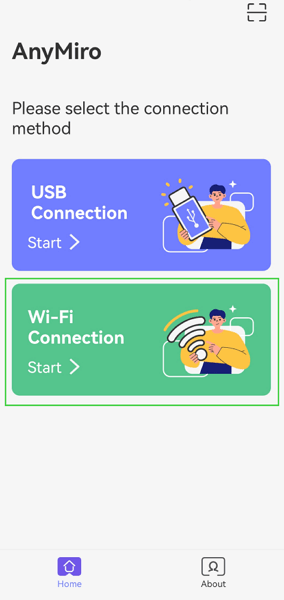
Select the Connection Method
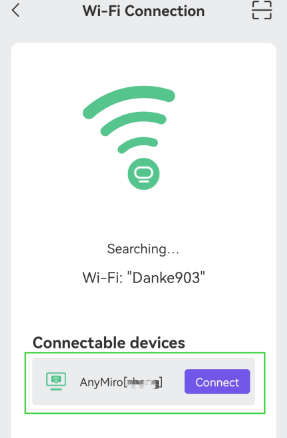
Step 5. Pick your computer’s name from the list to start mirroring.
Select Your PC to Access Android from PC
FAQs on Xbox Emulators for Android
Can I play all Xbox games on Android?
Some Xbox games are incompatible with Android emulators. Certain games may function flawlessly, while others might have bugs or not function at all. The emulator’s compatibility with the game and the power of your phone determines how well it performs.
Can an Xbox emulator be used with a controller?
A few Xbox games don’t work on Android emulators. Some might work perfectly fine, while others may have issues or not work at all. The compatibility of the emulator with the game and the capability of your phone will decide how good it works.
Is it possible to use an Xbox emulator with a controller?
Some Xbox games run slowly because emulators require a lot of power to work. Your phone’s processor, RAM, and emulator settings affect performance. Lowering graphics settings or using a stronger phone can help improve gameplay.
Final Words
Playing Xbox games on your phone is possible with Xbox emulators for Android. Always download emulators from trusted sources and use a controller for a better experience. For the best screen mirroring experience while gaming, try AnyMiro. It offers high-quality mirroring with no lag, USB and Wi-Fi connectivity, and stable performance for long gaming sessions.
Product-related questions? Contact Our Support Team to Get Quick Solution >
