How to Fix Zoom Screen Share Not Working
This tutorial will teach you how to resolve issues with Zoom screen sharing. Take easy actions like upgrading Zoom, enabling screen sharing, cleaning your cache, and verifying your permissions.

How to Fix Zoom Screen Share Not Working
Try AnyMiro to mirror iPhone to PC for free via USB and WiFi.
- Fast response time within 10 ms and 60fps frame rate.
- A stunning visual experience with no color difference.
- Lag-free screen mirroring and 4k resolution.
Suppose you are prepared to share your screen for a crucial Zoom meeting, but it fails. When you try again, nothing happens. This can be unpleasant, especially if you have an important presentation or online meeting ahead. Thankfully, fixing a problematic Zoom screen share is easy. You may need to check your device’s settings, enable screen sharing, or update Zoom.
This post will show you 7 simple Zoom screen share problem solutions. If you follow these procedures, you will have no issues sharing your screen. Now, let’s begin!
Table of ContentsHide
Why Is Screen Share Not Working on Zoom?
Here are some common reasons why Zoom screen sharing may not work:
- Screen Sharing is Disabled: You won’t be able to share your screen if the host has prohibited it. The meeting host must enable this feature for attendees in the Zoom settings.
- Outdated Zoom Version: Utilizing an obsolete version of Zoom can be problematic. Certain program features might not function properly if it is not updated.
- Device or App Glitch: Sometimes, a small bug in Zoom or your device can stop screen sharing. Restarting your device or closing and reopening Zoom can quickly fix the problem.
- Incorrect Zoom Settings: If your Zoom settings block screen sharing, it won’t work. You need to check your settings and ensure that screen sharing is turned on for you.
How to Fix Zoom Screen Share Not Working [7 Solutions]
Now, let’s explore the best 7 fixes for the Zoom screen share not working issue:
Enable the screen sharing feature
If screen sharing is not enabled, you won’t be able to share your screen in a meeting. Zoom has a setting that allows or blocks screen sharing. The meeting host must go to Zoom settings and turn on the screen-sharing option. If this setting is off, no one except the host can share their screen. Enabling this option ensures that participants can easily share their screens without any issues. To enable this:
Step 1. Open Zoom’s website on your computer and log in to your account.
Step 2. Click on “Settings” from the menu on the left side.
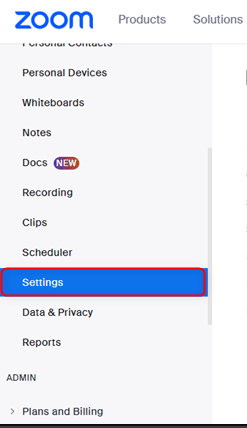
Click Settings
Step 3. In Settings, go to the “Meeting” section and then click “In Meeting (Basic)”.
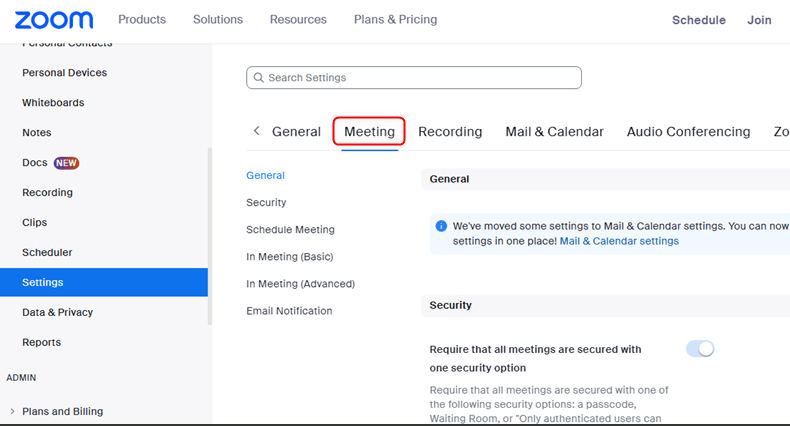
Click In Meeting (Basic)
Step 4. Scroll down until you see the “Screen Sharing” option.
Step 5. Turn on the “Screen Sharing” switch to allow screen sharing.
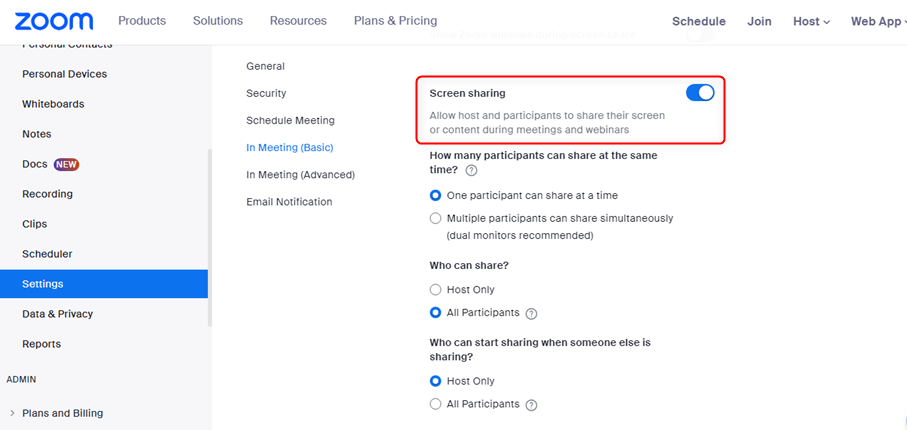
Turn On the Screen Sharing
Allow participants to share screens during meetings
By default, the host may be the only person who can screen-share. The host should modify the meeting controls if you are joining and are prevented from screen-sharing. That way, everyone in the meeting can screen-share. Otherwise, the members will be unable to screen-share despite the functioning of the Zoom app. For this:
On PC:
Step 1. Open Zoom on your web browser or desktop app and log in.
Step 2. Start or join a meeting.
Step 3. Click the upward arrow next to “Share Screen” at the bottom.
Step 4. Choose “Advanced Sharing Options…” from the pop-up menu.
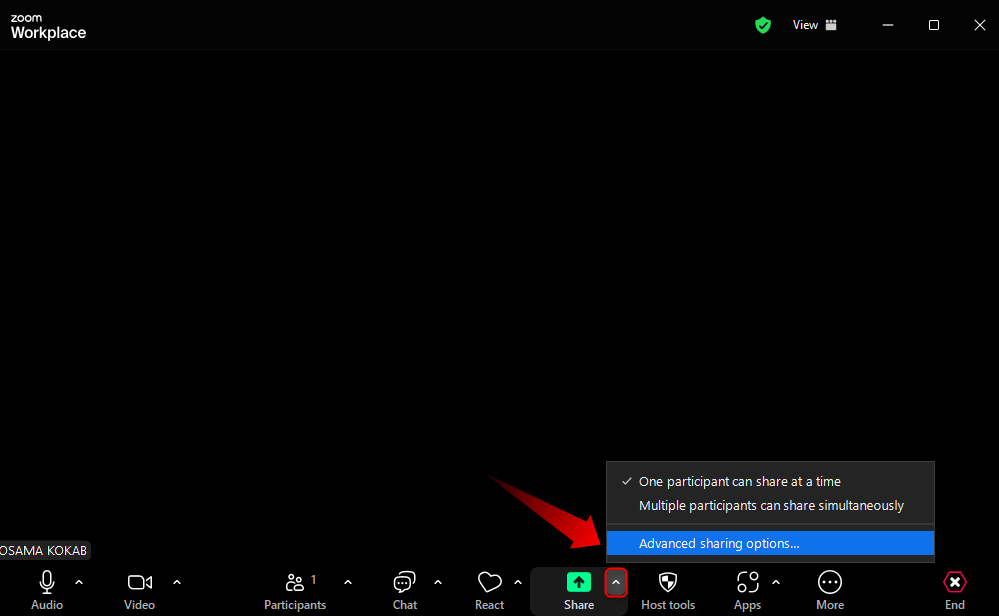
Choose Advanced Sharing Options
Step 5. In the “Who can share?” section, select “All Participants“.
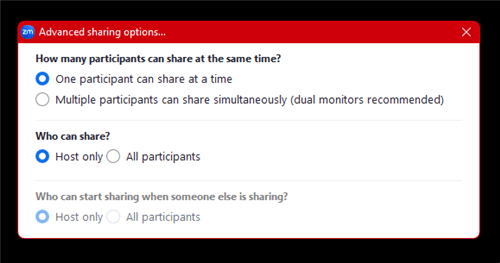
Select All Participants
On Mobile:
Step 1. Open the Zoom app on your phone and sign in.
Step 2. Join or start a meeting.
Step 3. Tap the screen, swipe right, and tap “More…”.
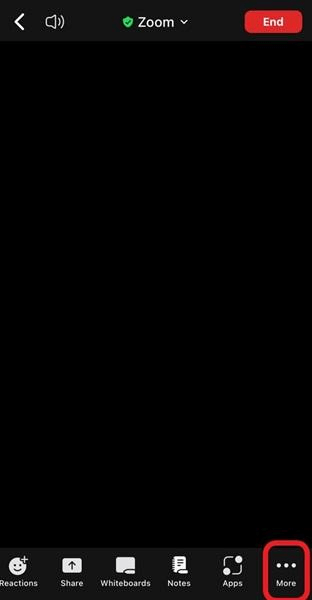
Tap More
Step 4. Select “Security” from the menu.
Step 5. Under “Allow All Participants to:”, turn on the “Share Screen” option.
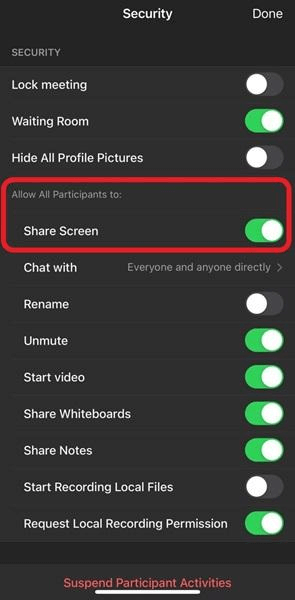
Toggle On Screen Share
Update default screen sharing permissions [Check your app version and upgrade if necessary]
Your Zoom app will not allow screen sharing if it does not have the appropriate permissions. Some devices and operating systems require special permissions for screen sharing. The solution is to check your Zoom settings and download the most recent version of the app. Updating Zoom ensures that you’re using the most recent settings and functionalities, making screen sharing work effectively.
To apply this fix:
On Windows:
Step 1. Open “Settings” on your PC.
Step 2. Click “Privacy & Security” from the left menu.
Step 3. Scroll down and select “Camera” under “App permissions”.
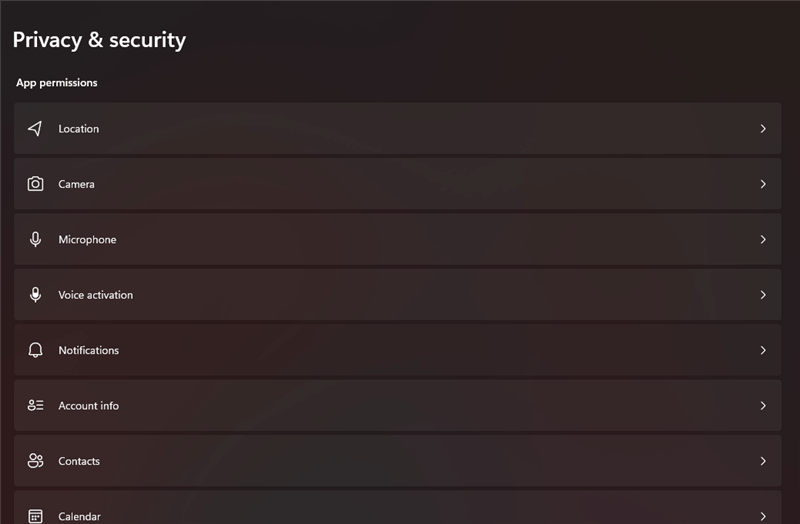
Select Camera
Step 4. Turn on “Camera access” and “Let apps access your camera.”
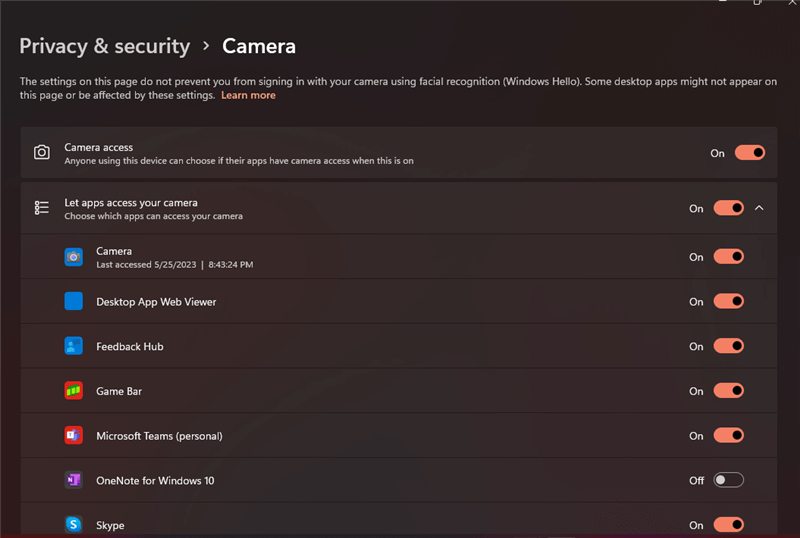
Enable Access
Step 5. Scroll down and enable “Let desktop apps access your camera,” then allow Zoom.
On macOS:
Step 1. Click the Apple icon and open “System Preferences”.
Step 2. Select “Privacy & Security”.
Step 3. Go to the “Privacy” tab.
Step 4. Click the lock icon, enter your Mac password, and unlock settings.
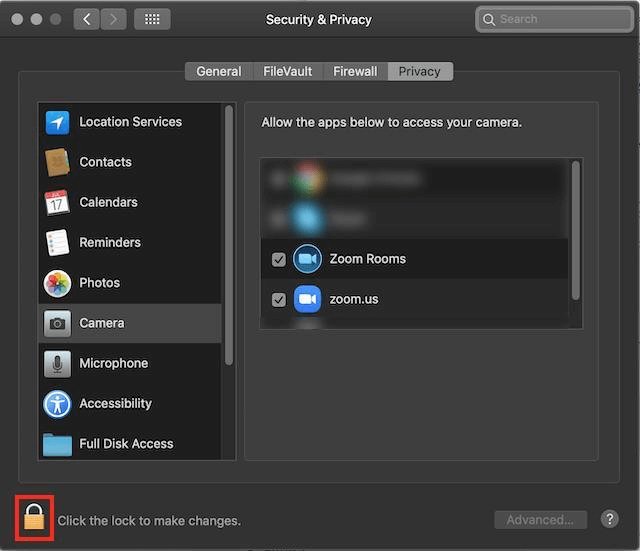
Click The Lock Icon
Step 5. Find “Screen Recording” in the left menu.
Step 6. Enable Zoom in “Screen Recording”.
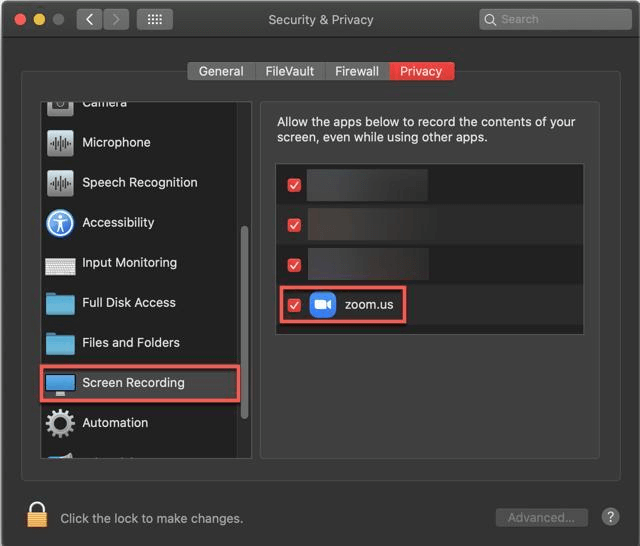
Enable Zoom
On Mobile:
Step 1. Open “Settings” on your phone.
Step 2. Scroll down, and in the Apps section, tap “Zoom.”
Step 3. Turn on “Microphone” and “Camera” permissions.
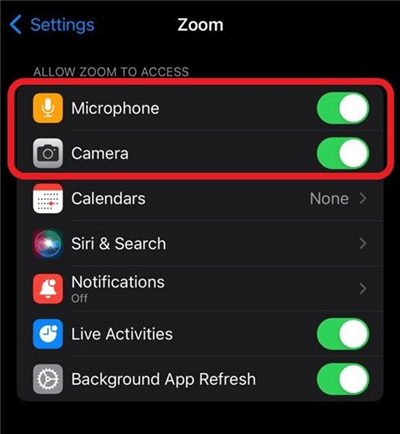
Turn On Permissions
Clear cache and cookies from settings (for web clients)
Problems may arise if you use Zoom in a web browser because of stored cookies and cache. Clearing your browser’s cache and cookies removes these old files and refreshes Zoom. This can fix many small errors, including issues with screen sharing. After clearing the cache, restart your browser and try sharing your screen again. For this fix:
On Windows:
Step 1. Open “Google Chrome” (or any browser).
Step 2. Click the three dots in the top-right corner.
Step 3. Select “Settings,” then go to “Privacy and Security.”
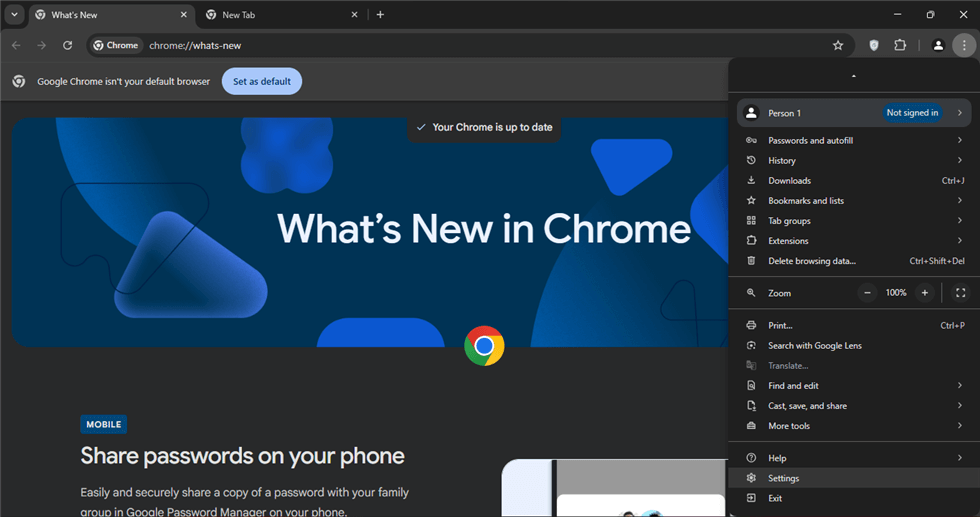
Click Privacy And Security
Step 4. Click “Delete browsing data” and then click ” Delete Data“.
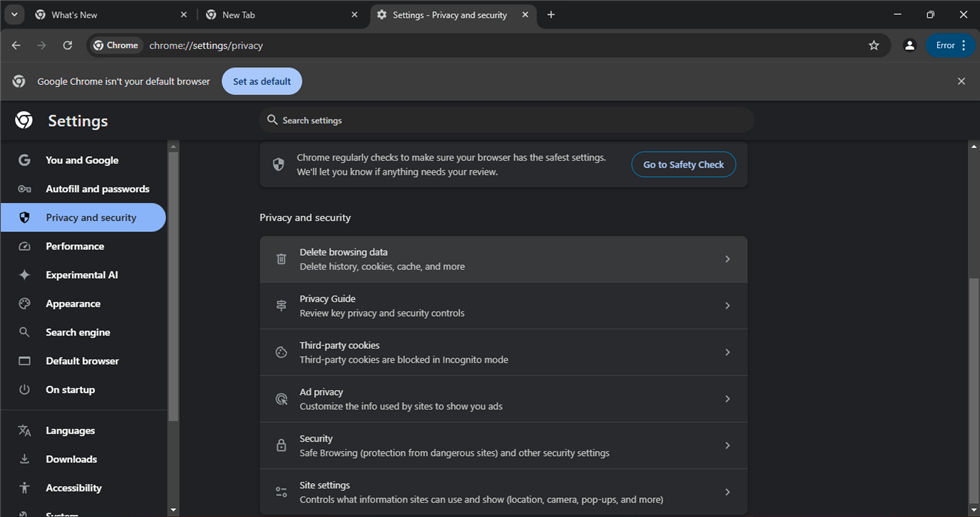
Select Delete Data
On Mac:
Step 1. Open “Safari” on your Mac.
Step 2. Click “Safari” in the top menu and choose “Settings”.
Step 3. Go to the “Privacy” tab.
Step 4. Click “Manage Website Data” and select “Remove All”.
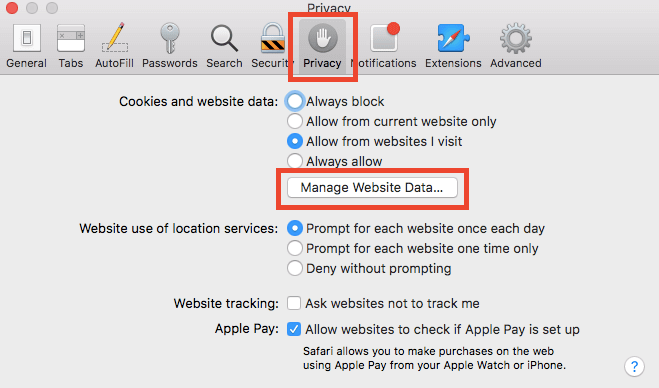
Click Manage Website Data
Step 5. Confirm by clicking “Remove Now”.
Restart your device or browser
Restarting your computer, phone, or browser may assist if screen sharing isn’t working. Restarting resolves minor issues, refreshes all apps, and clears temporary memory. Zoom may stop working if your device has been used for a long time without restarting.
Uninstall and reinstall the app
Your Zoom app may have corrupted files if none of the other fixes resolve the issue. Other functions, including screen sharing, may stop functioning due to a broken or incomplete installation. The Zoom software can be uninstalled to get rid of any outdated settings and files that might be the problem. For this:
Step 1. Click “Start“, then open “Settings“.
Step 2. Select “Apps.” In Apps & Features, find Zoom. Click “Uninstall” and confirm.
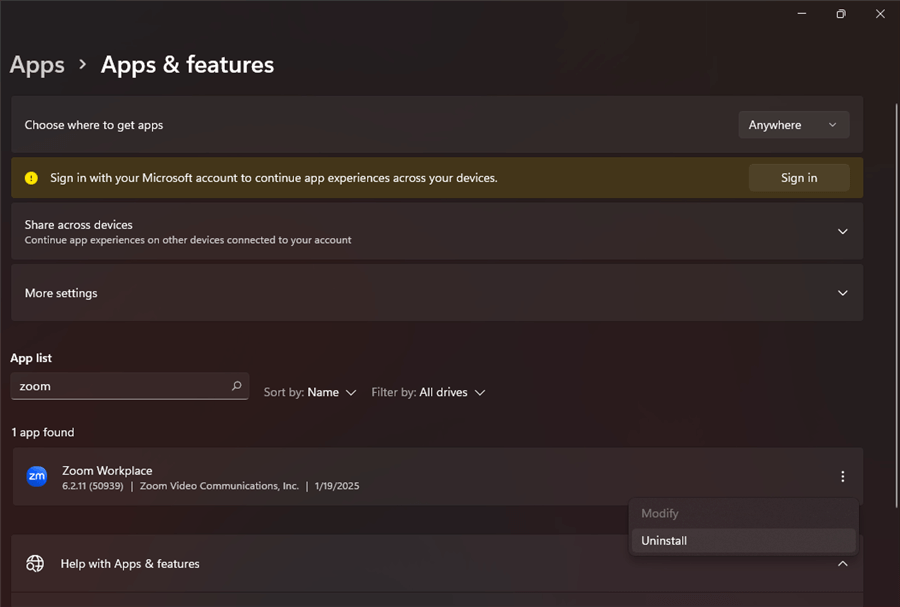
Click Uninstall
Step 3. Visit Zoom’s official website. Download and install Zoom again.
Privacy Settings [For macOS 10.15 Catalina and higher]
On Macs running macOS 10.15 Catalina or later, Zoom requires specific permissions to share your screen. Even if Zoom is functioning well, sharing your screen will not be possible without these capabilities. Once this modification has been made, restart Zoom and attempt screen sharing again. For this fix:
Step 1. Click the Apple icon and select “System Preferences”.
Step 2. Choose “Privacy & Security” from the left menu.
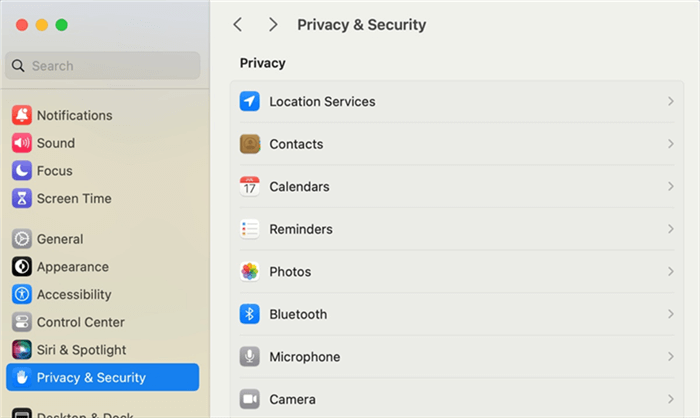
Click Privacy And Security
Step 3. Click “Screen Recording” under the Privacy tab.
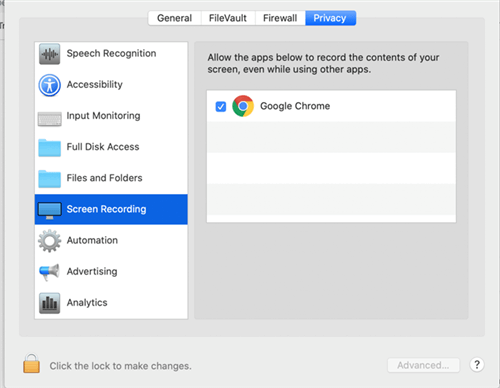
Click Screen Recording
Step 4. Find Zoom in the list and enable the toggle.
Best Alternative for Zoom Screen Sharing – AnyMiro
If you are looking for a better way to share your screen, AnyMiro is a fantastic substitute for Zoom. This robust screen-mirroring program lets you see your phone’s screen on your PC with steady, fluid operation. Whether you’re teaching, gaming, or live broadcasting, AnyMiro guarantees lag-free, high-quality images. With support for 4K resolution, your screen will appear clean and brilliant on any display.
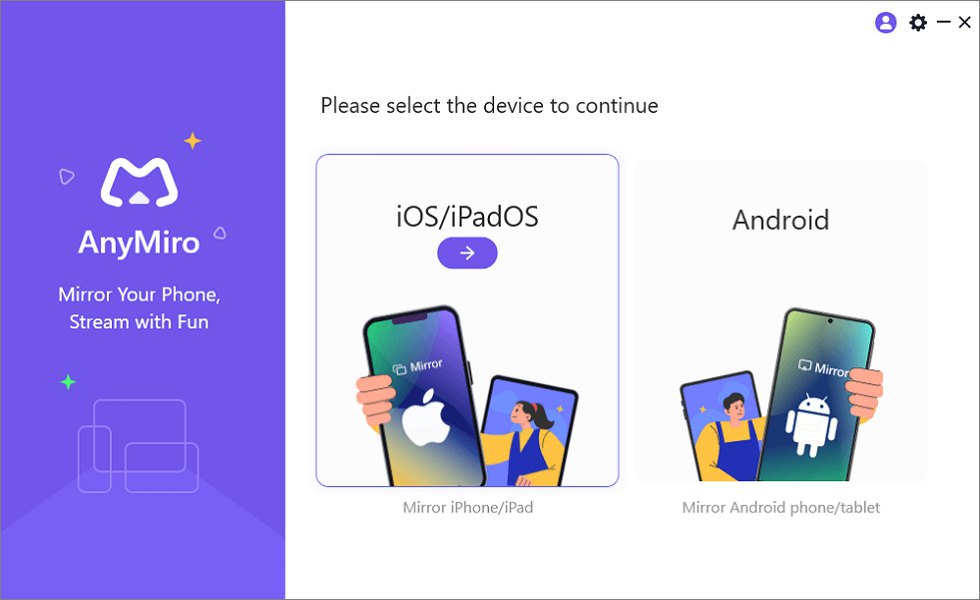
Mirror iPhone to Computer
For flawless sound and visual synchronization, it also provides low-latency audio sync. You can even record your screen and take screenshots while broadcasting, which can help preserve significant moments. For artists, AnyMiro allows live annotations so that you can highlight and draw on your screen in real-time. It is perfect for educators, content creators, virtual YouTubers, and churches that want a simple, professional screen-mirroring solution.
Key Features:
- With 10 hours of lag-free mirroring, you can enjoy long streaming sessions.
- If you have a steady connection, you can mirror the screen of your phone onto your computer.
- All users will find it easy because it supports both iPhone and Android.
- Streaming your screen to YouTube, Twitch, and other websites is simple.
- It offers crisp, high-quality photos free of color fading.
Free Download for all windows & 100% safe Free Download for all mac & 100% safe
Free Download100% Clean & Safe
FAQs on Zoom Share Screen Not Working
Why can’t others see my shared screen?
This can happen if you’re sharing the wrong window or app. Also, weak internet or privacy settings may block screen sharing. Restart Zoom and try again.
What can I do if Zoom crashes when I share my screen?
Update Zoom, close background apps, and check if your device has enough memory. If the problem continues, restart your computer and reinstall Zoom.
Why does my Zoom screen share turn black?
A black screen can appear due to outdated display drivers or graphics settings. Update your drivers and turn off hardware acceleration in Zoom settings.
Final Words
This guide explored why Zoom screen share may not work and how to fix it. Disabled settings, out-of-date Zoom, or authorization issues can cause problems. Reinstalling the software, upgrading Zoom, cleaning the cache, or turning on screen sharing can all resolve the issue. Restarting your device also helps. If Zoom screen share still doesn’t work, try AnyMiro. It offers stable, high-quality screen mirroring with up to 10 hours of lag-free streaming. It’s a great choice for gamers, teachers, and content creators. Give AnyMiro a try for a smooth and reliable screen-sharing experience!
Product-related questions? Contact Our Support Team to Get Quick Solution >
