How to Fix It When Google Chrome Keeps Crashing on Mac
Is Google Chrome constantly crashing on your Mac? Learn the top causes and follow these proven steps to fix the issue and improve performance without wasting time.

It can be incredibly frustrating when Google Chrome crashes on a Mac. Since Chrome holds 66% of the market share for web browsers, this can mean a lot of wasted time and hassle for everyone. But what causes Chrome to crash on Mac? And how can you fix it quickly and easily?
I’ve troubleshooted thousands of Macs in my decade of experience working in a computer repair shop, so I’ve seen just about every problem and solution out there involving Google Chrome.
In this guide, we’re going to take a look at how to resolve this issue so you can get back to browsing in a hurry. Let’s get started.
Why Does Google Chrome Keep Crashing on Mac? (Reasons at a Glance)
Google Chrome crashes on Mac can stem from several factors, including outdated software, excessive open tabs or extensions, corrupted cache files, or insufficient system resources. Conflicting extensions, plug-ins, and hardware acceleration can sometimes be to blame.
In some cases, a corrupted Chrome profile or malware interference could also be the culprit.
| Cause/Reason | Probability | Impact | Ease/Efforts to Fix |
| Outdated Chrome or macOS | High | High | Easy |
| Corrupted browser cache or cookies | High | High | Easy |
| Conflicting or outdated extensions | High | High | Moderate |
| Insufficient system resources (RAM) | Medium | High | Moderate |
| Hardware acceleration issues | Medium | Medium | Moderate |
| Corrupted Chrome user profile | Medium | High | Moderate |
| Malware or viruses | Low | High | Moderate |
| Corrupted Chrome installation | Low | High | Moderate |
The good news is that most of these issues are fixable with a few troubleshooting steps.
7 Ways to Fix The Chrome Crashing on Mac Issue
Let’s look at the easiest fixes and solutions to the most common problems first, before exploring some of the more difficult-to-pinpoint problems.
Quick Method: Using MacClean for efficiency (Recommended)
If you’re like me and prefer an automated way to diagnose and fix Chrome crashes, MacClean can be a helpful tool. While you can do everything this app can do on your own, manually, if you want to — this is a great hands-off approach that works most of the time.
Free Download for all windows & 100% safe Free Download for all mac & 100% safe
Free Download100% Clean & Safe
Since malware or outdated files, or even a lack of space, can cause Chrome crashes on Mac, MacClean can be a great answer since it is designed to resolve all of these issues. Download and install the app and run the primary scan, which will check your Mac for anything that can be optimized.
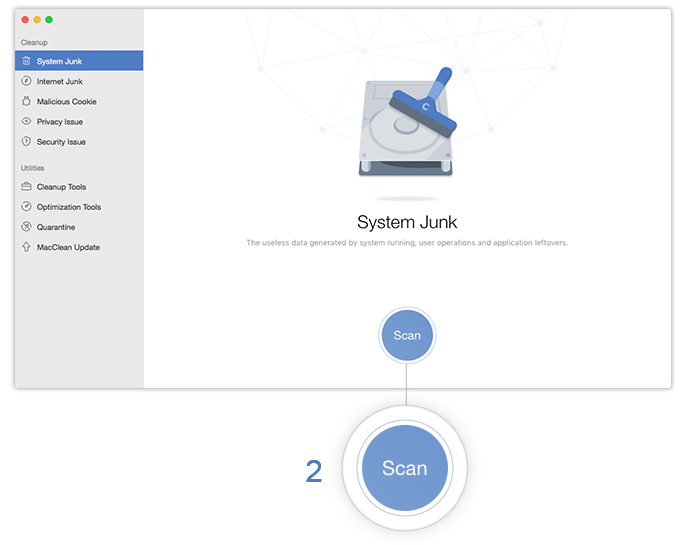
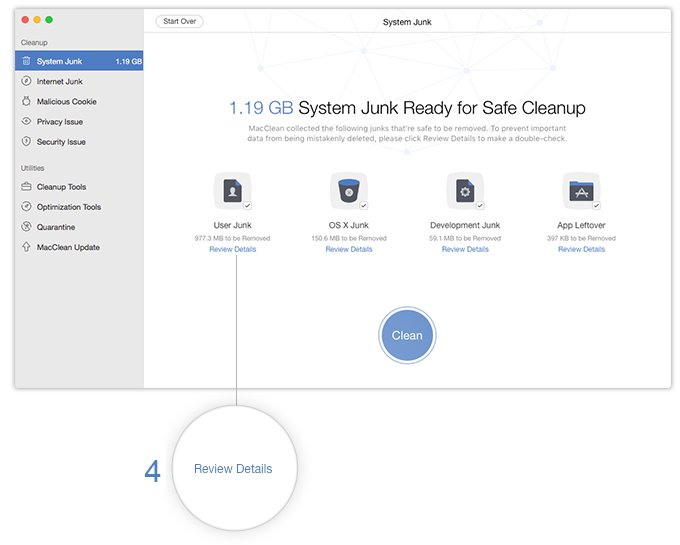
You can review the results to see what will be removed. In this case, MacClean found plenty of old Chrome files and user cache files to remove (as seen below — labeled as system junk).
Fix 1: Update Chrome
| Time Needed | Difficulty Level | Impact on Result |
| 10-15 minutes | Easy | Medium |
Keeping Chrome updated is always one of the most important things you can do to prevent your browser from having problems over time.
An outdated version of Chrome can cause frequent crashes due to software bugs, missing security patches, or compatibility issues with newer macOS updates.
From the Chrome dropdown along the top of your screen, select About Google Chrome. Then select Check for updates.
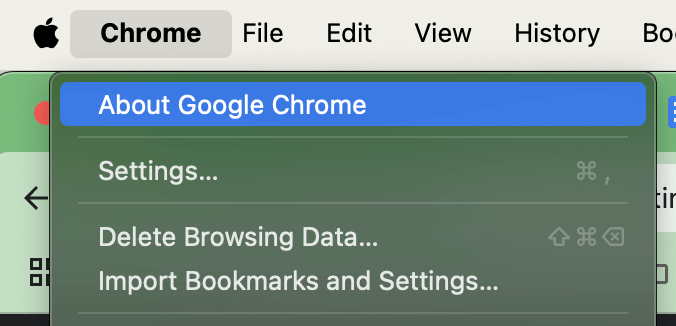
About Google Chrome on Mac
You will need to relaunch Google Chrome to finish installing them. Alternatively, if any updates are available, Chrome will find them automatically and prompt you to install them. You can tell if you have any updates pending by looking in the upper right corner near the settings.

Mac Chrome browser settings
If updating Chrome does not help, proceed to the next step.
Fix 2: Update macOS
| Time Needed | Difficulty Level | Impact on Result |
| 10-15 minutes | Easy | Medium |
Chrome relies on macOS for system-level resources, so you don’t want to be caught running an obsolete version. Running an outdated version of macOS can lead to software conflicts, memory leaks, or a whole host of other performance issues. Updating macOS will help maintain system stability and prevent Chrome crashes caused by incompatibility.
To update, click the Apple menu in the upper left corner of your screen and select System Settings.
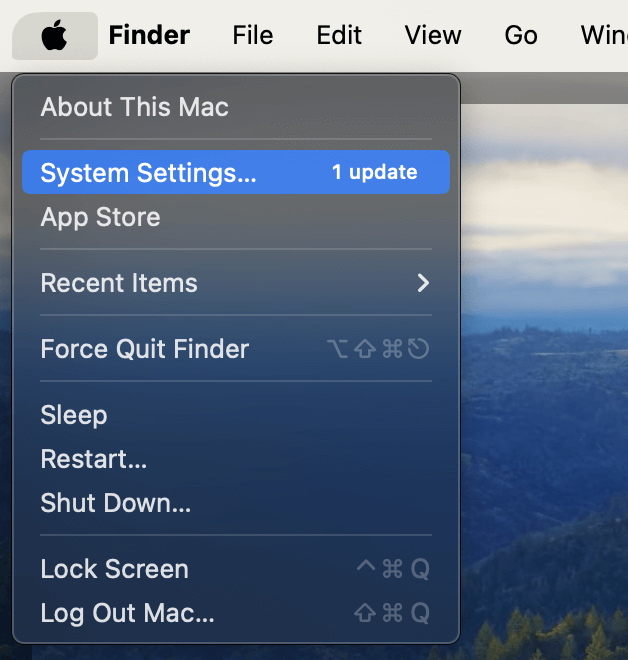
macOS System Settings
Then scroll down to General > Software Update. Any available updates will show up here. In my case (as shown below), there are a few system updates and even an operating system upgrade available.
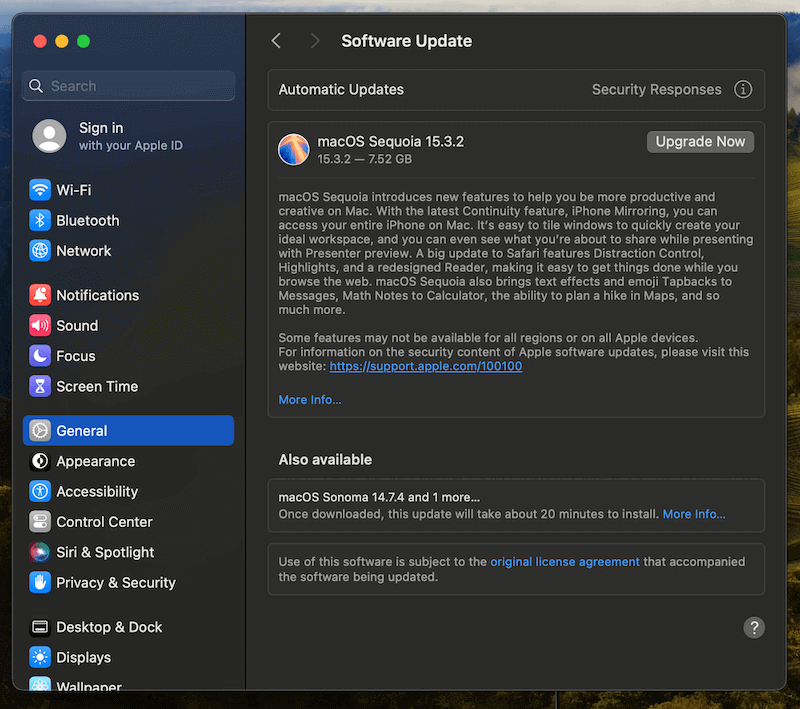
macOS Software Update
If updating macOS doesn’t fix the issue, try the next tip.
Fix 3: Clear Browser Cache and Cookies
| Time Needed | Difficulty Level | Impact on Result |
| 10-15 minutes | Easy | Medium |
Over time, Chrome stores cache files and cookies to improve browsing speed. Having these files indeed improves performance in the short term, but old corrupted cache files or outdated cookies can cause browser instability and crashes. Clearing them can help you restore performance.
Open Settings (3 dots), then click on Privacy & Security. From here, select Delete Browsing Data.
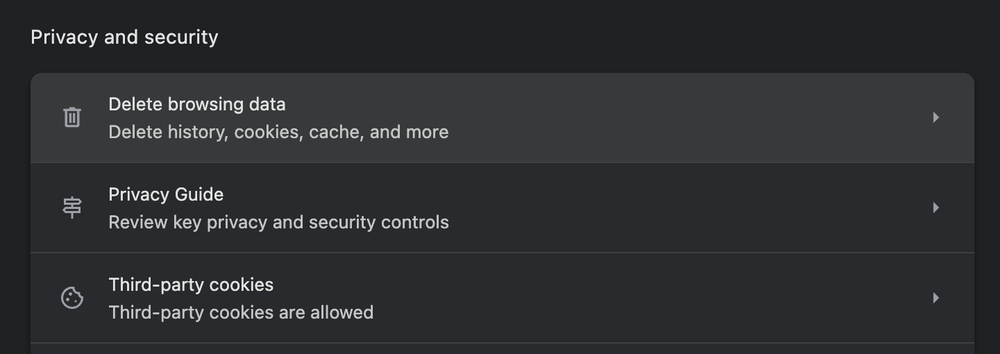
Mac Chrome Privacy Security > Delete Browsing Data
A window will pop up asking you which data you’d like to remove. Select the time range (from 1 hour to the beginning of time). Restart Chrome after removing the data and see if the issue persists.
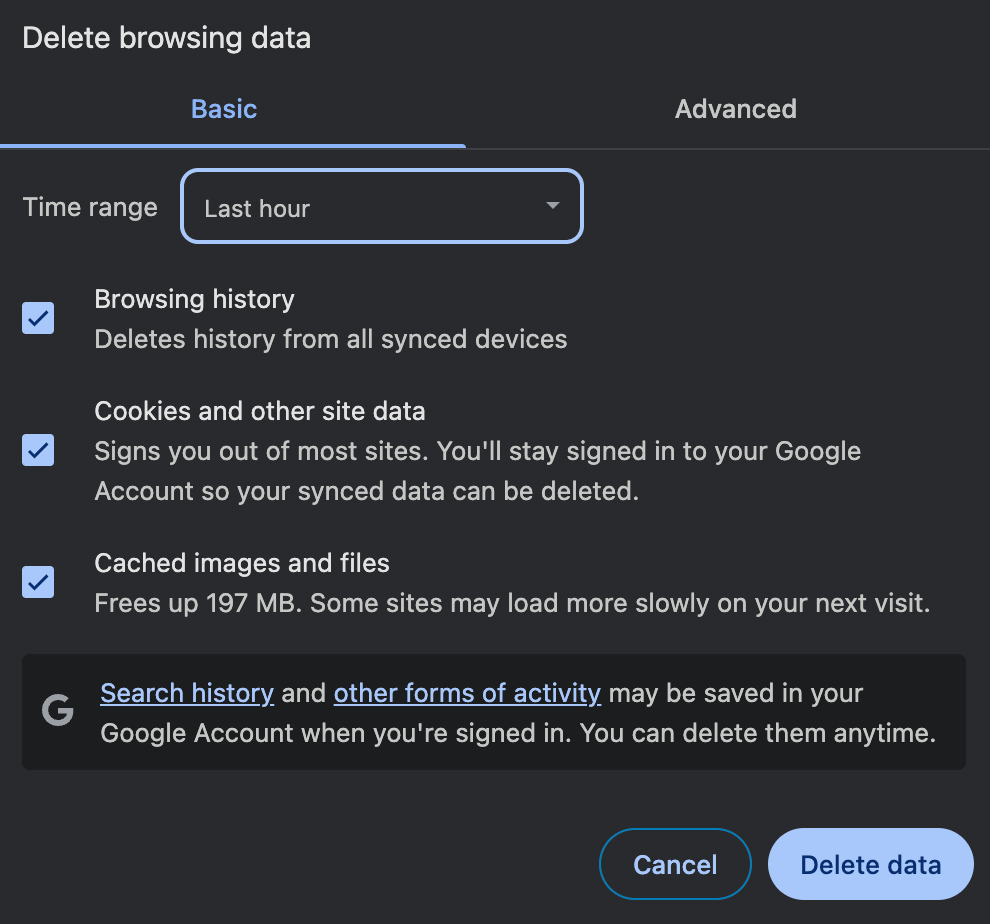
Chrome Delete Browsing Data
Fix 4: Disable or Remove Extensions
| Time Needed | Difficulty Level | Impact on Result |
| 10-15 minutes | Easy | Medium |
Having a few extensions can be useful to add extra functionality, but some extensions may conflict with Chrome, consume excessive resources, or become outdated, leading to crashes. Getting rid of ones you don’t use or ones you don’t recognize is a good idea.
Click on Settings (3 dots), then scroll down to Extensions. Hit Manage Extensions.
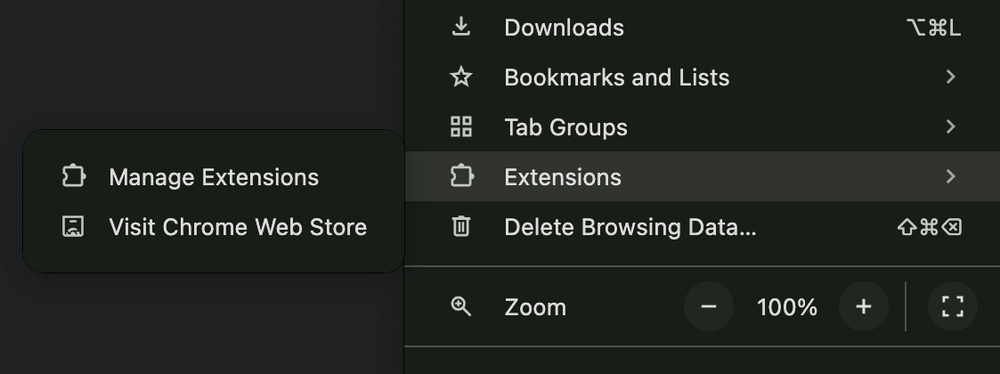
Mac Chrome Manage Extensions
Your extensions will show up on a screen similar to the one shown below. To disable an extension temporarily, hit the blue slider shown next to it. Or to remove it permanently, simply hit the remove button next to each extension.
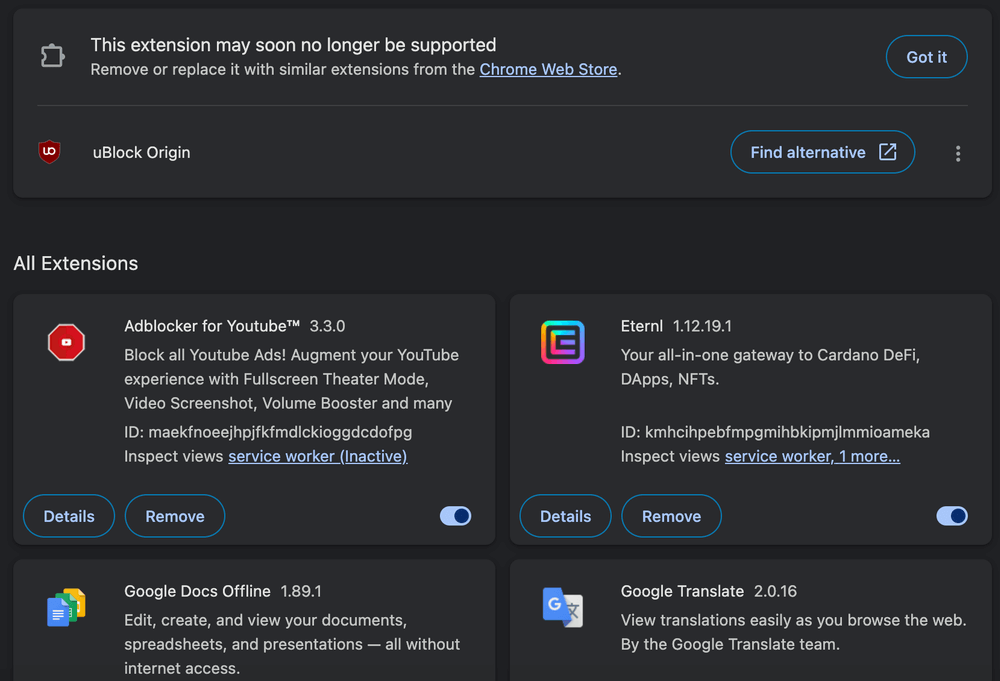
Mac Chrome Remove Extensions
Fix 5: Reset Chrome Settings to Default
| Time Needed | Difficulty Level | Impact on Result |
| 10-15 minutes | Easy | Medium |
It is always possible that Chrome settings are causing instability issues. If the settings have been heavily modified by extensions, updates, or corrupted configuration files, resetting the browser restores your default settings without deleting bookmarks, passwords, or history.
Open settings within Chrome like before. Now click on Reset settings from the left sidebar.
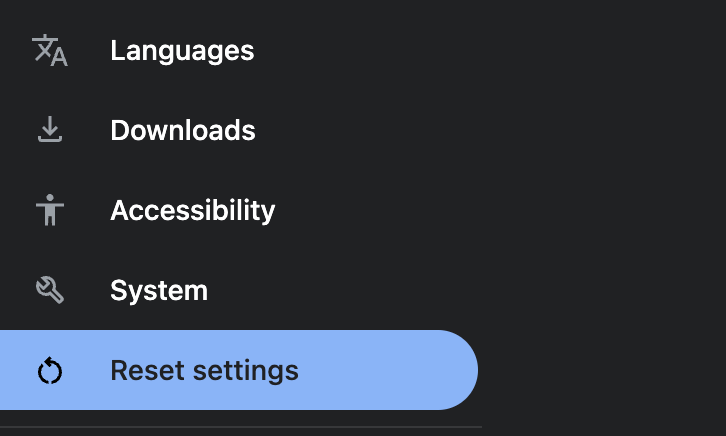
Mac Chrome Browser > Reset Settings
From here, click on Restore settings to their original defaults. Wait a minute and restart your browser to see if the crashing persists.
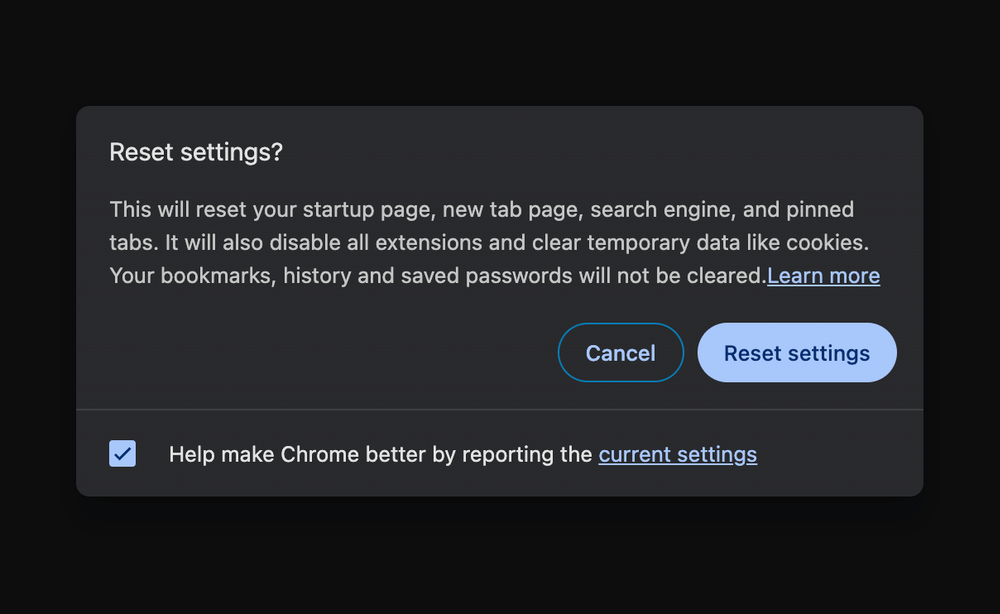
Mac Chrome browser confirm Reset Settings
Fix 6: Disable Hardware Acceleration
| Time Needed | Difficulty Level | Impact on Result |
| 10-15 minutes | Easy | Medium |
Hardware acceleration allows Chrome to offload certain graphical and computational tasks to your GPU (your video card), which can improve performance but also cause crashes, especially with older models or systems with driver conflicts. Disabling it can help you stabilize Chrome.
Within Chrome, access the settings like you did with other fixes. Then click System from the left sidebar.
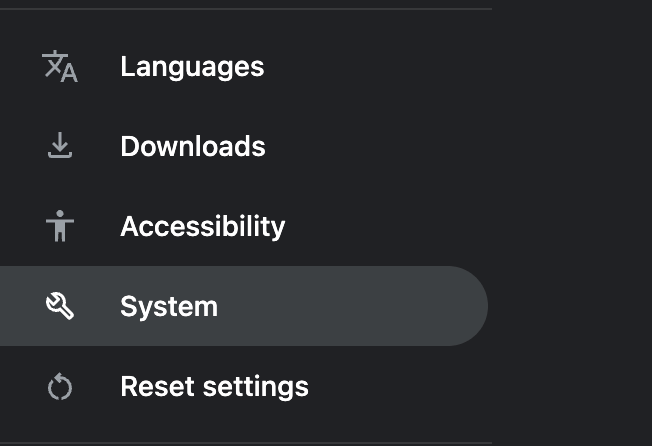
Chrome System Settings
From here, you will see the graphical acceleration options. Click the slider to turn it on and off.
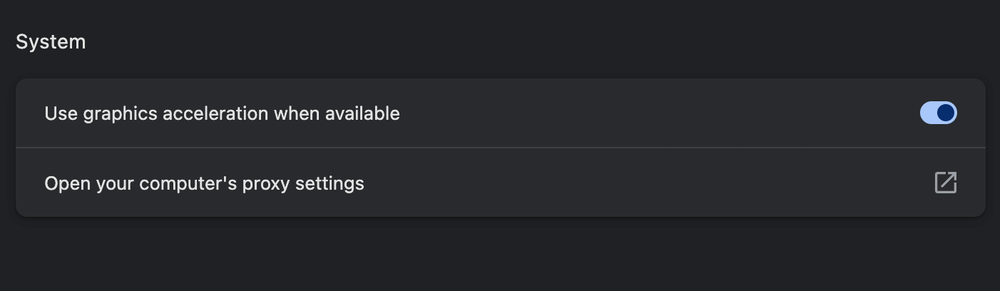
Chrome Disable Hardware Acceleration
Fix 7: Create a New Chrome Profile
| Time Needed | Difficulty Level | Impact on Result |
| 10-15 minutes | Easy | Medium |
Sometimes, Chrome crashes because of corrupt user profiles. Creating a new profile can help resolve crashes caused by damaged settings, conflicting sync data, or stored browsing preferences. Luckily, you can create a new profile without too much time.
Click on Settings (3 dots) and click on the profile icon, which should be close to the top.
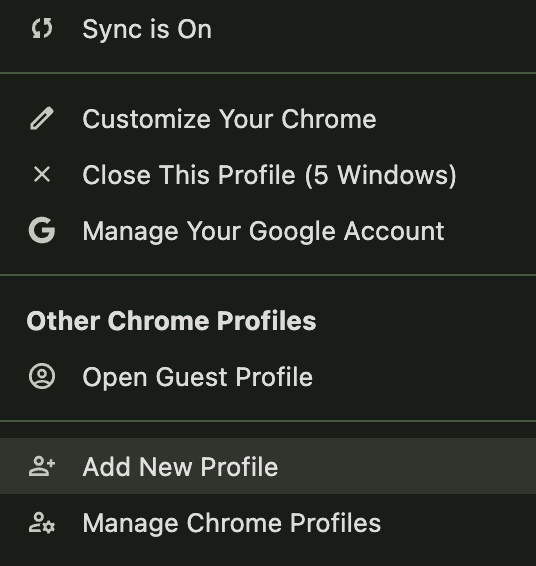
Chrome Add New Profile
From here, simply click Add New Profile. Then, sign in with your information. You can also use a guest account to browse temporarily and troubleshoot.
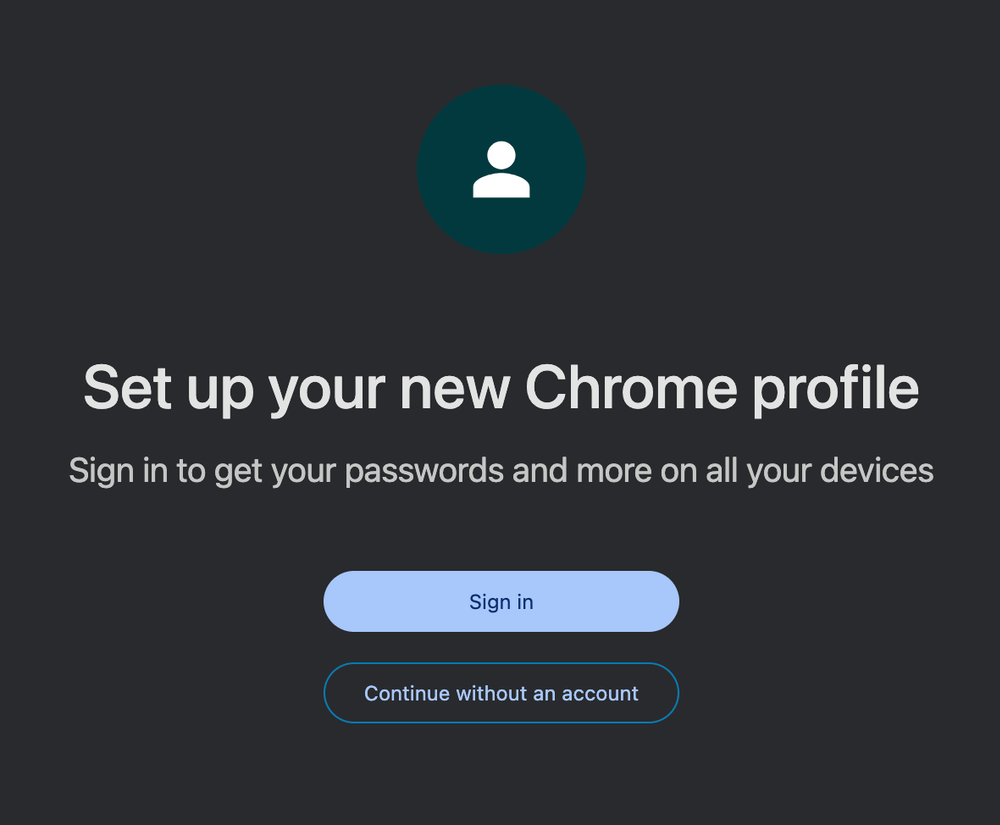
Set up new Chrome profile
How to Prevent Google Chrome from Crashing on Mac in The Future
A good browsing experience with Google Chrome on your Mac is easy as long as you keep a few proactive maintenance and mindful usage habits. Here are some key strategies to prevent future crashes:
Tip 1: Regularly update your software.
That goes for both Chrome and macOS. Apple frequently releases updates that address known issues and enhance the performance of your system. Similarly, Google consistently updates Chrome to fix bugs and add new improvements.
Tip 2: Limit the number of extensions.
While having a bunch of Chrome extensions can enhance functionality, installing too many or using poorly maintained ones can consume significant system resources and cause conflicts, ultimately leading to browser instability.
For the best performance, you should install only the necessary extensions and make sure that they are from reputable sources. Regularly reviewing your extensions and getting rid of ones you don’t use can prevent potential risks.
Tip 3: Perform regular maintenance.
Periodically clearing your browser data, like cache and cookies, can prevent the accumulation of outdated or corrupted files that can slow down Chrome or cause crashes.
Final Words
Putting these troubleshooting tips to work will significantly reduce the chances of Google Chrome crashing on your Mac and hopefully prevent the issue completely. Regular software updates and keeping an eye on what extensions you install will go a long way in preventing any major headaches.
Use Chrome’s built-in performance tools to monitor and manage your resources effectively. Using these tools can help identify tabs or extensions that are taking up excess memory, so you can take corrective action before a crash. Besides that, try to stay informed about new Chrome features and best practices to further optimize your browsing experience.
Keeping a general optimization program, such as MacClean or Malwarebytes, on your computer can also help maintain a smooth operating environment so that software issues are a rare occurrence.
Free Download for all windows & 100% safe Free Download for all mac & 100% safe
Free Download100% Clean & Safe
Product-related questions? Contact Our Support Team to Get Quick Solution >
