
Android deleted photos can be recovered in Trash, from a photo backup, or using an Android data recovery tool. Each method has its requirements and success rate. You can check this article and learn how to recover deleted photos from Android with step-by-step instructions.
DroidKit allows you to recover deleted photos from gallery without backup. You can also recover Android videos, messages, and other data. Free download DroidKit to recover permanently deleted photos on Android hassle-free.
Photos that you saved to your Android device are one of the most precious memories of your life. However, just like the user mentioned above, sometimes photos disappear from your gallery, and you don’t even know why.
How to recover permanently deleted photos from Android? Generally, you can recover Android deleted photos from the recycle bin or Google Drive because they can store photos or videos for up to 60 days. If you don’t have any backups, don’t worry, this article will also provide a way to recover photos without backup.
If you have installed the Google Photos app and have the “backup & sync” feature enabled on your Android device, chances are that you will locate and recover deleted photos from Google Photos because your deleted photos and videos will be stored for 60 days. Take a look at the “trash” in Google Photos and recover deleted photos if they are still there.

Recover Deleted Photos on Android with Google Photos App
If you have deleted photos from Android Gallery within 30 days, you can also try to locate and recover the photos from the “recently deleted album” in the Photos app.
With a backup, it can always be easy to recover permanently deleted photos on Android. There are several backup methods you may use for Android photos. Here, we will introduce how to recover lost Android photos in Google Drive and OneDrive.
If you use Google Drive to back up your photos regularly, it would be easy to recover permanently deleted photos from gallery via your Google Drive account if you had enabled automatic backup. Here are the steps:
Step 1. Open the Google Drive app on your Android device.
Step 2. Log in with the account that you use to back up photos.
Step 3. Now you’ll see all the photos you backed up or uploaded. Then select the photos you need and download them to your device.

Recover Deleted Photos on Android from Google Drive
Then you can access the downloaded photos on your Android phone.
Some users prefer OneDrive to Google Drive for Android data backup. If you use OneDrive to back up your photos regularly, it would be easy to recover deleted photos on the Android gallery from your OneDrive account. Here is how to recover deleted photos on Android with OneDrive.
Step 1. Open the OneDrive app on your Android phone.
Step 2. Click on the Photo option in the bottom control panel.

Recover Deleted Photos on Android from OneDrive
Step 3. Select the photos you want to recover and click on the three dots option in the upper-right corner.
Step 4. Click the save button to start recovering photo files, and you can restore these photos to your Android gallery.
If your photos are permanently deleted in the Trash and you don’t have a backup, it’s necessary to use an Android data recovery tool to get back the pictures. DroidKit is such a powerful tool that you can use. It supports recovering lost Android photos from internal storage or Google backup. Moreover, DroidKit is available to use on Windows and Mac computers.
Benefits of using DroidKit photo recovery:
Download DroidKit now and explore more features to manage your Android devices.
Free Download * 100% Clean & Safe
Steps to recover permanently deleted photos on Android without Backup:
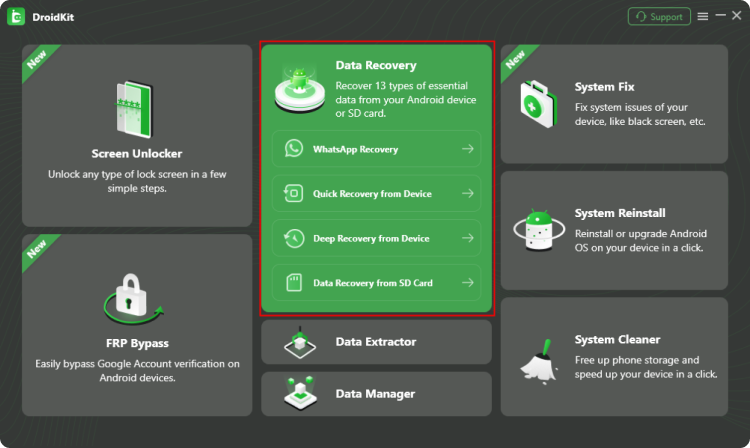
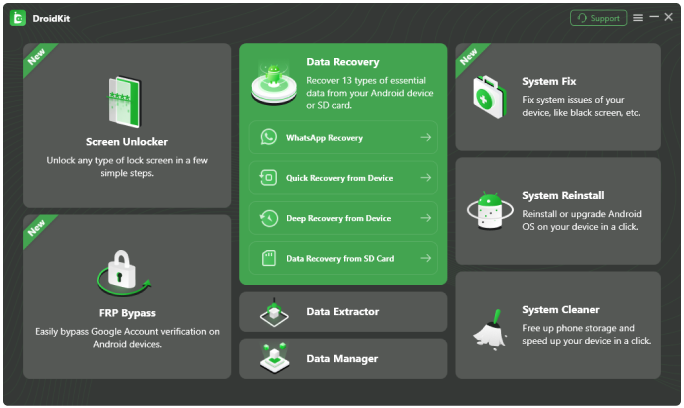
Step 1. Download and launch DroidKit on your computer and connect with your Android Phone. Choose Quick Recovery from Device.

Choose Quick Recovery from Device from Data Recovery
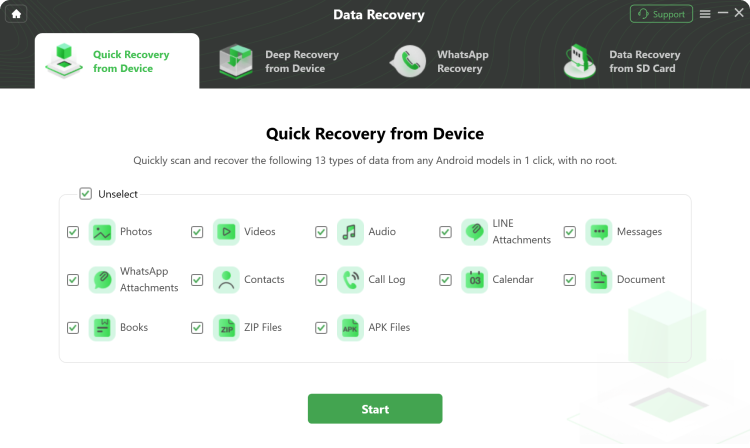
Step 2. Select the data to scan deeply from your Android phone. Here, you can choose Photos only or all types of data.

Select and Scan Photos
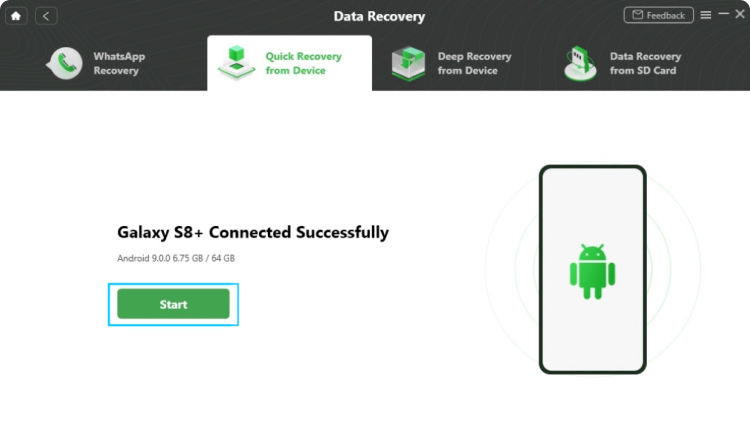
Step 3. Make sure you’ve connected your Android phone, and click Start afterward. Then DroidKit will start to scan the deleted photos on your Android device. When the scanning completes, you will see the deleted photos on your Android phone. You can either select photos to recover To Device or To PC.

Select Deleted Photos to Recover
For users who are using a lower version of Android, or who want to recover photos deleted years ago from an old phone, there is another effective way to recover photos from an SD card. This method is mainly used for people who have saved photos on an idle SD card and then use it to recover lost Android photos. Here are the steps:
For old Android phones supporting an SD card:
Step 1. Find out your SD card and insert it into your Android device.
Step 2. Wait for the device to load the data, including the photos.
Step 3. Once loaded, you can get back your photos directly on your Android phone.
For newer Android phones don’t support an SD card:
Step 1. Use a card reader and connect it to your computer.
Step 2. Load the photos in the SD card.
Step 3. Connect your Android to the computer with a USB cable.
Step 4. Transfer photos from the SD card to your Android phone.
Then you have successfully recovered deleted photos on Android with an SD card.
Q1. Can I recover deleted photos from Samsung Gallery?
Yes, Samsung deleted photos can be recovered in the recycle bin within 30 days. If they are permanently deleted, you can use recovery tools like DroidKit to scan internal memory and recover deleted photos from Samsung Gallery without backup.
Q2. Where do deleted photos go on Android?
On most Android phones, deleted photos are moved to a Trash or Recently Deleted folder, where they’re stored temporarily (typically 30–60 days). After that, they may be permanently deleted but still recoverable using Android photo recovery software like DroidKit or PhoneRescue.
Q3. How to recover permanently deleted photos from Android gallery?
To recover permanently deleted photos from the gallery on Android, use a specialized data recovery tool like DroidKit. It can scan your phone’s internal storage, preview lost images, and restore them without root or previous backup, even if they were deleted long ago.
Q4. How to recover permanently deleted photos from Google Photos after 60 days?
Google Photos permanently deletes files after 60 days. After that, you can use a Google backup or a local backup to recover permanently deleted photos. Without a backup, you can try Android recovery tools like DroidKit to scan your device storage for recoverable data.
The above content has introduced how to recover deleted photos from Android in Google Photos Trash, from a backup, or using a photo recovery tool. You can choose your preferred way to recover lost photos directly. For those who have permanently deleted the photos on their Android devices, DroidKit can be the best choice. It supports all Android brands and system versions. Besides, the data recovery success rate is higher than other tools. Download DroidKit now and get back your precious photos easily.
Free Download100% Clean & Safe
Free Download * 100% Clean & Safe
Product-related questions? Contact Our Support Team to Get Quick Solution >