Video Saturation: How to Increase Saturation in Video
Increasing video saturation is essential to creating colorful and striking videos. Numerous editing tools include capabilities like sophisticated color correction, filters for instant improvements, and simple sliders for changing saturation. This article will discuss methods to efficiently enhance the quality of your videos using programs like AnyEnhancer, Adobe Premiere Pro, DaVinci Resolve, Final Cut Pro, and Filmora.

Have you ever noticed that the colors in a video appear faded or lifeless, giving them a somewhat drab appearance? Increasing video saturation can make scenes vibrant by bringing colors to life. Saturation adjustments are useful for events, outdoor sceneries, or anything you want to stand out visually. Increasing saturation intensifies color intensity, making videos more visually appealing and captivating.
Regardless of your level of editing skill, learning how to boost saturation is easy and may significantly improve the quality of your videos even the old ones. Are you prepared to create colorful and vibrant videos? Let’s explore simple tools to adjust video saturation!
Table of ContentsHide
What is Video Saturation?
The degree of color intensity in a video, which determines the way vibrant or subdued colors appear, is known as video saturation. Low saturation gives a greyscale image, while high saturation gives the colors a more kinetic look as if they are alive. Changing saturation allows videos to be more eye-popping and striking and to bring out particular details or just set the right mood. Here’s why your video needs more saturation:
- Enhance Visual Appeal: Makes colors look richer and more eye-catching.
- Convey Emotion: Vibrant colors can set a cheerful, exciting tone, while muted colors give a calm feel.
- Boost Viewer Engagement: Bright, lively videos hold attention better.
- Highlight Details: Increased saturation emphasizes details that might otherwise be missed.
How to Increase Saturation in Video
AnyEnhancer uses a color correction model that can be used to improve brightness, contrast, and colors in your videos. Its “Color Enhancement Model” offers an opportunity to quickly enhance the general color quality. This model will self-adjust the saturation for richer colors, the contrast to enhance details, and the brightness for clear video definition. This makes it perfect for novices and experts alike, as it only takes the shortest time to make high-quality modifications with little use of technical knowledge. Here’s how to increase saturation in video:
Step 1. Begin by free downloading and installing AnyEnhancer on your computer.
Free Download for all windows & 100% safe Free Download for all mac & 100% safe
Free Download100% Clean & Safe
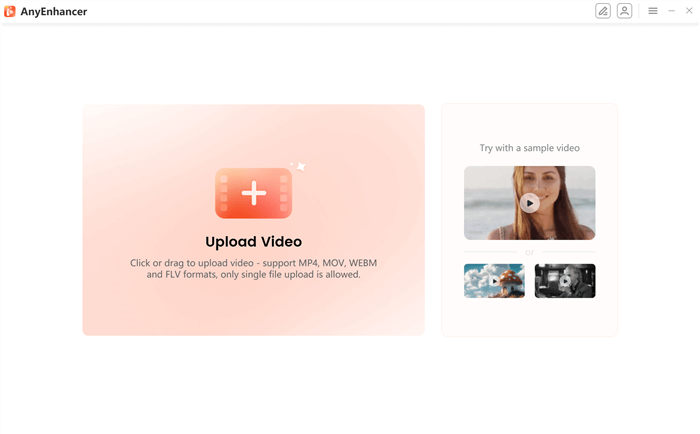
Step 2. Open the program, drag your video file into the window, or click “Upload Video.”
Upload the Original Video
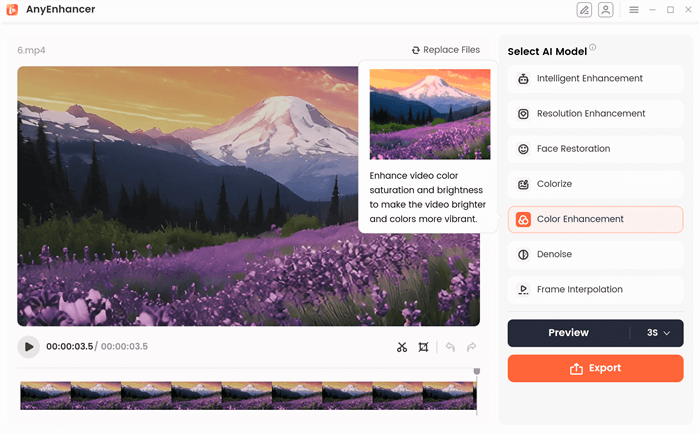
Step 3. Select the “Color Enhancement” option to adjust video colors.
Choose the Color Enhancement Model
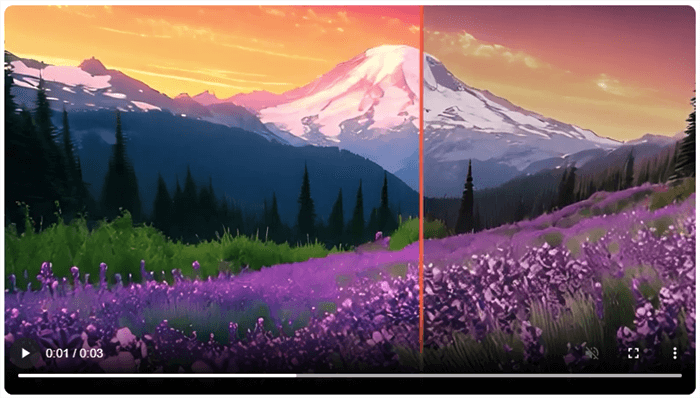
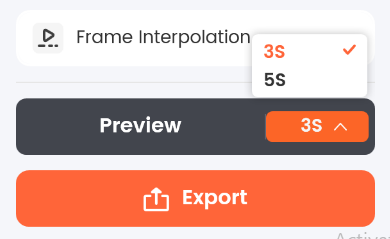
Step 4. Click “Preview” to see the enhanced version alongside the original.
Preview the Color Correct Effect
Step 5. If you’re satisfied with the result, click “Export,” enter a file name, choose the format and save location, then click “Export” again to finish.
Choose the Preview Duration
5 Best Video Saturation Editors
Now, let’s discuss the 5 best video saturation editor options:
AnyEnhancer
Looking for the best video saturation editors? AnyEnhancer is a fantastic choice for stabilizing your videos. With its advanced Color Enhancement model, you can significantly improve color quality, making your videos look more vibrant. This model is particularly effective on Android devices, allowing users to enhance their footage easily.
AnyEnhancer offers several powerful models to elevate your video quality. The Resolution Enhancement model helps upscale your video to 2K and 4K easily. The Face Restoration model focuses on recognizing faces in blurry videos, enhancing their details for a clearer view. Lastly, the Color Enhancement model boosts colors in low-quality videos, increasing video brightness and saturation.
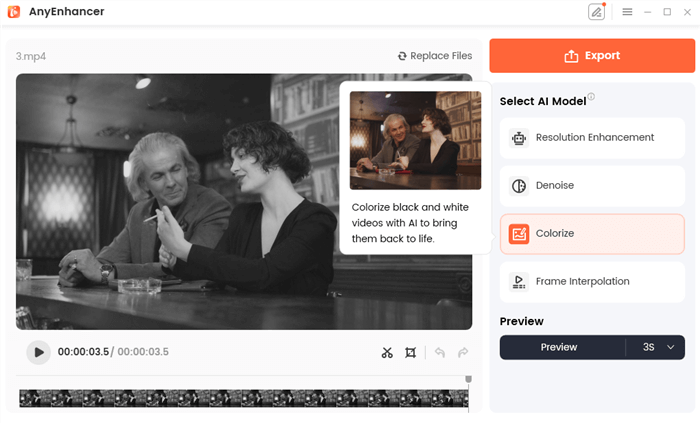
AI Video Colorizer – AnyEnhancer
Free Download for all windows & 100% safe Free Download for all mac & 100% safe
Free Download100% Clean & Safe
Key features:
- Intelligent Enhancement – This model uses facial augmentation and super-resolution to increase video clarity and detail.
- Frame Interpolation – Increase the frame rate using the frame interpolation model for smoother motion and an improved visual experience overall.
- Resolution Enhancement – The Resolution Enhancement model enhances video quality, offering 2K and 4K settings for breathtaking images.
- Denoise Model – By eliminating extraneous noise, the Denoise Model improves the videos’ overall visual quality.
Pros:
- Easy-to-use interface
- Supports high-resolution editing
- Multiple enhancement models are available
- Quick processing of videos
Cons:
- Requires a decent system performance
Adobe Premiere Pro
With its robust features for improving color fidelity, Adobe Premiere Pro is among the best tools for video saturation. It is simple to change saturation using tools like Lumetri Color, which has sliders to adjust color intensity. Additionally, Color Wheels can be used to precisely manage the balance of highlights, midtones, and shadows. In Premiere Pro, you can easily adjust color saturation using the Curves function and apply effects to multiple clips with Adjustment Layers.
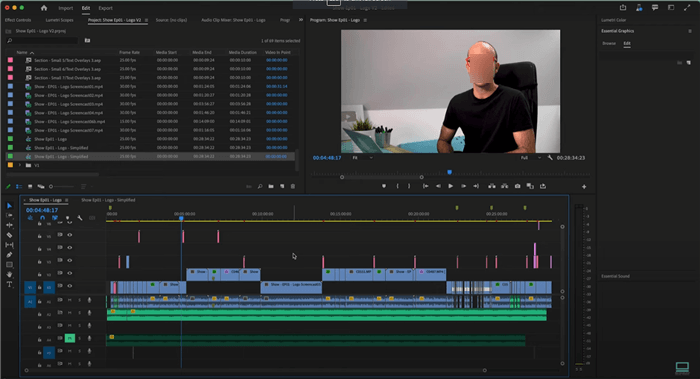
User Interface of Adobe Premiere Pro
Key Features:
- Use this powerful tool to adjust saturation and improve video color quality.
- Balance highlights, midtones, and shadows for precise color saturation and hue control.
- Fine-tune saturation in specific color ranges for more detailed color correction.
Pros:
- User-friendly interface
- Excellent color correction tools
- Supports high-resolution videos
- Frequent software updates
Cons:
- Can be resource-intensive
- The steeper learning curve for beginners
DaVinci Resolve
One of the best tools for video saturation is DaVinci Resolve, which has strong color-enhancing capabilities. Its Color Grading capabilities allow you to modify saturation levels precisely. You have complete control over the appearance of your film thanks to the Color Wheels, which make it simple to change highlights, midtones, and shadows.
While Node-based editing allows for intricate changes without erasing the source film, the Curves feature will enable you to alter particular color ranges. DaVinci Resolve is a great option for anyone wishing to increase video saturation and overall visual appeal because it suits both novices and experts.
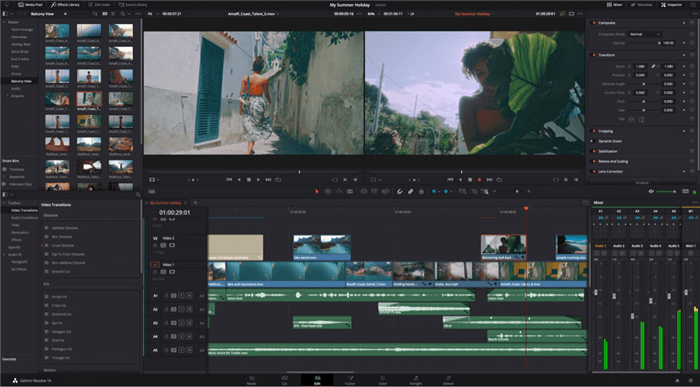
DaVinci Resolve Interface
Key Features:
- For amazing effects, adjust color and saturation using the highest quality tools.
- For accurate color control, effortlessly balance highlights, midtones, and shadows.
- Modify specific colors for targeted saturation adjustments and better results.
- Make complex adjustments while keeping original footage intact and easy to manage.
Pros:
- Free version available
- Professional color grading tools
- User-friendly interface
- Supports multiple file formats
Cons:
- Can be resource-heavy
- The steep learning curve for beginners
Final Cut Pro
Final Cut Pro is a great tool for adjusting video saturation, especially for Mac computers. It has powerful features that help you improve color in your videos. To achieve the ideal look, you may quickly adjust saturation, brightness, and color balance with the Color Board.
You have great control over the way your video appears because of the Hue/Saturation Curves, which allow you to select particular colors to change. Good color correction tools are also included in Final Cut Pro to enhance the visual quality of your videos. Both novice and seasoned video editors like it because of its straightforward design.
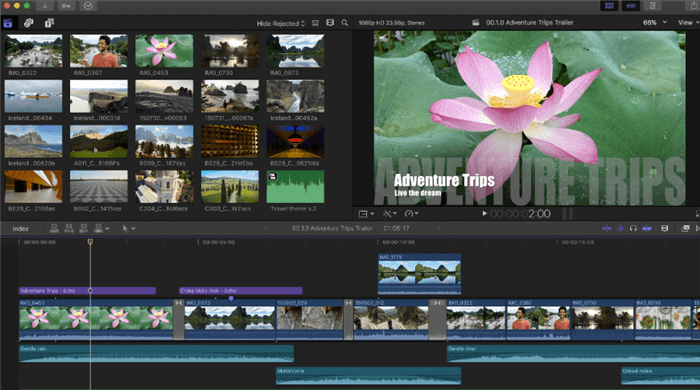
Final Cut Pro X Interface
Key Features:
- Easily adjust saturation, exposure, and color balance for precise editing.
- Target specific colors and modify saturation levels for detailed control.
- Seamlessly correct colors to improve overall video quality and appearance.
- Create high-quality edits with an intuitive interface and professional features.
Pros:
- Works well on Mac computers
- Great color correction options
- Easy to use for beginners
- Supports high-resolution videos
Cons:
- Only available for Mac users
- It can be expensive compared to other tools
Filmora
Filmora is a well-liked video editing program known for its robust tools for controlling video saturation and easy-to-use interface. It provides a variety of settings to improve the color of your videos. The Color Tuning function can readily change brightness, contrast, and saturation levels. Color grading presets are another feature of Filmora that lets you easily add modern looks to your movie.
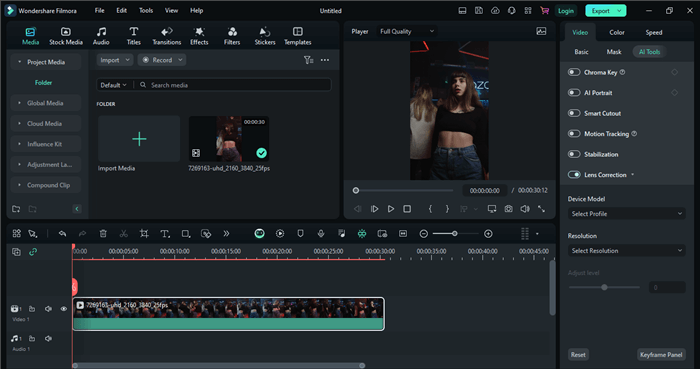
Filmora Interface
Key Features:
- Adjust brightness, contrast, and saturation for stunning visual results every time.
- Modify specific colors in your video for targeted enhancement and better clarity.
- Apply stylish color grading presets for quick and beautiful video transformations.
- The simple interface helps beginners edit videos without any difficulty or hassle.
Pros:
- Easy to use for all
- Offers many fun effects
- Good customer support is available
- Affordable pricing options
Cons:
- Limited features in the free version
- It can lag on older computers
FAQs of Video Saturation
Why does video editing require saturation?
Saturation is important because it influences the way viewers experience your video. While low saturation may give your video a more subdued or dull image, high saturation can make it look lively and captivating. Balancing saturation helps create the desired mood for your content.
Can I adjust saturation for specific colors?
Yes, most video editing software allows you to adjust saturation for specific colors. This targeted adjustment can enhance particular elements in your video, making them stand out more. Tools like DaVinci Resolve provide features for this precise control.
How can I find the right saturation level for my videos?
Finding the right saturation level often involves experimentation. Start with small adjustments and preview your changes frequently. Look for a balance that enhances colors without making them appear unnatural. Tools like AnyEnhancer can help you easily test different saturation levels.
Final Words
To sum up, modifying video saturation is crucial to producing lively and captivating content. Due to the enhanced colors and general visual attractiveness, viewers will find your films more engaging. Using various tools and strategies, you can strike the ideal balance to make your movies stand out. For a straightforward and effective way to enhance your video quality, consider trying AnyEnhancer. It offers user-friendly features that simplify the saturation adjustment process, ensuring your videos look their best.
AnyEnhancer – AI Video Enhancement
Download AnyEnhancer to enhance your video quality to 4K resolution, remove grain, smooth motion, and add color to black and white videos with just one click.
Product-related questions? Contact Our Support Team to Get Quick Solution >
