How to Change Voice on TikTok | 2 Ways
Transform your content game with our easy guide! Discover how to change voice on TikTok hassle-free using Vozard or Voice Changer with Effects.

How to Change Voice on TikTok | 2 Ways
- 170+ lifelike VST and AI voice effects.
- 3 flexible voice-changing methods.
- Compatible with 13 popular third-party platforms.
Available for both Win & Mac
Have you ever wondered how TikTok creators change their voices in videos? Do you want to learn some tricks to make your content more entertaining? If yes, then you are in for a treat!
TikTok has gained popularity in recent years. Today, it is one of the most used apps and a major source of entertainment. People create and share different kinds of content. However, some need to change their voices to make their videos more fun.
In this article, we will explore how to change voice on TikTok and show you some professional TikTok voice changers. We will also walk through the steps of the process so you can follow and learn easily.
Let’s get started!
Table of ContentsHide
How to Change Voice on TikTok Videos [3 Ways]
Some users might think that changing their voice on TikTok is a challenge. But little do they know that time has changed.
1. Change Voice via TikTok Voice Filter
To change your voice on TikTok, follow these simplified steps:
Step 1. Record Your Video:
Open TikTok and tap the “+” button at the bottom. Record your video by pressing the record button.
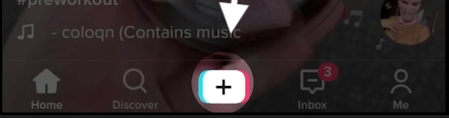
Click the Create Button of TikTok
Step 2. Apply Voice Effects:
After recording, tap the Voice Effects icon. Choose an effect and tap ‘Next’ to apply it to your video.
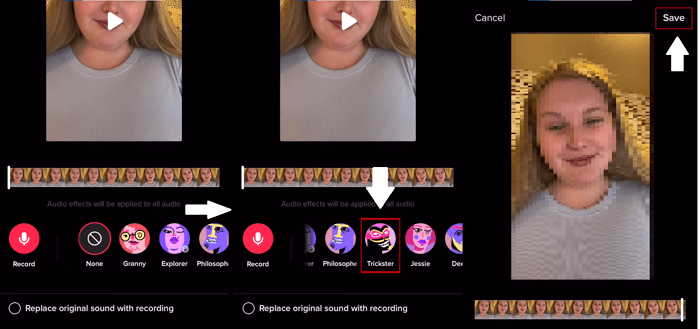
Select the Voice Effects
Step 3. Edit Your Post:
Add a description, hashtags, and any other options like ‘Allow Stitch,’ ‘Allow Comments,’ and ‘Allow Duet.’ You can also tag friends and add hashtags.
Step 4. Save or Share:
Decide whether to save your video as a draft or post it directly to TikTok. Tap ‘Draft’ to save or ‘Post’ to share it with your followers.
Now, they can easily transform their voices on any platform with the help of a voice changer. We have got two amazing options for you:
2. Change Voice on TikTok via Vozard (For Desktop)
If you use a computer, Vozard is a reliable and go-to option. This tool is AI-powered and comes with a lot of useful features. It also offers a real-time voice-changing option, which means you don’t have to pre-record your voice to transform it. So, whether you are streaming, calling, chatting, or gaming, you can have fun on the go.
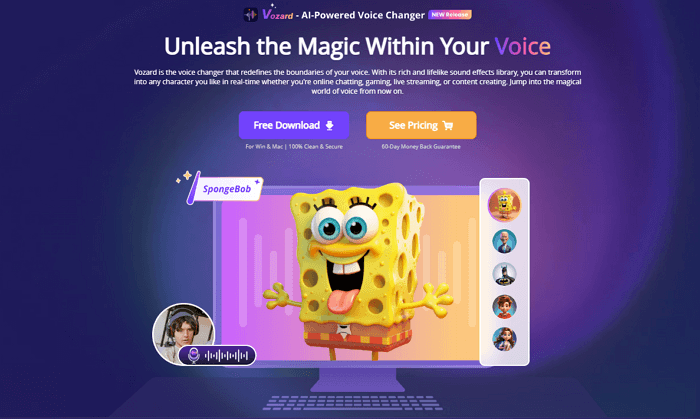
Vozard Product Page
Moreover, it comes with an easy-to-use interface. You don’t need to go through complex settings to change your voice. Just download it, follow the simple setup, and you’re ready to roll. Let us show you how to change voice on TikTok with the help of Vozard.
Steps to Use Vozard
First, download and install the Vozard app on your PC, then follow the instructions given below:
Free Download for all windows & 100% safe Free Download for all mac & 100% safe
Free Download100% Clean & Safe
Step 1: Launch the Vozard app, and click “Settings” to set the microphone and speaker as per the need.
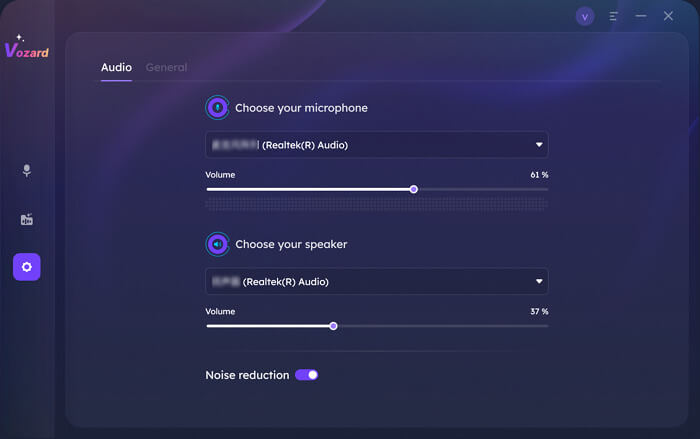
Vozard Settings Option
Step 2: Now, select the “Recorded Mode” option on the left pane of the Vozard screen.
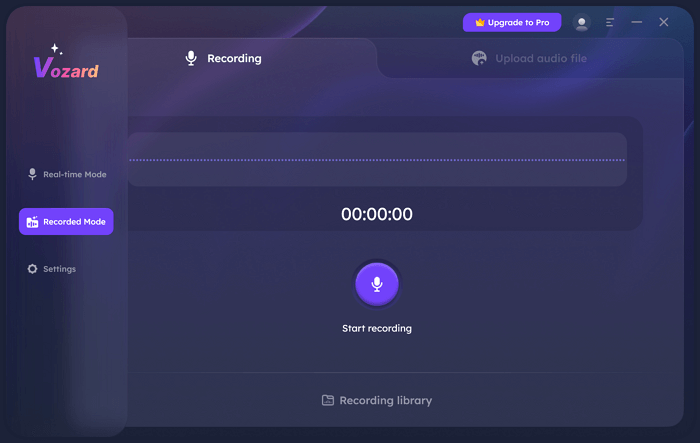
Enter Vozard Recording Mode
Step 3: Click “Click to upload file” and select the pre-recorded TikTok you want to change the voice of.
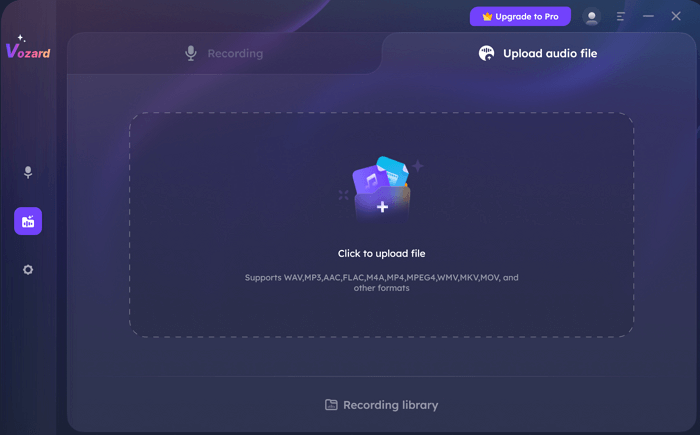
Upload the Recorded Audio File
Step 4: Once the import process is completed, you will see all the voice effects. Select one that you want. You can also customize the voice effect by adjusting the parameters.
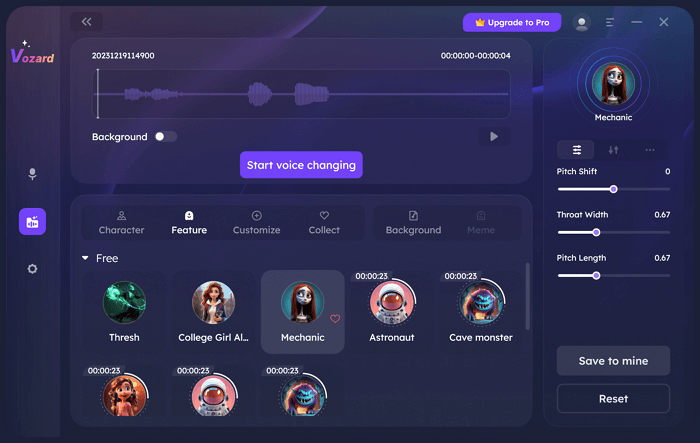
Start Pre-recorded File Voice Changing
Step 5: After the voice effect is generated, click the “Export voice changing file” button to export the file with the voice effect.
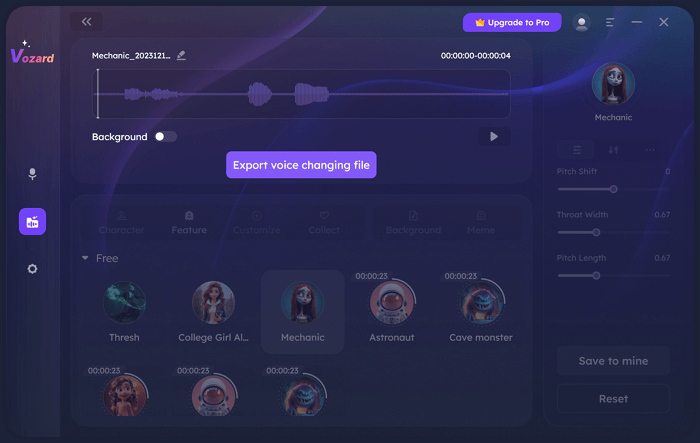
Export the Voice Changing File
Step 6: Click “Recording library” to check these files. You can click “Play” to play the file. By clicking “File,” you can browse the file. To delete the file, please click the “Delete” button.
So, this is how Vozard TikTok voice changer works. However, if you are unable to upload the TikTok file, you can separately record the audio, upload it on Vozard, and add the voice effect. Then, you can export and sync the audio with the TikTok video.
Let’s move towards the other voice changer!
3. Change Voice on TikTok for Mobile
If you want to morph your voice on your phone, you can try Voice Changer With Effects. It is a voice-changing app available for both iOS and Android users. You can easily install it and start changing your voice. However, this app doesn’t offer real-time voice changing. So you have to pre-record the audio, and you can add it to your TikTok video later.
Do you want to see how this app works? Let’s explore together!
Steps to Use Voice Changing With Effects
Before getting to the steps, install the Voice Changing With Effects app on your phone. Then follow the instructions given below:
Step 1: Open the Voice Changing With Effects app. Tap on the “Allow Microphone” button, and click the “Mic” icon to start recording. Once done, tap again to stop.
Step 2: You will see multiple voice options on your phone’s screen. Select the one that you want to have. You can play and try.
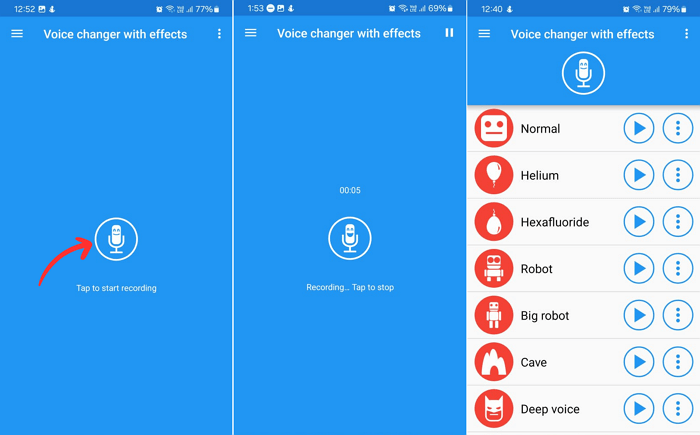
Tap to start recording
Step 3: Once you have selected your desired voice effect, click the three dots right next to it. Then click the “Save recording” option. Your recording will be saved.
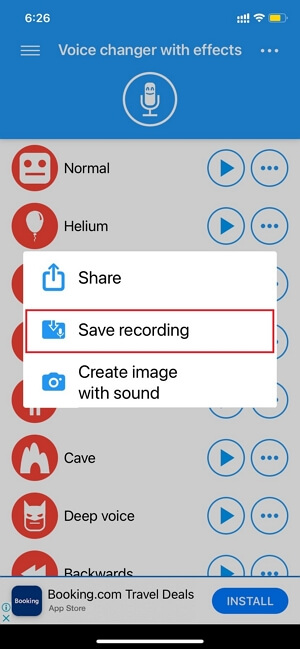
Click the save recording option.
Step 4: Click the three lines on the top left of your phone screen. Then select “Saved recordings.” Here, you can find the recordings you created and saved. You can export and use it on TikTok.
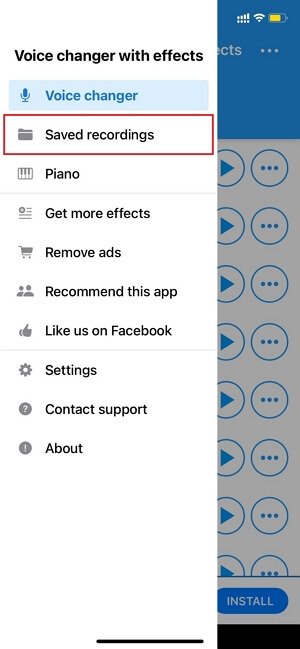
Export or share the recording.
So, this is how to change your voice on TikTok on your phone. Although this app is convenient, it comes with limited voice options and an outdated interface. Plus, you cannot enjoy the real-time voice-changing feature.
How to Change Voice on TikTok Live Stream
In this section, we will explore how to change voice on TikTok live streams. No doubt, it can add a whole new level of fun to your broadcasts. With TikTok’s Trickster voice effect, you can easily transform your voice in real-time. This approach can help you to engage your audience like never before.
Steps to Change Voice on TikTok Live With Trickster
Here’s a simple guide to using Trickster Voice in your TikTok Live:
Step 1: Open the TikTok app on your phone and tap on the “+” button at the bottom center.
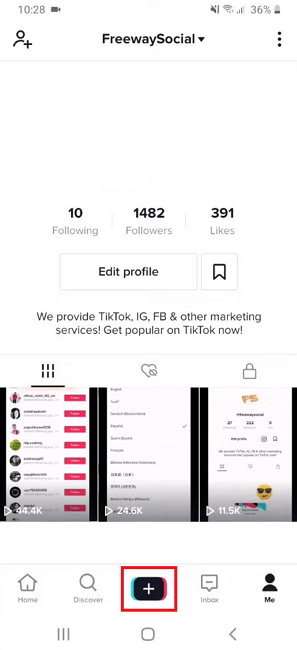
Click the “+” button to start live.
Step 2: After clicking the + button, you will head to this screen. Select “Live” to start the live streaming on TikTok.
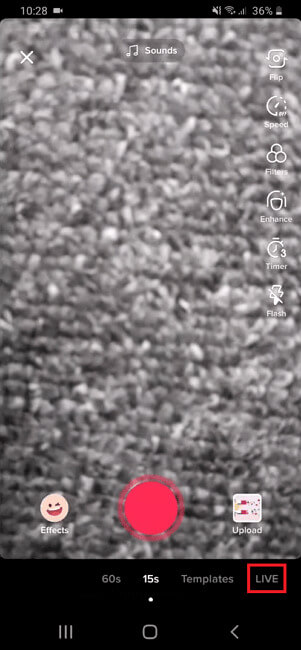
Click the TikTok Live option.
Step 3: Here, you will see the “Effects” option. Click it to open the voice effects.
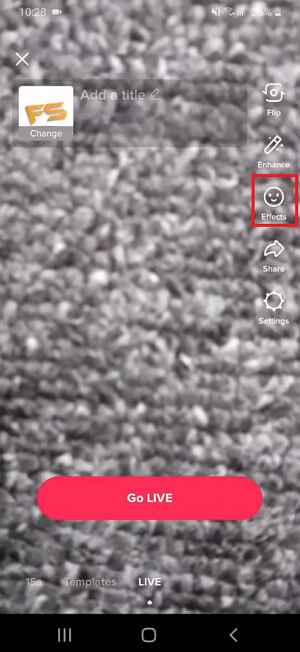
Click the Effects button.
Step 4: After clicking the Effects button, you will see multiple voice effects. Scroll and find the Trickster voice effect. Select it and go live.
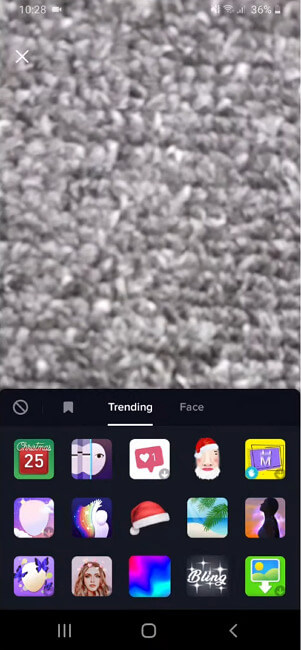
Find and select Trickster’s voice.
So, this is how to change voice on TikTok live stream. You can also adjust the settings of your voice effect as per your need. Now, let’s move forward and see how to change text-to-speech voice on TikTok.
How to Change Text-to-Speech Voice on TikTok
Text-to-speech is another amazing feature offered by TikTok. You can use it to transform your text into audio. It is also very easy to use. However, keep your text in mind before going to use this feature. Let’s find out how to use it!
Steps to Change Text-to-Speech on TikTok
You can follow the instructions given below to change text to speech on TikTok:
Step 1: Open the TikTok app on your phone and click the “+” button to start the video.

Click the “+” button to make a video.
Step 2: Now, record the video or upload it from your gallery. Then, click the “Aa” button to add text to your video.
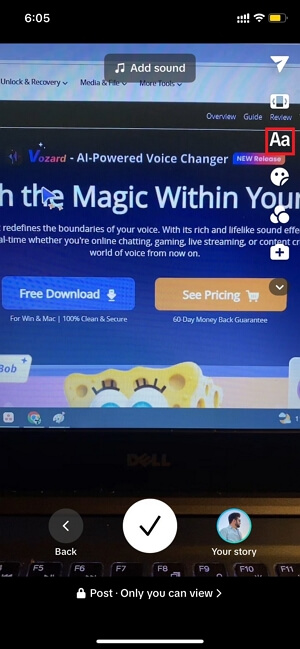
Click on the Aa option.
Step 3: Once the text is added, tap and hold it until the options appear. Select the “Text-to-speech” option and proceed.
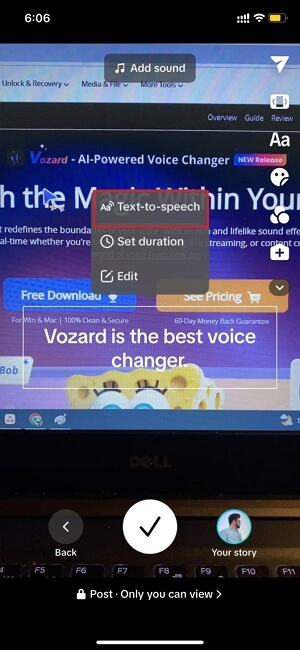
Select the Text-to-speech option.
After a few seconds, your text will be converted into audio played along with your video. How easy it is, no?
FAQs on How to Change Voice on TikTok
Q: How do I change my voice on TikTok during video recording?
A: You can change your voice by tapping the Voice Effects icon after recording your video. Select from the available effects and apply the one you like.
Q: Can I save a voice effect for later use?
A: Currently, TikTok does not have a feature to save custom voice effects for later use. You’ll need to select the effect each time you want to use it.
Q: What Do You Want to Do with TikTok?
A: On TikTok, there are two main things that you can do: make short videos and start live streams. Short videos are like tiny shows where you can sing, dance, or show off your talents for 15 to 60 seconds.
On the other hand, live streaming is like hosting your live show on TikTok. You can talk to people in real-time, answer their questions, and do fun stuff together.
Q: Can I combine voice effects with sound or music?
A: Yes, you can combine voice effects with background music or sounds. After applying the voice effect, use the app’s audio selection tools to add music or sound to your video.
The Bottom Line
This article has explored how to change voice on TikTok. Just follow the easy steps we discussed, either using Vozard on your computer or Voice Changer With Effects on your phone. With these tools, you can make your voice sound silly, funny, or even magical!
So, go ahead and give it a try. Play around with different voices, and see what you like best. It’s all about having a good time and making your TikTok videos extra special. Don’t be afraid to get creative and let your personality shine through!
Vozard – AI-Powered Voice Changer
Free download Vozard voice changer software to change your voice into anyone you want to enhance online chatting, gaming, live streaming, and content creation experiences.
Product-related questions? Contact Our Support Team to Get Quick Solution >
