Fixes and Solutions: How to Fix Voicemd Not Working?
Do you meet the issue with Voicemod. Check our guide for solutions.

Fixes and Solutions: How do I fix Voicemod Not Working?
- 180+ lifelike VST and AI voice effects.
- 3 flexible voice-changing methods.
- Compatible with 13 popular third-party platforms.
Available for both Win & Mac
Voice-changing apps are taking the online world by storm! One such application is Voicemod, which lets you alter your voice in real time.
It is popular with gamers, live streamers, and content creators who want to add a fun twist or anonymity to their online interactions. You can imagine that talking to your friends in a high-pitched helium voice or a booming robot tone must be an unforgettable experience!
Despite its usefulness, Voicemod can sometimes malfunction and stop working. This can be frustrating, especially during an online game or stream. There are common reasons that lead to Voicemod’s breakdown:
- Software Glitches
- Outdated Software
- Audio Settings Conflict
- Microphone Issues
Regardless of why Voicemod is not working, there are solutions!
Table of ContentsHide
6 Methods to Fix Voicemod Not Working
Let’s explore 6 ways in detail to get your Voicemod voice changer back on track:
Method 1: Check Audio Configuration
The first method to fix Voicemod not working is to check the audio configuration. Here are the steps:
- Launch Voicemod, and select “Settings” from the menu on the left.
- Under the “Input” option, select your microphone from the drop-down menu.
- Move the slider left or right till you get a good audio signal.
- Select your speakers or headphones under the “Output” option.
- Lastly, turn on the toggles for “Hear Myself” and “Voice Changer” from the options at the bottom.
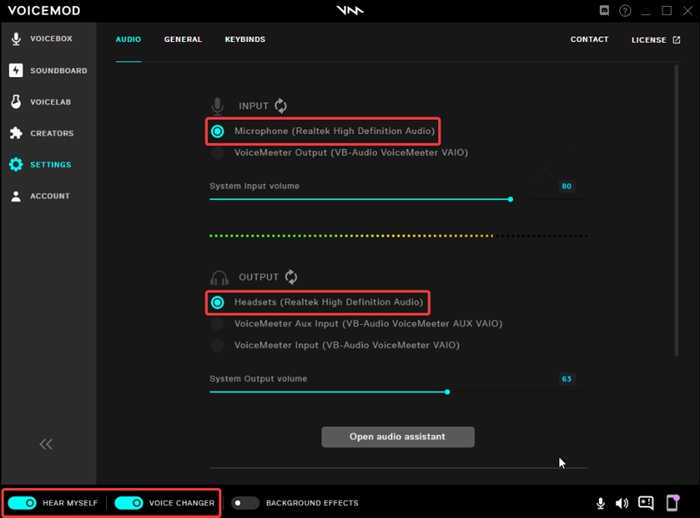
Check the Audio Configuration in Voicemod
Method 2: Check Voicemod Noise Gate
If the previous method doesn’t work, check the Voicemod noise gate. You can adjust the voice, soundboard, and general settings from the noise gate settings. Here’s how to set it:
- On the main settings menu of Voicemod, click on the option at the bottom-right with the dialogue box icon to open the noise gate settings.
- Here, you will see 5 sliders for “Voice changer volume,” “Reduce background noise,” “Soundboard volume,” “Bleep out the volume,” and “System output volume.”
- Start by adjusting the slider for the “Voice changer volume.”
- Next, move the slider for background noise reduction till the background noise fades away entirely.
- Alternatively, you can also try switching off the toggle for background noise to see if Voicemod starts working.
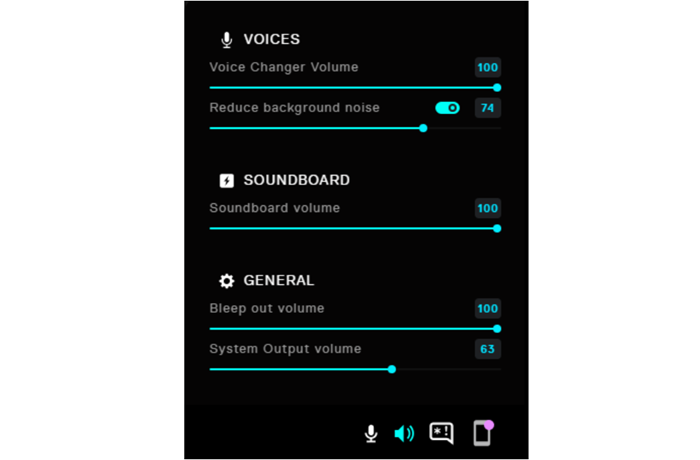
Check Voicemod Noise Gate
Method 3: Set Up Windows Audio Configuration
If the previous 2 methods fail to get Voicemod working again, maybe there is nothing wrong with the application. Therefore, you can check the Windows audio configuration on your PC:
- Right-click the speaker icon on your taskbar and select “Sound Settings.”

Right-Click on the Speaker and Select Sound Settings
- Now scroll down and click “More Sound Settings” to open the Windows Audio Configuration settings.
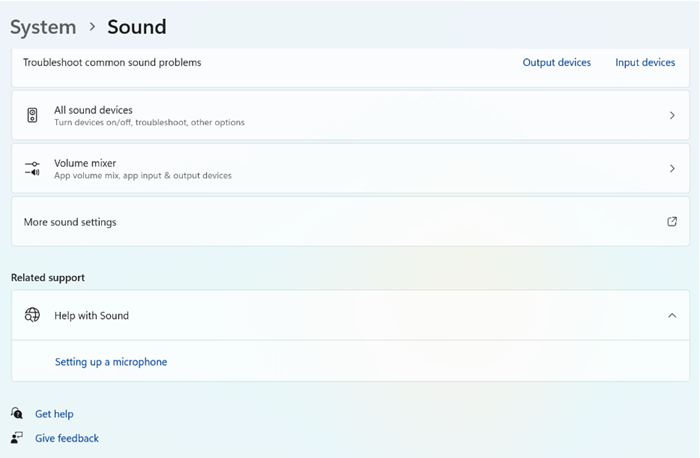
Go to More Sound Settings
- Go to the “Recording” tab, right-click on your microphone, and choose “Properties.”
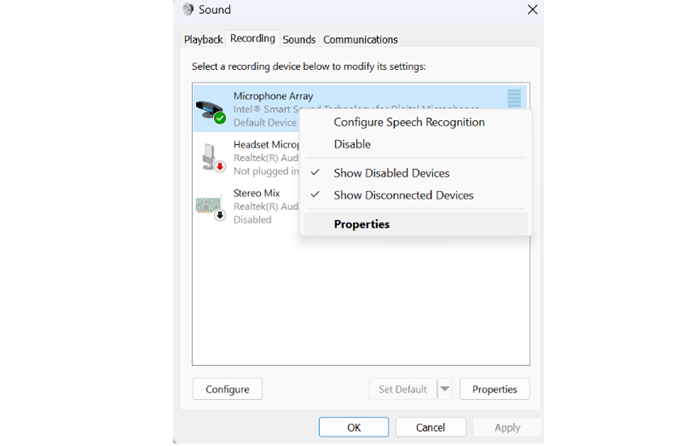
Go to Microphone Properties under the Recording Tab
- In the “Levels” tab, ensure the microphone volume is set to an appropriate level, usually around 75-80%. A low volume can make your voice faint in Voicemod.
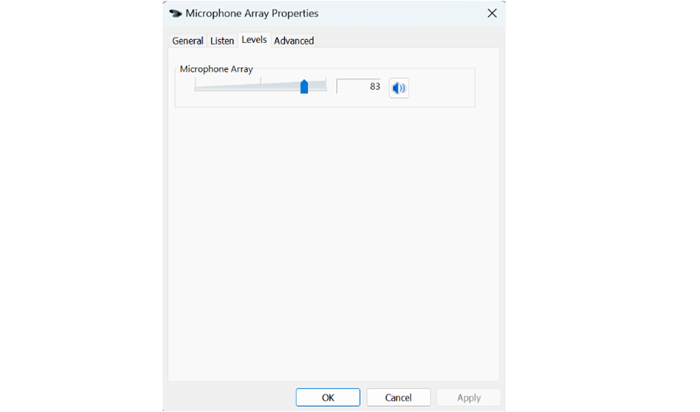
Set the Microphone Volume Between 75 and 80%
Method 4: Adjust Voicemod Mic Exclusive Mode
In most cases, setting up Windows audio configuration resolves the Voicemod not working, but it’s time to check the exclusive mode option if it doesn’t.
- Launch Voicemod and go to “Settings” from the options on the left.
- Scroll to the bottom and turn the toggle off for “Mic Exclusive Mode” under Advanced Audio Settings.
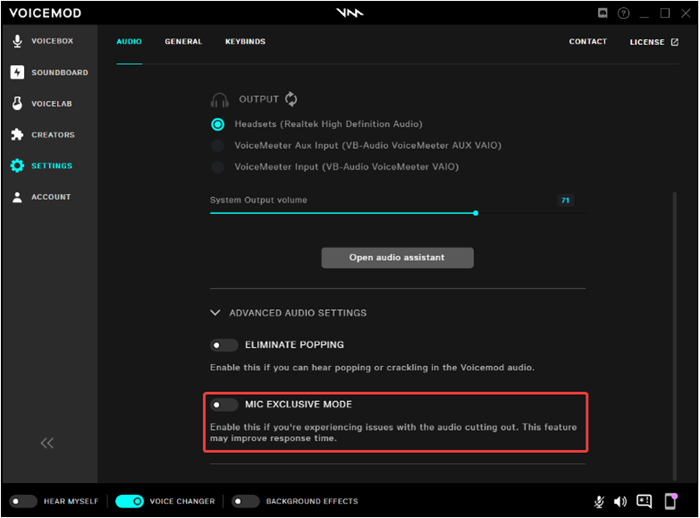
Disable Mic Exclusive Mode in Voicemod
Method 5: Reset Windows Mixer
If disabling the exclusive mic mode also doesn’t help with the Voicemod not working issue, maybe there’s something wrong with the Windows mixer. Therefore, you can try resetting it to see if it resolves the issue. Here’s the guideline:
- Open Voicemod and go to “Settings” from the left-hand menu.
- Scroll to “Advanced Audio Settings” and disable the “Eliminate Popping” and “Mic Exclusive Mode” settings.
- Now, without closing Voicemod, open the settings on your Windows PC and click “System > Sound.”
- Navigate to “Advanced Settings” and click on “Volume Mixer.”
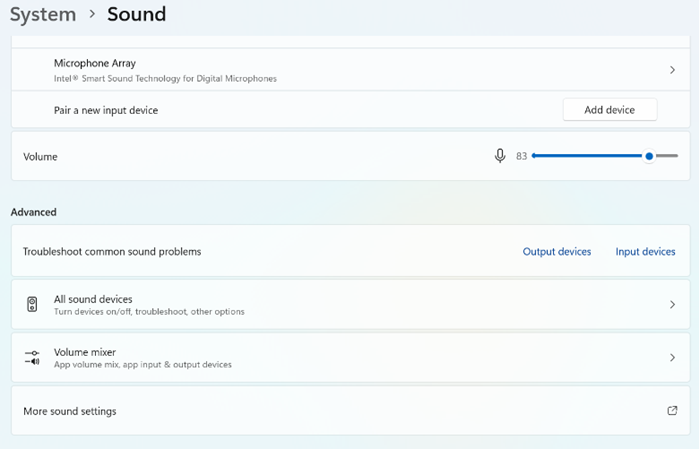
Select Volume Mixer under the Advanced Tab
- Click “Reset” to reset the Windows volume mixer.
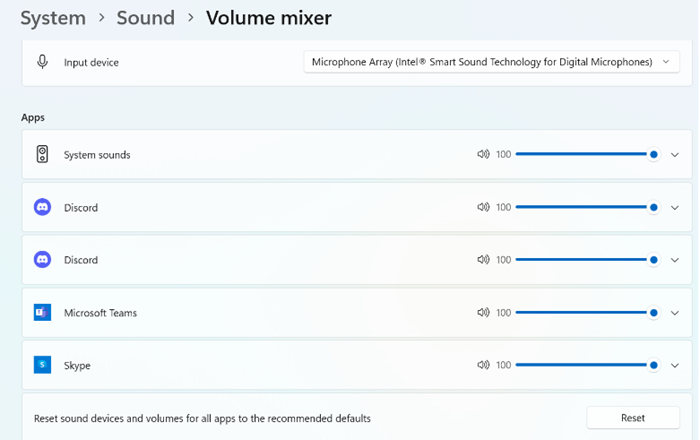
Reset Windows Volume Mixer
- Finally, close Voicemod and restart it again.
Method 6: Reinstall Voicemod Driver
If nothing else works, there’s something wrong with the Voicemod drivers. You can reinstall them to fix it.
- Go to “Start > Device Manager” on your Windows PC.
- Expand “Audio Inputs and Outputs” and click “Microphone.”
- Now select “Uninstall Device.”
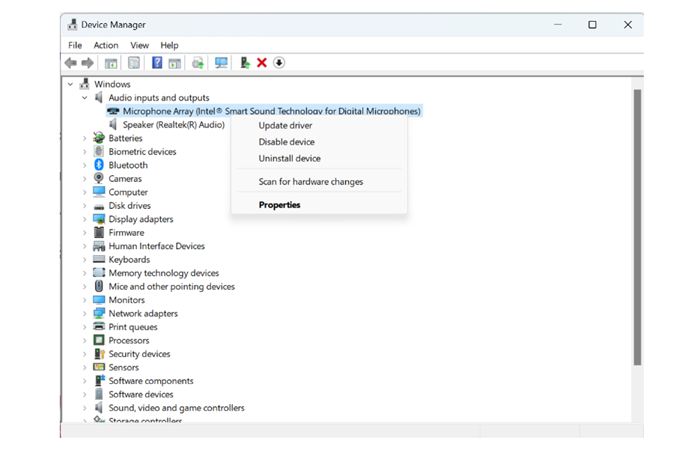
Uninstall Device
- Next, restart your PC and go to Voicemod’s official website to download the latest driver version. You can check this link for more details.
Once you have installed the latest drivers, Voicemod will start working again, and you can continue your voice-changing journey.
However, there’s always a possibility that the issue is of a technical nature and more complex, which might require the assistance of a professional. In such a case, you can go for an alternative voice changer app, Vozard.
Another Real-time AI Voice Changer – Vozard
If you’re troubleshooting Voicemod issues and getting frustrated, don’t give up changing your voice just yet!
Let’s introduce you to Vozard, an alternative real-time voice-changing app. It is a powerful software that can add exciting twists to your online voice presence.
Why Choose Vozard over Voicemod?
Voicemod and Vozard offer real-time voice manipulation, letting you transform your voice into a different character, from a cartoon icon to a deep-voiced villain.

Vozard’s Website Interface
Free Download for all windows & 100% safe Free Download for all mac & 100% safe
Free Download100% Clean & Safe
However, Vozard boasts some key advantages that might make it a perfect alternative for you:
More Cost-Effective
Voicemod has a freemium model with limited features. You can enjoy a wider range of effects and customization options with Vozard without breaking the bank!
Lightweight and Efficient
Vozard is known for being a lightweight program that uses less system resources than Voicemod. This can be a major benefit if you have an older computer or are experiencing performance issues with Voicemod.
Privacy-Focused
If you’re concerned about data privacy, Vozard is a great choice. It keeps your data secure and private.
Active Development
Vozard is backed by a passionate developer community that constantly works on improvements and adds new features. This can lead to a better voice-changing experience.
Final Words
Is your Voicemod voice changer acting up? Don’t be panic!
This guide has put together 6 solutions to address common Voicemod glitches. You can check audio settings in both Voicemod and Windows, manage background noise with the noise gate, and ensure your microphone is properly configured.
If other programs clash, you can try disabling Voicemod’s exclusive mode. Alternatively, a quick Windows mixer reset can also do the trick. As a last resort, it may be a must to reinstall the Voicemod driver. With these steps, you should be back to adding fun voice effects in no time!
If there is nothing else to fix the Voicemod’s error, you can try an alternative app, Vozard. It works similarly to Voicemod but offers a better experience.
Therefore, don’t let a little technical glitch slow you down! Get Vozard and continue gaming and chatting with new voices!
Vozard – AI-Powered Voice Changer
Free download Vozard voice changer software to change your voice into anyone you want to enhance online chatting, gaming, live streaming, and content creation experiences.
Product-related questions? Contact Our Support Team to Get Quick Solution >
