
< Back
Help Category
-
1. Does Wipit Have a Free Trial?
Yes, you can freely enjoy all product features, except for export functionalities. Free-tier users can export Wipit's built-in media resources without restrictions. To export unlimited images and videos without the Wipit watermark, please upgrade your Wipit account.
2. What Are the Price Plans for Wipit?
Here are the Wipit price plans – Subscription-based purchase plans and one-time LTD purchase plans. Throughout the subscription period, you can enjoy all Wipit features and receive major version upgrades for free.
Subscription-based purchase plans
• Monthly Plan – $9.99: one computer (Win/Mac), one-month access
• Yearly Plan – $22.99: one computer (Win/Mac), one-year access
During your subscription period, you will have full access to all features offered by Wipit, and you will also receive major version upgrades at no additional cost.
One-time LTD purchase plans
• 1-Computer Plan – $27.99: one computer (Win/Mac), lifetime access
• 5-Computer Plan – $89.99: one computer (Win/Mac), lifetime access
To get more information about the price of Wipit, please refer to the page.
3. Can I Upgrade or Stack Wipit Purchase Plans?
Whether you can upgrade or stack Wipit plans depends on the specific plans you have purchased.
Subscription-Based Plans(Stacking Allowed, Upgrades Not Permitted):
● Monthly/yearly subscriptions can be stacked (e.g., purchase additional months/years), but subscription plans cannot be upgraded to other tiers.
● Key Rules:
① Stacked subscriptions extend the access duration (e.g., beyond 1 month/year).
② Yearly subscriptions purchased on top of a monthly plan cannot be stacked on the same.
③ They must be assigned to a different inactive device.
● Upgrading from a subscription to a one-time Lifetime (LTD) plan is allowed, but the LTD license cannot be stacked on the current device—use it on a different inactive device instead.
One-Time Lifetime (LTD) Plans(Stacking Allowed:):
● Multiple LTD plans can be stacked, but the additional licenses must be used on other inactive devices (not the current one).
-
1. What is My iMobie ID?
If you haven't bought the Wipit, the iMobie ID is the iMobie account of Wipit. If you have bought the Wipit, iMobie ID is the email you entered in the checkout process, and it will be automatically registered. If you forget, don't know, or need to reset your password, please click here for the next steps.
2. Can I Use the iMobie ID on Several Computers?
It depends on whether you bought a plan for 1 or 5 computers. The iMobie ID can only be activated on the number of computers specified in your plan.
3. How to Enable Two-Factor Authentication for iMobie Account?
1. Please log in the iMobie account on iMobie center.
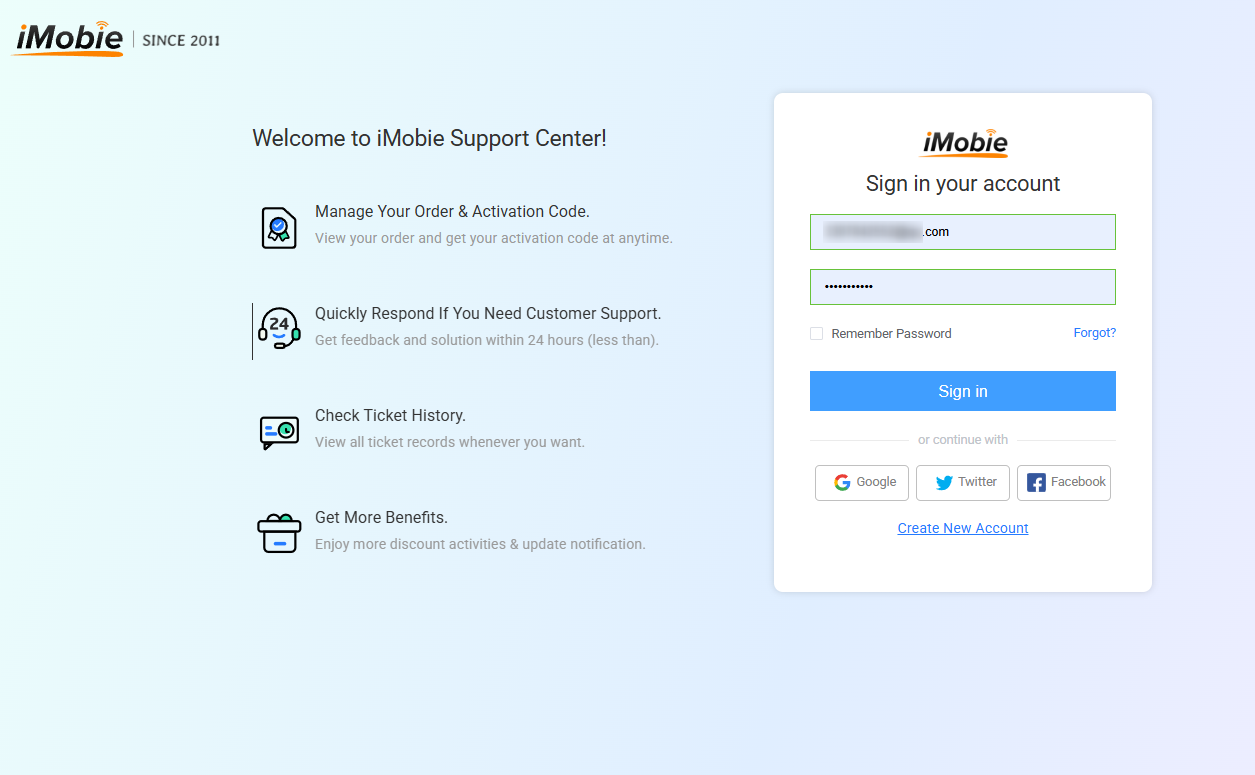
Login iMobie Account
2. Then, please choose the Account Settings>Enable Two-Factor Authentication.
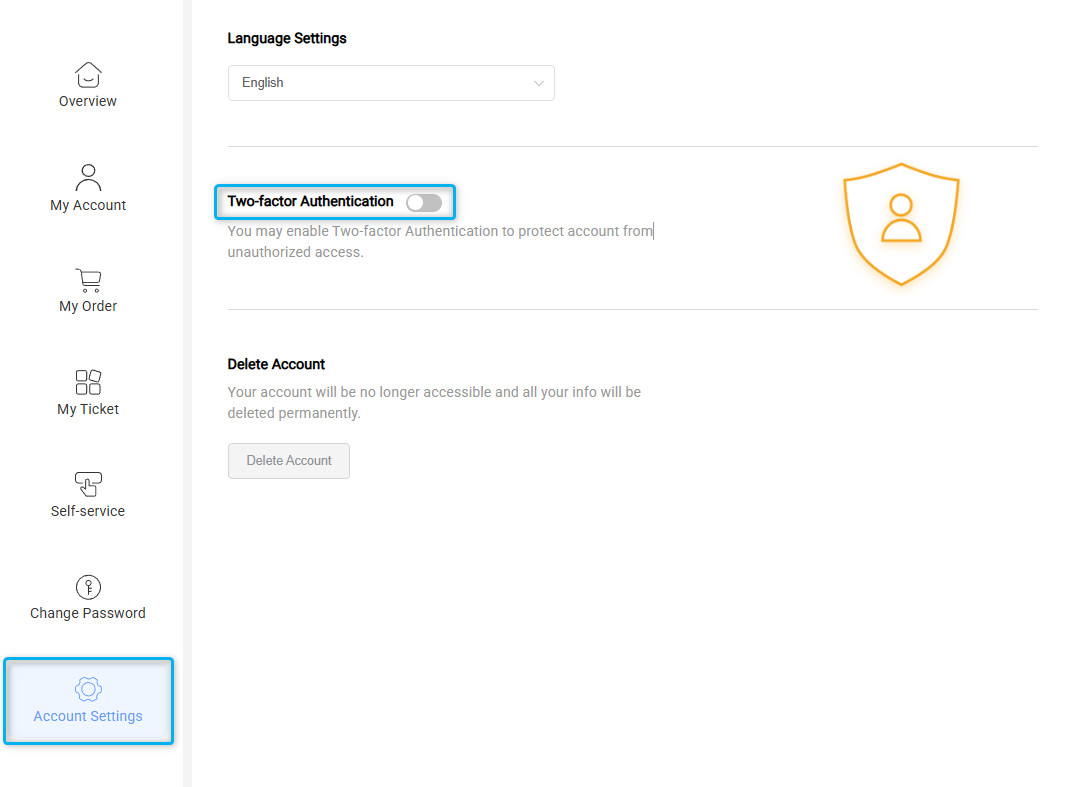
Enable Two-Factor Authentication
3. Install Authenticator App on your phone > Scan QR code with Authenticator App > Enter Verification code > Please click Confirm option.
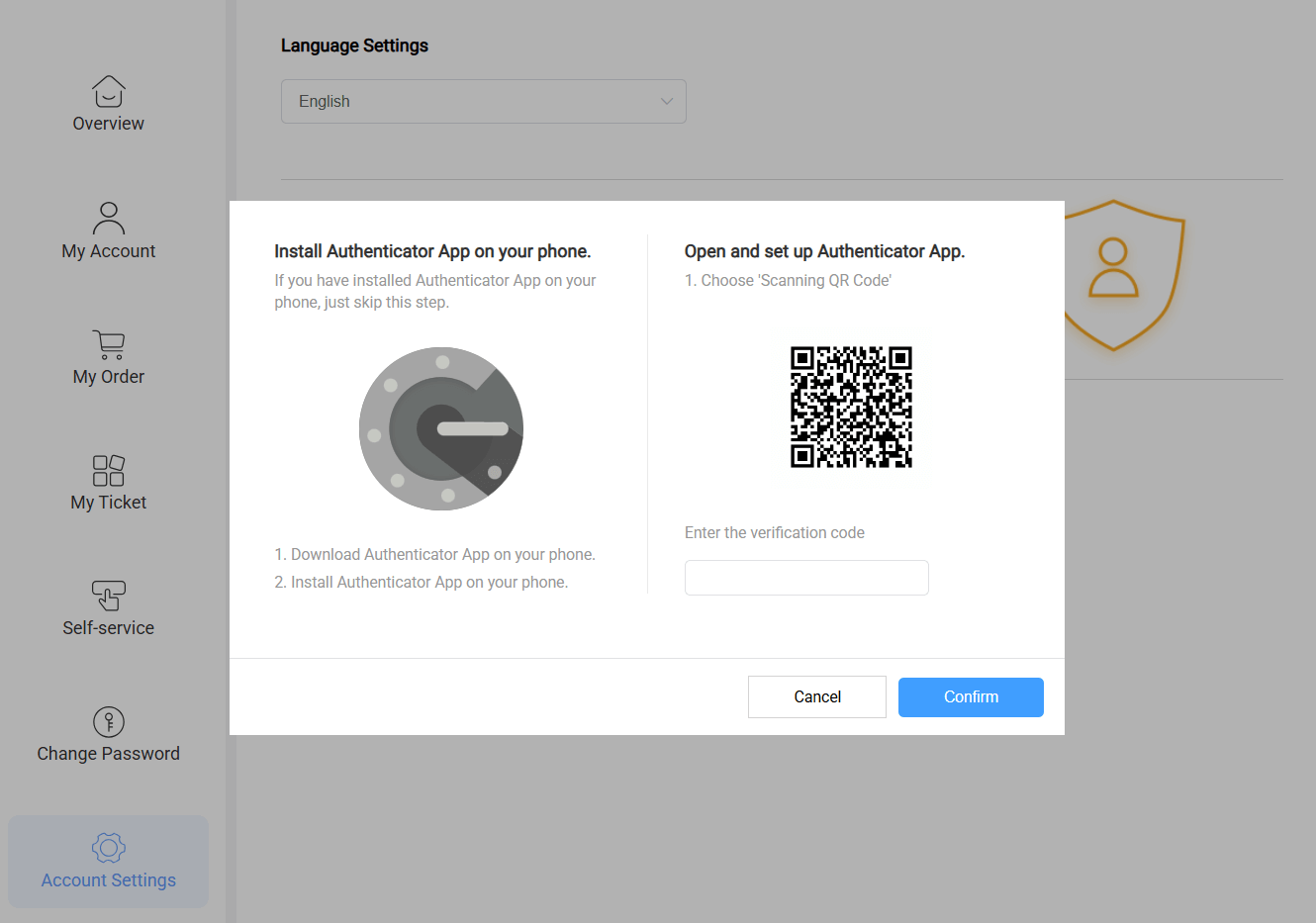
Enter Verification Code
4. How to disable Two-Factor Authentication for iMobie account?
1. Please log in the iMobie account on iMobie center. When you log in, you are required to enter a dynamic verification code. If there is a verification app on your phone, please open the app and enter the verification code to enter the following iMobie account center page.
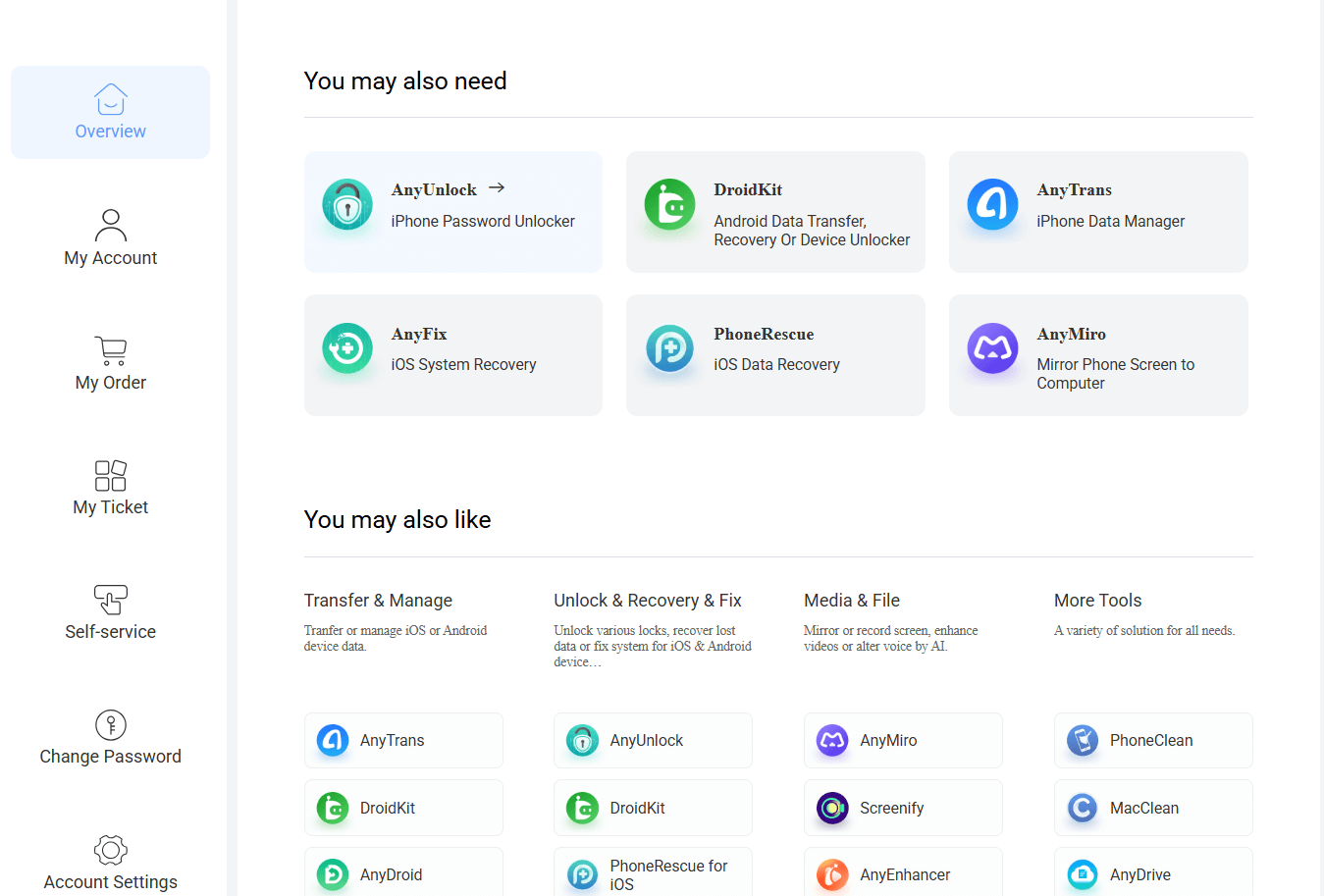
Login iMobie Account Successfully
2. Then, please choose the Account Settings>Disable Two-Factor Authentication.
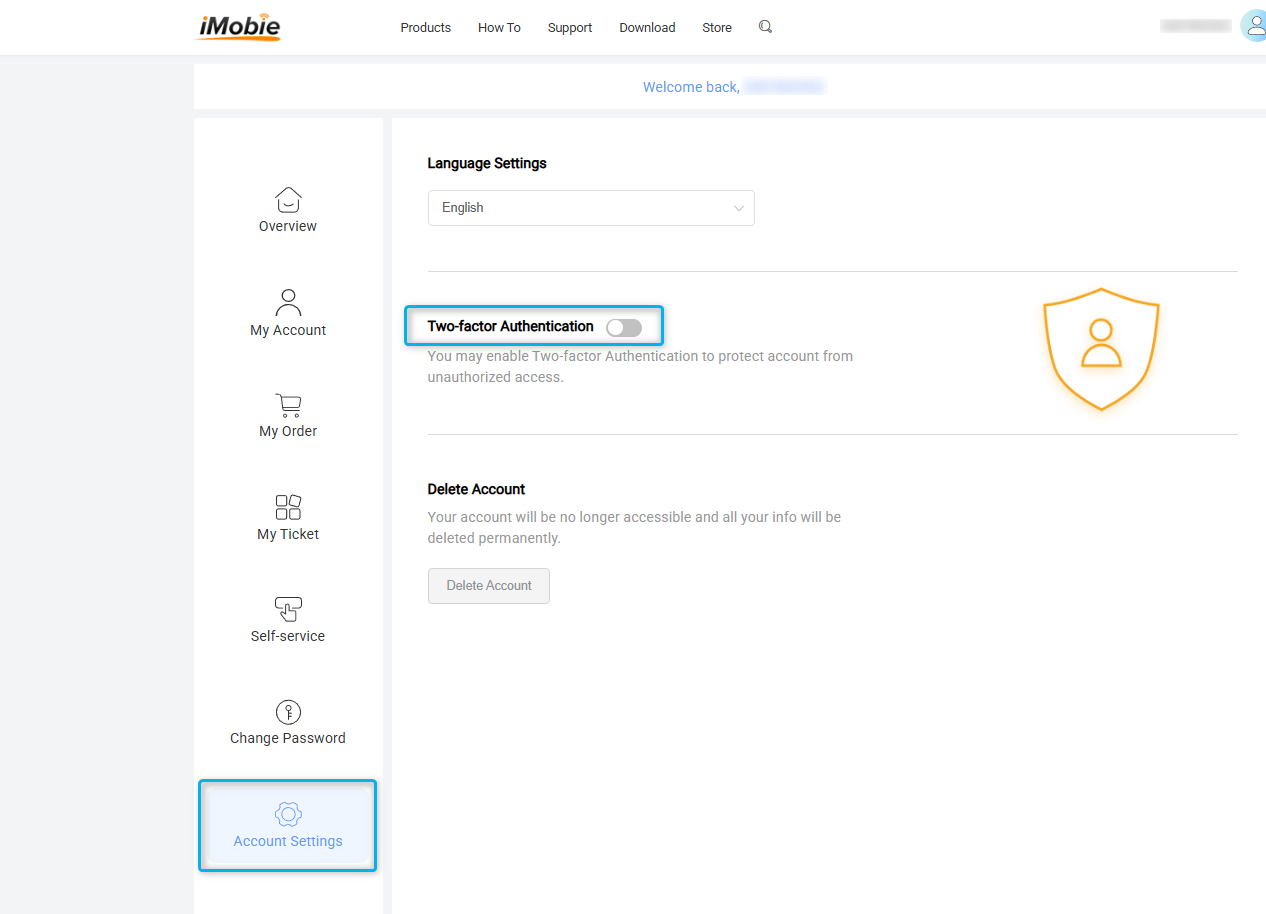
Disable Two-Factor Authentication
3. If there is no verification code, you cannot log in and disable it. Please contact support team to get help.
-
1. How to Activate Wipit?
Wipit can be acquired through various channels – within and outside of the software itself. You can purchase it directly from the software or explore alternative sources like software download sites or software review sites. After completing the purchase, you can activate Wipit and enjoy its full range of features and functionalities.
For a smooth and successful activation of Wipit, please ensure that the email used to purchase Wipit matches the email used for login. Depending on the specific scenarios of purchasing and signing in, here are four circumstances:
(1). When you purchase Wipit and haven't signed up for the software.
(2). When you sign up for Wipit and purchase the software within the software.
(3). When you sign up for Wipit and purchase the software outside the software.
(4). When you activate Wipit via the activation code.
To get more information on how to activate Wipit, please refer to the link
2. Can I Use Wipit If I Swap Computers?
Yes, you can use Wipit if you swap computers. If your computer is damaged or you purchase a new one, we support unbinding the activation code. You can then use it on your current computer. Please contact support for assistance.
-
1. What Are the System Requirements for Wipit?
Wipit currently supports both Windows and Mac operating systems.
Windows OS macOS Operating System Windows 10 and above (64-bit only) macOS 10.15 and above Please note that Wipit supports a 64-bit operation system instead of a 32-bit one. If you want to learn more information about your Windows computer specifications, please find the Settings option on your computer and choose System option, then please choose About option. You will view the detailed information about your computer specifications.
-
1. Does Wipit Support Batch Removals for Videos or Images?
Yes, it can. With Wipit, you have the convenience of selecting and removing all unwanted objects simultaneously across your videos or images, enabling you to save valuable time. Whether it's multiple objects in a video or image, Wipit empowers you to eliminate them all in one go efficiently, streamlining your editing process and enhancing productivity.
2. Is There a Video Length Limit for Wipit Processing?
No, it isn't. With Wipit, there are no constraints on the length of the videos you can process, allowing you to work with footage of any duration. As long as your computer meets the required performance specifications, you can seamlessly handle videos of any length without encountering limitations.
3. What Are the Supported Video and Image Formats in Wipit?
Wipit enjoys extensive support for various video and image formats, ensuring you can seamlessly work with your media files.
Video Formats MP4 and MOV Image Formats PNG and JPEG Please note that except for removing the watermark from media files, you can also upload PNG and JPEG images to set your brand logo.
-
1. How to Send a Log File for Further Diagnosis?
If you run into technical problems with Wipit, to help us make better analysis and find a solution for you soon, please send the log file to iMobie Support Team. Here we will introduce 3 ways on how to send us the log file:
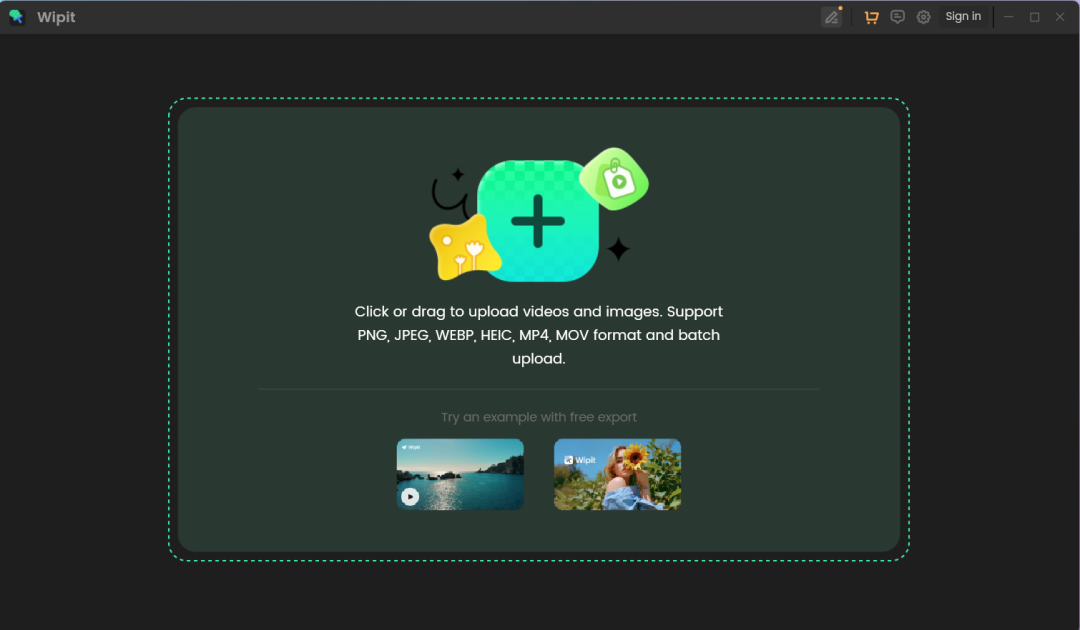
Method 1: Send the Log File via Wipit
For Mac:
Launch Wipit> Click Feedback icon> Enter email address & describe the issue > Click Submit button.
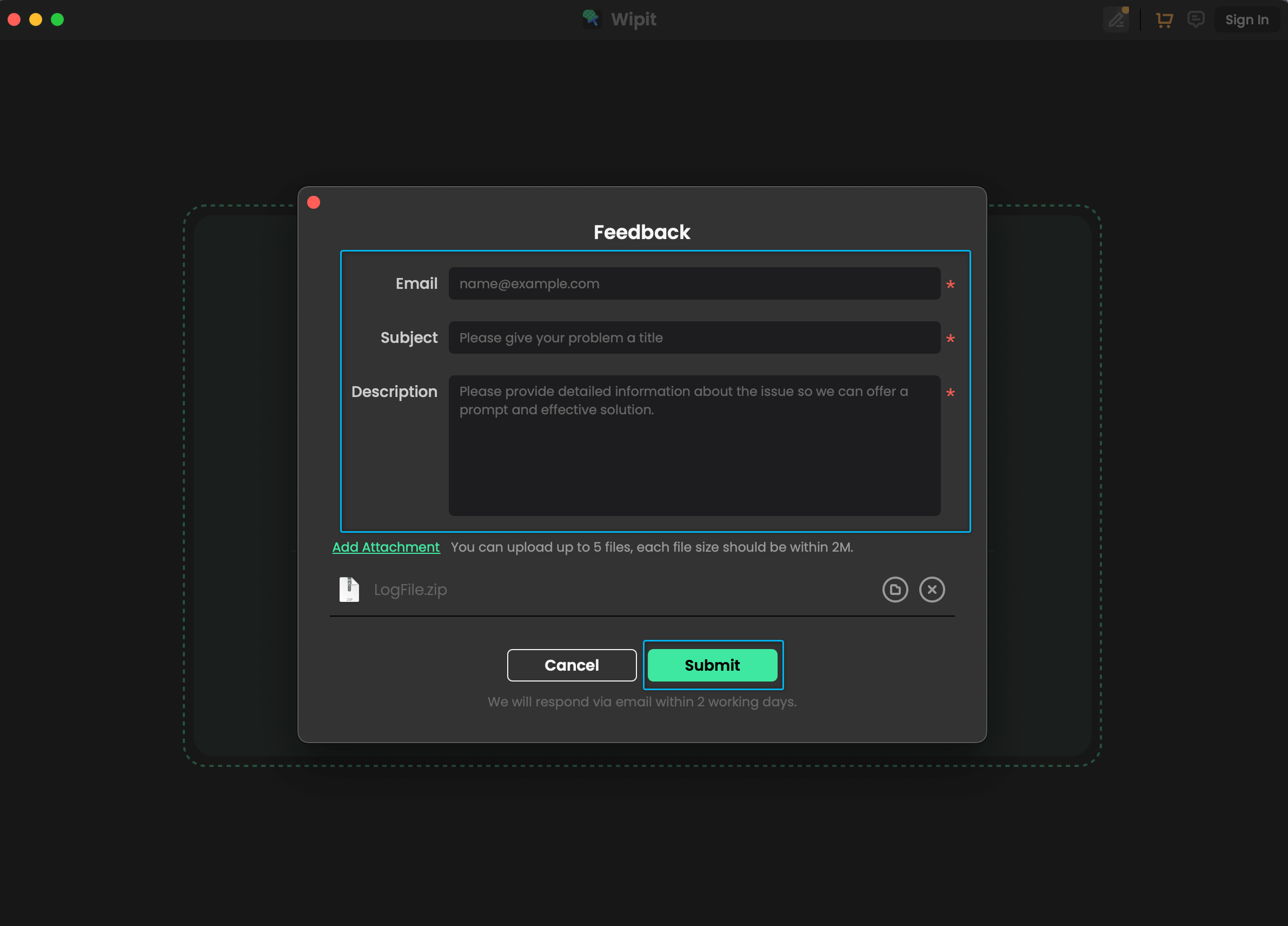
How to Send Log File via Wipit
For Windows:
Launch Wipit> Click Feedback icon> Enter email address & describe the issue > Click Submit button.
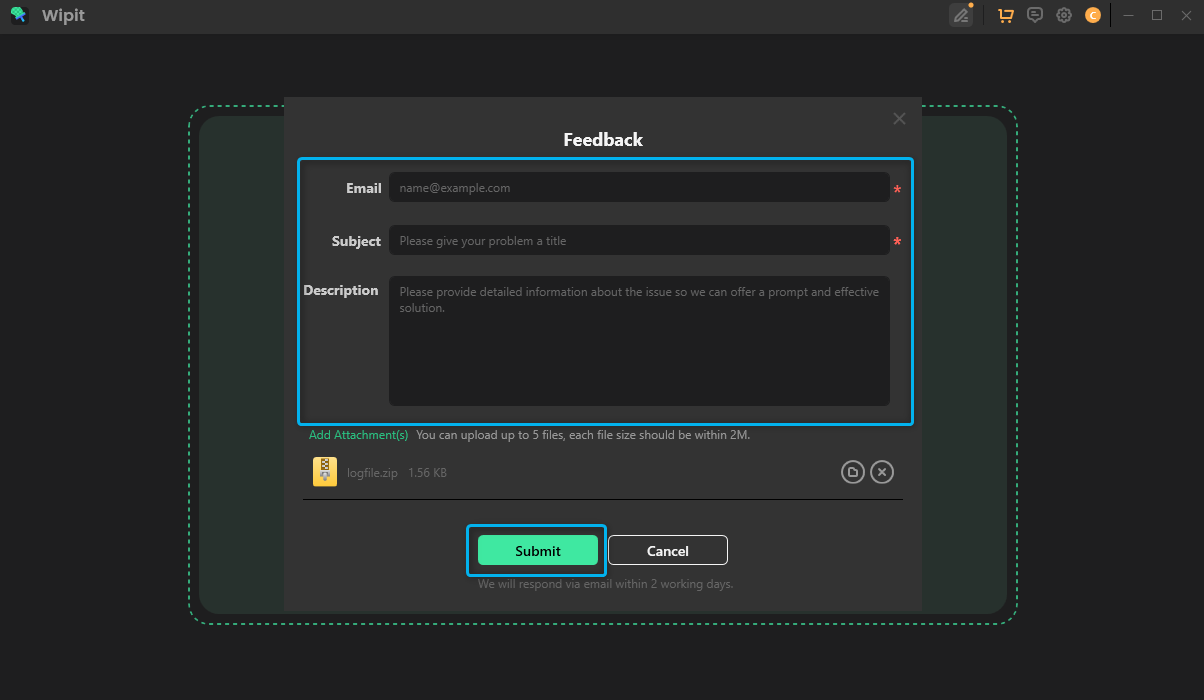
How to Send the Log File via Wipit
Method 2: Send the Log File via Email
If you cannot send the log file directly, please find the error log from the path below and zip it as an attachment via email to cs@imobie.com.
Mac: Users\Your computer name\Documents\Wipit\ LogFile
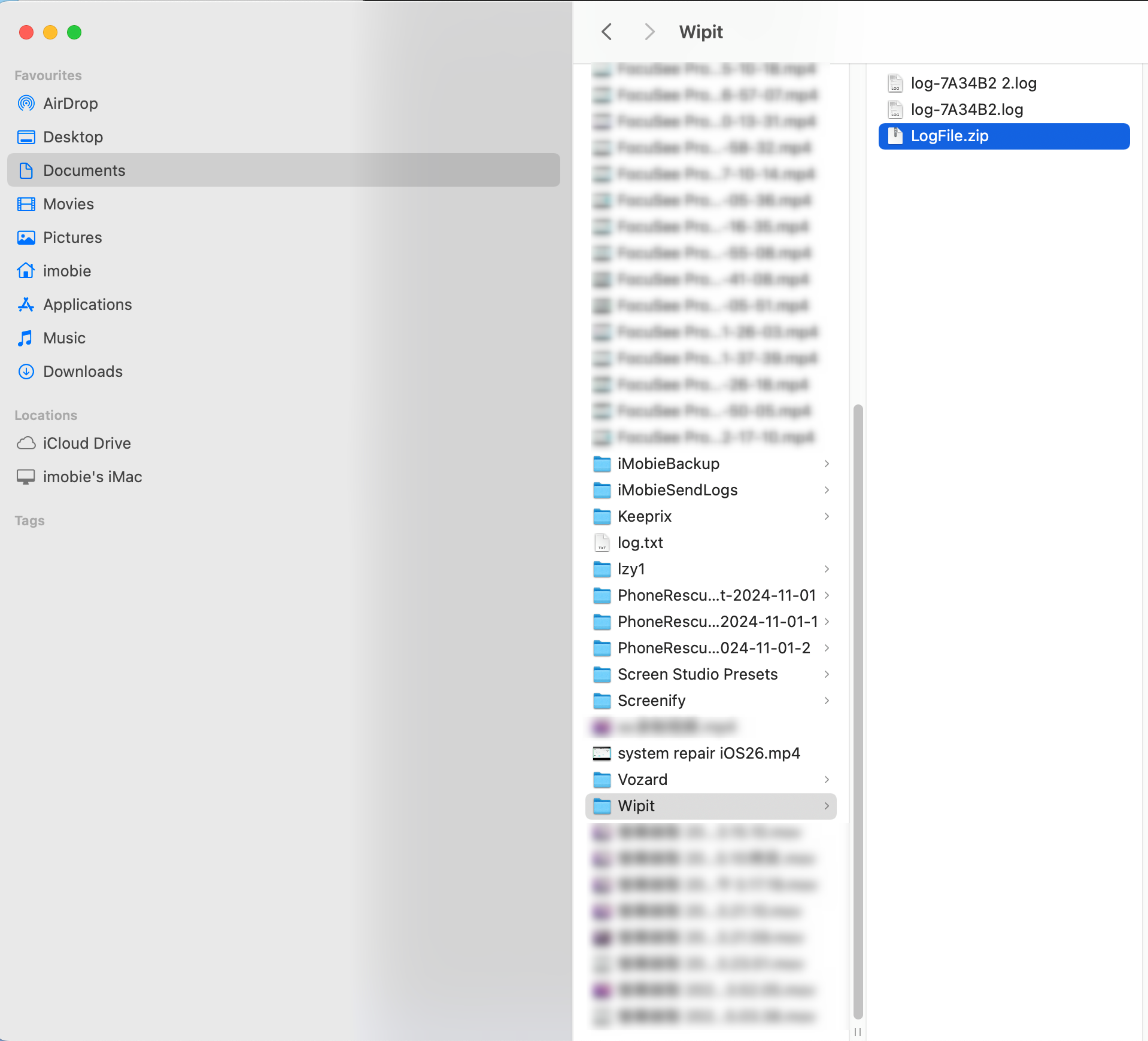
How to Send the Log File via Email
Windows: C:User\Your computer name\AppData\Roaming\iMobie\Wipit\Errorlog
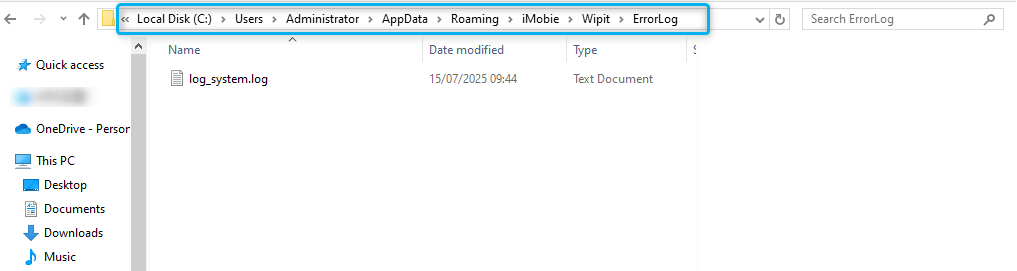
How to Send the Log File via Email
Method 3: Send Log file via Submit Ticket
If you are unable to send the log to Support Team via email or software, and this is your first Submit Ticket, please describe the information about your problem and click "Add Files here" to submit the log to us as an attachment.
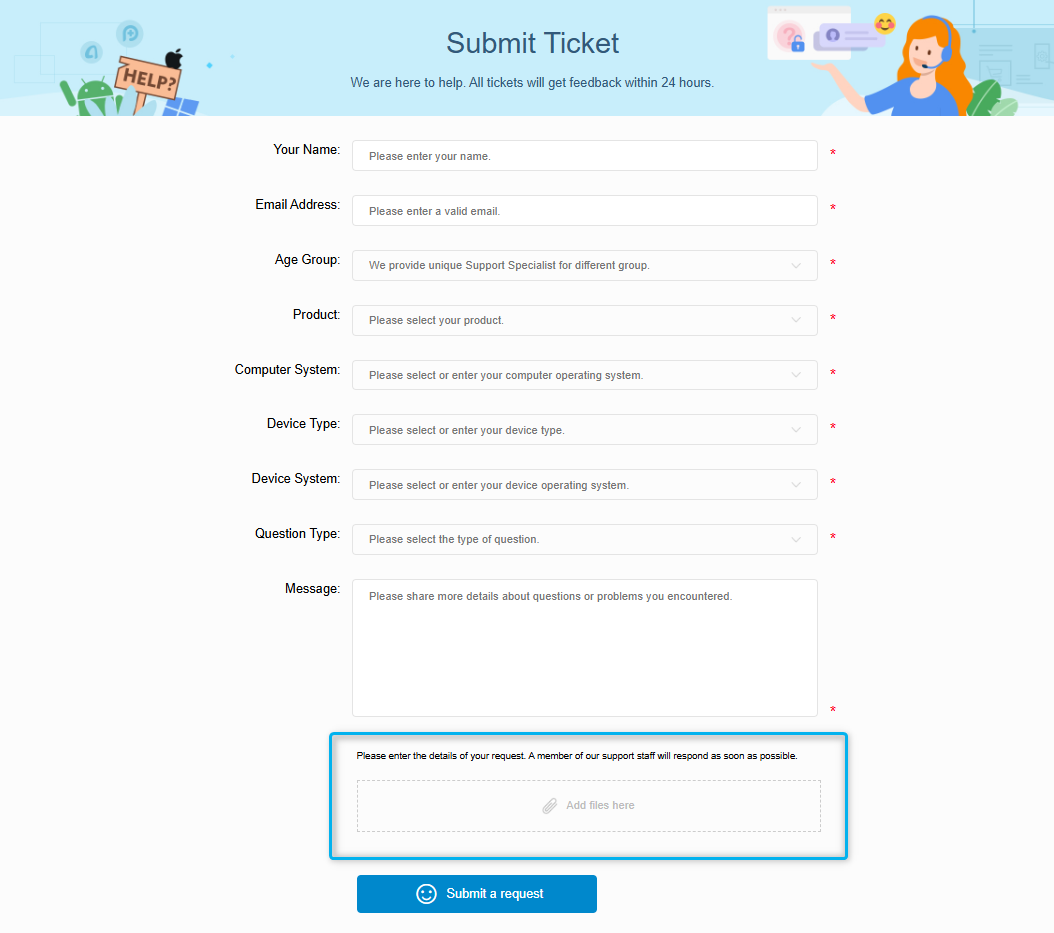
How to Send the Log File via Ticket
-
1. What's the Wipit Refund Policy?
You can check the details of our Refund Policy here. For any reasonable order dispute, iMobie welcomes customers to submit the refund request and we are happy to assist you in the process.