How to Fix Google Lens Not Working on iPhone [9 Ways]
To fix Google Lens not working on iPhone, it’s usually due to poor connection, outdated apps, or permission issues. Try basic fixes like updating the Google app or iOS and restarting your device. For deeper system repair, use AnyFix to quickly resolve hidden iPhone glitches.
Many people rely on Google Lens to identify plants, translate text, or find information about objects around them. But recently, some iPhone users have reported that Google Lens suddenly stops working or fails to recognize anything on screen. This issue is often caused by simple factors such as poor internet connection, older app versions, or disabled camera permissions. In this guide, we’ll explain why Google Lens not work properly on iPhone and provide practical solutions to fix the problem, helping you get back to scanning and discovering the world around you.
Why Is My Google Lens Not Working on iPhone?
Google Lens may stop working on iPhone for several reasons. There is not a single common reason behind the issue. However, below are the common reasons why Google Lens not working on iPhone:
- Internet connection issues
- Outdated Google Lens app
- Outdated software and browser
- Insufficient permission settings
- Corrupted cache
- Device camera issue
- Server outage
- Unidentifiable object
- Software bugs
Quickly fixing these issues usually restores Google Lens functionality.
Regular Solutions for Google Lens Not Working on iPhone
Below, we have listed 8 practical solutions to restore the Google Lens functionality. Have a look at them.
Way 1. Check Internet
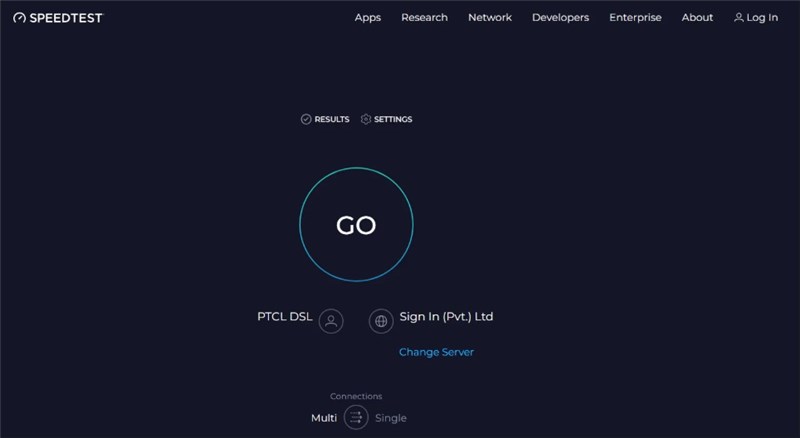
Google Lens requires a stable internet connection to process images online. If your network is weak or unstable, the feature may stop working. First, check whether your Wi-Fi is functioning properly; if not, switch to mobile data and test again to rule out network-related issues. Here’s how you can check your internet speed:
Step 1. Visit any speed test site online (the default browser on your iPhone) by using any speed test tool like the speed test of Ookla.
Step 2. The start or go button is pressed to start the test. Check the value of download speed to know whether you are fine with your connection.
Way 2. Update Google App
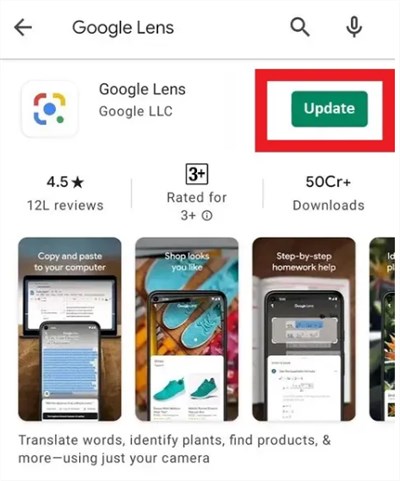
If the Google Lens app hasn’t been updated for a long time, it may become unstable or stop working properly on your iPhone. App updates usually include bug fixes and compatibility improvements, so keeping Google Lens up to date can quickly resolve many issues. The following are the steps on how to update the Google Lens app:
Step 1. Find the Google Lens app on the App Store.
Step 2. Tap the button of the update in order to install the latest version.
Way 3. Restart Google Lens App
A simple restart can refresh the app and clear temporary glitches. To do this, open the App Switcher by swiping up from the bottom of the screen (or double-pressing the Home button on older models). Swipe up on Google Lens to close it completely. Then, return to the Home Screen or App Library and relaunch the app. This quick refresh often restores normal functionality.
Way 4. Check Permissions
Google Lens needs camera, storage, and microphone permissions to work effectively. Without such permissions, you will encounter the problem that Google Lens does not work on iPhone. Simply follow the following steps to test and provide the app with its permissions:
Step 1. Visit Settings > Apps > Google Lens > App permissions.
Step 2. Grant permissions to Camera, Files, media, and Microphone. Once done, relaunch Google Lens and see if it’s working fine now.
Way 5. Re-sign Google Account
A temporary account sync issue may cause Google Lens to stop responding. Signing out and then signing back in often helps refresh the connection. Here are the steps:
Step 1. Open the Google Lens application and tap the profile in the upper-right corner.
Step 2. Under the Google Account settings, tap Next on the first page to get into the account settings.
Step 3. Tap the menu in the upper left-hand of your iPhone. Press the Sign out button and wait a few seconds before the app logs out.
Step 4. Tap the profile picture after you have opened Google Lens once again.
Step 5. On the bottom left side, tap Sign in and type in the Google account information.
Way 6. Reinstall Google Photos
Google Photos app being corrupted will also result in the Google Lens feature becoming unresponsive. Reinstalling Google Photos can remove hidden bugs and refresh its system files. Here’s how to do it:
Step 1. Press and hold the Google Photos icon on your Home Screen.
Step 2. Tap Remove App → Delete App to uninstall it.
Step 3. Go to the App Store and reinstall Google Photos.
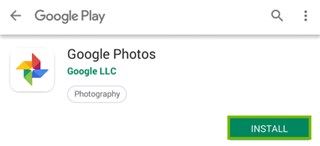
Step 4. Sign back in and try using Google Lens again.
Way 7. Restart iPhone
iPhone software issues could be resolved by simply restarting iPhone. Keep pressing the power button until the slider is visible. Turn it off, allow 10 seconds, and once again press the side button to resume using the phone. In case of a frozen iPhone, force restart it. Hold the Volume Up button (Volume Down button) and press (Volume Up button) and repeat. Keep pressing the button titled power until an Apple logo comes up.
Way 8. Update iOS
Outdated iOS versions may contain system bugs that interfere with Google Lens recognition and camera processing. Updating to the latest iOS helps fix these glitches and improves compatibility. Here’s how to update:
Step 1. Go to Settings > General > Software Update.
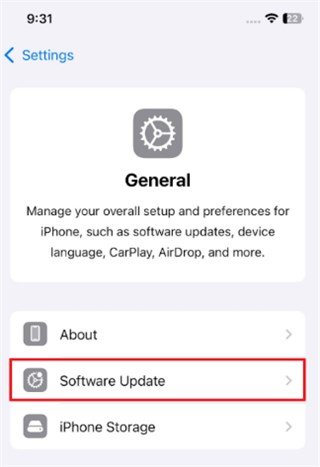
Step 2. If an update is available, tap Download and Install.
After the update completes, reopen Google Lens and test whether it works normally again.
Fix Google Lens Not Working on iPhone [Easy & Safe]
If Google Lens still won’t respond after you’ve tried the basic fixes, the issue may come from deeper iOS system glitches. In this case, AnyFix offers a fast and safe solution. It repairs system-level errors that stop apps like Google Lens from working properly, without requiring any technical knowledge.
AnyFix is compatible with a wide range of iPhone models and the latest iOS versions. Its guided interface makes the repair process smooth and easy to follow. Most importantly, AnyFix can also fix many other iOS problems, including camera freezing, app crashes, black screen, update failures, Wi-Fi glitches, and more.
Main Benefits of AnyFix:
- Fixes Google Lens not working issue without data loss.
- Simple interface and steps, no tech skills required.
- Fast repair process with automatic system diagnostics.
- Supports the latest iOS / iPadOS devices and versions.
Free Download * 100% Clean & Safe
Here are the steps to fix Google Lens not working on iPhone via AnyFix:
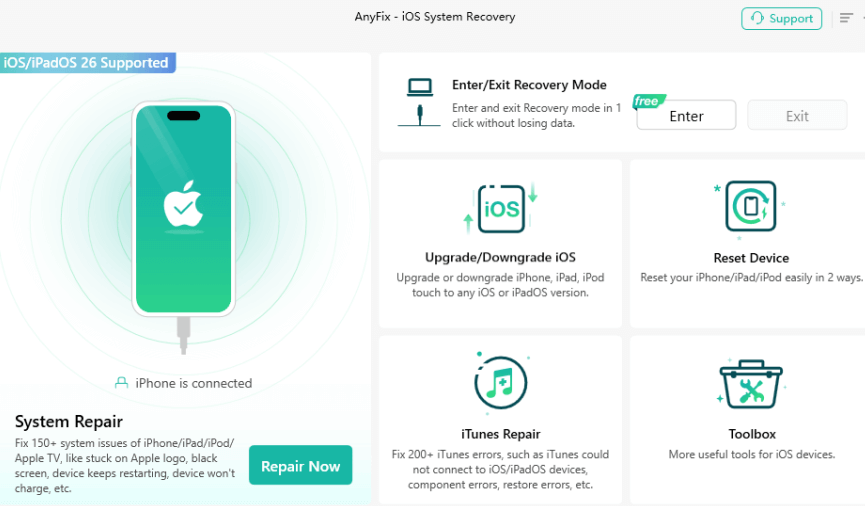
Step 1. Free download and launch AnyFix, choose System Repair, and connect your iPad to the PC.
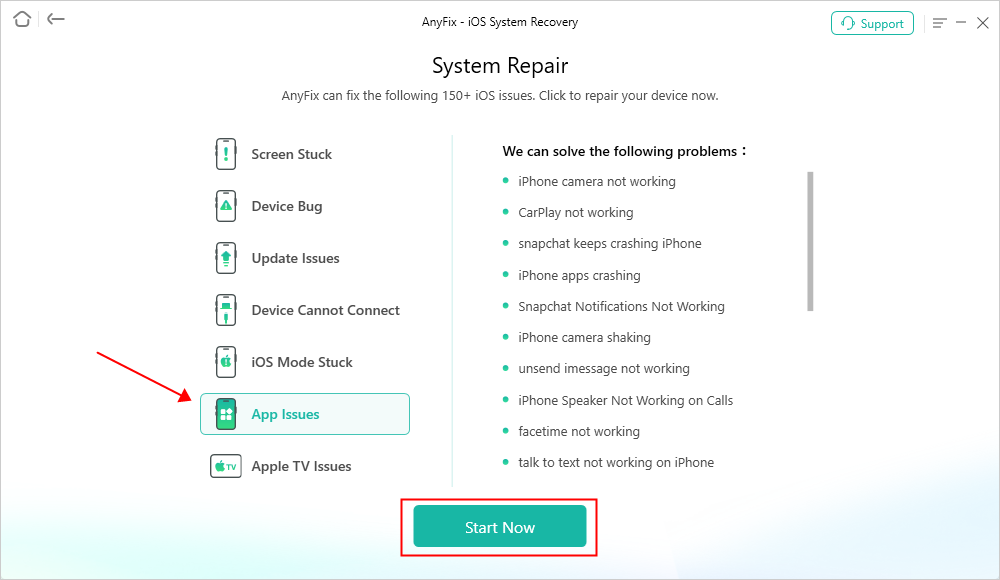
Step 2. Upon detecting your device, choose the corresponding issue and hit the “Start Now” button.
Step 3. Once you see a new screen, select “Standard Repair” mode.

Step 4. Wait until the process finishes. After that, your iPhone will restart, and the issue will be fixed.

FAQs about Google Lens Not Working on iPhone
Q1. How do I get my Google Lens to work on iPhone?
To fix Google Lens not working on iPhone, first update the Google app and iOS system. Make sure your iPhone has a stable internet connection. You can also restart your device or reinstall Google Photos/Google app to refresh the Lens feature.
Q2. Why is Google Lens not working on iPhone 14?
Google Lens not working on iPhone 14 is often caused by outdated software, poor network connectivity, or disabled camera permissions. Updating your iPhone and Google app, enabling camera access, and checking the network can usually resolve the problem.
Q3. How can I use Google Lens on iPhone without the app?
You can access Google Lens through Safari by visiting Google Lens website. Upload an image or tap the camera icon to start searching without installing any app.
Conclusion
When Google Lens is not working on iPhone, it’s usually caused by poor network connectivity, outdated software, or app-related issues. Start by restarting your device, updating the Google app, reinstalling Google Photos, and enabling the necessary permissions. If the issue continues, AnyFix is a professional iOS system recovery tool to repair deeper system glitches that disrupt Google Lens, while keeping your personal data safe and improving device stability. Download AnyFix now and get Google Lens back to working smoothly in just a few clicks.
Free Download * 100% Clean & Safe



Joy Taylor is a seasoned technical writer with over a decade of experience in mobile technology. At iMobie, she specializes in producing in-depth content on iOS data recovery, iPhone unlocking solutions, and iOS troubleshooting.
Product-related questions? Contact Our Support Team to Get Quick Solution >
