[Must Read] How Long Does It Take to Restore an iPhone in 2025?
You can restore your iPhone in multiple ways. In this article we will discuss how long it takes to restore iPhone and offer the ideal solutions to enhance the restore efficiency.
AnyFix – One-Click to Restore iPhone in Minutes
Free download AnyFix to restore iPhones in clicks simply and quickly. It can fix 150+ system-related issues, so no need to worry about any system glitches. Support the latest iOS 26.
Reinstalling an iPhone is sometimes speedy, but it can also be very time-consuming depending on the backup and the device that you are using. If you wish to recover data that has been lost, or if you need to set up a new phone, or if your iPhone is frozen and you want to fix it, then knowing the factors that influence the time of the restore operation and the correct means to use will help you to get the job done quickly and effortlessly. This 2025 guide covers iCloud/iTunes restores, factors affecting speed, and tools like AnyFix for glitch-free recovery without updates, or PhoneRescue for selective data restoration.
Part 1. How Long Does It Take to Restore an iPhone?
A typical iPhone restore takes 15–60 minutes for iTunes or 30 minutes–2 hours for iCloud, varying by backup size and connection. Small backups (e.g., 10GB) finish in 15–30 minutes, while large ones (100GB+) may extend to 2–4 hours on slower networks. In rare cases with corrupted data, it could exceed 4 hours.
iCloud restores downloads from Apple’s servers, slowing with weak Wi-Fi, while iTunes is faster but USB-dependent.
Here are the main factors affecting iPhone restore time:
- Backup size and type: A large backup or a complete restore will take longer than a small or selective one.
- Internet connection speed: A strong, high-speed Wi-Fi network is what makes an iCloud restore faster.
- Software version and updates: Using an old iOS or iTunes version may result in slow or interrupted restoring.
- Device model and performance: The older the iPhone, the longer it takes to process a large data set.
- Backup integrity: Corrupted or incomplete backups can lead to slow restorations or even failures.
Part 2. Restore iPhone without Updating Safely & Easily [100% Work]
AnyFix is a safe and reliable way to reset your iPhone if you don’t want to update to the latest iOS version. Its System Repair tool can repair 150+ iOS problems, such as a device that resumes on the Apple logo, a black screen, or a boot loop, without any data loss. AnyFix, with its three repair modes (Standard, Advanced, and Ultimate), ensures the most suitable mode for your problem is used. Also, you can simply switch to or from recovery mode with a single click, upgrade or downgrade iOS without iTunes, and even repair 200+ iTunes errors without breaking a sweat.
Here’s how to restore your iPhone using AnyFix safely:
Step 1. Download and install AnyFix on your computer (Windows or Mac).
Free Download * 100% Clean & Safe
Step 2. Launch the tool and select System Repair from the main interface.
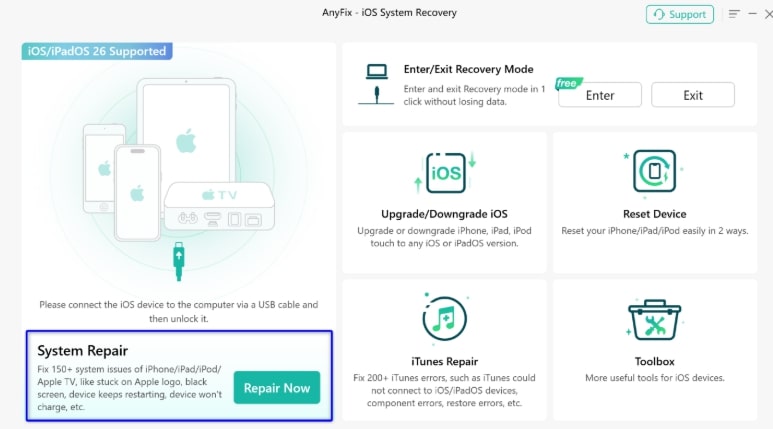
Step 3. Connect your iPhone via USB and click Start Now.
You can choose the exact system issues as the following screen displays.
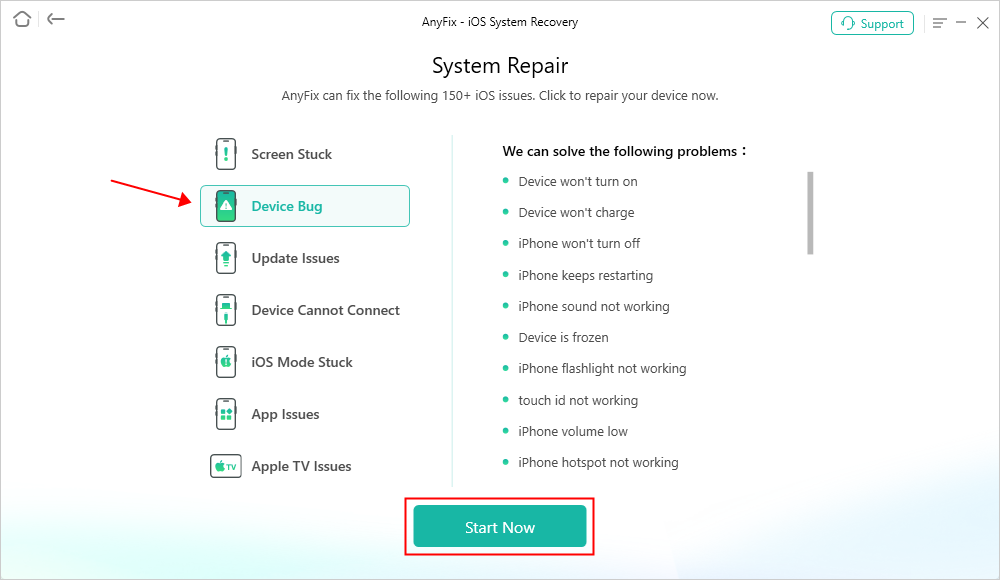
Step 4. Choose Standard Repair to fix issues without erasing data.

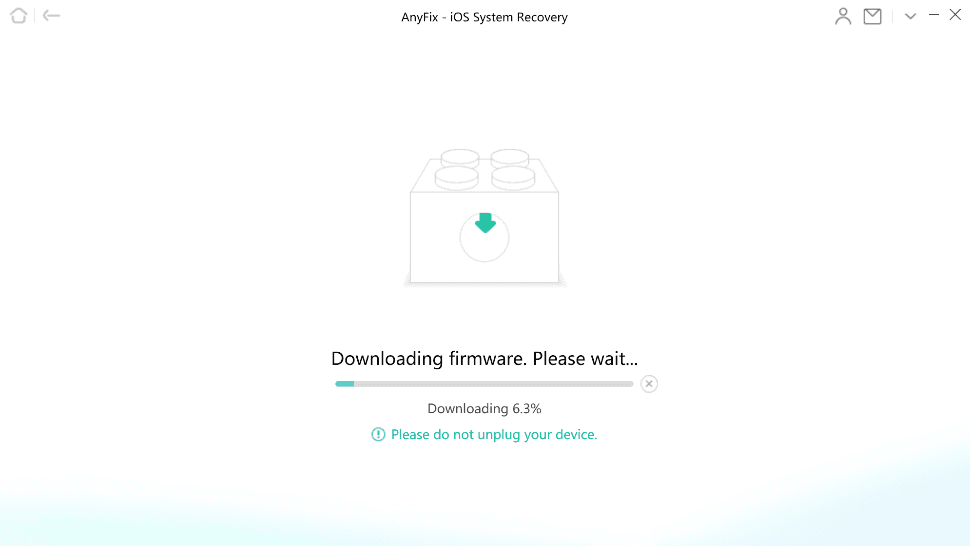
Step 5. Download the appropriate firmware package for your device.
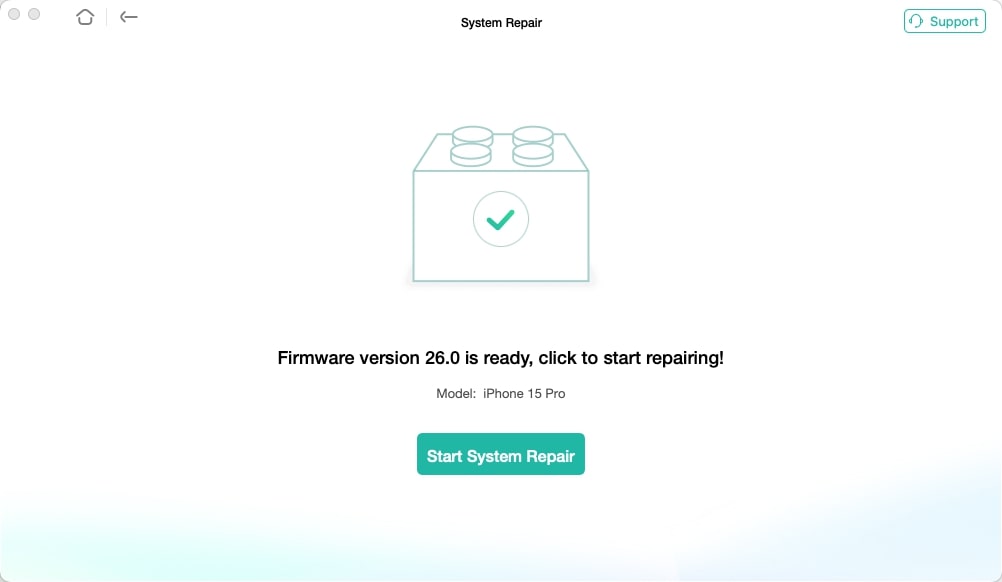
Step 6. Click Start System Repair and wait until your iPhone is restored successfully.
Part 3. How to Speed up A Restore
In case an iPhone restoration takes way too long, a few minor changes could significantly reduce the time. Try these practical methods to speed up the restore process without compromising your data.
Method 1. Delete large/unwanted files
Make sure that no unwanted files are left in your backup while you are restoring. If you have less data to restore, the restoration will be faster.
Go to Settings > General > iPhone Storage, then delete the files and folders that are left over to free some space.
Method 2. Connect to a strong Wi-Fi
The quickest backup restoration is what iCloud users will normally get when they are connected to a strong and stable Wi-Fi network. If you are using mobile data or a public Wi-Fi network, your connection may be interrupted, or your download speed may be slow. If you want to have the fastest connection, it is always better to be on a 5GHz Wi-Fi network.
Method 3. Pause downloading/uploading files on other apps
When download or upload processes are running in other apps or devices on the same internet connection, your restoration takes longer to complete. You should either pause or stop these processes to be able to use the maximum amount of bandwidth for your iPhone.
Method 4. Turn off large app backup
Turning off backups for heavy apps will not only free up your backup space quickly but also speed up the backup process.
Go to Settings > [Your Name] > iCloud > Manage Storage > Backups, tap on your device, and turn off the backup for the apps that you don’t need constantly.
Method 5. Pause the restore process temporarily
In cases where your restoration is extremely slow or frozen, you can temporarily pause the process and resume it later. It helps the device/server connection refreshment; hence, the communication will be re-established, and the transfer can go on.
Part 4. How to Fix It Takes Too Long When Restoring from iTunes
How long does it take to restore an iphone via itunes
I forgot my password into my iPhone so I am trying to restore it via iTunes by pressing and holding the power and volume down button(while connected to a computer) until the logo comes up then push restore on the computer. I have done this process about 4 times now and it still hasn’t worked I am just wondering how long it takes
A phone reset with iTunes is usually completed within 15–60 minutes. These two factors are what mainly determine the time, namely, the speed of your computer and the size of the backup. In case you are always failing and the process is too lengthy, then the problem is most likely due to the connection, the iTunes version, or device communication. You may attempt these fixes to get rid of it:
Method 1. Change the USB cable or computer
A cable, which is not working properly or is not certified, can prevent the connection between an iPhone and a computer. So, first, be sure that you are using an original Apple cable or try another computer to ensure the data connection is good during the update.
Method 2. Update iTunes
Old iTunes software might cause compatibility issues with the latest iOS devices. To update iTunes, open it and, on Windows, go to Help > Check for Updates; on Mac, use the App Store. After the update, try restoring.
Method 3. Restart your iPhone
If the iPhone is frozen and the offshoot continues to fail, a restart is the only option. The restart clears temporary errors and allows iTunes to recognize the device after reconnection.
Method 4. Disconnect and reconnect your iPhone to the computer
Sometimes reconnecting the device helps iTunes regain access to the iPhone. Remove your cable, wait for a few seconds, and then connect the two tightly.
Part 5. Bonus: Restore with PhoneRescue Selectively and Quickly
If long iTunes or iCloud restores are really getting on your nerves, you might want to consider a quicker and more flexible solution, such as PhoneRescue by iMobie. In contrast to the common restoring methods, PhoneRescue enables you to preview the data and select only want you want to be restored—thus saving time as well as storage space.
Step 1. Download and install PhoneRescue on your computer (Windows or Mac) from the official iMobie website.
Free Download * 100% Clean & Safe
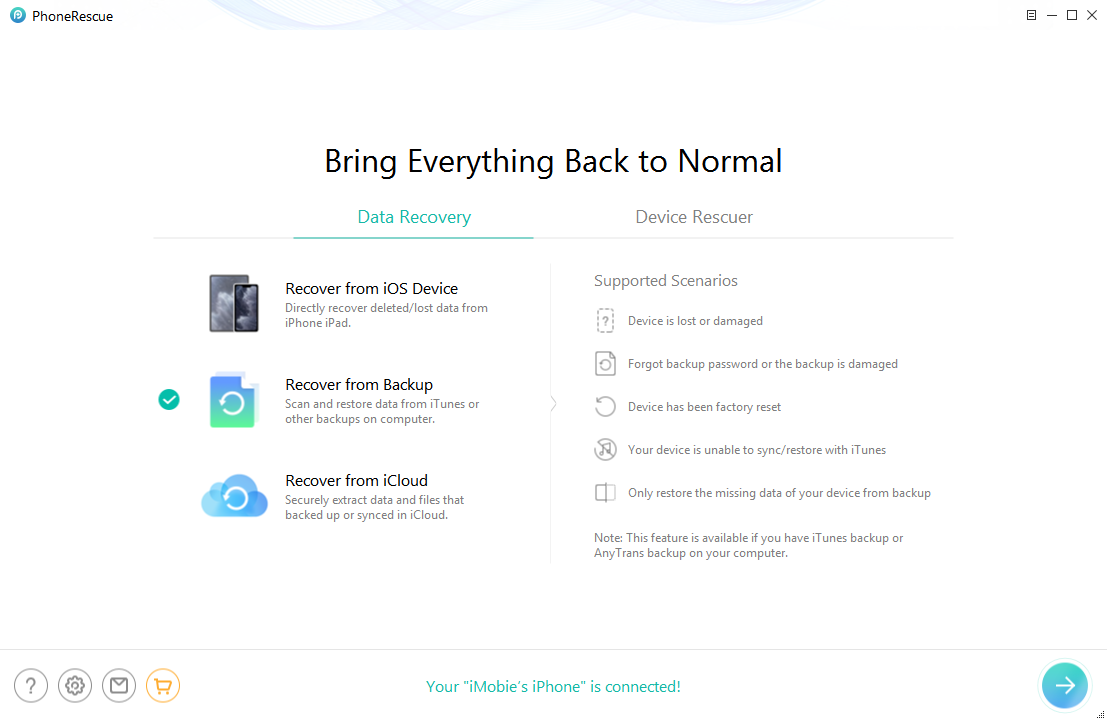
Step 2. Connect your iPhone to the computer via USB and launch PhoneRescue. Choose Recover from Backup mode.
Step 3. Select an iTunes backup to scan. PhoneRescue will list all available backups with details like date and size.
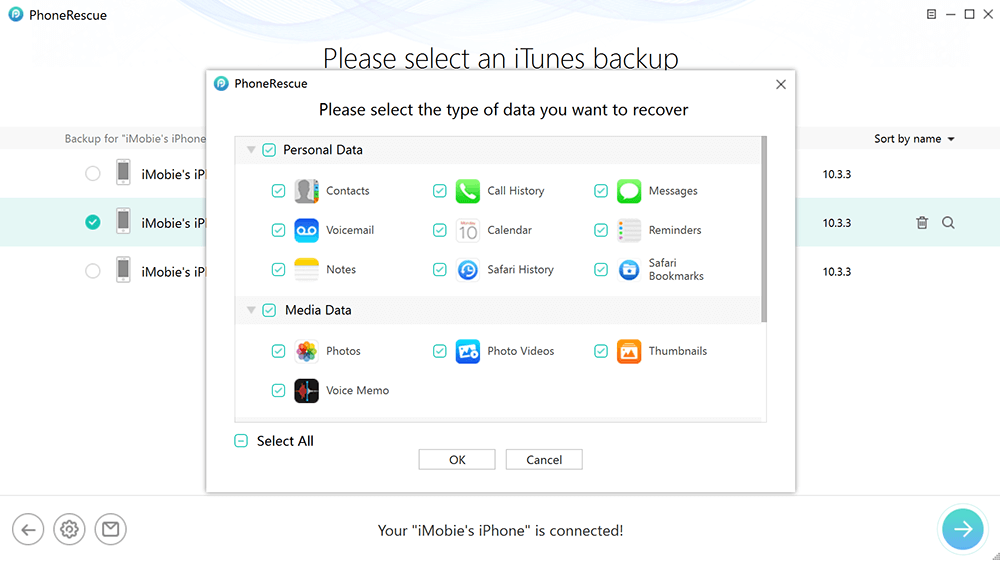
Step 4. Choose the data type you want to recover. You can select specific categories (like photos, messages, or notes) or scan everything.
Step 5. Preview the scanned data and check “Only list deleted” to view recoverable items.
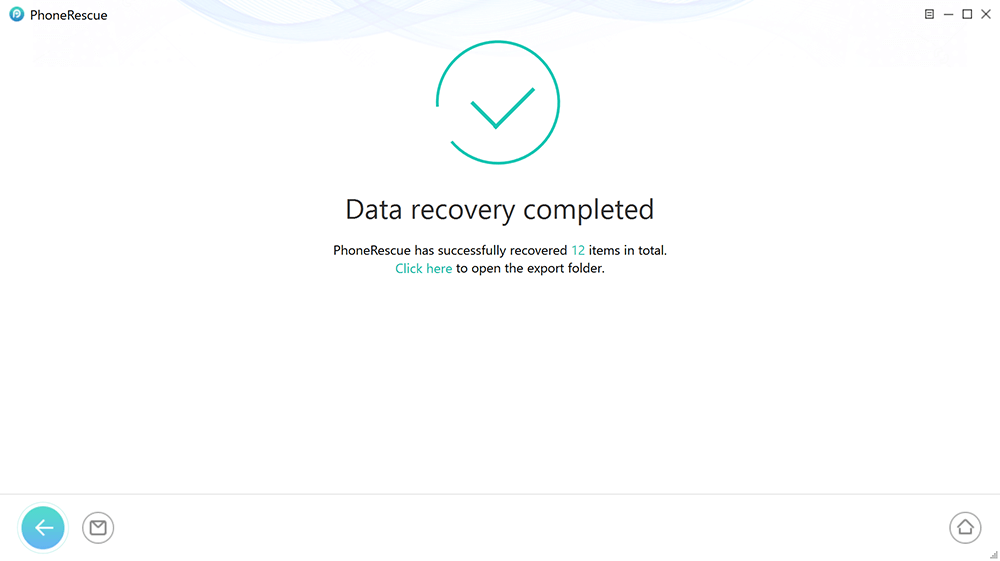
Step 6. Select and restore your data by clicking Restore to Device or Restore to Computer.
Part 6. FAQs
Q1. How long does it take to restore an iPhone in recovery mode?
Generally, restoring an iPhone in recovery mode takes 15-60 minutes. In which the internet speed and firmware size will be the deciding factors. If it takes more than 2 hours, there is likely a problem with the connection or the software.
Q2. Why is my iPhone stuck while restoring it?
A multitude of different factors can lead to an iPhone freezing. Just to name a few, the Wi-Fi connection might be shaky, iTunes/iOS could be outdated, or the USB cable might be damaged.
Conclusion
Depending on the backup size, internet speed, and restore method, a restoration of an iPhone could take a few minutes or several hours. Though the works of iTunes and iCloud are not without their glitches, they can be slow or get stuck. The existence of tools like AnyFix makes it much easier by empowering you to restore the iPhone in clicks. Additionally, if you just want to restore selective data on your iPhone to enhance efficiency, PhoneRescue is such a perfect tool. The secret to making the restoration of your iPhone easier and quicker lies in using the right way and the right tool.
Free Download * 100% Clean & Safe



Wanda Norris is a junior author in iMobie specializing in iOS tips and solutions. She keeps a close eye on every iOS update to provide practical, easy-to-understand guides that help users solve problems and master their Apple devices.
Product-related questions? Contact Our Support Team to Get Quick Solution >
