How to Cancel iOS Software Update Safely in 2026
You can only cancel an iOS update during the download phase. Interrupting installation risks serious damage. Act quickly, manage storage settings, and follow safe steps to prevent unwanted updates or system issues.
Watching your device accidentally trigger a massive software download can induce immediate panic, especially if you want to avoid the bugs or instability often associated with major new releases like iOS 27. You might quickly realize there is no obvious “cancel” button on the screen, leaving you feeling entirely out of control of your own hardware.
If you are reading this right now because a download just started, you need to know exactly where the “point of no return” is. By acting quickly during the initial download phase, you can pause the process before it alters your system. In this guide, we provide a rigorously tested, step-by-step solution to help you regain control. We will show you exactly how to safely manage your software, what to look for in your storage menu, and how to ensure your phone stays precisely how you want it.
You can ONLY safely cancel an update while it is actively downloading. If your iPhone has already restarted and is currently displaying the Apple logo with a loading progress bar, do not attempt to stop it. Forcing a hard reset during the active installation phase will corrupt your operating system and brick your device. If you are already stuck on the Apple logo, scroll directly down to our “Rescue Tool” section.
How to Stop an iOS Update in Progress: The Immediate Fix
If you find yourself in a high-pressure situation where a download has unexpectedly begun, you must act fast. By quickly severing your internet connection and navigating to your device management settings, you can completely cancel an iPhone update download before the actual installation starts.
This procedure relies on the network disconnect method, a proven technique that instantly pauses the incoming data stream. This buys you the precious time needed to locate and delete the partially downloaded update file.
Here is the precise, step-by-step procedure to halt the download safely and effectively:
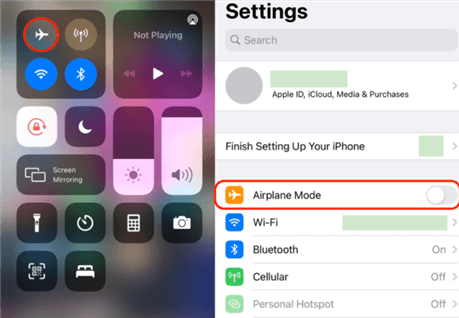
1. Disconnect from the Network in Settings (Not Control Center): Your first instinct might be to swipe down and tap Airplane Mode in the Control Center. Do not rely on this. As veteran iPhone users know, if you have previously used Wi-Fi while in Airplane Mode, iOS remembers that preference and will keep Wi-Fi on even when the airplane icon is active. To be 100% safe, open your Settings app. Tap Wi-Fi and toggle it completely off so the switch is grey. Do the same for Cellular . This instantly cuts off the connection to Apple’s servers.
2. Access Device Management Settings: Still in the Settings app, tap General, and then select iPhone Storage.
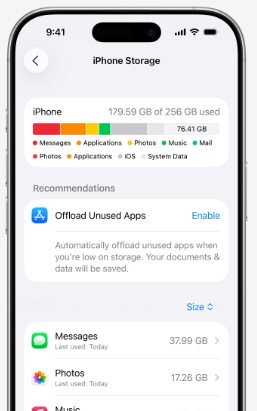
3. Wait for the List to Populate: If your device storage is nearly full, this screen can take a frustratingly long time to load—sometimes up to a minute or more. Be patient and let it fully calculate.
4. Locate the Software Update Storage File: Once the list loads, you do not want to blindly scroll through 150+ apps. You are looking specifically for a grey gear icon. Next to this grey gear, the file will be labeled with the firmware version (for example, “iOS 27” or “iOS 27 Beta”).
5. Execute the Update File Deletion: Tap on that specific update file to open its details, then tap the Delete Update button. Apple will present a confirmation prompt at the bottom of the screen. Tap the red Delete Update text to confirm your choice.
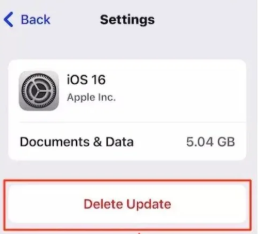
6. By following this exact technique, you will successfully purge the unwanted software patch from your device. Deleting the iOS update file from your iPhone is a completely safe procedure, provided the actual installation phase has not yet started.
Disable Automatic iOS Updates to Prevent Future Installations
Once you successfully manage an immediate crisis like an accidental download, the next logical step is securing your device against future incidents. A common user frustration is discovering that an update automatically installs overnight, completely changing the interface and potentially introducing new bugs while you sleep. Addressing this requires a permanent adjustment to your settings.
Securing your device ensures this issue will never happen again. This technique is crucial for anyone who prefers manual control over their system firmware, keeping your screen clear of persistent upgrade prompts.
To prevent iOS updates from installing automatically, follow this simple procedure:
- Open the Settings app on your device and tap General.
- Tap on Software Update.
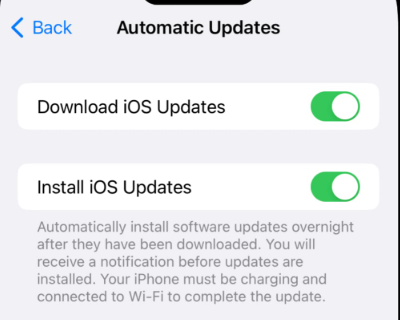
- Select Automatic Updates at the top of the screen.
- Turn off both the Download iOS Updates toggle and the Install iOS Updates toggle. Ensure the switches turn from green to grey.
Expert Insight: Professionals note that canceling an iOS software update is easiest during the initial download phase. To avoid unwanted patches like iOS 27 entirely, experts highly recommend disabling automatic updates and monitoring storage usage regularly.
Apple has a frustrating habit of turning these “Automatic Updates” toggles back on by default whenever you eventually decide to manually upgrade to a major new iOS version. If you ever update your phone on purpose in the future, remember to go back into these settings immediately afterward to turn the toggles off again. Taking these proactive steps ensures your storage isn’t repeatedly consumed by unwanted update files .
Decision-Making Guide: Manual Deletion vs. Professional Rescue Tools
When you attempt to interrupt an iPhone system update, choosing the correct solution depends entirely on timing. While the basic methods outlined above work perfectly during the initial download phase, users frequently face severe difficulty if they act too late.
If the Apple logo and progress bar are already active on your screen, manual interventions are no longer safe. At this stage, you must weigh your options and recognize when you need a professional iOS system rescue tool. Here is an objective breakdown to guide your decision:
- Timing is Everything: Manual techniques (like the network disconnect method) have a near 100% success rate during the download phase. However, they have a 0% success rate during active installation. Once the Apple logo appears, you can no longer manually stop the process without breaking the phone.
- Safety Risk: Forcing a hard reset (holding down the power and volume buttons) during an active installation carries a severe risk of operating system failure. It will likely trap your phone in an endless boot loop.
- When to Use Software: Specialized rescue software is not meant to safely “pause” an update. Instead, it is a recovery mechanism for users who read this guide too late and accidentally bricked their device by interrupting the installation phase.
- Time Cost: Executing an update file deletion takes less than a minute. Using specialized rescue software requires connecting your device to a computer and downloading repair firmware, which generally takes 15 to 30 minutes.
Rescue Tool: How to Fix Your iPhone if You Interrupted an Active Installation
If you failed to pause the iOS update process before the installation started, and you panicked and forced a hard reset during the Apple logo phase, your device is likely now experiencing severe system errors. Your phone might be stuck in a boot loop, frozen on the Apple logo, or displaying a black “Connect to PC” screen.
For users dealing with a deeply compromised device, AnyFix is a premium, specialized rescue tool designed to resolve these complex anomalies. We want to be completely transparent: AnyFix will not magically “cancel” an active update safely. Rather, it is an emergency lifeline designed to rescue devices that are already broken due to an interrupted installation.
Here is how this tool systematically addresses severe device failures caused by botched updates:
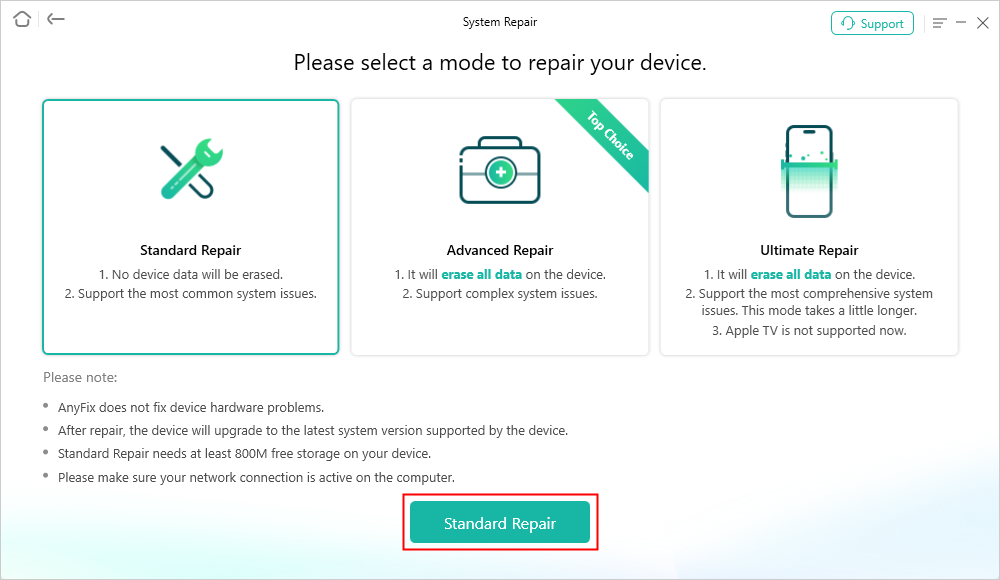
- Prevents Total Data Loss: To address the immediate fear of losing all your personal data after bricking your phone, AnyFix offers a Standard Repair Mode. This specific solution reinstalls the core iOS system files to unfreeze your device without deleting your photos, contacts, or chat histories—ideal for users concerned about data preservation .
- Breaks the Boot Loop: If your phone is endlessly restarting and never reaching the lock screen due to an unsafe system interruption, AnyFix comprehensively diagnoses and repairs the corrupted firmware responsible for the loop.
- Bypasses Official Wait Times: AnyFix supports the latest iOS versions (including betas like iOS 27) and mainstream iPhone models. It is exceptionally effective for scenarios where you cannot access Apple’s official recovery modes, eliminating the need to wait weeks for an in-store Genius Bar appointment.
- Simple Operation: The software provides a highly intuitive, guided interface. You simply connect your iPhone to a computer via USB and follow the on-screen prompts. This allows even beginners to complete deep system repairs independently, requiring no jailbreak or technical expertise.

AnyFix – Your iOS System Repair Expert
With AnyFix, you can enjoy a one-stop solution to fix various iOS, iPadOS, tvOS, and iTunes issues within minutes, restoring your Apple device to normal without any data loss.
Fix iOS System Issues Step by Step:
Step 1: Download AnyFix and install the program on your Windows PC or Mac. Start the software and select the option “System Repair”
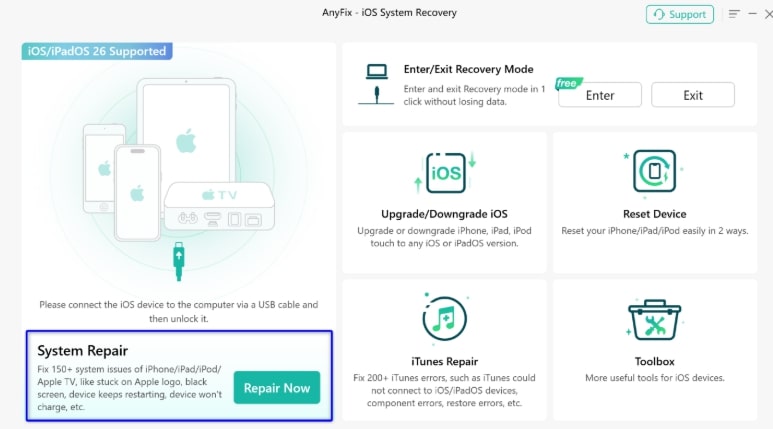
Step 2: Connect your iPhone to the computer using a USB cable. Choose the “Standard Repair” mode after the device is detected.
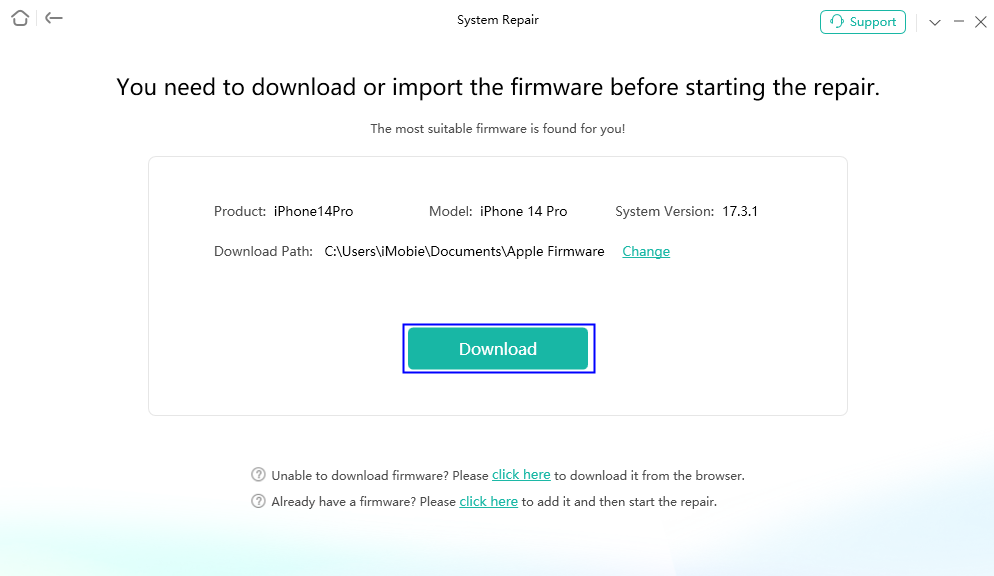
Step 3: Download the recommended firmware package.
Step 4: Then click “Start Standard Repair” to start the repair process.
Wait until the iPhone restarts automatically and the iOS issue is resolved.
Why You Shouldn’t Cancel an iOS Update During Installation
Understanding the hidden mechanics of how updates work is vital for keeping your device healthy. There is a distinct, non-negotiable line between safely stopping a download and dangerously breaking an active installation.
The update process is divided into two entirely separate parts:
- The Download Phase (Safe to Cancel): Your phone is simply downloading a large, inert file from Apple’s servers in the background. At this stage, you can safely prevent the installation by disconnecting from the internet and deleting the file. The core operating system remains entirely untouched, making it completely safe to remove the data.
- The Installation Phase (Do Not Cancel): This phase is marked by your device restarting and displaying the Apple logo with a loading bar. During this phase, the system is actively deleting old core files and rewriting them with new ones.
Experts warn that once the installation phase begins, any interruption is catastrophic. Forcing a hard reset or allowing the battery to completely drain during this critical rewriting process almost always leads to severe file corruption. If you need to know how to stop an update from completing at this stage, the unfortunate answer is that you cannot do so. You must let it finish. If you already interrupted it and the phone crashed, you will need to use a tool like AnyFix to recover it.
Frequently Asked Questions About Managing iOS Updates
Managing device firmware changes can sometimes feel confusing, especially under pressure. To help clarify the process and resolve any lingering doubts regarding iOS management, here are clear, honest answers to the most common questions.
Can I cancel an iOS software update once it starts?
If the software is currently downloading in the background, yes. You can use the settings menu to turn off Wi-Fi and delete the file to halt the process instantly. However, if the device has already restarted and the installation progress bar is visible under the Apple logo, you cannot safely cancel the process.
How do I stop iOS updates from installing automatically?
You can prevent overnight installations by navigating to your automatic updates settings. Go to Settings > General > Software Update > Automatic Updates, and turn off both the “Download iOS Updates” and “Install iOS Updates” toggles. Remember to check these toggles again if you ever manually update your phone in the future.
Where exactly can I delete a downloaded iOS update file?
You can locate the software update storage file by going to Settings > General > iPhone Storage. Wait for the screen to fully load, then scroll through your application list until you find a grey gear icon labeled with the iOS version. Tap on it, and select the red “Delete Update” option.
Conclusion
Dealing with an accidentally triggered iOS update doesn’t have to end in disaster, provided you understand the timing. By acting quickly during the background download phase—turning off your Wi-Fi directly in the Settings app and hunting down that grey gear icon in your storage—you can easily halt the process and secure your device manually.
However, it is crucial to respect the point of no return. Never attempt to hard-reset your phone if the Apple logo and progress bar have already appeared. If you found this guide too late and experienced a system crash after interrupting an active installation, there is still a data-safe way forward. AnyFix provides an intuitive, professional rescue solution to repair severe boot loops without erasing your precious photos or chat histories. Regain control of your iPhone today by managing your settings proactively, and rest easy knowing there are reliable ways to restore your system stability if the worst happens.
AnyFix – Your iOS System Repair Expert
With AnyFix, you can enjoy a one-stop solution to fix various iOS, iPadOS, tvOS, and iTunes issues within minutes, restoring your Apple device to normal without any data loss.
Free Download for all windows & 100% safe
Free Download for all mac & 100% safe
Free Download 100% Clean & Safe



Wanda Norris is a junior author in iMobie specializing in iOS tips and solutions. She keeps a close eye on every iOS update to provide practical, easy-to-understand guides that help users solve problems and master their Apple devices.
Product-related questions? Contact Our Support Team to Get Quick Solution >
