iOS 26 Downgrade to iOS 18: 3 Ways & Essential Tips
Thinking of switching back to previous iOS? This guide explains how to downgrade iOS 26 to iOS 18 safely. Learn to check signing status, back up data, and use effective methods like AnyFix, IPSW files, or iTunes/Finder. Step-by-step guided instructions minimize errors and downtime.
As one of the most revolutionary versions, iOS 26 has been a hot topic since it was announced. Upgrading your iPhones to iOS 26 may bring flashy features but also risk app incompatibilities. That’s why some users want to downgrade iOS 26 after days of trial. How can you downgrade iOS 26 to iOS 18 or older versions? Don’t worry, this guide will let you learn how you can downgrade iOS 26 via three simple approaches. Read it to the end to get equipped with all the steps needed for a smooth iOS switching operation.
Downgrade iOS 26 to iOS 18
You may also like: Can I downgrade to unsigned iOS?
Can I Downgrade iOS 26 to iOS 18?
Yes, you can downgrade iOS 26 to iOS 18 when Apple still signs it for your gadget’s model. The Apple community usually stops signing older iOS versions shortly after a new release. So, it’s better to check your iPhone’s signing status online to make sure you can revert to iOS 18.
None of the methods below will work, and Apple will refuse to install the older firmware if signing has ended. Therefore, always confirm that iOS 18 is still being signed before you begin, to avoid damaging your device.
Back Up Before iOS 26 Downgrade
Downgrading iOS will restore your iPhone to its previous status, so it’s essential to back up your iPhone before downgrading. You have two reliable options to make the backup:
iCloud Backup
Step 1: Enable iCloud Backup
First, enter the Settings app of your iOS device and tap your Apple ID name. Afterwards, scroll down towards iCloud and access the iCloud Backup option in it.
Step 2: Back Up Your iPhone
Next, tap Back Up Now and wait for the process to finish. You can then confirm it by today’s date appearing below this option.
Local Backup via Finder or iTunes
First of all, plug your iPhone into your Mac (macOS Catalina or later) or Windows PC (with iTunes installed).
Via Finder:
Open Finder, select your iPhone under Locations, and click Back Up Now under Backups.
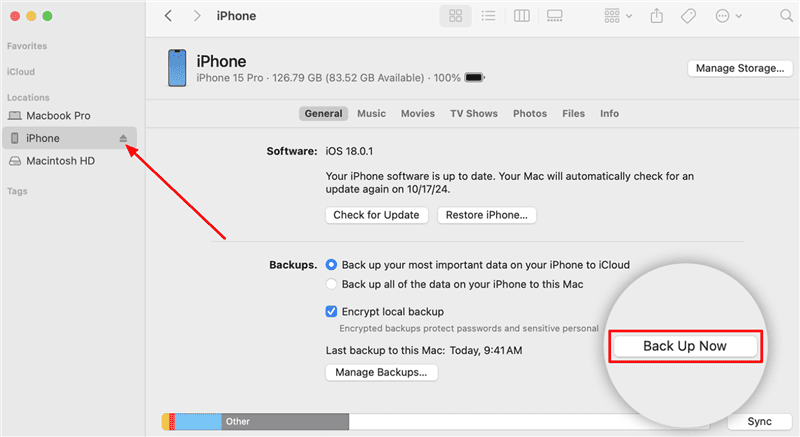
iPhone Backup Via Finder
Via iTunes:
After you have launched iTunes, click the device icon and select Summary from the left panel. Now, click the Back Up Now button from the “Manually Back Up and Restore” section and verify its success once the backup bar completes.
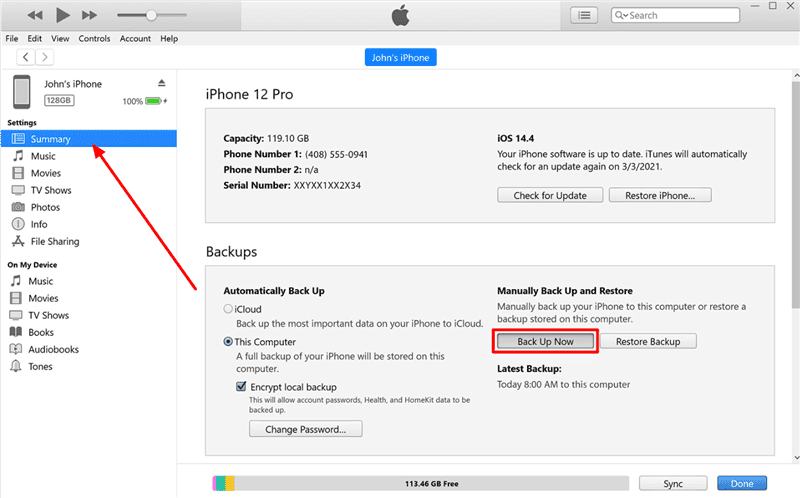
iPhone Backup Via iTunes
How to Downgrade from iOS 26 to iOS 18
There are several ways you can try to downgrade iOS 26 to iOS 18. The easiest way is to use an iOS downgrade tool like AnyFix. Besides, downloading IPSW files and restoring your iPhone in Finder or iTunes provides a free way. For iOS 26 beta downgrade, using AnyFix or manually moving back through beta files can also be available. Simply check each method and the stepwise guide in the following part.
Method 1. Downgrade iOS 26 with AnyFix
AnyFix is a comprehensive iOS system repair tool that lets you upgrade or downgrade your iPhone without requiring IPSW hunting. Its Downgrade iOS/iPadOS feature automatically detects which firmware versions are still signed by Apple and walks you through downloading and installing the one you choose.
AnyFix – Downgrade iOS 26 Directly
Download AnyFix to downgrade iOS 26 to previous versions in one click. No technical skills are required. Support all iPhone/iPad models.
Here’s how you can revert to iOS 18 using AnyFix:
Step 1: Launch AnyFix and Choose Downgrade Mode
First, launch AnyFix after you are free from downloading and installing it from its official site. Next, hit Upgrade/Downgrade iOS from the main page to enter the downgrade workflow.
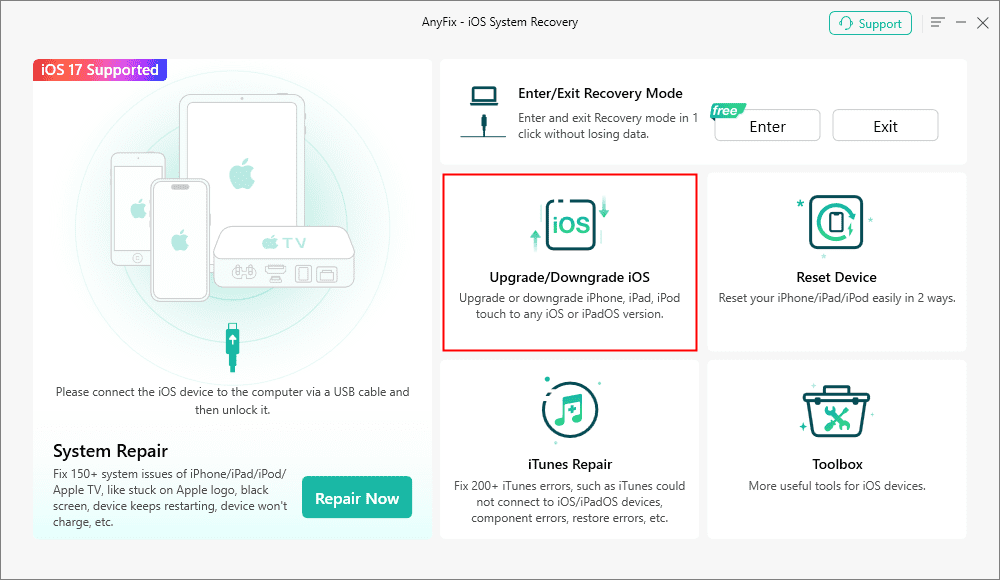
AnyFix Upgrade/Downgrade iOS Option
Step 2: Connect Your iPhone and Proceed
Next, use a data transmission cable to plug your iPhone into your PC. After that, tap the 1 click to downgrade iOS/iPadOS option and hit “Start Now”.
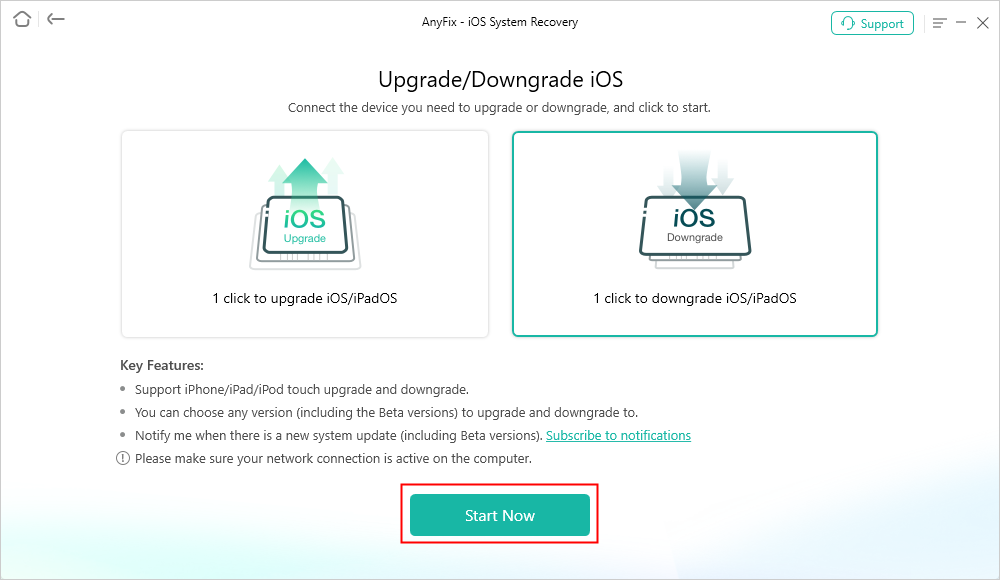
AnyFix Downgrade iOS
Step 3: Download the iOS 18 Firmware
Now, browse the list of signed firmware versions to locate your desired build. Simply tap Download from the “Status” column and allow AnyFix to extract the IPSW file on its own.
Step 4: Start the Downgrade Process
Finally, you can click the “Downgrade” button to install the downloaded firmware on your iPhone. Don’t forget to keep it connected to protect the downgrading process from interruption. Once complete, your iPhone will reboot on iOS 18 perfectly.
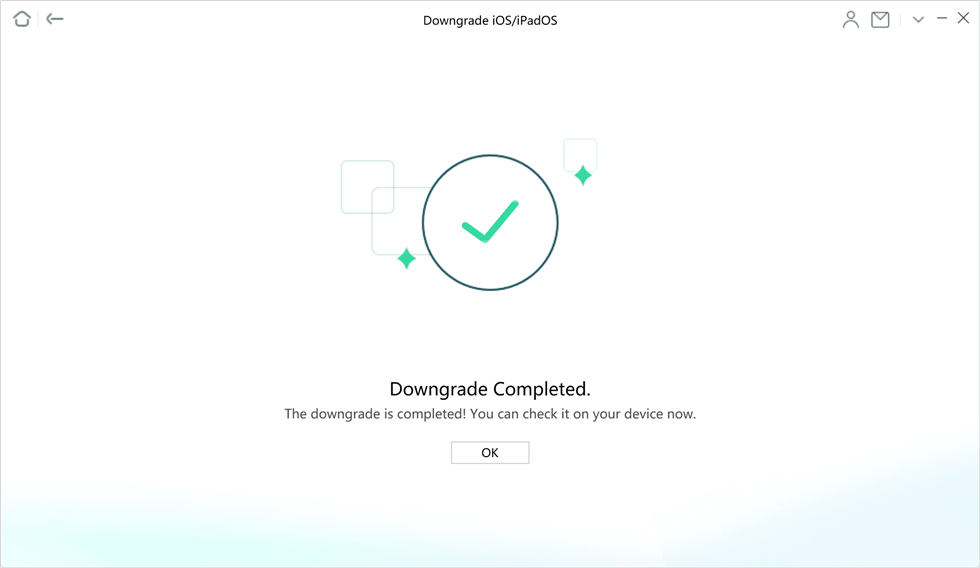
Downgrade Completed Page
Method 2. Downgrade iOS 26 with IPSW File
For more control, you can manually download the iOS 18 IPSW file and install it on your iOS device:
Step 1. Download IPSW File in Browser
First, go to any browser of your choice and access the IPSW website. There, select your exact iPhone model and click the green “Signed” label next to the latest iOS 18 version. You can then download the IPSW file to a folder you can easily access.
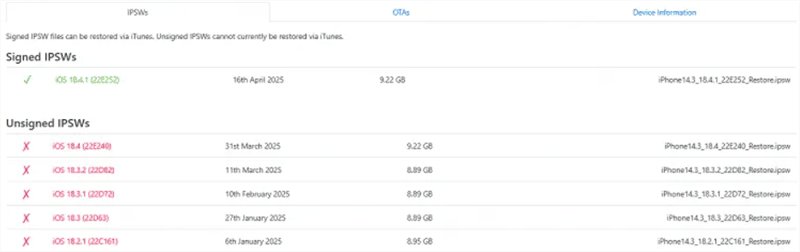
Download IPSW File
Step 2. Connect iPhone & Enter Recovery Mode
Next, connect your iPhone to your PC via the transmission cable and power it off. Afterwards, quickly press and release Volume Up. Then, hit Volume Down and hold the Side button until the iPhone recovery mode screen appears.
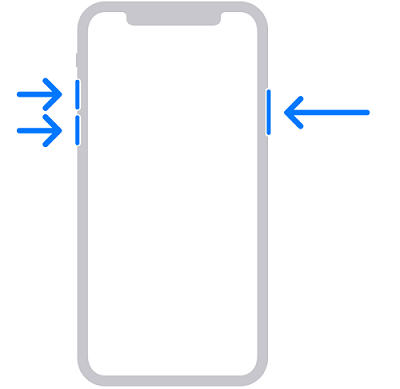
Enter iPhone into Recovery Mode
Step 3. Restore iPhone in iTunes/Finder
Then, launch Finder or iTunes and let it detect your device in recovery mode. After that, hold Option on Mac or Shift on Windows and hit Restore iPhone.
Step 4. Finish iOS 26 Downgrade
At last, navigate to the downloaded iOS 18 IPSW file and click Open. Moving forward, click Restore again to confirm.
Method 3. Downgrade from iOS 26 Beta to iOS 18
Some users also wonder if it’s possible to downgrade iOS 26 beta. Of course, you can easily downgrade iOS 26 beta using the beta profiles site:
Step 1. Get to the official Beta Profiles site and download the iOS firmware you want to switch back to (like iOS 18).
Step 2. After you have successfully connected your iOS device to your system, power it off and enter recovery mode as instructed above. Next, launch Finder/iTunes and hit “Back Up Now” from the “Summary” panel.
Step 3. Once the backup is done successfully, navigate to the folder of your backup and open the “Info.plist” file. There, all you need to do is change the specified value to 18.4.1 and proceed.
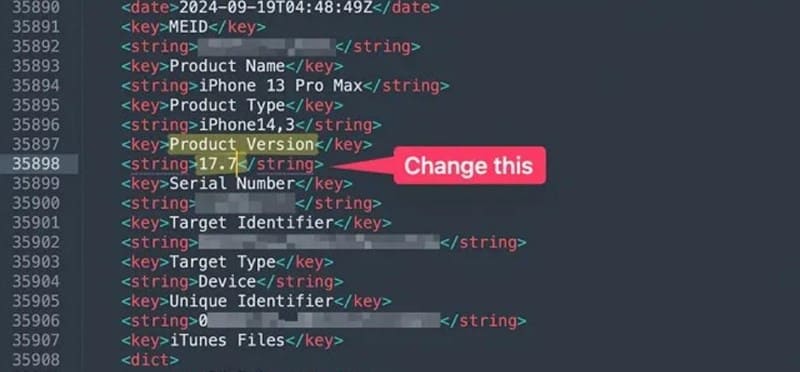
Set iOS Version in Info Plist
Step 4. Next, go back to iTunes/Finder and hold Shift (Windows) or Option (Mac) along with clicking “Restore iPhone”. Then, you can open the .ipsw file you downloaded from the beta profiles site.
Step 5. Finally, click Restore Backup when your iPhone restarts on iOS 18 to recover your data from the created backup.
It may not work if older firmware is no longer signed, in which case you can use AnyFix.
FAQs About iOS 26 Downgrade
1. Is it safe to downgrade iOS 26 to iOS 18?
Yes, downgrading iOS 26 back to the older version is safe as long as you comply with Apple’s signing rules. Also, use only authoritative IPSW files from the official site or trusted tools like AnyFix. In particular, avoid unsigned firmware to prevent device bricking.
2. Can I downgrade iOS 26 without data loss?
Yes, you can downgrade iOS 26 without data loss by applying the smart approach of backing up your iOS device’s data. Don’t forget to use only official sources to back up and retrieve your valuable data after the downgrade.
Conclusion
All in all, you can downgrade iOS 26 to fix the newly experienced iPhone glitches in this unstable OS version. However, you must back up your iPhone beforehand if you don’t want to wipe your entire data away. You can choose between the three safe downgrade methods that we mentioned (especially via AnyFix for a guided and reliable iOS switching). Once you’ve restored to iOS 18, verify functionality and then restore your backup.
Free Download * 100% Clean & Safe



Joy Taylor is a seasoned technical writer with over a decade of experience in mobile technology. At iMobie, she specializes in producing in-depth content on iOS data recovery, iPhone unlocking solutions, and iOS troubleshooting.
Product-related questions? Contact Our Support Team to Get Quick Solution >
