How to Fix iPhone Caller ID Not Working
Caller ID not working is one of the critical issues you would likely encounter on your iPhone. So when you experience it, you should be devastated. Rather you source for solutions to fix it. In this post, we’ve decided to create a simple guide that you can follow to fix iPhone caller ID not working conveniently.
Hello, Lately, my iPhone started displaying “No Caller ID” each time I receive a call from my contacts. I can’t fathom the reason for this and it’s really bothering me. Is there anyone that has encountered such an issue in the past and fixed it? Kindly share your advice if you’ve got solutions.
Receiving phone calls with no caller ID displayed on your screen could be frightening, as you can’t tell whether or not it’s a legitimate person that you are about to connect with. What if we tell you that the call host is someone you know or might have shared your contact with in the past and the “No Caller ID” error is just a minor system glitch?
Well, the caller ID not working error you are experiencing on your iPhone could be attributed to system glitch and other technical issues which are fixable if you’ve got the right guide at hand. This post will demonstrate how to fix iPhone caller ID not working easily. Let’s get started.
Why Is My iPhone Caller ID not Working?
iPhone caller ID not working doesn’t just appear all of a sudden. There must be something wrong with your device that could stem up the issue:
- Wrong Call Settings
Have you tampered with the call settings on your iPhone in the past? If so, then there’s a possibility that your device can display iPhone caller ID not working issues because of this. You need to make adjustments to your phone call settings to fix this issue.
- OS/System Issues
Another reason you may experience caller ID not working problems on your iPhone is OS/system related issues. When you operate your iPhone on an outdated OS or installed a beta version software on it, the device will surely malfunction. You can encounter a wide variety of issues, from unresponsive buttons, system crashes and even caller ID not working.
- Host Hiding Contact
Sometimes the host of a call conceals their identity for reasons best known to them. If that is the case for caller ID not showing on your iPhone, there is nothing that could be done on your end to rectify the issue. The host must deactivate the hide contact feature for you to see who exactly it is that’s calling you.
- Network Issues
Here is another reason your iPhone won’t display your caller ID. Poor network or weak signal interference disrupts the operations of a network and can cause it not to show your caller ID. Changing your location or better yet contacting the customer team can help you resolve the issue.
7 Ways to Fix Caller ID Not Working
To solve caller ID not working on your iPhone, you should apply any of the 9 tricks demonstrated below:
Fix 1. Fix Caller ID Not Working without Data Loss
AnyFix is one of the top-rated iOS repair tools suitable for fixing any system-related issue you may encounter on your iPhone. It clears a wide variety of problems from a frozen screen to the green line of death and 50+ more. It also comes in handy for resolving iPhone not showing caller ID.
Key Features
- With AnyFix you can tackle over 150+ iOS system related issues you may experience on your iDevice conveniently.
- Removes all bugs and errors disrupting the operations of your iPhone and causing caller ID not working.
- More core functionalities; iTunes repair, system reset, iOS update/downgrade and many others.
Step 1. Download AnyFix and run it on your computer > connect your iPhone to the computer > choose the System Repair.
Free Download* 100% Clean & Safe
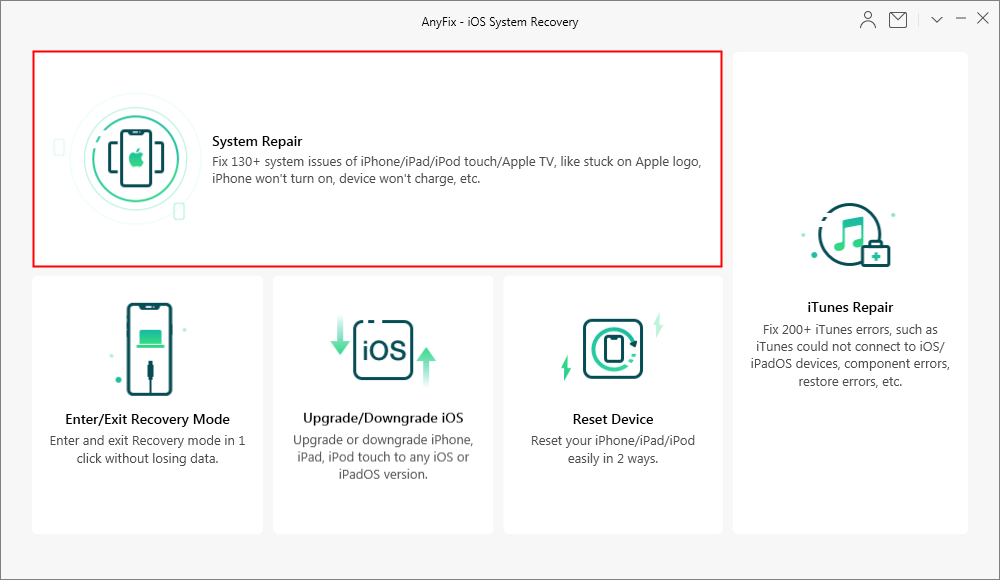
Choose System Reapir
Step 2. Click on the 50+ iPhone Problems and then tap on the Start Now to go on.
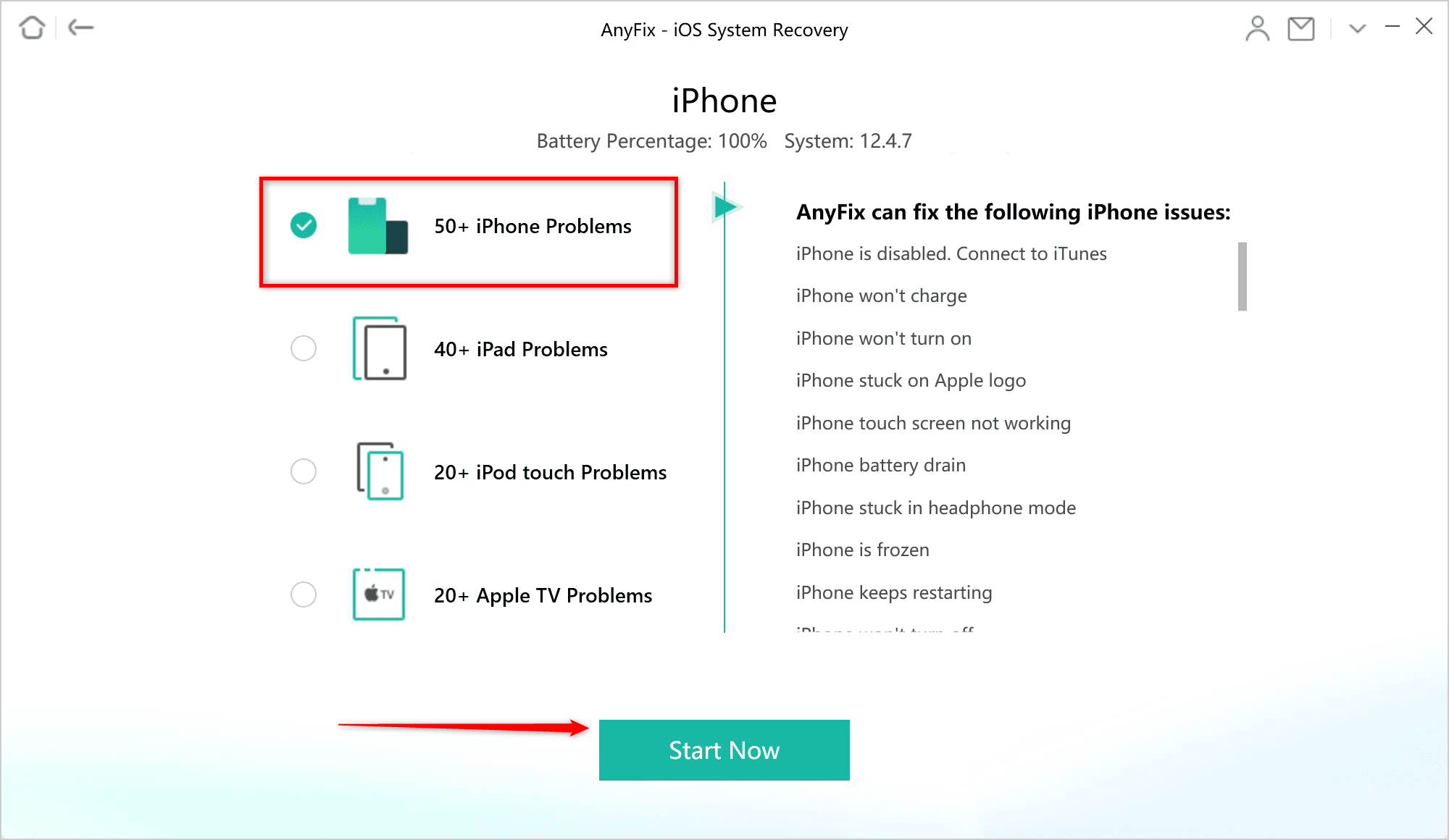
Choose Fix 50+ iPhone Problems
Step 3. Here will list 3 modes for you to fix the iPhone issue. Click on the Standard Repair which won’t risk any data loss.
Step 4. Minutes later, you will see the Repair Completed page on the screen.
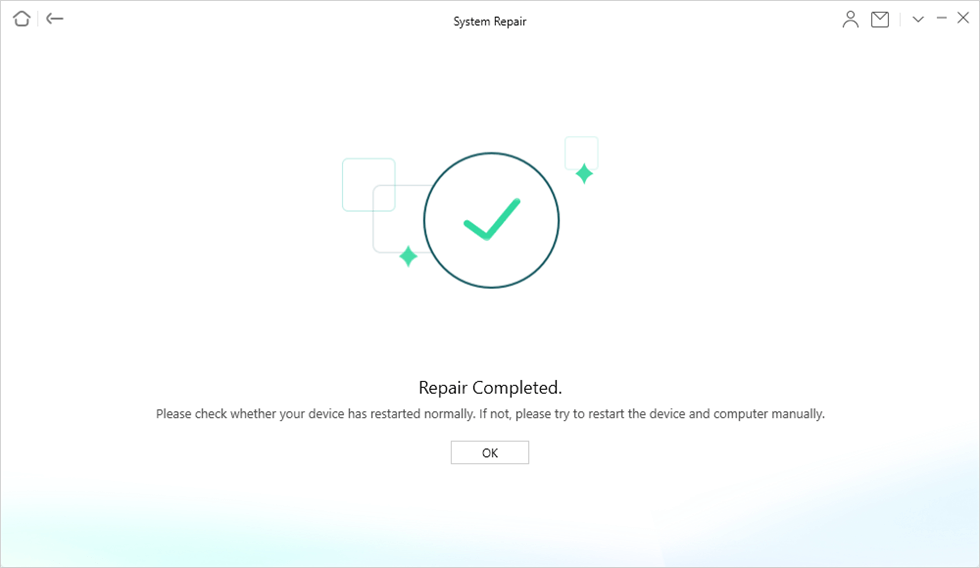
System Repair Completed
Fix 2. Check ID Show My Caller ID is Enabled
Another noteworthy solution to resolve iPhone caller ID not working is the activation of the Show My Caller ID feature on your device. This is very important since an alteration in call settings can cause your iPhone to malfunction and display the underlying problem. It works for all iPhone models, from the older ones down to the latest.
Activating the Show My Caller ID feature on your iPhone is super simple and can be done directly from the device itself. Here’s how you can do this on your iPhone:
- Locate the gear icon on your iPhone Home Screen and click on it. The Settings menu will automatically open.
- Swipe down the interface displayed until you find the green Phone icon. Tap on it to proceed.
- Next, navigate to where you have Show My Caller ID and click on it. On the next screen, toggle the corresponding icon to activate it.
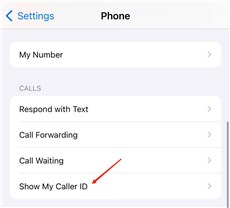
Show My Caller ID in iPhone Settings
Fix 3. Update Carrier Settings
Outdated carrier setting is among the reasons why your device displays the no caller ID error when you receive a call from your contact. Updating the corresponding carrier settings on your iPhone is a great solution you can employ from the comfort of your house to fix the issue.
Here’s the simple procedure to follow if you are looking to fix iPhone not showing caller ID using the update carrier settings option:
- On your home screen, find and tap the gear icon to open the Settings menu screen.
- Scroll and hit the General button and the interface displayed.
- At the top of the screen displayed, you will find the About tab.
- In case there’s an update available, you will find the corresponding icon in the carrier section on your iPhone. Click on it to update and fix the issue immediately.
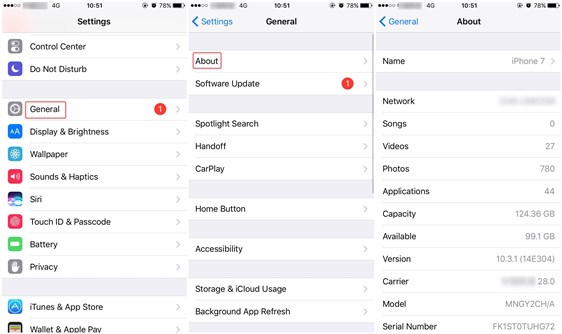
Check Carrier Settings Update
Fix 4. Contact Your Carrier
Should you still experience the iPhone not showing caller ID problems after using the solution above, then you have to contact your network provider for help. Sometimes the issue can be from your network provider’s end, as some carriers often require customers to subscribe premium for caller ID to be displayed. Kindly connect with your carrier to seek assistance.
Fix 5. Check Data and Time Settings
When you notice that the caller ID isn’t showing on your iPhone, the date and time on your device are worth checking for you to fix the issue. A date and time could sometimes be the chief reason why your iPhone won’t show your caller ID. You need to check and make the necessary adjustments to rectify the issue.
Here’s the direction to follow for you to check and change your iPhone’s date and time:
- Hit the gear icon you have on your Home Screen and the Settings page will automatically pop up.
- Tap on the General icon and swipe down to where you have Date & Time on the next interface that comes up.
- Click on the Date & Time button and toggle the slider beside Set Automatically to green. Without further delay, the date and time will change.
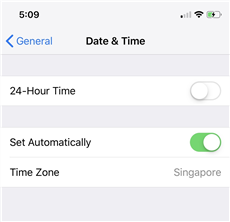
Check the Date & Time Settings
Fix 6. Reset Network Settings
A simple network reset can fix the iPhone not showing caller ID on your device. This solution helps you restore the operations of your network provider without compromising your system. Here’s how to do this on your iPhone:
- Launch the Settings screen on your device by tapping on the gear ⚙️ tab you have on your Home Screen.
- Click General > Transfer or Reset iPhone.
- Next, click Reset > Reset Network Settings.
- After completing the above, your phone will display an interface where you have to enter your screen passcode. Type the correct code and wait for the network reset to complete.
Fix 7. Check If Call Blocking and Identification is Enabled
Have you for any reason enabled call blocking and identification on your iPhone in the past? If true, then you may experience caller ID not showing on your device. It’s time to deactivate the feature so your phone can go back to normal and start displaying caller ID immediately.
This solution fixes iPhone caller ID not showing issues for all models and it’s super easy to use. You can follow the step-by-step instructional guide shared down here to check whether or not call blocking and identification is enabled on your iPhone:
- Tap on the Setting icon on your device and select Phone on the next screen that opens.
- Head down the page and click on Blocked Contacts. An interface showing all blocked contacts on your iPhone will automatically come up.
- Please check if any of the contacts with no caller ID is on the list and do the needful to disable call blocking and identification immediately.
Final Words
Now, we’ve demonstrated the 7 ways to fix the iPhone not showing caller ID for any iPhone model. All solutions have been tested and confirmed to offer positive results. However, AnyFix offers the ultimate solution from the options provided. The software clears caller ID not showing on your iPhone and other issues without damaging your system. It’s simple to use and offers excellent results within the shortest possible time.



Senior writer of the iMobie team as well as an Apple fan, love to help more users solve various types of iOS & Android-related issues.
Product-related questions? Contact Our Support Team to Get Quick Solution >
