How to Fix Unsend iMessage Not Working 2026
This article outlines effective solutions to fix the issue of iMessage Not Sent feature not working properly. And provides clear resolution steps to help you troubleshoot and ensure a seamless messaging experience on your iOS device.
Imagine you just hit “send” on an iMessage that you immediately regretted – it was an impulsive message to your boss, or a confessional message that you mistakenly sent to a group chat. You panic and remember the “Unsend” feature, but when you try to use it, nothing happens. The unsend iMessage doesn’t work!!! Frustrating, right? Don’t worry, it’s not a big deal. Read on as we dive into why this happens and what you can do about it in this article.
Understanding the Unsending iMessage on iPhone
With iOS 16, Apple is introducing a new feature: editing and unsending recently sent iMessage (Message can be used to describe any kind of messaging behavior, while iMessage refers to the specific instant messaging service used on Apple devices). Within the allotted time, you have the opportunity to correct spelling errors and withdraw the iMessage you sent.
“Unsend iMessage not working” refers to a problem with the recall message function in iMessage (the instant messaging service on Apple devices). It may mean that the message cannot be successfully recalled or the function does not work at all.
“Unsend Message not working” is a broader expression that may refer to problems encountered when trying to recall a message in any messaging app (not just iMessage, but also SMS, social media apps, etc.).
This feature can help users avoid unnecessary embarrassment. I believe many people need to use this feature, so do you know how to unsend an iMessage on iPhone?
How to Unsend an iMessage on iPhone?
As we talked about above, if you need to unsend an iMessage on your iPhone, it requires that you are using iOS 16 or later and the message was sent via iMessage (the recipient must also be using iMessage) for you to use the “Undo Send” function.
Here’s how to do it:
1. Open the Messages app and go to the conversation where you sent the message you want to unsend.
2. Hold the message you want to recall.
3. Select Undo Send from the menu that appears.
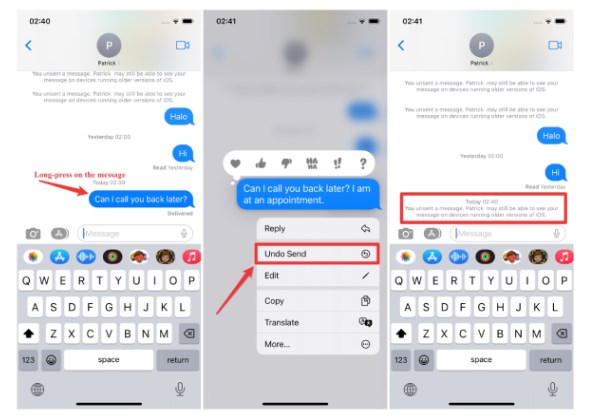
Unsend an iMessage on iPhone
If you take action within two minutes of sending a message, the message will not be sent and will disappear from your device and the recipient’s device.
Recipients may still see the message if they have already read it or are not using the latest version of iOS. Additionally, recipients may see a notification that the message was not delivered.
If you can cancel sending within two minutes, everyone will be happy! However, many times we are not able to find errors in time, or we find them but unsend iMessage not working. This is happening to you, right? Why is this? Read on!
Why Is Your Unsend iMessage Not Working?
If you’re experiencing an issue with the unsend feature in iMessage not working, there are several potential reasons why this could be happening. You need to know that the ability to cancel sending a message is only available on iOS 16 and above. The same goes for the recipient’s device. Otherwise, iMessage only allows you to unsend a message within 2 minutes of sending it. This option will not work if you try to cancel sending a message after this time window.
That’s not all; your device’s lack of network or unstable network could also be the culprit. These are the reasons why the “Unsend” feature in iMessage doesn’t work. Next, we will take you through how to fix unsend iMessage not working.
How to Fix Unsend iMessage Not Working?
If you encounter “Unsend iMessages” not working, you can try some of the following measures to solve the problem:
1. Unsend within 2 Minutes
This is the simplest method. After sending a message, you have 2 minutes to unsend it. If it times out, this method will have no effect.
Then, you can consider other methods. Keep sliding!
2. Upgrade iOS Version
The “Unsend” feature is only available on iOS 16 and above. Make sure your device is updated to iOS 16 or later by going to Settings > General > Software Update.
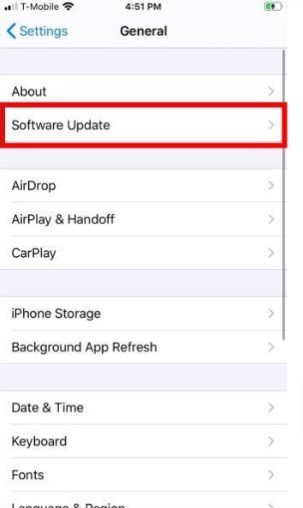
Update iOS Version
If you cannot upgrade iOS normally, or you want to save time quickly, you can also consider using AnyFix.
If you want more information about upgrading iOS, you can visit Apple Support.
3. Verify Apple System Service Status
Many people will ignore this reason, although usually Apple’s servers will not have much impact on the operation of the iOS system. However, we still need to consider the possibility that Apple’s servers may not be performing as well as they should. You can go to Apple’s System Status page and check whether each feature displays a green dot.
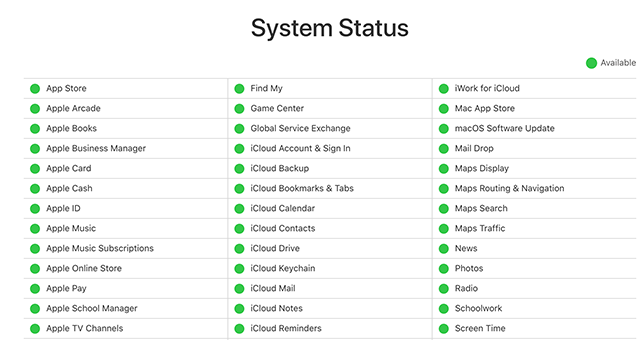
Go to Apple and Check Apple’s System Services
4. Use iMessage to Send Messages
This is one of the reasons that is often overlooked. Remember that you must use iMessage to send messages for them to be effective. You may be wondering, does it make any difference? Isn’t it the same? The answer is: the same but different!
iMessage communicates over the Internet rather than traditional text message (SMS) or multimedia message (MMS) services. Message is a general term that refers to the act of sending or receiving messages, which can include sending messages using various instant messaging services, including iMessage, SMS, MMS, WhatsApp, Facebook Messenger, etc.
You can check it by following the steps:
On your iPhone, open the Settings app and go to the Messages option. Make sure iMessage is enabled and check the “Keep Messages” setting. Make sure the “Keep messages” setting allows you to undo messages after a certain amount of time has passed. It is recommended to set this to “Permanent”.
5. Repair your iOS system with AnyFix
The reason why unsend iMessage is not working maybe that there is a problem with your iOS system. AnyFix is a one-stop solution for almost all iOS-related issues. It is a professional software for repairing iOS and iTunes systems.
AnyFix – iOS System Recovery
- Fix 150+ iOS system issues for iPhone/iPad/iPod touch/Apple TV.
- No data will be lost.
- Lightning-fast speed to transfer 100 photos in 3.4 seconds.
- Problems can be solved in a few clicks, no special skills are required.
Free Download100% Clean & Safe
Free Download100% Clean & Safe
Free Download * 100% Clean & Safe
The steps to use AnyFix to fix IOS system problems are as follows:
Step 1: Download and install AnyFix on your PC or Mac and connect your iPhone to the computer via a power cable. Launch AnyFix and select “System Repair” mode and click the “Repair Now” button.
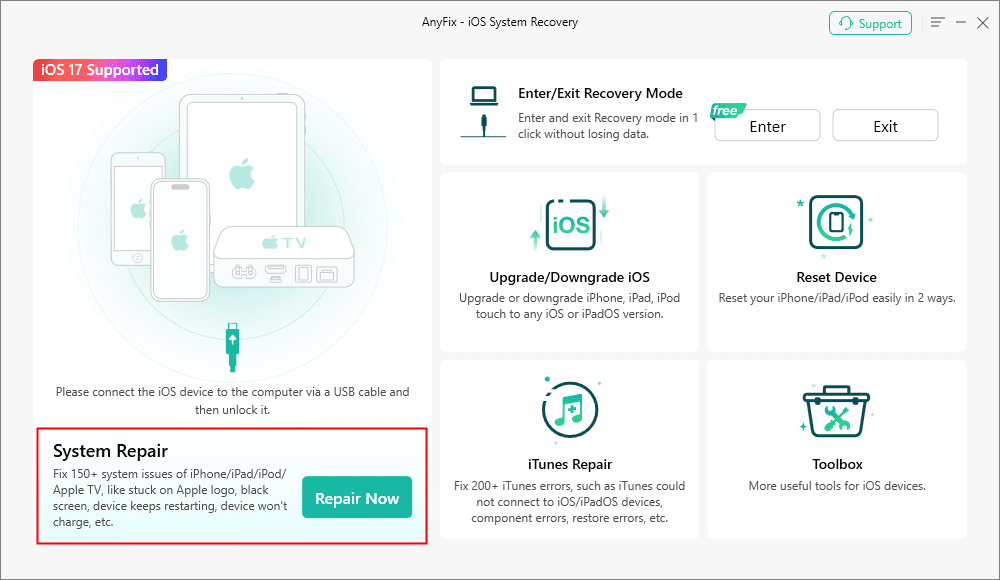
AnyFix System Repair Option
Step 2: Follow the guide on the screen to select the corresponding question. Then click on Repair Now button.
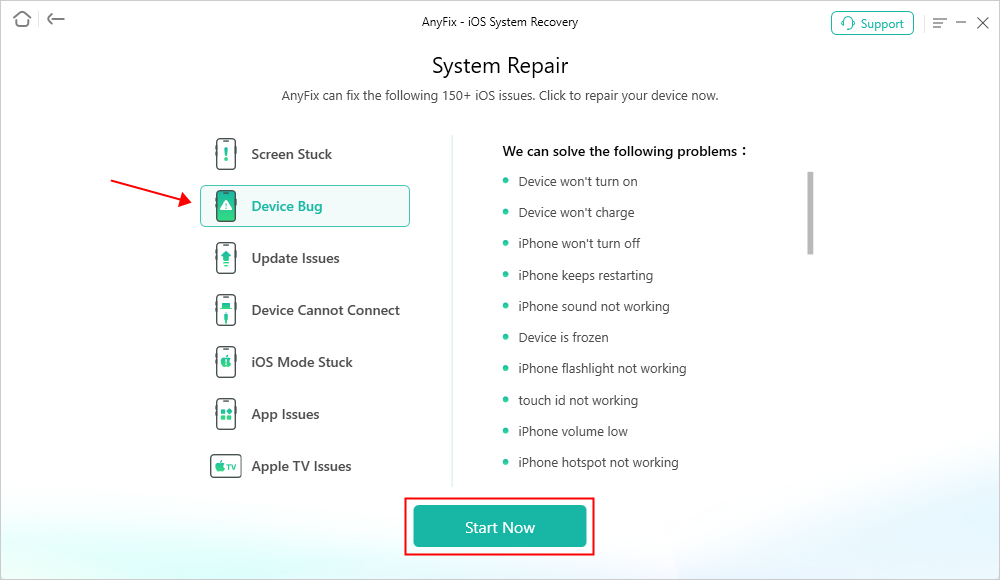
AnyFix System Repair Device Bug
Step 3: After clicking the “Start Now” button, the following page will be displayed. Then, you can choose a mode to repair your iOS device.
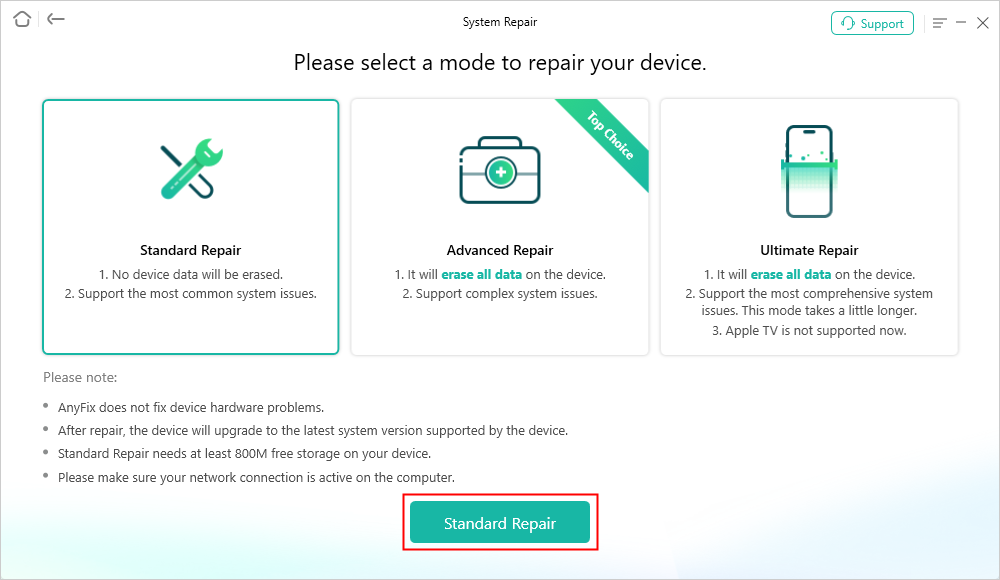
AnyFix Standard Repair
Step 4: Then follow the instructions. If you need to fix a misbehaving operating system, click the Download button to download the firmware for your iOS device.
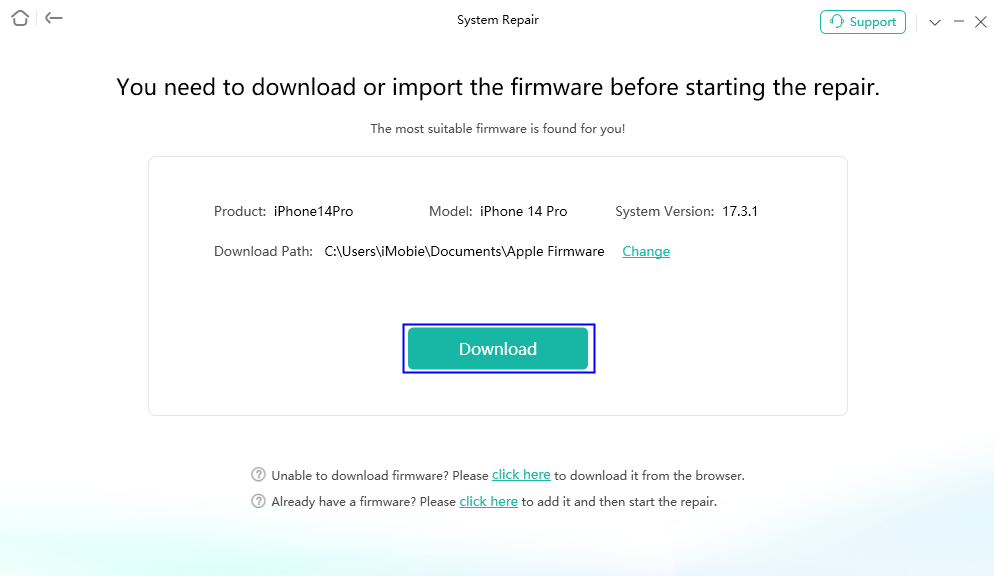
AnyFix System Repair Firmware Download
Step 5: When the firmware package has been downloaded successfully, please click Start Standard Repair button.
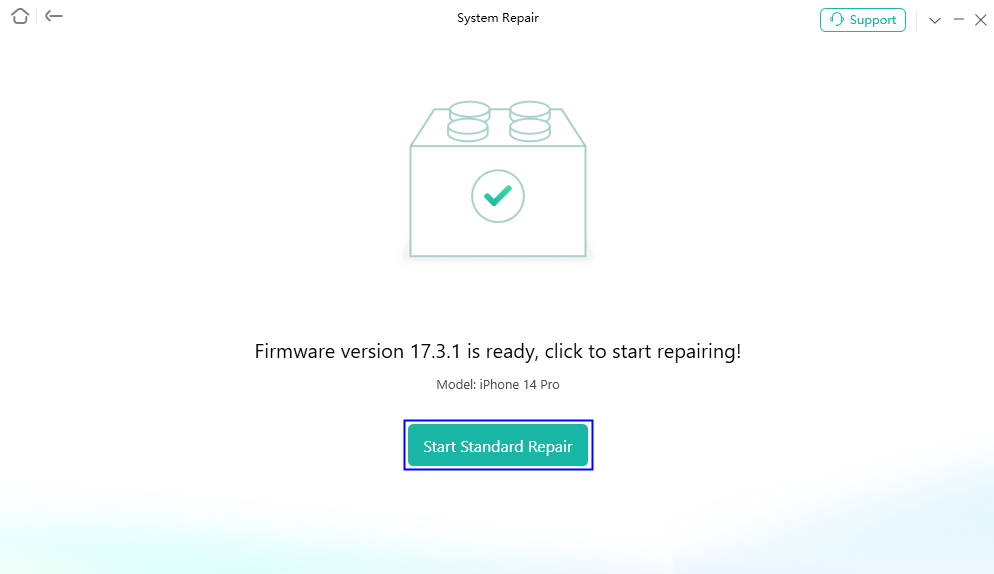
AnyFix System Repair Firmware Finish Downloading
Step 6: Now, AnyFix will automatically repair your iOS device.
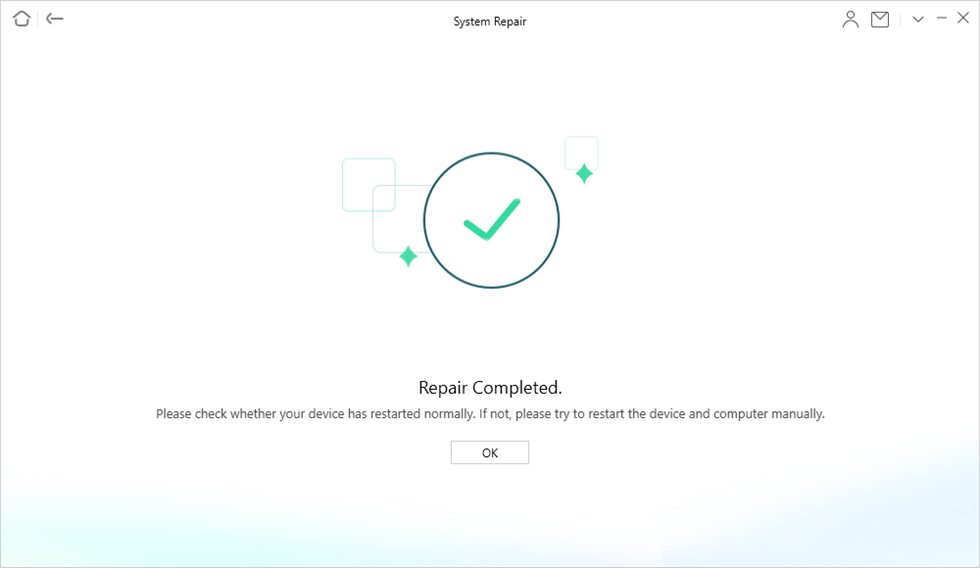
System Repair Completed
Finally, your iPhone’s system has been repaired. You can check whether unsending iMessage is normal.
Free Download * 100% Clean & Safe
6. Check Internet Connection
Finally, don’t forget to check your network for problems. iMessage requires an active internet connection to send and receive messages. If your device isn’t connected to Wi-Fi or cellular data, the Unsend feature may not work. If your Unsend iMessage is not working, please follow the above methods to check for fixes.
Of course, we recommend that you use the tool AnyFix directly. This tool is simple to operate and repairs quickly. It only takes a few minutes to repair your iOS system, and the standard repair mode allows you to eliminate system problems without losing any data. All your important files will be safe and sound after the repair.
FAQs About Unsending iMessage on iPhone
1. Is there a time limit to Unsend an iMessage?
Yes, Apple allows users to recall iMessage within two minutes of being sent. After this time limit, the message cannot be withdrawn.
2. Why can’t I Unsend a message after 2 minutes?
Apple sets the 2-minute recall time limit to strike a balance between correcting errors and ensuring message stability. This time limit allows users the opportunity to retract messages if they are sent in error while ensuring recipients have a consistent and reliable communication experience. After this time, the message cannot be withdrawn.
3. Can you Unsend an iMessage after it has been read?
An iMessage can be recalled within two minutes of being sent, regardless of whether the message has been read. After two minutes, the message cannot be withdrawn, even if it has not been read. This limitation ensures communication stability and reliability.
Final Thought
Unsending iMessage not working can cause awkward or social problems. Learning how to fix iPhone unsending iMessage not working is essential. AnyFix is a comprehensive solution. Compared to other methods, AnyFix can resolve issues quickly and ensure a smooth iMessage experience. Its versatility and reliability make it the first choice to effectively solve various iOS problems. Try AnyFix today for a seamless iMessage communication experience!
Free Download * 100% Clean & Safe



Senior writer of the iMobie team as well as an Apple fan, love to help more users solve various types of iOS & Android-related issues.
Product-related questions? Contact Our Support Team to Get Quick Solution >
