[9 Methods] iOS 26 Laggy? Here Are Proven Fixes!
Discover how to fix iOS 26 lag on your iPhone! Here are 9 practical ways to improve performance and enjoy a smoother iPhone experience.
Is iOS 26 making your phone lag?
I’ve 12 Pro Max and iOS 26 is causing unimaginable lag, and it’s annoying that downgrading isn’t an option. Even if I try to downgrade unofficially, this would probably erase all my data.
This isn’t an isolated complaint. Apple officially released iOS 26 in 2026 with a major focus on AI integration, personalization, and performance enhancements. From smarter Siri suggestions to dynamic home screen widgets, the update promised to make iPhones more powerful than ever.
However, while many users are enjoying the new features, a significant number are complaining about laggy performance, including app freezes, scrolling delays, and occasional crashes.
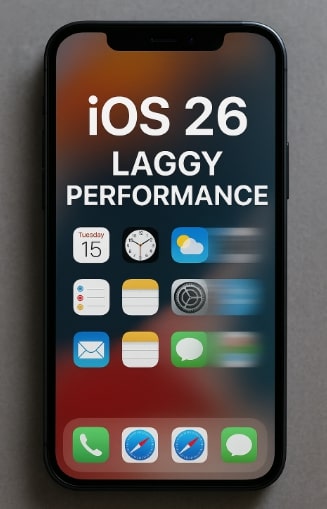
iOS 26 Lagging Issue
If you’re wondering, “Why is iOS 26 so laggy?”, you’re in the right place. This guide explains the primary reasons for the lag and provides step-by-step iOS 26 laggy fixes that you can try immediately.
Part 1. Why Is iOS 26 So Laggy?
The term “iOS 26 laggy” simply refers to performance issues that appear after upgrading to iOS 26. Instead of feeling smooth, the system may respond slowly, animations stutter, apps take longer to load, and in some cases, the iPhone may freeze or restart unexpectedly. Before we begin troubleshooting steps, let’s identify the possible reasons for the iOS 26 lagging issue.
Causes of iOS 26 Laggy Performance:
- System Optimization Running in the Background: After updating, iOS needs to re-index photos, files, and apps, which can slow performance for a few days.
- Low Storage: If your iPhone has less than 5–10 GB of free space, iOS struggles to run smoothly.
- Too Many Background Apps: Features like Background App Refresh drain memory and CPU.
- App Compatibility Issues: Some third-party apps are not fully optimized for iOS 26 yet.
- Battery Health Problems: Older or degraded batteries may cause performance throttling.
Understanding these causes helps you know what to focus on. Now, let’s look at simple ways to fix them and speed up your iPhone.
Part 2. How to Fix iOS 26 Lagging on iPhone (Step by Step)
Here are 8 practical fixes to try before seeking advanced solutions.
Method 1. Restart Your iPhone
A simple restart can often resolve temporary glitches, especially when lag appears suddenly after an iOS update. Restarting your device refreshes the system and clears minor memory issues.
Step 1. Press and hold the Side button + Volume Down until the power slider appears.
Step 2. Drag the slider to turn off your iPhone. Then wait 10–15 seconds.
Step 3. Press the Side button again until the Apple logo appears.
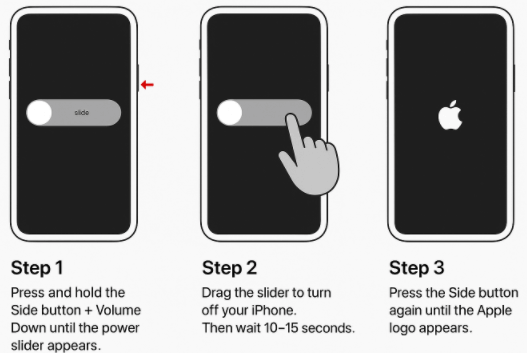
Restart Your iPhone
Restarting is the quickest way to fix minor lag without changing any settings. If performance doesn’t improve, move on to the next method.
Method 2. Hard Reset Your iPhone
Sometimes your iPhone may freeze, become unresponsive, or an app may crash. A hard reset (force restart) can help fix these issues. Here is how to do it:
Step 1: Press the Buttons
Quickly press Volume Up, then quickly press Volume Down, then press and hold the Side button until the Apple logo appears.
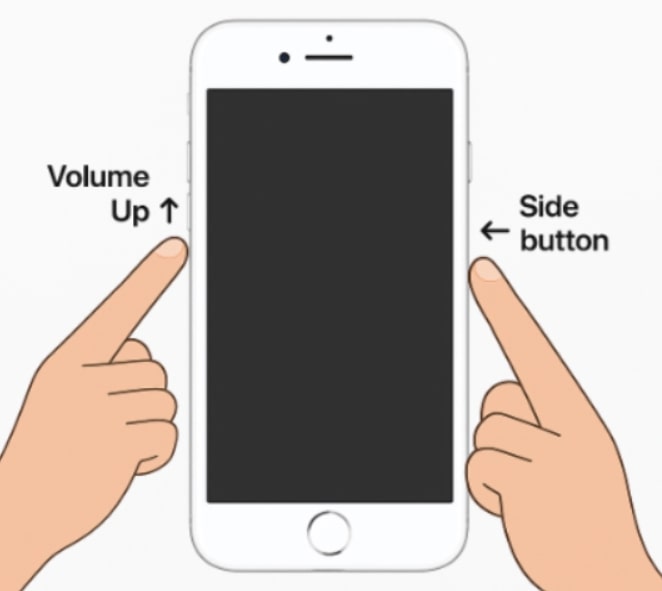
Press the Buttons to Hard Reset
Step 2: Wait for your iPhone to restart
Release the buttons when the Apple logo appears. Your iPhone will restart automatically. This process usually takes about 10–30 seconds.
Hard resetting does not erase your data. If the issue continues, consider downgrading iOS or performing a factory reset.
Method 3. Ensure Sufficient Storage
Low storage is a common cause of slow performance. iOS requires free space to run efficiently and perform background tasks like indexing files.
Step 1. Open Settings > General > iPhone Storage.
Step 2. Check the storage bar.
Step 3. If you have less than 10% free, it’s time to clean up.
Step 4. Delete unused apps, large videos, or move photos to iCloud/PC.
Step 5. Offload apps you rarely use (keeps data safe but removes the app temporarily).
Keeping sufficient free storage ensures smooth operation and prevents lag caused by a cluttered device.
Method 4. Turn Off Background App Refresh
Apps running in the background can consume CPU and RAM, slowing down your iPhone. Disabling background refresh reduces unnecessary resource usage.
Steps: Step 1. Go to Settings > General > Background App Refresh.
Step 2. Tap Background App Refresh again.
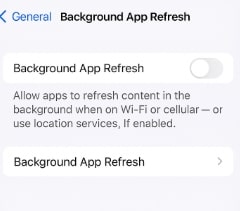
Click Background App Refresh
Step 3. Choose Off or select Wi-Fi only to reduce resource usage.
Limiting background activity allows your device to focus on active tasks, improving speed.
Method 5. Reduce Animations
iOS 26 introduces sleek animations, but these can slow down older devices or iPhones with heavy workloads. Reducing motion can make the interface feel snappier.
You can reduce animations by following these steps:
Step 1. Open Settings > Accessibility > Motion.
Step 2. Toggle on Reduce Motion.
Step 3. Also, toggle on Prefer Cross-Fade Transitions for a smoother experience.
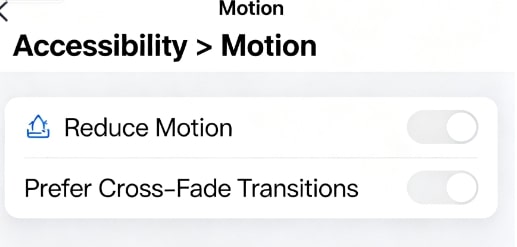
Choose Prefer Cross-Fade Transitions
Reducing visual effects can significantly improve responsiveness, especially on older iPhone models.
Method 6. Use Static Wallpaper
Dynamic and live wallpapers continuously use GPU resources, which can affect overall performance. Switching to a static wallpaper is a simple optimization.
Step 1. Go to Settings > Wallpaper.
Step 2. Tap Choose a New Wallpaper.
Step 3. Select a Still image instead of Live or Dynamic.
A static wallpaper frees up system resources for other tasks, helping your iPhone run more smoothly.
Method 7. Update Your Apps
Outdated apps may not be fully compatible with iOS 26 and can cause lag. Keeping apps updated ensures better performance and stability.
Steps to fix lag caused by buggy or outdated apps:
Step 1. Open the App Store.
Step 2. Tap your profile picture in the top right.
Step 3. Scroll down and tap Update All.
Updating apps ensures they work efficiently with the latest iOS version, reducing slowdowns caused by software conflicts.
Method 8. Check Battery Health and Replace if Needed
Performance throttling often occurs when the battery is weak.
Step 1. Go to Settings > Battery > Battery Health & Charging.
Step 2. Check Maximum Capacity:
- 85%–100% → Normal.
- Below 80% → Performance issues likely.
If below 80%, consider an Apple-authorized battery replacement. After replacement, go back to Battery Health to ensure maximum capacity is restored and your iPhone runs smoothly.
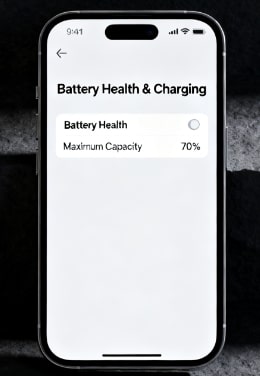
Replace Batteey
Part 3. Advanced Options: Fix System Issues or Downgrade iOS in Clicks
Still struggling with a laggy iOS 26 on your iPhone? Devices lag due to system issues in most cases, and you can have 2 advanced methods to solve the problem: fix the system or downgrade to a previous iOS version that runs smoothly on your device. AnyFix offers a fast, safe, and reliable solution to restore smooth performance without risking your data.
Solution 1. Repair iOS 26 System Issues in One Click
Many lag problems come from hidden system glitches rather than hardware. AnyFix can fix iOS 26 laggy performance, unresponsive apps, freezes, and crashes in minutes. It’s safe, simple, and works on all recent iPhones, including iPhone 17. With just a few clicks, your device can return to optimal speed and stability.
Here is the stepwise guide to fix system issues:
Step 1. Download and install AnyFix on your computer correctly.
Free Download * 100% Clean & Safe
Step 2. Then launch the software and select the System Repair option from the main menu.
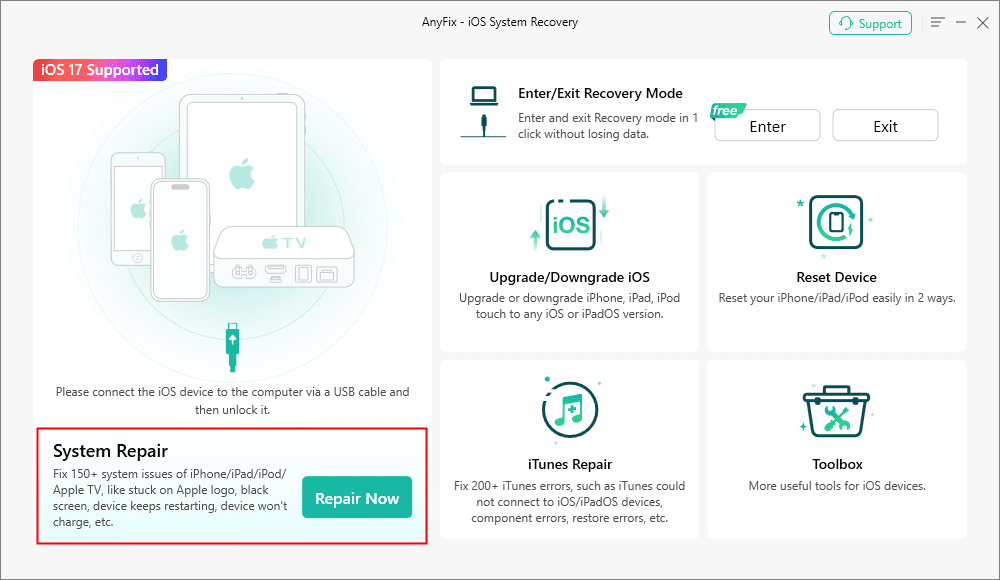
AnyFix System Repair Option
Step 3. Connect your iPhone and choose Device Bug from the problem list. Then click the Start Now button.
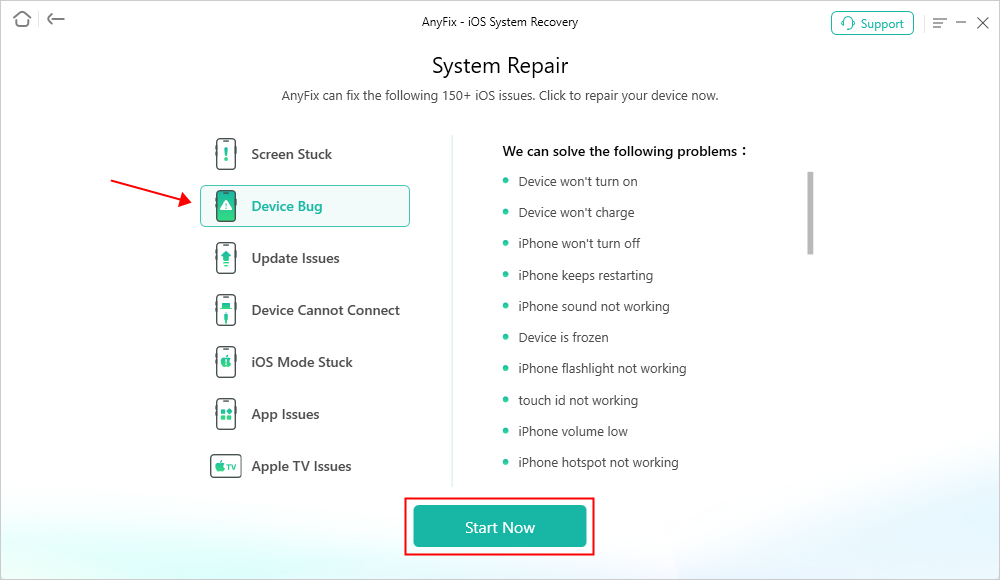
AnyFix System Repair Device Bug
Step 4. Choose the Standard Repair mode. After that, AnyFix will help download the firmware for your iPhone.
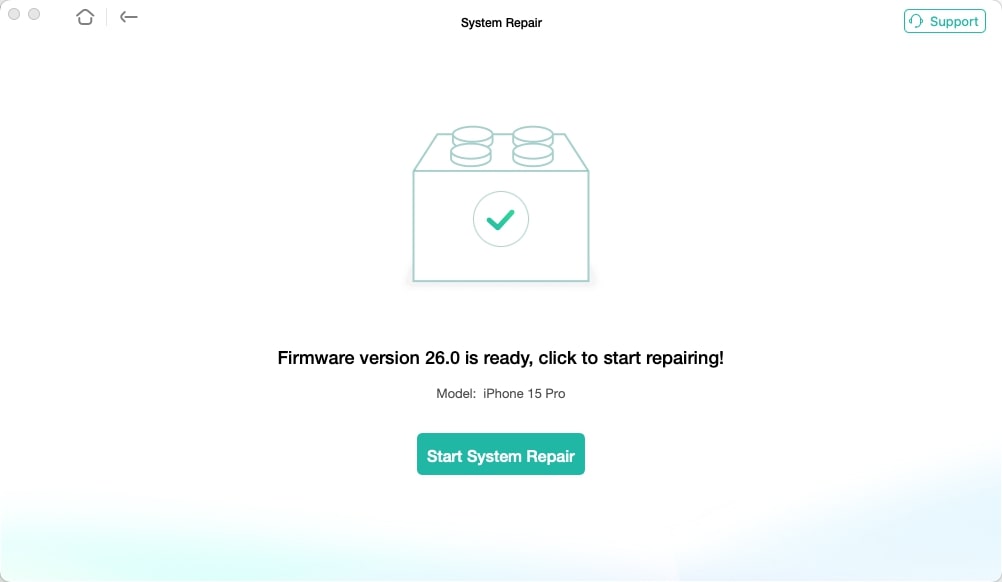
AnyFix iOS 26 Firmware Download
Step 5. Follow the on-screen instructions to finish the system repair on your iOS 26 lagging iPhone.
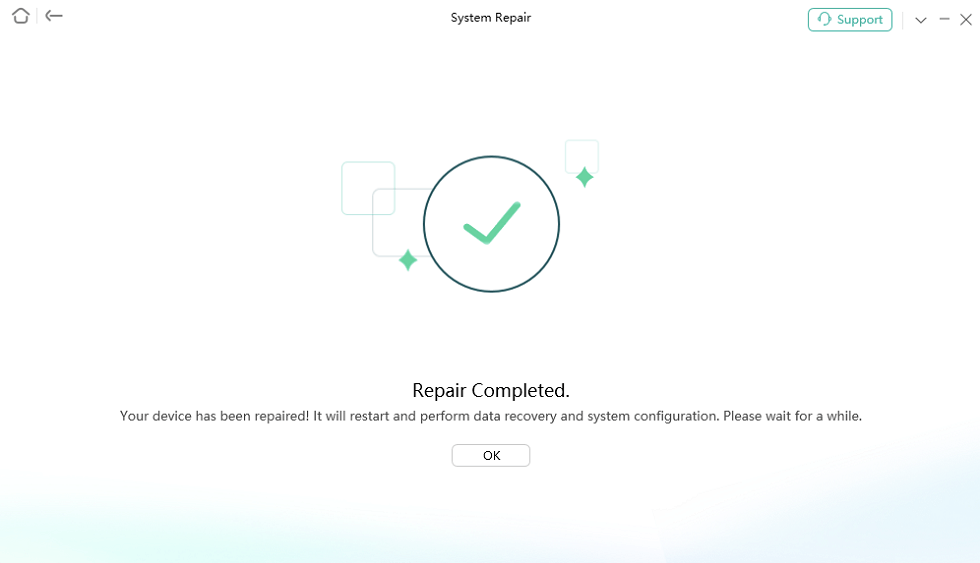
Repair Is Completed
Once finished, try to use your iPhone and see if the lag issue is fixed.
Solution 2. Downgrade iOS 26 Safely
If iOS 26 is making your iPhone slow, freeze, or crash, AnyFix allows you to downgrade to a stable earlier version easily. The process is guided step-by-step, requires no technical knowledge, and keeps all your personal data intact. Your iPhone can regain the smooth responsiveness you expect—just like before the update.
Step 1. In AnyFix, click Upgrade/Downgrade iOS from the homepage.
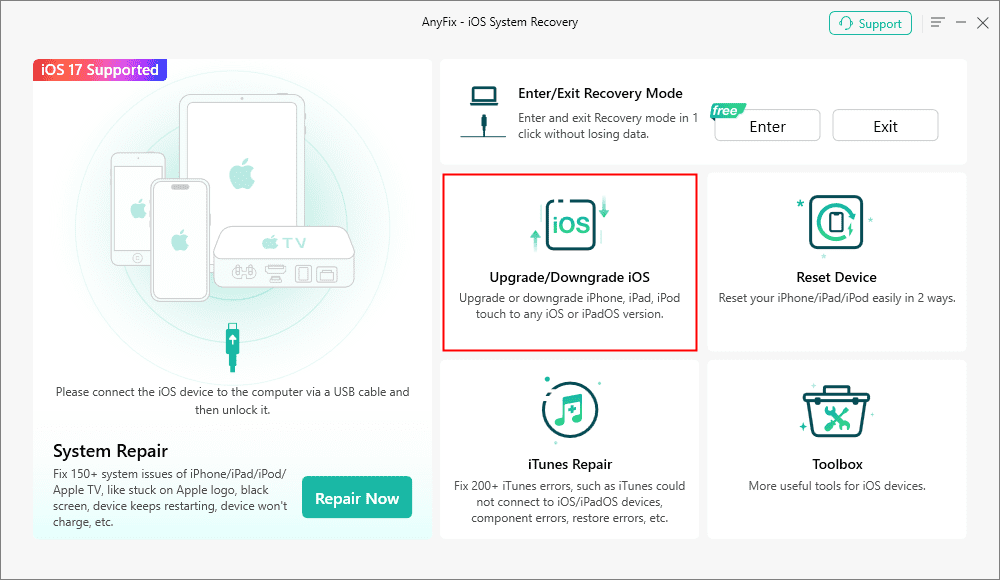
AnyFix Upgrade/Downgrade iOS Option
Step 2. Choose iOS Downgrade and click Start Now.
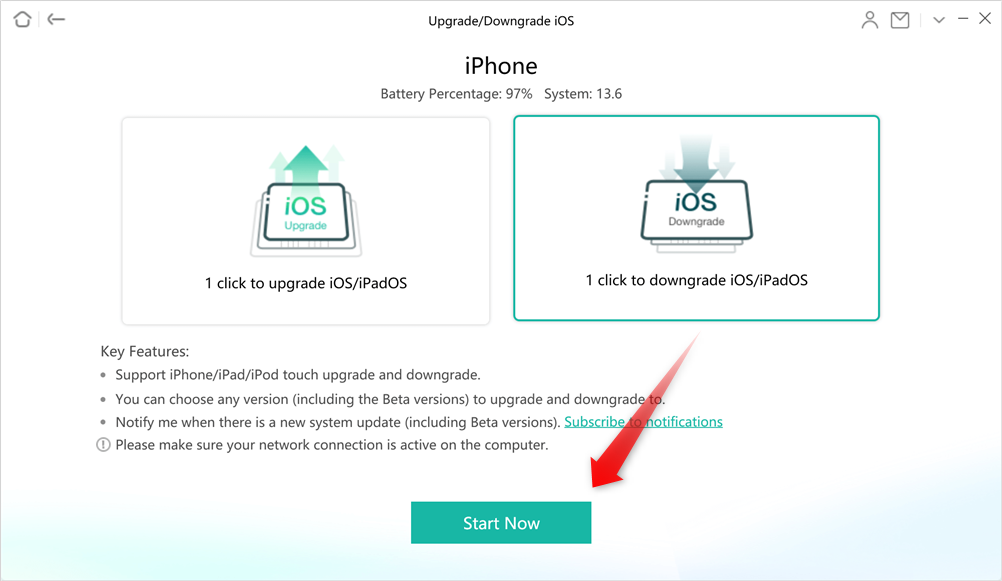
Choose 1 Click to Downgrade iOS/iPadOS
Step 3. After clicking Start Now, the firmware packages of your device that are lower than the current one will be shown. Select the one you want to install and click Download.
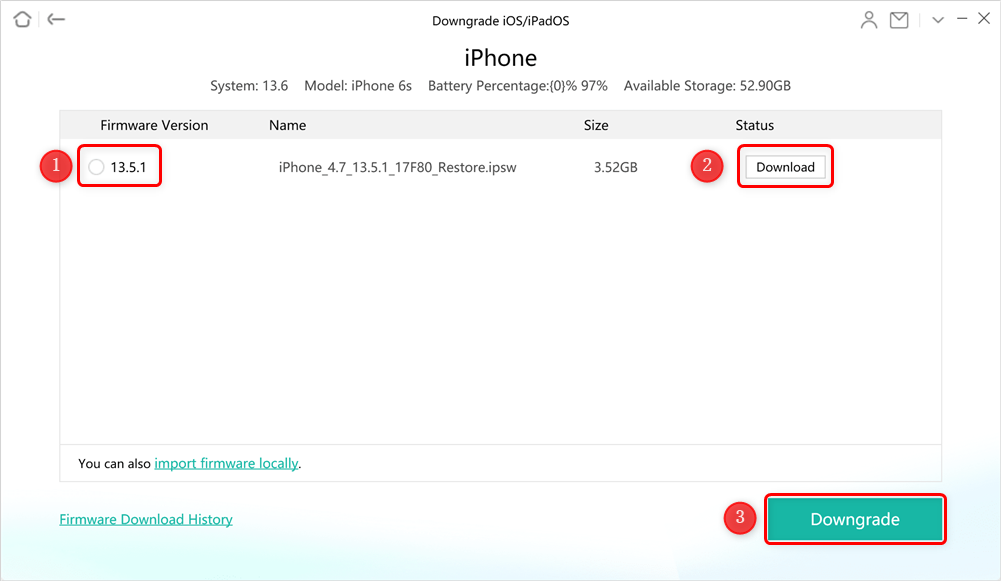
Download Firmware to Downgrade
Step 4. Click the Downgrade button when the firmware is downloaded. It will start the downgrade process.
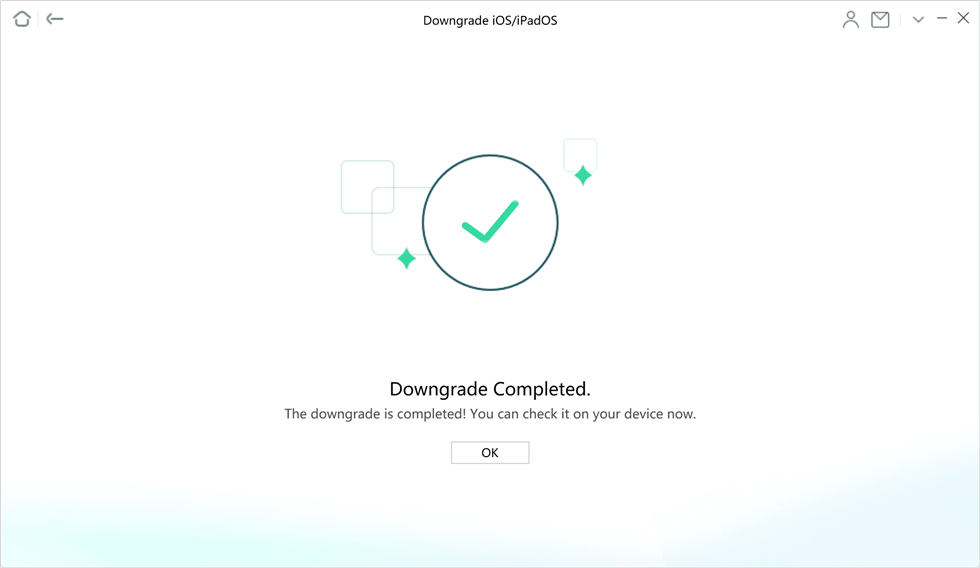
Downgrade Completed Page
When you end the downgrade process, your iPhone will be back to the previous version you want. If your iPhone is slow or freezing after updating to iOS 26, AnyFix is a one-click, data-safe solution to get your device running smoothly again.
Part 4. FAQs
Q1. Why is my iPhone suddenly lagging after iOS 26?
Because background indexing, storage shortages, or unoptimized apps slow performance.
Q2. Is the iOS 26 lag temporary?
Yes, in most cases. Once indexing and app updates are complete, performance usually improves within a few days.
Q3. Which is better, iOS 18.7 or iOS 26?
iOS 26 brings more features, but it can be slower on older devices. If you value stability, iOS 18.7 might feel smoother.
Q4. Does lag damage my iPhone?
No. Lag only affects usability, not hardware.
Conclusion
Upgrading to iOS 26 unlocks powerful AI features, smarter multitasking, and fresh design elements. But the downside is that many users report laggy performance. The good news is that by following the 8 proven fixes above, from restarting your iPhone to replacing the battery, you can often restore smooth performance in minutes.
If lag persists, you still have options: you can downgrade iOS or use system repair tools to fix performance issues until Apple releases further optimizations. AnyFix provides professional yet easy-to-use assistance to handle these problems. Try AnyFix now and enjoy a smoother, faster iPhone experience.
Free Download * 100% Clean & Safe



Wanda Norris is a junior author in iMobie specializing in iOS tips and solutions. She keeps a close eye on every iOS update to provide practical, easy-to-understand guides that help users solve problems and master their Apple devices.
Product-related questions? Contact Our Support Team to Get Quick Solution >
