Facebook Friend Search by City: The Complete Guide
Struggling to find someone on Facebook by city? This guide explains how to use Facebook’s city filter on mobile and desktop, refine search results, and overcome privacy or outdated profile issues to reconnect faster and more accurately.
Have you ever tried to find an old friend, knowing they moved to a specific city but not knowing where to start on Facebook? That simple act of reconnecting can quickly become a frustrating search through an endless list of profiles. Many people struggle with Facebook’s city filter because it isn’t always intuitive, and searches often fail due to hidden privacy settings or outdated profile information. This guide provides a direct, tested solution to that problem. We’ll walk you through the exact steps for mobile and desktop, show you how to refine your search for better accuracy, and help you troubleshoot the most common issues.
How to Search Friends on Facebook by City: The Mobile App Method
For most of us, searching for friends happens on a smartphone. While the Facebook app has all the tools you need, the location filter can be difficult to find if you don’t know the exact process. Let’s clear up that frustration with a simple, step-by-step approach. This method is perfect for finding friends in a specific area while you’re on the go.
Follow these instructions to perform the search on your iOS or Android device:
1. Open the Search Function: Launch the Facebook app and tap the magnifying glass icon in the top-right corner to open the main search interface.
2. Enter a Name (Optional) and Search: You can begin by typing a person’s name to narrow your focus from the start. Alternatively, leave the search bar blank if you want to see all potential connections in a city. Tap ‘Search’.
3. Navigate to the ‘People’ Tab: After you search, a horizontal menu will appear with filter options like ‘All,’ ‘Posts,’ and ‘Photos.’ Tap on ‘People’ to limit your results to user profiles. This is a critical step that activates the correct set of filters.
4. Access the Filters Menu: On the ‘People’ results screen, tap the filter icon in the top-right corner. On current versions of the app for both iOS and Android, this icon looks like two lines with sliders on them.
5. Apply the City Filter: In the filters menu, scroll down and tap the ‘City’ option. Begin typing the name of the city you wish to search.
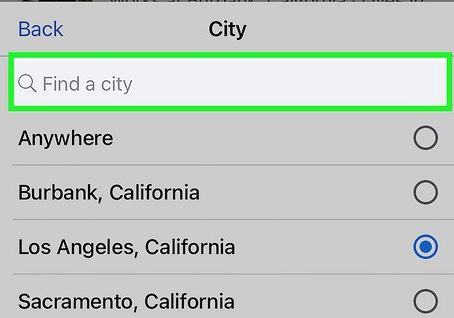
You Must Select the City from the List
This is the single most common reason a city search fails. As you type, Facebook will show an auto-suggested list of locations. You must tap the correct city from this dropdown list (e.g., “Denver, Colorado”). If you just finish typing the name and press ‘Search,’ the filter will not apply correctly.
This procedure will instantly refresh your screen to show a list of people who have listed that specific location as their current city, helping you find friends by location quickly and efficiently.
Using the Facebook Friends Location Search on a Desktop
While the mobile app is convenient, the desktop version of Facebook offers a more powerful and stable experience for detailed searches. The web interface provides a clearer view of all available filters and can handle large lists of results without the slowdowns that sometimes affect the mobile app, making it an excellent tool for organizing events or conducting more in-depth searches.
Here is the step-by-step procedure for using a desktop web browser:
1. Go to Facebook.com: Log in to your account.
2. Use the Top-Left Search Bar: The search bar is located in the top-left corner of the interface. Type a person’s name (or leave it blank) and press Enter.
3. Select the ‘People’ Filter: On the results page, a ‘Filters’ menu will appear on the left-hand side. Click on ‘People’ to refine the results to user profiles only.
4. Find the Location Filter: Once you select ‘People,’ the filter menu on the left will expand. Under the ‘Location’ heading, you will find the ‘City’ input field.
5. Enter Your Target City: Type the city you want to search for into the text box. Just like on mobile, you must select the correct city from the dropdown list that appears for the filter to work.
The main results on the right will instantly update to show profiles matching your criteria.
Refine Your Results: Layer Filters for a More Accurate Search
A simple search for friends in a city can often return hundreds of results, especially for a common name. The most effective strategy is to layer the city filter with other criteria you know about the person. This technique transforms a broad search into a precise one by using your shared history to narrow the field.
For example, imagine you want to find old classmates who now live in San Francisco. A simple city search is too broad. To find them, you need to combine filters:
- Education: First, apply the ‘San Francisco’ city filter. Then, in the same filter menu, find the ‘Education’ field and add the name of your university. This will instantly limit the results to people in that city who also list your school on their profile.
- Workplace: Similarly, to find former colleagues, you can combine the city filter with a company name in the ‘Work’ filter.
- Mutual Friends: Toggling the ‘Friends of Friends’ option is another powerful tool. This filters your search to show only people who are already connected to your existing friends, dramatically increasing the relevance of the results.
This multi-filter approach is what makes Facebook’s search function truly useful, allowing you to find people based on specific, shared connections.
Troubleshooting: Why Some Friends Don’t Appear in Your Search
It can be discouraging when a search yields no results, even when you’re sure your friend lives in the city you entered. This is rarely a bug; it’s almost always related to user-controlled profile settings or missing information. Understanding these limitations is key.
Here are the most common reasons a person might not appear in your search:
1. Strict Privacy Settings: This is the primary reason. A user can set their privacy to prevent their profile from appearing in searches. They can also hide specific details like their current city from anyone who isn’t already a friend. If their profile is locked down, no search filter will find them.
2. Outdated Profile Information: The location search is only as accurate as the data users provide. If your friend moved years ago but never updated the ‘Current City’ field on their profile, they will not appear in a search for their new location.
Key Distinction: ‘Current City’ vs. ‘Hometown’
Many searches fail because of this critical detail. The standard ‘City’ filter searches the ‘Current City’ field on a profile. It does not automatically search the ‘Hometown’ field. If the person you’re looking for lists their new city under ‘Hometown’ instead of ‘Current City,’ your search will not find them. You may need to try searching for both their current location and their original hometown.
What to Do if the ‘City’ Filter is Missing or Not Working
Sometimes, you might find that the ‘City’ filter option is missing from the menu or isn’t responding. Here’s what to do:
- Update the App: The most common cause of missing features is an outdated app. Visit the App Store or Google Play Store to ensure you have the latest version of Facebook.
- Clear the App Cache: If the app is updated but still glitching, clearing the cache can resolve the issue. This removes temporary files that may be causing the problem without deleting your account data.
- Use a Stable Connection: On mobile, complex searches with multiple filters can be slow or fail on a weak cellular connection. For best results, connect to a stable Wi-Fi network before performing a detailed search.
A Smarter Way to Manage Facebook Location Search Results
As explained in Facebook Friend Search by City Guide, Facebook uses a combination of:
- GPS data
- IP address information
- profile activity
- nearby interactions
to personalize local recommendations and search visibility.
Some users notice that Facebook continues showing irrelevant cities or outdated nearby suggestions even after updating profile information. To gain more control over device-level location behavior, some users also explore Fonelora Location Changer.
Why Fonelora Appeals to Social App Users
Unlike browser-only location tricks, Fonelora focuses on system-wide GPS simulation. According to the official website, the software includes:
- Interactive GPS Map Control
- One-Click Teleportation
- Route Simulation Modes
- Historical Location Saving
- Joystick Navigation
- Adjustable Movement Speeds
The platform also supports:
- iPhone 17 series
- iPad
- Android smartphones
- iOS 18 and iOS 26
- Android 15+
This can be useful for users who test regional social recommendations or manage location-dependent app behavior across multiple cities.
Key Features That Stand Out
Save Frequently Used Locations
Users can bookmark frequently visited cities or regions for faster switching between locations.
Flexible Movement Simulation
Instead of staying fixed in one place, users can simulate:
- walking routes
- driving paths
- multi-stop travel
for more natural GPS movement patterns.
System-Level GPS Adjustment
Because Facebook may compare:
- GPS signals
- Wi-Fi positioning
- IP regions
- app activity patterns
simple browser methods may not fully refresh localized recommendations. Device-level GPS simulation attempts to create more consistent location behavior.
Broad Device Compatibility
Fonelora advertises support for both:
- iOS devices
- Android devices
without requiring jailbreak or root modifications.
How to Use Fonelora Location Changer
Step 1: Install the Software
Download and install Fonelora Location Changer on a Windows or Mac computer.

Step 2: Connect Your Device
Connect your smartphone or tablet using:
- USB
- Wi-Fi
- Bluetooth
depending on your preferred setup.

Step 3: Choose a Location Mode
Available options include:
- Teleport Mode
- Joystick Navigation
- Multi-Spot Routes
- Jump Teleport

Step 4: Click “Move” to complete the location change.

Frequently Asked Questions About Facebook Friend Search
Here are direct answers to the most common questions about using Facebook’s location search features.
How do I search for friends in a specific city on Facebook?
Use the main search bar, tap the ‘People’ tab, and then open the filters menu (a slider icon in the top-right on mobile). Within the filters, select ‘City’ and type in the location name, making sure to choose it from the dropdown list. On desktop, the filters appear in the left-hand sidebar after you click ‘People.’
Can I find all Facebook friends by city?
No, you cannot find everyone. Search results are always limited by individual privacy settings. If a user has restricted their profile’s search visibility or hidden their location information from non-friends, they will not appear in your search.
Will Facebook show friends’ current city or hometown?
The default ‘City’ filter searches the ‘Current City’ field on a user’s profile. It does not search the ‘Hometown’ field. This means if a person has moved but hasn’t updated their ‘Current City,’ searching for them in their new location will not work.
Can mobile users search friends by city as efficiently as desktop?
While the mobile app provides the same core search filters, the desktop version is generally more efficient for complex searches. The wider layout on a desktop browser handles long lists of results and multiple layered filters more smoothly. However, for quick searches on the go, the mobile app is perfectly capable if you’re on a stable internet connection.
Facebook’s interface evolves over time. We are committed to keeping this guide current and will update these instructions to reflect any significant changes to the search and filter functions.
Take Control of Your Search
You now have a reliable and repeatable way to find people on Facebook by location. Instead of guessing why results feel inaccurate, you can apply structured filters and, when needed, use tools like Fonelora Location Changer to better manage how your device reports location data. This gives you more control over search accuracy. Apply these methods to move beyond random results and reconnect with the right people faster.



Joy Taylor is a seasoned technical writer with over a decade of experience in mobile technology. At iMobie, she specializes in producing in-depth content on iOS data recovery, iPhone unlocking solutions, and iOS troubleshooting.
Product-related questions? Contact Our Support Team to Get Quick Solution >
