Your Complete Guide to the Facebook Location Tracker
Does Facebook track your location when the app is closed? This guide explains how Facebook location tracking works, which phone settings control it, and how to manage permissions. Learn to protect your privacy while understanding the trade-offs between features and data access.
Have you ever seen a Facebook ad for a store you just walked past and felt a bit uneasy? That common experience often leads to the question, “Does Facebook track your location even when the app is closed?” The answer depends entirely on your phone and app settings, but finding those controls can feel like navigating a maze.
This guide provides a direct solution to that frustration. We’ll walk you through the clear, actionable steps to manage the Facebook location tracker, explaining exactly what each setting does. You’ll gain control over your data and understand the trade-offs between privacy and features, empowering you to make the right choice for your needs.
Control Facebook GPS Tracking: A Guide for iPhone & Android
The most powerful control over Facebook’s location access isn’t in the app itself—it’s in your phone’s main settings. Adjusting these system-level permissions is the first and most critical step to prevent unwanted `facebook background tracking` and determine when the app can access your device’s GPS signal.
A quick note before we begin: You may have heard of an “Always On” location setting. For privacy reasons, most modern versions of iOS and Android have removed this option for third-party apps like Facebook, replacing it with the more secure choices listed below.
For iPhone (iOS)
Apple provides granular controls over `facebook location services`, allowing you to stop the app from monitoring you when it’s not in use.
1. Open the Settings app on your iPhone.
2. Scroll down and tap on Privacy & Security.
3. Select Location Services.
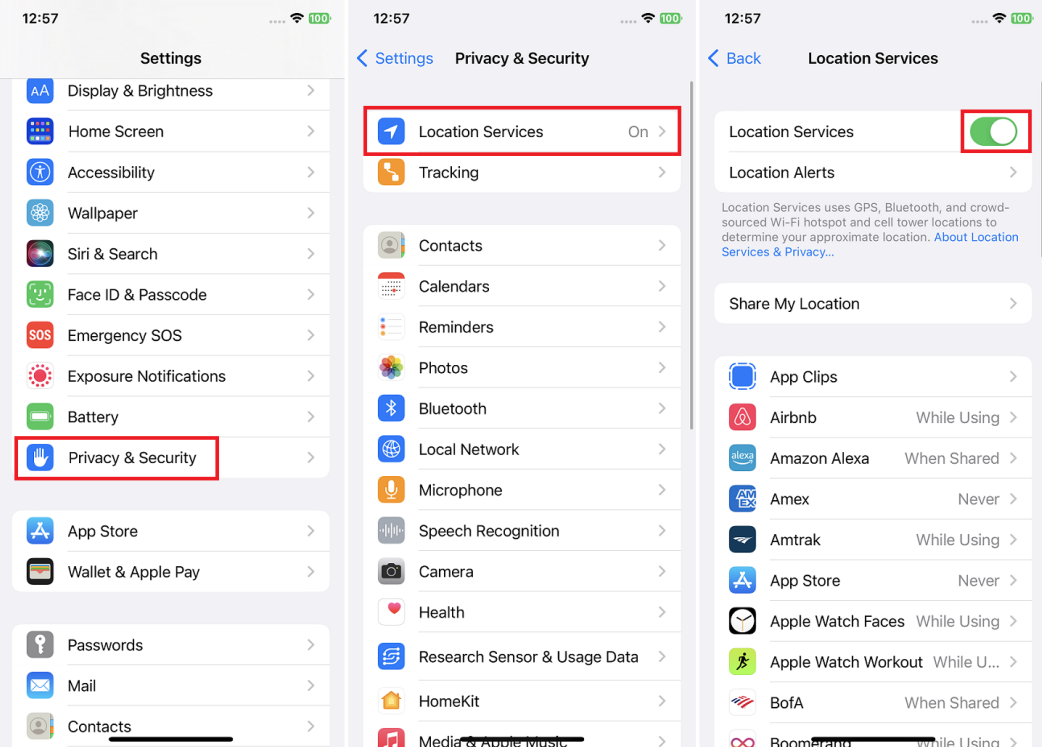
4. Find and tap on Facebook in the list of applications.
5. You will see several options. For a strong balance of privacy and functionality, select While Using the App. This stops Facebook from accessing your location when it’s closed. For maximum privacy, choose Never.
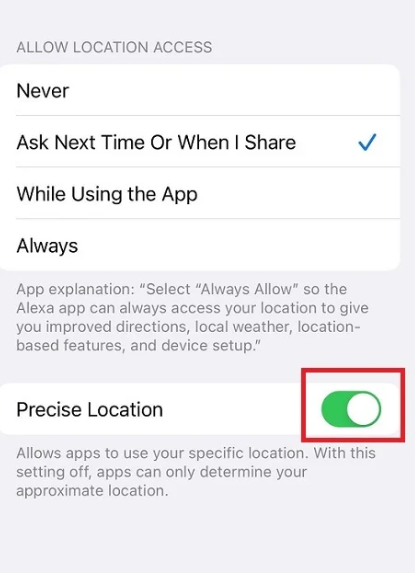
6. Pro-Tip: For an added layer of privacy, toggle off the Precise Location switch. This allows Facebook to know your general area (like your city) for relevant content without pinpointing your exact address.
For Android
Android’s permission system is equally robust, giving you direct command over how apps behave.
1. Open the Settings app on your Android device.
2. Tap on Apps (this may be called Apps & notifications on some devices).
3. Find and select Facebook from the list.
4. Tap on Permissions, then select Location.
5. Choose your preferred level of access. Allow only while using the app is the recommended setting for most users, as it strikes a good balance. Select Don’t allow to block all GPS access.
6. Pro-Tip: Just like on iPhone, you can disable the Use precise location toggle. This action provides only your approximate location to the app, significantly enhancing your privacy.
Managing Your Facebook Location History In-App
Beyond your phone’s system settings, you also need to manage your `facebook privacy settings` within the app itself. Facebook keeps its own log called Location History, and even if you change your phone’s permissions today, a record of past locations may still be stored in your account. A complete privacy audit requires checking both levels.
This two-step procedure ensures you are in full control: first, you control new data collection at the source (your phone), and second, you manage the data that has already been collected (in the app).
Here is how to access and clear your `facebook location history`:
1. Open the Facebook app and tap the Menu icon (three horizontal lines, usually in the bottom-right or top-right corner).
2. Scroll down and tap Settings & Privacy, then tap Settings.
3. Under the Permissions section (you may need to scroll down a bit to find it), tap on Location.
4. Tap on Location History, then select View your Location History. You may need to enter your password for security.
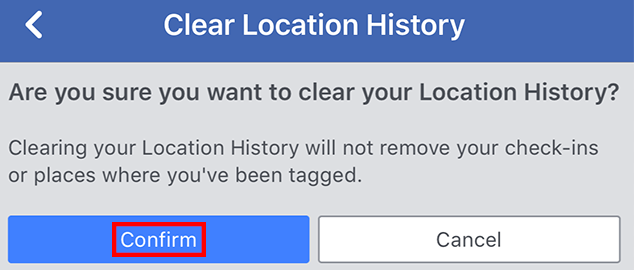
5. On this screen, you can see the location data Facebook has stored. To erase it, tap the three dots in the top-right corner and select Delete all Location History.
This Does Not Delete Everything
Deleting your “Location History” only removes the background log of your movements. It does not remove location data you actively shared in other ways. For example, specific places you “checked into,” locations you tagged in photos, or addresses you added to your profile are stored separately and must be edited or deleted manually from those individual posts or profile sections.
Decision Guide: What Actually Changes When You Adjust Location Settings?
Choosing the right location setting involves a trade-off between functionality and privacy. Disabling access completely can affect how you use the app, so it’s important to understand what you gain and lose. This table breaks down what changes with each permission level.
| Permission Level | Features That Work | Privacy Impact |
| Always On (Legacy) | All location-based features function, including check-ins, Nearby Friends, `facebook live location feature`, and hyper-local ad targeting. You may receive suggestions based on places you frequent. | High: This is the most permissive setting, allowing for continuous `facebook background tracking`. It is no longer available for Facebook on most modern versions of iOS and Android. |
| While Using the App | You can use features that require your location in the moment, such as checking into a restaurant or tagging a location in a post. Nearby Friends and other real-time features only work when the app is open. | Medium: This is a strong middle ground. It significantly reduces `facebook data collection` by stopping tracking when the app is closed, preventing a constant log of your location. |
| Off / Never | Manual location tagging is still possible (you can search for a place by name), but automatic check-ins, finding nearby Wi-Fi, and the Nearby Friends feature will not function. | Low: This offers the highest level of privacy, ensuring no new GPS data is shared with the app from your device. |
How Facebook Uses Location Data
Understanding why Facebook requests your location provides critical context for your privacy choices. This data is a key part of the platform’s personalization and advertising engine. A crucial distinction in the `facebook activity tracking` process is the type of data being collected.
- Precise Location: This is your exact position, typically obtained from your phone’s GPS signal. When you “check in” to a specific cafe, use the `facebook live location feature` to meet a friend, or get driving directions to an event, you are sharing precise location data. This is what you control with the “Precise Location” toggle on your phone.
- Approximate Location: This is a less specific, general area. It can be inferred from your device’s IP address (a unique identifier for your internet connection) or the cell towers your phone connects to. Even with GPS turned off, Facebook can often determine your city or region. This is why you might still see ads for local businesses. Some services use a `facebook ip address locator` technique to achieve this.
This information is central to how Facebook serves you relevant ads, suggests nearby events, and helps with security functions like identifying suspicious login attempts from unusual locations. When you limit location access, you are primarily restricting the collection of precise GPS data.
A More Flexible Way to Manage Your GPS Location
Adjusting Facebook’s location permissions is an important first step, but some users may also want more control over their device-level GPS location. In that case, Fonelora Location Changer can be a useful companion for managing virtual location more flexibly.
The tool allows users to change GPS location on iPhone and Android without jailbreak or root, and it now supports iOS 27. With options such as teleport mode, route simulation, and joystick control, it can help users test location-based app behavior, manage regional access, or add an extra layer of privacy when using apps that rely on GPS data.
Facebook’s own privacy settings should still be managed directly through your phone and app permissions, but a GPS location changer can give users more flexibility when they need greater control over how their location appears across location-based services.

Frequently Asked Questions (FAQ)
Here are direct answers to the most common questions about the Facebook location tracker.
Does Facebook track your location all the time?
Facebook only tracks your location all the time if you have granted it “Always” permission, an option that is no longer available on most updated phones. If you set the permission to “While Using the App,” it can only access your GPS when the app is open and active on your screen. If set to “Never” or “Don’t allow,” it cannot access your phone’s GPS at all.
Can I turn off Facebook location tracking completely?
Yes. To do this, you must take two key steps. First, set the location permission for the Facebook app to Never or Don’t allow in your phone’s system settings (as detailed in our guide above). Second, for a more thorough cleanup, clear your past data by deleting your Location History within the Facebook app’s settings, keeping in mind this does not delete locations from old posts or check-ins.
What features stop working if I disable location tracking?
Completely disabling location tracking will prevent several features from working automatically. These include the ability to “check in” to places, use the “Nearby Friends” feature, get recommendations for local events, and see location-specific Marketplace listings. However, you can still manually search for and tag locations in your posts.
Does Facebook track location on desktop?
On a desktop or laptop computer, Facebook does not have access to GPS data. It can, however, still determine your approximate location (typically your city or region) based on your internet connection’s IP address. This is primarily used for personalizing ads and content to your general area, not for precise tracking.
Take Control of Your Facebook Location Privacy
Facebook location tracking can be useful for features like check-ins, nearby suggestions, and location-based services, but it should always stay under your control. By reviewing app permissions, limiting precise location access, and clearing location history when needed, you can reduce unnecessary tracking while still keeping the features you actually use.
For users who want to go one step further, Fonelora Location Changer offers another way to manage device-level GPS location. It works with iPhone and Android without jailbreak or root, supports the latest iOS 27 system, and provides teleport, route simulation, and joystick modes for more flexible virtual location control. Used responsibly, it can be a helpful addition to your broader location privacy strategy.



Joy Taylor is a seasoned technical writer with over a decade of experience in mobile technology. At iMobie, she specializes in producing in-depth content on iOS data recovery, iPhone unlocking solutions, and iOS troubleshooting.
Product-related questions? Contact Our Support Team to Get Quick Solution >
