How to Fix Facebook Marketplace Location Wrong Issue
Is Facebook Marketplace showing the wrong location or listings from another city? This guide explains why it happens and how to fix your Marketplace location step by step.
Quick Answer: If your Facebook Marketplace location is wrong, the most common causes are disabled Precise Location, an incorrect Marketplace location filter, a VPN, outdated app cache, or a mismatch between your phone’s GPS and Facebook’s saved location. To fix it, enable Precise Location for Facebook, manually update your Marketplace city or ZIP code, adjust the search radius, clear cache, disable VPN, and restart the app.
If you are searching for my Facebook Marketplace location is wrong or Facebook Marketplace listing location wrong, you are likely seeing listings from another city, state, or even country. This usually does not mean your account is broken. It means Facebook is pulling location data from the wrong source or using an outdated location signal.
You open the Facebook app, ready to find local deals, only to be met with a frustrating reality: Marketplace is showing you items from a completely different city, state, or even country. It’s a common issue that can make the entire platform feel useless—the digital equivalent of trying to shop at your local market and finding yourself in a town hundreds of miles away.
For a long time, I used to get so frustrated manually changing my location every single day, not realizing my phone’s main settings were the real problem. If you’ve been stuck in a loop of manually correcting your location only to have it revert, you’re not alone.
This is not just a random glitch. It is usually a solvable settings mismatch between your phone, browser, VPN, and the Facebook app. This 2026 step-by-step guide provides tested ways to fix your Facebook Marketplace location, so you can see the local listings you actually want.
Quick Fix: Why Facebook Marketplace Shows the Wrong Location
Before changing every setting on your phone, it helps to understand the most likely reason. Facebook Marketplace does not rely on one single location source. It may use your device GPS, Wi-Fi signal, IP address, profile city, app permissions, browser location, and saved Marketplace filters.
When one of these signals conflicts with another, Facebook Marketplace may show listings from the wrong city or keep switching back to an old location.
Most common causes include:
- Precise Location is turned off: Facebook only receives an approximate area instead of your exact location.
- Your Marketplace location filter is outdated: Marketplace may still be using a previously saved city or ZIP code.
- Your search radius is too wide: Facebook may show listings from nearby or distant areas.
- A VPN is active: Facebook may think you are in another region based on your IP address.
- App cache is corrupted: Old data may force Marketplace to keep showing the wrong location.
- Your listing location is wrong: If your Facebook Marketplace listing location is wrong, Facebook may use an incorrect saved address or device location when you create the listing.
The Permanent Fix: Correcting Your Facebook Location Permissions
The most common reason for an incorrect Marketplace location is a specific operating system setting that only gives Facebook an approximate location. To fix this, you must adjust your Facebook location permissions to enable high Facebook GPS accuracy.
This single adjustment is the most important step and resolves the issue for many users on modern devices. Enabling Precise Location instructs your phone to provide the Facebook app with your exact coordinates, not just a generalized area.
For iPhone
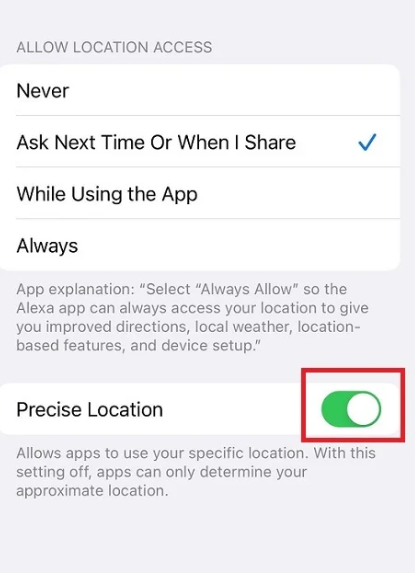
- Open the Settings app on your iPhone.
- This method only works if your phone’s USB debugging is enabled before.
- Scroll down the list of apps and tap Facebook.
- Tap Location.
- Choose While Using the App or Always based on your preference.
- Make sure the Precise Location toggle is switched on.
For Android
- Open the Settings app on your Android device.
- Tap Apps. This may be called Apps & notifications on some devices.
- Find and tap the Facebook app from the list.
- Tap Permissions, then select Location.
- Choose Allow only while using the app.
- Make sure the Use precise location toggle is switched on.
What If You Have an Older Phone?
If you’re using an older device, you may not see a Precise Location toggle. Don’t worry. You can still improve your location accuracy.
- For Older iPhones: In Settings > Facebook > Location, make sure location access is set to While Using the App or Always. Older iOS versions do not separate precise and approximate location, so granting access is the main step.
- For Older Androids: In Settings > Apps > Facebook > Permissions, make sure Location is enabled. You can also go to Settings > Location and ensure the master location setting is turned on and set to High accuracy mode if available.
For these devices, manually setting your Marketplace location and clearing the cache become even more important, because the app may rely more heavily on saved location data.
Manually Update Your Location in Marketplace
After you have corrected your device’s permissions, the next essential step is to manually reset your location inside Marketplace. This action forces the app to sync with your updated device settings and ensures the Facebook Marketplace location filter is accurate.
Attempting to change location on Facebook Marketplace without first fixing permissions is the primary reason many users find their location keeps reverting back.
On the Mobile App
- Open the Facebook app and tap the Marketplace icon.
- Tap your current location, usually displayed near the top of the screen.
- On the map screen, use the search bar to enter your city, ZIP code, or target area.
- You can also drag the map to reposition the pin.
- Adjust the Radius slider to control how far you want to search.
- Tap Apply to save your new settings.
On a Desktop Browser
- Go to Facebook.com and click Marketplace in the left sidebar.
- In the Filters section on the left, click your current location.
- Enter a new city or ZIP code in the Location field.
- Use the Radius dropdown menu to select your desired search distance.
- Click Apply to update the listings.
The Root Cause: Why Your Marketplace Location is Wrong
Understanding why the Facebook Marketplace location bug happens can help you prevent it. Marketplace does not use a single source to find you. It combines several data points, and a conflict between these signals is almost always the root of the problem.
Here are the primary location signals Facebook uses:
- GPS: The most accurate signal on mobile devices, using satellites to find your position. If you deny Facebook Precise Location permission, it gets a less accurate generalized location.
- Wi-Fi Triangulation: By analyzing nearby Wi-Fi networks, your device can estimate its location without a strong GPS signal. This is useful indoors.
- IP Address: Your internet service provider assigns you an IP address, which corresponds to a general geographic area. This is the main signal for desktop users and can be inaccurate if you use a VPN.
- Profile City: The city in your Facebook profile can be used as a backup if other signals are unavailable.
- Saved Marketplace Filters: Marketplace may continue using a previously saved city or radius even after your device location changes.
The conflict usually occurs on mobile devices when Facebook location permissions are set to approximate, which clashes with more precise Wi-Fi or GPS data. On desktop, a VPN is one of the most common reasons why Facebook Marketplace shows the wrong location.
Advanced Troubleshooting for a Stubborn Location Glitch
If you’ve corrected permissions and manually set your location but still see the wrong nearby listings, a more persistent issue might be at play. These steps address stubborn problems, especially if your location resets every time you close the app.
- Update the Facebook App: An outdated app can have bugs that disrupt location services. Go to the App Store or Google Play Store to check for and install any available updates.
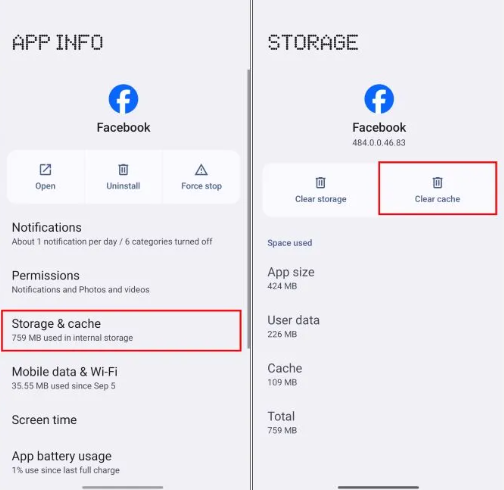
- Clear the App Cache: Corrupted temporary files can cause the app to malfunction. Clearing the cache removes this data without affecting your account information.
On Android: Navigate to Settings > Apps > Facebook > Storage & cache > Clear cache.
On iPhone: The most effective way to clear the cache is to offload and reinstall the app.
- Go to Settings > General > iPhone Storage.
- Scroll down and tap Facebook.
- Tap Offload App and confirm.
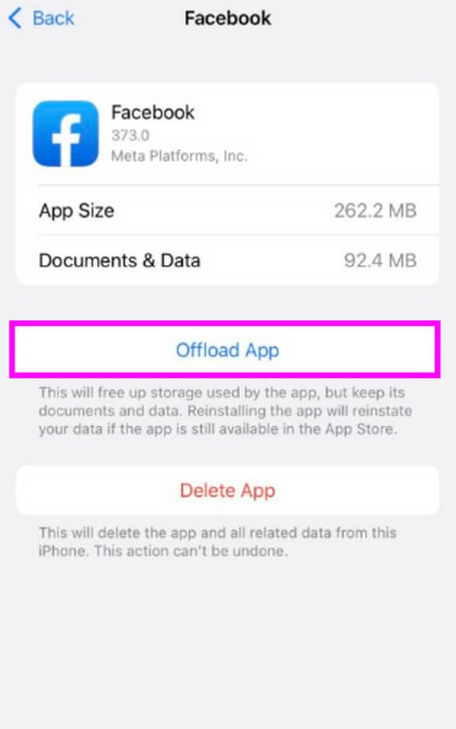
- Once offloaded, tap Reinstall App.
Check for VPNs
A Virtual Private Network can make it look like you’re in a different location. Disable any active VPN on your device, fully close the Facebook app, and then reopen it.
Quick Checklist: Avoiding Common Pitfalls
- Did you restart the app? After changing your phone’s location permissions, fully close and reopen Facebook to ensure it loads the new settings.
- Did you hit Apply? When you manually change your location and radius in Marketplace, remember to tap Apply.
- Is a VPN still running? Some VPNs reconnect automatically. Make sure your VPN is completely disabled.
- Is your radius too broad? A wide radius can make Facebook Marketplace show listings from far away even if your city is correct.
- Are you editing a listing? If your Facebook Marketplace listing location is wrong, manually set the listing location before publishing or updating the item.
If the problem continues after all these steps, it may be a temporary server-side error with Facebook itself, which often resolves within 24-48 hours.
To ensure this fix remains effective, periodically check your app permissions after major phone operating system updates, as these can sometimes reset location settings.
Your Next Steps to a Working Marketplace
Seeing the wrong city in Facebook Marketplace is a barrier that prevents you from finding the local deals you’re looking for. By following the correct two-step procedure—first enabling Precise Location in your phone’s settings and then manually updating your location within the app—you directly address the root cause of this widespread issue.
This is not just a temporary workaround. It is the permanent solution that syncs your device with the app’s expectations. You can now regain control over your Marketplace experience, confidently browse for items in your actual area, and finally make the platform work for you.
A Flexible Way to Fix Facebook Marketplace Location Issues
If your Facebook Marketplace location keeps showing the wrong city and built-in settings do not fully solve the issue, using a desktop-based location changer can be a more reliable option.
Tools like Fonelora Location Changer let you modify your device’s GPS location directly, which can help ensure Marketplace displays listings from your desired area.
Compared to tweaking app settings or relying on unstable mobile apps, this method works at the system level and supports the official Facebook app, making it a practical solution for users who need more precise control over their location.
How to Use Fonelora Location Changer
Follow these steps to fix your Marketplace location:
Step 1. Download and install Fonelora Location Changer on your Windows or Mac computer.

Step 2. Choose the mode on the main screen.
- Teleport Mode — instant location change
- Joystick Mode — real-time movement simulation
- Multi-Spot Route — custom walking path

Step 3. Click Move to update your GPS location.

Frequently Asked Questions
Q1. Why is my Facebook Marketplace location wrong?
Your Marketplace location is most likely wrong because Facebook lacks Precise Location permission on your phone. Modern operating systems often default to an approximate location for privacy, which can place you in a nearby city or several miles away. Other causes include an outdated app, active VPN, broad search radius, corrupted cache, or incorrect saved Marketplace filters.
Q2. Why is my Facebook Marketplace listing location wrong?
Your Facebook Marketplace listing location wrong issue usually happens when Facebook auto-fills the location from your device, profile city, or previously saved Marketplace settings. To fix it, edit the listing and manually enter the correct city, ZIP code, or pickup location before publishing.
Q3. What should I do if my Facebook Marketplace location is wrong?
If my Facebook Marketplace location is wrong, start by enabling Precise Location for Facebook in your phone settings. Then open Marketplace, manually update your city or ZIP code, adjust your radius, tap Apply, and restart the app.
Q4. How do I fix the wrong location on Facebook Marketplace?
The most effective solution is a two-part process. First, go into your phone’s main settings, find the permissions for the Facebook app, and enable Precise Location. Second, open Marketplace and manually set your desired location and search radius. This syncs the app with your correct device settings and prevents it from reverting.
Q5. Does Facebook Marketplace use my profile city or GPS location?
Facebook Marketplace usually prioritizes your device’s live location data from GPS and Wi-Fi over the city listed in your public profile. Your profile city is typically only used as a fallback location if the app cannot get accurate real-time location information from your phone or computer.
Q6. Why do listings still appear far away after changing my location?
This usually happens for three reasons:
- You have not fixed the underlying Precise Location permission in your phone settings, causing your manual change to be overridden.
- Your search radius is set too wide, intentionally pulling in items from distant areas.
- A bug or corrupted cache is causing the issue, which can often be solved by clearing the app cache or reinstalling Facebook.
Q7. Can a VPN make Facebook Marketplace show the wrong location?
Yes. A VPN can make Facebook think you are browsing from a different city, state, or country. Disable the VPN, fully close Facebook, reopen the app, and manually reset your Marketplace location.
Q8. How do I stop Facebook Marketplace from reverting to the wrong location?
Enable Precise Location, clear app cache, disable VPN, update the Facebook app, and manually save your Marketplace location with the correct radius. If the app still reverts, reinstall Facebook or wait 24-48 hours in case the issue is server-side.
Conclusion
Dealing with an incorrect Facebook Marketplace location can be frustrating, especially when it limits your ability to find relevant local deals. Fortunately, there are several effective ways to fix the issue, from adjusting app permissions to manually resetting your Marketplace location filter.
If built-in options do not work, tools like Fonelora Location Changer offer a flexible alternative by letting you precisely control your device’s GPS location. This method works with the official Facebook app and provides greater control over where your Marketplace listings appear.
By choosing the right approach, you can ensure more accurate local listings, fix wrong listing locations, and enjoy a smoother, more personalized Marketplace experience.



Joy Taylor is a seasoned technical writer with over a decade of experience in mobile technology. At iMobie, she specializes in producing in-depth content on iOS data recovery, iPhone unlocking solutions, and iOS troubleshooting.
Product-related questions? Contact Our Support Team to Get Quick Solution >
