Facebook Near Me: Your Complete Guide to Finding Local Results
Seeing Facebook results from 20 miles away? This guide explains why “near me” searches show irrelevant listings and reveals the hidden device setting affecting accuracy. Follow clear, tested steps to fix location issues and improve Facebook’s local recommendations permanently.
You open Facebook to find a local coffee shop or an item for sale, only to be shown results from 20 miles away. This common problem can make a powerful local discovery tool feel broken. If you’ve ever searched for “facebook near me” and wondered why the recommendations are so irrelevant, you’re not alone. The issue is that Facebook doesn’t have a single “nearby” button; its location features are spread across different sections, and their accuracy depends entirely on a hidden device setting.
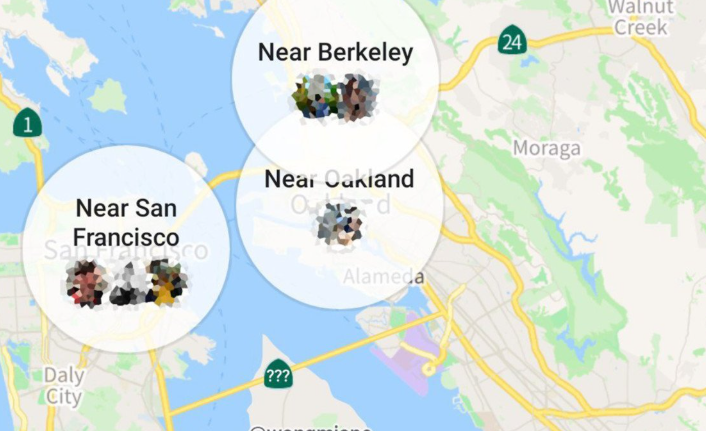
This guide provides a clear, tested procedure to fix this. We will walk you through the single most important setting that controls your location, show you how to master each of Facebook’s local tools step-by-step, and provide simple solutions for troubleshooting inaccurate results.
The First Step: How to Enable Precise Location Services
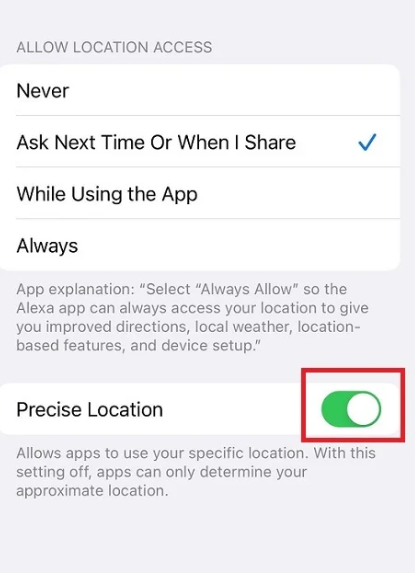
The most common reason for inaccurate “near me” results is a single device setting: Precise Location. When this is off, your phone gives Facebook a general idea of your area—which could span several square miles—instead of your specific coordinates. Enabling this is the most effective solution for improving the accuracy of all of Facebook’s local recommendations.
By providing the app with high-quality GPS data, you ensure features like Marketplace, Events, and local business search can find people, places, and items that are genuinely near you.
For iOS (iPhone)
1. Open the Settings app on your iPhone.
2. Scroll down the main list and tap on Facebook.
3. Tap on Location.
4. To get the best results, set the permission to While Using the App.
5. Ensure the toggle switch for Precise Location is turned on (it will be green).
For Android
1. Open the Settings app on your Android device.
2. Tap on Location, then select App permissions.
3. Find and tap on Facebook from the app list.
4. Select Allow only while using the app.
5. Make sure the Use precise location toggle is switched on.
Mastering Facebook’s Location-Based Features
A critical detail many users miss is that “Facebook near me” isn’t one feature. It’s a collection of separate tools, and each one uses location data differently. Understanding which tool to use is the key to finding what you actually want.
Facebook Marketplace Near Me
This is arguably Facebook’s most powerful local tool. By default, Marketplace uses your device’s precise location to show you items for sale nearby. Its strength lies in its customization.
How it works: It uses your real-time GPS coordinates to find listings.
After searching for an item, tap the location filter to manually adjust your location or set a specific search radius (e.g., within 5 miles). This is perfect for finding goods in your immediate neighborhood or checking for items near your workplace.
How to Find Nearby Places (Restaurants, Shops, etc.)
Unlike Marketplace, there isn’t a dedicated “Places” tab. To find local businesses, you use the main search bar at the top of the app. This is where most users get confused.
1. Tap the magnifying glass icon at the top of the Facebook app.
2. Type in what you’re looking for (e.g., “coffee shops,” “bookstores near me,” or “italian restaurants”).
3. On the results page, tap the Places tab below the search bar.
4. Facebook will display a list and a map of nearby businesses that match your search. You can then filter by “Open now,” price, and other options.
Finding Local Events
For spontaneous discovery, Facebook’s “Events” section is invaluable. It uses your location to suggest concerts, farmers’ markets, and community gatherings happening around you.
How it works: This feature uses a mix of your GPS signal and your profile interests to suggest new events.
Navigate to the “Events” tab from the main menu (you may need to tap “See All” in your shortcut menu). Use filters like “Today,” “This Weekend,” or “Location” to narrow down the options and find exactly what you’re looking for.
Finding Local Groups Near Me
Joining local groups is a great way to connect with your community. You can find groups for your specific neighborhood, hobbies, or for buying and selling.
1. Tap the magnifying glass icon to open the search bar.
2. Type your search term (e.g., “downtown neighborhood” or “local hiking”).
3. On the results page, tap the Groups tab.
4. Facebook will show you relevant groups. Look for an option to filter by City or location to find groups based in your immediate area.
What Happened to the “Nearby Friends” Feature?
The original “Nearby Friends” feature, which showed a live map of your friends’ locations, was discontinued due to privacy updates. Currently, there is no direct, map-based tool to see where all your friends are in real-time.
However, you can still see location contextually:
- Event RSVPs: When you view a local event, you can see which of your friends have marked themselves as “Going” or “Interested.”
- Check-ins: You might see a friend’s post in your feed if they have recently checked into a nearby business, but this is passive information, not an active search tool.
Although Facebook’s location tools are spread across Marketplace, Events, Groups, and search results, most users searching for “Facebook near me” are usually trying to solve a very specific problem rather than simply exploring features.
Common “Facebook Near Me” Situations Users Actually Search For
Many users assume Facebook automatically shows the correct nearby content, but real-world usage is often much more complicated. One of the most common situations involves Facebook Marketplace. Users open Marketplace expecting nearby listings, only to find products located 20–50 miles away or even in another city entirely. This becomes especially frustrating when searching for furniture, cars, or local pickup items.
Another growing issue involves users who intentionally want to browse another region. For example, people moving to a new city often use Facebook Marketplace to preview apartment rentals, second-hand furniture, or local community activity before relocating.
Some users also search for nearby results while traveling. After connecting to hotel Wi-Fi or airport networks, Facebook may continue showing recommendations from the previous city because the app has not refreshed its location signals correctly.
Desktop users experience location problems even more often. Since desktop Facebook mainly relies on IP address location instead of GPS, Marketplace or nearby searches may display results centered around the internet provider’s routing hub rather than the user’s real neighborhood.
There are also users trying to change nearby recommendations intentionally for social purposes, such as:
- Viewing Facebook Marketplace listings in another city
- Checking local events before traveling
- Finding hobby groups in a different area
- Browsing dating-related nearby recommendations
- Researching local businesses before relocating
In these situations, simply enabling location services is not always enough. Facebook may continue using cached location data, weak IP-based positioning, or outdated app signals, which is why nearby results often appear inaccurate even after permissions are enabled.
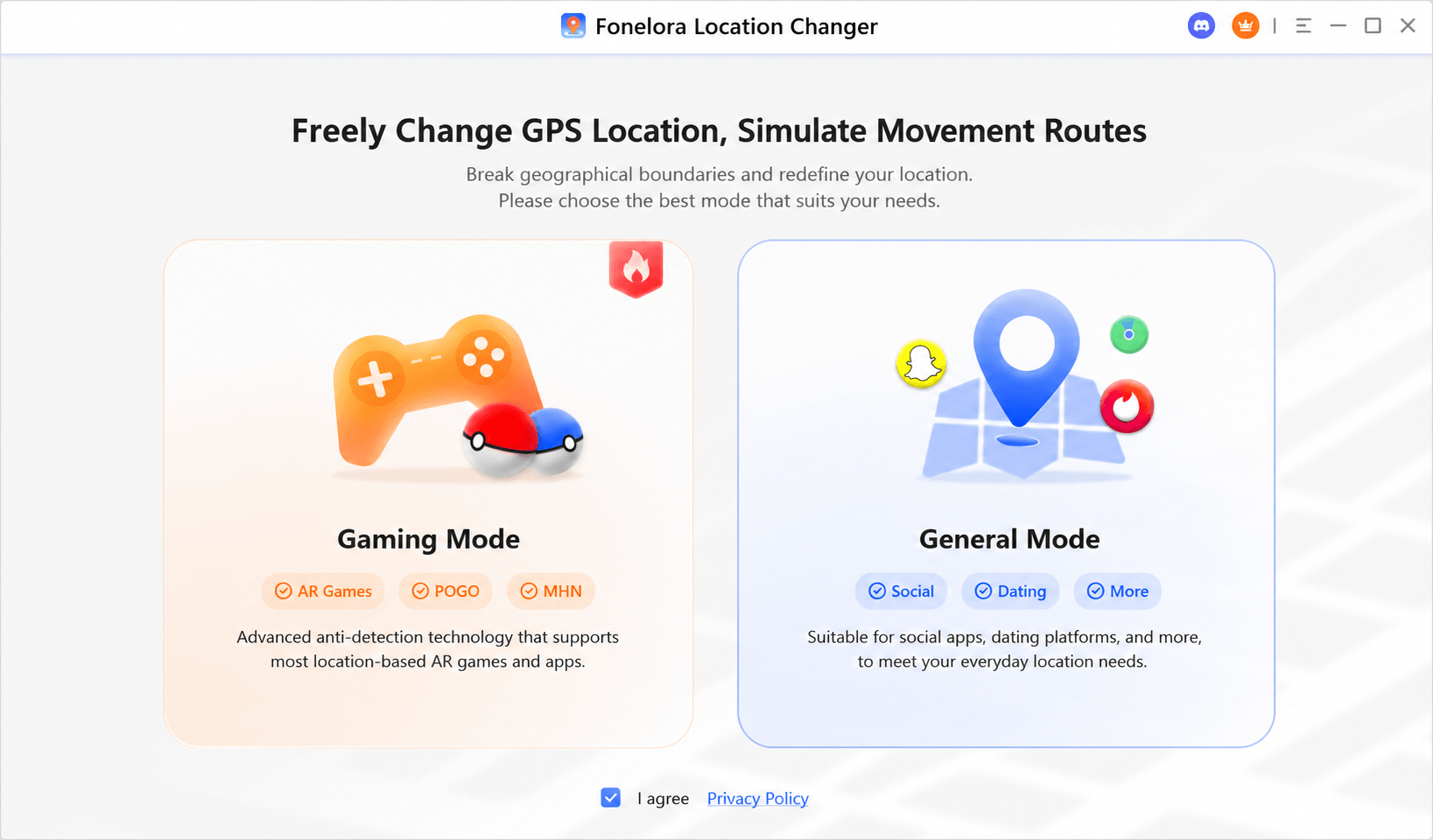
In this case, a GPS location tool like Fonelora Location Changer can help you change your iPhone or Android GPS location to another area. It supports location teleport, route simulation, and joystick movement without jailbreak or root, making it useful when you need to test how nearby results appear in a different city.
Screenshot tip: Add a Fonelora screenshot here showing the map interface or location selection panel, so users can quickly understand how to choose a target city before opening Facebook.
The good news is that most inaccurate “near me” results can usually be traced back to a small number of location signals that Facebook depends on. Once you understand whether the app is using GPS, Wi-Fi positioning, profile data, or desktop IP location, fixing the problem becomes much easier.
Why Are Your ‘Near Me’ Results Still Wrong? A Troubleshooting Guide
If you’ve enabled precise location but your results are still off, it’s likely because the app is relying on a weaker location signal. Facebook determines your location using a hierarchy of signals, from most to least accurate.
Here are four common causes and their solutions:
1. Poor GPS Signal: You are indoors or in an area with a weak satellite signal.
Solution: Connect to a Wi-Fi network. Your phone can estimate its location based on nearby Wi-Fi networks, which is often more reliable indoors than GPS.
2. Outdated Profile Location: Facebook may use your “Current City” from your profile as a fallback if other signals are unavailable.
Solution: Go to your Facebook profile, click “Edit Profile,” and ensure your “Current City” is correct. This is a surprisingly common cause of consistently wrong location data.
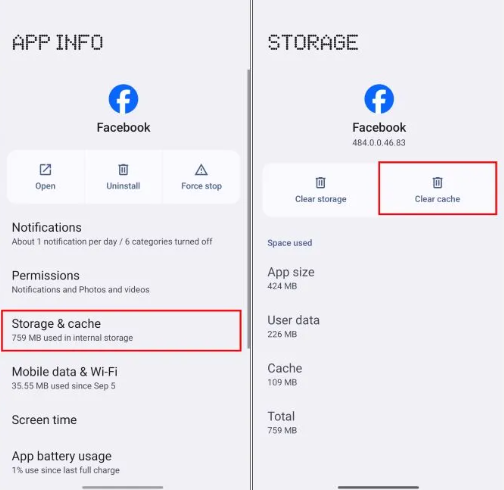
3. App Cache Issues: A corrupted cache can sometimes cause the app to use old location data.
Solution: Clear the App Cache. On Android, you can do this in `Settings > Apps > Facebook > Storage & cache`. On iOS, the simplest way is to offload and reinstall the app.
4. IP Address on Desktop: When using a computer, Facebook relies on your internet connection’s IP address, which can be located miles away from you.
Solution: For truly accurate local searches, always use the mobile app instead of the desktop website.
Desktop vs. Mobile: Why Your Phone Gives Better Local Results
| Feature | Mobile App | Desktop Website |
| Primary Location Source | GPS Chip (High Accuracy) | IP Address (Low Accuracy) |
| Best For | Real-time, hyperlocal discovery (e.g., items for pickup, events happening now) | General searches within a city or region |
| Common Issue | Requires correct app permissions | Results may be centered on your internet provider’s hub, not your home |
This is why a search for “facebook places near me” on your phone might show restaurants within walking distance, while the same search on your computer shows options across the entire city.
If your goal is to fix inaccurate local results, enabling precise location and clearing cache should be your first steps. But if your goal is to intentionally view nearby results in another city, you may need to change the device-level GPS signal instead of only adjusting Facebook filters. Fonelora Location Changer is a practical option for this type of location testing because it changes the GPS location detected by mobile apps on iPhone and Android.
Frequently Asked Questions
What does “near me” mean on Facebook?
On Facebook, “near me” is not a single feature but a type of search that uses your device’s location to filter content across different tools. In Marketplace, it means finding items within a specific mile radius. In the search bar’s “Places” tab, it means finding businesses in your city. In Events, it means discovering activities nearby. The meaning of “near me” changes depending on which Facebook tool you are using.
Why are Facebook “near me” results inaccurate?
The most common reasons are that “Precise Location” is disabled in your phone’s settings, you have a weak GPS signal, or you’re using the desktop website, which relies on a less accurate IP address. An outdated “Current City” in your profile can also lead to incorrect results.
Do I need to turn on location services for Facebook near me to work?
Yes, for the best results, you must turn on location services for the Facebook app. For maximum accuracy, it is essential to enable the “Precise Location” setting. Without this permission, the app receives only an approximate location, which leads to irrelevant and distant search results.
Is Facebook near me available on desktop?
Yes, but with significant limitations. The desktop website uses your IP address to estimate your location, which is far less accurate than the GPS in your smartphone. For reliable and truly “nearby” results, especially for Marketplace or finding local businesses, always use the mobile app.
Can I change my Facebook nearby location to another city?
Yes. You can first try changing Marketplace filters, search radius, or your profile city. However, if Facebook continues using your real GPS location or cached app signals, a GPS location changer like Fonelora Location Changer can help you test nearby results from another city on iPhone or Android without jailbreak or root.
Conclusion
You now have a clear procedure to fix inaccurate local results and make Facebook a reliable tool for local discovery. By enabling the correct device settings and understanding which feature to use for your specific goal—whether it’s finding items on Marketplace, a nearby restaurant, or weekend events—you can take full control of your local search experience. No more wading through irrelevant suggestions from miles away. You can now confidently use the platform to find exactly what you’re looking for, right where you are.
If you simply want more accurate nearby results, start with Precise Location, Wi-Fi positioning, profile city updates, and cache clearing. But if you want to preview Facebook Marketplace, Events, Groups, or local recommendations in another city, using Fonelora Location Changer is a more direct solution. It lets you change GPS location on iPhone and Android, helping Facebook detect the area you actually want to explore.



Joy Taylor is a seasoned technical writer with over a decade of experience in mobile technology. At iMobie, she specializes in producing in-depth content on iOS data recovery, iPhone unlocking solutions, and iOS troubleshooting.
Product-related questions? Contact Our Support Team to Get Quick Solution >
