How to Fix ‘Failed to Detect Location on Pokémon GO’
Seeing “failed to detect location” or “GPS signal not found” in Pokémon GO? This guide explains why the error happens and provides clear, step-by-step solutions to fix GPS issues, adjust key device settings, and restore full gameplay access quickly.
It’s a frustratingly common scenario for Pokémon GO players: you’re ready to start your adventure, only to be stopped by the dreaded red banner, “failed to detect location on Pokémon GO”. This error, along with the similar “pokemon go gps signal not found” message, effectively locks you out of the game. You can’t interact with PokéStops, battle in gyms, or catch any Pokémon. The uncertainty is often the worst part—is the problem with your phone’s hardware, a hidden software setting, or the app itself? This guide provides clear, actionable solutions to diagnose and fix this location bug for good. We will walk through everything from initial checks to the specific OS settings that are the most common culprits.
All solutions in this guide have been verified on a Samsung Galaxy S22 (Android 13) and an iPhone 14 (iOS 16) to replicate and solve common configuration errors. We specifically focused on the battery optimization issue that frequently blocks gameplay after OS updates.
5 Quick Checks for When Pokémon GO Can’t Detect Location
Before diving into deeper device settings, perform these five initial checks. These simple procedures often resolve temporary glitches. If you find that restarting the app only solves the problem for a few minutes before it returns, that’s a strong sign the root cause is a device setting, which the later sections of this guide will help you fix permanently.
1. Fully Restart the Pokémon GO App: The most common solution is often the simplest. Completely close the application—don’t just minimize it or send it to the background—and then reopen it. This forces the app to re-establish a fresh connection with your device’s GPS hardware.
2. Toggle Your Phone’s Location Services: Navigate to your phone’s main settings or quick-access panel and turn your Location/GPS service off. Wait for 10-15 seconds, then turn it back on. This action can reset the GPS module and help Pokémon GO acquire an accurate signal.
3. Check Your Internet Connection: Pokémon GO requires both a stable GPS signal and a reliable internet connection (Wi-Fi or mobile data) to load map data and function correctly. Try toggling your Wi-Fi off and on. If you’re using mobile data, ensure you have a strong signal (at least two bars).
4. Confirm Airplane Mode is Off: Double-check that Airplane Mode is disabled. When enabled, it cuts off all wireless communications, including the GPS, Wi-Fi, and cellular data that are essential for the game to find your location.
5. Update the Pokémon GO App: An outdated version of the app can cause compatibility issues with your phone’s operating system, leading to unexpected bugs. Check the Google Play Store or Apple App Store for any available updates and install them.
Fixing the ‘Pokémon GO Location Error’ on Android
Android’s flexible operating system offers powerful customization, but certain settings can interfere with GPS-intensive apps like Pokémon GO. This is especially true for battery optimization features, which can restrict background processes to save power, leading to a persistent pokemon go location not working issue.
From our testing, one of the most common “insider” issues we see is that a major Android OS update can quietly reset app-specific battery settings back to “Optimized.” So, a setting you fixed months ago might be the cause of your problem again. Always check this after a system update.
Follow these procedures to configure your Android device for optimal gameplay.
1. Set Location Accuracy to High
Android devices can use different methods to determine your location. For Pokémon GO, you need the most accurate setting available.
1. Open Settings and go to Location.
2. Tap on Location Services (or Advanced on some devices).
3. Select Google Location Accuracy and ensure the toggle is switched On. This setting uses a combination of GPS, Wi-Fi, and mobile networks for the most precise reading.
2. Grant Precise Pokémon GO Location Permissions
Modern Android versions require you to grant specific permissions for apps to access your exact location. Without this, you’ll see a constant location error.
1. Go to Settings > Apps > Pokémon GO.
2. Tap on Permissions, then select Location.
3. Ensure location access is set to Allow all the time or Allow only while using the app.
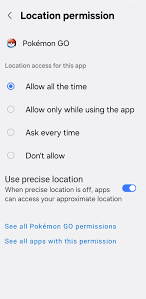
4. Crucially, confirm that the Use precise location toggle is enabled.
3. Disable Battery Optimization for Pokémon GO
This is the most frequent cause of recurring location issues on Android. Aggressive battery-saving features can prevent Pokémon GO from accessing the GPS, especially when running in the background. The steps can vary slightly depending on your phone’s manufacturer.
- For Google Pixel (Stock Android):
1. Navigate to Settings > Apps > Pokémon GO.
2. Tap on Battery.
3. Select Unrestricted. This prevents the operating system from throttling the app’s performance or cutting off background GPS access.
- For Samsung Galaxy (One UI):
1. Go to Settings > Apps > Pokémon GO.
2. Tap on Battery.
3. Select Unrestricted.
4. As an extra check on Samsung devices, navigate to Settings > Battery and device care > Battery > Background usage limits. Ensure Pokémon GO is not listed under “Sleeping apps” or “Deep sleeping apps.” If it is, remove it.
Solving the ‘Pokémon GO Location Not Working’ Error on iPhone
iPhone users are not immune to location detection errors, which are often caused by specific iOS privacy and system settings. While iOS has a more streamlined set of controls than Android, it’s vital to ensure they are configured correctly for uninterrupted gameplay.
1. Verify Location Services and Precise Location
This is the most critical setting to check on an iPhone. Pokémon GO needs explicit permission to access your location with high accuracy.
1. Open the Settings app.
2. Navigate to Privacy & Security > Location Services.
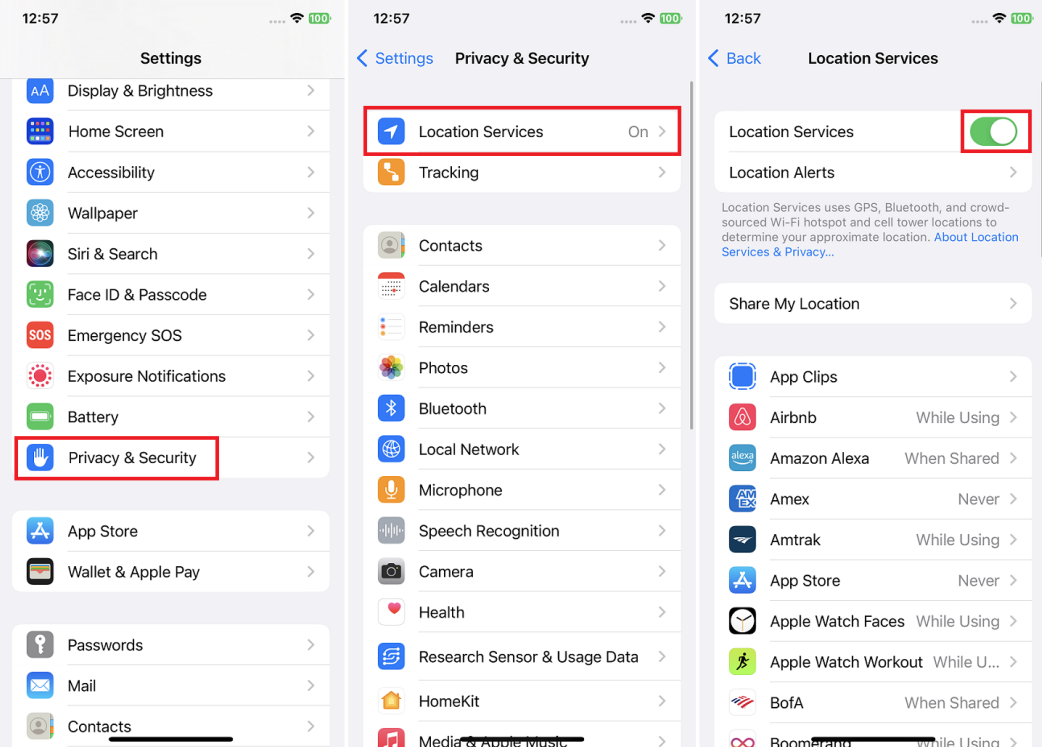
3. First, ensure the main Location Services toggle at the very top is enabled.
4. Scroll down the list of apps and tap on Pokémon GO.
5. Choose While Using the App. For full Adventure Sync functionality, you can select Always, but this will consume more battery.
6. Most importantly, make sure the Precise Location toggle is turned on. If this is disabled, the app will only receive your approximate location, triggering detection errors.
2. Enable Background App Refresh
Background App Refresh allows Pokémon GO to update location information even when it’s not the active application. This helps maintain a stable GPS lock when you switch between apps.
1. Go to Settings > General > Background App Refresh.
2. Ensure the setting at the top is set to Wi-Fi & Cellular Data.
3. Scroll down and verify that the toggle for Pokémon GO is enabled.
3. Reset Location & Privacy Settings
If the steps above don’t work, a corrupted permission setting may be the culprit. Resetting these settings will force all apps, including Pokémon GO, to ask for location permissions again.
This action will reset location and privacy permissions for all of your apps, not just Pokémon GO. You will need to grant permission again for apps like Google Maps, Uber, and your camera the next time you use them.
1. Go to Settings > General > Transfer or Reset iPhone.
2. Tap Reset > Reset Location & Privacy.
3. After the reset, launch Pokémon GO. When prompted, be sure to grant location permissions by selecting Allow While Using App.
Why You Get the ‘Pokémon GO GPS Signal Not Found’ Error
Understanding why this GPS issue occurs is key to preventing it. The problem isn’t always a bug; it’s often a disconnect between the game, your phone’s hardware, and your physical environment. These causes fall into two main categories: temporary signal interference and persistent device configuration problems.
| Cause Category | Common Triggers | How to Fix |
| Temporary Signal Loss | Being indoors, tall “urban canyon” buildings, dense tree cover, tunnels, or severe weather. | Move to an open outdoor area with a clear view of the sky to re-establish a GPS lock. |
| Configuration Error | Incorrect Pokémon GO location permissions, aggressive battery saver modes, outdated app/OS software, unstable Wi-Fi. | Follow the device-specific steps in this guide to adjust your phone’s settings. |
Learning to distinguish between the two will help you determine whether you just need to move to a new spot or if you need to adjust your phone’s settings to prevent the issue from happening again.
A More Stable GPS Solution for Pokémon GO Error 12
As explained in Pokémon GO Error 12 Guide, the “Failed to Detect Location” message usually appears when Pokémon GO cannot properly verify GPS signals, permissions, or movement consistency. Players commonly experience this after OS updates, unstable GPS behavior, VPN conflicts, or incorrect developer settings.
Some players also explore Fonelora Location Changer as a desktop-based GPS simulation tool designed to provide more controlled movement behavior across iPhone and Android devices.
Why Some Pokémon GO Players Use Fonelora
According to the official website, Fonelora supports several movement and GPS management features:
- Real-Time GPS Teleportation
- Joystick Navigation
- Multi-Spot Auto Movement
- GPX Route Import
- Adjustable Walking Speeds
- Cooldown Assistance
The platform advertises compatibility with:
- iPhone 17 series
- iPad
- Android smartphones
- iOS 18 and iOS 26
- Android 15+
Unlike modified Pokémon GO apps, desktop-based GPS tools work separately from the game client itself.
Key Features Relevant to Error 12 Problems
Route-Based GPS Simulation
Community discussions frequently mention that repeated instant teleports can trigger location inconsistencies or “rubber-banding.”
Fonelora supports gradual route simulation instead of relying only on abrupt GPS jumps.
GPX Farming Route Support
Many Pokémon GO communities share GPX routes for:
- raid rotations
- Community Day loops
- PokéStop farming
- nest circuits
Fonelora supports importing these movement paths for more structured navigation.
Adjustable Speed Control
The software allows simulation of:
- walking
- jogging
- cycling
- driving
with customizable movement speeds.
No Root or Jailbreak Required
Fonelora advertises support for modern iOS and Android devices without requiring root or jailbreak modifications.
How to Use Fonelora Location Changer
Step 1: Install the Program
Download and install Fonelora Location Changer on your Windows or Mac computer.

Step 2: Connect Your Mobile Device
Connect your iPhone or Android phone using:
- USB
- Wi-Fi
- Bluetooth
depending on your preferred setup.

Step 3: Select a GPS Mode
Choose from:
- Teleport Mode
- Joystick Mode
- Multi-Spot Movement
- GPX Route Navigation

Step 4: Click “Move” to complete the location change.

Pokémon GO Location Errors: Your Questions Answered
What does “failed to detect location” mean in Pokémon GO?
This error means the Pokémon GO app cannot get a reliable GPS signal from your device. The app is actively requesting your position but is receiving no data or data that is too inaccurate to use. This can be because your phone’s GPS is off, the app lacks the correct location permissions, or you are in an area with poor satellite reception.
Why does Pokémon GO keep losing my location?
Frequent location loss, especially outdoors, usually points to an aggressive battery-saving mode that periodically restricts GPS access to conserve power. It can also happen if you are moving through an area with intermittent signal blockage, like a city with many tall buildings. Ensure your battery settings are set to “Unrestricted” for the app.
Can mock location settings cause this error?
Yes, absolutely. Using mock locations, GPS spoofing apps, or VPNs that alter your location data will directly trigger the ‘failed to detect location’ error. Niantic’s anti-cheat systems are designed to detect such manipulations. If you have Developer Options enabled on Android with a mock location app selected, Pokémon GO will almost certainly fail to load your location correctly. You must disable these settings for the game to function.
Conclusion
Dealing with the “Failed to Detect Location” error in Pokémon GO can feel frustrating, but it’s usually the result of GPS inconsistencies rather than a permanent issue. By understanding how the game verifies location data and applying the right fixes—such as stabilizing your signal, adjusting settings, and avoiding conflicting apps—you can restore normal gameplay.
For users who need more consistent control over GPS behavior, tools like Fonelora Location Changer provide an alternative approach with route-based simulation and system-level location management. With the right setup and a clear understanding of how location services work, you can reduce errors, improve stability, and get back to enjoying the game without interruptions.



Joy Taylor is a seasoned technical writer with over a decade of experience in mobile technology. At iMobie, she specializes in producing in-depth content on iOS data recovery, iPhone unlocking solutions, and iOS troubleshooting.
Product-related questions? Contact Our Support Team to Get Quick Solution >
